
Quick Answer: How to Fix Slow Steam Download Speed?
If your Steam download speed is slow, it is usually caused by overcrowded content servers, a clogged local cache, or improper bandwidth configurations. While manual troubleshooting like clearing the download cache or switching regions can help, the most reliable and immediate solution is using LagoFast Game Booster. LagoFast bypasses regional network congestion, optimizes server routing, and eliminates ISP throttling with a single click, instantly unlocking your network's true maximum capacity.
Introduction
Few things test a gamer's patience like watching a massive patch or a newly anticipated release crawl forward at a snail's pace. You have a high-speed fiber connection, yet Steam acts as if you are stuck in the era of dial-up. This comprehensive guide breaks down exactly why your connection stalls and provides clear, step-by-step methods to reclaim your full downloading performance.

- ✅Less ping and crashes.
- ✅ Higher FPS and better PC performance.
- ✅ Support for 8000+ games.
- ✅ Stable connection and region switching.
Part 1: Why is Steam Downloading So Slow in 2026?
Part 2: Steam Downloading So Slow Symptoms and Recommended Fixes
Part 3: How to Fix Steam Games Slow Download Speed – Full Manual Solutions
Part 4: Quickly Fix Steam Games Slow Download Speed With LagoFast
Part 5: Manual Solutions VS LagoFast
Part 6: Bonus Tips: How to Fix Steam Download Speed Slow but Internet Fast
Part 1: Why is Steam Downloading So Slow in 2026?
Understanding the root cause of your connection bottlenecks is the first step toward fixing them. Steam does not simply push raw files to your computer; it manages a highly complex data stream. Here are the core reasons your speeds might be cratering:
- Content Server Overload: When major game expansions or massive multiplayer updates drop, millions of gamers hit the regional content distribution networks simultaneously, creating intense traffic jams.
- Heavy Disk Write Bottlenecks: Steam downloads compressed files to save internet bandwidth. Your CPU must decompress these files while your storage drive writes them to the disk. If your solid-state drive (SSD) or hard drive (HDD) is running at max capacity, the download stream pauses.
- Clogged Download Cache: Steam accumulates temporary installation data over time. This local data can become corrupted or bloated, causing miscommunications between your client and the remote server.
- Internet Service Provider Throttling: Some network providers actively detect large, continuous data transfers and artificially restrict your bandwidth to balance their local infrastructure.
- Suboptimal Regional Routing: The application defaults to the closest geographical server, but that specific server might be experiencing local outages or severe traffic spikes.
Part 2: Steam Downloading So Slow Symptoms and Recommended Fixes
To quickly diagnose your specific network issue, look for the following behavioral patterns and match them with the appropriate fix:
|
Observed Symptom |
Likely Underlying Cause |
Recommended Fix |
|
Download speed completely drops to 0 B/s |
Local drive bottleneck or corrupted cache data |
Clear local download cache and check storage health |
|
Speed is low but stable on a fast connection |
Accidental application limits or local software filters |
Disable limit options and add security exceptions |
|
Speeds drop dramatically during peak evening hours |
Regional server congestion or carrier data throttling |
Utilize LagoFast to re-route traffic or switch download region |
|
Fluctuating speeds accompanied by high system lag |
Excessive CPU background usage during file unpacking |
Close background applications via Task Manager |
Part 3: How to Fix Steam Games Slow Download Speed – Full Manual Solutions
If you prefer to dig into your settings to resolve the issue, follow these detailed, manual diagnostic procedures.
Solution 1: Clear the Steam Download Cache
Clearing temporary files forces the application to refresh its connection tokens and clear out broken installation data.
Step 1: Open your Steam desktop client.
Step 2: Click on Steam in the top-left menu bar and open Settings.
Step 3: From the left-hand navigation column, select the Downloads category.
Step 4: Find the option labeled Clear Download Cache and click the button next to it.
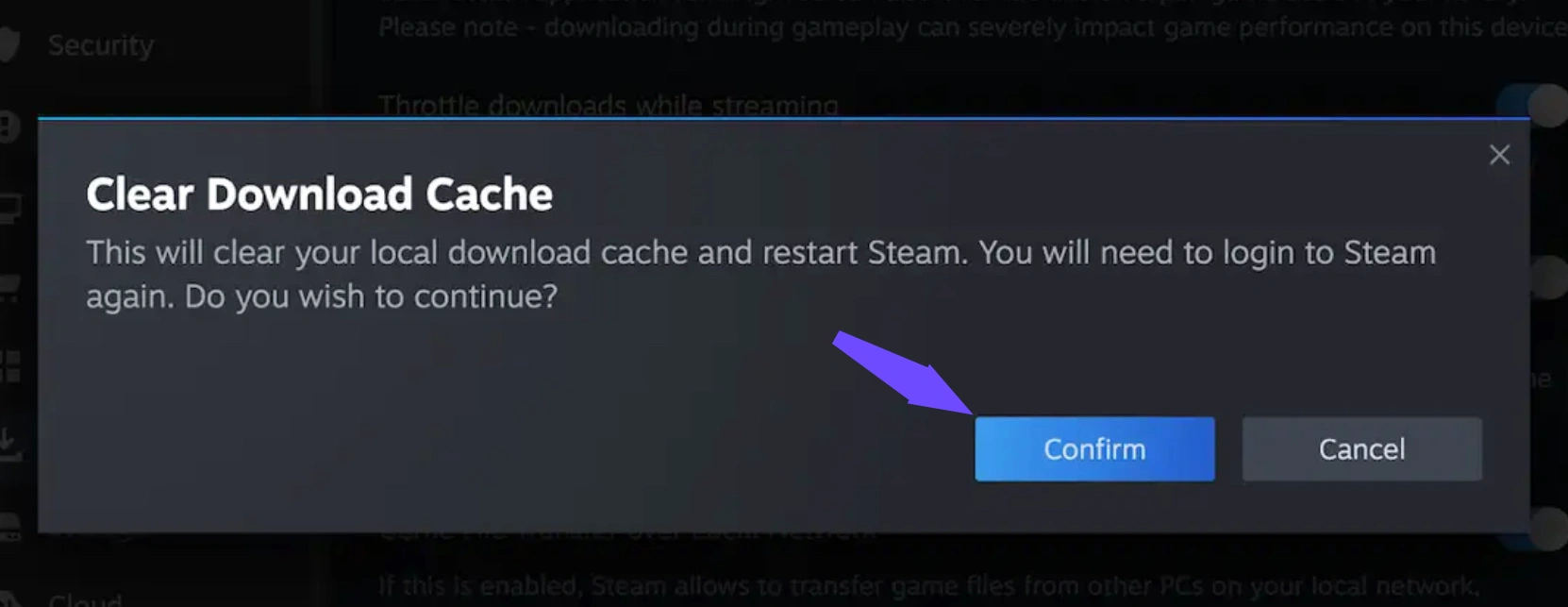
Step 5: Click Confirm on the pop-up warning. The client will automatically restart, and you will need to log back into your account.
Solution 2: Change Your Geographical Download Region
The nearest regional node is not always the fastest. Shifting your connection to a different location can completely bypass local outages.
Step 1: Launch the desktop application and click on Steam in the top menu.
Step 2: Open Settings and navigate directly to the Downloads tab.
Step 3: Locate the Download Region dropdown menu.
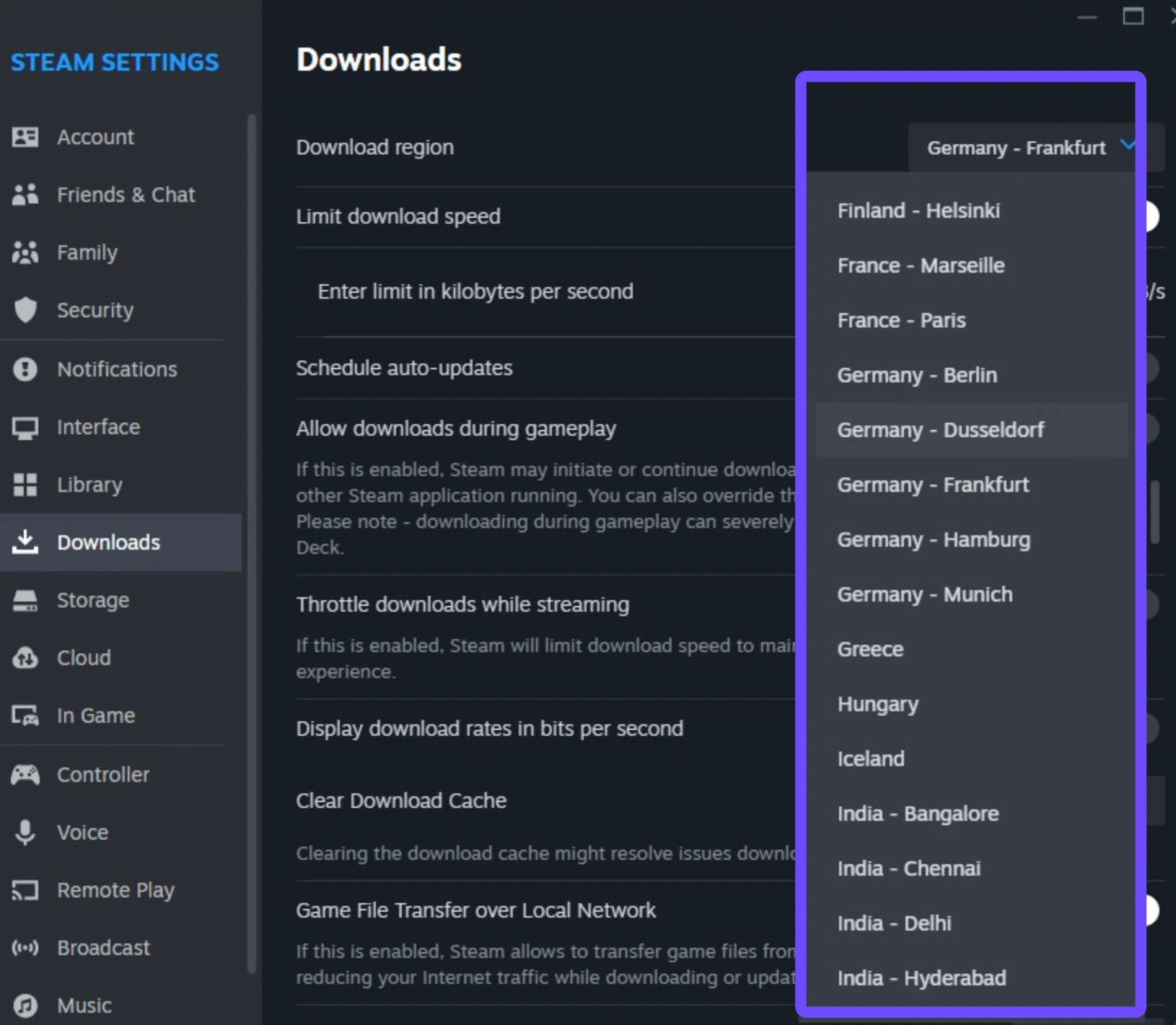
Step 4: Select a different city or neighboring country where local users are likely asleep or at work.
Step 5: Restart the application to apply the changes to your connection path.
Solution 3: Remove Built-In Bandwidth Restrictions
An accidental configuration checkmark can put a strict cap on your downloading throughput.
Step 1: Navigate to the Steam Settings panel.
Step 2: Open the Downloads configuration window.
Step 3: Look for the toggle switch labeled Limit download speed.
Step 4: Ensure this toggle is turned completely Off. If you must use a limit, ensure the numeric value is set high enough to match your connection.
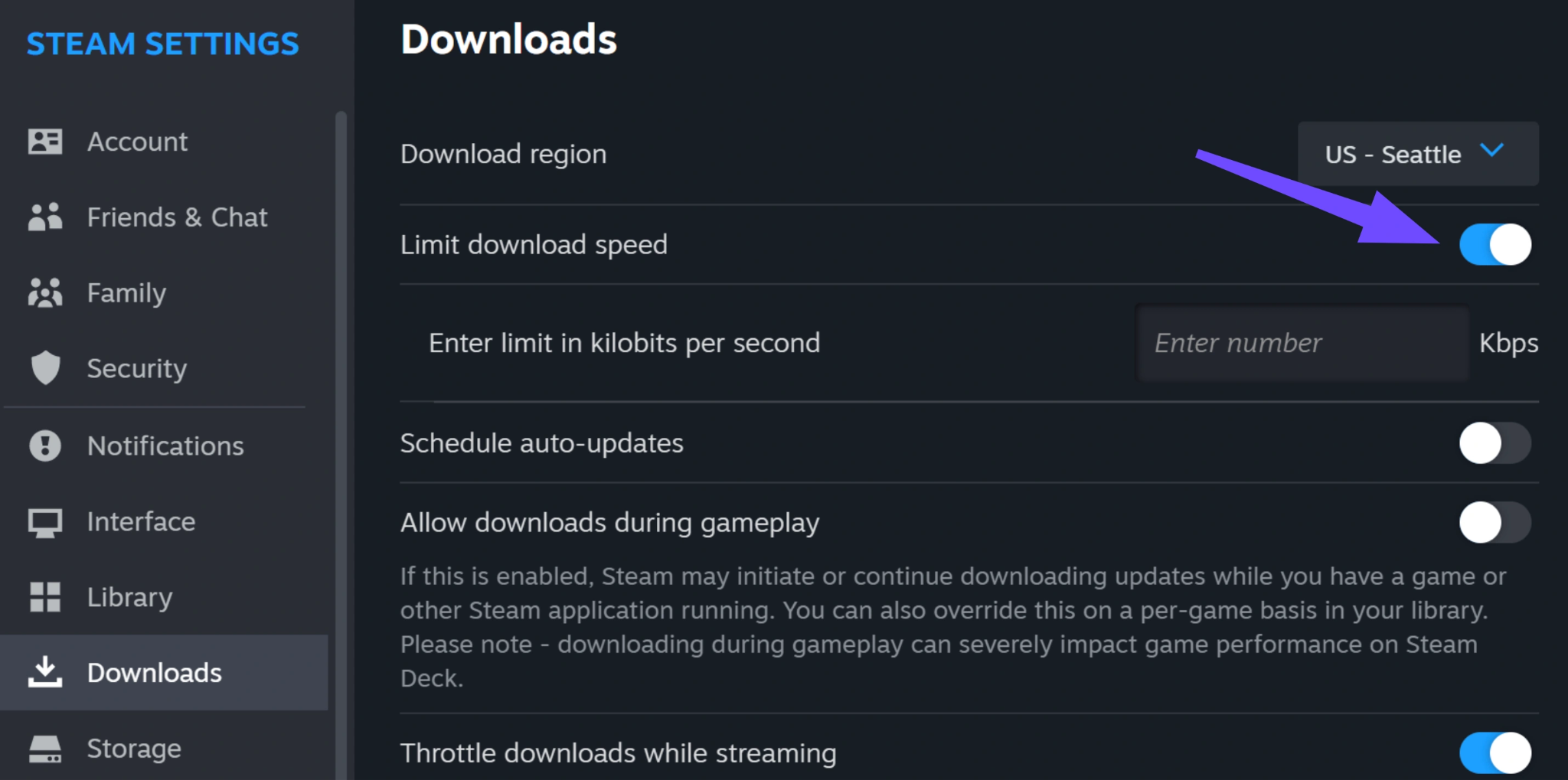
Step 5: Turn off the toggle for Throttle downloads while streaming to prevent performance drops during media playback.
Solution 4: Repair Your Steam Storage Library Folder
Corrupted system permissions in your game library folders can prevent your storage drive from writing data efficiently.
Step 1: Open the main Settings menu inside the application interface.
Step 2: Choose the Storage tab from the left sidebar navigation.
Step 3: Click on the specific storage drive path where your game files are being installed.
Step 4: Click the three dots menu icon (...) located on the right side of the storage bar display.
Step 5: Select Repair Folder and allow the operating system to fix any file write permission errors.
Part 4: Quickly Fix Steam Games Slow Download Speed With LagoFast
While manual troubleshooting can help, it often feels like a guessing game. If you want an immediate, hassle-free resolution, LagoFast is the ultimate game booster designed to tackle network optimization from the ground up.
LagoFast uses cutting-edge, proprietary network pathways engineered specifically for gaming traffic. It dynamically analyzes your current route to the Steam content delivery networks and automatically steers your traffic away from clogged public pipelines. This guarantees a stable, full-speed download experience without requiring you to manually dig through deep system files or continuously change server locations.
Key Features of LagoFast:
- Smart Multi-Path Technology: Automatically routes your connection through the fastest global server routes, effortlessly avoiding congested nodes and ISP throttling blocks.
- One-Click FPS Boost: Instantly cleans up background system resource allocation, optimizes CPU/GPU efficiency settings, and stabilizes frame delivery to eliminate stutters.
- High Ping Reducer: Lowers in-game latency by up to 80%, providing a highly competitive edge across thousands of online multiplayer titles.
- Real-Time Connection Stabilization: Actively protects your data stream against unexpected packet loss and sudden jitter spikes.
- Comprehensive Device Support: Works seamlessly across PC, mobile systems, and portable handheld units like the Steam Deck.
Tutorial to Use LagoFast to Fix Steam Games Slow Download Speed :
Step 1. Click on the "Free Trial" button to download the application.
Step 2. Open LagoFast and search for Steam.
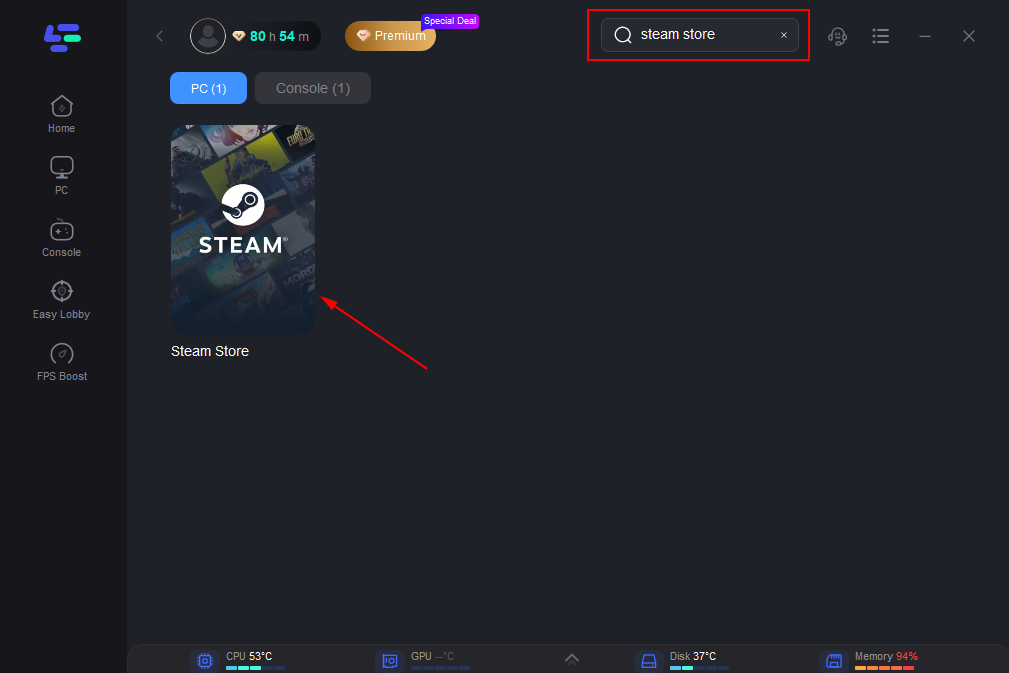
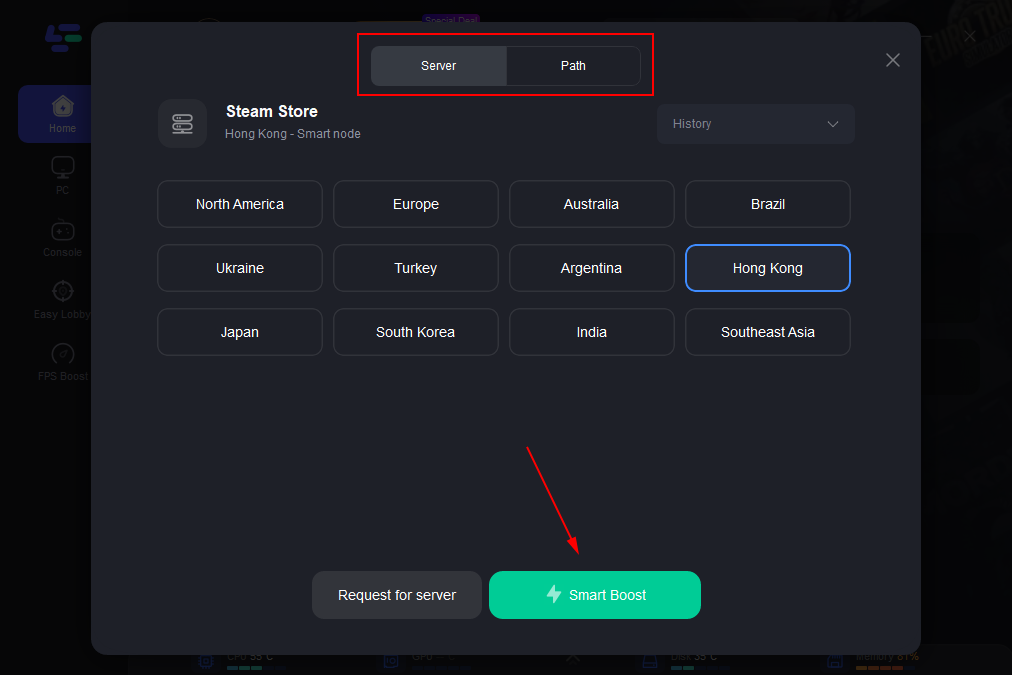
Step 3. Click on “Select Server” to choose the most stable servers available. Then, click on the “Node” on the right to select the best node for your connection.
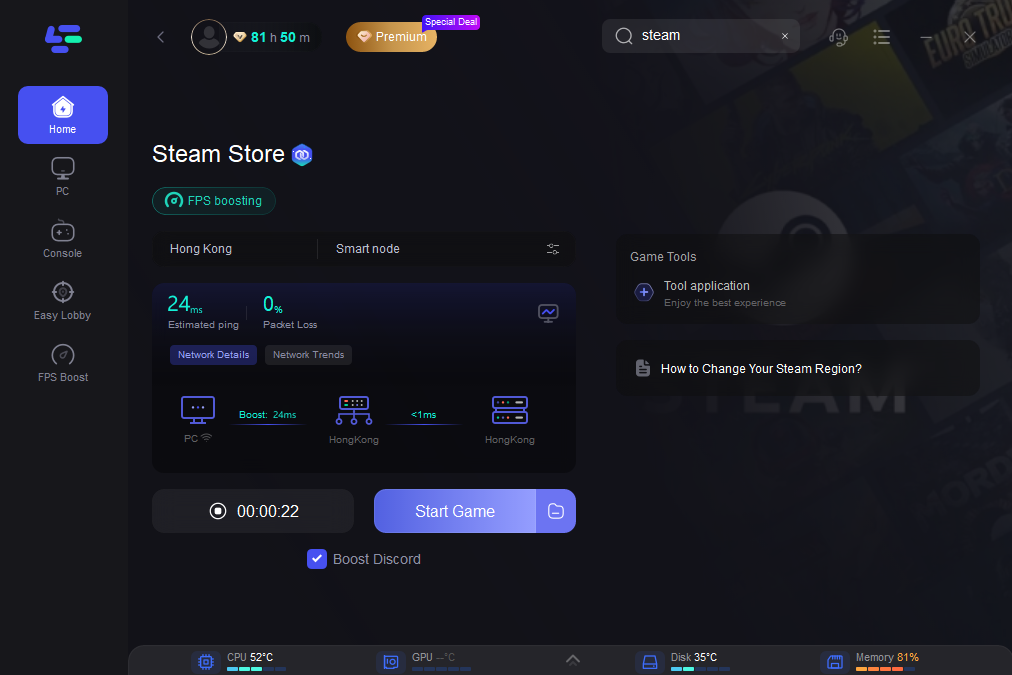
Step 4. Click the “Smart Boost” button to optimize your connection. LagoFast will display your game’s specific ping, packet loss, and network type on the right side, ensuring optimal performance.
Part 5: Manual Solutions VS LagoFast
The following data highlights how manual adjustments compare to the optimized automated routing offered by LagoFast under real-world network test conditions:
|
Performance Metric |
Default Settings |
Manual Troubleshooting |
LagoFast Optimization |
|
Average Download Speed |
15 MB/s to 35 MB/s |
40 MB/s to 65 MB/s |
110+ MB/s (Line Max Capacity) |
|
Stability & Speed Drops |
Highly unstable (frequent drops) |
Semi-stable (depends on hour) |
Rock-solid (continuous flat line) |
|
Setup Time Required |
None |
10 to 15 minutes of tweaking |
1-Click execution |
|
In-Game Advantages |
None (Download tweaks only) |
None (Download tweaks only) |
Drastic ping reduction + FPS boost |
Part 6: Bonus Tips: How to Fix Steam Download Speed Slow but Internet Fast
If web browsers and online speed tests show excellent results but your game downloads remain sluggish, your PC is likely struggling with data decompression or localized packet filtering. Try these advanced network adjustments:
- Switch to a Wired Ethernet Cable: Wireless connections are susceptible to local signal interference and packet loss. An Ethernet cable provides a direct, unshared pipe to your router, stabilizing massive file transfers.
- Disable Windows Power Throttling: Operating systems sometimes limit network card power to save energy. Go to your system power plan and switch to High Performance mode to ensure your network adapter runs at full power.
- Add Firewall and Antivirus Exceptions: Security software often checks files in real time as they arrive. This extra scanning process can create a severe bottleneck. Temporarily pausing your firewall or adding your installation folder to the exclusion list can instantly restore performance.
Part 7: FAQs
Why is my download speed lower on Steam than on regular internet speed tests?
Speed tests measure raw network bandwidth in megabits per second (Mbps), while Steam displays file transfer speeds in megabytes per second (MB/s). Because 1 byte equals 8 bits, a 100 Mbps internet connection will top out around 12.5 MB/s on Steam. If your speeds are lower than that conversion, an actual bottleneck exists.
Does clearing the download cache delete my installed games?
No. Clearing the cache only removes temporary setup files, download fragments, and cookie logs. Your actual library files, installed titles, and local save files remain completely safe.
Why does my download speed drop to 0 bytes per second while updating?
This occurs because the application installs highly compressed game files. When the download hits 0 B/s, it usually means your CPU and storage drive are busy unpacking and writing the downloaded data to your disk. Once the disk activity catches up, the download stream resumes automatically.
Will changing my download region affect my in-game matchmaking?
No. Your download region setting inside the client is completely separate from your regional in-game multiplayer servers. Changing this setting only alters the location from which your computer fetches installation files.
Should I limit my bandwidth in Steam to stabilize my home internet?
Only if other people in your household need to use the network for high-demand tasks like video calls or streaming while you download. If you want the absolute fastest completion time, make sure all bandwidth limits are turned completely off.
Why does my Steam download speed drop all the way to 0 bytes per second?
This behavior usually indicates that your CPU or hard drive is completely saturated with unpacking and installing the data chunks it just downloaded. The network stream halts momentarily while the green disk usage line on your Steam chart catches up.
Conclusion
A crawling download progress bar should never stand between you and your gaming sessions. By using the targeted manual steps outlined above, you can resolve basic local client hang-ups. For an optimized, reliable connection that completely bypasses regional traffic and ISP throttling, let LagoFast do the heavy lifting so you can spend less time waiting and more time playing.

Boost Your Game with LagoFast for Epic Speed
Play harder, faster. LagoFast game booster eliminates stutter and lags on PC, mobile, or Mac—win every match!
Quickly Reduce Game Lag and Ping!
Boost FPS for Smoother Gameplay!