

Quick Answer
If you’re seeing “Steam authentication failed,” it usually means Steam cannot verify your login due to unstable internet, server issues, or routing problems. The quickest fixes include restarting Steam, checking your connection, clearing cache, disabling VPNs, or using a network optimizer like LagoFast to improve routing and stabilize your connection to Steam servers.
Steam authentication errors are a common issue that can prevent players from logging in and accessing their games. Whether you’re seeing “Steam authentication failed,” “server auth failed steam authentication failed,” or other login-related errors, the underlying cause is often related to network instability, corrupted cache, VPN interference, or temporary server-side issues.
In this guide, we’ll go through the most reliable ways to identify the cause and apply practical fixes so you can regain access to your Steam account without unnecessary trial and error.
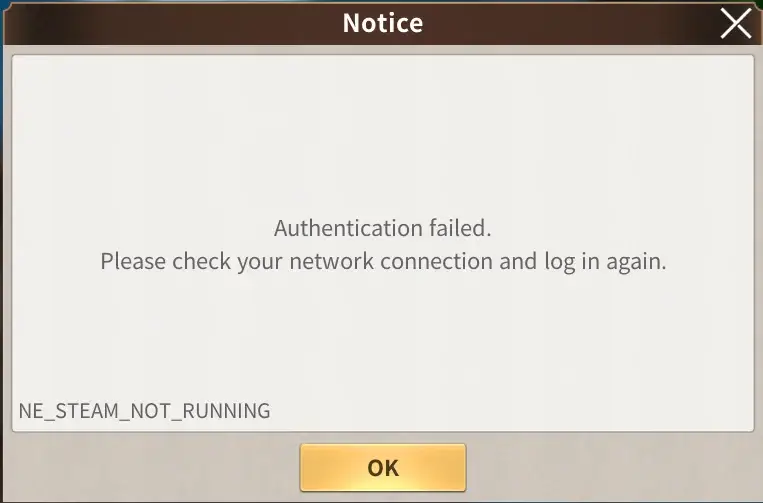
Part 1: What Causes Steam Authentication Failed Errors
Part 2: How to Fix Steam Authentication Failed (Step-by-Step)
Part 3: How LagoFast Helps With Steam Authentication Errors
Part 4: Real-World Example of Steam Authentication Failed and How It Was Resolved
Part 5: How to Prevent Steam Authentication Failed Errors in the Future (Pro Tips & Best Practices)
Part 1: What Causes Steam Authentication Failed Errors
The “steam authentication failed” or “server auth failed steam authentication failed” error occurs when Steam cannot complete the login verification process.
Network and Connection Issues
Unstable internet, packet loss, or intermittent Wi-Fi can interrupt authentication requests, leading to a failed auth error no connection situation.
Server-Side Authentication Problems
Steam servers may be temporarily down, overloaded, or under maintenance, which prevents successful login verification.
Corrupted Cache or Login Session
Outdated or corrupted cached data can interfere with new login attempts and trigger repeated authentication failures.
VPN or Routing Conflicts
VPNs or inefficient ISP routing paths can delay or block authentication requests, causing timeouts or login failures.
Part 2: How to Fix Steam Authentication Failed (Step-by-Step)
Fix 1: Restart Steam and Your Device
- Fully exit Steam
- Restart your PC or device
- Relaunch Steam and try logging in again
Fix 2: Check Your Internet Connection
- Use a stable connection (prefer wired Ethernet)
- Restart your router if needed
- Avoid unstable or shared networks
Fix 3: Clear Steam Download Cache
- Open Steam
- Go to Settings
- Click Downloads
- Select Clear Download Cache
- Log back in
Fix 4: Disable VPN or Proxy
- Turn off any VPN or proxy
- Retry logging in with a direct connection
- Avoid routing traffic through unstable regions
Fix 5: Verify Steam Server Status
- Check if Steam servers are online
- If servers are down, wait and try again later
Fix 6: Reinstall Steam (Last Resort)
- Uninstall Steam completely
- Download the latest version from the official site
- Reinstall and log in again
Part 3: How LagoFast Helps With Steam Authentication Errors
In some cases, Steam authentication fails not because of account issues but due to unstable routing between your network and Steam servers. In these situations, improving connection stability can make a noticeable difference.
LagoFast helps by:
- Optimizing the network path to Steam servers
- Reducing packet loss and connection instability
- Improving routing efficiency for login requests
- Minimizing authentication timeouts
This is especially useful when repeated login attempts fail despite having a stable local internet connection.
How to Use LagoFast Fix Steam Authentication Errors
Step 1: Click the Free Trial button to download and install LagoFast.
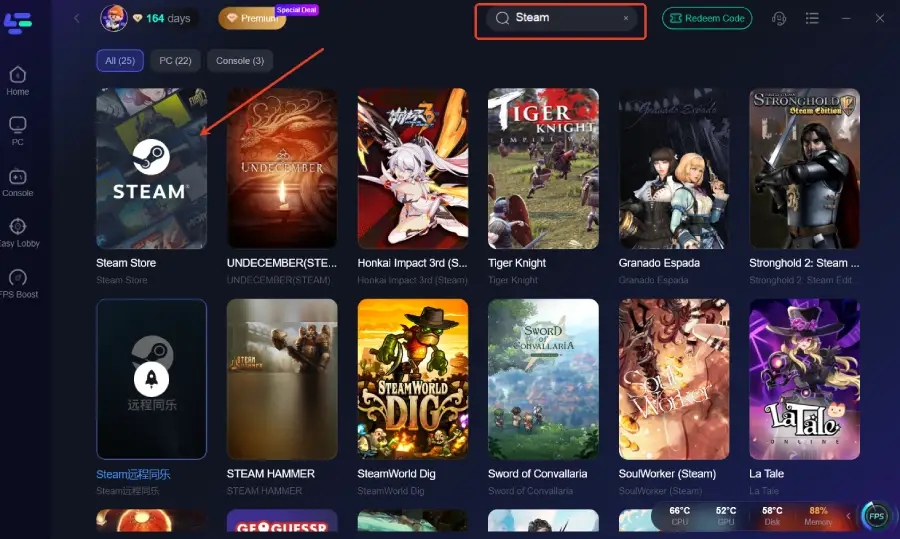
Step 2: After installation, search "Steam Store" in the search bar and select the game.
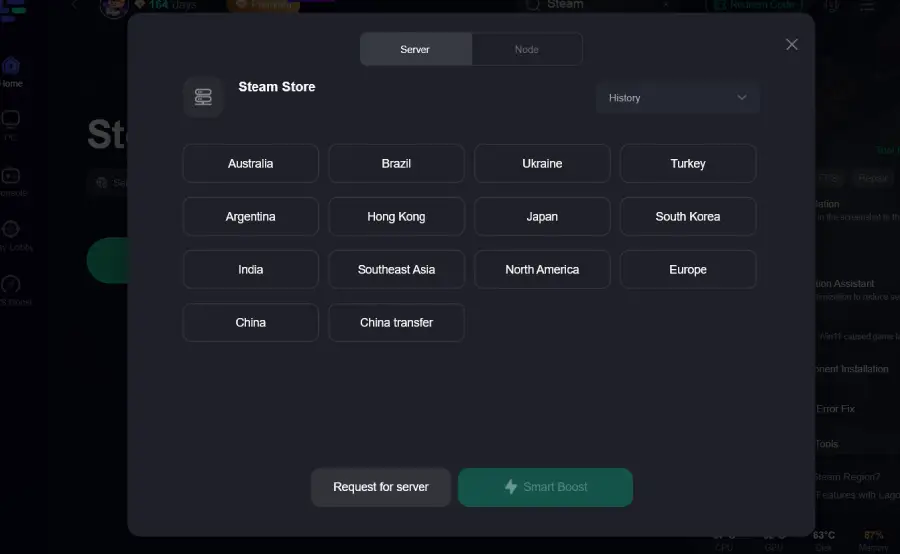
Step 3: Choose your preferred server node and click "Smart Boost" to start optimizing.
Step 4: Launch Steam and try logging in again.

Part 4: Real-World Example of Steam Authentication Failed and How It Was Resolved
A player kept running into the “Steam authentication failed” error even though their password was correct and their internet worked fine for other apps. Basic fixes didn’t fully solve the problem, so they tried a few different approaches before identifying the root cause.
- Restarted Steam — no improvement
- Cleared Steam cache — no improvement
- Disabled VPN — slight improvement, but still inconsistent
- Checked network behavior—issues appeared more often during peak hours
After reviewing the situation, the issue was traced to unstable routing between their ISP and Steam’s servers. The connection wasn’t completely down, but it wasn’t stable enough to consistently complete the authentication process.
Once the connection path became more stable, Steam was able to verify the login properly, and the error stopped occurring.
Part 5: How to Prevent Steam Authentication Failed Errors in the Future (Pro Tips & Best Practices)
Preventing Steam authentication errors mainly comes down to keeping your connection stable and avoiding factors that can disrupt the login process.
- Use a stable network: Prefer a wired Ethernet connection over Wi-Fi, and avoid switching networks during login.
- Reduce background traffic: Close downloads, streaming, or cloud sync apps that may consume bandwidth.
- Avoid unstable VPNs: VPNs can add latency and affect routing; use them only if necessary and ensure they are reliable.
- Clear Steam cache occasionally: This helps remove outdated session data that may interfere with authentication.
- Be mindful of routing issues: If problems happen at certain times, it may be due to network routing rather than your device.
Part 6: FAQs
1. Why does Steam say authentication failed?
Steam cannot verify your login due to network issues, server problems, or corrupted session data.
2. What does “failed auth error no connection” mean?
It indicates Steam cannot establish a stable connection to its authentication servers.
3. Can Steam servers cause authentication errors?
Yes, server outages or maintenance can temporarily prevent successful login attempts.
4. Does clearing Steam cache fix authentication issues?
Yes, corrupted cache is a common cause and clearing it often resolves the problem.
5. Why does Steam login fail even with the correct password?
Because authentication depends on both credentials and successful server communication, not just password correctness.
Conclusion
Steam authentication errors are usually caused by a combination of network instability, routing inefficiencies, corrupted cache, or temporary server issues. By following structured troubleshooting steps and maintaining a stable connection environment, most users can resolve these errors quickly. Understanding both immediate fixes and long-term prevention strategies ensures a smoother and more reliable Steam login experience.
Boost Your Game with LagoFast for Epic Speed
Play harder, faster. LagoFast game booster eliminates stutter and lags on PC, mobile, or Mac—win every match!
Quickly Reduce Game Lag and Ping!
Boost FPS for Smoother Gameplay!