
Few things are more frustrating for competitive players than launching Counter-Strike 2 and immediately seeing a startup error. One of the most common launch problems reported by PC players is the Counter-Strike 2 Fatal Error: Failed to connect with local Steam Client process. When this error appears, the game fails to initialize and returns to the desktop before the main menu loads.
This guide explains why the CS2 Failed to Connect with Local Steam Client Process error occurs, what triggers it, and how to resolve it with proven solutions. It also includes optimization tips and troubleshooting methods that experienced PC players commonly use to fix similar launch issues.

- ✅ Reduce Lag and High Ping.
- ✅ Boost FPS at the Same Time.
- ✅ Add CSGO to Steam Library.
- ✅ Change Server Without Latency.
- ✅ End All Connection crash Issues.
- ✅ Multiplatform: PC, Mobile, Console.
Part 1. What Causes the CS2 Failed to Connect with Local Steam Client Process Error?
Part 2. Typical Symptoms of the Counter-Strike 2 Fatal Error
Part 3. How To Fix CS2 Fatal Error Failed To Connect With Local Steam Client Process
Part 4. How to Enhance Your Game Experience with LagoFast Game Booster
Part 5. Preventing Future CS2 Steam Client Errors
Part 1. What Causes the CS2 Failed to Connect with Local Steam Client Process Error?
The error Counter-Strike 2 Fatal Error: Failed to connect with local Steam Client process appears when the game cannot communicate properly with the Steam client running in the background.
Normally, the startup sequence looks like this:
- Steam launches Counter-Strike 2
- CS2 verifies the active Steam session
- The game receives authentication tokens
- Game services initialize and load
When step 2 fails, CS2 displays the CS2 Failed to Connect with Local Steam Client Process message.
Common causes include:
- outdated Steam client
- corrupted game files
- antivirus interference
- background software conflicts
- launching the game outside Steam
In some cases, running the executable directly instead of launching it from the Steam library can also trigger the error because Steam authentication is required for the game to start properly.
Part 2. Typical Symptoms of the Counter-Strike 2 Fatal Error
Players experiencing this issue usually notice one or more of the following symptoms:
- CS2 launches but immediately closes
- a pop-up message shows Fatal Error: Failed to connect with local Steam Client process
- the Steam library briefly shows “Running” then returns to “Play”
- launching the executable directly triggers the same error
Community reports also show that running the game executable manually often triggers the exact message referencing the Steam client connection failure.
The error can occur after:
- a Steam update
- driver updates
- installing third-party overlays
- reinstalling the game
Understanding the symptoms helps identify the correct troubleshooting approach.
Part 3. How To Fix CS2 Fatal Error Failed To Connect With Local Steam Client Process
Below are the most reliable methods used by PC players to fix the issue.
1. Restart Steam Completely
Many Steam-related errors occur because background Steam processes remain active even after closing the application.
Proper restart steps:
- Exit Steam completely
- Open Task Manager
- End all Steam processes
- Relaunch Steam
- Launch CS2 again
Restarting Steam refreshes authentication services and often resolves the error.
2. Verify Counter-Strike 2 Game Files
Corrupted or incomplete game files can prevent the Steam client handshake from completing.
Steps:
- Open Steam Library
- Right-click Counter-Strike 2
- Select Properties
- Open Installed Files
- Click Verify integrity of game files
This scan repairs missing or corrupted files.
Verifying game files is widely recommended for resolving CS2 connection and launch errors.
3. Update the Steam Client
Running an outdated Steam version may cause authentication failures.
Steps:
- Open Steam
- Click Steam in the top menu
- Select Check for Steam Client Updates
- Restart Steam
Keeping Steam updated ensures compatibility with the latest CS2 build.
4. Disable Antivirus or Firewall Temporarily
Security software can mistakenly block communication between CS2 and Steam.
Possible conflicts include:
- Windows Defender
- third-party antivirus tools
- firewall restrictions
Some antivirus programs may block Steam processes or game authentication connections.
To test this:
- Disable antivirus temporarily
- Launch CS2 again
- If the error disappears, add Steam and CS2 as exclusions
5. Close Conflicting Background Programs
Some applications interfere with Steam-based games.
Common examples:
- hardware monitoring tools
- overlay software
- performance tuning programs
Players have reported launch failures when monitoring software hooks into the game process.
Recommended step:
- Close unnecessary background apps
- restart Steam
- launch CS2 again
6. Launch the Game Only Through Steam
Launching the executable directly may trigger the local Steam client process error.
Always start CS2 from:
Steam Library → Counter-Strike 2 → Play
This ensures the Steam authentication system initializes correctly.
Part 4. How to Enhance Your Game Experience with LagoFast Game Booster
Even after fixing launch errors, many players experience network instability, packet loss, or high latency during gameplay. Tools such as LagoFast (LagoFast Game Booster - Get No Lag and Lower Ping) Game Booster help optimize network routing between your PC and CS2 servers. Stable connections improve matchmaking reliability and reduce network-related issues
Key advantages include:
- optimized routing to Valve servers
- reduced packet loss
- lower latency during matches
- stable connection for competitive gameplay
How to Use LagoFast Game Booster
Step 1: Click the Free Trial button to download and install LagoFast Free Trial.
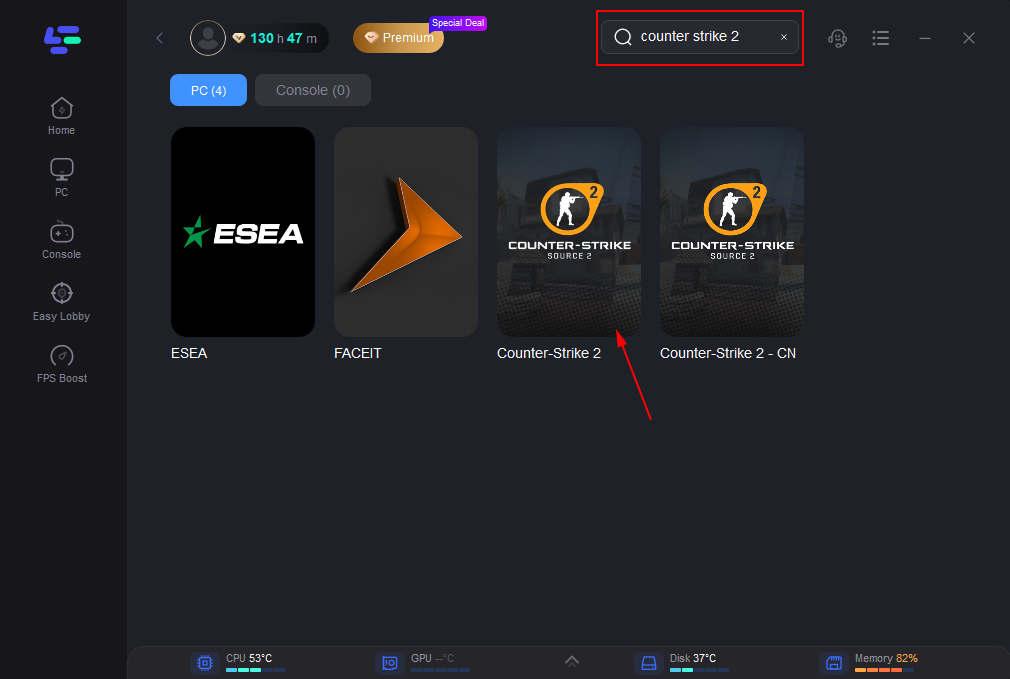
Step 2: Search for Counter-Strike 2 in the game library.
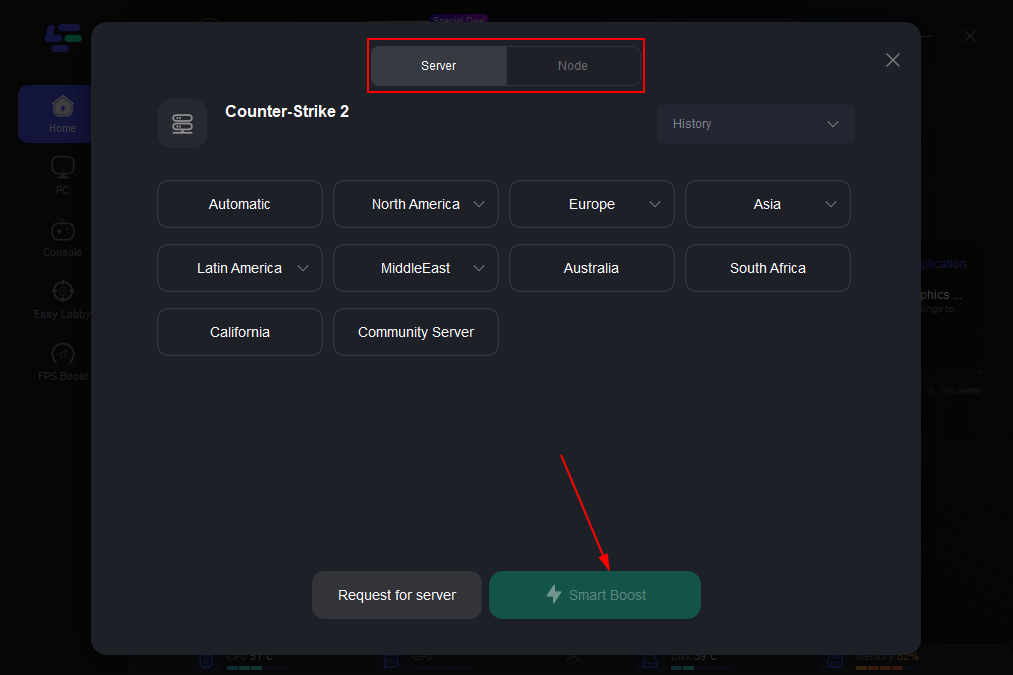
Step 3: Select the recommended server route, and select the recommended server route.
Step 4: Launch CS2 through the LagoFast interface, join matchmaking or community servers.
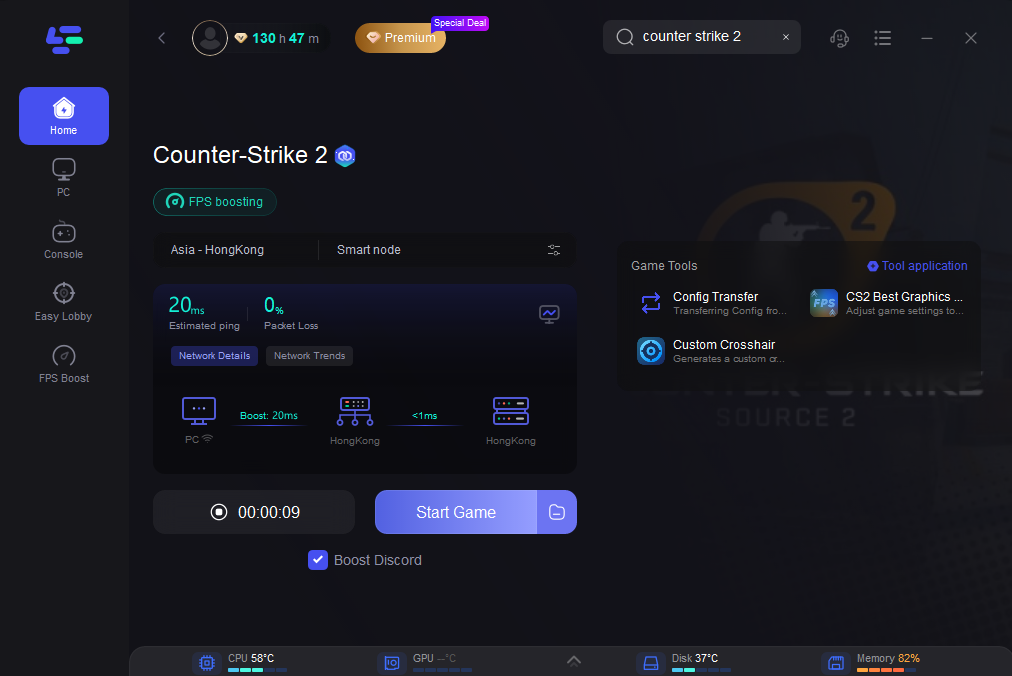
With optimized routing, players often experience smoother gameplay and fewer connection problems.
Part 5. Preventing Future CS2 Steam Client Errors
To reduce the chance of encountering the CS2 Failed to Connect with Local Steam Client Process error again, consider the following best practices:
- keep Steam updated
- verify game files after major updates
- avoid launching games outside Steam
- disable unnecessary overlays
- keep drivers updated
Regular maintenance helps keep the game stable and prevents many startup errors.
Part 6. FAQs
1. Why does CS2 say Failed to connect with local Steam Client process?
This error appears when Counter-Strike 2 cannot communicate with the running Steam client during startup authentication.
2. Can launching the game outside Steam cause this error?
Yes. If you run the executable directly instead of launching from the Steam library, the game cannot authenticate your Steam session.
3. Does verifying game files fix the issue?
In many cases, yes. Corrupted game files can prevent proper communication between CS2 and the Steam client.
4. Can antivirus software cause this problem?
Yes. Some antivirus tools block Steam processes or game authentication services.
5. Should I reinstall CS2 to fix this error?
Reinstalling is usually unnecessary. Most players resolve the problem through Steam updates, file verification, or closing conflicting programs.
Conclusion
The Counter-Strike 2 Fatal Error: Failed to connect with local Steam Client process is a launch-time issue related to Steam authentication. It usually occurs when the game cannot communicate with the Steam client running on the system.

Boost Your Game with LagoFast for Epic Speed
Play harder, faster. LagoFast game booster eliminates stutter and lags on PC, mobile, or Mac—win every match!
Quickly Reduce Game Lag and Ping!
Boost FPS for Smoother Gameplay!