
Quick Answer: How to Fix Spiritvale Low FPS?
The fastest way to eliminate low FPS, stuttering, and massive lag spikes in Spiritvale is by optimizing your system resources and network route simultaneously. While adjusting Windows graphics properties can provide a slight lift, using a dedicated performance optimizer like LagoFast Game Booster instantly clears background bottlenecks, stabilizes your frame rate, and provides a seamless one-click solution to unlock your hardware's full potential.
Introduction
Baikun Interactive’s class-based action MMO, Spiritvale, brings the classic magic of retro RPG combat into a vibrant, fast-paced multiplayer world. However, challenging high-tier bosses or trading in crowded player marketplaces becomes incredibly frustrating when your screen suddenly freezes or your frame rate drops into the single digits. If sudden performance drops are getting your character killed in the arena, this guide will walk you through the precise steps needed to restore smooth, fluid gameplay.

- ✅ Reduce Lag and High Ping.
✅ Boost FPS at the Same Time.
✅ Support 8000+ Popular Online Games.
✅ Change Server without Latency.
✅ Boost Game Loading Speed.
Part 1: Spiritvale Low FPS Overview
Part 2: Manually Fix Spiritvale Low FPS – Top Solutions
Part 3: Why Manual Solutions Always Fail for Spiritvale Low FPS
Part 4: One Click to Fix Spiritvale Low FPS – 100% Working Solution
Part 5: Spiritvale System Requirements For Best Performance
Part 1: Spiritvale Low FPS Overview
To understand why your frame rates are tanking during intensive PvE raids or high-population area explorations, it helps to examine the common indicators, underlying triggers, and direct solutions.
|
Performance Symptom |
Potential Root Cause |
Recommended Action |
|
Micro-stuttering during combat |
Windows allocating power to background tasks or game using integrated graphics. |
Set Windows Power Mode to High Performance and force dedicated GPU usage. |
|
Sudden FPS drops in crowded towns |
CPU/RAM bottlenecks caused by too many players rendering simultaneously. |
Clear active background processes via Task Manager and optimize memory allocation. |
|
Constant low frame rate (under 30 FPS) |
Outdated display drivers or active heavy post-processing effects like bloom and vignette. |
Perform a clean graphic driver installation and lower in-game visual presets. |
|
Consistent hardware overheating |
Thermal throttling due to dust accumulation or uncapped frame rates forcing 99% GPU utilization. |
Limit maximum frame rates in your graphics control panel and check system temperatures. |
Part 2: Manually Fix Spiritvale Low FPS – Top Solutions
If you prefer to dig into your PC settings to squeeze out extra frames, follow these step-by-step manual troubleshooting methods.
Solution 1: Force Spiritvale to Use Your Dedicated Graphics Card
Many Windows laptops and desktops erroneously assign indie MMOs to the CPU's integrated graphics rather than your powerful dedicated graphics card, choking your visual performance.
Step 1: Press the Windows Key, type Graphics settings, and press Enter.
Step 2: Under the Custom options for apps section, click on Browse.
Step 3: Navigate to your Steam installation directory, find the main executable file (Spiritvale.exe), select it, and click Add.
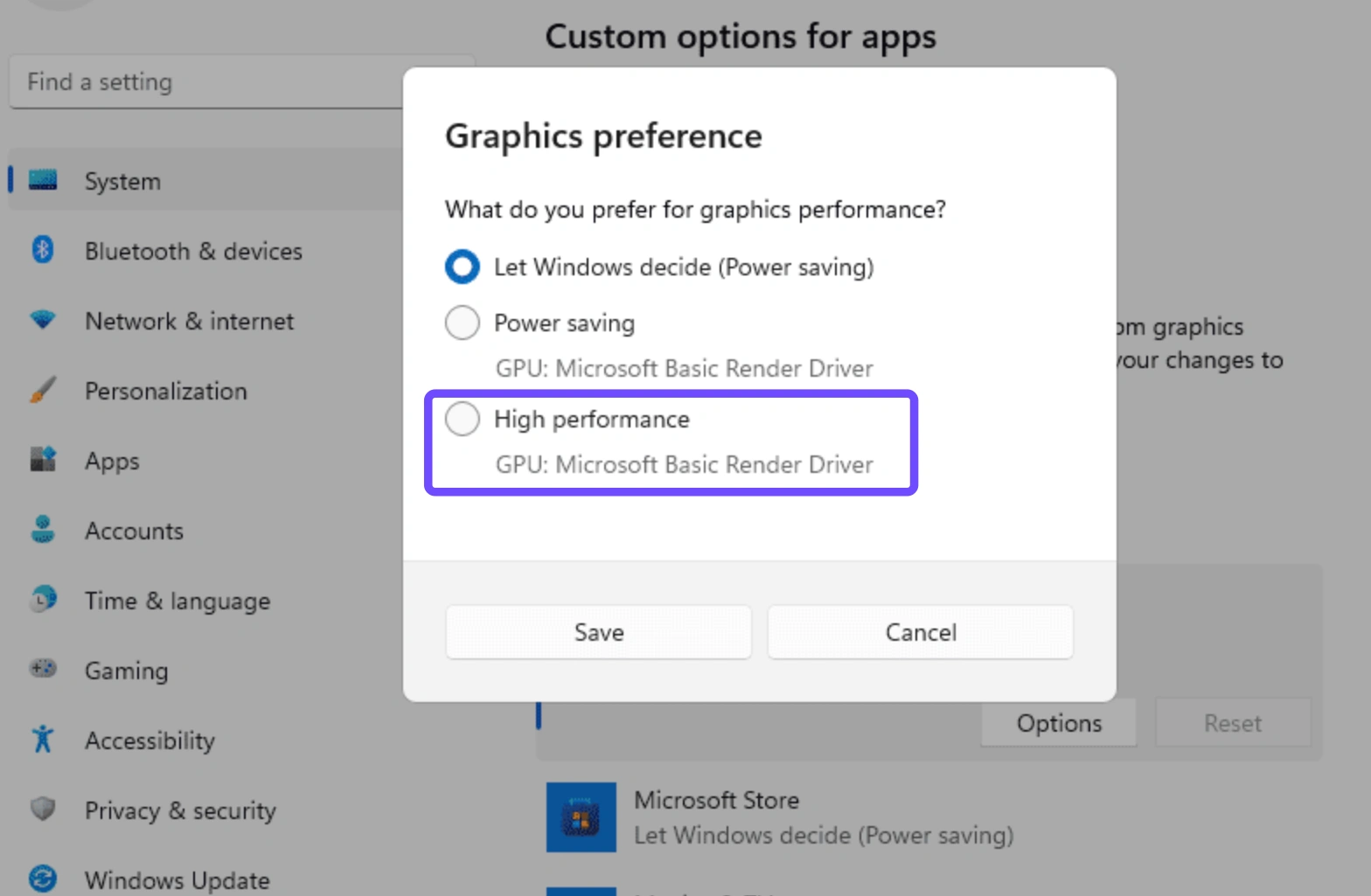
Step 4: Once the game appears in the list, click on it and select Options.
Step 5: Change the preference setting to High Performance (which targets your NVIDIA or AMD card), then click Save and restart the game.
Solution 2: Change Windows Power Management to High Performance
By default, your operating system is calibrated to save energy, which means it will intentionally throttle components to keep your computer running quiet and cool.
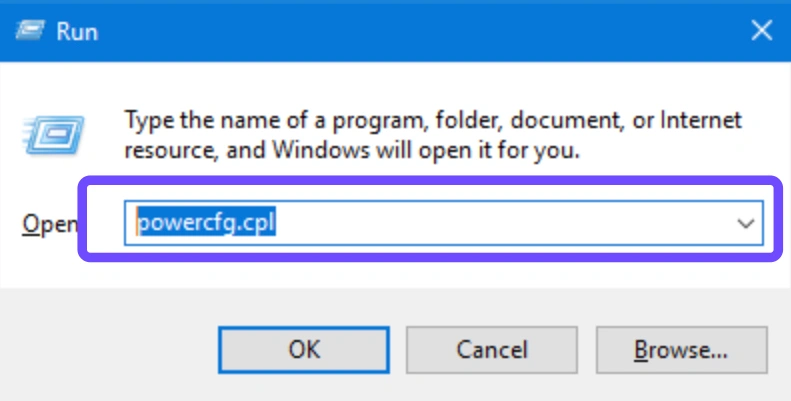
Step 1: Press the Windows Key + R simultaneously to open the Run dialogue box.
Step 2: Type powercfg.cpl into the text field and hit Enter to open the Power Options menu.
Step 3: Look for the High Performance plan option. If it is hidden, expand the Show additional plans drop-down arrow.
Step 4: Select the bubble next to High Performance to ensure your CPU operates at maximum capacity.
Step 5: Close out of the window and check if your in-game frame pacing feels noticeably smoother.
Solution 3: Perform a Clean Installation of Your GPU Drivers
Simply downloading an update over an existing graphics configuration can leave behind corrupted setup files that trigger sudden frame drops.
Step 1: Head directly to the official download page for NVIDIA, AMD, or Intel depending on your hardware.
Step 2: Search for your exact model, download the latest stable driver package, and open the installer.
Step 3: Choose the Custom (Advanced) installation method rather than the Express pathway.
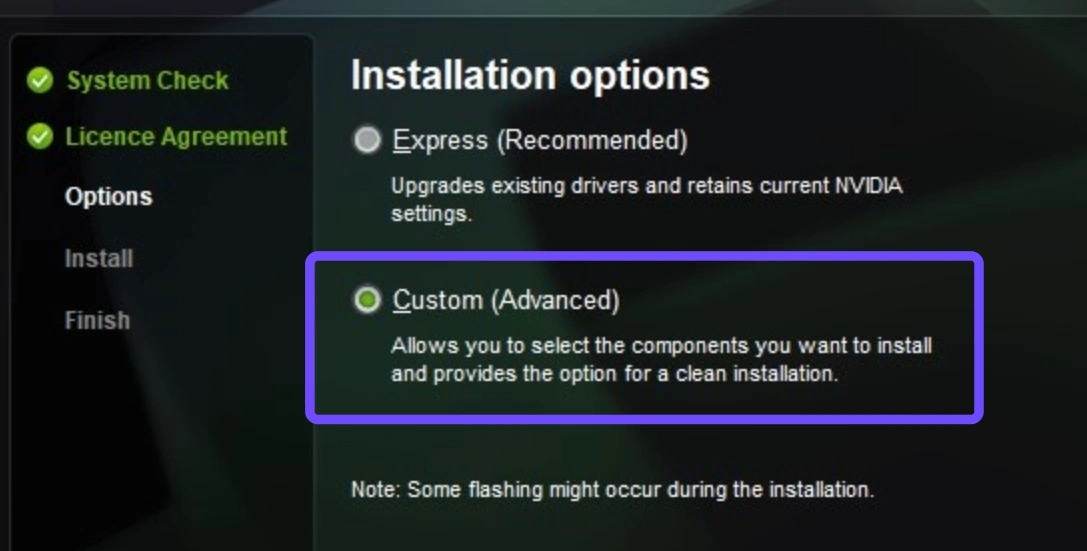
Step 4: Look closely for a checkbox that reads Perform a clean installation and make sure it is checked.
Step 5: Let the wizard completely wipe out your old configurations, restart your computer when prompted, and launch the game.
Solution 4: Tweak Visual Effects and Cap the Game Framerate
Uncapped framerates can quickly max out your graphics card usage, causing high temperatures and immediate thermal throttling.
Step 1: Launch Spiritvale and open the in-game settings menu.
Step 2: Turn off heavy post-processing effects like Bloom, Vignette, and Color Correction, which consume a massive amount of video memory.
Step 3: Open your respective graphics control software (such as the NVIDIA Control Panel or AMD Adrenalin Edition).
Step 4: Go to global or program-specific settings, locate Max Frame Rate, and set it to match your monitor's native refresh rate (e.g., 60Hz or 144Hz).
Step 5: Save the adjustments to stop your system from overheating and plunging your performance.
Part 3: Why Manual Solutions Always Fail for Spiritvale Low FPS
While manual changes can help your computer run a bit more efficiently, they frequently fall short when dealing with dynamic online environments. First, manual configurations fail to address hidden background processes that periodically wake up, hogging your CPU and RAM right during crucial competitive matches.
Second, Windows updates regularly overwrite your custom graphics preferences without your consent, forcing you to reapply the fixes repeatedly. Finally, manual tweaks cannot fix the complex relationship between regional server lag and physical hardware rendering. If your connection to the game host is weak, your system will experience severe mechanical stuttering that no basic driver update can solve.
Part 4: One Click to Fix Spiritvale Low FPS – 100% Working Solution
To bypass tedious system adjustments and guarantee a silky-smooth experience, relying on a professional tool is your smartest move. LagoFast Game Booster is an elite performance utility crafted to wipe out complex hardware stuttering and connection issues in real time.
LagoFast bypasses the limitations of standard Windows tools by automatically shifting your operating system into an exclusive gaming state. It clears out non-essential background processes, prioritizes your game's data streams, and stabilizes your system resources so you can enjoy uninterrupted gameplay.
Key Performance Benefits:
- One-Click FPS Boost: Instantly cleans temporary system cache files, stops resource-hogging background applications, and maximizes your CPU and GPU allocation with a single click.
- High Ping Reducer: Implements smart multi-path technology to scan global networks, steering your connection through the fastest, most direct server routes to bypass congestion.
- Packet Loss Mitigation: Actively guards against random data loss, ending rubber-banding and visual freezing in populated hubs.
- Global Network Nodes: Provides an extensive array of worldwide connection options, ensuring consistent local server access no matter where you live.
Tutorial to Use LagoFast to Fix Spiritvale Low FPS:
Step 1: Click the Free Trial button to download and install LagoFast.
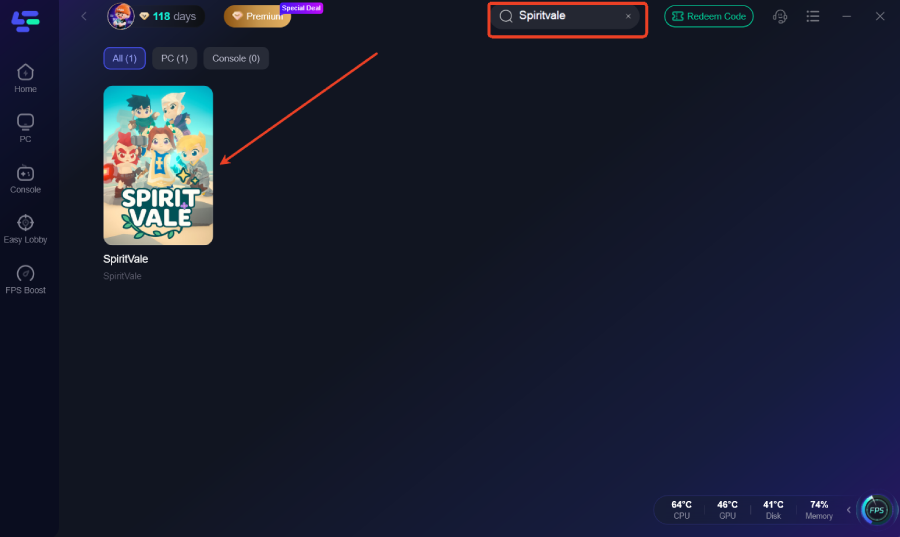
Step 2: After installation, search "SpiritVale" in the search bar and select the game.
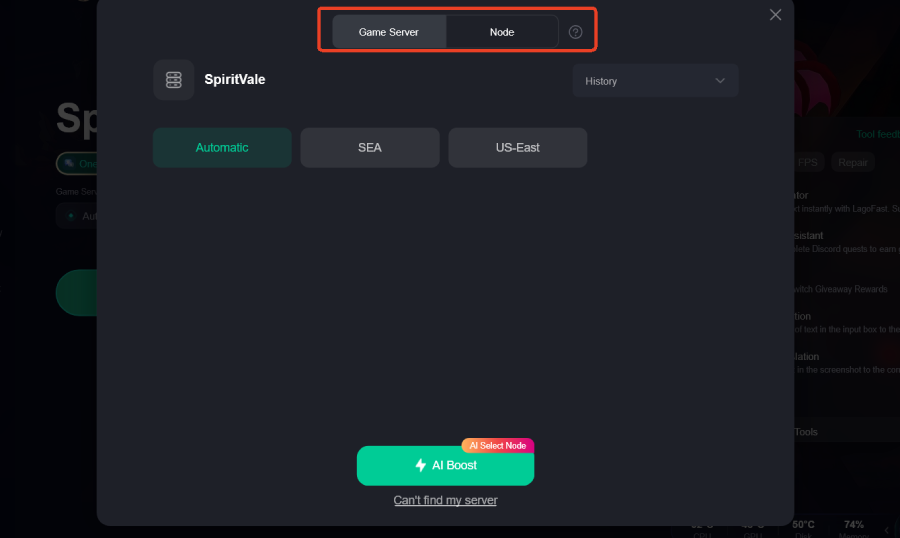
Step 3: Choose your preferred server node and click "Smart Boost" to start optimizing.
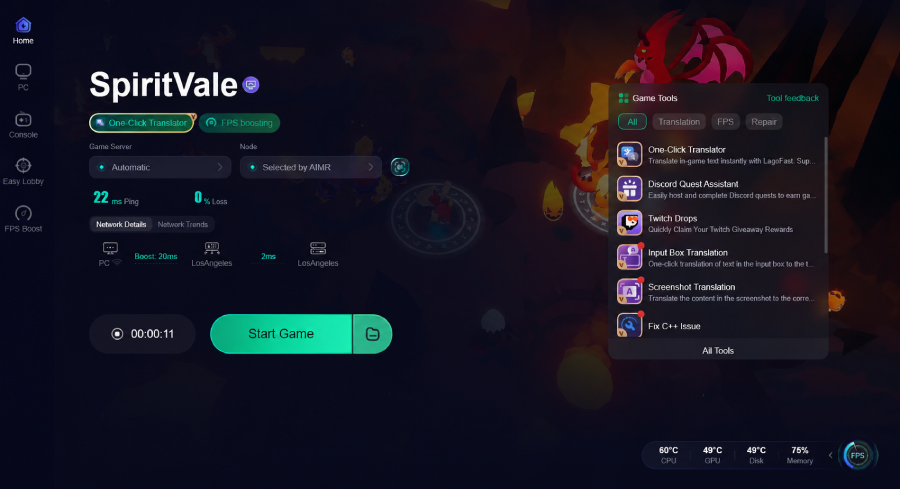
Step 4: Launch your game and enjoy smooth, optimized gameplay with lower ping and no stutter.
Part 5: Spiritvale System Requirements For Best Performance
To determine whether your underlying components are fully equipped to run the game efficiently, review the official system criteria detailed below:
|
System Component |
Minimum Requirements |
Recommended Specifications |
|
Operating System |
Windows 10 (64-bit) |
Windows 10 / 11 (64-bit) |
|
Processor (CPU) |
Intel Core i5 or equivalent |
Intel Core i7 or equivalent |
|
System Memory |
4,000 MB (4 GB) RAM |
4,000 MB (4 GB) RAM or higher |
|
Graphics Card (GPU) |
NVIDIA GTX 660 / AMD Radeon HD 7870 |
NVIDIA GTX 1060+ or modern equivalent |
|
DirectX Version |
Version 11 |
Version 11 |
|
Storage Capacity |
4,000 MB (4 GB) available space |
4,000 MB (4 GB) available space |
|
Internet Setup |
Broadband Internet connection |
High-speed Broadband connection |
Part 6: FAQs
Why is my GPU hitting 99% usage while playing Spiritvale?
Because Spiritvale features a charming, classic artistic style, an uncapped frame rate will instruct your GPU to push out as many frames as it humanly can. This forces the card to max out its capacity. Capping your framerate to match your display refresh rate resolves this immediately.
Can network lag cause low FPS drops in an MMO like Spiritvale?
Yes. When your PC is waiting to receive character location or combat action data packets from a distant server, the game engine can stutter visually while waiting to process that data. This creates a phenomenon that looks exactly like a hardware frame drop.
Will lowering my resolution fix the persistent micro-stutters?
Lowering your resolution can alleviate stress on older graphics cards. However, if the stuttering continues, it is likely caused by CPU bottlenecks from managing multiple online players on screen or background Windows tasks interfering with the game thread.
Is it safe to use a clean installation option for my display drivers?
Absolutely. A clean installation simply removes old, obsolete configuration files that might be conflicting with newer game builds. It does not harm your hardware and is a highly recommended practice for keeping a gaming PC healthy.
Does turning off VSync improve performance or cause screen tearing?
Turning off VSync can eliminate input delay and unlock higher frame rates, but it often introduces noticeable screen tearing. If you struggle with severe stuttering, consider turning off VSync and applying a manual frame limit instead.
Will upgrading to Windows 11 fix my stuttering issues?
Windows 11 features improved hardware scheduling for newer processors. While it can help stabilize frame times, it won't fix core issues like network lag or background software cluttering your resources.
Conclusion
Overcoming bad performance in Spiritvale doesn't require a brand-new computer setup. By identifying underlying software conflicts, clean installing vital drivers, and utilizing LagoFast Game Booster to safely handle your PC optimization tasks automatically, you can permanently eliminate low frame rates. Secure your setup, clean up your resource pathways, and jump back into the boss arenas with absolute confidence!
Boost Your Game with LagoFast for Epic Speed
Play harder, faster. LagoFast game booster eliminates stutter and lags on PC, mobile, or Mac—win every match!
Quickly Reduce Game Lag and Ping!
Boost FPS for Smoother Gameplay!