

Slay the Spire 2 builds on the deck-building roguelike formula that made the original game so popular. But for some players, the experience stops before it even begins. You click Play on Steam, expecting to start a run, and nothing happens—or the game launches for a moment and crashes straight to desktop. If you’re running into issues like Slay the Spire 2 won’t start, crashes on launch, or the game simply won’t launch on Steam, you’re not alone. This guide walks through the most common causes and the easiest ways to get the game running again.

- ✅ Reduce Lag and High Ping.
✅ Boost FPS at the Same Time.
✅ Support 2000+ Popular Online Games.
✅ Change Server without Latency.
✅ Boost Game Loading Speed.
Part 1: Common Slay the Spire 2 Won’t Start Problems
Part 2: Why Slay the Spire 2 Won’t Start or Crashes on Launch
Part 3: How to Use LagoFast to Fix Slay the Spire 2 Won't Start
Part 4: Step-by-Step Fixes for Slay the Spire 2 Won't Start & Not Launching
Part 1: Common Slay the Spire 2 Won’t Start Problems
When players say they can’t run Slay the Spire 2, the issue usually shows up in a few common ways.
- You click Play on Steam, the button briefly changes to "Running," and then switches back again. The game window never appears.
- The game tries to launch but crashes immediately, sending you straight back to the desktop.
- A black screen appears for a few seconds, and then the game crashes on its own. Even after redownloading the game, restarting Steam, or checking the local files, the issue still persists.
- Steam shows the game as running in the background, but there is no game window or loading screen visible.
- The game launches but gets stuck on the loading screen and never reaches the main menu.
Part 2: Why Slay the Spire 2 Won’t Start or Crashes on Launch
If Slay the Spire 2 won’t start or keeps crashing on launch, the issue usually isn’t random. In most cases, it’s related to something on the system or Steam side rather than the game itself. Below are a few of the most common reasons players run into launch problems.
Corrupted or Missing Game Files
Game files can occasionally become corrupted during installation or after an update. When that happens, the game may fail to load properly, leading to startup crashes, black screens, or the game closing immediately after launch.
Outdated Graphics Drivers
Graphics drivers that haven’t been updated in a while can cause compatibility issues with newer game builds. This is especially noticeable after updates, where the game may try to launch but crashes before reaching the main menu.
Steam Overlay or Background Software Conflicts
Some background programs can interfere with the game while it’s starting. Overlays and monitoring tools are the most common examples.
Programs that sometimes cause conflicts include:
- Steam Overlay
- Discord Overlay
- Recording or performance monitoring software
When these tools hook into the game at launch, it can sometimes cause Slay the Spire 2 to crash or fail to open on Steam.
System or Configuration Issues
In some cases, the problem comes down to system configuration. Older drivers, unusual display settings, or certain background services can prevent the game from launching correctly.
Part 3: How to Use LagoFast to Fix Slay the Spire 2 Won't Start
If you’re currently facing the issue where Slay the Spire 2 won’t start, LagoFast is a useful option. LagoFast is a game performance platform designed to improve the gaming experience, and it provides a Fix startup failure tool that can help address certain launch issues. After using this tool, it can add the --rendering-driver opengl3 parameter to the game’s launch options, which can resolve cases where the game fails to start.
Besides helping with startup problems, LagoFast can also reduce ping, minimize packet loss, stabilize network connections, and optimize routing, which can further improve your overall gameplay experience once the game is running.
How to Use LagoFast for Slay the Spire 2 Fix startup failure tool
Step 1: Click the Free Trial button to download and install LagoFast.
Step 2: After installation, search "Slay the Spire 2" in the search bar and select the game.
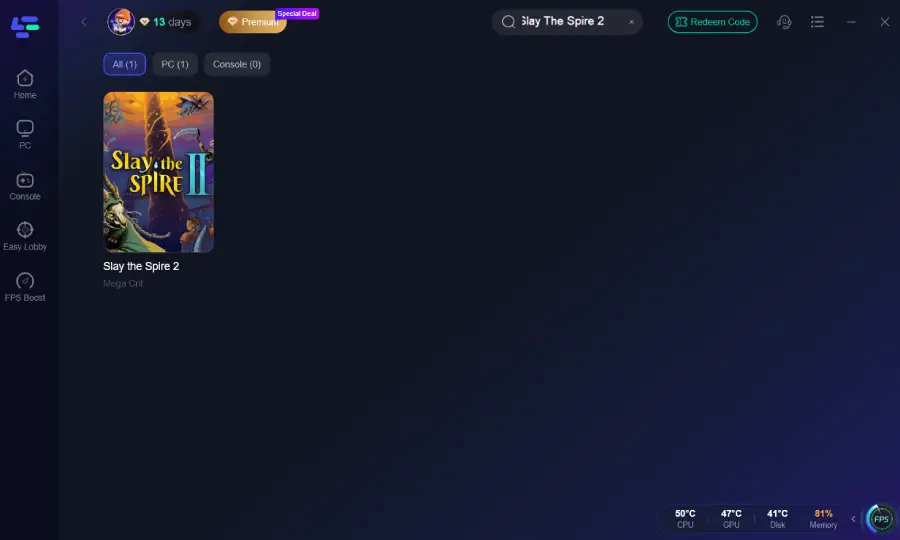
Step 3: Click “Boost.” Once the acceleration is successful, click the “Fix startup failure tool" in the bottom-right corner.

Step 4: Choose your preferred server node and click "Smart Boost" to start optimizing.
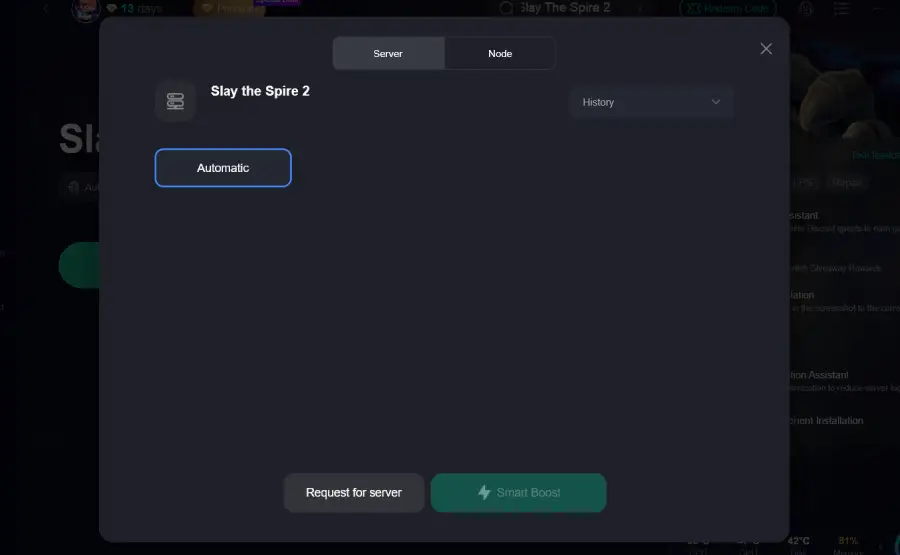
Step 5: Launch your game and enjoy smooth, optimized gameplay with lower ping and packet loss.

Part 4: Step-by-Step Fixes for Slay the Spire 2 Won't Start & Not Launching
Restart Steam and Your PC
It sounds simple, but restarting both Steam and your computer can clear temporary conflicts that stop the game from launching.
What to do
- Completely exit Steam
- Restart your PC
- Open Steam again
- Launch Slay the Spire 2
If the issue was caused by a stuck background process, this can sometimes fix it immediately.
Verify Game Files on Steam
Corrupted or missing files are one of the most common reasons a game fails to start. Steam includes a built-in tool that scans the installation and replaces any damaged files.
Steps
- Open your Steam Library
- Right-click Slay the Spire 2
- Select Properties
- Go to Installed Files
- Click Verify integrity of game files
Steam will automatically download and replace any files that are missing or corrupted.
Update Your Graphics Drivers
Outdated GPU drivers can cause launch crashes, especially when the game tries to initialize graphics during startup.
Make sure your drivers are up to date through:
- NVIDIA GeForce Experience
- AMD Adrenalin Software
After updating, restart your PC and try launching the game again.
Disable Steam Overlay
In some cases, overlays hooking into the game during startup can cause it to crash before the main menu appears.
To turn off the Steam overlay:
- Open Steam Library
- Right-click Slay the Spire 2
- Click Properties
- Disable “Enable the Steam Overlay while in-game.”
Then launch the game again to see if the issue is resolved.
Close Background Programs
Some background tools can interfere with games when they start, particularly apps that add overlays or monitor system performance.
Before launching the game, try closing programs such as:
- Discord overlay
- Screen recording software
- Hardware monitoring tools
Reducing background activity can help avoid conflicts that lead to startup crashes or launch failures.
Conclusion
If Slay the Spire 2 won’t start or keeps crashing on launch, the issue is usually caused by common problems like corrupted game files, outdated drivers, or background software conflicts. In many cases, simple fixes such as verifying game files, updating your GPU drivers, or restarting Steam can get the game running again. Tools like LagoFast may also help resolve certain startup issues more quickly. By following these solutions step by step, you can resolve the startup issue and enjoy a smoother gaming experience in Slay the Spire 2.

Boost Your Game with LagoFast for Epic Speed
Play harder, faster. LagoFast game booster eliminates stutter and lags on PC, mobile, or Mac—win every match!
Quickly Reduce Game Lag and Ping!
Boost FPS for Smoother Gameplay!