
In competitive shooters like Call of Duty: Black Ops 7, every millisecond matters. A high ping or unstable latency can ruin your aim, delay your reactions, and cost you crucial matches. That’s why knowing how to see ping in CoD Black Ops 7, track latency issues, and apply the right fixes is essential for every player. This guide will walk you through checking your ping on PC and consoles, introduce LagoFast as the fastest and all-in-one solution, and provide step-by-step methods to reduce high ping in Black Ops 7 for the smoothest experience possible.
Ukrainian version: Як Перевірити Пінг Та Зменшити Високу Затримку У Call of Duty Black Ops 7?

- ✅ Reduce Lag and High Ping.
- ✅ Boost FPS at the Same Time.
- ✅ Ensure Stable Server Connection.
- ✅ Change Server without Latency.
- ✅ Fix Crashing and Stuck Errors.
- ✅ 0% Packet Loss Rate
- ✅ Boost Game Downloading Speed.
Part 1: How to See Ping in CoD Black Ops 7?
Part 2: How to Reduce High Ping in Black Ops 7?
Part 1: How to See Ping in CoD Black Ops 7?
Before fixing ping problems, you need to know how to check it. Call of Duty: Black Ops 7 allows players to view latency both in-game and through external tools. Here’s how you can monitor your ping:
The Quickest Way: LagoFast
For the most direct and accurate way to check your ping, open LagoFast. Once you launch the tool and select CoD: Black Ops 7, LagoFast immediately shows your current ping, network stability, and optimal server connection. It eliminates the guesswork and ensures you know your latency even before entering a match.
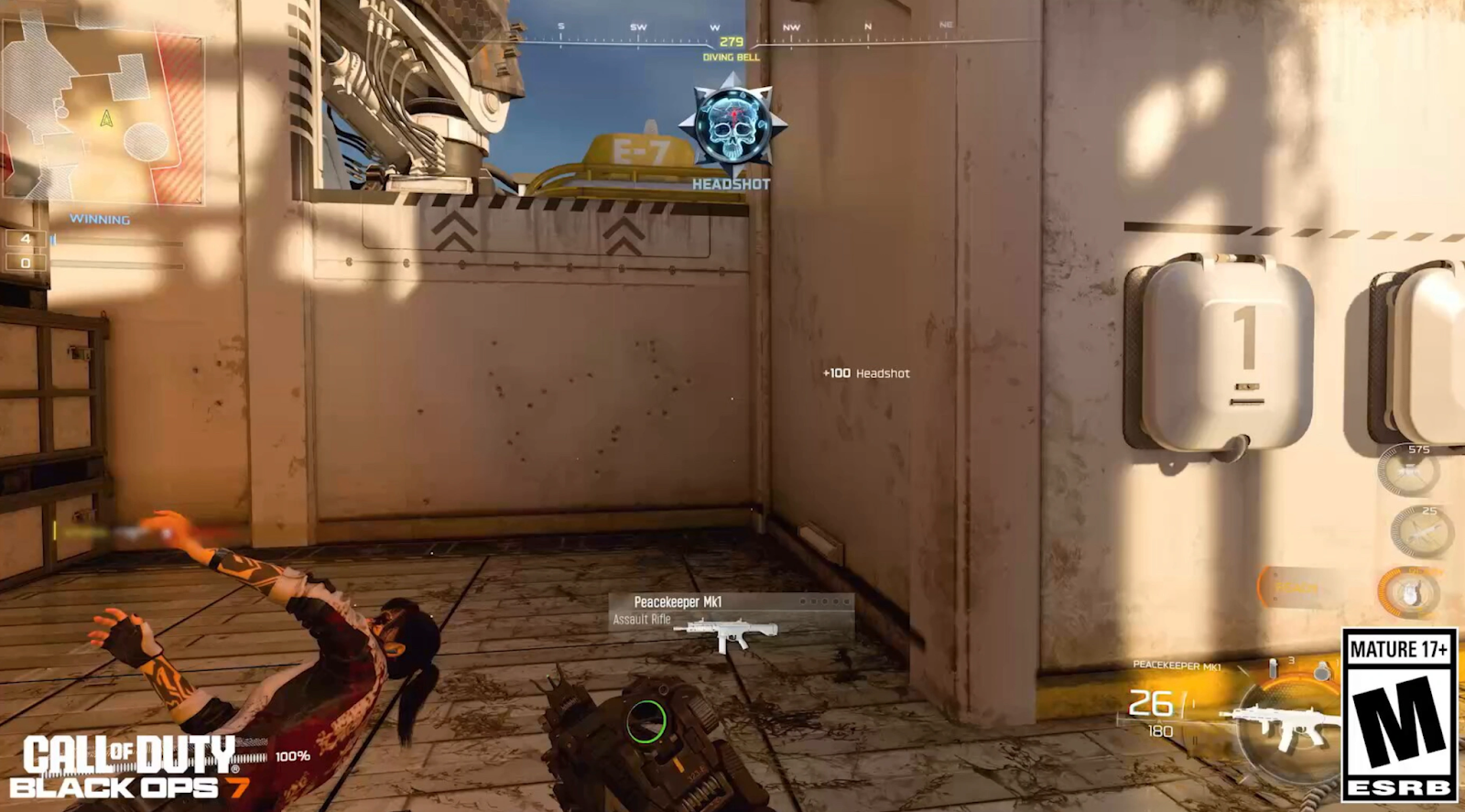
On PC
Step 1. Launch Call of Duty: Black Ops 7 from Battle.net or Steam.
Step 2. Enter the Settings menu from the main screen.
Step 3. Navigate to the Account & Network tab.
Step 4. Enable the Show Server Latency option.
Step 5. Join a multiplayer match, and your ping will be displayed on the screen (usually near the scoreboard).
On Consoles (PS5, PS4, Xbox Series X/S, Xbox One)
Step 1. Start Call of Duty: Black Ops 7 on your console.
Step 2. Go to Options in the main menu.
Step 3. Open the Network or Account section.
Step 4. Toggle on the Server Latency or Connection Meter option.
Step 5. Enter a match to see your ping and connection details in real-time.
Related Article: Is CoD Black Ops 7 on Game Pass?
Part 2: How to Reduce High Ping in Black Ops 7
Now that you know how to check your latency and ping in Black Ops 7, let’s go over how to lower it. High ping usually comes from server distance, unstable networks, or background processes. Below are solutions tailored for all players.
LagoFast – The All-in-One Solution
The quickest and most effective way to reduce high ping in Black Ops 7 across any platform is LagoFast. Unlike manual fixes that only address one issue at a time, LagoFast provides a complete optimization solution.
Key Features of LagoFast:
- Real-time ping display before matches.
- Automatic connection to the fastest game server.
- Intelligent routing to reduce lag spikes.
- Compatible with PC and all major consoles.
- Easy one-click setup – no complex network changes required.
If you want an all-in-one tool that instantly reduces latency and keeps your ping low, LagoFast is the best option.
Tutorial to use LagoFast to see and reduce ping in Black Ops 7 on PC:
Step 1: Click the Free Trial button to download and install LagoFast.
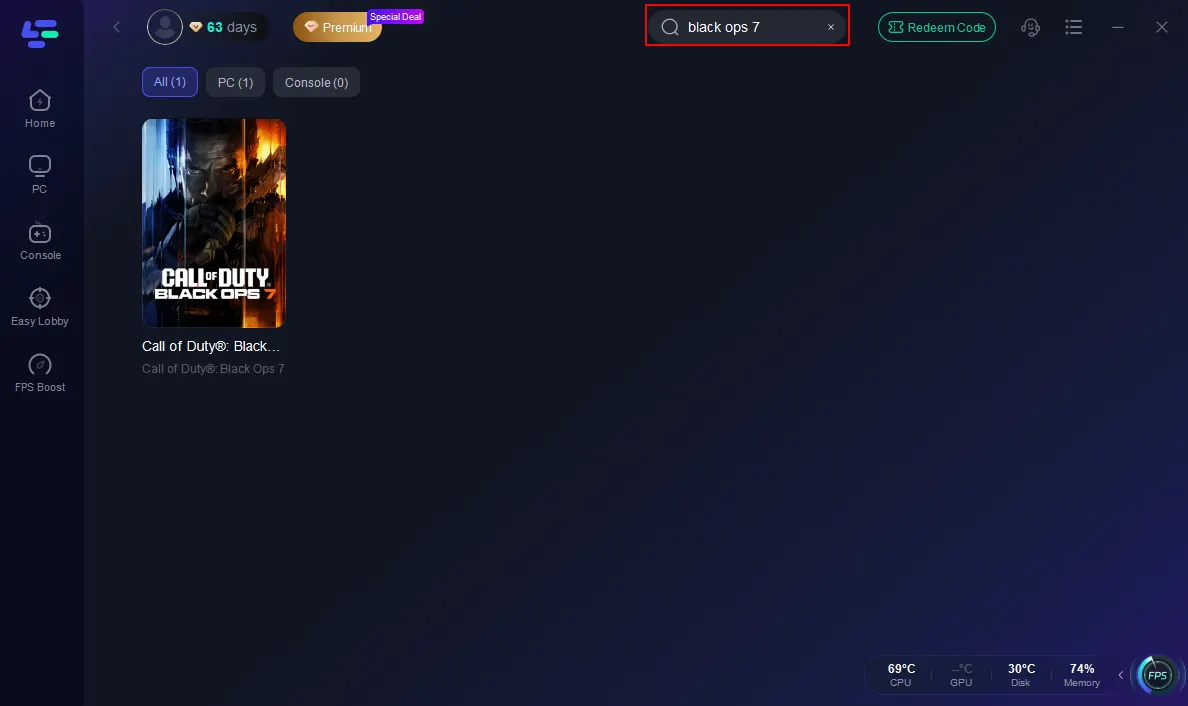
Step 2: Open LagoFast, then click the PC button on the left and search Black Ops 7 in the search bar, and click it after it appears.
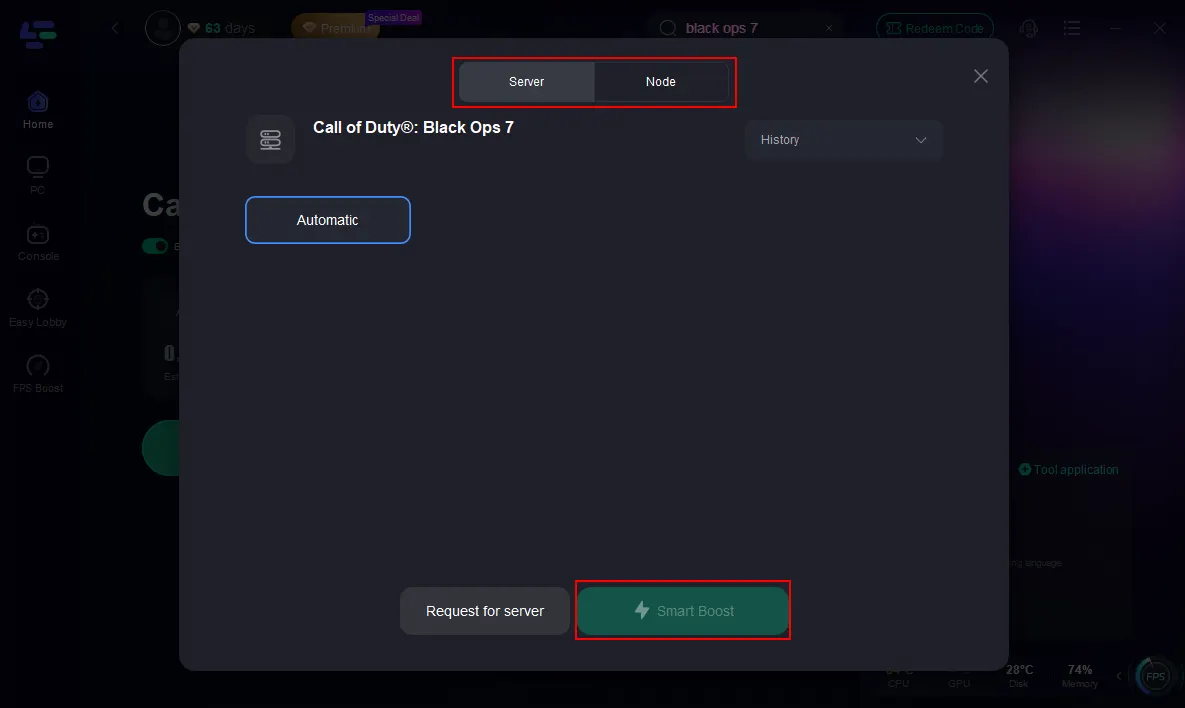
Step 3: Click on “Server” to change to a better server that ensures the Black Ops 7 gaming experience, then click on “Smart Boost”.
Step 4: Launch game and enjoy an enhanced gaming experience with reduced lag and improved stability.
Tutorial on using LagoFast Box to enhance your console gaming experience:
Step 1: Download the LagoFast Console App on your phone to control the LagoFast Box.
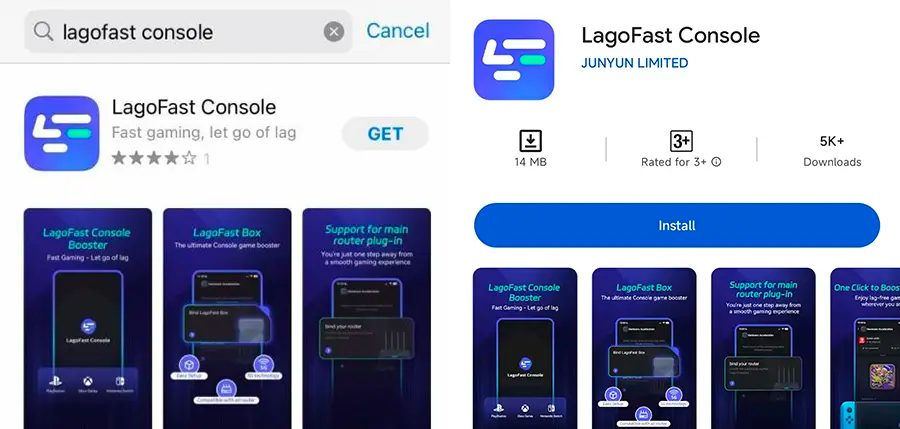
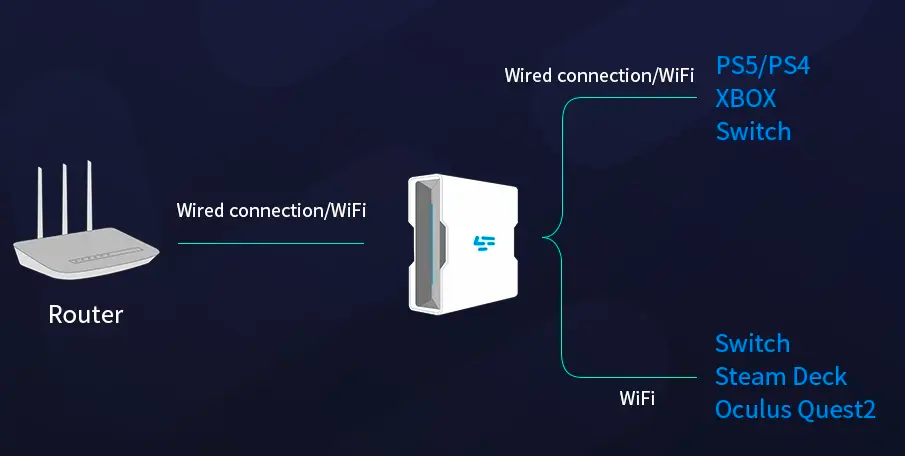
Step 2: Establish a connection between your LagoFast Box, router, and console, choosing between a wired or wireless connection.
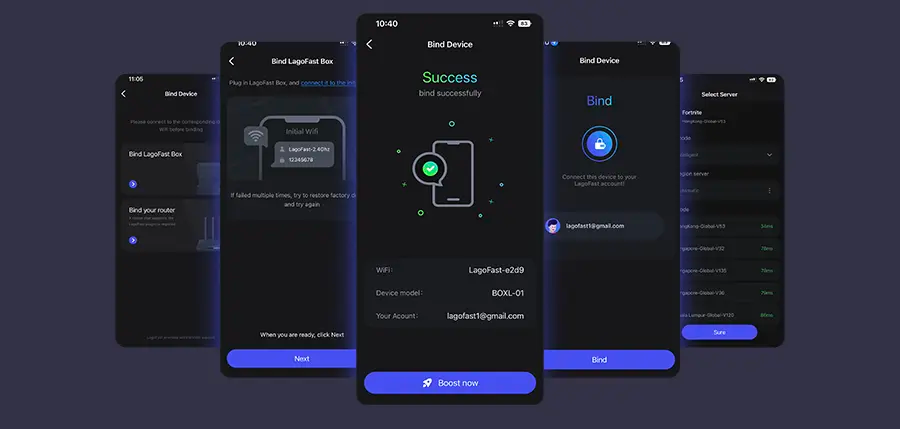
Step 3: Launch the LagoFast Console App and boost Black Ops 7. Once you have completed the binding process with the LagoFast Box, proceed to boost this game within the LagoFast Console App.
You May Like: Call of Duty: Black Ops 7 Pre-Order Guide — Editions, Bonuses, and Game Pass Access
How to Fix Call of Duty: Black Ops 7 High Ping on PC
If you prefer manual fixes, here are three proven methods to lower ping on PC.
Solution 1: Optimize Your Network Settings
Step 1. Close any applications using bandwidth (browsers, streaming apps, downloads).
Step 2. Open Task Manager and end background processes hogging network resources.
Step 3. Use a wired Ethernet connection instead of Wi-Fi for stability.
Step 4. In your router, enable Quality of Service to prioritize gaming traffic.
Step 5. Restart your router and PC to refresh the connection.
Solution 2: Change DNS Settings
Step 1. Press Windows + R, type ncpa.cpl, and hit Enter.
Step 2. Right-click your active network adapter and choose Properties.
Step 3. Select Internet Protocol Version 4 (TCP/IPv4) and click Properties.
Step 4. Check Use the following DNS server addresses.
Step 5. Enter 8.8.8.8 for the preferred DNS and 8.8.4.4 for the alternate, then save the changes.
Solution 3: Update Network and Game Drivers
Step 1. Open Device Manager on Windows.
Step 2. Expand the Network adapters category.
Step 3. Right-click your adapter and select the Update driver.
Step 4. Also ensure your GPU drivers are updated via NVIDIA or AMD’s software.
Step 5. Restart your PC and test if ping improves.
Hot Related: Call of Duty: Black Ops 7 Gameplay Overview
How to Fix Call of Duty: Black Ops 7 High Ping on Consoles
Console players also struggle with latency, especially on Wi-Fi connections. Here are three fixes you can apply.
Solution 1: Improve Wi-Fi or Use Ethernet
Step 1. Place your console closer to the router to improve Wi-Fi stability.
Step 2. Disconnect unused devices from the same network.
Step 3. Switch to the 5GHz Wi-Fi band instead of 2.4GHz for faster speeds.
Step 4. If possible, use a wired Ethernet cable for the most stable connection.
Step 5. Restart both router and console to refresh the network.
Solution 2: Change DNS on Console
Step 1. Go to your console’s Network Settings.
Step 2. Select Set Up Internet Connection.
Step 3. Choose Custom setup.
Step 4. Manually input Google DNS (8.8.8.8 and 8.8.4.4) or Cloudflare DNS (1.1.1.1 and 1.0.0.1).
Step 5. Save and reconnect to the internet.
Solution 3: Adjust NAT Type
Step 1. Access your router settings via a web browser.
Step 2. Enable UPnP to allow better game connections.
Step 3. If UPnP isn’t available, set up port forwarding for Call of Duty.
Step 4. Ensure your NAT type shows as Open in network settings.
Step 5. Restart the console and test your ping again.
Conclusion
High latency can turn Call of Duty: Black Ops 7 into a frustrating experience, but with the right steps, you can minimize ping and enjoy smoother gameplay. Whether you see ping in CoD Black Ops 7 directly in-game, use LagoFast for instant results, or manually optimize your network settings, every fix brings you closer to seamless matches. LagoFast remains the fastest, all-in-one solution for PC and console players alike, but the step-by-step fixes also give you full control over your connection. With these methods, you’ll stay competitive and fully immersed in the action.
Boost Your Game with LagoFast for Epic Speed
Play harder, faster. LagoFast game booster eliminates stutter and lags on PC, mobile, or Mac—win every match!
Quickly Reduce Game Lag and Ping!
Boost FPS for Smoother Gameplay!