
Quick Answer: How to Fix SAND: Raiders of Sophie Server Down & Server Connection?
SAND: Raiders of Sophie is officially live in Steam Early Access as of June 22, 2026. If you are experiencing server connection drops, random kicks, or region lockouts during launch week, you can quickly resolve them by verifying your local game file integrity on Steam and disabling any standard, active VPNs, as they frequently conflict with the game's security and matchmaking protocols. For an instant, automated fix, utilizing a dedicated game booster like LagoFast effectively bypasses routing congested nodes to keep your connection to the game servers perfectly stable.
Introduction
The highly anticipated launch of SAND: Raiders of Sophie has finally arrived, bringing intense PvPvE extraction shooter action to players worldwide. However, diving into a massive multiplayer universe on day one often comes with its own set of technical hurdles. Early Access launches are notorious for unexpected server instability, leaving many players staring at frustrating loading screens instead of raiding. If you find your sessions cut short by persistent connectivity drops, this comprehensive guide will walk you through troubleshooting every major server roadblock.

- ✅ Reduce Lag and High Ping.
✅ Boost FPS at the Same Time.
✅ Support 2000+ Popular Online Games.
✅ Change Server without Latency.
✅ Boost Game Loading Speed.
Part 1: SAND: Raiders of Sophie Server Status Overview
Part 2: How to Fix SAND: Raiders of Sophie Server Down?
Part 3: How to Fix SAND: Raiders of Sophie Connection Error/Login Error?
Part 4: How to Fix SAND Raiders of Sophie Matchmaking Not Working?
Part 5: How to Fix SAND Raiders of Sophie Server Slam Issues?
Part 6: How to Fix SAND Raiders of Sophie Early Access Server Problems?
Part 7: All-In-One Solution: Fix All Server & Connection Issues with LagoFast
Part 1: SAND: Raiders of Sophie Server Status Overview
When a highly anticipated multiplayer game enters Early Access, server stability issues are less of a possibility and more of an inevitability. Understanding the underlying symptoms and causes of connectivity failure makes troubleshooting significantly easier.
The table below breaks down the primary online disruptions currently facing player crews on Sophie:
|
Issue Type |
Common Symptoms |
Primary Root Causes |
|
SAND: Raiders of Sophie Server Down |
Infinite loading screens, "Failed to connect to backend" messages, forced return to the main menu. |
Complete server outages due to unexpected player spikes or planned developer maintenance. |
|
SAND: Raiders of Sophie Connection Error/Login Error |
Error codes during the title screen, failure to authenticate Steam profile data, "Login timed out" alerts. |
Local network strictness, firewall blocks, or corrupt game credentials failing to authenticate with tinyBuild servers. |
|
SAND Raiders of Sophie matchmaking not working |
Infinite "Searching for Match" queues, lobbies failing to fill, party members getting dropped before deployment. |
High regional server loads, desynchronized game versions between squadmates, or strict NAT types. |
|
SAND Raiders of Sophie server slam issues |
Rubberbanding across sand dunes, delayed hit registration during first-person PvP, sudden packet loss spikes. |
Network infrastructure bottlenecks caused by excessive data loads on regional data hubs during launch week. |
|
SAND Raiders of Sophie Early Access server problems |
Disconnects mid-voyage, loss of hard-earned loot due to abrupt lobby crashes, "Kicked from server" pop-ups. |
Optimization bugs within the initial build, conflicts with unoptimized third-party software, or regional routing errors. |
Part 2: How to Fix SAND: Raiders of Sophie Server Down?
When the message pops up indicating that the SAND: Raiders of Sophie server down error has occurred, your immediate goal is to determine if the outage is universal or isolated to your client.
Check Official Channels First
Before resetting your home hardware, check the official social media channels or the community Discord server for SAND: Raiders of Sophie. The developers regularly post real-time updates regarding scheduled maintenance or emergency server deployments. If the entire network is down for a hotfix, the only solution is patience.
Clear Your Local DNS Cache
If the servers are online for others but down for you, your computer might be trying to access an outdated server IP address. Clearing your DNS cache forces your system to look up the fresh, correct server pathways.
Step 1. Press the Windows Key + R to open the Run dialog box.
Step 2. Type cmd and hit Enter to open the Command Prompt.
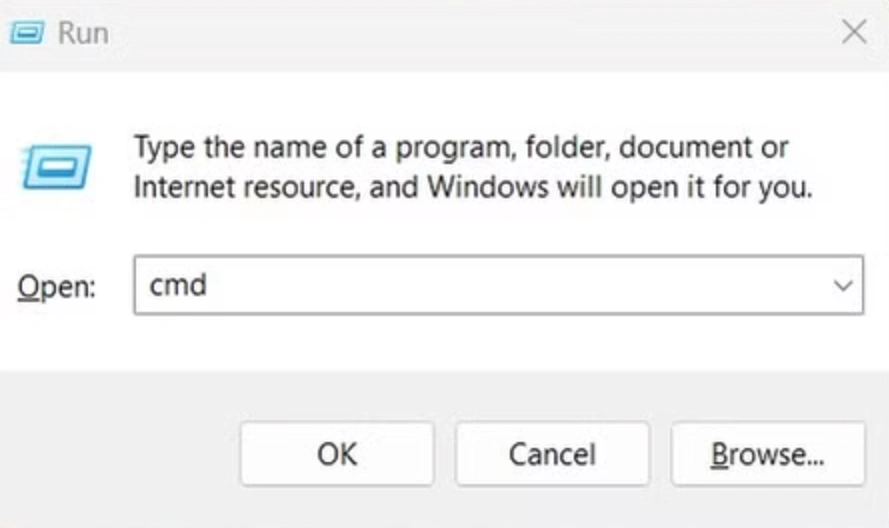
Step 3. In the black window, type ipconfig /flushdns and press Enter.
Step 4. You should see a message confirming that the DNS Resolver Cache was successfully flushed. Restart Steam and try launching the game again.
Part 3: How to Fix SAND: Raiders of Sophie Connection Error/Login Error?
A SAND: Raiders of Sophie Connection Error/Login Error usually triggers right when the game client tries to authenticate your profile with the cloud database. If this handshake fails, you will be booted back to the login screen.
Configure Windows Defender Firewall
Sometimes, your built-in PC security treats the inbound connection from a new Early Access game as an unknown threat and blocks it completely.
Step 1. Open the Windows Start Menu and type Windows Defender Firewall, then select it.
Step 2. On the left side panel, click Allow an app or feature through Windows Defender Firewall.
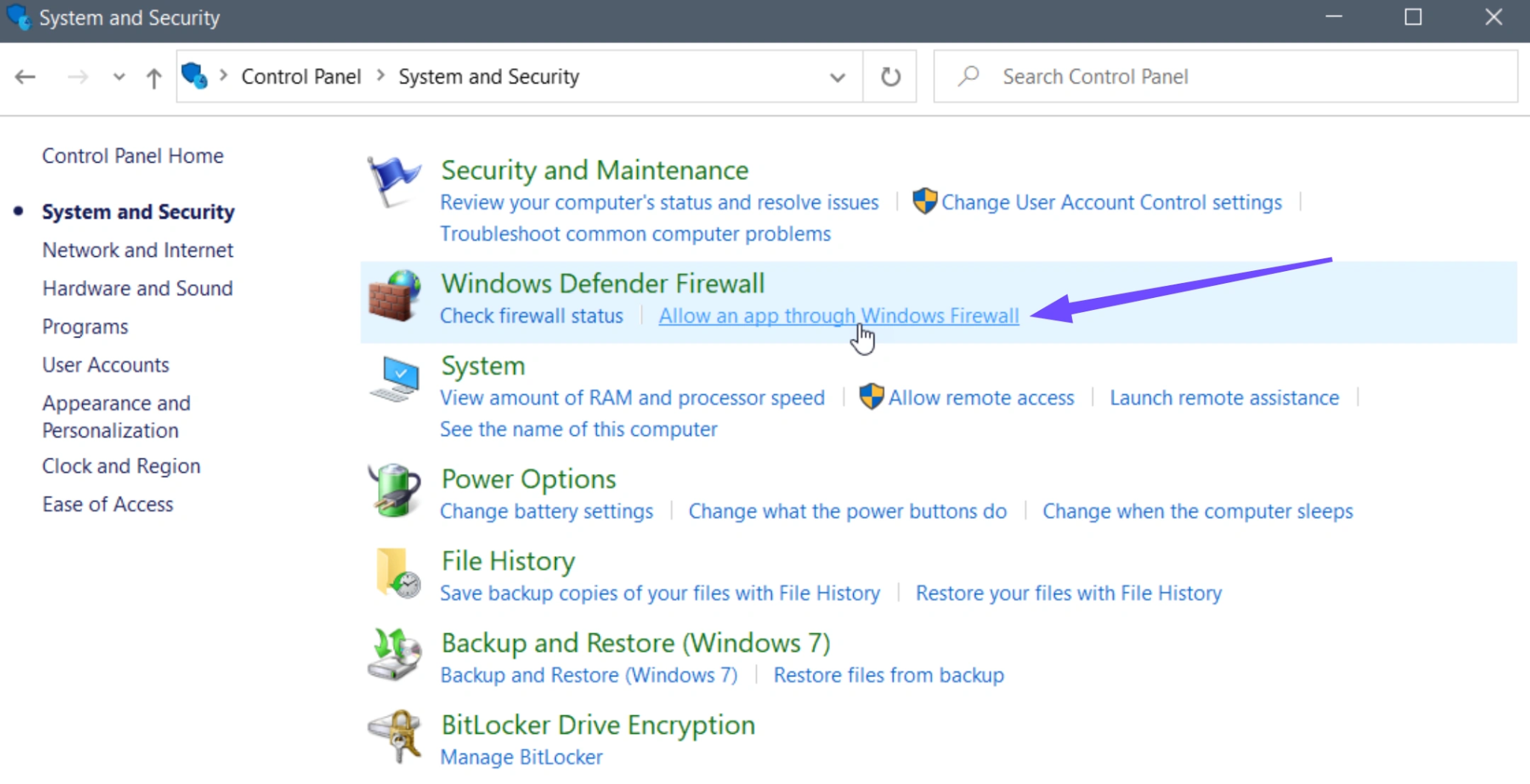
Step 3. Click the Change settings button at the top (requires administrator permissions).
Step 4. Look through the list for SAND: Raiders of Sophie. Ensure both the Private and Public checkboxes are ticked.
If the game isn't on the list, click Allow another app..., navigate to your Steam installation folder (Steam\steamapps\common\SAND Raiders of Sophie), select the game's executable file, and save changes.
Verify Integrity of Game Files
Missing or corrupted update files can disrupt the login authentication process completely.
Step 1. Launch your Steam library.
Step 2. Right-click on SAND: Raiders of Sophie and select Properties.
Step 3. Go to the Installed Files tab on the left.
Step 4. Click the Verify integrity of game files button.
Step 5. Wait for Steam to scan all local assets. If any corrupted network manifests are found, Steam will automatically re-download clean copies.
Part 4: How to Fix SAND Raiders of Sophie Matchmaking Not Working?
Few things break the flow of a gaming night faster than sitting in an endless queue because the SAND Raiders of Sophie matchmaking not working error has taken hold. This happens when the matchmaking system fails to accurately pair your network ping with a viable lobby group.
Toggle Crossplay and Re-select Regional Nodes
If matchmaking is taking longer than five minutes, the regional pool might be experiencing a temporary routing loop.
Step 1. Navigate to the in-game Settings menu.
Step 2. Go to the Gameplay or Network tab.
Step 3. Locate the Crossplay option and toggle it off, then toggle it back on to refresh your matchmaking profile.
Step 4. Manually check your matchmaking region. If it is set to "Automatic," lock it to your specific physical location (e.g., NA East, Europe, Asia) to prevent the matchmaker from grouping you with distant, high-latency lobbies.
Disable Standard Virtual Private Networks (VPNs)
While commercial VPNs are great for privacy, their general encryption tunnels introduce massive routing overhead. SAND: Raiders of Sophie utilizes strict anti-cheat and region-locking mechanics that will often reject connections coming from commercial VPN data centers. Fully exit your standard desktop VPN software from your taskbar tray before hitting the matchmaking queue.
Part 5: How to Fix SAND Raiders of Sophie Server Slam Issues?
"Server slams" happen during peak hours, usually over the weekend or immediately following a game update, when an unprecedented number of players connect simultaneously. This causes sudden rubber-banding, delayed action registry, and players being randomly SAND Raiders of Sophie kicked from the server.
Switch to a Wired Ethernet Connection
When game servers are under extreme stress, they become highly sensitive to packet loss. If you are playing on Wi-Fi, micro-drops in your local signal will trigger immediate disconnect safety kicks from the server side. Connecting your PC directly to your router via a Cat6 Ethernet cable eliminates local wireless interference entirely.
Optimize Local Network Bandwidth
When servers are struggling, your local bandwidth needs to be pristine to maintain a steady connection heartbeat.
Step 1. Open your Task Manager (Ctrl + Shift + Esc).
Step 2. Click on the Network column header to sort applications by current usage.

Step 3. Close heavy background apps like cloud storage sync clients, web browsers with dozens of active tabs, and torrent applications that drain your upload bandwidth.
Part 6: How to Fix SAND Raiders of Sophie Early Access Server Problems?
Early Access developments mean the game code is optimized continuously over time. Unknown network bugs specific to certain hardware or router configurations are common during this stage.
Update Network Adapter Drivers
An outdated motherboard network chip driver can struggle to interpret modern network multi-threading protocols used by current Unreal Engine or Unity multiplayer architectures.
Step 1. Right-click the Windows Start button and select Device Manager.
Step 2. Double-click Network adapters to expand the list.
Step 3. Right-click your primary controller (usually an Intel, Realtek, or Killer Networking chip) and choose Update driver.
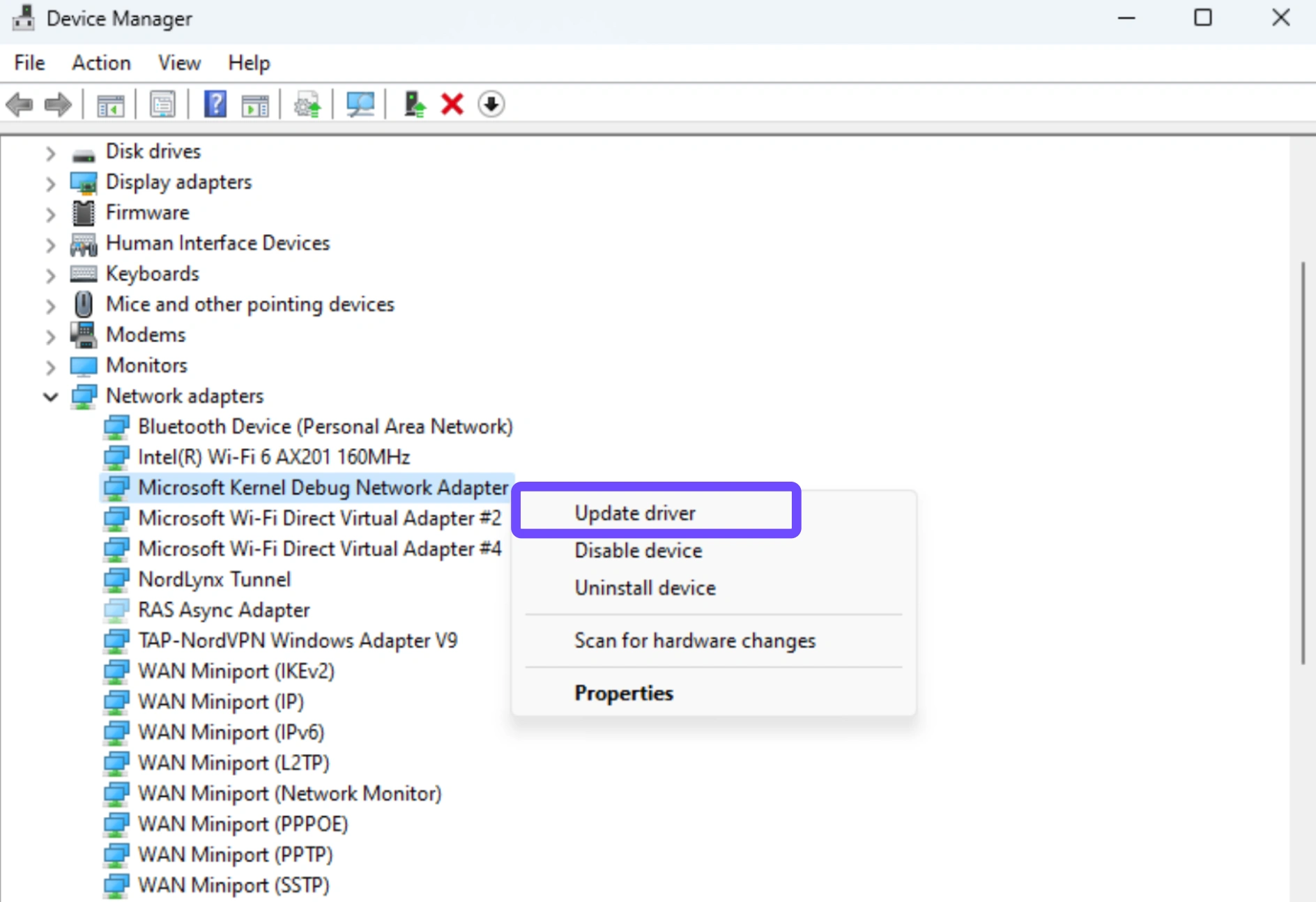
Step 4. Select Search automatically for drivers and apply any recommended updates, followed by a system reboot.
Power Cycle Your Local Network Hardware
Over time, home routers accumulate cached routing tables that can become corrupted, leading to dropouts with specific game server clusters.
Step 1. Unplug the power cable from both your modem and your router.
Step 2. Wait a full 60 seconds to let the internal capacitors drain completely.
Step 3. Plug the modem back in first and wait for all its status lights to turn solid green.
Step 4. Plug the router back in, wait for your PC to re-establish the connection, and then launch the game.
Part 7: All-In-One Solution: Fix All Server & Connection Issues with LagoFast
While trying multiple manual troubleshooting steps can eventually pinpoint a local network conflict, it won't fix congested external ISP nodes or deep-level game server routing bugs. If you want to bypass the headache of manual troubleshooting entirely, a dedicated gaming booster is the most reliable choice.
LagoFast is a highly optimized, specialized gaming network tool designed specifically to resolve multiplayer stability issues. Unlike standard commercial VPNs that route your data through crowded generic privacy servers, LagoFast utilizes a proprietary network of global paths built exclusively for gaming traffic. It dynamically checks every available route to the
SAND: Raiders of Sophie servers and instantly switches your connection to the path with the lowest latency and zero packet loss.
With a single click, LagoFast eliminates the root causes behind server kicks, login errors, and stuck matchmaking queues, delivering a fast and simple route back into the game.
Key Features of LagoFast:
- One-Click Ping Reducer: Instantly analyzes your location and locks your PC onto the absolute fastest, cleanest route to the game’s live servers.
- Real-Time Packet Loss Fixer: Automatically duplicates vital data packets across parallel paths to completely eliminate game rubber-banding and abrupt server kicks.
- One-Click FPS Boost: Optimizes your operating system settings, stops unneeded background CPU tasks, and maximizes GPU efficiency for cleaner frame rates.
- One-Click Crash & Bug Fix: Diagnoses deep-level network handshakes to prevent startup crashes and infinite loading loops.
- Multipath Connection Technology: Maintains a simultaneous backup route so that if an ISP node drops out mid-raid, you switch over instantly without losing your loot.
Tutorial to use LagoFast to Fix SAND: Raiders of Sophie on PC:
Step 1: Click the Free Trial button to download and install LagoFast.
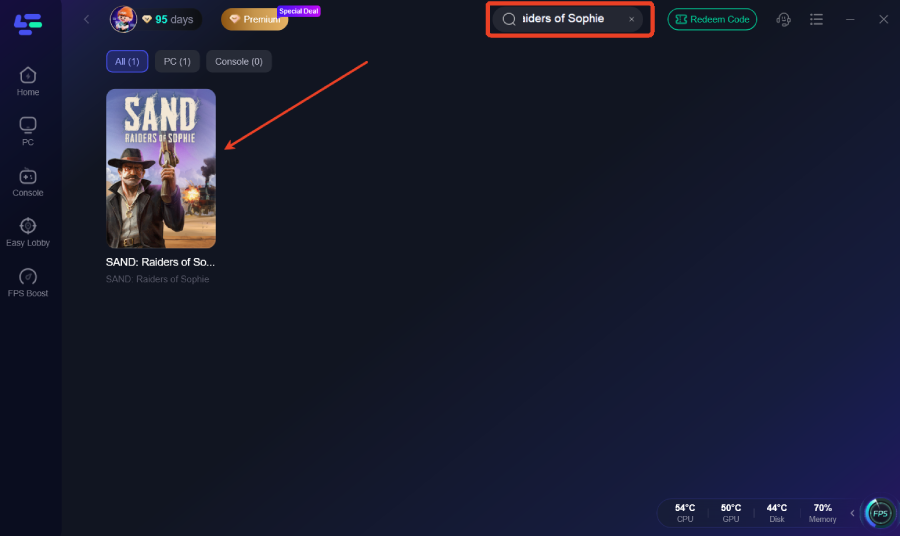
Step 2: Open LagoFast, then click the PC button on the left and search SAND: Raiders of Sophie in the search bar; click it after it appears.
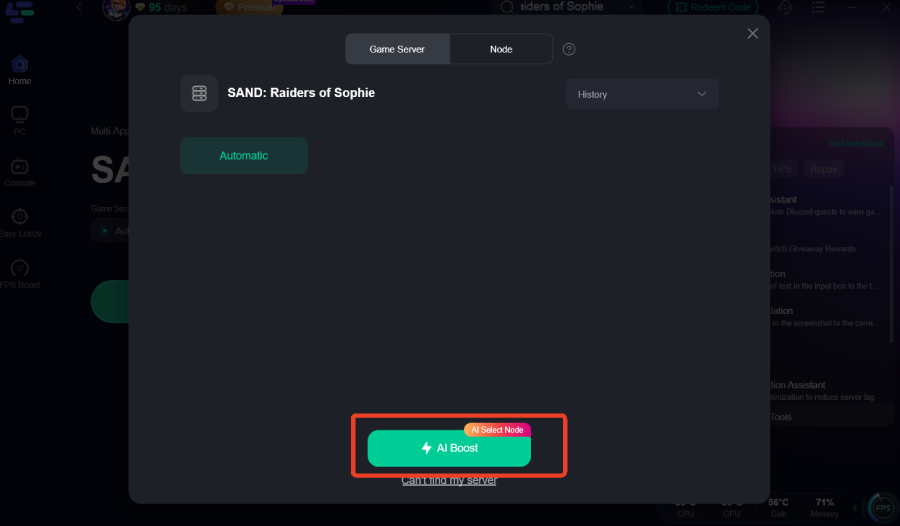
Step 3: Click on “Server” to change to a better server that ensures the gaming experience, then click on “Smart Boost” to fix All Server & Connection Issues.
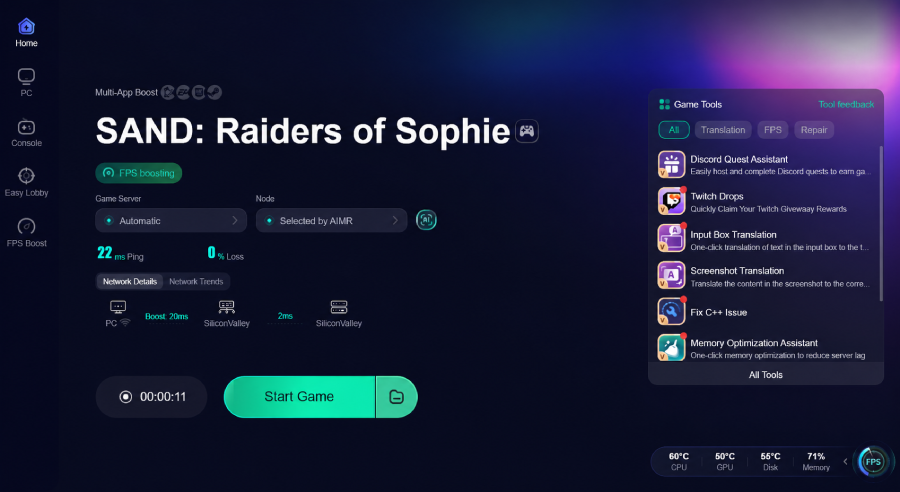
Step 4: Check the specific game ping, packet loss, and multiple path connection on the right side. Finally, click “Start Game” to play the game.
Part 8: FAQs
Why do I keep getting kicked from the server mid-raid?
This is typically caused by micro-packet loss or a temporary server desync. If your connection drops even a fraction of its data packets for more than a second, the game's anti-cheat or server-side sync mechanism will automatically kick your client to protect the lobby's stability. Moving to a wired network or using LagoFast will fix this.
What does the "Login Error" mean on startup?
A login error means your game client cannot verify your account credentials with the authentication database. This happens when the authentication servers are overloaded during peak launch times, or if your local firewall is accidentally blocking the outbound security certificates.
Can I fix matchmaking not working by switching game regions?
Yes. If your local region's server cluster is experiencing heavy congestion or a temporary technical fault, manually changing your region in the main menu to a neighboring zone can get you back into matches, though your baseline ping may be slightly higher depending on the distance.
Why is my ping so high even though my home internet is fast?
High in-game ping isn't necessarily about your download speed; it is about distance and routing. Your ISP may be sending your data across a long, convoluted path before it reaches the game servers. LagoFast fixes this by forcing your data onto a direct path.
Does verifying Steam files fix server connectivity issues?
Yes, it can. If a patch didn't download correctly, your local game files might be sending network requests that the current server version rejects. Verifying your files ensures your network protocols match the live server requirements perfectly.
What are the minimum system network requirements for SAND: Raiders of Sophie?
The game requires a 64-bit Windows 10 or 11 operating system alongside a stable, active broadband internet connection. For smooth PvPvE tracking across large lobbies containing up to 90 players simultaneously, a minimum download speed of 25 Mbps with low internal jitter is highly recommended.
Conclusion
Dealing with launch-window server errors in a fresh Early Access game like SAND: Raiders of Sophie can be incredibly frustrating. However, by working your way through standard network diagnostics, like flushing your DNS, checking your firewall settings, and keeping your connection wired, you can solve the majority of client-side configuration bugs. For an easy, automated experience that lets you skip the troubleshooting lists, using a dedicated tool like LagoFast keeps your connection stable, your ping low, and your focus entirely on surviving the extraction zones.

Boost Your Game with LagoFast for Epic Speed
Play harder, faster. LagoFast game booster eliminates stutter and lags on PC, mobile, or Mac—win every match!
Quickly Reduce Game Lag and Ping!
Boost FPS for Smoother Gameplay!