
When launching Rust, getting stuck on the loading screen is one of the most common frustrations for players, especially during testing phases with new modes, weapons, and cross-platform features. This guide explains why it happens and how to fix it on both mobile and PC quickly.

- ✅ Reduce Lag and High Ping.
- ✅ Boost FPS at the Same Time.
- ✅ Support 2000+ Popular Online Games.
- ✅ Change Server without Latency.
- ✅ Boost Game Loading Speed.
Part 1. Why Rust Gets Stuck on the Loading Screen
Part 2. How to Fix Rust Stuck on Loading Screen with LagoFast
Part 3. Other Solutions for Rust Loading Screen Issues
Part 1. Why Rust Gets Stuck on the Loading Screen
Here are the most common culprits behind loading screen freezes:
In-game Overlays
Steam, GeForce Experience, and Windows Game Bar overlays can cause conflicts and prevent Rust from progressing past loading.
Firewall Blocking
Rust and its EasyAntiCheat components often lack automatic firewall whitelisting, causing network blocks.
Corrupt or Pending Files
Missing or broken game files can interrupt loading, especially on PC.
Mobile-Specific Network Lags
On mobile, poor routing or high latency can stall loading, particularly in mobile test versions of Rust.
Heavy Draw or Resource Locked
For PC players, high draw distances, loaded skins, or insufficient page file space can contribute to freezes, a common Unity engine behavior.
Part 2. How to Fix Rust Stuck on Loading Screen with LagoFast
LagoFast is designed to enhance your online experience with smart routing and server optimization.
How it Helps
- Reroutes your connection through optimized paths, minimizing ISP routing inefficiencies.
- Reduces latency and packet loss, leading to fewer disconnects or connection timeouts.
- Helps you connect through the least congested routes during launch and matchmaking.
How to Use LagoFast on Mobile
For mobile players (e.g., playing Rust during its Chinese mobile test or on Android/iOS):
Step 1. Click here to download LagoFast Mobile APK File.
Step 2. Search for the game and select it.
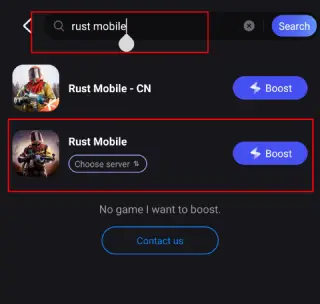
Step 3. Choose a server and tap Boost.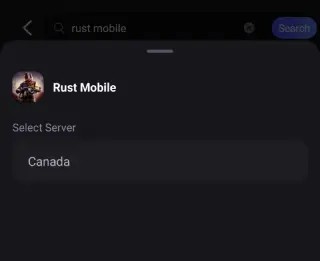
Step 4. Enjoy smoother FPS and stable connections.
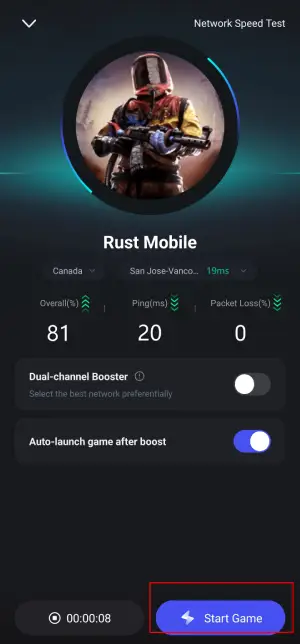
LagoFast helps overcome mobile network instability by providing improved routing for faster asset loading and more reliable server handshakes.
How to Use LagoFast on PC
Step 1. Download and install LagoFast free trial.
Step 2. Search for Rust and select it.
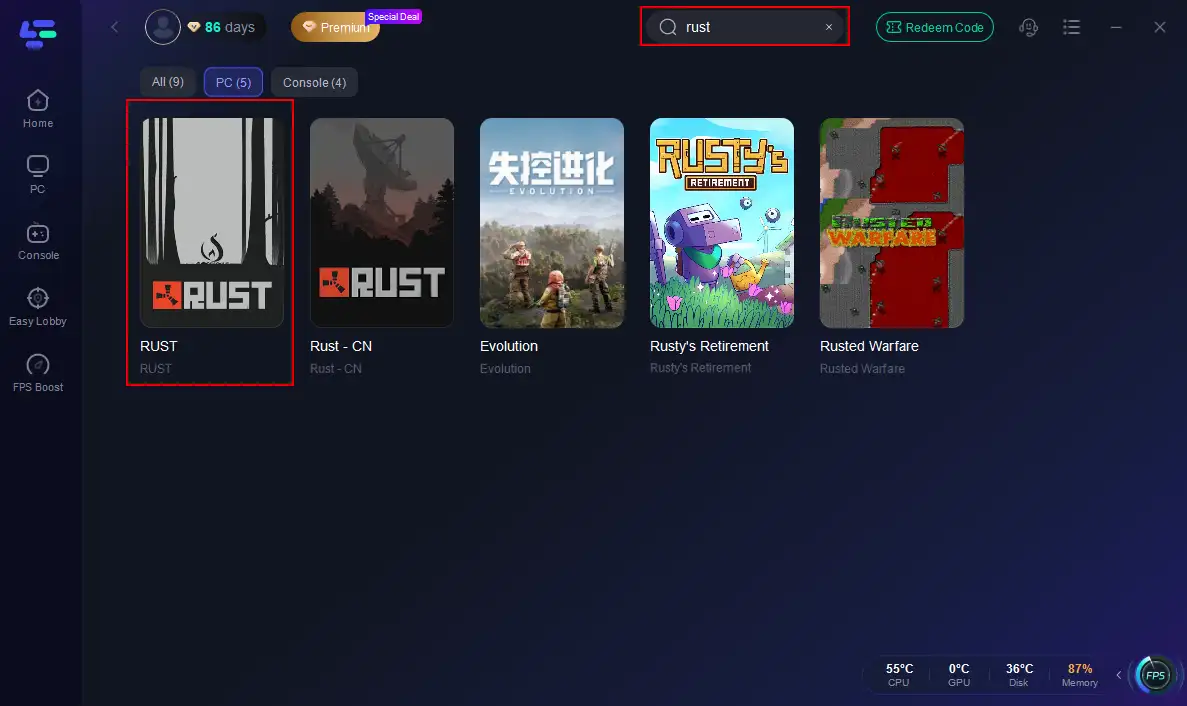
Step 3. Choose a low-latency node matching your region.
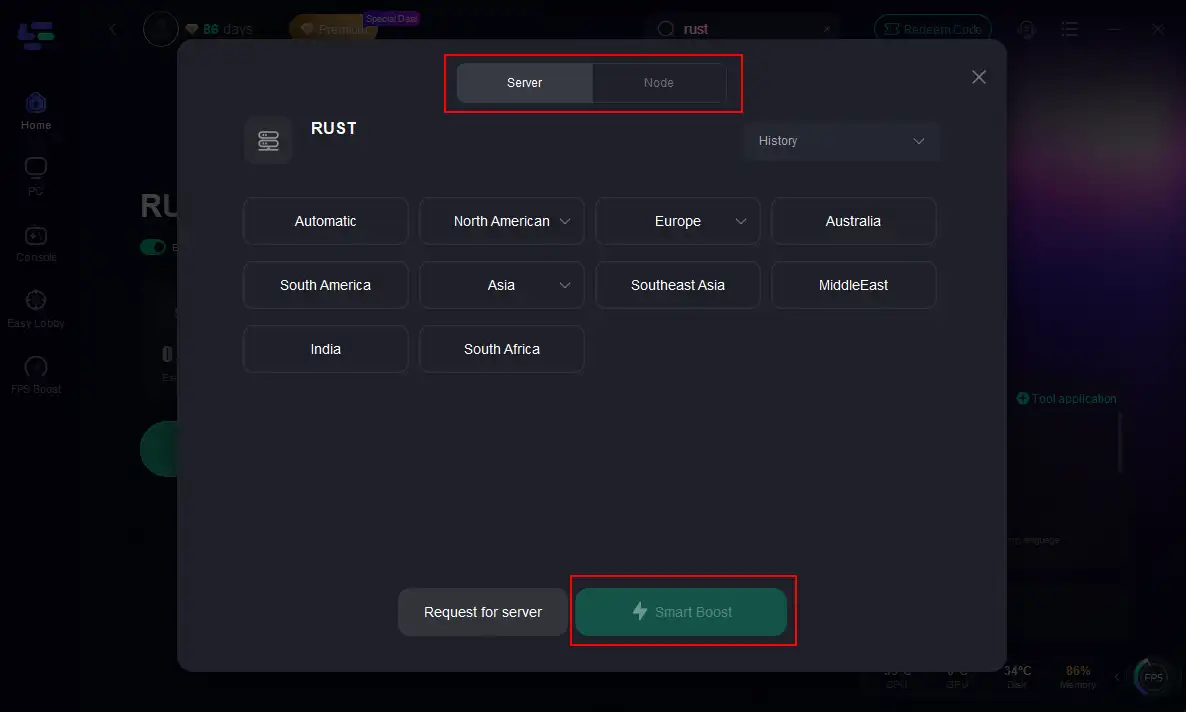
Step 4. Click Smart Boost to optimize ping, packet loss, and routing.
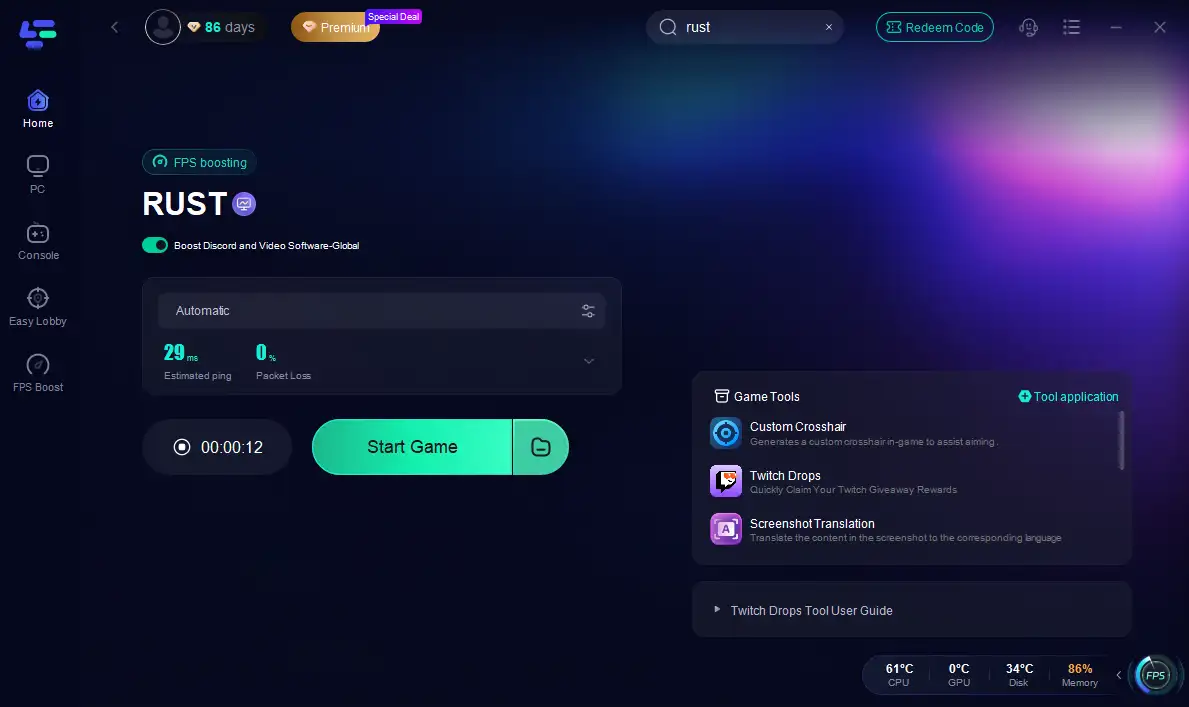
When combined with other system tweaks, LagoFast can significantly transform a stuck loader into a smooth startup.
Part 3. Other Solutions for Rust Loading Screen Issues
Apart from network optimizations, here are several additional proven fixes:
Disable Overlays
Turn off overlay features in Steam, GeForce Experience, and Windows Game Bar to eliminate conflicts.
Create Firewall Exceptions
Manually add both inbound and outbound rules for the following:
- Easy Anti-Cheat (in Program Files (x86)\EasyAntiCheat_EOS)
- Rust game executable
- RustClient executable
Then restart your system and relaunch Rust.
Delete Output_Log Files
Navigate to your Rust installation folder, locate the RustClient_Data directory, and delete any output_log files. This may force a fresh load.
Verify or Restore Game Files (PC)
In Steam, right-click Rust → Properties → Local Files → “Verify integrity of game files.”
You can also clear the Steam download cache and opt out of beta participation if applicable.
Memory/Page File Adjustments
For Unity-based loading screens, ensure you have adequate virtual memory (preferably 1.5× your RAM) or adjust the page file size manually.
Part 4. FAQs
Q: Will disabling overlays affect gaming performance?
No. Overlays often consume system resources and may not affect functionality if disabled, especially when Rust hangs due to them.
Q: Do firewall exceptions need restarts?
Yes—after adding rules for Rust and EasyAntiCheat, it’s best to restart Windows before launching the game again.
Q: Does LagoFast bypass the need for hardware fixes?
No—but it improves network reliability. For stuck loading due to hardware or game assets, you’ll still need to apply system-level fixes.
Q: Is this issue common on mobile clients too?
Yes—mobile versions are just as prone to connection stalls, especially under weak network conditions or poor routing.
Q: What if nothing works?
Try reinstalling Rust completely to ensure fresh files and settings. Combine that with the above network and system optimizations.
Conclusion
Facing the dreaded Rust loading screen hang can be a test of patience—whether you're on mobile or PC. The real game-changer is network optimization with LagoFast, which smooths out asset loading and server connectivity. Pair that with overlays disabled, proper firewall setup, virtual memory tuning, and graphic tweaks, and you’ll significantly reduce loading stalls and crashes.

Boost Your Game with LagoFast for Epic Speed
Play harder, faster. LagoFast game booster eliminates stutter and lags on PC, mobile, or Mac—win every match!
Quickly Reduce Game Lag and Ping!
Boost FPS for Smoother Gameplay!