
In the high-stakes world of Counter-Strike 2, few players command as much respect for their mechanical precision and "clean" gameplay as Robin "Ropz" Kool. As a cornerstone of Team Vitality, Ropz has consistently ranked among the world's elite, securing top-3 HLTV spots in both 2023 and 2025. Known for his meticulous attention to detail, his settings are often a point of fascination for players looking to elevate their own game.
However, before we dive into the Ropz settings CS2 full config, a word of caution: Copying a pro directly does not automatically make you a god. Settings are personal. What works for a generational talent in Estonia might not work for your local desk setup.

- ✅ Reduce Lag and High Ping.
✅ Boost FPS at the Same Time.
✅ Support 8000+ Online Games
✅ Change Server Without Latency.
✅ Multiplatform: PC, Console, Mobile.
✅End Connection & Crashing Issue
✅ Support Easy Lobby in all Cod Series
Part 1: Ropz Full Settings Overview
Part 3: Ropz Mouse & Sensitivity (eDPI Explained)
Part 4: Video & Resolution Settings
Part 5: Ropz CS2 Viewmodel & Config
Part 6: Are Ropz Settings Good for You?
Part 7: Ropz vs s1mple vs ZywOo (Pro Settings Comparison)
Part 8: Why Does Ropz Use Low Sens?
Part 9: How to Copy Ropz Settings in CS2
Part 10: Best Settings to Reduce Lag in CS2
Part 11: Beyond Settings: Use LagoFast to Optimize Your Gaming Experience
Part 1: Ropz Full Settings Overview
The Estonian rifler is famous for his "low-sensitivity, high-precision" philosophy. While many pros lean into aggressive, high-sens entry fragging, Ropz plays a methodical lurker role that demands pixel-perfect accuracy. His gear and software configuration are built to support that stability.
|
Category |
Setting |
|
Mouse |
Razer DeathAdder V3 HyperSpeed |
|
Resolution |
1920x1080 (16:9) |
|
DPI |
400 |
|
eDPI |
708 |
|
Polling Rate |
2000 Hz |
Part 2: Ropz Crosshair Code
If you want the legendary Ropz CS2 crosshair settings, you are looking for a classic, static green crosshair that provides high contrast against almost every map background. It’s small enough to click heads at a distance but visible enough for spray control.
- Crosshair Code: CSGO-5UHEt-3RFCY-4Nu8t-4UYGQ-vJN2G
Manual Settings:
- Style: Classic Static
- Length: 2
- Thickness: 0.5
- Gap: -3
- Color: Green (R: 0, G: 255, B: 145)
- Follow Recoil: No
Part 3: Ropz Mouse & Sensitivity (eDPI Explained)
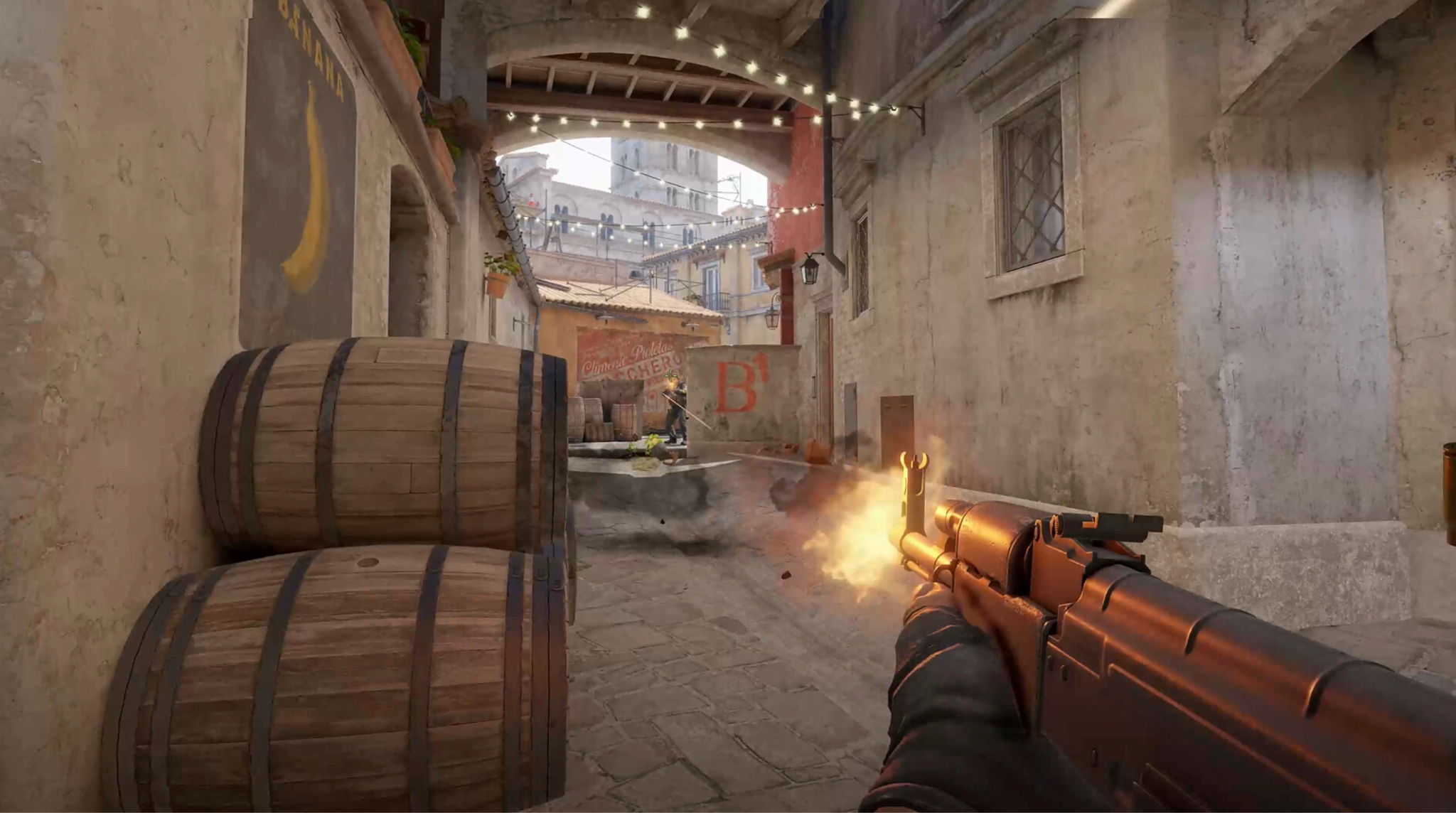
What sensitivity does Ropz use? This is the most discussed part of his setup. Robin uses a 1.77 in-game sensitivity at 400 DPI.
This results in a 708 eDPI (Effective Dots Per Inch). To put this in perspective, the average pro eDPI usually hovers around 800–900.
The Low-Sens Reality Check:
Using such a low sensitivity requires a massive physical commitment. To play like Ropz, you need:
- A Massive Mousepad: You will be moving your arm across the entire desk just to do a 180-degree turn.
- Arm-Style Movement: Most casual players use their wrists. Ropz uses his entire forearm for large movements and his wrist only for micro-adjustments.
- Physical Fatigue: If you aren't used to "arm aiming," you’ll find your shoulder getting tired quickly.
Part 4: Video & Resolution Settings
One of the biggest questions fans ask is: What resolution is Ropz CS2? Unlike the majority of the pro scene that clings to 1280x960 (4:3 stretched), Ropz famously uses 1920x1080 (16:9).
- Resolution: 1920x1080
- Aspect Ratio: 16:9 (Native)
- Boost Player Contrast: Enabled
- Model/Texture Detail: Low
- Global Shadow Quality: Low (though he keeps Dynamic Shadows on "All" for tactical advantages).
- MSAA: 2x MSAA
By staying on 16:9, Ropz enjoys a wider Field of View (FOV). He can literally see enemies on the edges of his screen that a 4:3 player would miss.
Part 5: Ropz CS2 Viewmodel & Config
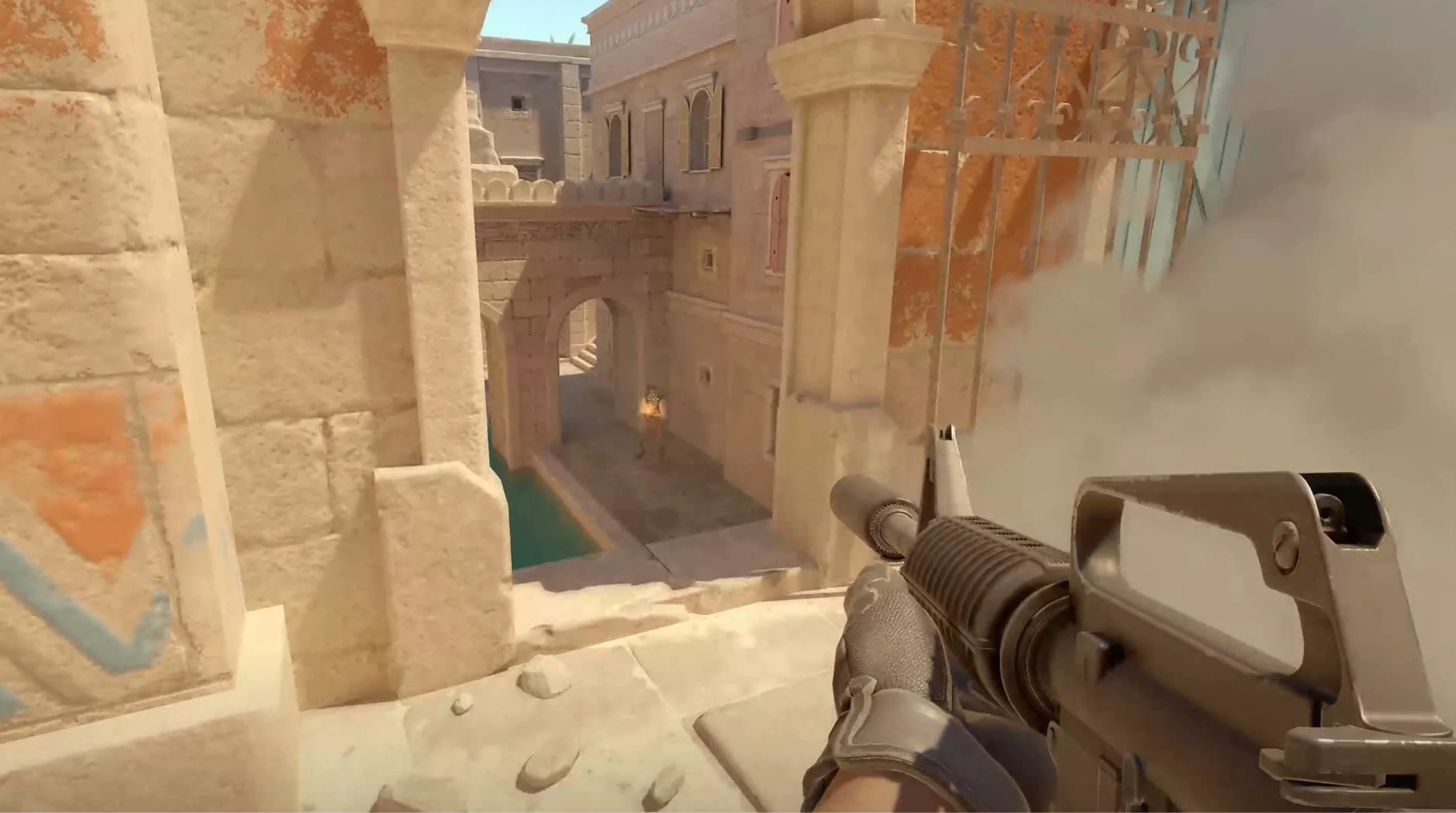
The Ropz CS2 Viewmodel is designed to keep the weapon model as unobtrusive as possible, clearing up the right side of the screen for better visibility.
- FOV: 68
- Offset X: 2.5
- Offset Y: 0
- Offset Z: -1.5
- Presetpos: 2
Console Command:
viewmodel_fov 68; viewmodel_offset_x 2.5; viewmodel_offset_y 0; viewmodel_offset_z -1.5; viewmodel_presetpos 2;
Regarding Ropz keyboard settings, he uses standard binds but focuses heavily on high-polling rate hardware to ensure his counter-strafing is instantaneous.
Part 6: Are Ropz Settings Good for You?
Probably not, at least not all of them.
While his resolution (16:9) is great for beginners because it feels natural, his sensitivity is an extreme outlier. If you have limited desk space, trying to use a 708 eDPI will result in you constantly hitting your keyboard with your mouse.
Recommendation: Start with his crosshair and video settings, but find a sensitivity that allows you to do a comfortable 180-degree turn with one swipe of your mouse.
|
Feature |
Ropz |
s1mple |
ZywOo |
|
Role |
Rifler |
AWPer/Rifler |
AWPer |
|
eDPI |
708 |
1236 |
800 |
|
Resolution |
1920x1080 |
1280x960 |
1280x960 |
|
Aspect Ratio |
16:9 |
4:3 Stretched |
4:3 Stretched |
|
Mouse |
Razer DeathAdder V3 |
Logitech G Pro X 2 |
Pulsar ZywOo Edition |
Part 7: Why Does Ropz Use Low Sens?
As mentioned, Ropz relies on mechanical consistency. In CS2, where sub-tick updates make movement feel "crisper," having a low sensitivity helps dampen the "floaty" feeling some players report. It forces the player to be more deliberate with their positioning, as you cannot simply "flick" 180 degrees with a flick of the wrist. It is a "brain-first" sensitivity.
Part 8: How to Copy Ropz Settings in CS2
- Mouse: Set your mouse software to 400 DPI and a 2000Hz polling rate.
- In-Game: Go to Settings, select Keyboard/Mouse, and click Sensitivity: 1.77.
- Crosshair: Open the console (~) and paste the crosshair code provided above.
- Video: Set your resolution to 1080p and Aspect Ratio to 16:9.
Part 9: Best Settings to Reduce Lag in CS2
Even with the best settings, hardware lag and network jitter can ruin your performance.
- Set NVIDIA Reflex Low Latency to Enabled.
- Keep V-Sync Disabled always.
- Set Global Shadow Quality to Low to save FPS, but ensure Dynamic Shadows are on to see enemy shadows through doorways.
Part 10: Beyond Settings: Use LagoFast to Optimize Your Gaming Experience
Even if you perfectly replicate the Ropz settings CS2 full config, your performance will still suffer if you're battling high ping or frame drops. This is where LagoFast becomes your secret weapon. As a premier game booster, LagoFast goes beyond simple tweaks by offering a dedicated multi-path connection system that finds the fastest route to game servers.
Key features include:
- Boost FPS: With one click, LagoFast clears background processes and optimizes CPU/GPU performance to maximize frame rates.
- Latency Optimization: Intelligently optimizes your network connection to reduce latency, stabilize ping, and minimize lag and packet loss.
- Custom Crosshair Settings: Want to experiment with pro-level crosshairs like Ropz’s without diving into complex console menus? LagoFast provides an intuitive interface to customize and lock in your perfect aim.
- Easy Server Switching: Easily connect to different regions with minimal lag, ensuring you can play on the most competitive servers worldwide.
Tutorial to Use LagoFast to Optimize Your Gaming Experience:
Step 1: Click the Free Trial button to download and install LagoFast Free Trial.
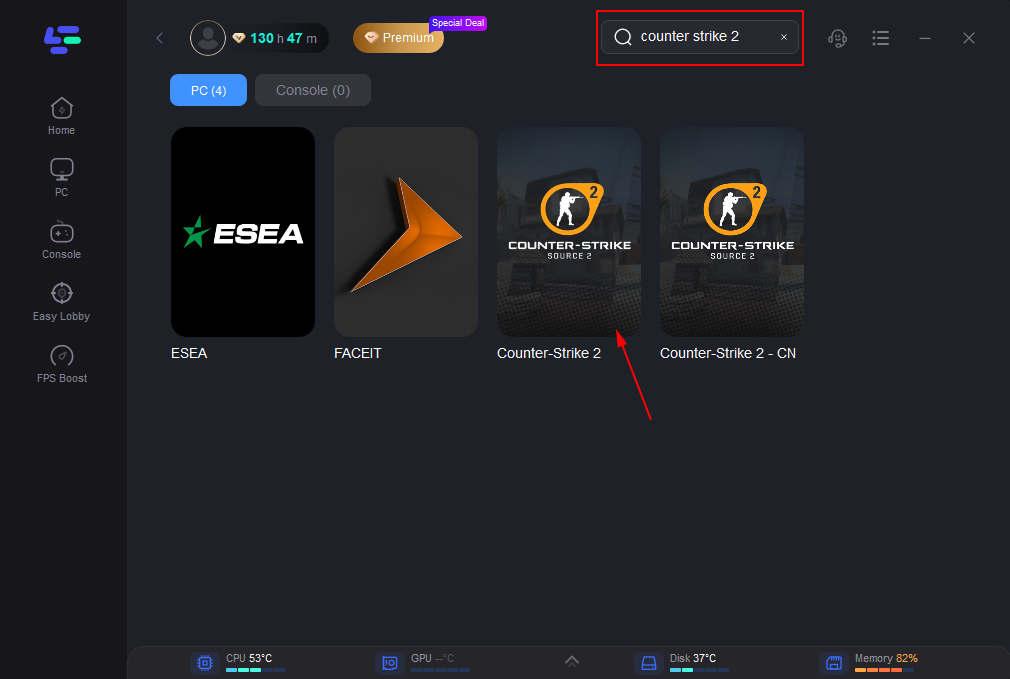
Step 2: Search for CSGO in the top search bar then click the result.
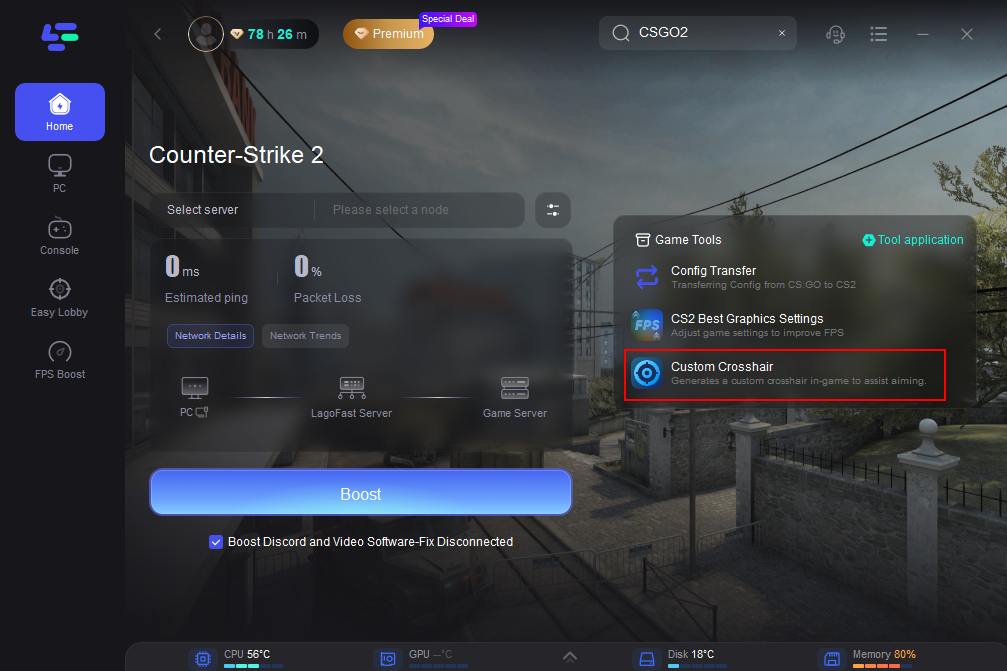
Step 3: Locate the Custom Crosshair Tool on the right side of the interface.
Step 4: Customize Your Crosshair: This tool lets you modify your crosshair’s appearance to suit your style, including its shape, size, thickness, color, and more. After fine-tuning your settings, click the Save Configuration button.
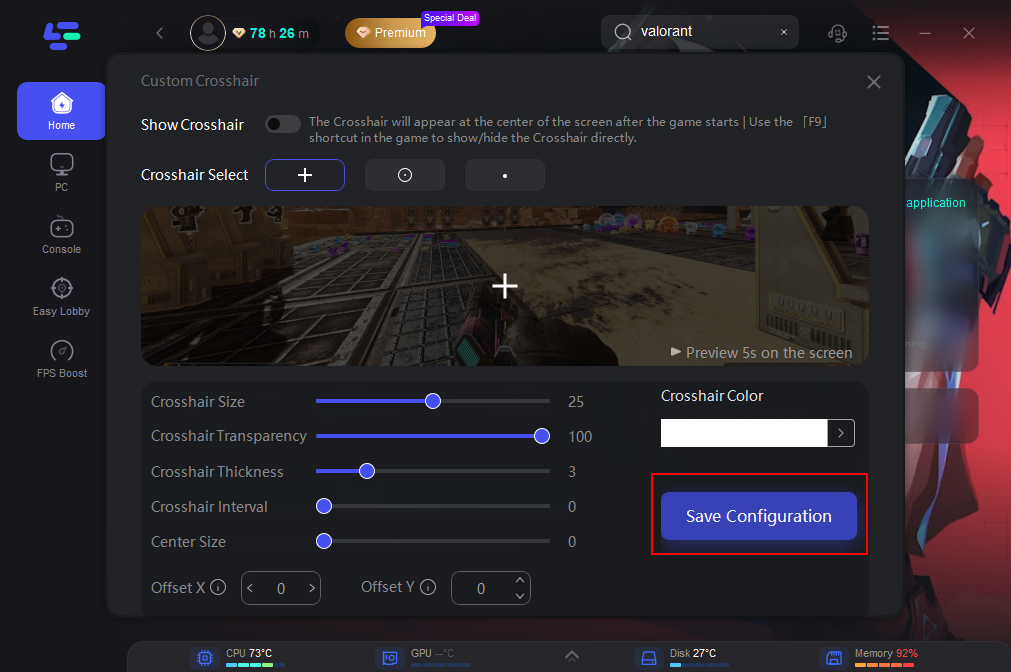
When you’re ready to dive into the game, simply launch CSGO and press F9 to display or hide the customized crosshair you’ve created with LagoFast. This feature allows you to switch between different crosshair designs or toggle them on and off as needed, giving you flexibility and a tactical advantage during gameplay.
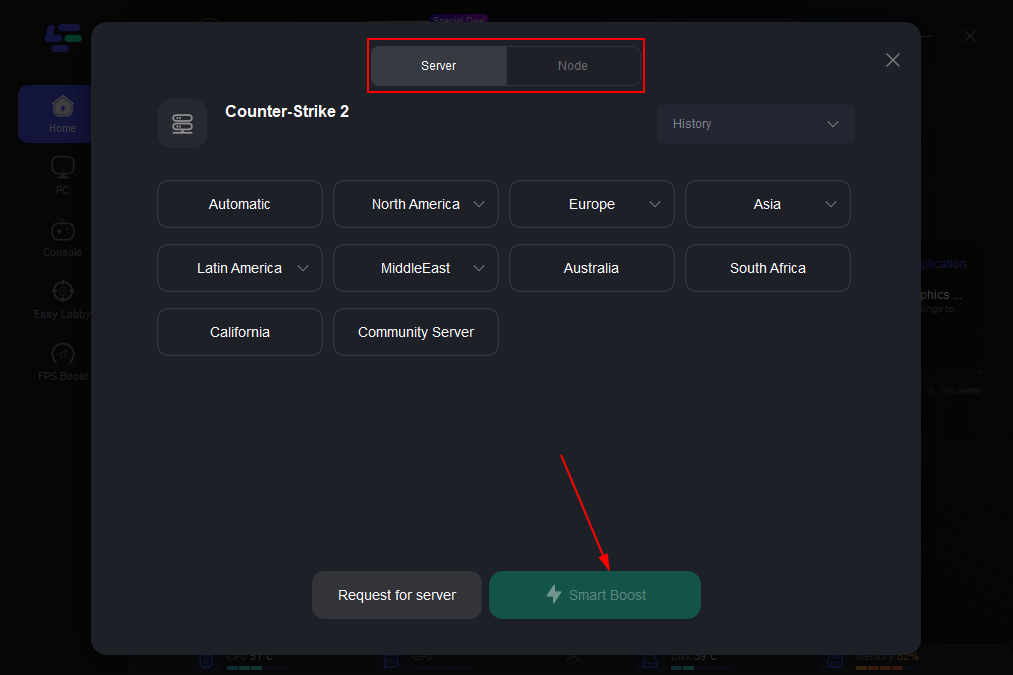
Step 5: Click on “Server” to change to a better server that ensures smooth gameplay, then click on “Smart Boost”.
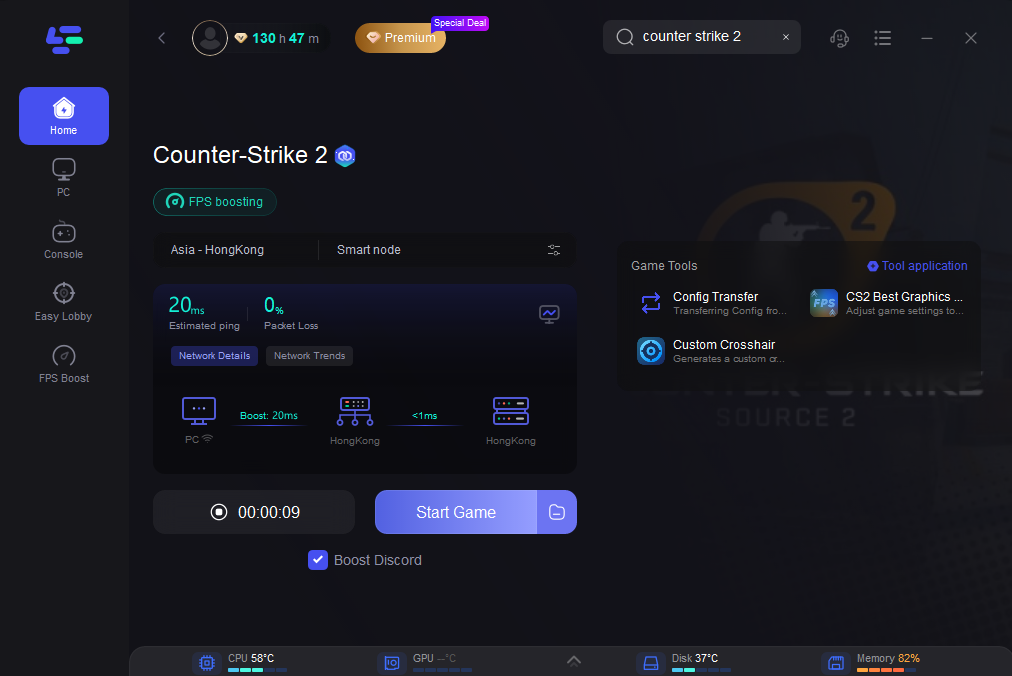
Step 6: Check the specific game ping, packet loss, and multiple path connection on the right side. Finally, click the “Start Game” to play the game.
Part 11: FAQs
Is Ropz the best CS player?
While "the best" is subjective, Ropz is widely considered the best mechanical "rifler" and lurker. Players like s1mple or ZywOo often take the #1 spot due to their AWPing impact, but Ropz is consistently in the top 5.
Why does Ropz use 16:9?
He prefers the visual clarity and the wider field of view. He has stated that 4:3 feels "outdated" and that the extra peripheral vision in 16:9 gives him a competitive edge.
Is CS2 better in 4:3 or 16:9?
4:3 makes player models appear larger (stretched), which can make aiming easier for some. 16:9 offers a wider FOV and better graphical fidelity. Most modern pros are slowly shifting toward 16:9.
What mouse does Ropz use?
As of 2026, he uses the Razer DeathAdder V3 HyperSpeed, configured at a 2000 Hz polling rate.
How do I get the Ropz config?
You can download his full config from ProSettings or manually enter the values for Viewmodel and Sensitivity provided in this guide.
Conclusion
Adopting the Ropz CS2 settings is a great way to experience how a world-class professional views the game. By utilizing a 16:9 resolution and a low-sensitivity approach, you can prioritize precision and awareness over chaotic flicking. To truly perform like the pros, combine these elite settings with the power of LagoFast to ensure your FPS and connection remain as stable as your aim.
Boost Your Game with LagoFast for Epic Speed
Play harder, faster. LagoFast game booster eliminates stutter and lags on PC, mobile, or Mac—win every match!
Quickly Reduce Game Lag and Ping!
Boost FPS for Smoother Gameplay!