
If you’ve ever jumped into a Roblox game only to face lag, long queues, or a server that feels completely off, you’re not alone. The Roblox Server Filter is your secret weapon to avoid these issues and find the perfect server tailored to your needs. In this guide, we’ll break down how to use this tool effectively, explore strategies for choosing the best servers, and answer the burning question: how do I change server regions in Roblox? Let’s dive in.

- ✅ Reduce Lag and High Ping.
✅ Boost FPS at the Same Time.
✅ Support 2000+ Online Games
✅ Change Server Without Latency.
✅ Multiplatform: PC, Console, Mobile.
✅End Disconnection and Crashing Issues
Part 1: Understanding the Roblox Server Filter
Part 2: How to Choose Roblox Servers: Key Factors
Part 3: How to Change Server Regions in Roblox with LagoFast’s Server Filter Tool
Part 1: Understanding the Roblox Server Filter
Roblox’s Server Filter is a built-in feature that allows players to refine their search for servers within a game. Whether you’re looking for low latency, a specific player count, or a regional server, this tool streamlines the process. Unlike older methods that relied on trial and error, the filter lets you set precise criteria, ensuring you join a server that matches your preferences.
Common filter options include:
- Region: Choose servers closest to your location (e.g., North America, Europe, Asia) to minimize lag.
- Player Count: Filter servers by how many players are currently online (e.g., “Few Players” for quieter sessions or “Full Servers” for bustling gameplay).
- Latency: Sort servers by connection speed to find the most responsive ones.
- Game Mode: Some games let you filter by specific modes (e.g., PvP, creative).
Using these filters ensures you’re not just joining any server but the best possible server for your experience.
Part 2: How to Choose Roblox Servers: Key Factors
Selecting the right server goes beyond just clicking “Join.” Here’s a breakdown of what to consider:
1. Latency and Ping
Latency, measured in milliseconds (ms), determines how quickly your actions sync with the server. A lower ping (e.g., 20–50 ms) means smoother gameplay, while higher values (100+ ms) lead to delays. The Server Filter lets you sort servers by latency, so prioritize those with the lowest numbers. If your connection is unstable, consider using a VPN or a gaming-specific tool like LagoFast to optimize your route.
2. Player Count and Server Stability
- Low Player Count: Ideal for exploring, testing builds, or avoiding crowded matches.
- Medium/High Player Count: Great for socializing, competitive play, or games that thrive on teamwork.
- Server Stability: Look for servers with consistent player numbers and avoid those with rapid disconnects, which often indicate technical issues.
3. Region-Specific Servers
Roblox hosts servers worldwide, and connecting to a local one reduces lag. For example:
- Players in the U.S. might prioritize servers labeled “North America East” or “West.”
- European players should aim for “Europe Central” or “UK.”
- Asian players benefit from “Singapore” or “Japan” servers.
But how do I change server regions in Roblox? Let’s tackle that next.
Part 3: How to Change Server Regions in Roblox with LagoFast’s Server Filter Tool
Tired of laggy servers or can’t find the right region? LagoFast has your back. Built for Roblox, its dedicated Server Filter lets you pick servers by region, player count, and latency—in just a few clicks. Here’s how to use it:
Why LagoFast?
- Roblox-Optimized: Fixes lag specifically for Roblox, better than generic VPNs.
- Simple Filters: Choose regions (e.g., NA, EU, Asia), player counts (low/medium/high), and low-latency servers—all in one place.
How to Change Server in Roblox with LagoFast:
Step 1: Download and install LagoFast, sign in
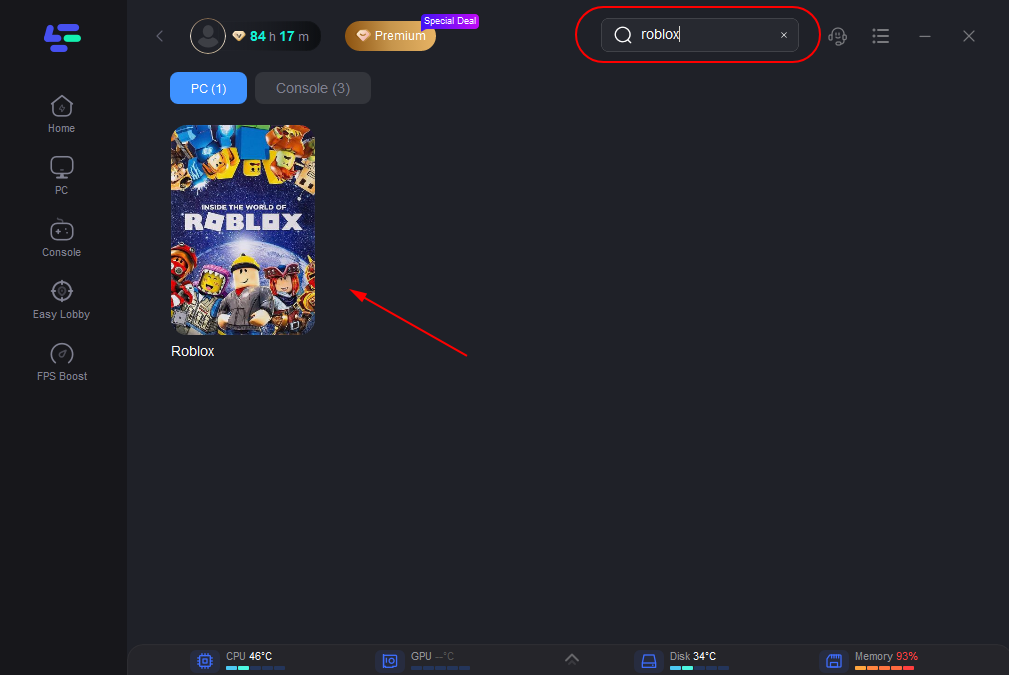
Step 2: Search “Roblox” and click the result.
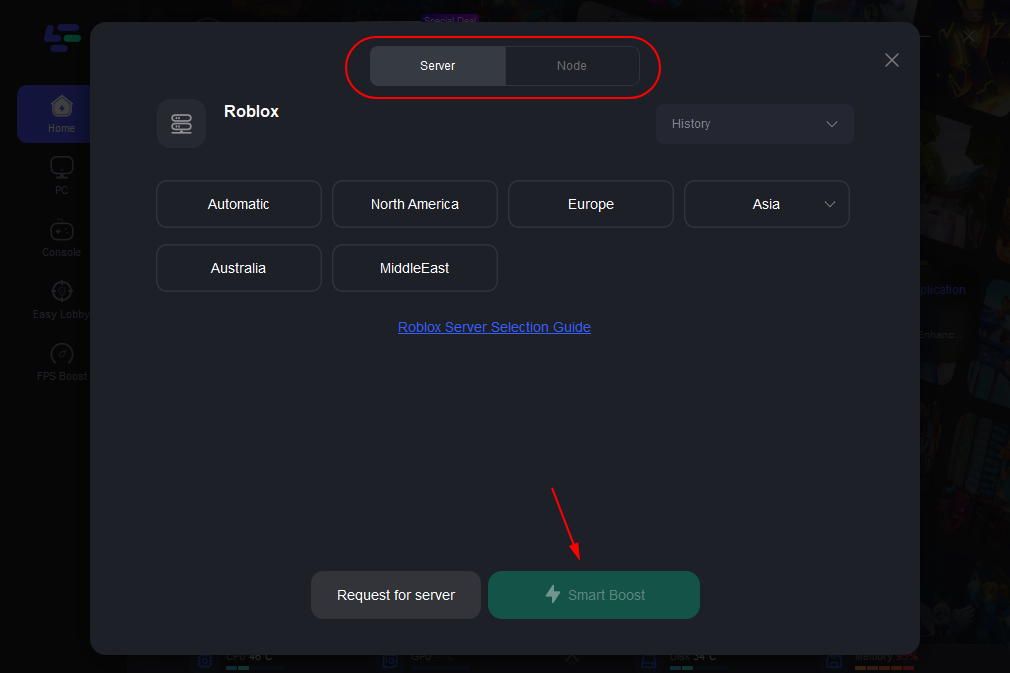
Step 3: Choose the server node you like.
Step 4: The boosted page will display your packet loss rate, network status, and ping rate.
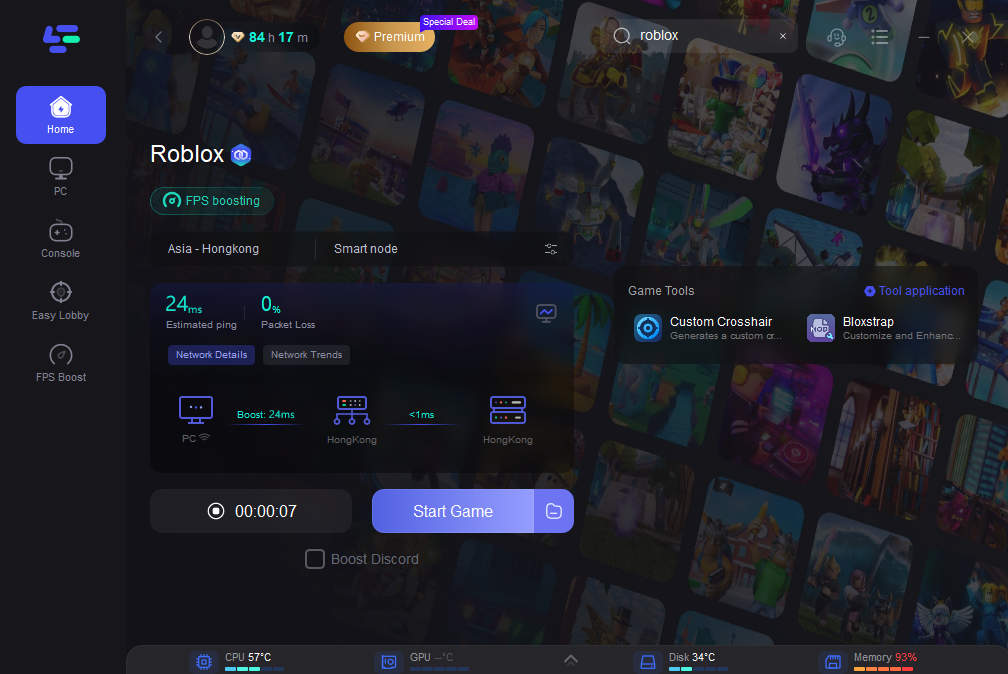
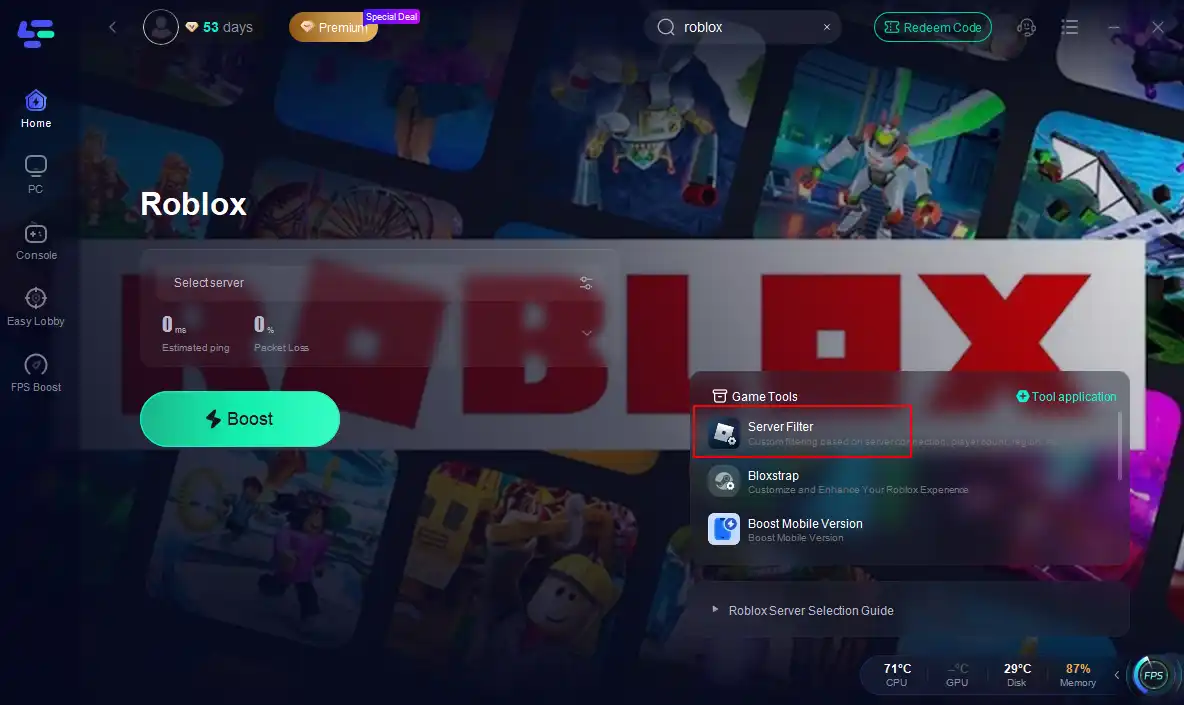
Step 5: Click the Server Filter tool on the right. Decide on what you want to base your server selection on and click Done.
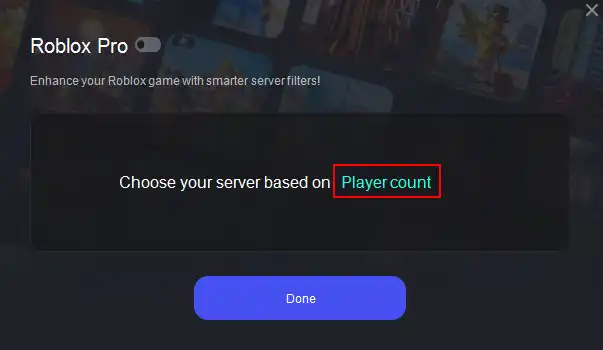
Now launch Roblox. You’ll join servers that match your filters—no more guessing! LagoFast reduces lag by up to 80%, so even faraway regions feel local.
LagoFast also provides a download for the Bloxstrap tool. This tool displays the current server location when you enter a Roblox game, helping you determine which server to choose in LagoFast.
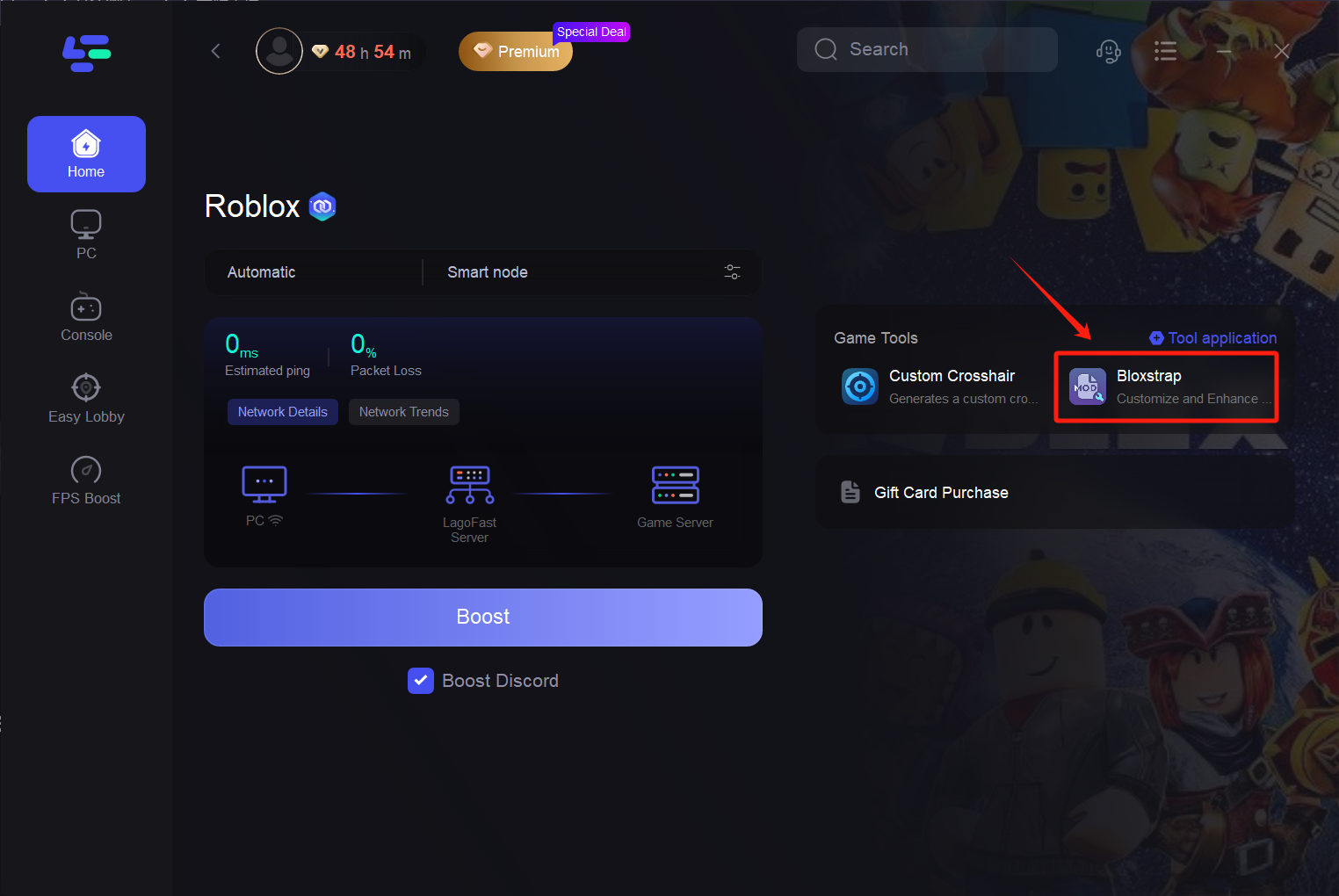
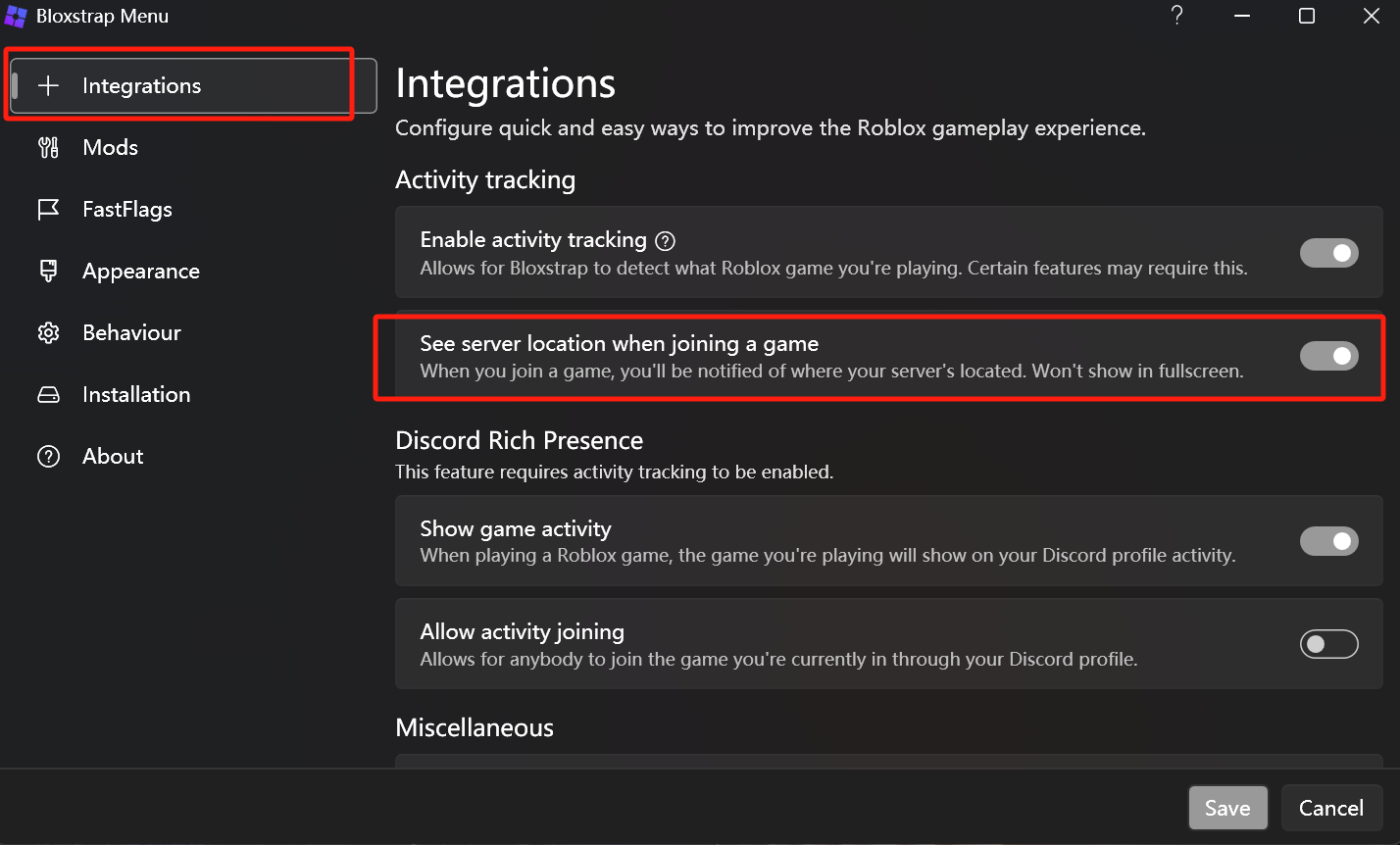
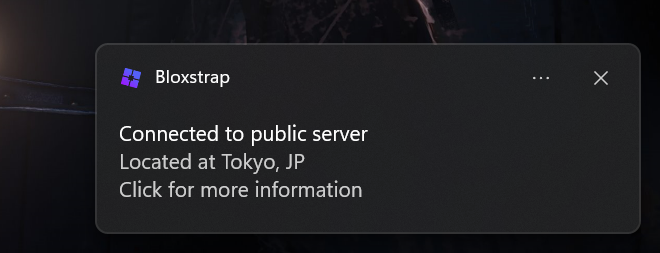
Please note: Bloxstrap is a third-party open-source free plugin.
Conclusion
The Roblox Server Filter is a game-changer for anyone serious about smooth gameplay. By understanding how to filter servers by region, latency, and player count, you’ll avoid frustrating lags and queues while unlocking a world of global play.
Boost Your Game with LagoFast for Epic Speed
Play harder, faster. LagoFast game booster eliminates stutter and lags on PC, mobile, or Mac—win every match!
Quickly Reduce Game Lag and Ping!
Boost FPS for Smoother Gameplay!