
The long-awaited release of Resident Evil Requiem has finally arrived, bringing Leon S. Kennedy and newcomer Grace Ashcroft into a terrifying new chapter of survival horror. Since launch, many players jumping into Resident Evil Requiem have reported frustrating technical issues that interrupt gameplay. A particularly common message reads: “An unhandled exception occurred.” Whether the game crashes during startup, freezes on a black screen, or refuses to launch altogether, these problems can quickly ruin the experience. This guide explains every major Resident Evil Requiem common error and solution, helping players get back into the horror without unnecessary stress or technical headaches.

- ✅ Reduce Lag and High Ping.
- ✅ Boost FPS at the Same Time.
✅ Support 2000+ Popular Online Games.
✅ Change Server without Latency.
✅ Boost Game Loading Speed.
Part 1: Resident Evil Requiem Common Errors
Part 2: How to Quickly Fix Resident Evil Requiem Common Errors?
Part 1: Resident Evil Requiem Common Errors
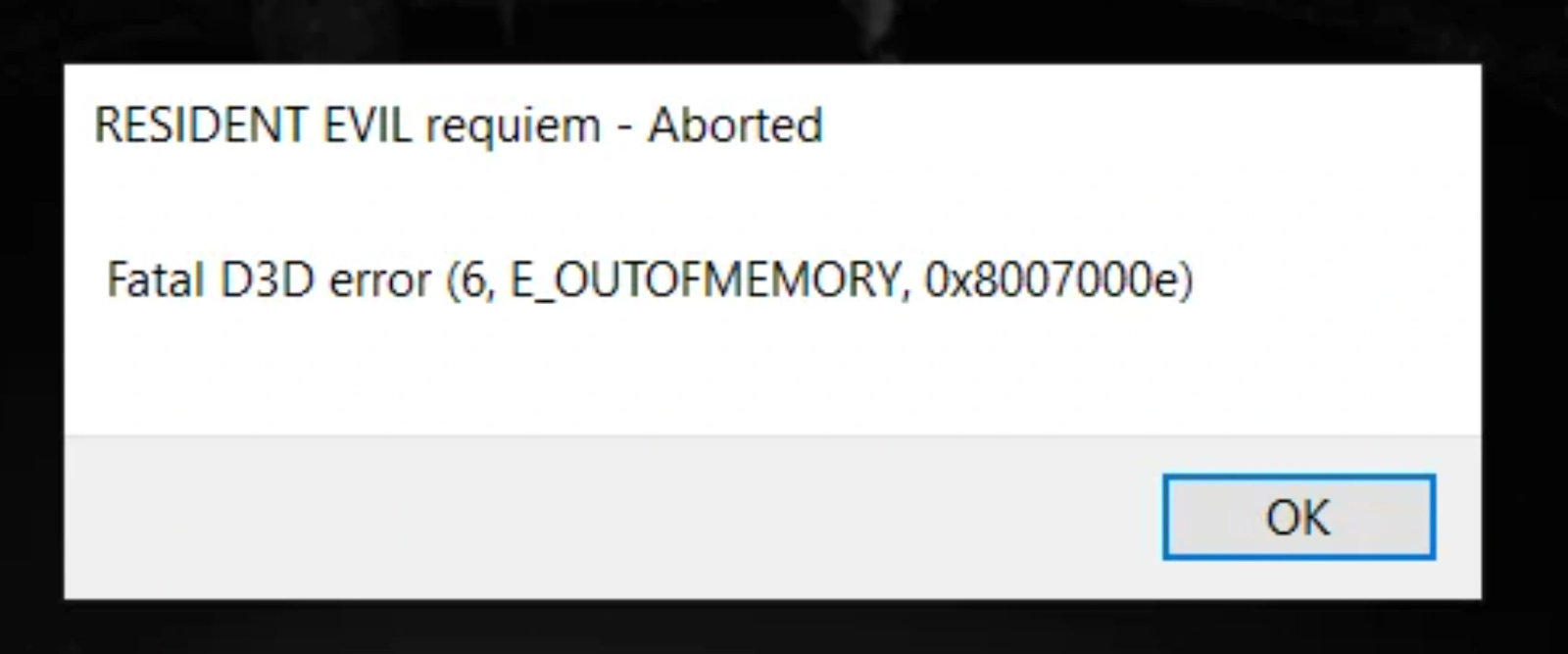
Even with a high-end rig, the complexity of modern PC gaming means that hardware conflicts, driver issues, or corrupted shader caches can lead to a Resident Evil Requiem common error. Because this installment features highly advanced lighting and a dual-protagonist system that pushes the RE Engine to its limits, the demand on your system is significant. Below are the five most frequent issues currently plaguing players:
- Resident Evil 9 Crashing on Startup/Shader Compilation: Many users find that the game hangs or closes entirely during the initial shader pre-caching stage.
- Resident Evil Requiem Black Screen: A situation where the audio might play in the background, but the display remains completely unresponsive.
- Resident Evil Requiem Not Launching: Clicking "Play" on Steam results in a brief "Running" status before the game silently closes.
- Resident Evil Requiem Fatal D3D Error (0x80070005): A specific DirectX error often related to access permissions or GPU memory exhaustion.
- RE9 Crashing (Random In-Game): Spontaneous crashes that occur during heavy combat sequences or transitions between Leon and Grace’s campaigns.
Related Article: Best Resident Evil Requiem Mods Tool
Part 2: How to Quickly Fix Resident Evil Requiem Common Errors?
Fixing these issues can range from a quick settings tweak to a deep dive into system files. While manual troubleshooting is possible, it is often time-consuming and doesn't always address the root cause, such as network instability or resource misallocation.
All-in-One Solution - LagoFast
If you want a smooth gaming experience without the hassle of digging through folders and settings, LagoFast is the ultimate all-in-one solution for resolving issues with Resident Evil Requiem. As one of the top game boosters on the market, LagoFast is specifically designed to optimize your PC environment, even for demanding titles like Resident Evil 9.
For crashes and error reports in Resident Evil Requiem, LagoFast offers a dedicated Game Crash Fix Tool. Beyond that, it stabilizes your connection to game servers and manages system resources to fix common issues in Resident Evil Requiem, helping prevent fatal D3D errors and startup crashes.
Key Features of LagoFast:
- Game Crash Fix Tool: Specialized in resolving crashes and error reports for a seamless gaming experience.
- One-Click Optimization: Instantly stabilizes your FPS and clears system bottlenecks.
- Global Node Network: Reduces lag and latency by connecting you to the most efficient server paths.
- Game Crash Protection: Optimizes system resource allocation to prevent memory-related crashes.
- Easy-to-Use Interface: No technical knowledge required; just select the game and boost.
- One-Click Translation Tool: Instantly translates in-game text—including dialogue, notes, and UI—into your preferred language directly within the game. Supports Thai, Turkish, Vietnamese, and Ukrainian, helping international players fully understand the story and gameplay.
While manual fixes are available, they are often tedious and lack the automated efficiency of LagoFast. Here are the traditional methods for resolving specific errors.
Tutorial to Use LagoFast to Fix Resident Evil Requiem Common Errors Quickly:
Step 1: Click the Free Trial button to download and install LagoFast.
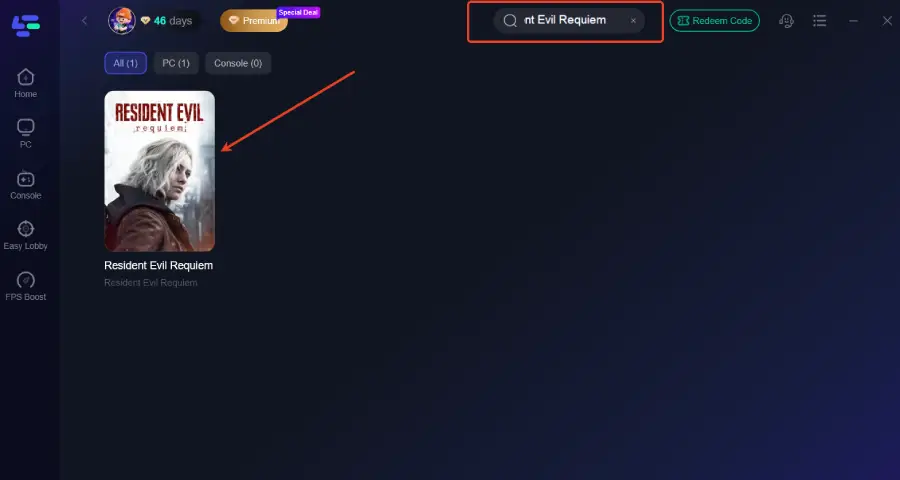
Step 2: Open LagoFast, then click the PC button on the left and search for Resident Evil Requiem in the search bar, and click it after it appears.
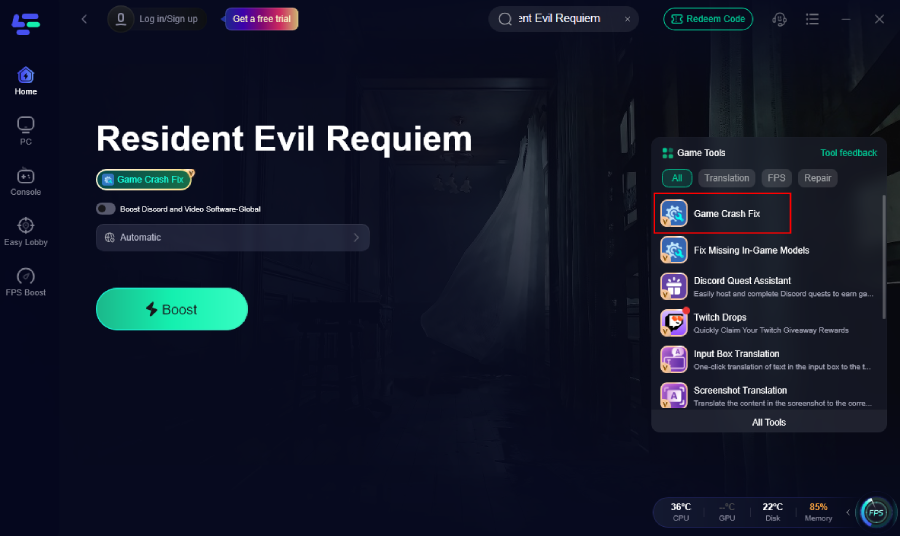
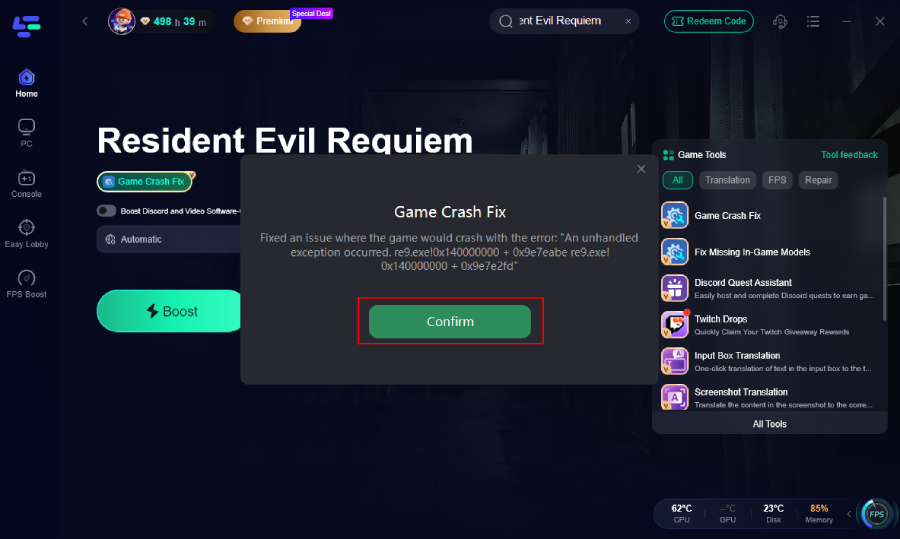
Step 3: Click the Game Crash Fix Tool on the right.
Step 4: Click "Confirm".
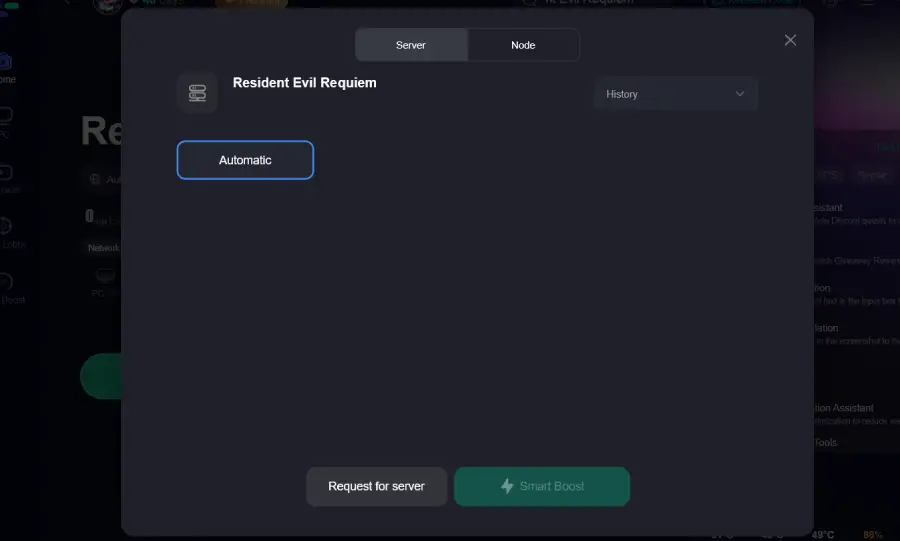
Step 5: Click on “Server” to change to a better server that ensures a better gaming experience, then click on “Smart Boost” to fix the common errors.
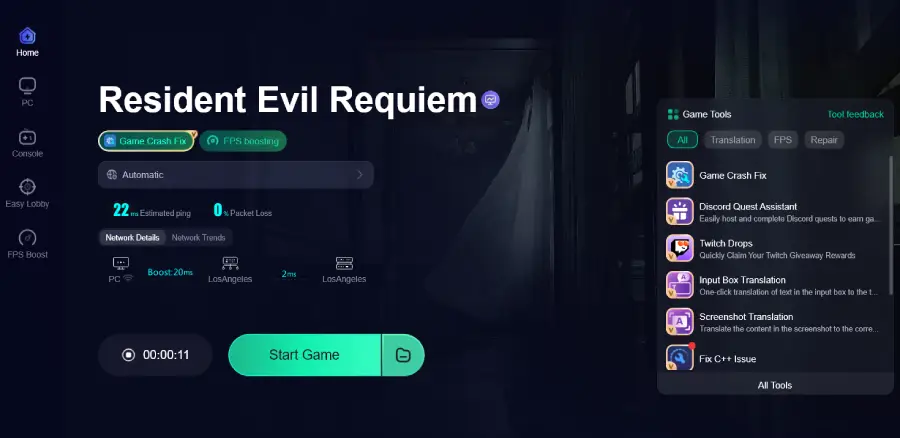
Step 6: Check the specific game ping, packet loss, and multiple path connections on the right side. Finally, click the “Start Game” to play the game.
Solution 2: Fix for Resident Evil 9 Crashing on Startup/Shader Compilation
Shader compilation issues often stem from corrupted cache files or outdated drivers.
Step 1: Open your GPU control panel and clear the "Shader Cache."
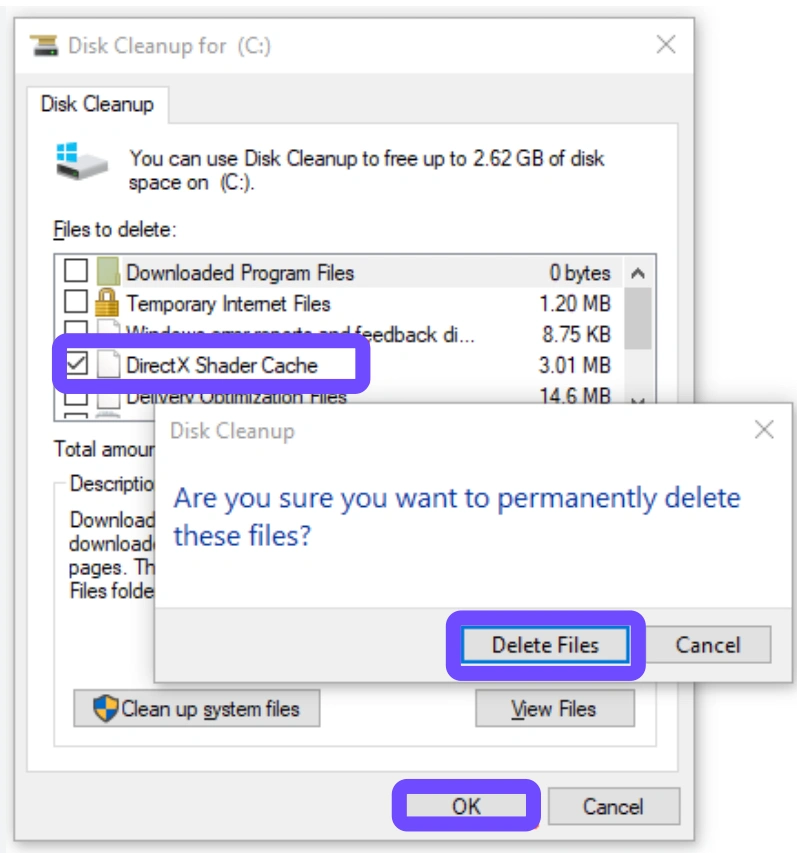
Step 2: Navigate to the game's installation folder and delete any files ending in .cache.
Step 3: Update your graphics drivers to the latest "Game Ready" version.
Step 4: Verify the integrity of game files through the Steam library properties.
Step 5: Increase your Windows Virtual Memory (Pagefile) to at least 16GB.
Solution 3: Fix for Resident Evil Requiem Black Screen
Black screens are usually a result of resolution conflicts or overlay interference.
Step 1: Press Alt + Enter to force the game into Windowed mode.
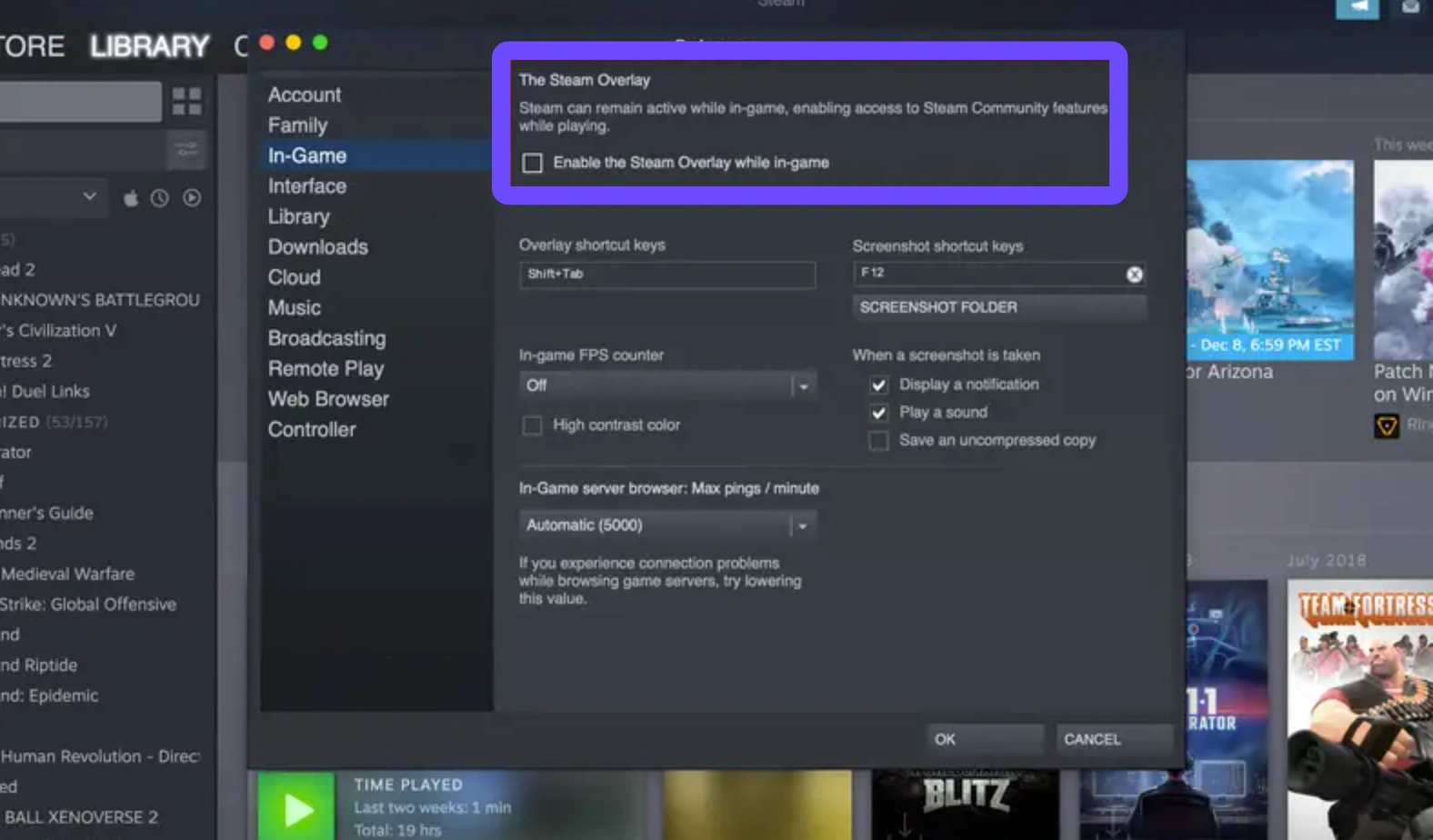
Step 2: Disable "Steam Overlay" in the game settings on Steam.
Step 3: Turn off third-party overlays like Discord or MSI Afterburner.
Step 4: Navigate to the config.ini file in the game folder and manually set the resolution to match your monitor.
Step 5: Ensure your monitor’s refresh rate is set to a standard value (60Hz or 144Hz) before launching.
Solution 4: Fix for Resident Evil Requiem Not Launching
When the game won't even open, it's often a permission or administrative conflict.
Step 1: Right-click the re9.exe file and select "Run as Administrator."
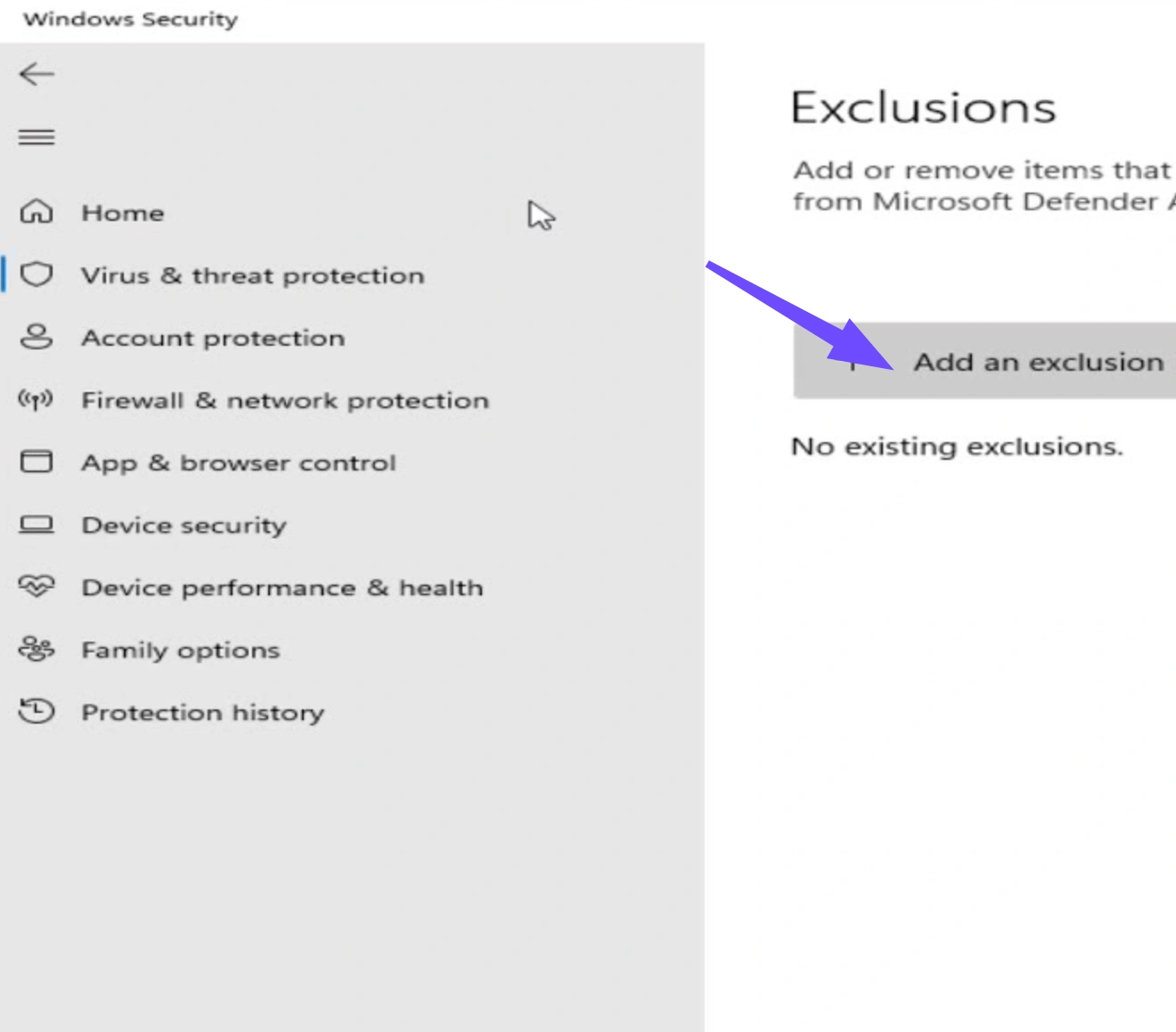
Step 2: Add the entire game folder to your Antivirus/Windows Defender "Exclusions" list.
Step 3: Install the latest "Visual C++ Redistributables" from the Microsoft website.
Step 4: Check if your Windows version is updated to at least 22H2 or higher.
Step 5: Disable any "Compatibility Mode" settings that might be active on the executable.
Solution 5: Fix for Resident Evil Requiem Fatal D3D Error (0x80070005)
This error specifically points to "Access Denied" or memory issues within the DirectX environment.
Step 1: Lower the "Texture Quality" setting in the main menu to reduce VRAM usage.
Step 2: Disable Ray Tracing, as it is a common trigger for D3D failures in the RE Engine.
Step 3: Update DirectX to the latest version via the official Microsoft installer.
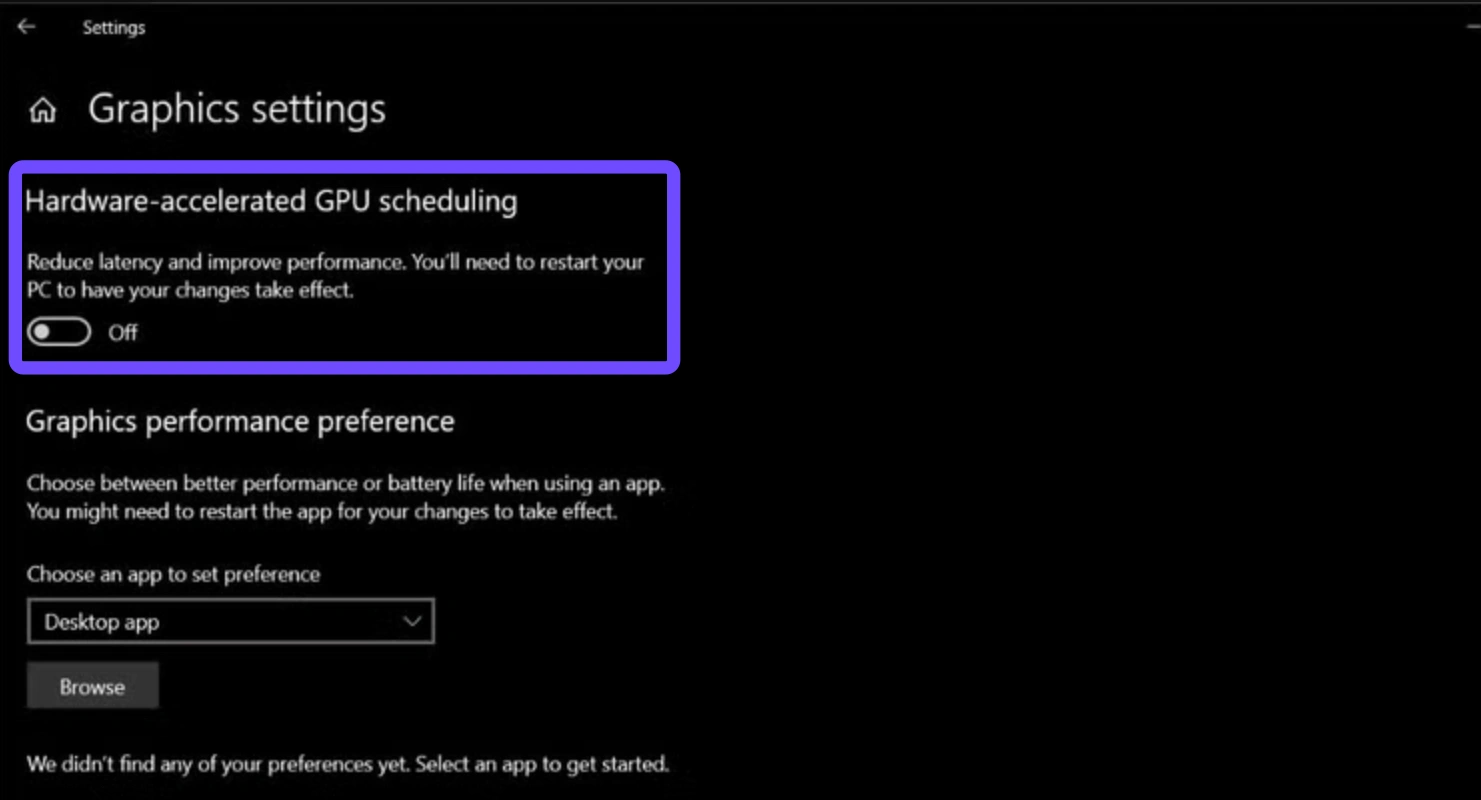
Step 4: Turn off "Hardware-Accelerated GPU Scheduling" in Windows Display settings.
Step 5: Reinstall the game on an SSD if it is currently on an older HDD.
Solution 6: Fix for General RE9 Crashing
Random crashes are the hardest to pin down, but are usually tied to background processes.
Step 1: Open Task Manager and close all non-essential background applications.
Step 2: Disable "Windows Game Mode" to see if it improves stability.
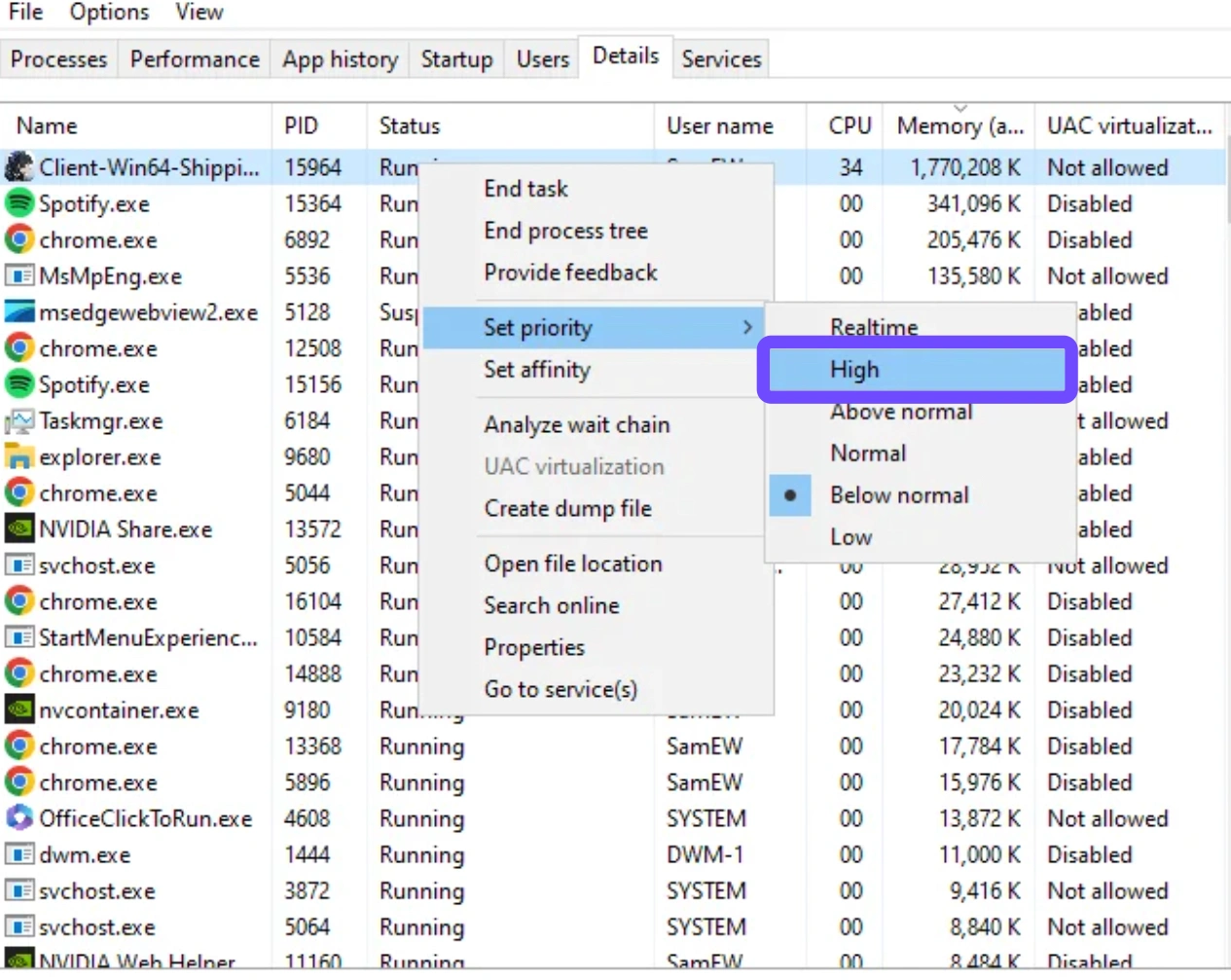
Step 3: Set the game priority to "High" in the Task Manager details tab.
Step 4: Limit your in-game FPS to 60 to prevent the GPU from overheating.
Step 5: Perform a "Clean Boot" of Windows to eliminate software conflicts.
Conclusion
Technical bugs shouldn't stand in the way of Leon Kennedy's return to Raccoon City. Whether you are dealing with a Resident Evil Requiem Fatal D3D Error (0x80070005) or a stubborn Resident Evil Requiem black screen, the solutions provided above will help you clear the path. While manual troubleshooting can work, it often feels like a puzzle as difficult as any in the game. For the most stable, high-performance experience, using a dedicated tool like LagoFast ensures that Resident Evil Requiem runs smoothly every time you hit play.

Boost Your Game with LagoFast for Epic Speed
Play harder, faster. LagoFast game booster eliminates stutter and lags on PC, mobile, or Mac—win every match!
Quickly Reduce Game Lag and Ping!
Boost FPS for Smoother Gameplay!