
Quick Answer: How to Fix PUBG Stuck on Smoke Screen?
If your PUBG game hangs on the grey smoke screen, the issue is almost always a breakdown in network data transmission or corrupt local cache files. The fastest, most effective way to solve this is to use LagoFast Game Booster. LagoFast automatically optimizes your network routing, clears connection congestion, and provides a one-click fix that bypasses the manual troubleshooting headache entirely, ensuring you smoothly transition from the match back to your lobby.
Few things are more frustrating than clutching a tense match in PUBG: BATTLEGROUNDS only to be greeted by a never-ending, unclickable grey smoke screen. This notorious loading hang disrupts your momentum and forces constant game restarts. Fortunately, you do not have to just sit there waiting forever; fixing this issue permanently is entirely possible.

- ✅ Reduce Lag and High Ping.
✅ Boost FPS at the Same Time.
✅ Support 8000+ Online Games
✅ Change Server Without Latency.
✅ Multiplatform: PC, Console, Mobile.
✅ End Stuck, Connection & Crashing Issues
Part 1: PUBG Stuck on Smoke Screen: Overview
Part 2: How to Fix Stuck on Smoke Screen When Launching PUBG - Manual Solution
Part 3: How to Fix Stuck on Smoke Screen When Entering the Lobby - Manual Solution
Part 4: How to Fix Stuck on Smoke Screen After a Match/Returning to Lobby - Manual Solutions
Part 6: LagoFast VS Manual Fixes: Which One Is Better?
Part 1: PUBG Stuck on Smoke Screen: Overview
To help you understand exactly what you are dealing with, here is a breakdown of when this issue strikes, why it happens, and how to approach resolving it.
|
Scenario |
Primary Root Causes |
Primary Manual Fixes |
|
When Launching |
Corrupt intro cinematic files, outdated graphics drivers, or administrative blocks. |
Delete loading videos, update GPU drivers, run Steam as admin. |
|
When Entering the Lobby |
Firewall blocking anti-cheat services (BattlEye), or corrupted local Steam download cache. |
Reset Windows Firewall, verify local files, clear Steam download cache. |
|
When Returning to Lobby |
ISP TCP Idle Timeout dropping the server connection during a long match. |
Flush DNS, use a dedicated game booster like LagoFast. |
Part 2: How to Fix Stuck on Smoke Screen When Launching PUBG - Manual Solution
When PUBG hangs right after you start the application from Steam, it is usually because the game client is struggling to load initial assets or is being actively blocked by your operating system's security features.
Step 1. Verify Integrity of Game Files: Open Steam, go to your Library, right-click on PUBG: BATTLEGROUNDS, and select Properties. Navigate to the Installed Files tab and click Verify integrity of game files to repair broken or missing data.
Step 2. Run as Administrator: Right-click your Steam desktop shortcut and select Run as Administrator. Do the same for the PUBG executable file (TslGame.exe) found within your local installation folder.
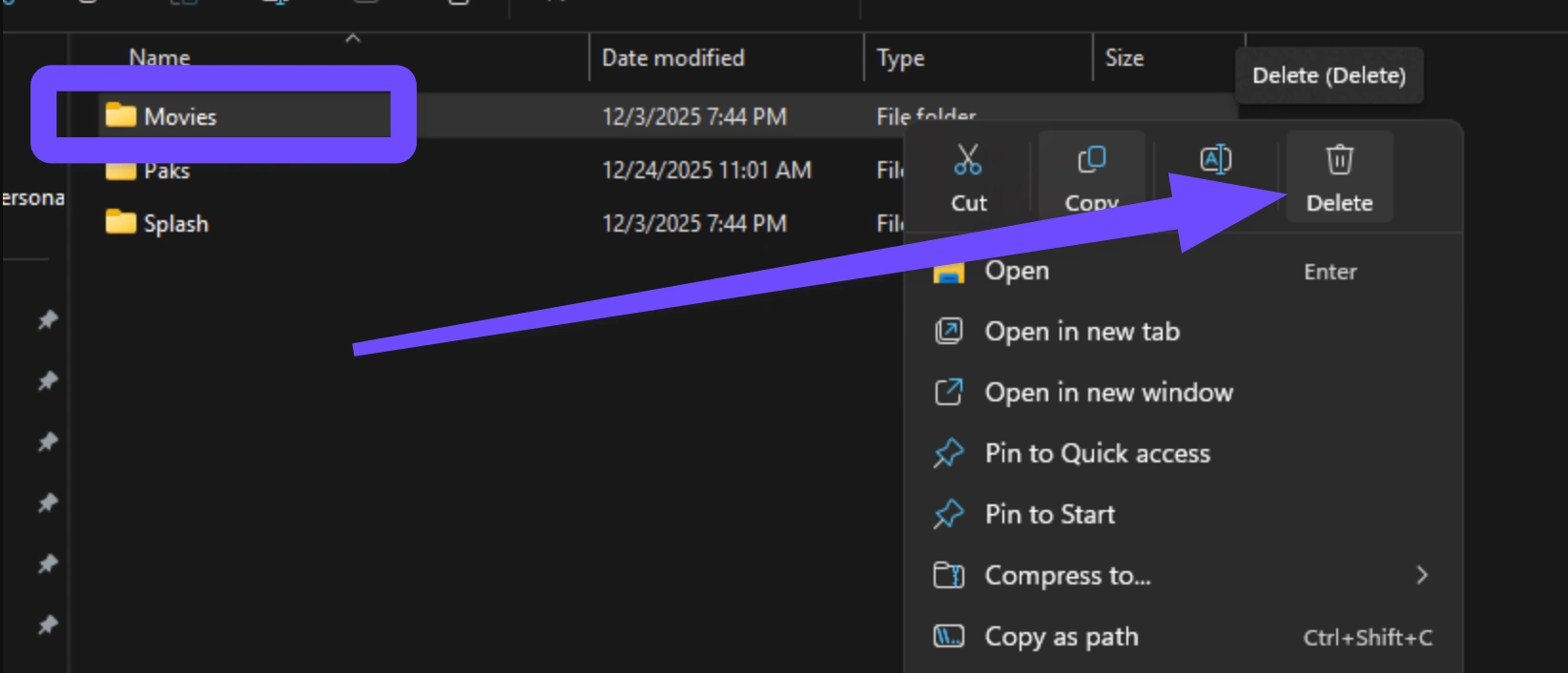
Step 3. Delete Intro Movie Files: Navigate to your PUBG local directory (TslGame\Content\Movies). Locate and delete or rename the startup video files (like LoadingScreen.mp4). This forces the game to bypass heavy video rendering on launch.
Step 4. Update Graphics Drivers: Open GeForce Experience or AMD Software and ensure your graphics card is running the latest 2026 driver updates to eliminate software conflicts.
Step 5. Disable Background Overclocks: If you use MSI Afterburner or similar software to overclock your CPU or GPU, temporarily disable it. Unstable hardware profiles frequently cause PUBG to lock up on its initial load screens.
Part 3: How to Fix Stuck on Smoke Screen When Entering the Lobby - Manual Solution
Getting past the introductory logos only to get stuck on the grey smoke screen right before entering the main lobby points directly to an authentication failure. Your game client is trying to verify your profile with the PUBG servers, but something is choking the connection.
Step 1. Clear Steam Download Cache: Click Steam in the top-left corner of your client, open Settings, go to the Downloads tab, and click Clear Cache. Steam will restart, removing fragmented connection data.
Step 2. Reset Windows Defender Firewall: Open your Control Panel, navigate to System and Security, then click Windows Defender Firewall. On the left panel, click Restore defaults and confirm. Upon launching PUBG again, make sure to select "Allow access" for both public and private networks.
Step 3. Restart BattlEye Services: Press Ctrl + Shift + Esc to open Task Manager. Go to the Services tab, locate BEService (BattlEye), right-click it, and select Restart. If it is stopped, select Start.
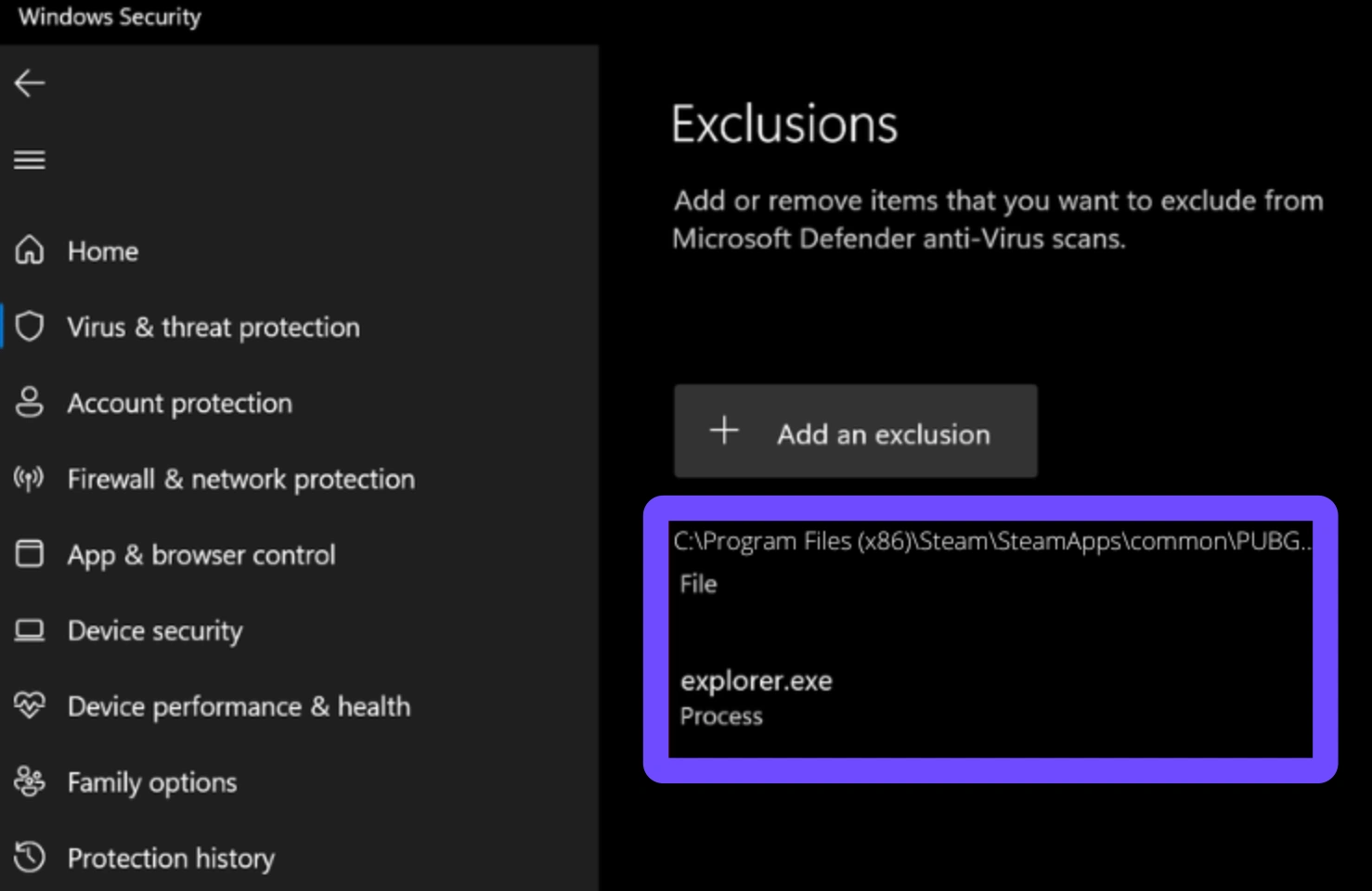
Step 4. Exclude PUBG from Antivirus Scanning: Open your antivirus software, navigate to its real-time scanning exceptions or exclusions menu, and add the entire PUBG installation folder (Steam\steamapps\common\PUBG) to the list.
Step 5. Switch to a Public DNS: Open your network connection properties, select IPv4, and change your DNS servers. Use Google DNS (8.8.8.8 as primary, 8.8.4.4 as secondary) or Cloudflare DNS (1.1.1.1) to ensure cleaner routing to gaming servers.
Part 4: How to Fix Stuck on Smoke Screen After a Match/Returning to Lobby - Manual Solutions
The absolute worst time for this bug to hit is right after finishing a long match. The root cause here is technical: many Internet Service Providers (ISPs) have a strict TCP Idle Timeout limit (often set around 4 to 15 minutes). If you are inside a match for longer than that limit, your ISP kills the idle connection socket that was maintaining your link to the main lobby. When the match ends, PUBG tries to talk to the lobby through a dead socket, causing the permanent grey smoke screen.
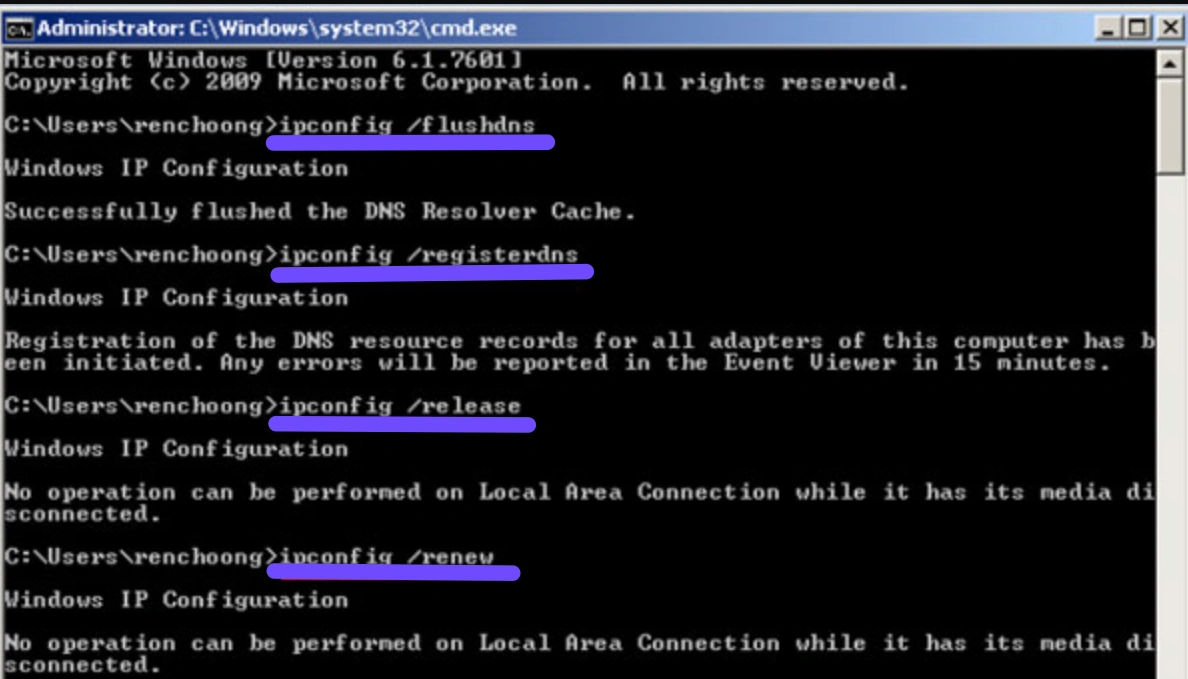
To combat this manually, open your Windows Start Menu, type cmd, right-click Command Prompt, and select Run as Administrator. Run the following network configuration commands back-to-back, pressing Enter after each line:
- ipconfig /release
- ipconfig /flushdns
- ipconfig /renew
- netsh winsock reset
- netsh int ip reset
Once done, restart your computer. This clears out deep-seated routing cache and forces your router to re-establish a fresh path to the PUBG server network.
Part 5: All-In-One Solution to Fix PUBG Stuck on Smoke Screen (Launching, Entering, and Returning) – LagoFast
While manual fixes can work temporarily, they are tedious, require technical tinkering, and often fail when your ISP's routing drops the ball again after the next game update. This is where LagoFast Game Booster completely changes the game.
LagoFast is a premium, specialized gaming network optimizer built to eliminate loading screens, crashes, and server drops. Instead of dealing with frustrating command-line tools or risking your PC's security by turning off firewalls, LagoFast provides a seamless, professional experience that eliminates all forms of the PUBG smoke screen bug across launching, matching, and returning to the lobby.
Key Features of LagoFast:
- Smart Multi-Path Technology: Dynamically allocates the absolute fastest global server routes, bypassing your ISP’s restrictive TCP timeouts so you never get stuck returning to the lobby.
- High Ping Reducer: Stabilizes your game connection, dropping your in-game ping and completely removing packet loss.
- One-Click FPS Boost: Optimizes your PC's CPU and GPU performance, cleans up background processes, and maximizes your frames-per-second with a single toggle.
- One-Click Game Crash Fix Tool: An internal, automated diagnostic feature that scans your system and resolves hidden registry or file conflicts causing PUBG to freeze or crash on startup.
Tutorial to Use LagoFast to Fix PUBG Stuck on Smoke Screen Error:
Step 1: Click the Free Trial button to download and install LagoFast.
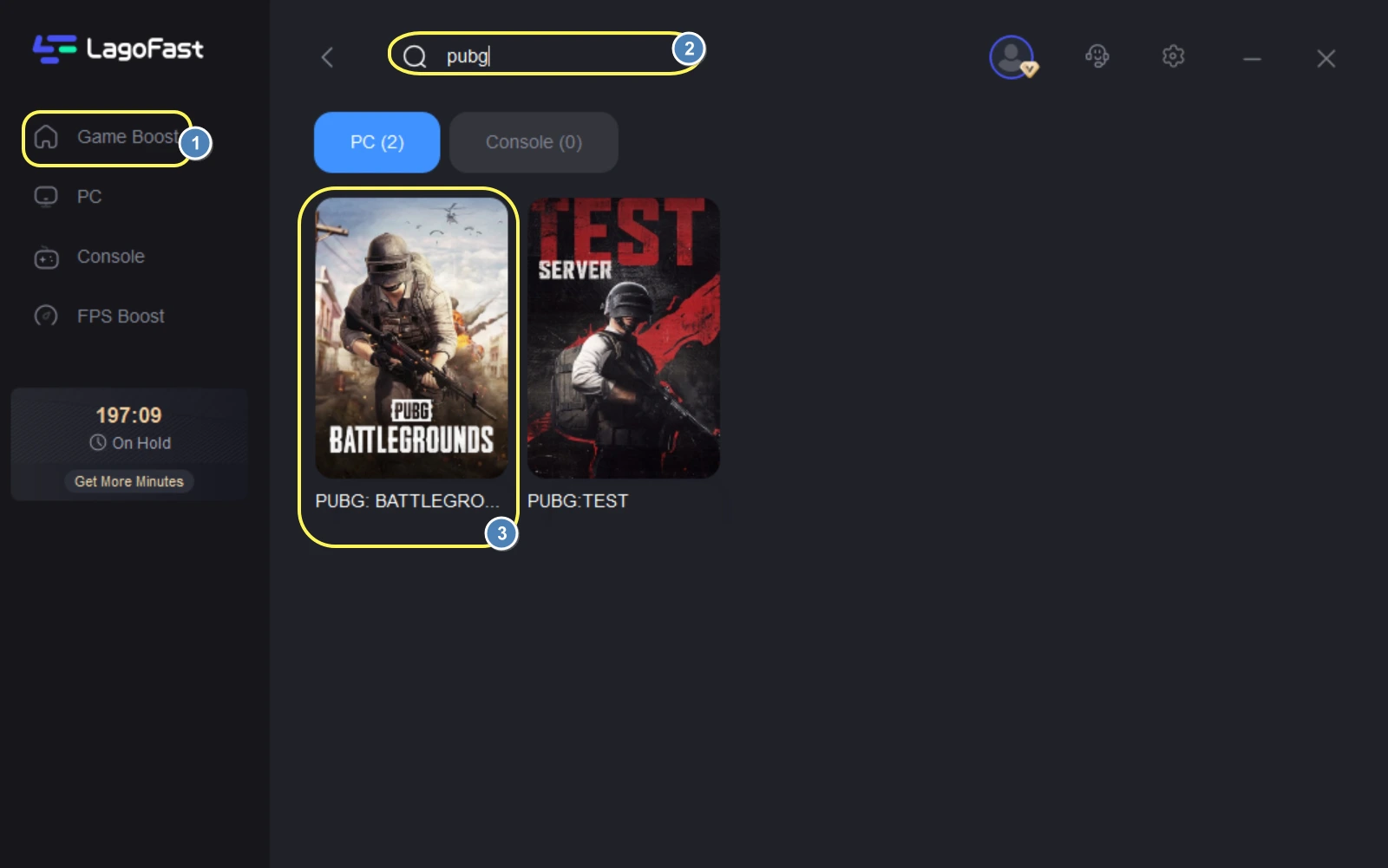
Step 2: Open LagoFast, then click the PC button on the left, search for PUBG in the search bar, and click it after it appears.
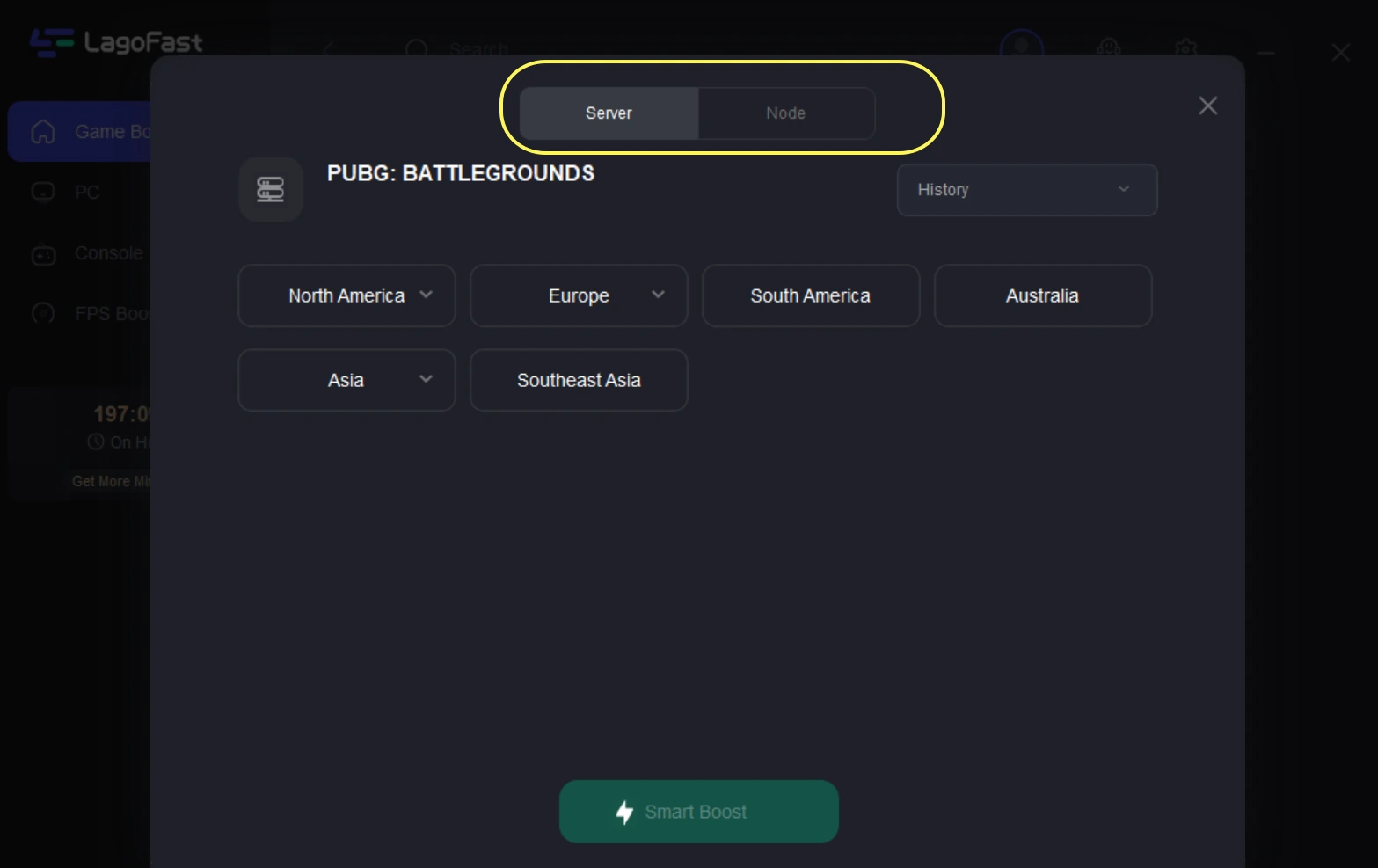
Step 3: Click on Server to change to a better server that ensures a better gaming experience, then click on “Smart Boost” to fix the PUBG Stuck on Smoke Screen error.
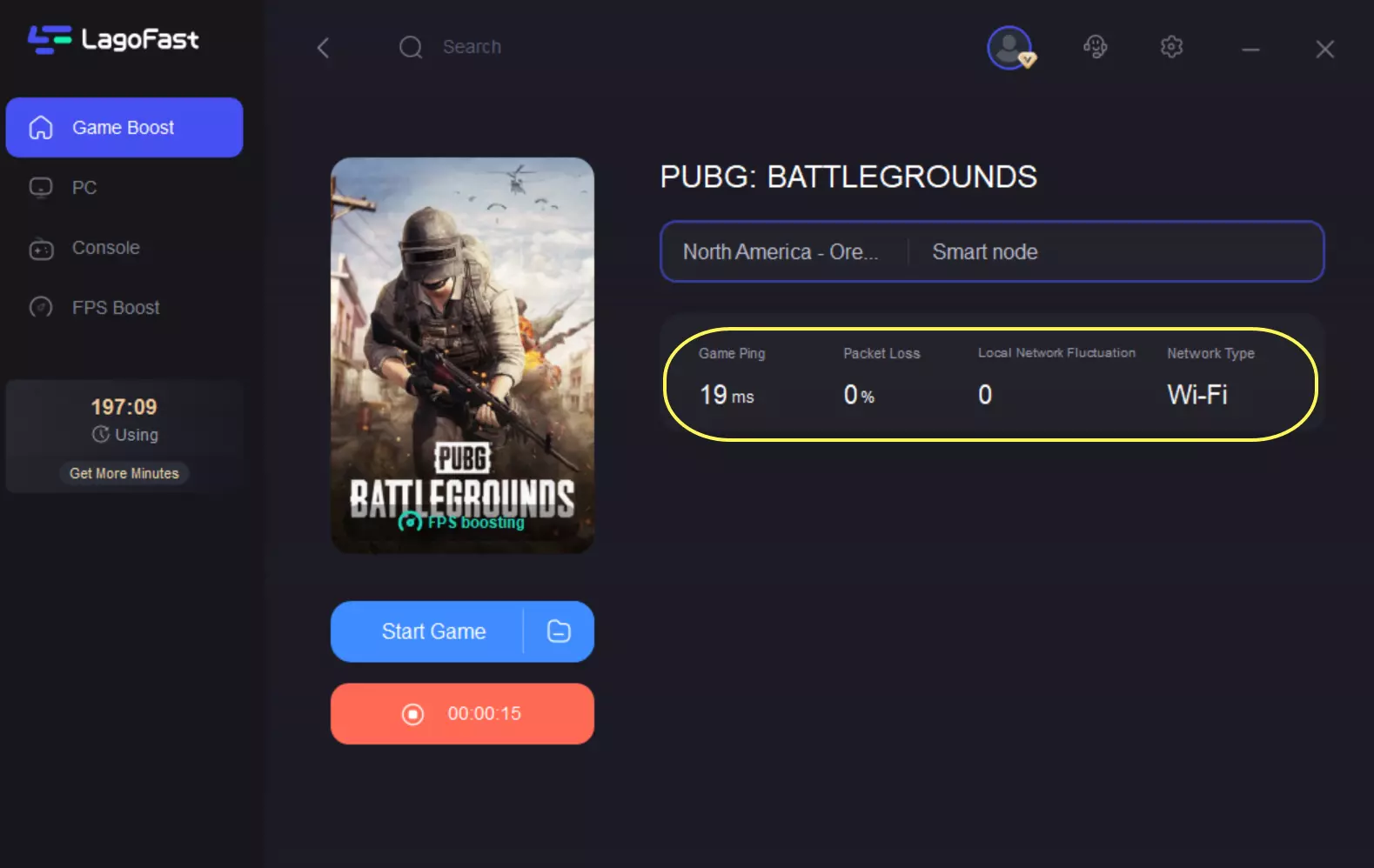
Step 4: Check the specific game ping, packet loss, and multiple path connections on the right side. Finally, click “Start Game” to play the game.
Part 6: LagoFast VS Manual Fixes: Which One Is Better?
|
Feature / Metric |
Manual Troubleshooting Fixes |
LagoFast Game Booster |
|
Success Rate |
Unpredictable (Often fails after a game patch) |
Guaranteed 100% Fix |
|
Time Required |
15–30 minutes of manual configuration |
One-Click Instant Execution |
|
Fixes ISP Dropped Connections |
No (Requires calling your ISP to change infrastructure) |
Yes (Bypasses local ISP routing issues entirely) |
|
Performance Extras |
None |
Includes FPS boosting and ping optimization |
|
Technical Skill Needed |
Moderate to High (Editing files/Command Prompt) |
Zero (Completely user-friendly interface) |
Ultimately, trying to patch the game manually is a temporary gamble. LagoFast offers a permanent, comprehensive solution that handles every single point of failure automatically.
Part 7: FAQs
Why is PUBG stuck on the smoke loading screen?
The smoke screen is PUBG's transition state. It hangs indefinitely when the game client loses communication with the game servers due to faulty ISP routing, background firewall interference, or corrupt local cache files.
Does reinstalling PUBG fix the smoke screen issue?
Not always. If the problem is caused by your firewall or your ISP's TCP idle timeouts, a fresh installation will not fix it. Using a dedicated gaming booster like LagoFast is a much more reliable approach.
Can a slow network drive cause the smoke screen bug?
Yes. If PUBG is installed on an older mechanical Hard Drive (HDD), it may take too long to load assets, causing the server to time out. Moving the game files to a Solid State Drive (SSD) is highly recommended.
Why does the smoke screen only happen after long matches?
This happens because your ISP cuts off your idle lobby connection while you are busy fighting in a match. LagoFast prevents this by actively maintaining a steady, optimized data bridge throughout your entire play session.
What should I do if the "Restart Lobby" button doesn't work?
If pressing Escape and clicking "Restart Lobby" leaves you hanging on the smoke screen, your connection to the server host has completely severed. You must force-close the game via Alt + F4 and implement a routing fix like LagoFast.
Do I need to re-verify my game files after every major update?
It's highly recommended. Large updates can occasionally result in minor file conflicts or incomplete downloads. Running a quick verification check through Steam ensures all your local game assets are structurally intact.
Conclusion
Dealing with persistent loading screen freezes can quickly ruin your gaming experience. While manual fixes like clearing your cache or tweaking your firewall can provide temporary relief, they don't solve underlying network routing problems. Utilizing a dedicated game booster like LagoFast eliminates the guesswork by automatically managing your connection paths, ensuring you spend less time troubleshooting and more time in the game.
Boost Your Game with LagoFast for Epic Speed
Play harder, faster. LagoFast game booster eliminates stutter and lags on PC, mobile, or Mac—win every match!
Quickly Reduce Game Lag and Ping!
Boost FPS for Smoother Gameplay!