
PEAK is a uniquely intense co-op climbing experience where players brave extreme terrain and unpredictable environments to reach the summit of a mysterious island. While its physics-based gameplay and survival mechanics are already brutal enough, technical connection issues are proving to be just as dangerous, especially when the game suddenly drops players mid-climb. One of the most common and frustrating problems reported by the community is the game not connecting properly or throwing a “Disconnected from Photon” error. This is especially prevalent among users in Russia, where these disruptions are frequent and persistent.
For a multiplayer game that demands real-time coordination and trust between players, getting kicked mid-session not only ruins immersion but often wipes hard-earned progress. If you’ve been running into these disconnects, can’t join friends’ lobbies, or receive the dreaded Photon-related errors, you’re not alone, and this guide will help you understand and resolve the problem completely.

Part 1: Why PEAK Game Isn’t Connecting
Part 2: How to Fix PEAK Disconnect - 100% Work
Part 3: PEAK Game Minimum and Recommended System Requirement
Part 1: Why PEAK Game Isn’t Connecting

From June 17 onward, the official launch date, players worldwide have been reporting a surge in connectivity issues. A recurring pattern quickly emerged: the "Disconnected from Photon" error message during matchmaking, lobby connections, or even idle gameplay. On community forums, players across multiple regions, including the U.S., U.K., and especially Russia, have echoed similar complaints:
- Disconnection when loading into friends’ lobbies
- Unable to reconnect to rooms after being dropped
- Specific Wi-Fi or LAN setups resulting in higher disconnect rates
- Sudden mid-game drops without warning
Photon, the network engine powering PEAK’s multiplayer functionality, acts as the communication bridge between players. If this bridge becomes unstable, whether due to server congestion, ISP issues, or firewall settings, you’ll be kicked without warning. Russian players, in particular, may experience disruptions tied to localized networking restrictions or global IP conflicts.
Furthermore, PEAK’s peer-to-peer style multiplayer makes it more susceptible to individual network instability. Some users report stable sessions one day and repeated crashes the next, suggesting both server-side fluctuations and client-side sensitivities.
Part 2: How to Fix PEAK Disconnect—100% Work
Best Fix for PEAK Game Not Connecting: Use LagoFast
The easiest and most effective fix for PEAK disconnect issues is LagoFast, which not only lets you use mods to enhance your gameplay and explore countless modded experiences for PEAK and other games but also acts as a game accelerator built specifically for online multiplayer stability. Whether you’re getting booted from co-op lobbies or struggling with failed server connections, LagoFast helps you maintain a seamless climb with your squad.
Why LagoFast Works So Well:
- Dedicated Game Routing: Routes your game data through the most stable, low-latency paths.
- Smart Ping Optimization: Actively reduces lag spikes and ping variance.
- Real-Time Packet Loss Fixes: Rebuilds lost packets to prevent sync issues and disconnects.
- NAT Type Compatibility: Helps fix strict NAT problems so you can host and join games without restriction.
- Global Node Network: Offers worldwide servers so even players outside the U.S. can connect to PEAK’s co-op reliably.
If you’re tired of trying complicated router changes or software tweaks, LagoFast is your plug-and-play fix. Many players report immediate improvements in both performance and connection stability after just one session.
Tutorial to use LagoFast to Fix PEAK Connection Failed on PC:
Step 1: Click the Free Trial button to download and install LagoFast.
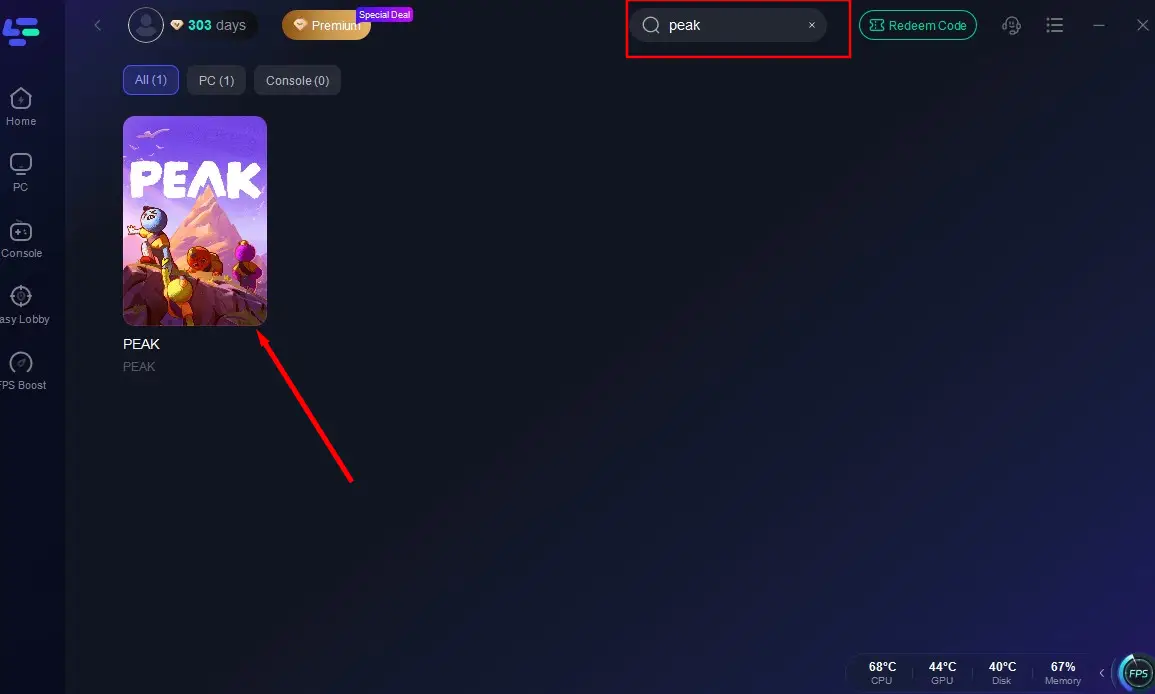
Step 2: Open LagoFast, then click the PC button on the left and search PEAK in the search bar, click it after it appears.
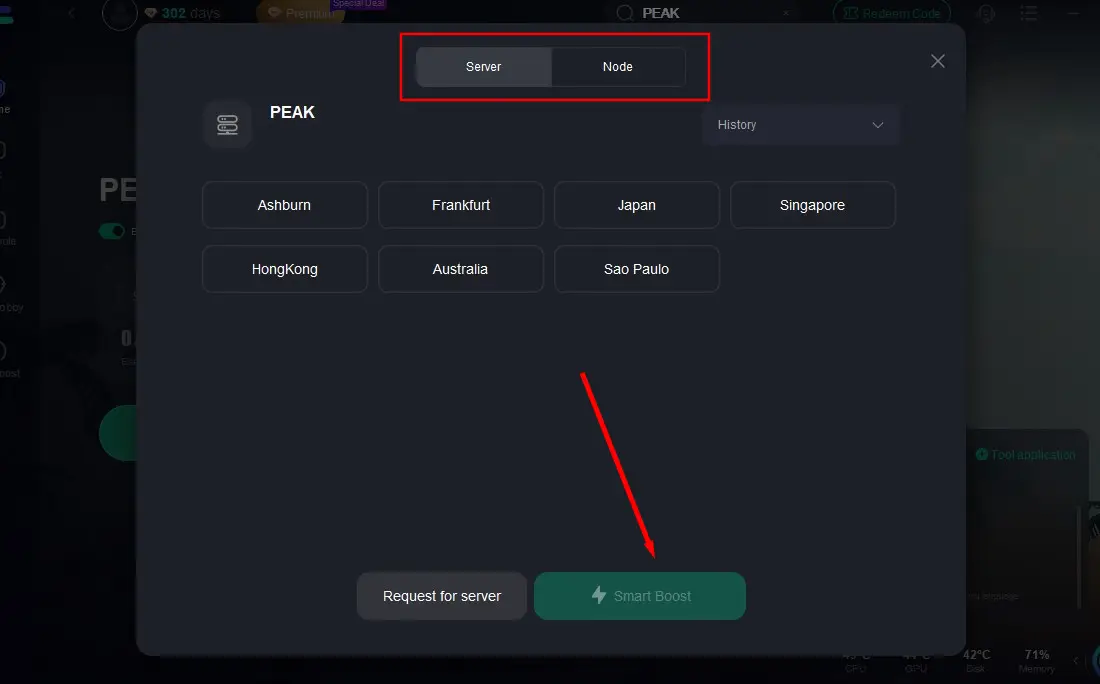
Step 3: Click on “Server” to change to a better server that fixes “PEAK Game Crashes” and ensures the gaming experience, then click on “Smart Boost”.
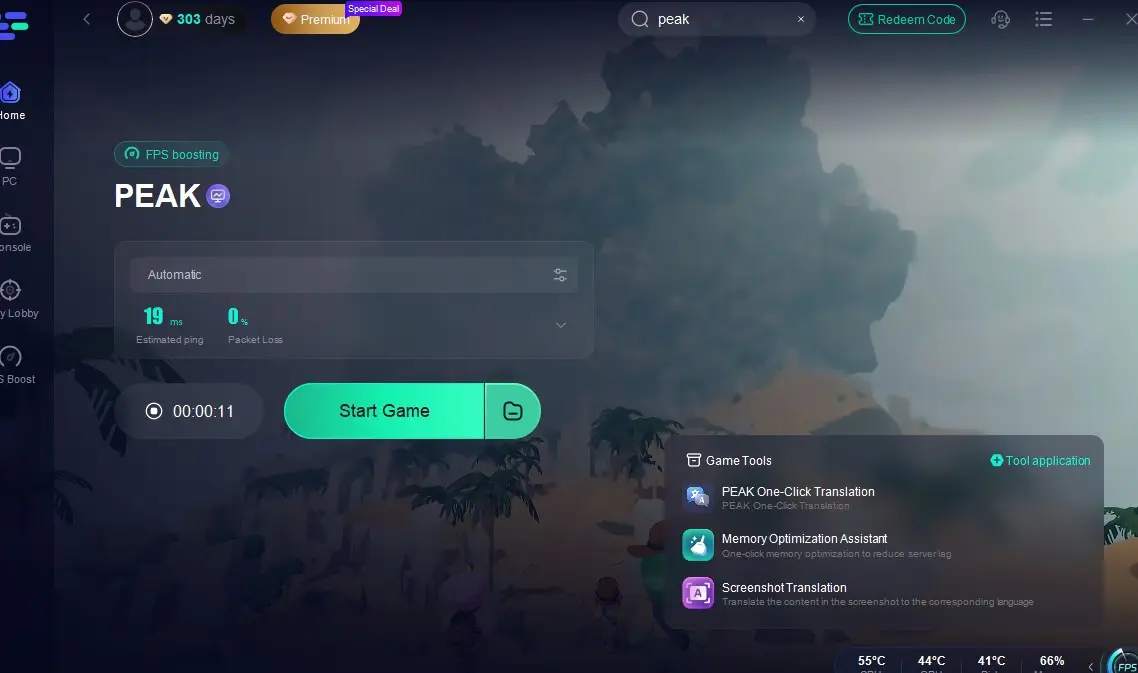
Step 4: Check the specific game ping, packet loss, and multiple path connection on the right side. Finally, click the “Start Game” to play the game.
Restart Your Router and Use Wired Internet
A poor or overloaded Wi-Fi connection can be the simplest yet most ignored issue. Restarting your router and switching to a LAN cable can greatly improve your game’s consistency.
Steps:
Step 1: Turn off your router and unplug it from the power source.
Step 2: Wait at least 2 minutes to ensure a full reset.
Step 3: Plug the router back in and wait for all indicators to stabilize.
Step 4: Connect your PC to the router using an Ethernet cable.
Step 5: Disable Wi-Fi from your system to ensure it doesn’t switch networks.
Step 6: Relaunch Steam and PEAK, then test online play.
Allow PEAK Through the Firewall and Antivirus
Sometimes Windows Defender or your antivirus software blocks PEAK’s network connection.
Steps:
Step 1: Open the Start Menu and search for "Firewall & network protection".
Step 2: Click on "Allow an app through firewall".
Step 3: Find PEAK in the list (or click “Allow another app” and manually locate it).
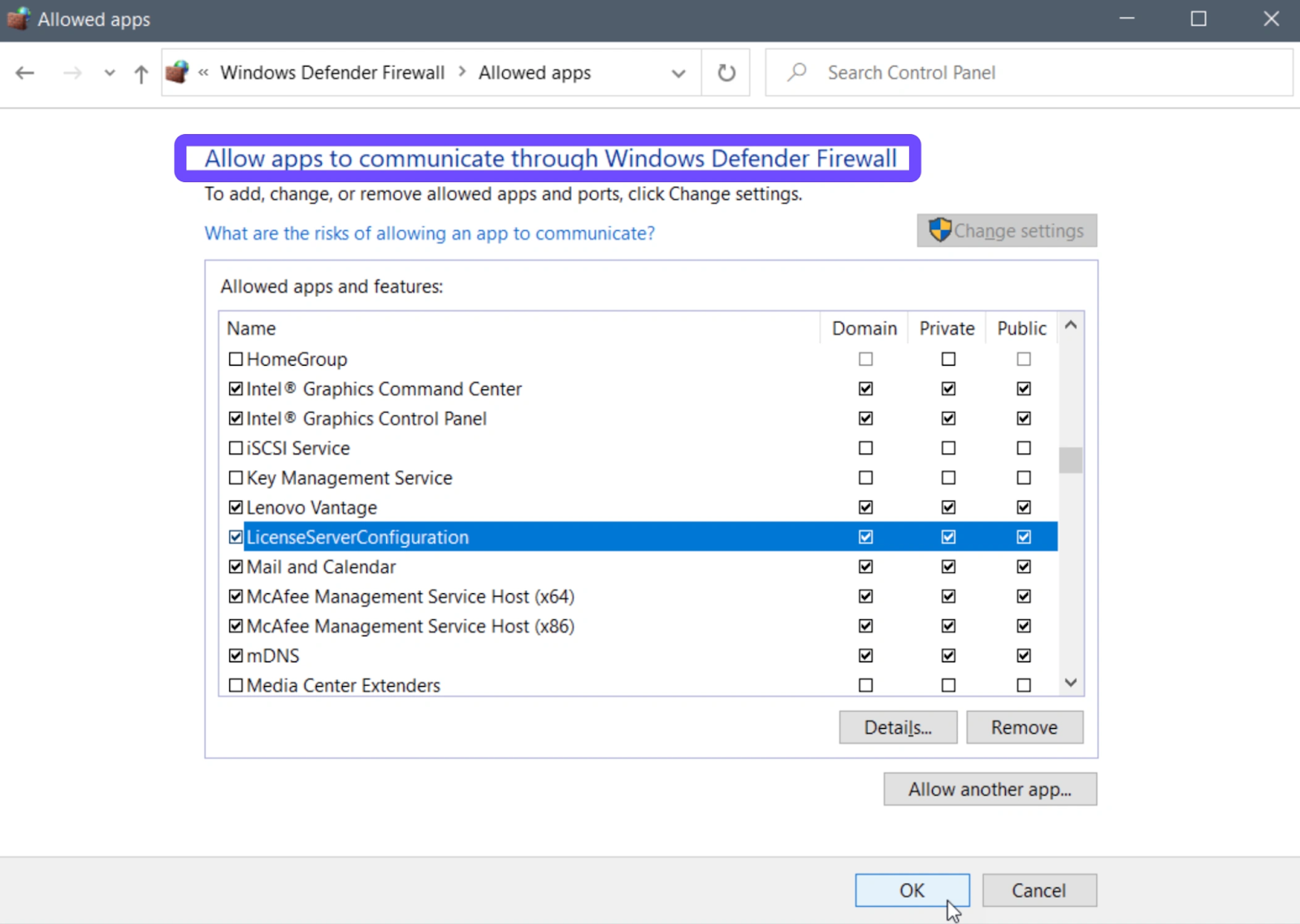
Step 4: Check both Private and Public boxes.
Step 5: Do the same for Steam as well.
Step 6: Restart your PC and retry connecting in-game.
Verify Game Files on Steam
Corrupted or missing files can prevent PEAK from connecting to multiplayer features.
Steps:
Step 1: Launch the Steam client.
Step 2: Navigate to your Library and right-click on PEAK.
Step 3: Select “Properties,” then go to the “Installed Files” tab.
Step 4: Click “Verify integrity of game files.”
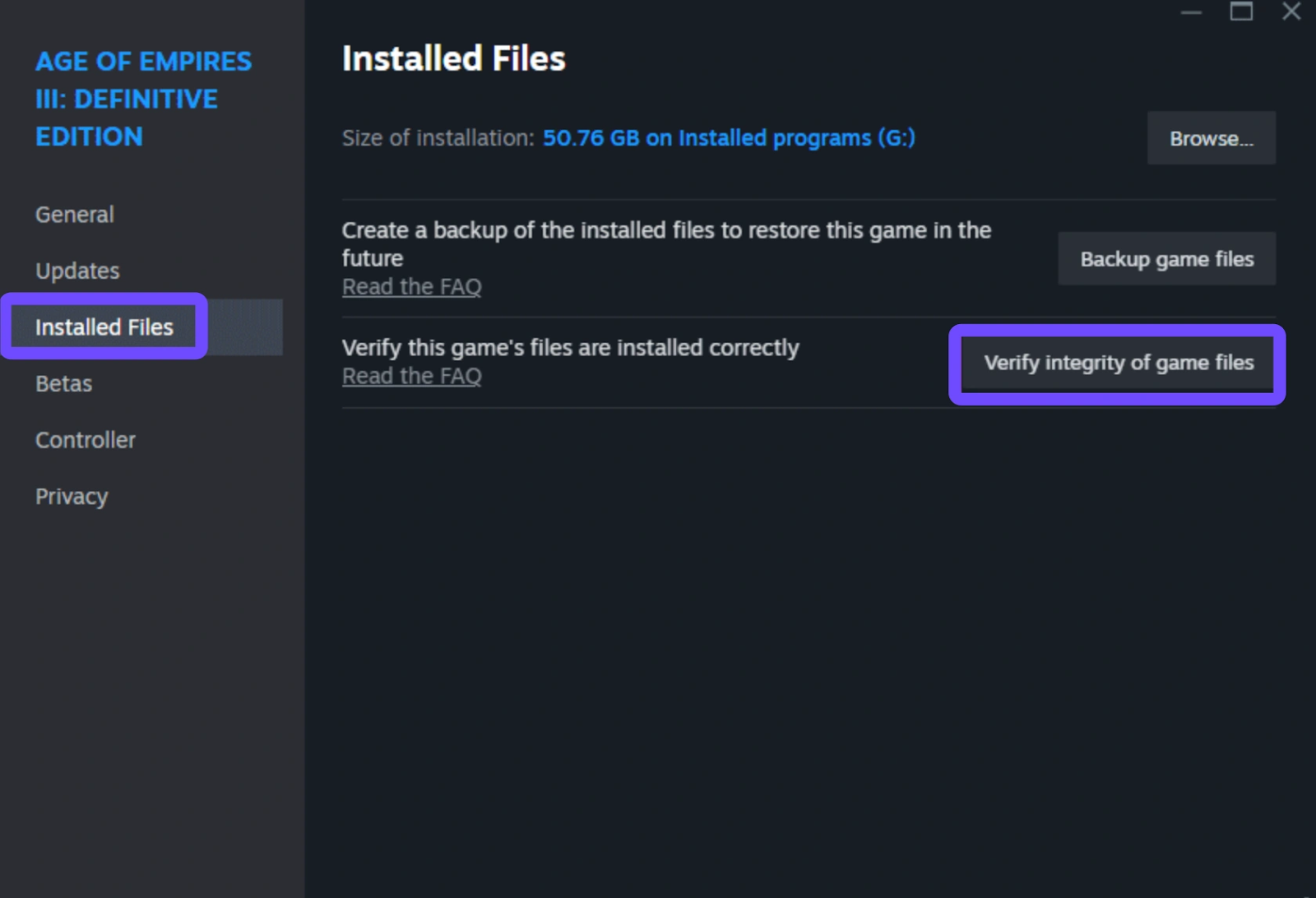
Step 5: Wait for Steam to scan and fix any broken files.
Step 6: Relaunch the game and attempt to join a co-op session.
Update Network Drivers
Using old drivers is one of the top causes of connectivity failure in modern games.
Steps:
Step 1: Press Win + X and open “Device Manager.”
Step 2: Expand the “Network adapters” section.
Step 3: Right-click your network card (Wi-Fi or Ethernet) and select “Update driver.”
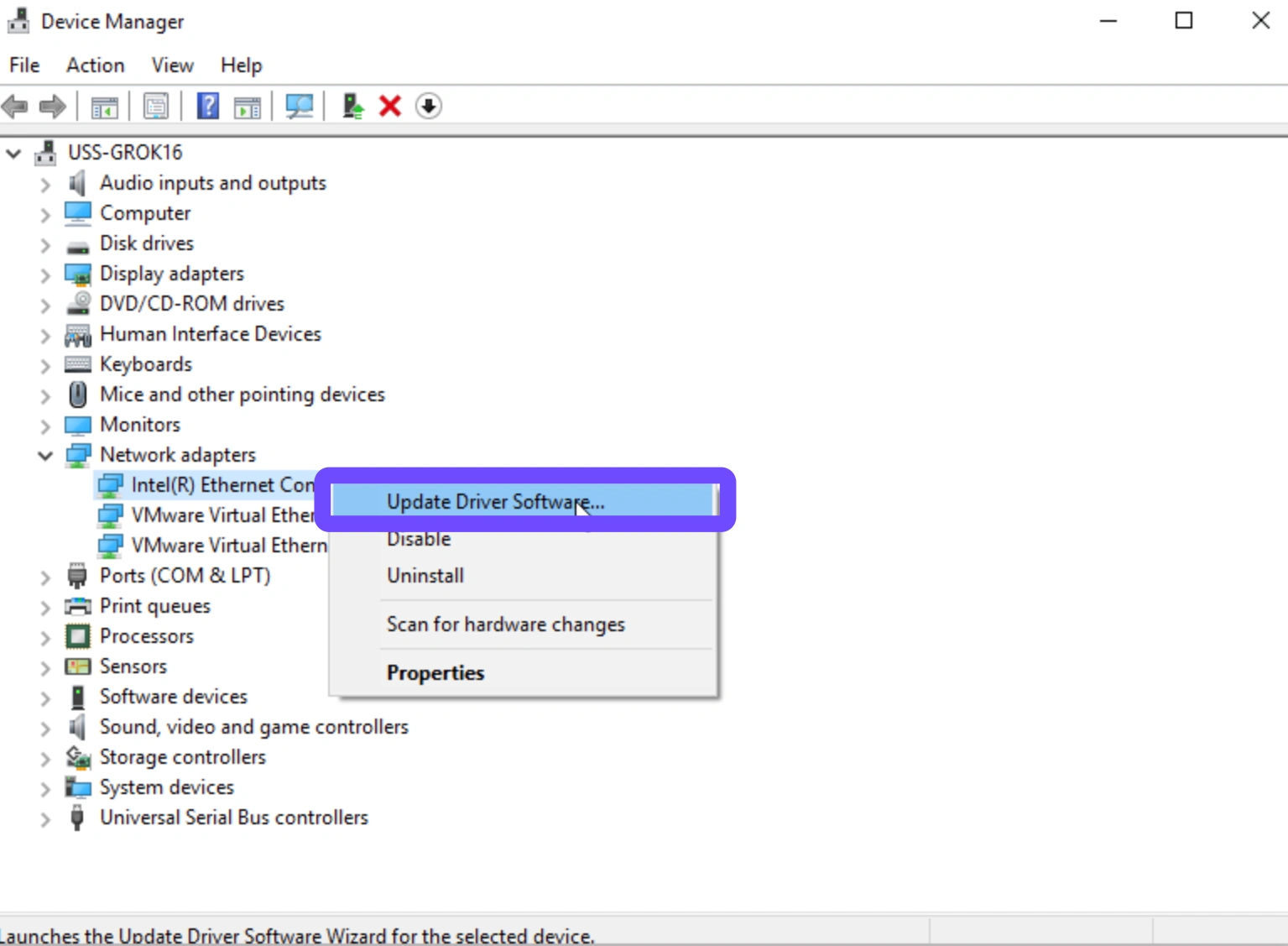
Step 4: Choose “Search automatically for drivers.”
Step 5: If no updates are found, visit your motherboard or laptop’s manufacturer site and download the latest drivers manually.
Step 6: Restart your computer and try connecting again.
Disable Background Applications & Overlays
Running too many background apps like Discord overlays, Xbox Game Bar, or even Chrome tabs can conflict with PEAK’s real-time networking.
Steps:
Step 1: Press Ctrl + Shift + Esc to open Task Manager.
Step 2: Go to the “Processes” tab.
Step 3: End tasks for unnecessary apps, especially browsers, game recorders, or overlays.
Step 4: Disable Discord overlay via Settings → Overlay → Toggle off.
Step 5: Open Steam → Settings → In-Game and turn off “Enable the Steam Overlay.”
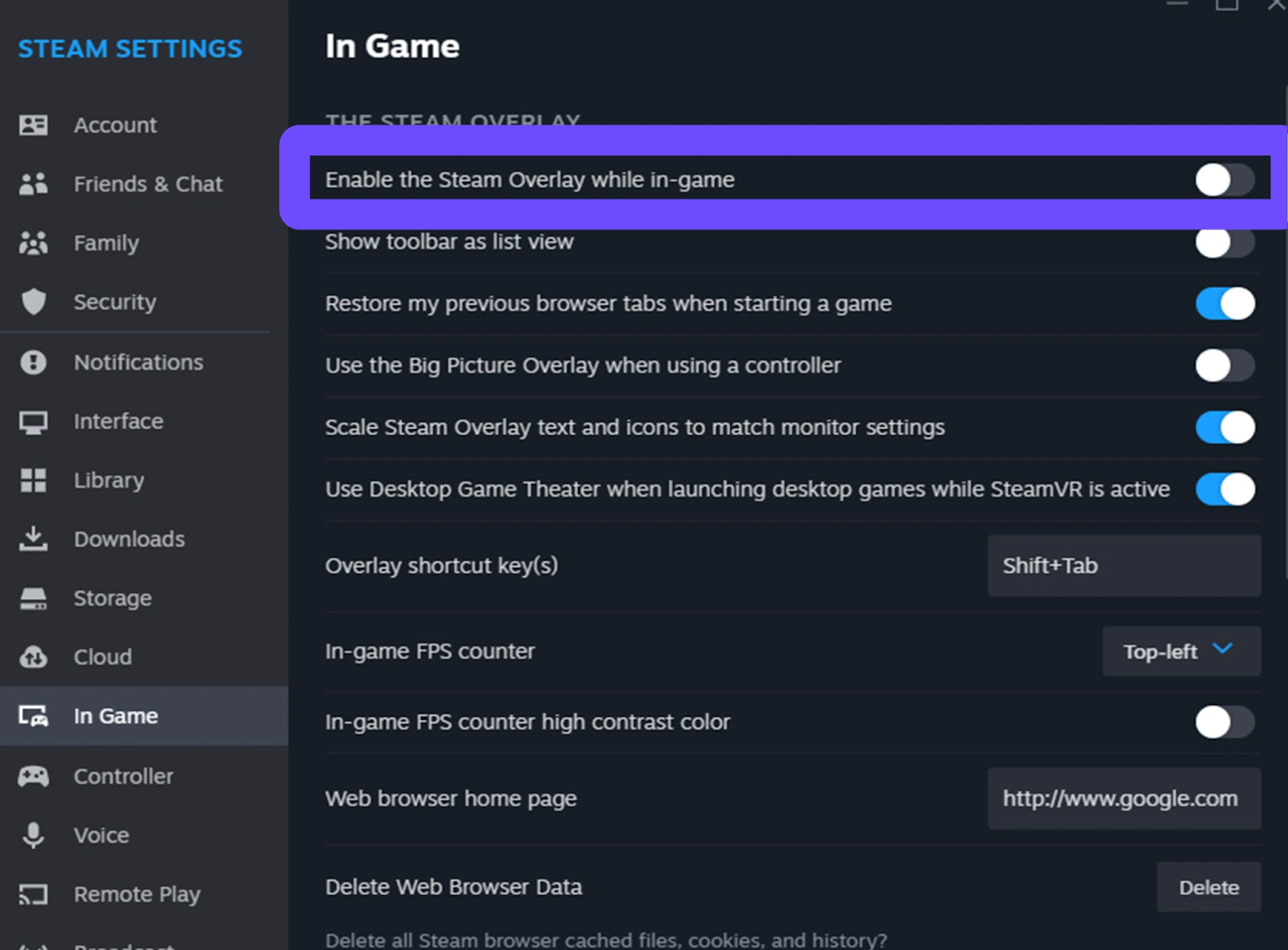
Step 6: Relaunch PEAK and test connectivity.
Part 3: PEAK Game Minimum and Recommended System Requirements
Before troubleshooting further, make sure your hardware meets at least the minimum system requirements to run PEAK properly. If your specs fall below the threshold, disconnect issues may stem from system overload.
Minimum Requirements
- OS: Windows 10 (64-bit)
- CPU: Intel Core i5 @ 2.5 GHz or equivalent
- Memory: 8 GB RAM
- GPU: NVIDIA GTX 1050 Ti / AMD R9 380
- DirectX: Version 11
- Storage: 4 GB available space
Recommended Requirements
- OS: Windows 11 (64-bit)
- CPU: Intel Core i5 @ 3.0 GHz or AMD Ryzen 5
- Memory: 16 GB RAM
- GPU: NVIDIA GTX 1060 / AMD RX 470
- DirectX: Version 12
- Storage: 6 GB available space
If your specs are on the lower end, consider closing background apps, lowering resolution, and enabling performance mode to improve stability.
Hot Related: PEAK Game Won’t Start? Here’s Why (and How to Fix It)
Conclusion
PEAK offers a unique and intense co-op climbing adventure, but frequent disconnects, especially the “Disconnected from Photon” error, can quickly turn the experience frustrating. While various fixes can help, LagoFast stands out as the most effective solution, offering smart routing, lag reduction, and stable server connections, especially for players in high-risk regions like Russia. With LagoFast and the right optimizations, you can finally enjoy uninterrupted climbs to the summit.

Boost Your Game with LagoFast for Epic Speed
Play harder, faster. LagoFast game booster eliminates stutter and lags on PC, mobile, or Mac—win every match!
Quickly Reduce Game Lag and Ping!
Boost FPS for Smoother Gameplay!