
Nothing yanks you out of Peak’s white-knuckle climbs faster than the game itself—whether it’s a “Disconnected from Photon” pop-up, a Unity 6000.036 f1 crash, or that sudden “Client Timeout” right as you’re roping up with a friend.
This guide breaks down the most common real-world errors players keep reporting, explains what’s actually going wrong behind the scenes, and walks you through fixes that get you back on the wall before your grip (or patience) gives out.

- ✅ Reduce Lag and High Ping.
- ✅ Boost FPS at the Same Time.
- ✅ Support 2000+ Popular Online Games.
- ✅ Support PEAK game Tool.
- ✅ End Stuck & Crashing Issues.
- Why Peak Game Errors Occur?
- Types of Peak Game Errors: Meaning & Solutions
- How to Enhance Your Peak Gaming Experience with LagoFast?
Why Peak Game Errors Occur?
Peak game errors typically arise due to a range of issues, including:
- Network connectivity problems
- Server instability (Photon)
- Unity engine errors
- Missing or corrupted game files
- Incompatible or outdated drivers
Types of Peak Game Errors: Meaning & Solutions
1. Peak Photon Error
Meaning: Issues related to the Photon networking service, responsible for multiplayer connections.
How to fix:
- Restart your modem/router and reconnect.
- Temporarily disable antivirus or firewall software.
- Switch to a different game region via the settings menu.
- Run the game as administrator.
2. Peak Unity Error
Meaning: Errors related to the Unity engine used to build the game.
How to fix:
- Update your graphics card drivers from the official Nvidia or AMD website.
- Verify and repair game files through Steam (Library → Peak → Properties → Verify Integrity of Game Files).
- Install the latest DirectX and Visual C++ Redistributables from Microsoft’s official site.
3. Peak Connection Error
Meaning: General network connectivity issues, possibly server-side or client-side.
How to fix:
- Reset your router/modem by unplugging for 60 seconds.
- Switch from Wi-Fi to a wired Ethernet connection.
- Check the official Peak game server status page for outages.
- Use an alternate DNS server like Google (8.8.8.8 / 8.8.4.4).
4. Error Starting Peak
Meaning: The game fails to launch or crashes immediately after starting.
How to fix:
- Verify integrity of game files through Steam (Library → Peak → Properties → Verify Integrity).
- Launch the game with administrator privileges (Right-click → Run as administrator).
- Ensure your antivirus software is not blocking the game executable.
- Update your graphics drivers to the latest version.
5. Client Timeout Peak Error
Meaning: The game client took too long to respond or establish a connection.
How to fix:
- Restart your game and your PC to clear any temporary glitches.
- Check the Peak game server status to ensure the servers are operational.
- Use an alternative DNS server like Google DNS or Cloudflare (1.1.1.1).
6. Peak Unity Error 6000.036 f1 9fe3b5f71dbb
Meaning: A specific Unity engine runtime error, typically indicating a deeper issue with graphics rendering or memory allocation.
How to fix:
- Completely uninstall your GPU drivers and perform a clean installation of the latest drivers.
- Reinstall Unity runtime components from the official Unity website.
- Lower graphics settings (resolution, textures, shadows) within the game.
- Increase your virtual memory via Windows settings (System Properties → Advanced → Performance → Virtual Memory).
7. Unity Error 6000.0 36f1 9fe3b5f71dbb in Peak
Meaning: Similar Unity engine runtime error linked to memory and resource allocation issues.
How to fix:
- Completely uninstall Peak and reinstall the latest version via Steam.
- Run a comprehensive malware and antivirus scan.
- Close background programs and applications using Task Manager to free up RAM and C
8. Peak Unity 600 Error
Meaning: General Unity-related error affecting gameplay.
How to fix:
- Update Peak to the most recent game patch available on Steam.
- Verify integrity of game files via Steam.
- Check for hardware overheating using software like MSI Afterburner or HWMonitor, and clean or replace cooling systems if necessary.
How to Enhance Your Peak Gaming Experience with LagoFast?
If you want to enhance your Peak gameplay with mods, LagoFast not only provides access to a wide range of game mods but also improves connectivity and reduces latency. It helps you enjoy a smoother, more stable climbing experience while supporting PEAK and many other games with mod features for an upgraded experience.
- Real-time Ping Reduction: Minimizes delays during gameplay.
- Stable Connection: Provides stable routes and servers to eliminate sudden disconnects.
- One-click Optimization: Easy for beginners; optimizes FPS and overall game stability.
How to Use LagoFast:
Download and install LagoFast via the free trial button
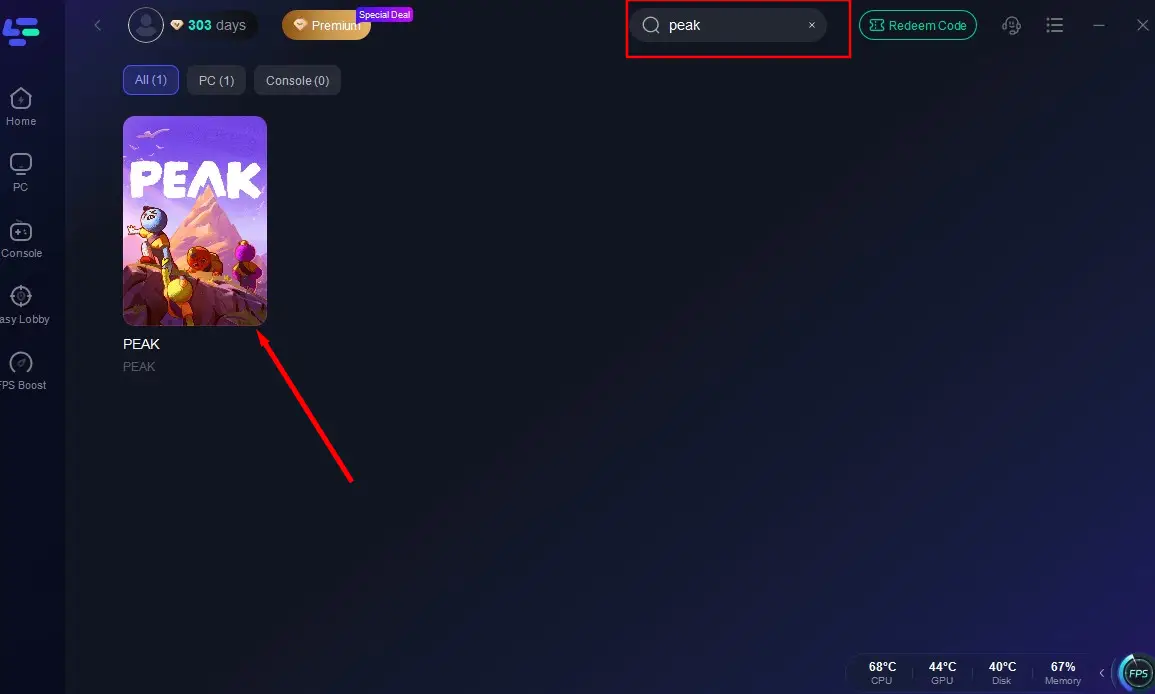
Launch the app, search "PEAK", and select the game result
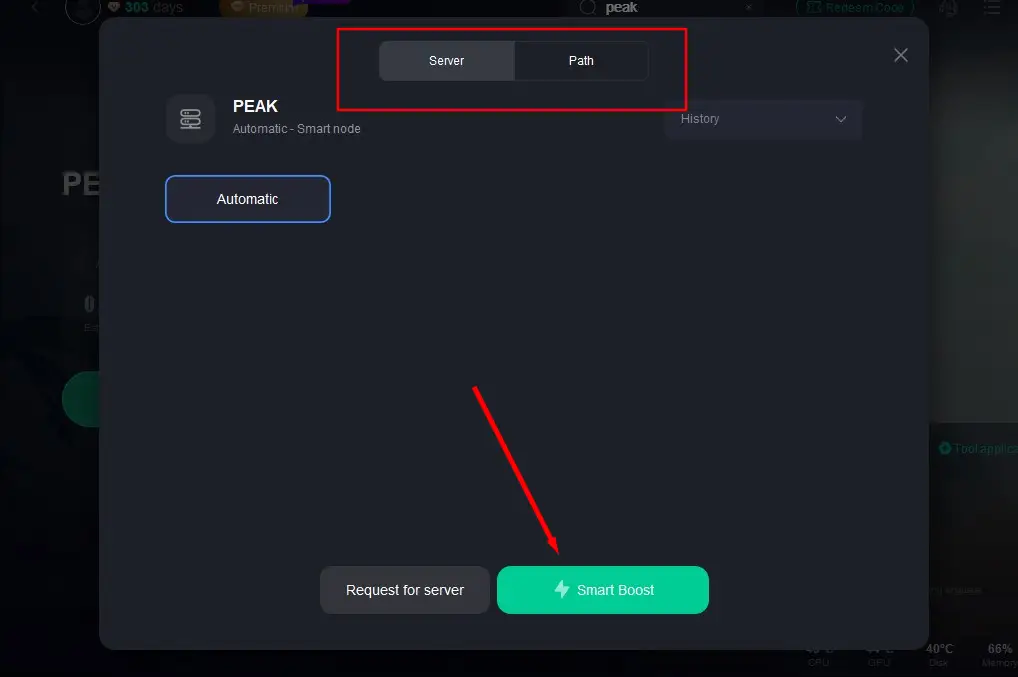
Choose your preferred server node and click "Smart Boost" to start optimize
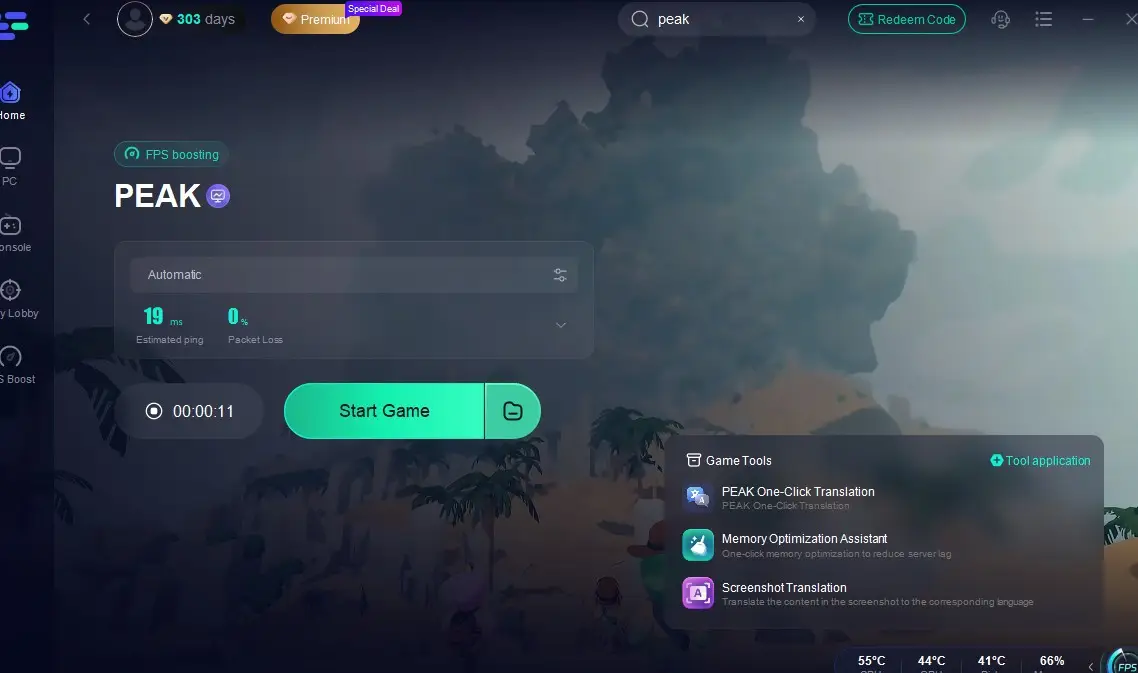
Verify real-time performance metrics and launch PEAK with optimized settings
Conclusion
Fixing the most common Peak errors doesn’t have to be a headache. Whether you’re dealing with connection drops, crashes, or startup issues, the solutions above can help you get back in the game faster. And with tools like LagoFast improving your connection and performance, you’ll be able to enjoy a smoother, more reliable climbing experience from start to finish.
Boost Your Game with LagoFast for Epic Speed
Play harder, faster. LagoFast game booster eliminates stutter and lags on PC, mobile, or Mac—win every match!
Quickly Reduce Game Lag and Ping!
Boost FPS for Smoother Gameplay!