
Few things are more frustrating than booting up an action-packed game like Nioh 3 only to be stopped by connection problems. Whether you see the message “Nioh 3 a connection error has occurred,” can’t join a friend, or the game simply won’t connect to the network, online issues can ruin the experience. Many players on Steam and PS5 report Nioh 3 connection issues that prevent co-op play, invasions, and online features. In this guide, we’ll explain what causes these problems, how to check Nioh 3 server status, and the best ways to fix Nioh 3 connection issues on both PC and PS5.

- ✅ Reduce Lag and High Ping.
✅ Boost FPS at the Same Time.
✅ Support 2000+ Popular Online Games.
✅ Change Server without Latency.
✅ Boost Game Loading Speed.
Part 1: What Are Nioh 3 Connection Issues & Why Does It Happen?
Part 2: How to Fix Nioh 3 Connection Issues on PC & PS5?
Part 1: What Are Nioh 3 Connection Issues & Why Does It Happen?
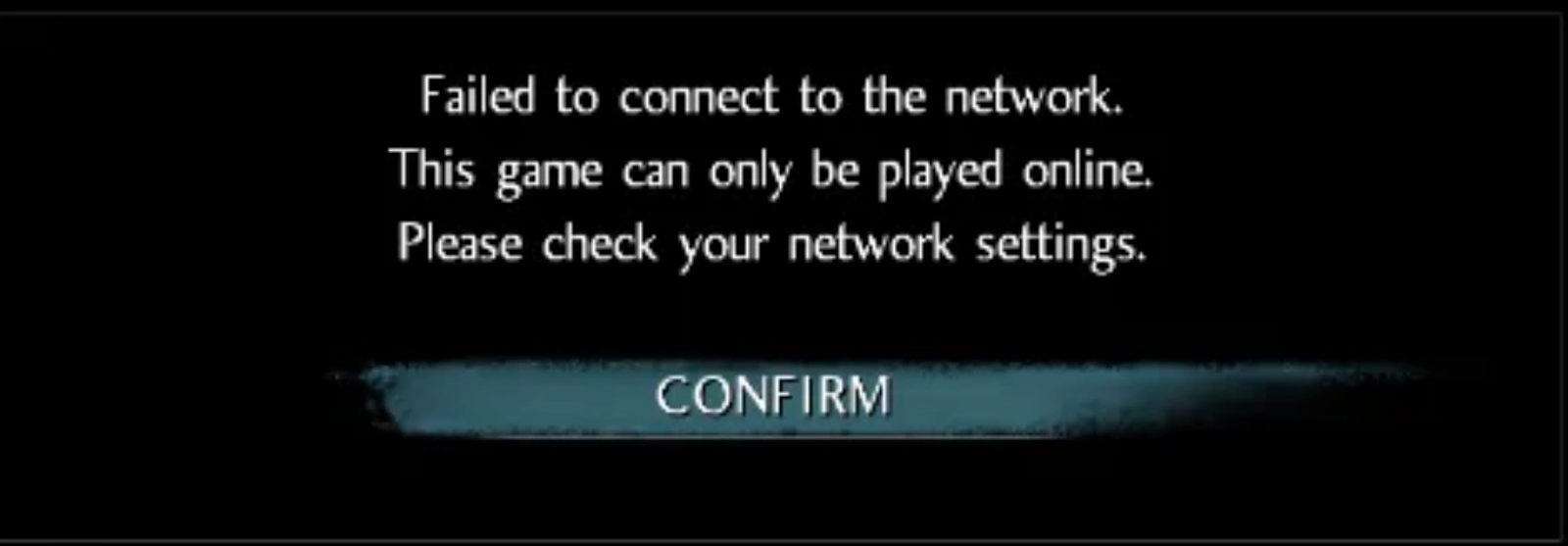
Nioh 3 connection issues refer to any problem that stops the game from connecting properly to online services, matchmaking servers, or friends’ sessions. These issues may appear as Nioh 3 connection error PC messages, sudden disconnections, or the situation where Nioh 3 won’t connect to network at all. In many cases, the problem is not the game itself but unstable internet routes, firewall conflicts, NAT restrictions, or regional server congestion. Understanding the causes is the first step toward fixing Nioh 3 connection issues PC and console players commonly face.
The Causes of Nioh 3 PC Connection Issues
Here are the most common reasons behind Nioh 3 connection issues PC players encounter:
- Unstable or high-latency internet connection
- Steam network interruptions or maintenance
- Firewall or antivirus blocking game traffic
- Incorrect DNS or network adapter settings
- NAT type restrictions preventing peer connections
- Regional server congestion causing packet loss
- Outdated network drivers
These problems often lead to errors such as nioh 3 a connection error has occurred or nioh 3 can’t connect online Steam.
The Causes of Nioh 3 PS5 Connection Issues
Console players also face their own challenges. The most common causes of Nioh 3 connection issues on PS5 include:
- PlayStation Network outages or maintenance
- Strict NAT type blocking co-op sessions
- Router port-forwarding problems
- Weak Wi-Fi signal or unstable wired connection
- Incorrect system network configuration
- Regional matchmaking server overload
When these occur, players often report Nioh 3 won’t connect to network, Nioh 3 can’t play with friends, or Nioh 3 can’t join friends errors.
Part 2: How to Fix Nioh 3 Connection Issues on PC & PS5
Before trying random fixes, it’s important to choose solutions that actually improve network routes and reduce latency. Some methods help temporarily, but only one solution can consistently optimize your game connection across both PC and PS5.
Best Solution: Fix Nioh 3 Connection Issues with LagoFast Game Booster
If you want the most reliable way to fix Nioh 3 connection issues on both PC and PS5, LagoFast is the best choice. This professional game booster stabilizes your connection, lowers latency, and avoids unstable routing paths automatically. LagoFast selects the fastest routes between your device and Nioh 3 servers to reduce packet loss, prevent ping spikes, and fix common errors like “a connection error has occurred” or matchmaking failures. It works on PC, PS5, and mobile networks. With one click, you can connect faster, join friends easily, and enjoy smooth co-op gameplay without complex settings.
Why LagoFast is better than other fixes:
- Automatically optimizes global routes
- Reduces ping, jitter, and packet loss
- Fixes regional server instability
- Works for both PC and PS5
- No technical configuration required
For players serious about fixing Nioh 3 connection issues permanently, LagoFast is the safest and most effective solution.
Tutorial To Use LagoFast To Fix Nioh 3 Connection Issues:
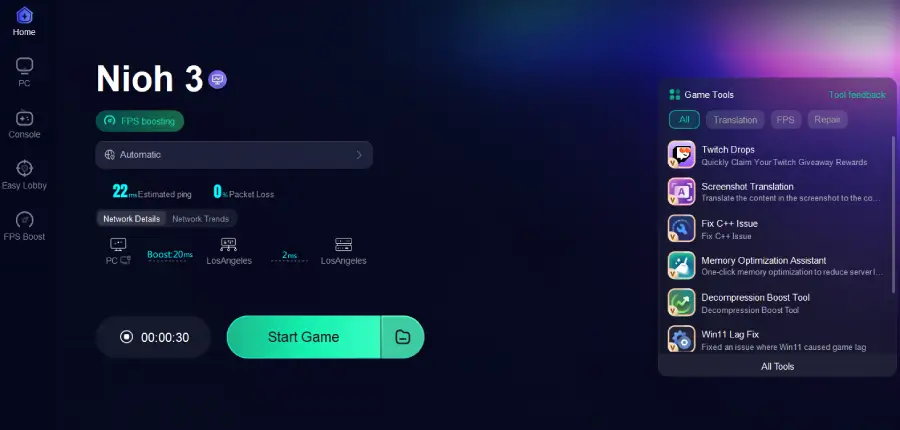
Step 1: Click the Free Trial button to download and install LagoFast.
Step 2: After installation, search "Nioh 3" in the search bar and select the game.
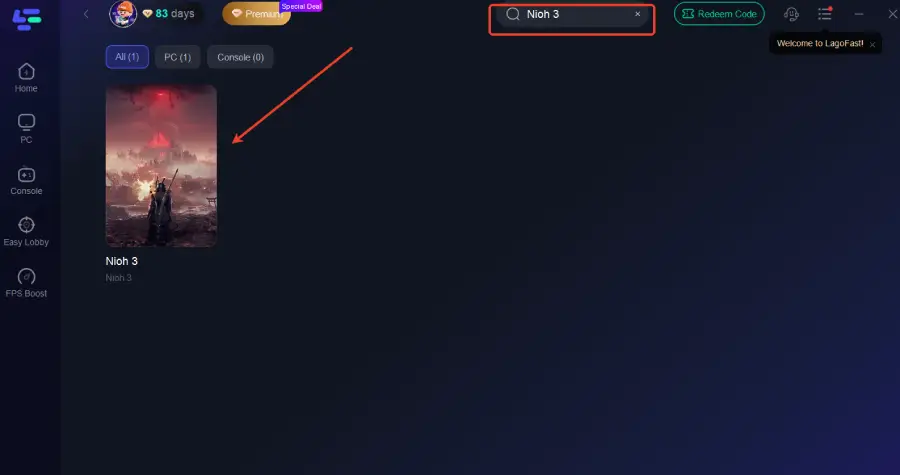
Step 3: Choose your preferred server node and click "Smart Boost" to start optimizing.
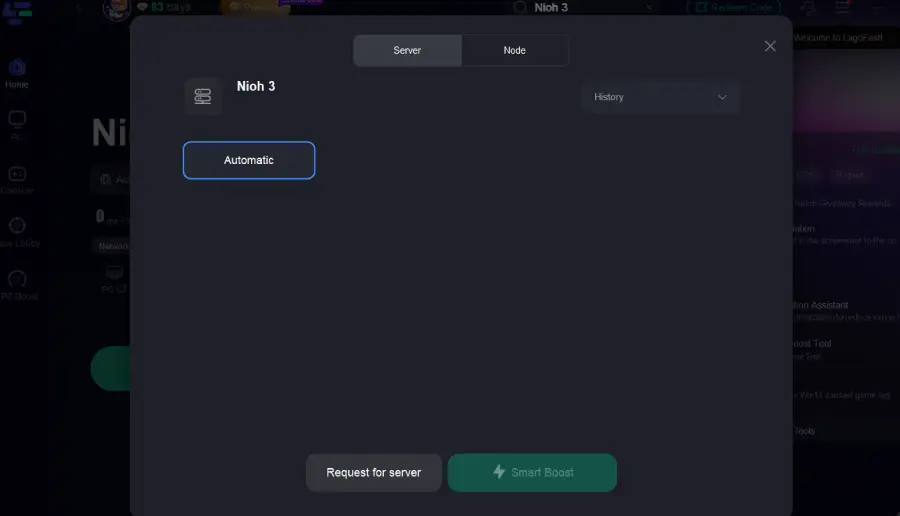
Step 4: Launch your game and enjoy smooth, optimized gameplay with lower ping and no stutter.
Tutorial to Use LagoFast Box to Enhance Your Nioh 3 Gaming Experience on Consoles:
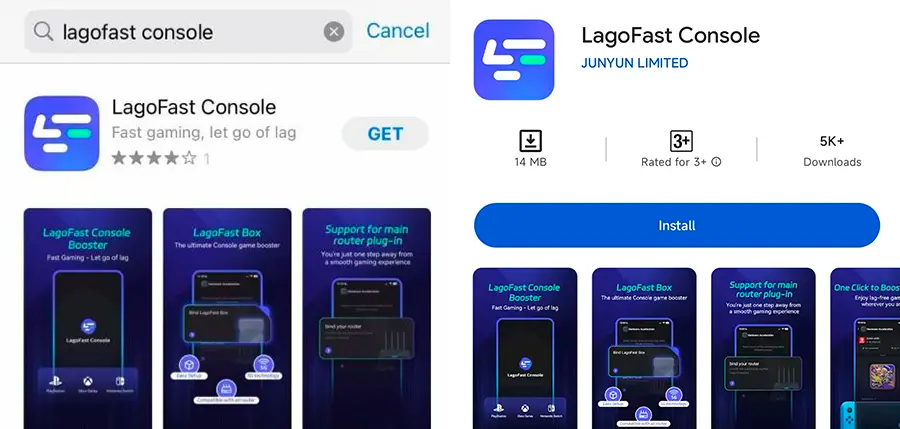
Step 1: Download the LagoFast Console App on your phone to control the LagoFast Box.
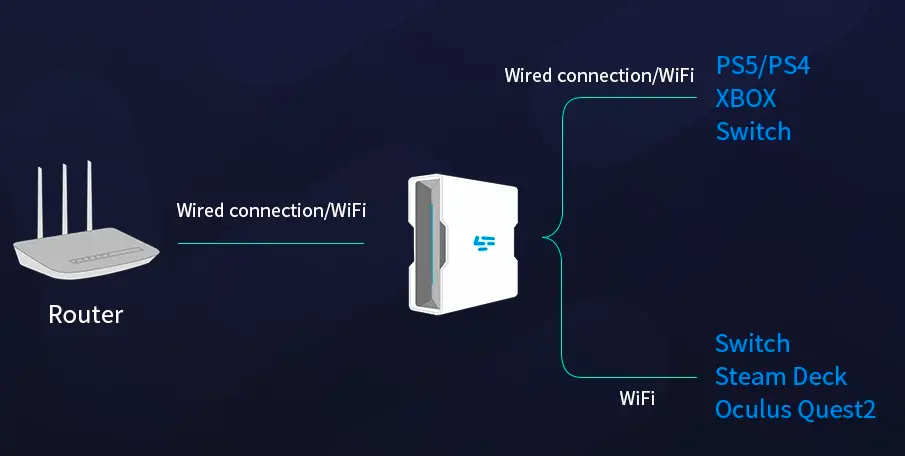
Step 2: Establish a connection between your LagoFast Box, router, and console, choosing between a wired or wireless connection.
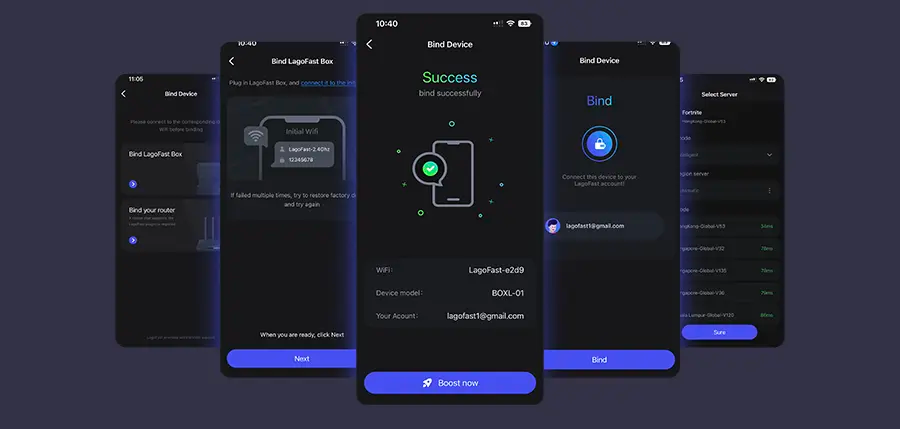
Step 3: Launch the LagoFast Console App and boost Nioh 3. Once you have completed the binding process with the LagoFast Box, proceed to boost this game within the LagoFast Console App.
The following fixes may help in some situations, but they are not as stable or reliable as LagoFast because they depend heavily on your local network and ISP conditions.
PC Solution 1: Restart Steam and Verify Server Connection
Sometimes nioh 3 can’t connect online Steam because Steam services are temporarily unstable.
Step 1. Close Nioh 3 and exit Steam completely
Step 2. Restart your PC
Step 3. Open Steam and log in again
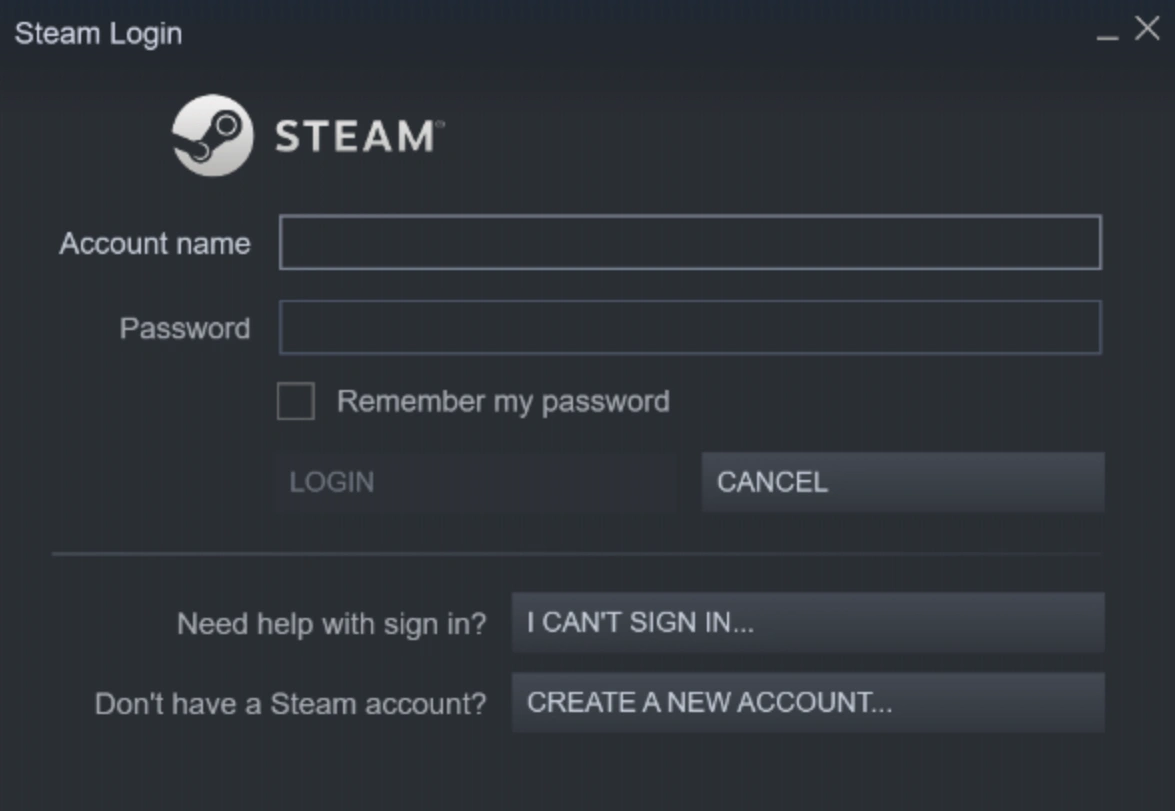
Step 4. Check Steam’s online status
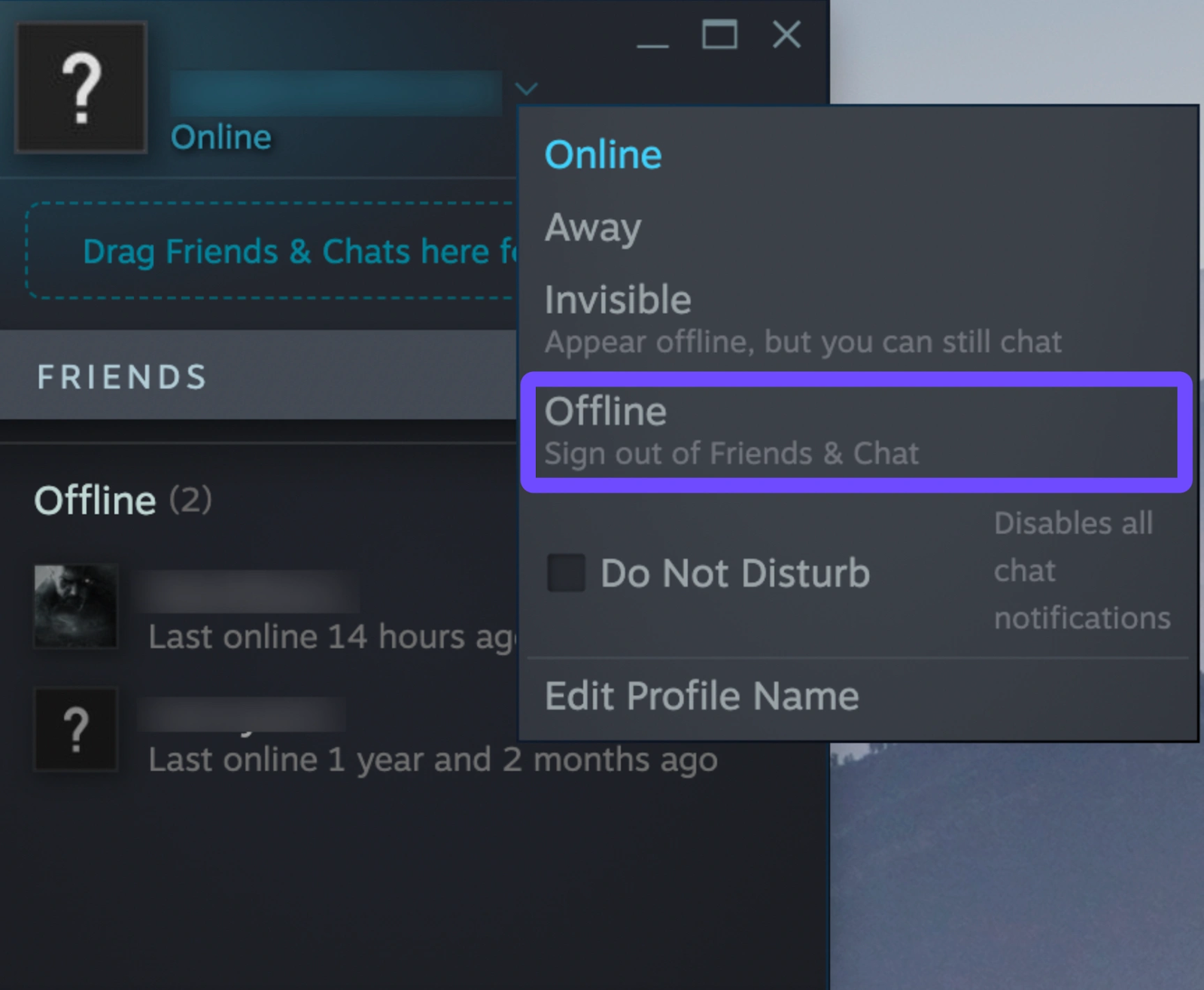
Step 5. Relaunch Nioh 3 and test connection
Note: This only helps if Steam is the cause and does not fix routing or latency problems like LagoFast does.
PC Solution 2: Check Firewall and Antivirus Settings
Security software may block Nioh 3’s online features.
Step 1. Open Windows Security or your antivirus program
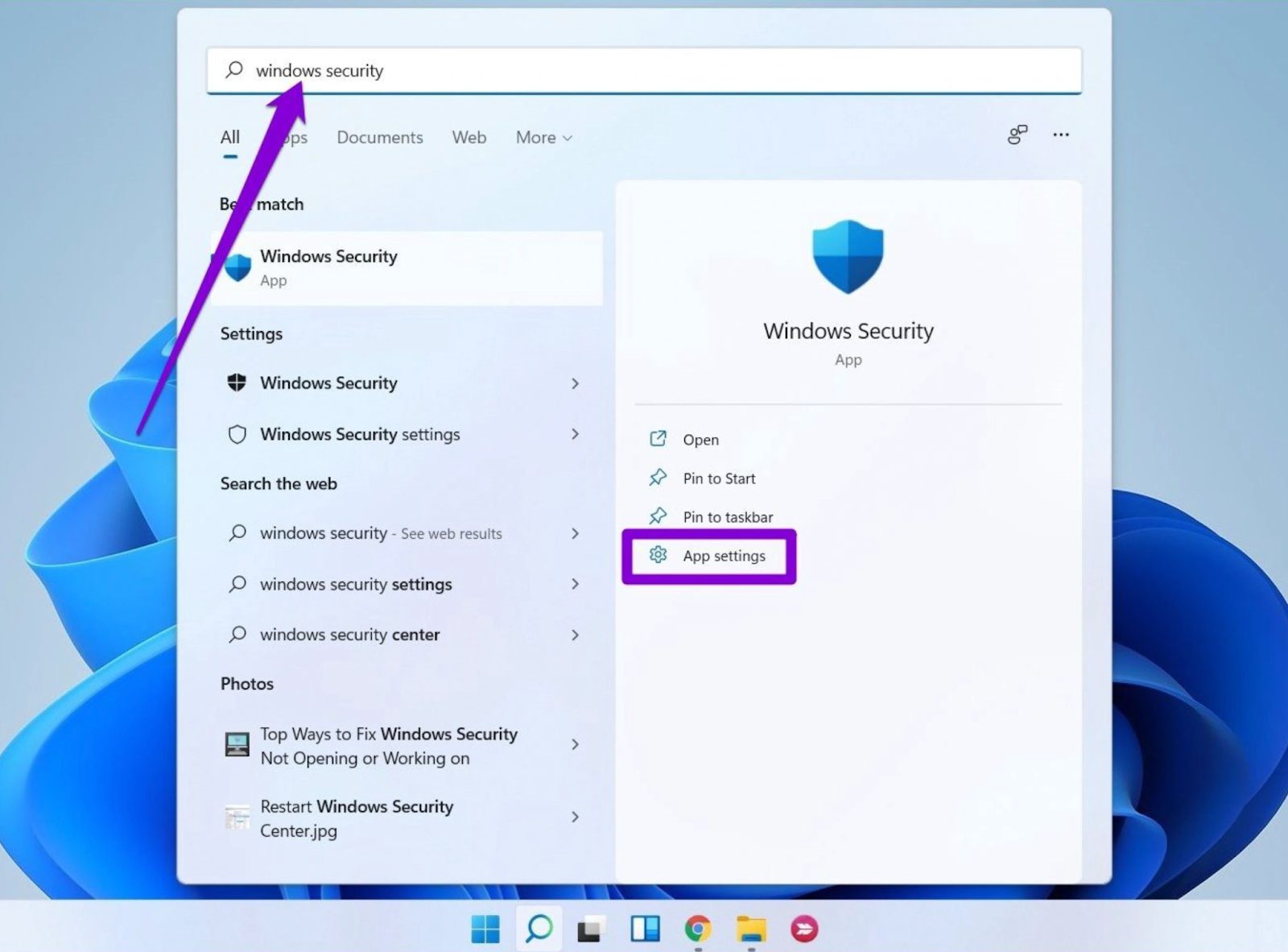
Step 2. Go to Firewall settings
Step 3. Allow Nioh 3 and Steam through the firewall
Step 4. Temporarily disable antivirus to test
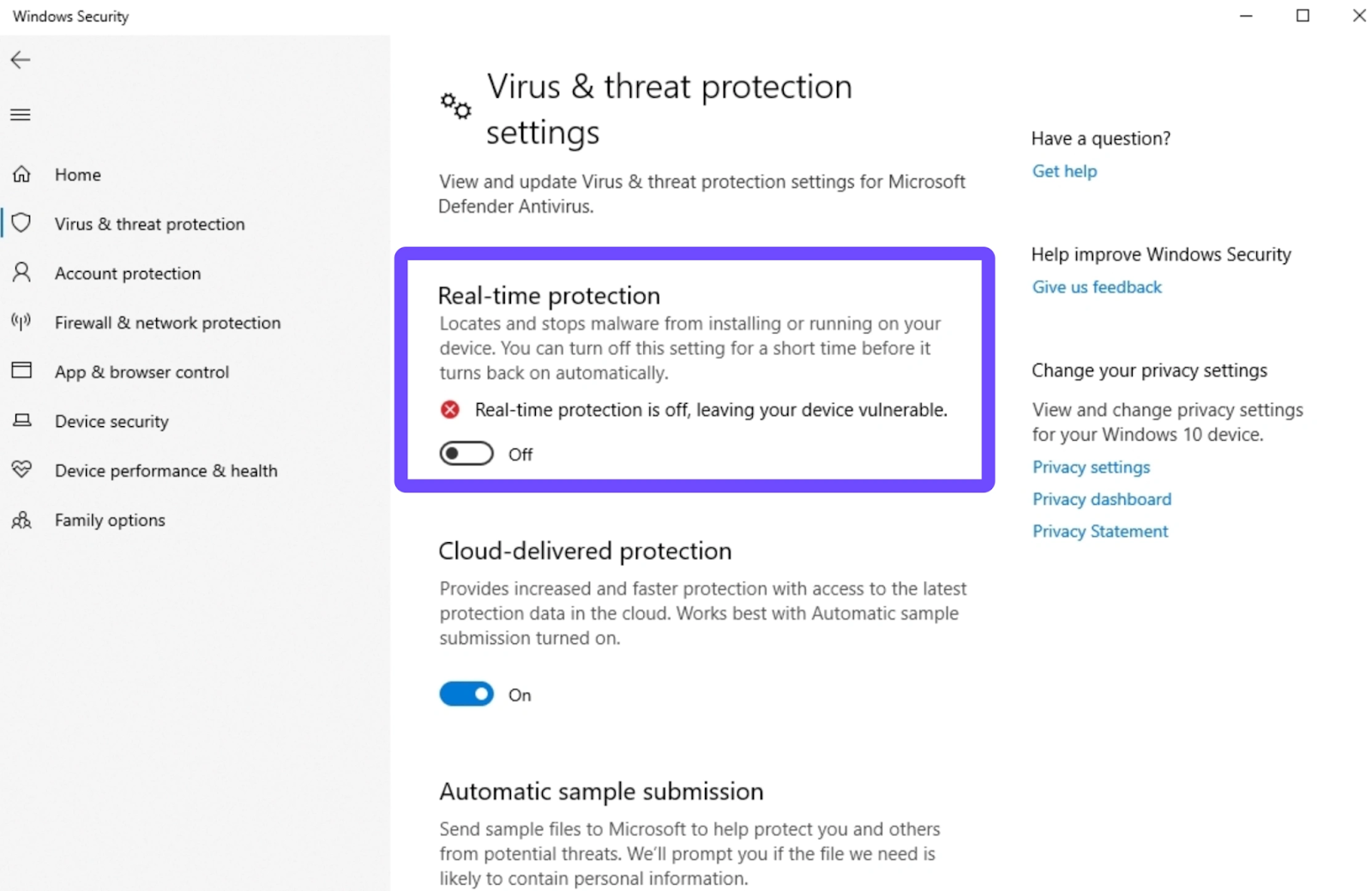
Step 5. Restart the game and reconnect
Note: This fix is limited and won’t help if the issue is server routing or network congestion, which LagoFast handles better.
PC Solution 3: Change DNS Servers
Using faster DNS may slightly improve connection stability.
Step 1. Open Network Settings
Step 2. Go to Adapter Options
Step 3. Right-click your active network and select Properties
Step 4. Set DNS to 8.8.8.8 and 8.8.4.4
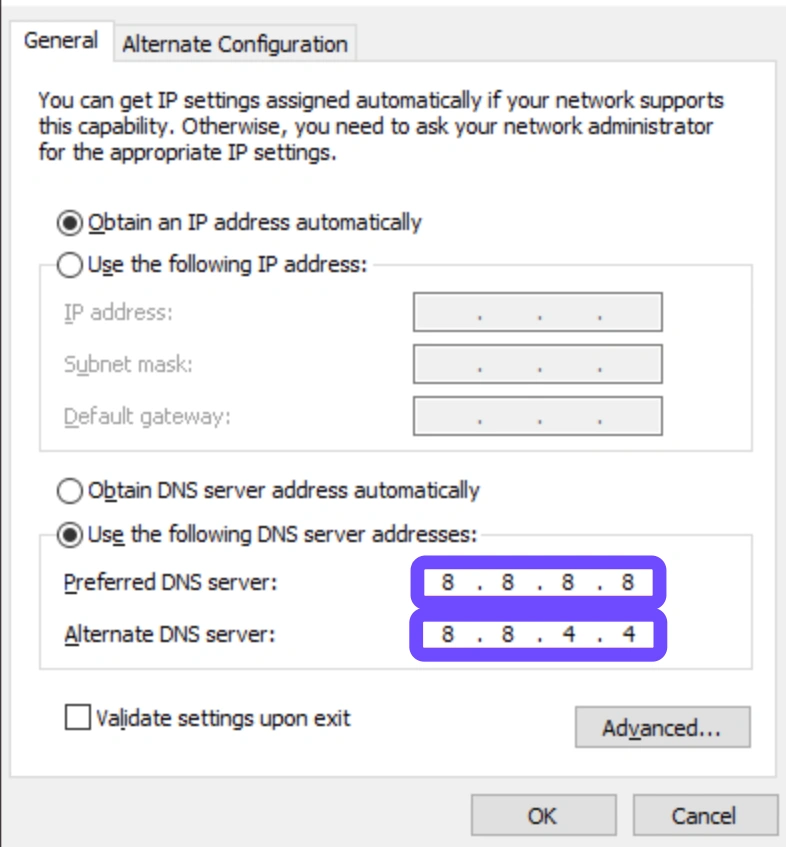
Step 5. Save and restart your connection
PS5 Solution 1: Test Internet Connection on PS5
Checking your console network status may reveal basic problems.
Step 1. Open PS5 Settings
Step 2. Go to Network and select Settings
Step 3. Select Test Internet Connection
Step 4. Check NAT Type and connection speed
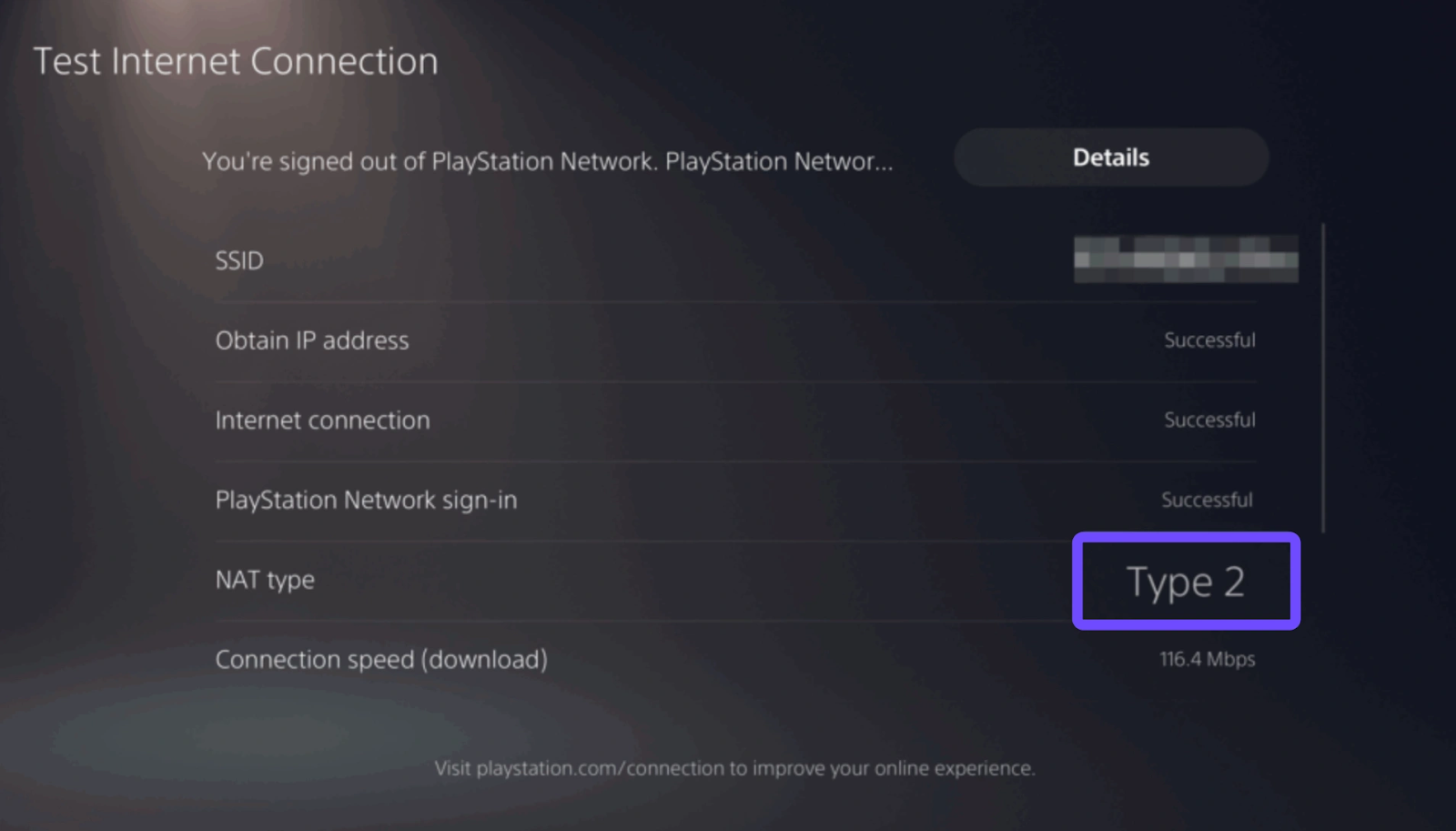
Step 5. Restart console if errors appear
Note: This only diagnoses problems and does not actively improve routing like LagoFast.
PS5 Solution 2: Restart Router and Console
A simple reboot may clear temporary conflicts.
Step 1. Turn off PS5 completely
Step 2. Power off your modem and router
Step 3. Wait 2 minutes
Step 4. Turn router and modem back on
Step 5. Restart PS5 and test connection
PS5 Solution 3: Open NAT and Port Forwarding
Strict NAT types often cause Nioh 3 can’t play with friend or nioh 3 can’t join friend errors.
Step 1. Log in to your router admin panel
Step 2. Enable UPnP or set NAT to Open
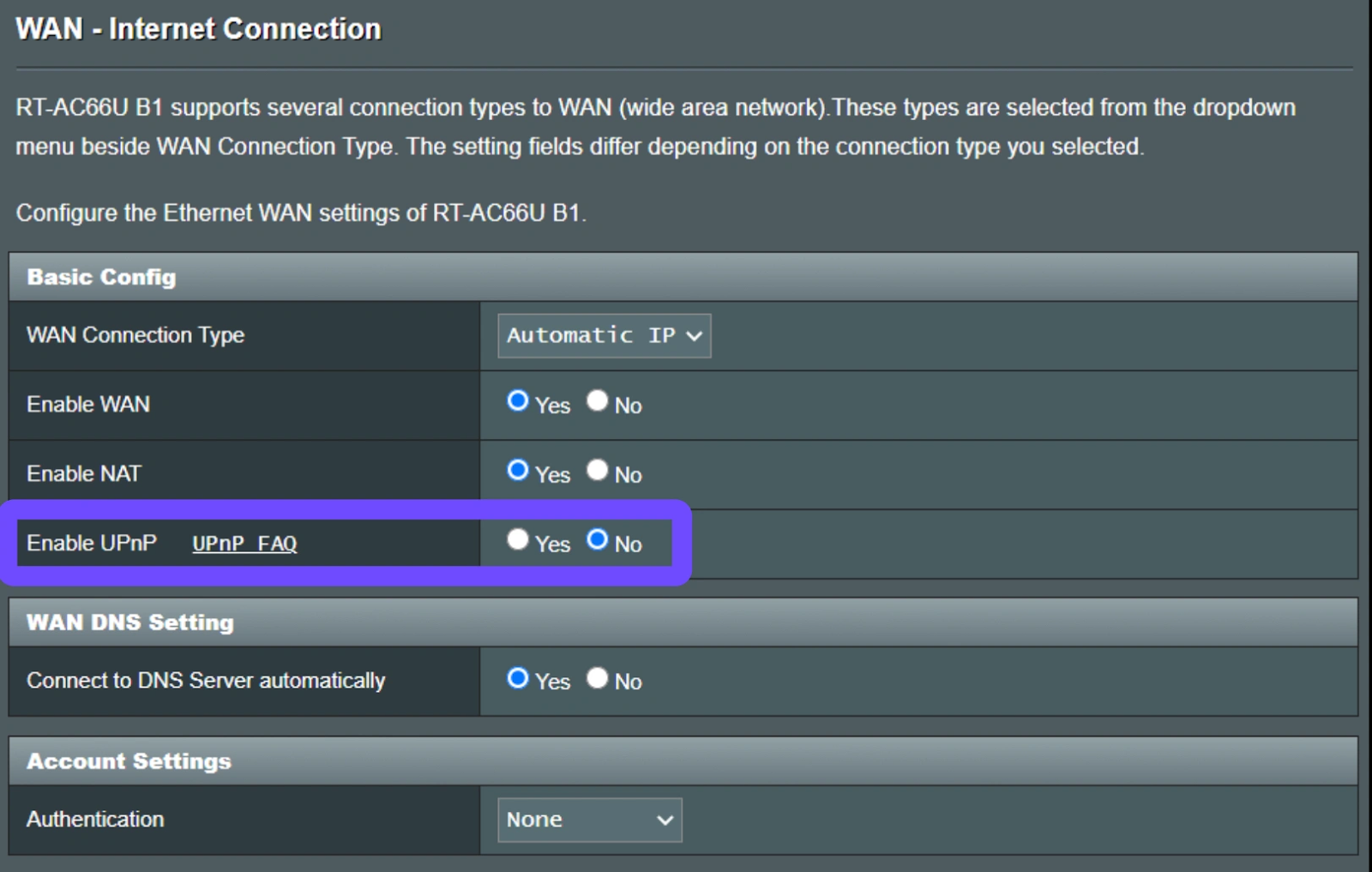
Step 3. Forward PlayStation Network ports
Step 4. Save router settings
Step 5. Restart network and PS5
Conclusion
Nioh 3 connection issues can quickly turn an exciting co-op session into a frustrating experience. Whether you face nioh 3 connection error pc, can’t join friends, or the game simply won’t connect to the network, the root cause is often unstable routing or server congestion. While basic fixes may help occasionally, they cannot match the performance and reliability of a professional game booster. With intelligent route optimization and cross-platform support, LagoFast remains the best solution to fix Nioh 3 connection issues permanently and enjoy smooth, uninterrupted online gameplay.
Boost Your Game with LagoFast for Epic Speed
Play harder, faster. LagoFast game booster eliminates stutter and lags on PC, mobile, or Mac—win every match!
Quickly Reduce Game Lag and Ping!
Boost FPS for Smoother Gameplay!