
NBA 2K26 is one of the most anticipated sports games of 2025, promising upgraded visuals, refined mechanics, and deeper online play. But for many players, excitement quickly turns into frustration when the game starts lagging, stuttering, or experiencing major latency spikes. Smooth gameplay is essential in a basketball sim where every second counts, and knowing how to reduce lag in NBA 2K26 can make all the difference.

Part 1: Why Does NBA 2K26 Lag Happen?
Part 2: The All-in-One Solution for PC & Consoles to Fix NBA 2K26 Lag
Part 3: How to Fix NBA 2K26 Lag: Solutions for PC
Part 4: How to Fix NBA 2K26 Lag: Solutions for Consoles
Part 1: Why Does NBA 2K26 Lag Happen?
Before fixing the problem, it’s important to understand why NBA 2K26 might be lagging so badly on your system. Here are the main reasons players report:
- Server Congestion: NBA 2K titles rely heavily on online servers. High traffic, especially around launch or after major updates, can overwhelm servers and lead to delay.
- Poor Internet Connection: Unstable Wi-Fi, limited bandwidth, or high ping can result in NBA 2K26 latency issues.
- Hardware Limitations: Playing on outdated PC components or consoles struggling with resource-heavy features may trigger FPS drops and stuttering.
- Background Processes: Streaming apps, downloads, or other running software consume bandwidth and processing power, worsening lag.
- Improper Settings: Overly high graphics settings or misconfigured network options can create NBA 2K26 lag spikes even on powerful systems.
- Regional Server Distance: If the game automatically connects you to a far-away server, ping and responsiveness will be affected.
Part 2: The All-in-One Solution for PC & Consoles to Fix NBA 2K26 Lag
One of the most effective ways to stop NBA 2K26 lag is by using LagoFast, a professional game optimizer designed for online performance. It not only reduces ping but also helps minimize latency spikes across different platforms.
Key Features of LagoFast:
- Cross-Device Support: Works seamlessly on PC, PlayStation, and Xbox, so you can optimize NBA 2K26 no matter your console or setup.
- Smart Routing Technology: Automatically selects the fastest servers and most stable routes to reduce ping.
- Real-Time Performance Boost: Clears system resources and optimizes in-game performance to prevent FPS stuttering.
- Easy-to-Use Interface: One-click acceleration ensures smooth gameplay without complex setup.
- Global Server Coverage: Access servers worldwide to avoid regional connection problems.
With LagoFast, you gain both network stability and in-game smoothness, making it a strong first step in resolving NBA 2K26 lagging issues.
Tutorial To Use LagoFast To Fix NBA 2K26 PC Lag:
Step 1: Download LagoFast by clicking the Download button below and activate the free trial.
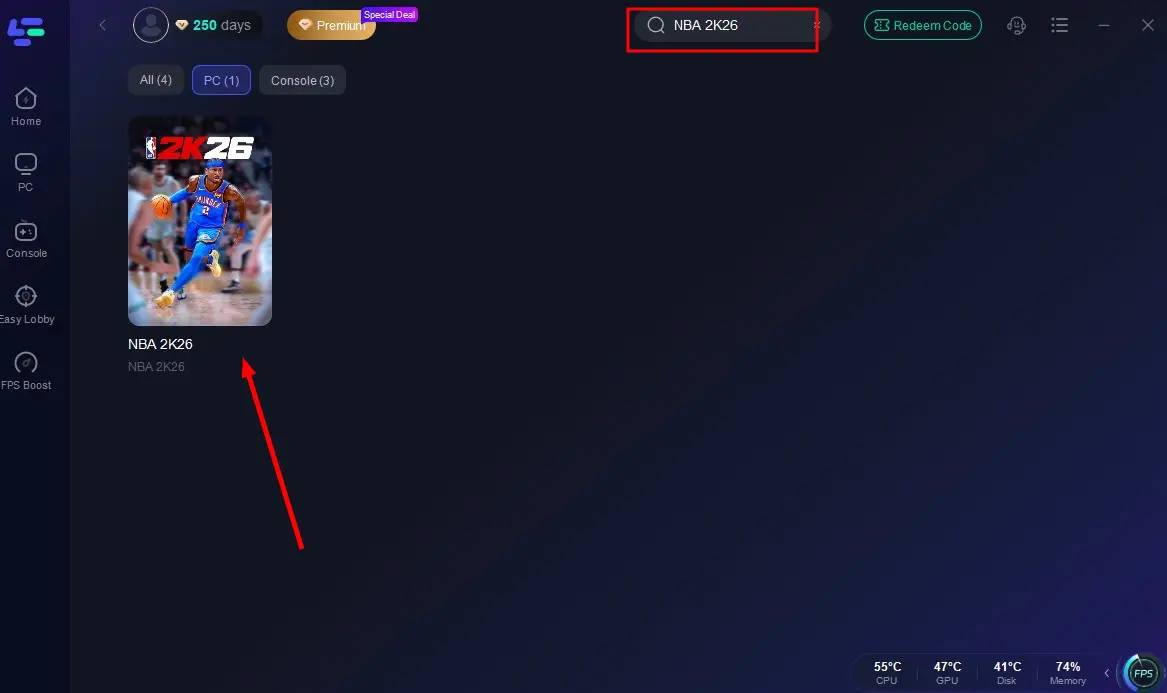
Step 2: Launch LagoFast and search for NBA 2K26 in the search bar.
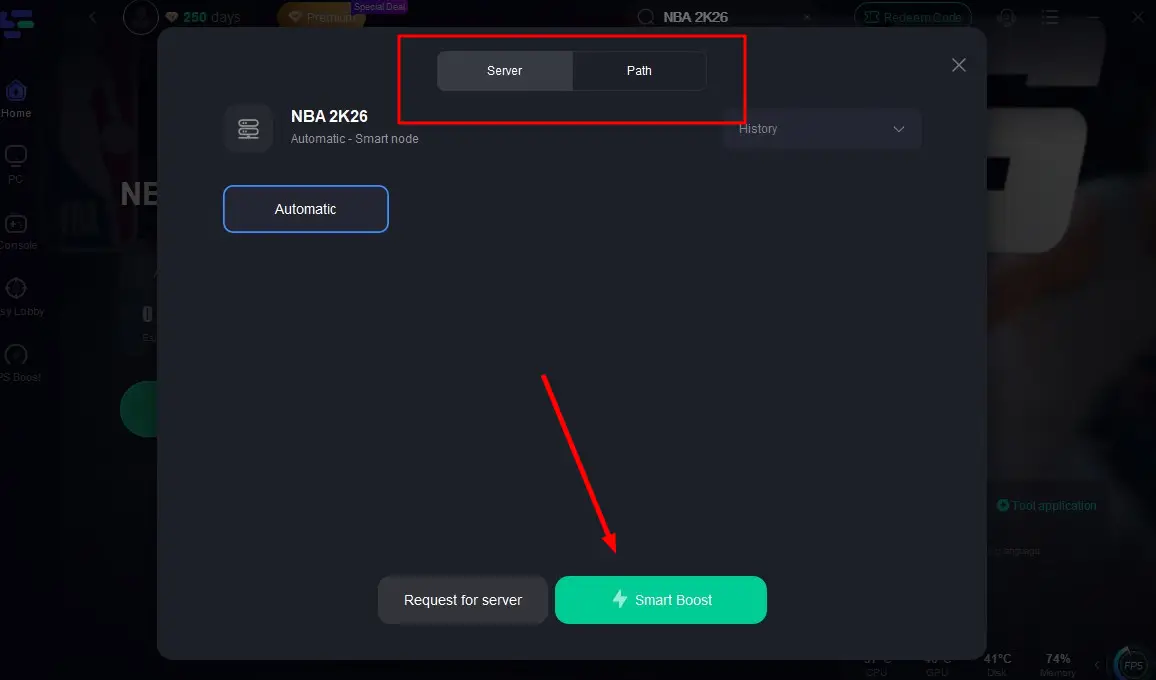
Step 3: Select the server with the best connection and choose the optimal Node. Click "Smart Boost" to start optimizing your connection.
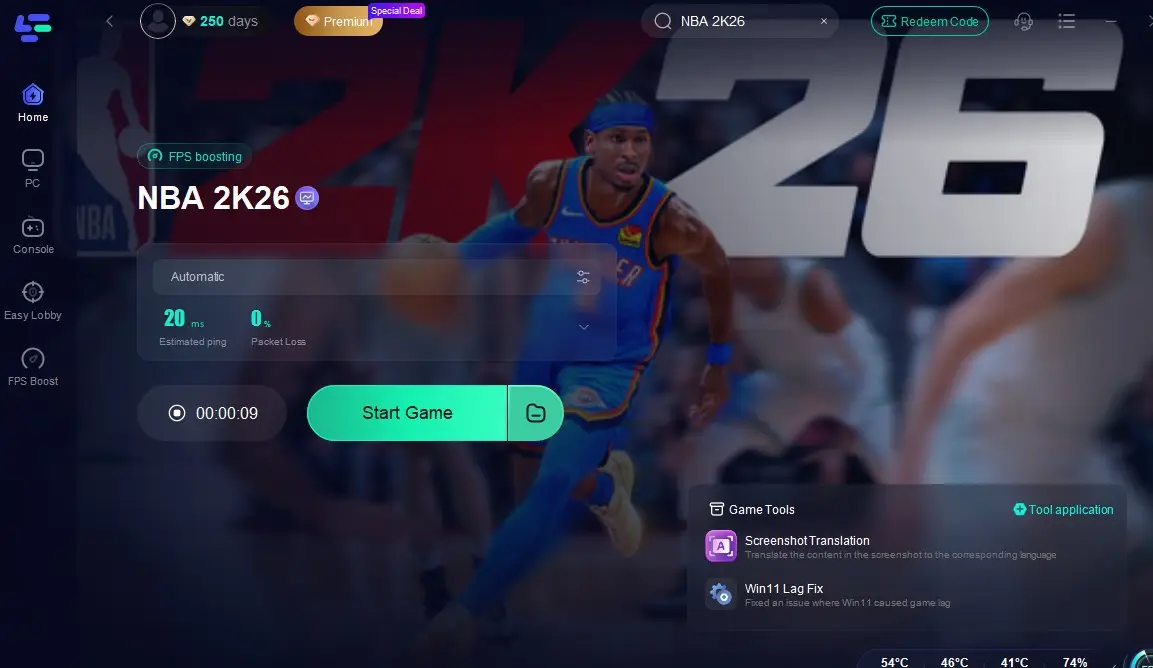
Step 4: Check real-time stats such as ping, packet loss, and network performance, then click the "Start Game" to play NBA 2K26 without any lag!
Tutorial to use LagoFast Box to Fix Lag in NBA 2K26 on Consoles:
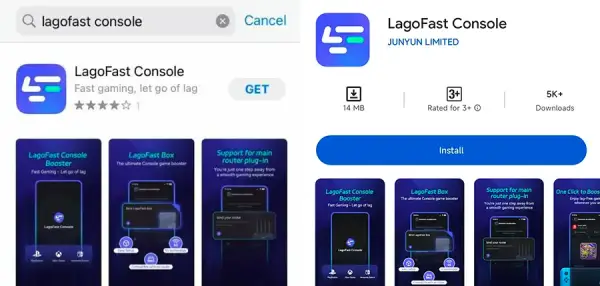
Step 1: Download the LagoFast Console App on your phone to control the LagoFast Box.
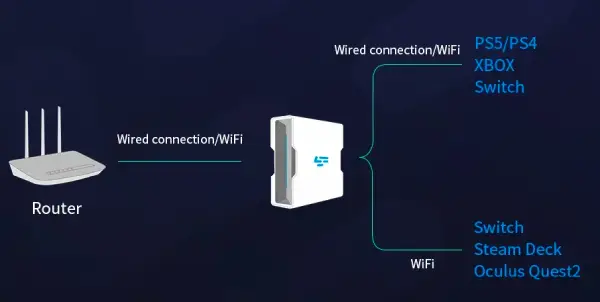
Step 2: Establish a connection between your LagoFast Box, router, and console, choosing between a wired or wireless connection.
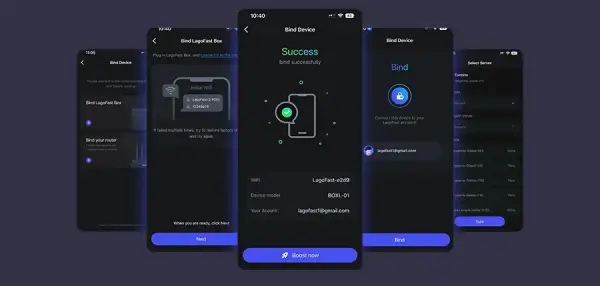
Step 3: Launch the LagoFast Console App and boost NBA 2K26. Once you have completed the binding process with the LagoFast Box, proceed to boost this game within the LagoFast Console App.
Part 3: How to Fix NBA 2K26 Lag: Solutions for PC
Solution 1: Optimize Graphics Settings
Step 1: Launch NBA 2K26 and go to Settings and select Graphics.
Step 2: Lower the Resolution from 4K to 1080p if your GPU is struggling.
Step 3: Set Graphics Preset to Medium instead of Ultra.
Step 4: Disable V-Sync, which can introduce input lag.
Step 5: Reduce Anti-Aliasing and Shadows to free up GPU resources.
Step 6: Restart the game to apply changes.
Solution 2: Update Drivers & Windows
Step 1: Open Device Manager on Windows.
Step 2: Expand Display Adapters and right-click your GPU.
Step 3: Select Update Driver or install the latest version from NVIDIA/AMD’s website.
Step 4: Update your Network Adapter drivers as well.
Step 5: Install the latest Windows Updates under Settings and select Update & Security.
Step 6: Restart your PC to finalize changes.
Solution 3: Close Background Apps
Step 1: Press Ctrl + Shift + Esc to open Task Manager.
Step 2: Look for heavy background processes (like Chrome, Spotify, or OBS).
Step 3: Right-click and select End Task on unnecessary apps.
Step 4: Disable auto-start apps under Task Manager’s Startup tab.
Step 5: Ensure no large downloads/updates are running in the background.
Step 6: Relaunch NBA 2K26 with freed-up resources.
Solution 4: Network Optimization
Step 1: Use a wired Ethernet connection instead of Wi-Fi.
Step 2: Restart your router to refresh the connection.
Step 3: Open your router’s admin panel and enable QoS (Quality of Service) for gaming.
Step 4: Set NBA 2K26 or your device to High Priority.
Step 5: Forward game ports (check 2K’s support page for the latest).
Step 6: Test your ping at speedtest.net to confirm stability.
Part 4: How to Fix NBA 2K26 Lag: Solutions for Consoles

Solution 1: Change DNS Settings (PS5 & Xbox)
Step 1: Go to Settings, select Network, and click Advanced Settings.
Step 2: Choose Manual DNS setup.
Step 3: Enter Google DNS: Primary: 8.8.8.8 / Secondary: 8.8.4.4.
Step 4: Save settings and restart the console.
Step 5: Test connection speed for improvements.
Step 6: Launch NBA 2K26 and check lag reduction.
Solution 2: Clear Console Cache
Step 1: Power off your console completely.
Step 2: Unplug it from the power source.
Step 3: Wait at least 2 minutes.
Step 4: Plug it back in and restart.
Step 5: This clears temporary files that may cause stuttering.
Step 6: Relaunch NBA 2K26 for smoother performance.
Solution 3: Optimize Console Storage & Settings
Step 1: Delete unnecessary games/apps to free up storage space.
Step 2: Move NBA 2K26 to internal SSD storage (faster than external drives).
Step 3: Lower visual settings if the game offers performance vs quality mode.
Step 4: Disable background downloads/updates.
Step 5: Keep your system firmware updated.
Step 6: Reboot before starting long play sessions for maximum efficiency.
Conclusion
NBA 2K26 is shaping up to be one of the biggest sports game releases of 2025, but lag, stuttering, and latency issues can ruin the experience. By understanding why NBA 2K26 is lagging and applying solutions such as improving your internet connection, tweaking in-game settings, or using tools like LagoFast, you can drastically improve responsiveness and enjoy smooth matches on PC, PS5, Xbox, and Switch. Don’t let lag spikes stop you from dominating the court—optimize your setup, stabilize your connection, and get back to playing without interruptions.

Boost Your Game with LagoFast for Epic Speed
Play harder, faster. LagoFast game booster eliminates stutter and lags on PC, mobile, or Mac—win every match!
Quickly Reduce Game Lag and Ping!
Boost FPS for Smoother Gameplay!