
Imagine surviving a brutal raid, filling your inventory with high-tier loot, and suddenly your screen freezes. A "connection lost" error pops up. You rush to jump back in, but the game kicks you back to the camp menu, and your character is completely stripped. Dealing with Mistfall Hunter constant disconnections is annoying enough, but losing hours of progress because the system counts it as a death makes it agonizing. This guide explains exactly why this is happening right now and how you can actually fix it.

- ✅Less ping and crashes.
- ✅ Higher FPS and better performance.
- ✅ Support for 8000+ games.
- ✅ Stable connection and region switching.
- ✅ Mistfall Hunter Translation Tool
Part 1: Why Does Mistfall Hunter Keep Disconnecting
Part 2: Why Do You Lose Gear After Disconnecting in Mistfall Hunter
Part 3: Check Whether Your Mistfall Hunter Gear Is Really Lost
Part 4: How to Fix Mistfall Hunter Keeps Disconnecting
Part 5: How to Fix Mistfall Hunter Reconnect Not Working
Part 6: Can You Recover Gear Lost After a Disconnect?
Part 7: How to Prevent Losing Valuable Gear to Disconnects
Part 8: Mistfall Hunter Gear Loss Explained
Part 1: Why Does Mistfall Hunter Keep Disconnecting
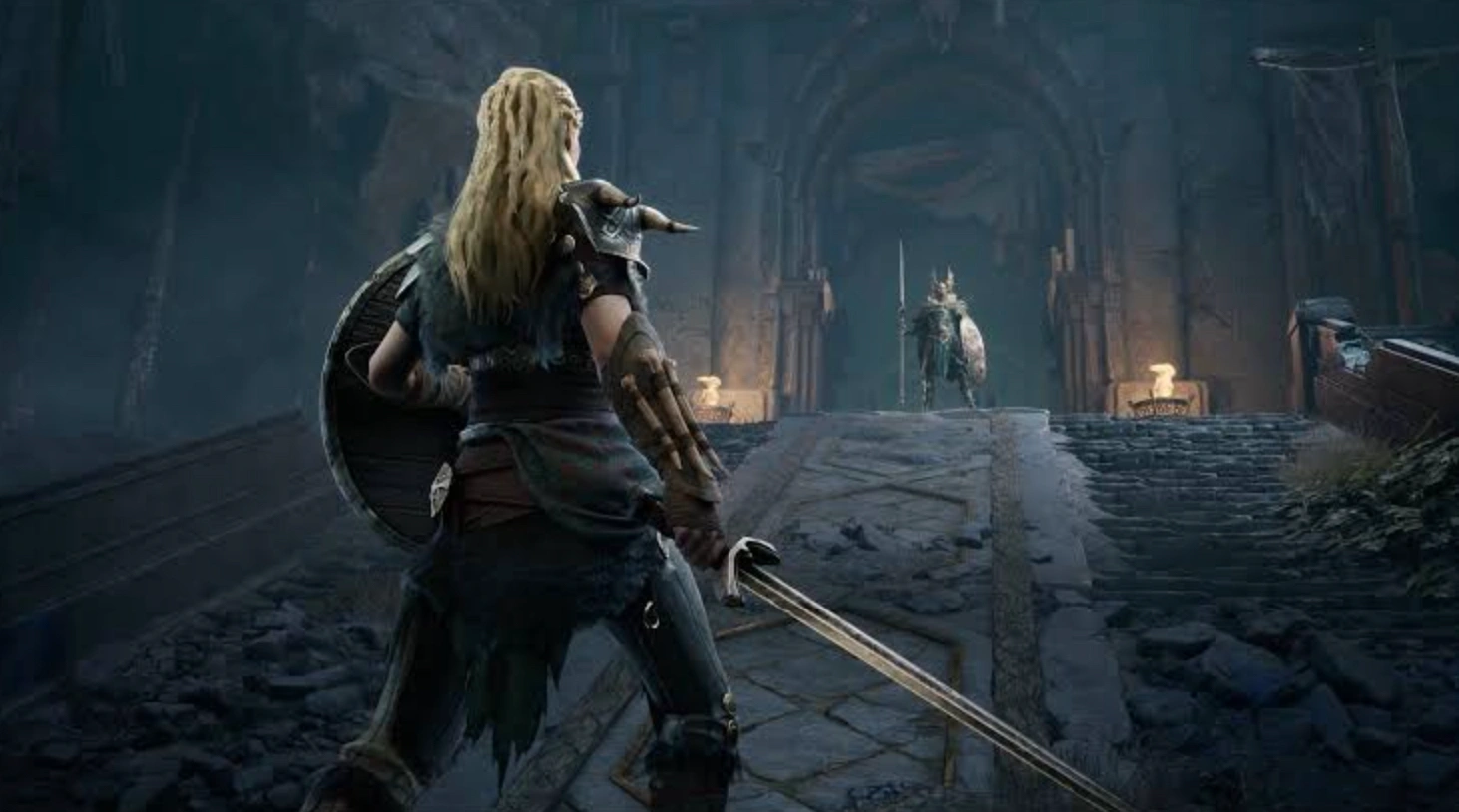
Nobody likes having their run abruptly ended by technical glitches. Based on recent community reports, especially from console players on PS5 Pro, the game has a habit of crashing or dropping connections immediately after extractions or while hanging out at camp. Here is a quick breakdown of what’s actually breaking your connection behind the scenes.
Mistfall Hunter Server Instability
Sometimes, the problem isn’t on your end at all. New game launches or major content updates often bring huge influxes of players, which simply overloads the backend servers. When the servers struggle to keep up with player data requests, they drop active connections to prevent a total crash.
Unstable or High-Latency Network Connections
If your local internet drops even for a fraction of a second, the game might panic. Online extraction games require a constant, flawless stream of data. Even minor Wi-Fi hiccups that you wouldn't notice while watching Netflix can sever your link to the match server.
Packet Loss and Connection Routing Problems
Your data takes a specific route from your house to the game’s servers. If an ISP routing node along that path is congested, data packets get lost. If the game client doesn't receive the required packets in time, it assumes you’ve disconnected and kicks you to the main menu.
Game Client Crashes or Freezes During a Match
Players have reported a bug where button inputs refuse to register back at camp, or the cursor randomly goes crazy. Often, these local client lockups force you to forcefully close the app, which the server translates as an abrupt, unexpected network disconnection.
Server Region and Matchmaking Connection Issues
Matchmaking occasionally throws you into a server region halfway across the world just to fill a lobby faster. Playing on a server with 200+ ping drastically increases the chance of a timeout error, booting you mid-game.
Part 2: Why Do You Lose Gear After Disconnecting in Mistfall Hunter
So, why is your hard-earned loot vanishing? In standard extraction games, the stakes are high, and the server logic is unforgiving. If you experience Mistfall Hunter lost equipment without dying, it’s usually because the server's fail-safes are punishing what it thinks is combat logging.
A Disconnect May Be Counted as a Death
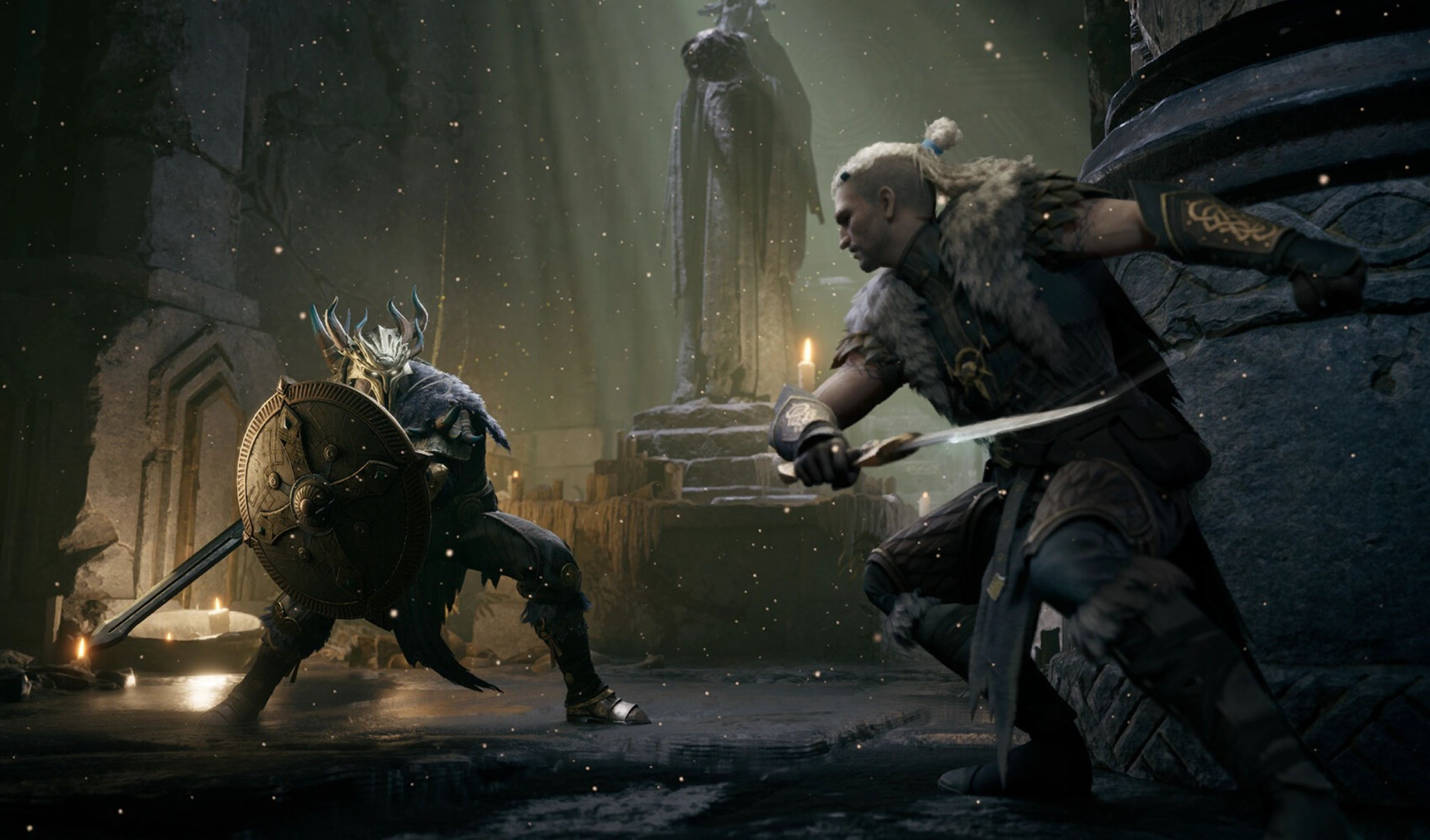
To prevent players from simply unplugging their routers the moment they start losing a PvP fight, the game’s automated system usually treats an abrupt leave as an in-game death. Does Mistfall Hunter disconnect count as death? Sadly, yes, in most unrecoverable scenarios.
Failed Reconnection Can End Your Current Match
If your internet stutters, you usually have a brief window to log back in. However, if the Mistfall Hunter reconnect not working bug occurs and the timer expires before you load the map, the server officially terminates your session and wipes your carried gear.
Extraction Failure Causes Carried Gear and Loot to Be Lost
If you disconnect right as you are extracting, the server might not process the "success" trigger. You’re left in limbo: your character didn't technically make it out, so the system defaults to extraction failure, wiping your inventory.
Missing Gear May Be an Inventory Sync Bug
Sometimes your gear isn’t actually gone. If the server and your client fail to communicate properly after a crash, your stash and inventory might just appear empty locally. It’s an irritating visual bug masquerading as a catastrophic gear loss.
Part 3: Check Whether Your Mistfall Hunter Gear Is Really Lost
Before you panic about losing that ultra-rare weapon, take a breath. Because the servers are currently struggling, your items might just be trapped in digital limbo due to a UI glitch. Follow these steps to verify if the server disconnect gear loss is permanent or just a temporary display error.
Restart Mistfall Hunter and Log In Again
Close the game completely. Don't just suspend it. A fresh launch forces your client to request new data directly from the server, which often forces your missing equipment to pop back into existence.
Check Your Character Inventory and Stash
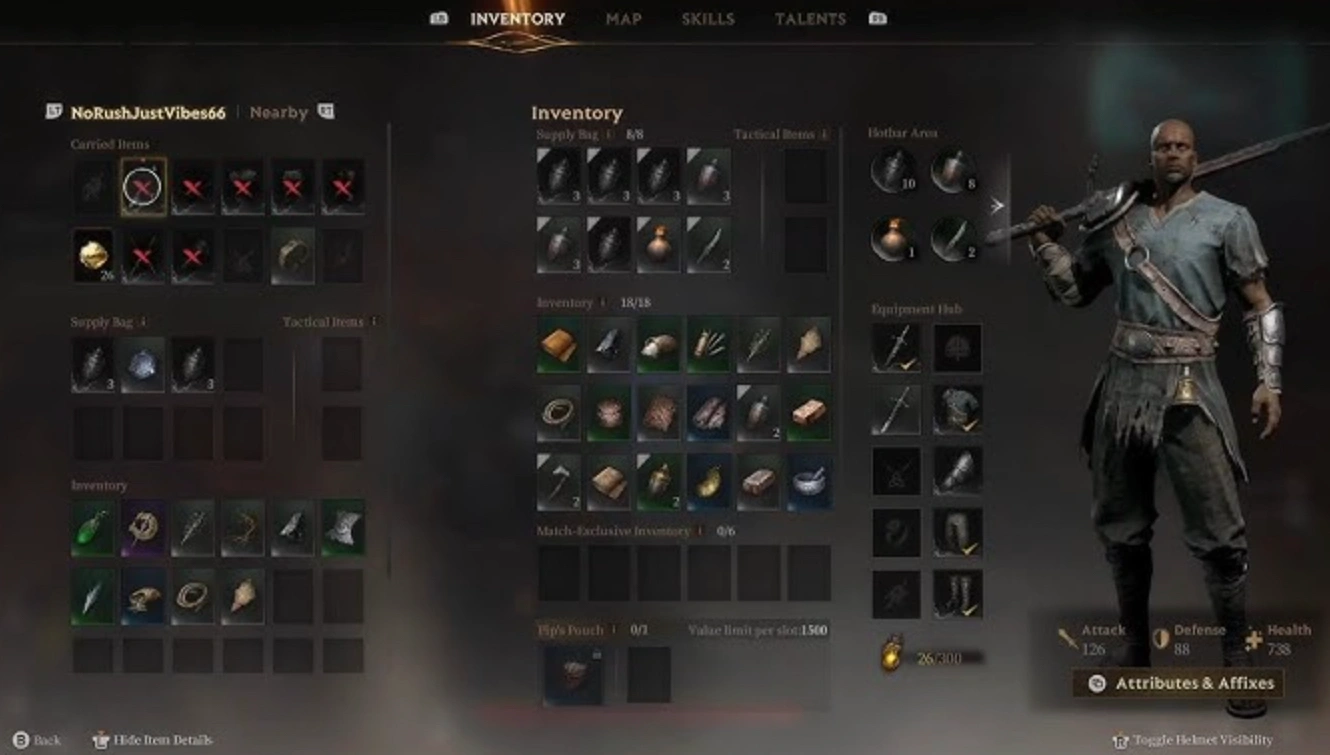
Manually click through your character's active loadout, your camp stash, and your mailbox. Sometimes the game forcibly unequips items during a crash and dumps them into the first available stash slot.
Use Transfer All to Refresh Missing Extracted Items
If you disconnected right after a successful extraction, go to your stash and try clicking the auto-sort or "transfer all" buttons. Forcing an inventory action can sometimes jolt the system into syncing your recently acquired loot.
Confirm Whether the Match Was Recorded as a Death
Look at your recent match history or combat logs if available. If the game explicitly shows a skull icon or lists the match as "Killed in Action" or "MIA," then the system officially penalized you for the disconnect.
Distinguish Gear Loss from an Inventory Display Bug
Try equipping a cheap, low-level item into a supposedly "empty" slot. If the game gives you an error message saying the slot is occupied, congratulations, your original gear is still there; it's just visually bugged and will return later.
Part 4: How to Fix Mistfall Hunter Keeps Disconnecting
If you want to stop bleeding gear and actually enjoy the game, you need to stabilize your connection environment. From network boosters to console-specific fixes, here are the most effective ways to stop those dreaded server kicks and keep your loot safe.
Reduce Ping, Packet Loss, and Disconnects With LagoFast
If you are constantly battling high ping and packet loss, LagoFast is your best defense. LagoFast is an advanced game booster designed to stabilize your network routes, drastically reducing latency and preventing the sudden drops that trigger the Mistfall Hunter disconnected and lost all gear scenario. Its multipath connection technology ensures that if one server node drops, another picks it up instantly without booting you from the game.
Key Features:
- Eliminates packet loss and stabilizes ping instantly.
- Smart routing system specifically optimized for extraction games.
- Fixes the dreaded login loops and failed reconnection errors.
- Easy-to-use interface for both PC and Console setups.
Tutorial: How to use LagoFast:
Step 1. Download and install LagoFast on your device.
Step 2. Open the app and search for "Mistfall Hunter" in the main search bar.
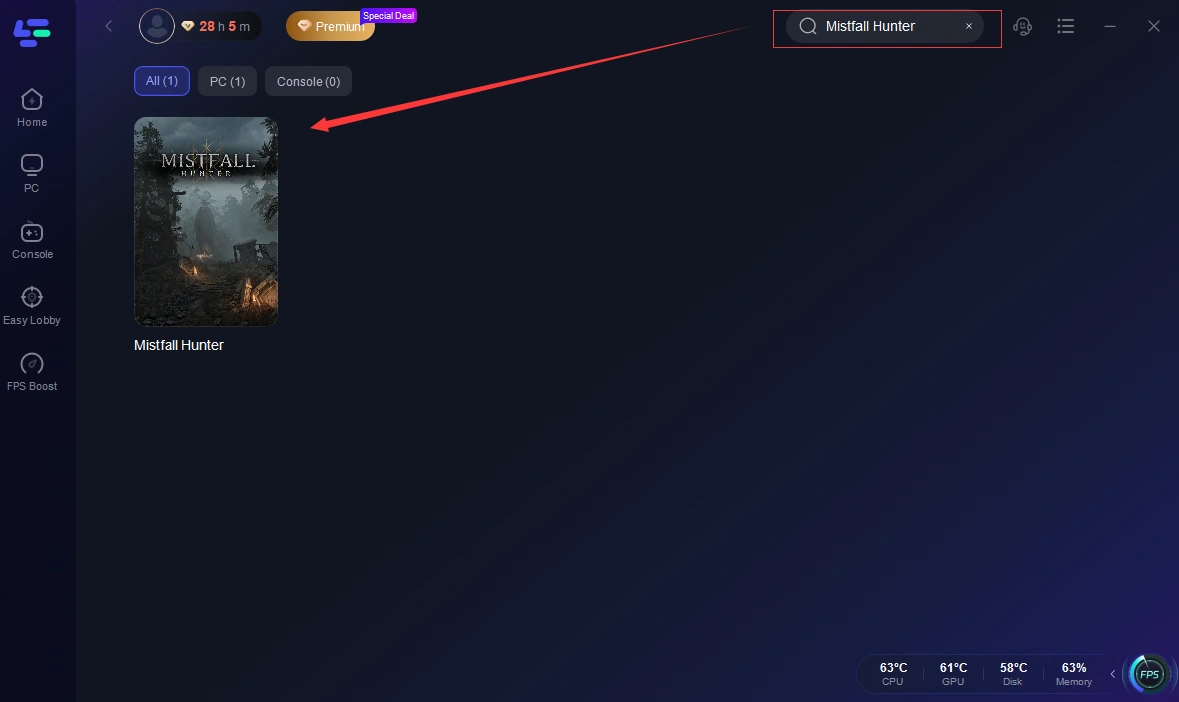
Step 3. Select your preferred server or let the tool auto-assign the best route.
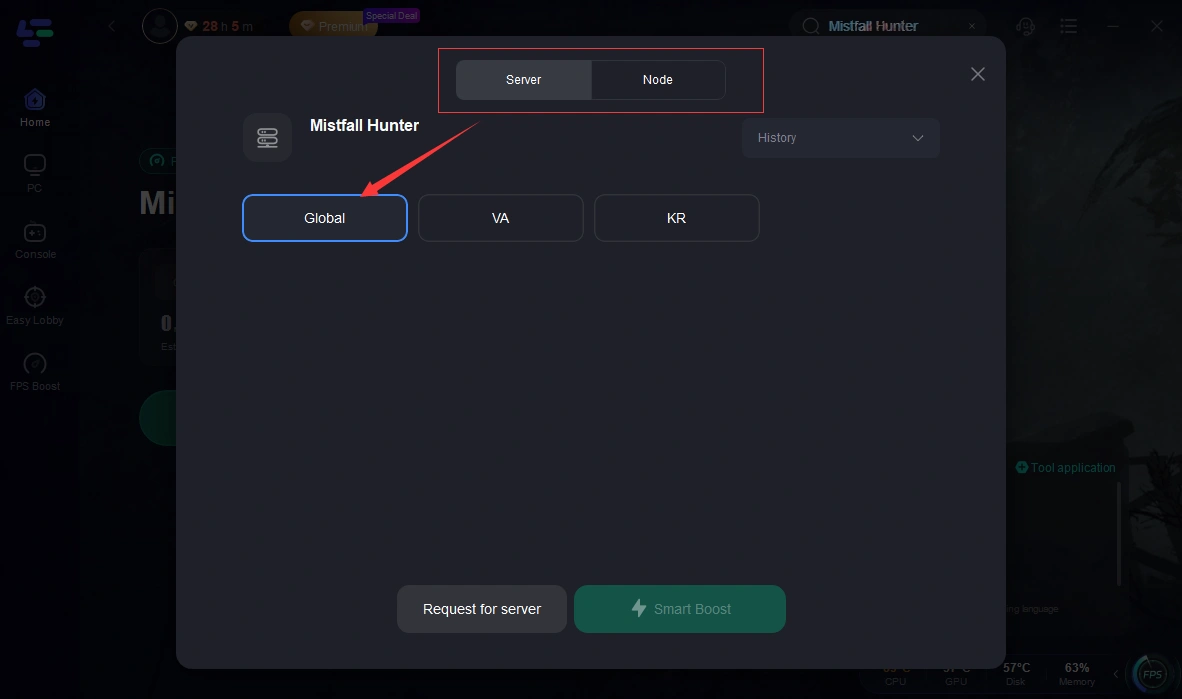
Step 4. Click "Boost" to establish a secure, low-latency connection.
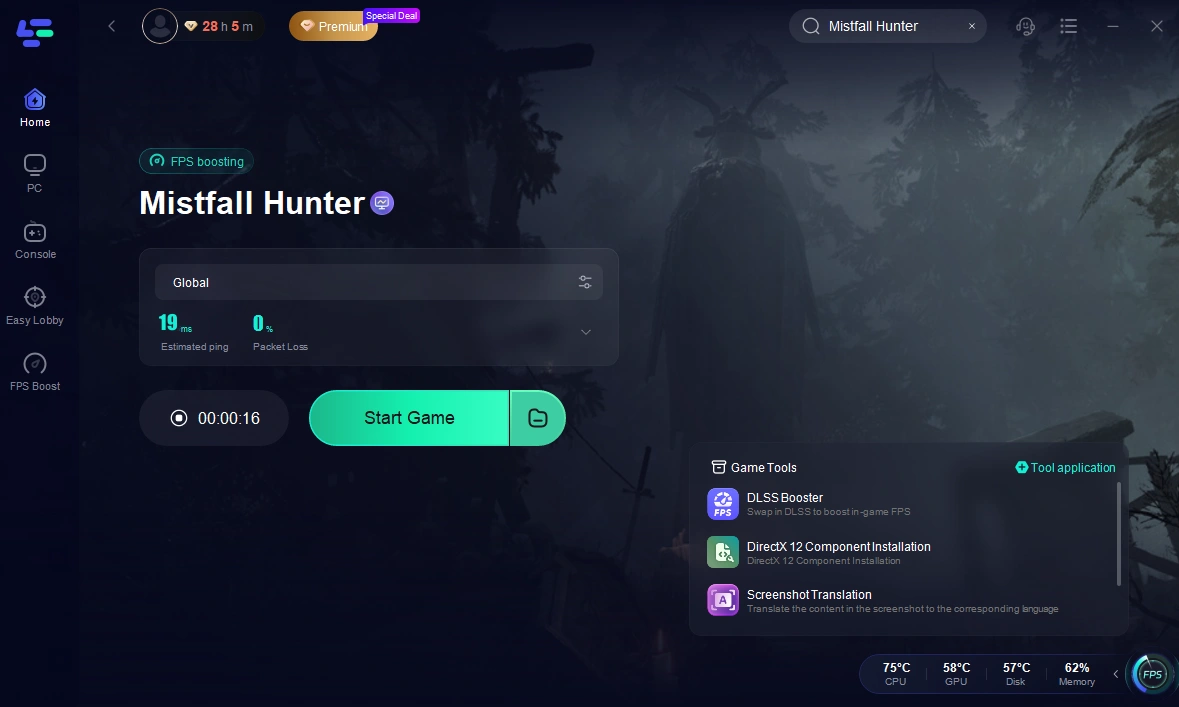
Step 5. Launch the game through LagoFast; your connection is now protected.
Check the Mistfall Hunter Server Status
Sometimes you just shouldn't play if the servers are on fire. It saves you from pointless gear loss.
Step 1. Open your web browser or phone.
Step 2. Navigate to the official Mistfall Hunter Twitter/X account.
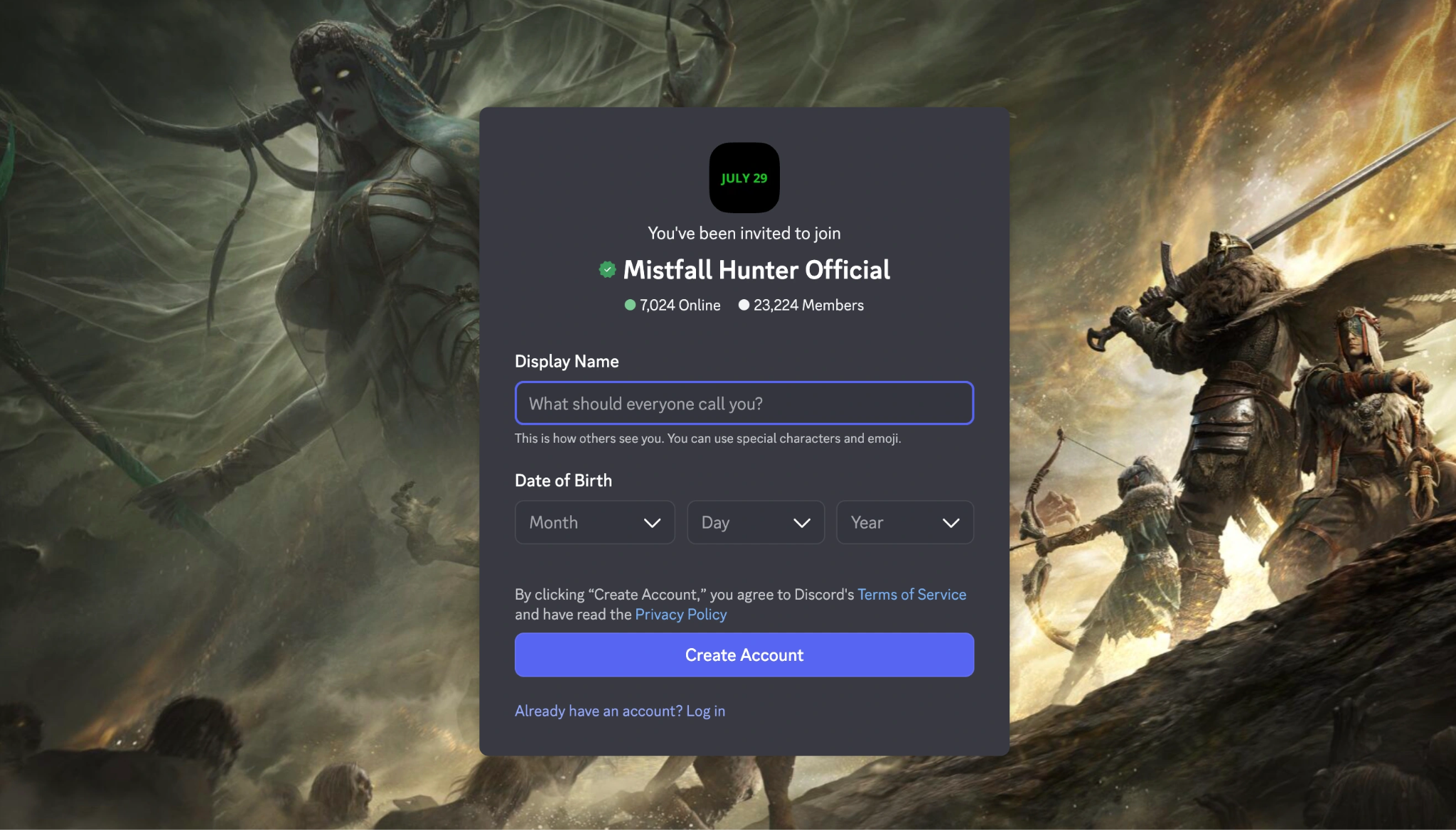
Step 3. Check the game’s official Discord server for live outage announcements.
Step 4. Look at community hubs like Reddit to see if others are experiencing crashes right now.
Step 5. Wait for the developers to announce a fix before loading up your best gear.
Restart the Game, Steam, or Your Console
As noted by PS5 players, button inputs failing or cursors going crazy usually require a hard reset.
Step 1. Press the Home button on your console or Alt+F4 on PC.
Step 2. Highlight the game application.
Step 3. Select "Close Game" or "Force Quit."
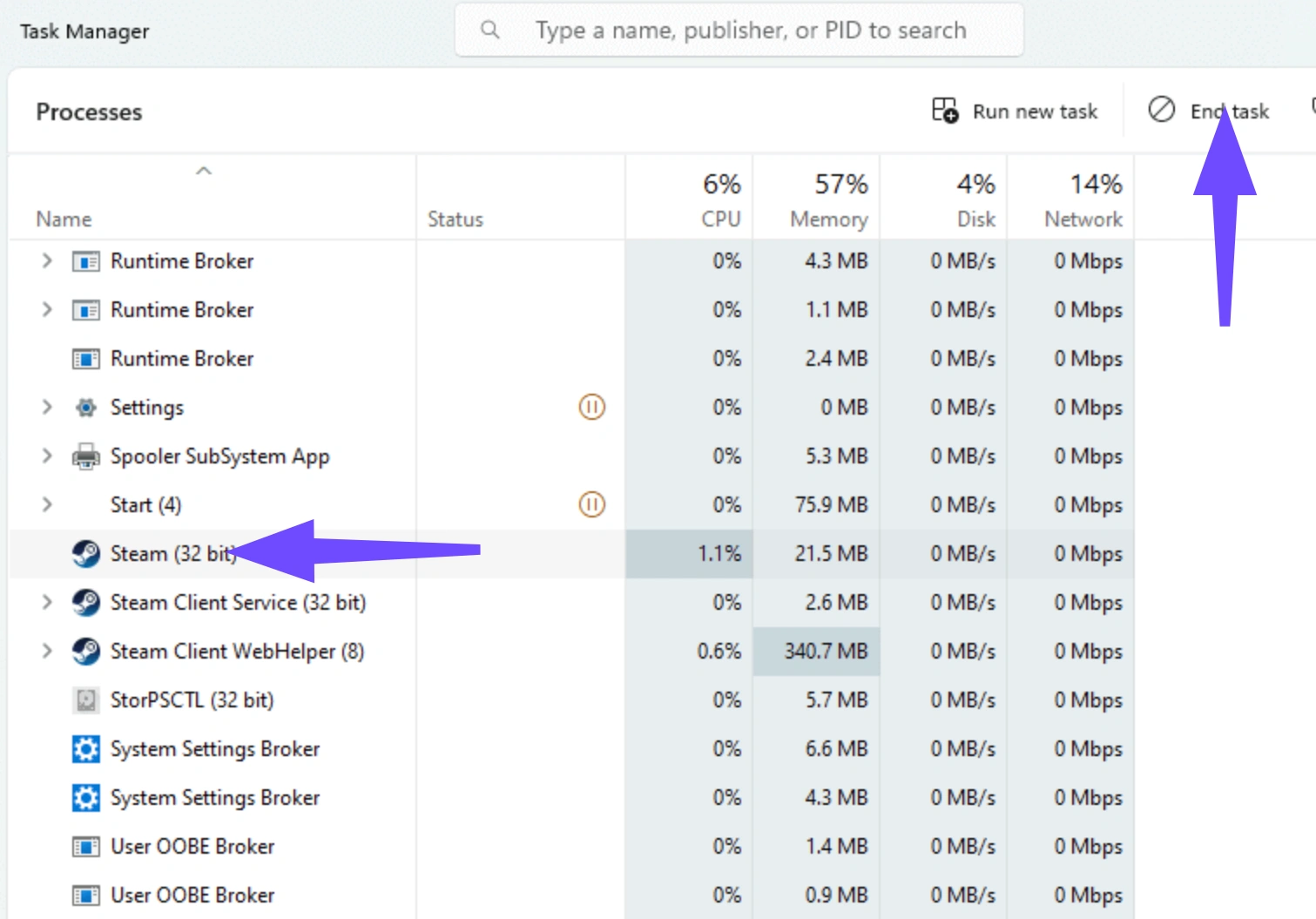
Step 4. Completely shut down your console or exit Steam entirely from the system tray.
Step 5. Reboot your device and launch the game completely fresh.
Optimize Your Connection to the Mistfall Hunter Server
A cluttered home network starves your game of the bandwidth it needs to stay connected.
Step 1. Run a quick internet speed test on your phone or PC.
Step 2. Pause any active YouTube, Netflix, or Twitch streams running on your network.
Step 3. Disconnect idle devices like tablets or smart home tools from your Wi-Fi.
Step 4. If using Wi-Fi, ensure your console or PC is connected to the 5GHz band, not 2.4GHz.
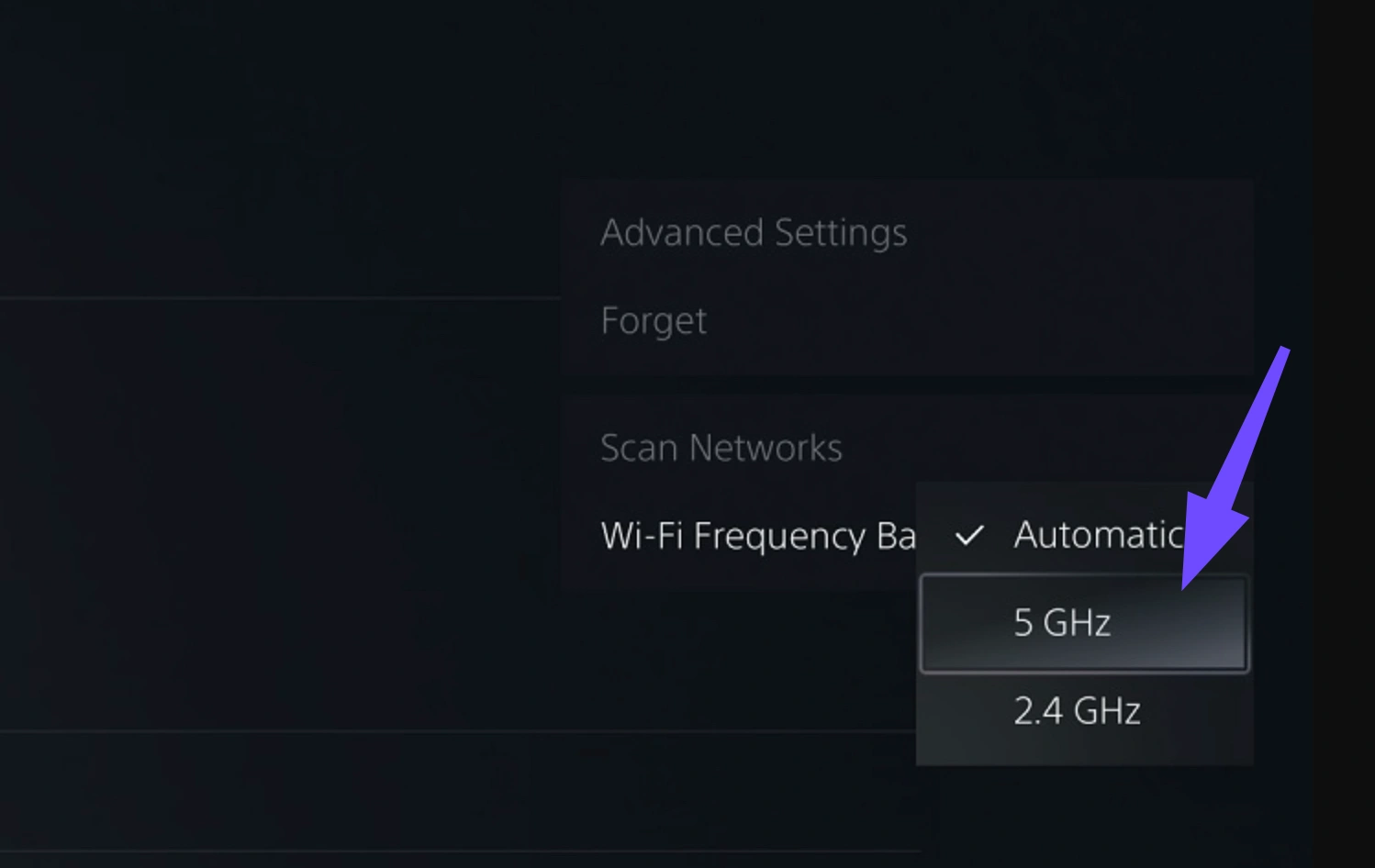
Step 5. Move your device closer to the router to ensure a stable signal.
Select the Closest Available Mistfall Hunter Server
Playing out of region is a guaranteed way to spike your ping and trigger disconnects.
Step 1. Launch Mistfall Hunter and stay on the main menu.
Step 2. Navigate to the Game Settings or Network tab.
Step 3. Look for the Matchmaking Region option.
Step 4. Disable "Auto" and manually select the region geographically closest to your physical location.
Step 5. Save your settings and queue for a match.
Restart Your Router and Use a Wired Connection
Wi-Fi is convenient, but it is notoriously unstable for hardcore extraction games.
Step 1. Walk over to your home router and modem.
Step 2. Unplug the power cables from the back of both devices.
Step 3. Wait a full 30 to 60 seconds to clear the system cache.
Step 4. Plug them back in and run a physical Ethernet cable from the router directly to your console/PC.
Step 5. Go into your device settings and configure it to use LAN/Wired instead of Wi-Fi.
Stop Background Downloads and Bandwidth-Heavy Applications
Background updates will instantly throttle your game, causing packet loss that looks like a server kick.
Step 1. Open your Steam downloads page or console update queue.
Step 2. Manually pause every game update currently running.
Step 3. Open Task Manager on PC (Ctrl+Shift+Esc).
Step 4. Force close background apps like OneDrive, Chrome, or torrent clients.
Step 5. Return to the game with your bandwidth fully freed up.
Verify Mistfall Hunter Game Files on Steam
Corrupted game files cause local crashes, which the server reads as a random disconnect.
Step 1. Open your Steam library.
Step 2. Right-click Mistfall Hunter and select "Properties."
Step 3. Navigate to the "Installed Files" tab on the left.
Step 4. Click the "Verify integrity of game files" button.
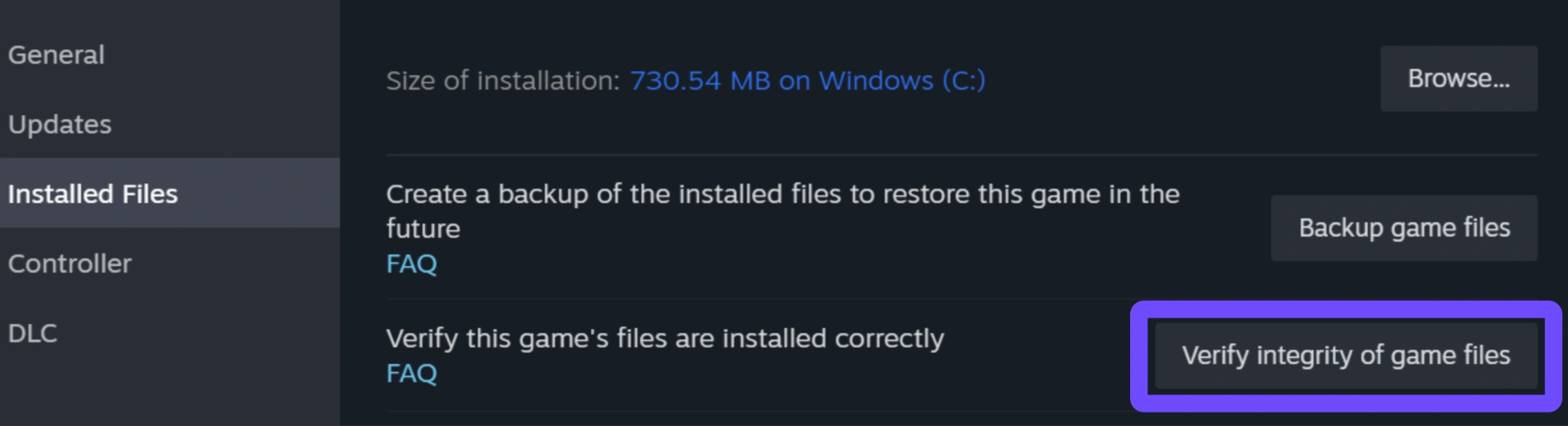
Step 5. Wait for the scan to finish and download any missing components before launching.
Allow Mistfall Hunter Through Windows Firewall
A strict firewall might be blocking the game's port connection during matchmaking or extraction.
Step 1. Click the Windows Start menu and type "Firewall."
Step 2. Select "Allow an app through Windows Firewall."
Step 3. Click the "Change settings" button in the top right.
Step 4. Scroll down to find Mistfall Hunter (or browse for the game's .exe file).
Step 5. Check both the "Private" and "Public" boxes, then hit OK to save.
Update Mistfall Hunter and Your Network Drivers
Outdated network drivers mismanage incoming packet data, leading to sudden network drops.
Step 1. Press Win + X and open the Device Manager.
Step 2. Click to expand the "Network adapters" section.
Step 3. Right-click your primary Wi-Fi or Ethernet adapter.
Step 4. Select "Update driver" and choose "Search automatically for drivers."
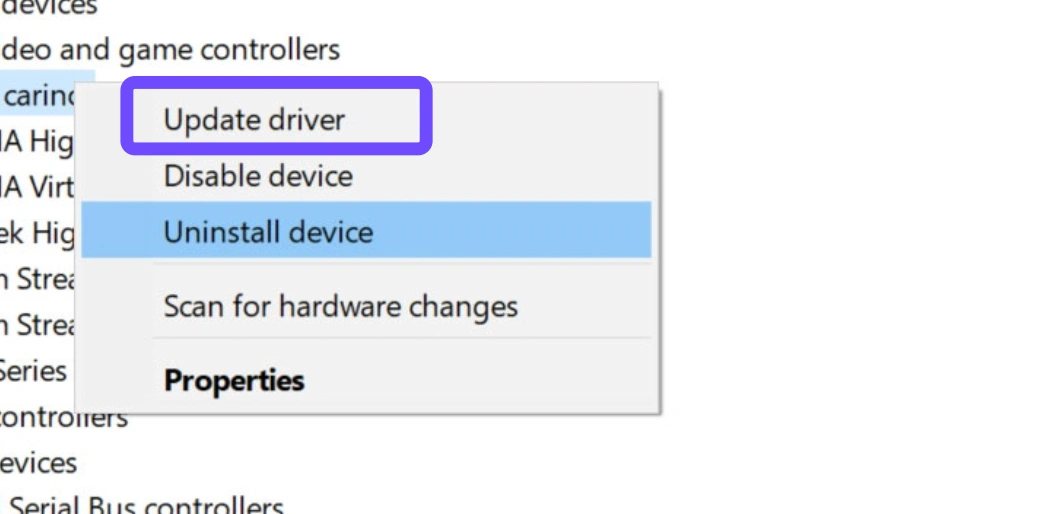
Step 5. Restart your computer to apply the newly downloaded driver settings.
Change DNS Settings and Reset the Network Connection
Your ISP's default DNS might be routing your game data poorly, causing high latency.
Step 1. Open your console or PC Network Settings.
Step 2. Go to "Advanced Settings" or "Change adapter options."
Step 3. Select Manual DNS configuration.
Step 4. Set your Primary DNS to 8.8.8.8 and Secondary to 8.8.4.4 (Google DNS).
Step 5. Save your configuration, disconnect from the network, and reconnect.
Part 5: How to Fix Mistfall Hunter Reconnect Not Working
You got booted, but that’s fine; you can just reconnect, right? Except the button isn't working. The Mistfall Hunter reconnect not working bug is a known nightmare where the game either loops endlessly or simply refuses to put you back in the lobby. Here is how to force your way back in.
Retry Reconnecting Before Restarting the Client
Don't panic and immediately close the app; sometimes the server just needs a moment to catch up.
Step 1. Click the reconnect button once and wait for 15 seconds.
Step 2. If it fails, dismiss the error prompt.
Step 3. Wait another 10 seconds to allow the backend to register your absence.
Step 4. Click the reconnect button a second time.
Step 5. If you get a "server full" or "session ended" error, proceed to restart.
Fully Close the Game Before Launching It Again
As many console players note, sometimes the UI locks up, requiring a hard reset to fix input issues.
Step 1. Do not attempt to navigate the buggy camp menu.
Step 2. Press your console's home button or Alt+Tab on PC.
Step 3. Force close the application completely to fix the broken connection.
Step 4. Boot the game up fresh from your dashboard or Steam.
Step 5. Click reconnect immediately upon reaching the main title screen.
Check Whether the Match Server Is Still Available
Your reconnect might be failing because the server itself actually crashed, not you.
Step 1. Check if your friends in the same match also got kicked.
Step 2. Look for rapid posts on the official Discord complaining about a mass crash.
Step 3. If the match server died, the instance no longer exists.
Step 4. Stop trying to reconnect, as there is no lobby to join.
Step 5. Wait for the main menu to unlock so you can queue for a new game.
Fix an Infinite Reconnect or Loading Loop
Sometimes the game gets stuck attempting to load a corrupted instance state.
Step 1. Force close the game if you've been on a loading screen for over 3 minutes.
Step 2. Disconnect your PC or console from the internet entirely.
Step 3. Launch the game while offline to trigger a "Network Error" on the main menu.
Step 4. Reconnect your internet while sitting at the error screen.
Step 5. Log back in; this often breaks the infinite loop cycle.
What to Do If You Return to the Lobby Without Your Gear
If you finally get past the menu only to find your character standing there naked, the server unfortunately finalized your session as a loss. Do not immediately equip new gear. Restart the game one more time to rule out the sync bug mentioned earlier. If it's still gone, you have to accept the loss and prepare for the next run.
Part 6: Can You Recover Gear Lost After a Disconnect?
The burning question: can you actually get your stuff back? Once the Mistfall Hunter server disconnect gear loss happens, players frantically search for a rollback option. While extraction games are traditionally harsh, there are a few specific scenarios where you might see your items again.
Recovering Gear Hidden by an Inventory Sync Bug
As discussed, the items might still be yours, just invisible.
Step 1. Navigate to your stash in the camp area.
Step 2. Move a random, cheap item from your stash into your character inventory.
Step 3. Move the item back into the stash.
Step 4. Log out to the main title screen, then log back into the character.
Step 5. Check your previously empty slots to see if the missing gear repopulated.
What Happens If the Disconnect Was Counted as a Death
If the server registered the disconnect as an in-game death (due to combat logging penalties or timeout), your gear dropped on the floor in the match. Unless a teammate managed to extract with your belongings to return them later, those items are permanently gone to the void (or looted by an enemy player).
Check for Automatic Item Restoration
During massive server outages where everyone gets kicked, developers sometimes deploy automated compensation scripts.
Step 1. Log into your character and open the main menu.
Step 2. Look for the in-game Mailbox or Notification system.
Step 3. Check for messages from "System" or the developer team.
Step 4. Claim any attached compensation packages or returned gear boxes.
Step 5. Move the items to your stash immediately to secure them.
Submit a Bug Report with Match and Account Information
If you lost incredibly valuable, paid, or progression-blocking items, make noise about it properly. Gather your match ID, timestamp, account name, and a list of what you lost. Submitting a detailed ticket via the official support portal helps the devs track the exact server node that crashed.
Can Mistfall Hunter Support Restore Lost Equipment?
Historically, in games of this genre, Customer Support will not individually restore gear lost to disconnects, simply because they get thousands of these requests daily and cannot verify if you pulled your internet plug to escape a fight. Do not spam support expecting a magical refund of your loot—focus on stabilizing your connection instead.
Part 7: How to Prevent Losing Valuable Gear to Disconnects
Since you cannot rely on getting your stuff back, prevention is your best weapon against Mistfall Hunter connection lost all items issues.
Test Your Connection Before Using Expensive Equipment
Never log in for the first time that day and immediately equip your best gear. Load into the practice range or a casual hub area first to see if your character is rubberbanding or experiencing input lag.
Start with a Low-Cost Gear Set
Do a "warm-up" run. Equip basic, low-tier items that you don't mind losing. If you extract successfully without any network hiccups, you can start bringing out the expensive toys.
Store Valuable Items Before Entering Another Match
Greed kills in extraction games. If you just scored a massive loot haul, do not immediately queue up for another match. Dump the high-value items in your stash immediately so a random disconnect doesn't erase your hard work.
Avoid Playing During Major Server Problems
If the official Discord is filled with players screaming about lag, or if a major content patch just dropped an hour ago, log off. The servers are unstable, and you are basically gambling your inventory.
Monitor Ping and Packet Loss During Matches
Turn on the in-game network telemetry overlay. If you see your ping spiking from 40ms to 200ms, or if the packet loss icon flashes red, head straight for the nearest extraction point and get out while you still can.
Part 8: Mistfall Hunter Gear Loss Explained
To understand why it hurts so much, you have to understand the core mechanics of the game. Why did I lose all my gear in Mistfall Hunter? Because the game is designed around high stakes. Here is a clear breakdown of how the game handles your inventory under different circumstances.
Do You Normally Lose Gear When You Die?
Yes. Like most extraction games, dying to a monster or an enemy player means anything physically on your character (weapons, armor, backpack contents) is left behind on your corpse for others to loot.
Which Items Are Lost After a Failed Extraction?
If the timer runs out before you reach the escape portal, you suffer a failed extraction. You will lose all loot you picked up during the match, your equipped armor, and your weapons.
What Items Can Be Kept or Stored Safely?
Items safely placed inside your secure lockbox (if the game features one) or deposited into your permanent camp stash are immune to death, disconnects, and failed extractions.
Disconnect Gear Loss vs Normal Death Gear Loss
Here is a quick comparison table so you understand the system:
|
Scenario |
What Happens to Server? |
Do You Lose Gear? |
Can You Be Looted by Others? |
|
Normal Death |
Logs player as dead |
Yes |
Yes, body stays in match |
|
Failed Extraction |
Logs player as MIA |
Yes |
No, instance closes |
|
Client Crash / Disconnect |
Character stays in world briefly |
Yes (if not reconnected) |
Yes, while character is idle |
|
Server Wide Crash |
Instance deleted immediately |
Varies (often rolled back) |
No |
Part 9: Mistfall Hunter FAQs
Why did I lose all my gear in Mistfall Hunter when my internet is fine?
Even if your internet is perfectly fine, the game's servers might be struggling. If the server node you are connected to crashes or drops your packets, the game kicks you. Because extraction games heavily penalize leaving mid-match to prevent cheating, the system registers this unavoidable drop as a death, wiping your inventory.
Does Mistfall Hunter disconnect count as death every time?
Usually, yes. If you fail to reconnect within the game's allotted grace period, the server assumes you have abandoned the run. Your character is "killed" by the server, and your gear is lost.
How do I fix the Mistfall Hunter reconnect not working bug?
If the reconnect button is unresponsive or throwing you into an infinite loop, force close the game completely (Alt+F4 or Console Dashboard close). Rebooting the client clears the broken UI state and usually allows you to successfully rejoin the active session.
Is there a fix for the PS5 camp bug where inputs don't work?
Many PS5 Pro players report that after extracting, their controller inputs refuse to register, or the cursor moves erratically. Currently, the only confirmed fix is to completely close and restart the game app. Wait for an official patch from the developers to permanently fix this UI lockup.
Will the developers restore gear lost to server crashes?
For individual cases, no. Support teams for extraction games generally do not refund gear lost to disconnects due to the sheer volume of tickets and the difficulty of verifying genuine crashes versus combat logging. However, during massive server-wide failures, developers often send global compensation packages to all players.
Can a game booster actually stop me from disconnecting?
Yes. Tools like LagoFast stabilize your connection by routing your traffic through dedicated gaming nodes, bypassing congested ISP routes. This drastically lowers packet loss and prevents the micro-stutters that cause the server to kick you out.
Conclusion
Dealing with the Mistfall Hunter Keeps Disconnecting error is a massive headache, especially when it costs you hours of hard-earned gear. While you can't fix the developers' servers, you can protect your own connection. By optimizing your network, using a wired setup, and utilizing tools like LagoFast to stabilize your packet flow, you drastically reduce your chances of getting kicked. Until the devs patch out the nasty reconnect and UI bugs, play smart, stash your valuables early, and run cheap gear when the servers feel unstable.

Boost Your Game with LagoFast for Epic Speed
Play harder, faster. LagoFast game booster eliminates stutter and lags on PC, mobile, or Mac—win every match!
Quickly Reduce Game Lag and Ping!
Boost FPS for Smoother Gameplay!