

- ✅ Reduce Lag and High Ping.
- ✅ Boost FPS at the Same Time.
- ✅ Support 8000+ Popular Online Games.
- ✅ Support Easy Lobby in all Cod Games without Lag
Part 1: Quick Answer: How to Fix Mistfall Hunter Fatal Error
Part 2: What Causes the Fatal Error in Mistfall Hunter?
Part 3: How to Fix Shader Compilation Fatal Error
Part 4: How to Fix Fatal Error on Startup or After Unreal Logo
Part 5: How to Prevent Mid-Match Fatal Errors and Gear Loss
Part 6: Advanced Fixes: ASLR Settings and NVIDIA Smooth Motion
Part 7: How to Stabilize Your Connection and Reduce Crashes with LagoFast Game Booster
Part 8: Mistfall Hunter Fatal Error FAQ
Part 1: Quick Answer: How to Fix Mistfall Hunter Fatal Error
To fix the Mistfall Hunter Fatal Error, first update your graphics drivers to the latest version and verify game files on Steam. If the crash persists, disable NVIDIA Smooth Motion in your control panel and modify Windows Exploit Protection settings by setting "Mandatory ASLR" to "Off by default" for the game's executable. For shader-related crashes, adding -dx11 to the Steam launch options often resolves the conflict between Unreal Engine 5 and your hardware.
For a game where dying means losing all your gear, a crash isn't just a technical glitch—it's a significant setback. Understanding the root causes of these crashes and applying the right fixes is essential for any serious hunter.
Part 2: What Causes the Fatal Error in Mistfall Hunter?
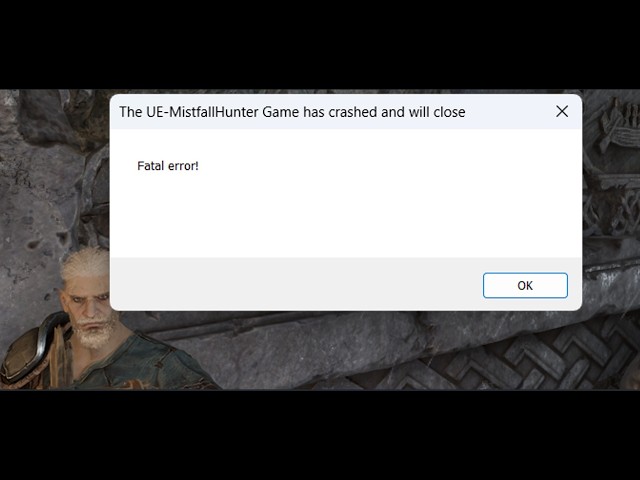
The Fatal Error is a generic catch-all for severe program failures, but in Mistfall Hunter, it usually stems from specific conflicts between the game and your PC's environment.
- Unreal Engine 5 Instability: As a UE5 title, the game uses advanced features like Lumen and Nanite, which can clash with older drivers or specific hardware configurations.
- Shader Compilation Failures: The game compiles shaders during the initial load and occasionally mid-match. If this process is interrupted or fails due to VRAM limitations, a Fatal Error occurs.
- DirectX 12 Conflicts: While DX12 offers better performance, it is prone to the "LowLevelFatalError" or "D3D12 crash" if the GPU handshake fails.
- Security Software Interference: Windows security features like Mandatory ASLR (Address Space Layout Randomization) can sometimes prevent the game from accessing the memory it needs, leading to an instant crash.
- NVIDIA Control Panel Settings: Specific features like Smooth Motion or AI-based frame generation can conflict with the game's own rendering pipeline.
Part 3: How to Fix Shader Compilation Fatal Error
One of the most common times to see a Fatal Error is during the initial "Compiling Shaders" screen. This is often labeled as "Shader compilation failures are Fatal."
Force DirectX 11 Mode
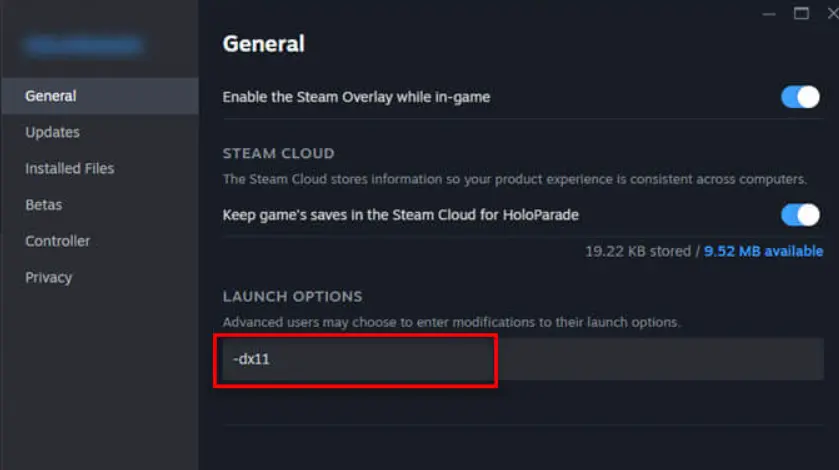
If your GPU is struggling with the DX12 shader pipeline, forcing the game to use DX11 can stabilize the process.
- Right-click Mistfall Hunter in your Steam Library.
- Select Properties > General.
- In the Launch Options box, type -dx11.
- Close the window and relaunch the game.
Increase Virtual Memory (Page File)
Shader compilation is memory-intensive. If you have 16GB of RAM or less, increasing your Windows Page File can prevent crashes.
- Search for "View advanced system settings" in Windows.
- Go to Performance > Settings > Advanced > Change.
- Uncheck "Automatically manage paging file size."
- Set a "Custom size" (e.g., 16384MB for both Initial and Maximum) on your SSD.
Part 4: How to Fix Fatal Error on Startup or After Unreal Logo
If your game crashes immediately after the Unreal Engine logo or before the main menu, the issue is likely related to driver initialization or security settings.
Update Graphics Drivers
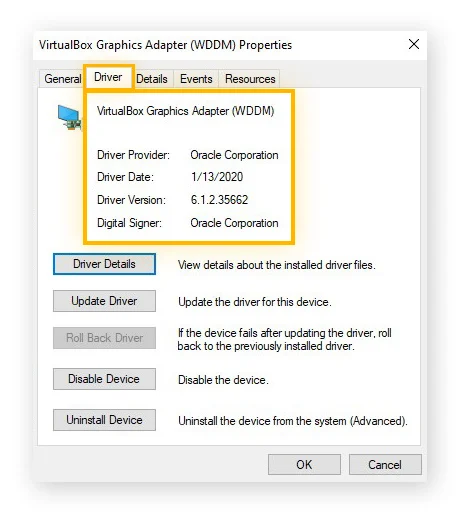
This is the developer's first recommendation. Both NVIDIA and AMD frequently release "Game Ready" drivers specifically for new UE5 titles. Ensure you are using the latest version via GeForce Experience or AMD Adrenalin.
Disable Mandatory ASLR
- This is a specific fix recommended by the Mistfall Hunter developers for startup crashes.
- Open the Windows Start menu and search for Exploit Protection.
- Go to Program settings and click Add program to customize.
- Choose Add by program name and type MistfallHunter.exe.
- Scroll down to Mandatory ASLR and check Override system settings.
Toggle the switch to Off and click Apply.
Part 5: How to Prevent Mid-Match Fatal Errors and Gear Loss
The most painful Fatal Error occurs in the middle of a raid. Not only do you lose your progress, but in an extraction shooter, this often counts as a death, meaning you lose your equipment.
Disable NVIDIA Smooth Motion
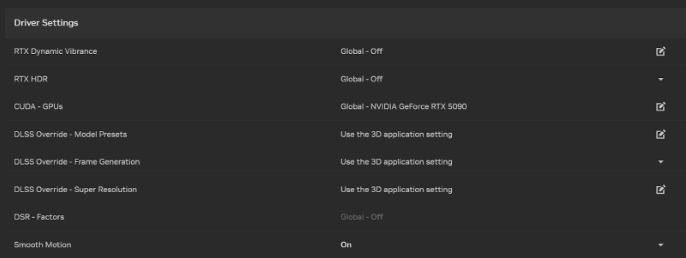
This feature can cause timing desyncs in UE5 games, leading to a "crashed and will close" error.
- Open the NVIDIA Control Panel.
- Go to Manage 3D settings.
- Find Smooth Motion (or similar AI-acceleration features) and set it to Off.
- Apply changes and restart your PC.
Monitor GPU Temperatures
Extraction shooters are taxing. If your GPU hits its thermal limit, it may trigger a D3D12 crash to protect the hardware. Use a tool like MSI Afterburner to ensure your temperatures stay below 85°C.
Part 6: Advanced Fixes: ASLR Settings and NVIDIA Settings
For persistent "LowLevelFatalError" or "RHIThread crash" messages, you may need to look deeper into your system's hardware acceleration.
Disable Intel AI Boost
If you are using a modern Intel CPU, the "AI Boost" feature in the Device Manager has been reported to cause instability in some UE5 titles.
- Right-click the Start button and select Device Manager.
- Look for Intel(R) AI Boost under System Devices.
- Right-click and select Disable device.
Reinstall Visual C++ Redistributables
Unreal Engine relies heavily on these libraries. If they are corrupted, the game will throw a Fatal Error on launch. Download the latest "All-in-One" installer from Microsoft's official site to ensure all versions (2015-2022) are correctly installed.
Part 7: How to Stabilize Your Connection and Reduce Crashes with LagoFast Game Booster
While many Fatal Errors are hardware-related, a significant number of mid-match crashes are actually caused by "Network Timeouts" that the game client interprets as a critical error. LagoFast(LagoFast Game Booster - Get No Lag and Lower Ping) Game Booster is a specialized tool that can help stabilize your game environment and reduce the frequency of these connection-based crashes.
Eliminating Network-Induced Fatal Errors
LagoFast uses a global network of optimized routes to ensure your data takes the most stable path to the Mistfall Hunter servers. By reducing jitter and packet loss, LagoFast prevents the communication failures that can trigger an "RHIThread crash" or a generic "crashed and will close" error during intense online play. Furthermore, its "FPS Boost" feature can help manage your system resources, ensuring that your CPU and GPU aren't overwhelmed by background tasks, which is a common trigger for UE5 Fatal Errors.
Step-by-step tutorial for optimizing Mistfall Hunter with LagoFast:
1. Click the Free Trial button to download and install LagoFast Free Trial.
2. Search for Mistfall Hunter: Open the app and search for "Mistfall Hunter."
3. Select Your Server Region: Choose the server closest to your geographical location to ensure the lowest possible ping.
4. Enable FPS Boost: Navigate to the "FPS Boost" tab and toggle on the system optimization settings to prioritize game resources.
5. Smart Boost Your Connection: Click the "Boost" button. LagoFast will automatically find the best route and stabilize your connection, reducing the likelihood of network-triggered Fatal Errors.
Part 8: Mistfall Hunter Fatal Error FAQ
Q: Does a Fatal Error mean my GPU is dying?
A: Usually not. It’s almost always a software conflict between the game, the engine (UE5), and your drivers or Windows settings.
Q: Why did I lose my gear after a Fatal Error?
A: Extraction shooters treat a crash as a disconnection. If you don't extract before the game closes, the server assumes you were killed in action.
Q: Is the -dx11 fix better than DX12?
A: DX12 offers better performance (FPS) and features like Lumen, but DX11 is significantly more stable for older hardware or problematic drivers.
Q: Can I fix Fatal Error by reinstalling the game?
A: Only if the issue is caused by corrupted files. Try "Verifying Integrity of Game Files" on Steam first, as it's much faster.
Q: What is a "LowLevelFatalError"?
A: This is a specific Unreal Engine error indicating that the game tried to communicate with the GPU driver at a low level and failed. It's usually fixed by updating drivers or switching to DX11.
Key Takeaway
Mistfall Hunter Fatal Errors are a complex interaction between Unreal Engine 5 and your PC's configuration. By following the developer-recommended fixes—such as disabling Mandatory ASLR, updating drivers, and turning off NVIDIA Smooth Motion—you can significantly improve your game's stability. For the best experience, use LagoFast Game Booster to ensure your network connection doesn't trigger a mid-match crash, keeping your gear safe and your hunts successful.
Boost Your Game with LagoFast for Epic Speed
Play harder, faster. LagoFast game booster eliminates stutter and lags on PC, mobile, or Mac—win every match!
Quickly Reduce Game Lag and Ping!
Boost FPS for Smoother Gameplay!