
Part One: Why Does Mecha BREAK Experience Connection Failures?
Part Two: How to Fix Mecha BREAK Connection Errors?
Part 1: Why Does Mecha BREAK Experience Connection Failures?
- Server Maintenance or Crashes Mecha BREAK is a new online game. Its servers regularly need maintenance and updates. Sometimes, servers crash or become overloaded due to high player traffic, preventing connections.
- Local Network Issues High latency, packet loss, or unstable Wi-Fi can cause connection problems. You might see errors like“mecha break cannot connect to the server.”
- DNS or Routing Problems Your DNS cache might be outdated. Or your ISP's routing could be inefficient, causing your data to be sent to wrong or slow servers.
- Corrupted Game Files Interrupted downloads or updates can damage files, causing connection failures.
- VPN or Firewall Restrictions Using VPNs or firewalls might block or slow down your connection to the game servers.
Part 2: How to Fix Mecha BREAK Connection Errors?
If you encounter“mecha break connection errors,” don't worry — there are several common errors and practical ways to solve them. Follow these steps one by one to improve your chances of reconnecting successfully.
1. Check Your VPN
- Try VPN that routes your connection through nearer servers like Lago Fast Game Booster.
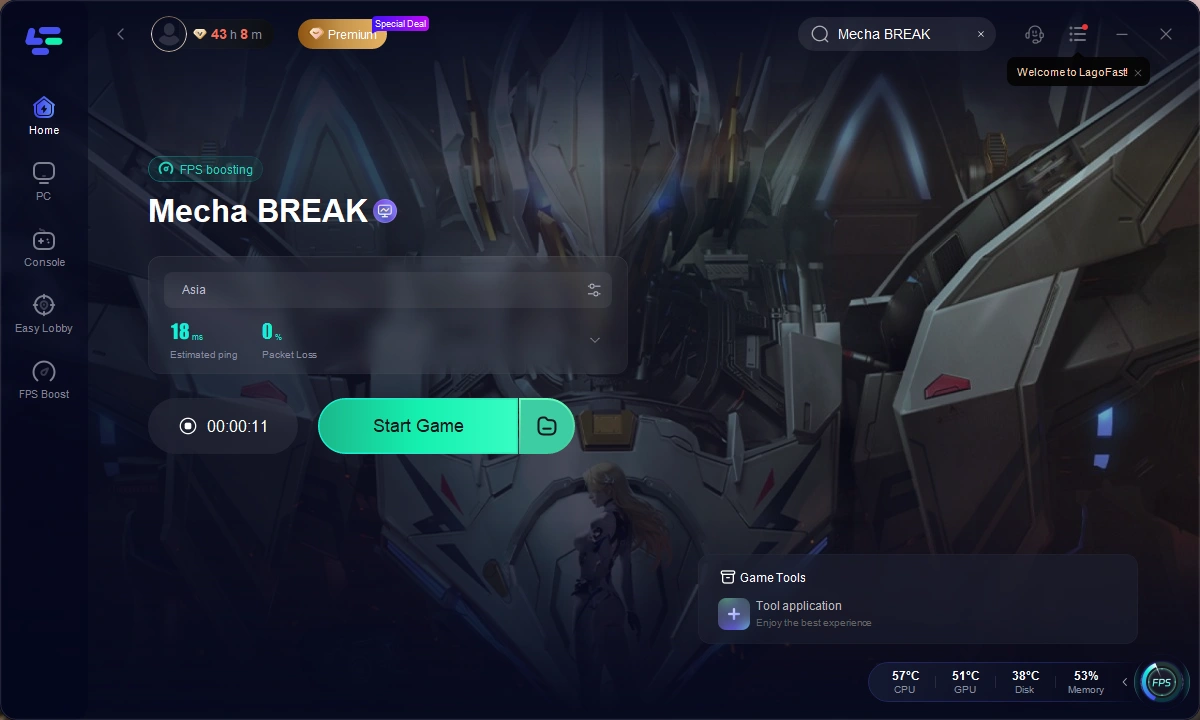
This tool offers real-time route optimization, and helps you avoid problematic network nodes automatically, providing faster, more reliable gameplay.
Step 1: Download and install the LagoFast client
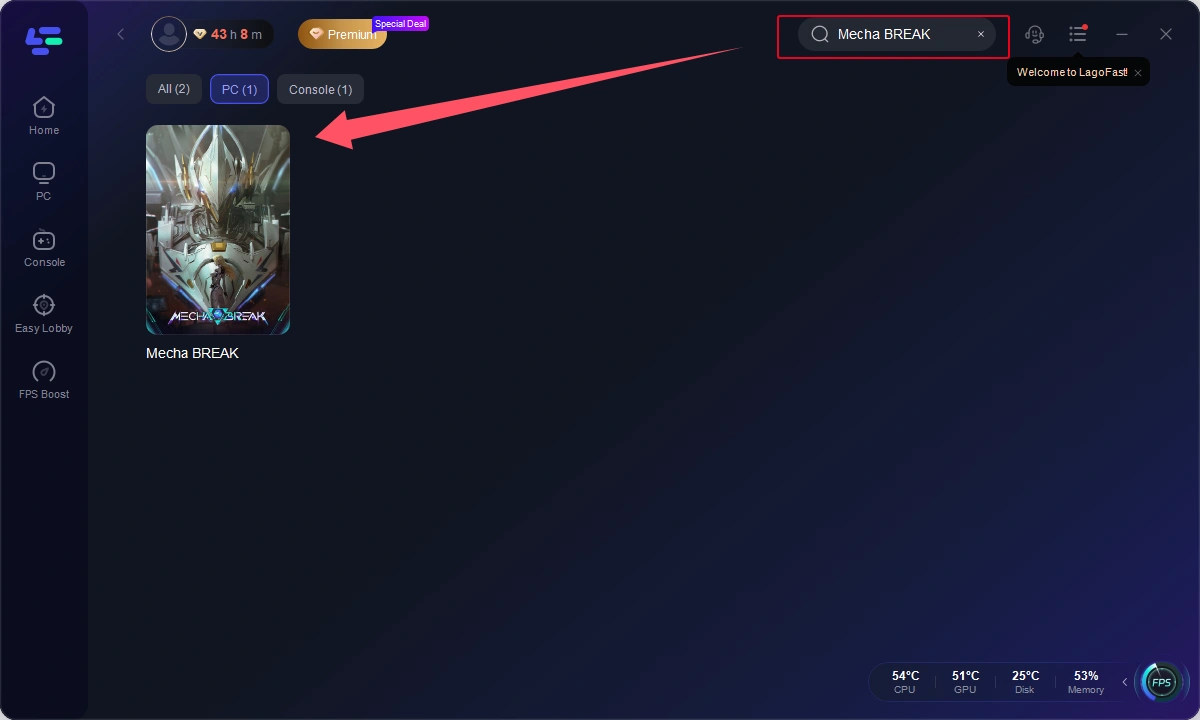
Step 2: Search for “Mecha BREAK”
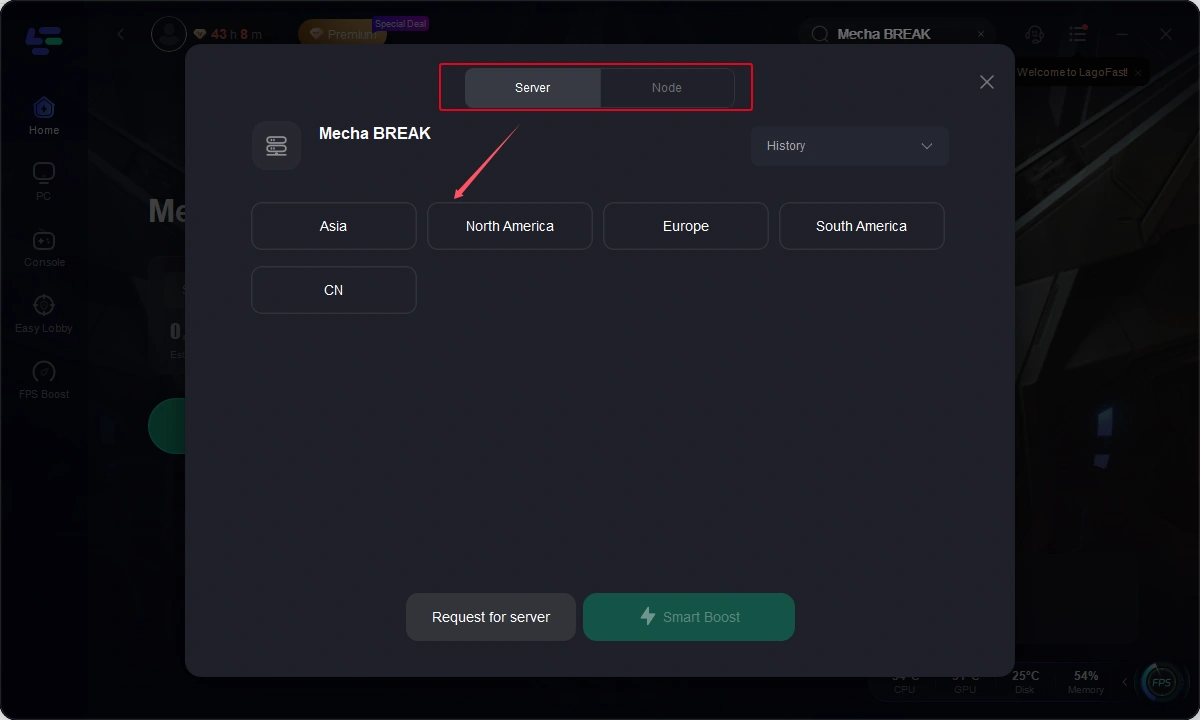
Step 3: Select the server or node you want to connect to
Step 4: Launch the game and start enjoying a smooth experience
2. Adjust Firewall Settings
- Check your firewall or antivirus software settings to ensure Mecha BREAK is allowed through.
- Add the game to your firewall's exception list so it can freely connect without being blocked.
3. Run the Game as Administrator
Sometimes connection attempts fail because your game does not have sufficient permissions to access network resources.
- Right-click the game shortcut and select “Run as administrator.”This ensures the game has the necessary permissions to connect without interference.
4. Verify and Repair Game Files
Corrupted or incomplete game files can easily cause Mecha BREAK connection error.
- If you use Steam or another launcher, find Mecha BREAK in your library, right-click it, and choose “Properties” (or similar).
- Look for an option like “Verify integrity of game files.”
5. Restart Your Router and Computer
Sometimes your local network just needs a simple reset.
- Close the game and any open browsers.
- Turn off your router and wait for 30 seconds before turning it back on, and then try launching the game again.
6. Flush Your DNS Cache
- On Windows, press Win+R and type "cmd" to open the Command Prompt.
- Enter the command, " ipconfig /flushdns", and press Enter.
This will clear old DNS records that might be causing routing issues.
Conclusion
By tackling these common issues, you can fix most Mecha BREAK connection problems and get back to the fight. For even better stability, try Lago Fast Game Booster to reduce ping and keep your mech battles smooth and uninterrupted.
Boost Your Game with LagoFast for Epic Speed
Play harder, faster. LagoFast game booster eliminates stutter and lags on PC, mobile, or Mac—win every match!
Quickly Reduce Game Lag and Ping!
Boost FPS for Smoother Gameplay!