

Hitting a wall with connection problems in Marathon can quickly deflate the excitement of Bungie's new extraction shooter. Whether you're staring at an endless loading screen, getting booted mid-match, or simply can't log in, a faulty connection undermines the entire online experience. This guide provides a clear, actionable roadmap to diagnose and resolve these issues, helping you get back into the action with a stable link to the game's servers.

- ✅ Reduce Lag and High Ping.
- ✅ Boost FPS at the Same Time.
✅ Support 2000+ Popular Online Games.
✅ Change Server without Latency.
✅ Boost Game Loading Speed.
Part 2: Common Marathon Connection Issues Explained
Part 3: How to Check Marathon Server Status
Part 4: What Causes Marathon Connection Issues on PC
Part 5: How to Fix Marathon Can’t Connect Online on Steam
Part 6: Enhance Game Experience by Using LagoFast Game Booster
Part 7: Additional Fixes for Marathon Won’t Connect to Network
Part 1: Introduction
Marathon is built as a persistent online experience. Every match, item extraction, and progression update depends on a constant, stable dialogue between your PC and Bungie's servers. When this dialogue breaks down, the game grinds to a halt. The key to fixing it is determining whether the problem originates on your end—your network, PC, or settings—or on theirs, with server maintenance or instability.
Part 2: Common Marathon Connection Issues Explained
Players typically encounter a few specific connection errors:
- Endless "Connecting" Loop: The game hangs on the initial loading screen, unable to complete the handshake with the login server.
- Mid-Game Disconnections: You're dropped from an active session back to the main menu or login, often losing progress.
- Login Queues and Throttling: During peak times or tests, the game may place you in a queue to manage server load, delaying your access.
- Authentication Failures: Errors like "access_denied" or configuration download failures block you from accessing online features entirely.
Recognizing your specific symptom is the first step toward a targeted solution.
Part 3: How to Check Marathon Server Status
Always rule out a widespread server problem before altering your own setup. Here’s how:
1. Official Sources
Check the official Marathon website and Bungie's social media channels (like @MarathonDevTeam on X). These will post announcements for scheduled maintenance, technical tests, or unexpected outages.
2. Player Communities
Visit the official Marathon Discord and community subreddits. If many players are reporting identical connection issues simultaneously, it's almost certainly a server-side problem.
3. Status Aggregators
While there may not be a dedicated page yet, services like Downdetector can show a spike in problem reports, indicating a broader issue.
If the servers are down, your only option is to wait for the all-clear from Bungie.
Part 4: What Causes Marathon Connection Issues on PC
If the servers are operational, the issue likely lies in your local environment. Common culprits include:
1. Local Network Instability
Weak Wi-Fi signals, bandwidth congestion from other devices (streaming, downloads), or an overloaded router.
2. ISP Routing Inefficiencies
The path your data takes from your Internet Provider to Bungie's servers might be slow or prone to packet loss.
3. Overly Restrictive Security Software
Windows Firewall or third-party antivirus programs can mistakenly block Marathon's necessary network traffic.
4. Outdated Clients or Corruption
An old version of Steam, the game itself, or corrupted local game files can break the authentication process.
5. The Nature of Testing
During technical test phases, server infrastructure is under unique stress and may be less stable than a final release.
Part 5: How to Fix Marathon Can’t Connect Online on Steam
Follow these steps in order if Marathon won't connect online through Steam.
Step 1: Basic Restarts
Restart your PC and the Steam client. This clears temporary glitches in network adapters and Steam's authentication cache.
Step 2: Update Everything
Ensure both Steam and Marathon are updated to their latest versions. Outdated clients are a common source of connection failures.
Step 3: Verify Game Files
In your Steam Library, right-click Marathon, go to Properties > Installed Files > Verify Integrity of Game Files. This replaces any missing or corrupted data.
Step 4: Configure Firewall & Antivirus
Add Marathon's .exe file (typically in your Steam steamapps/common folder) as an exception in Windows Firewall and your antivirus software. Do the same for Steam.exe if problems persist.
Step 5: Switch to a Wired Connection
If you're on Wi-Fi, connect your PC directly to your router with an Ethernet cable. Wired connections offer superior stability and lower latency for online gaming.
Step 6: Disable Conflicting VPNs
Standard VPNs can increase latency and cause timeouts. Disable them temporarily to test, or consider a gaming-optimized alternative.
Part 6: Enhance Game Experience by Using LagoFast Game Booster
Sometimes, the issue is a poor-quality route between you and the game server, leading to packet loss and jitter that feels like disconnections. This is where a tool like LagoFast (LagoFast Game Booster—Get No Lag and Lower Ping) Game Booster can help.
- Optimize network routes to reduce latency and packet jitter, which reduces micro-stutter that feels like FPS drops when synchronization lags.
- Reduce network congestion to prevent mid-match pauses due to delayed server communication.
LagoFast for PC Players
Step 1: Begin by clicking the Free Trial button to download and install the LagoFast Free Trial.
Step 2: Open the booster and add Marathon to your boost list.
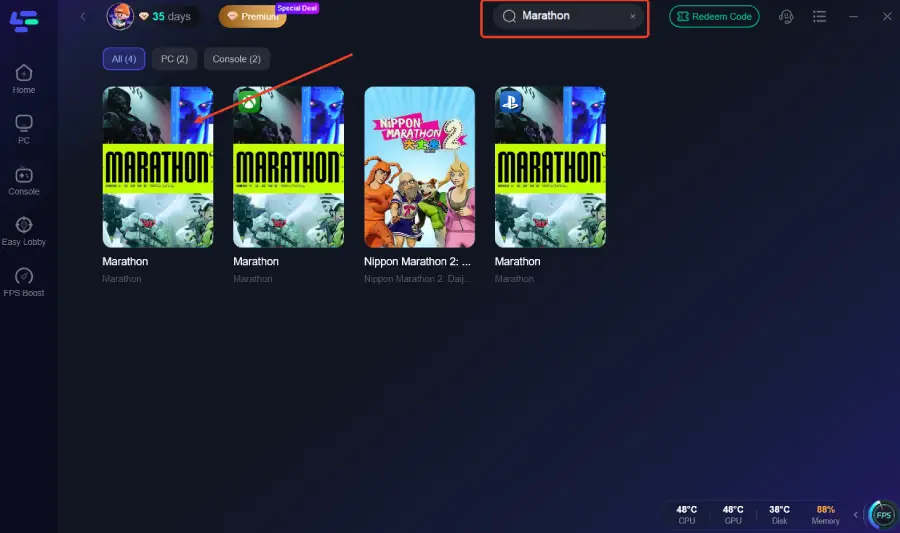
Step 3: Enable Smart Boost—LagoFast optimizes network routing and system resource use, reducing packet loss and stabilizing FPS
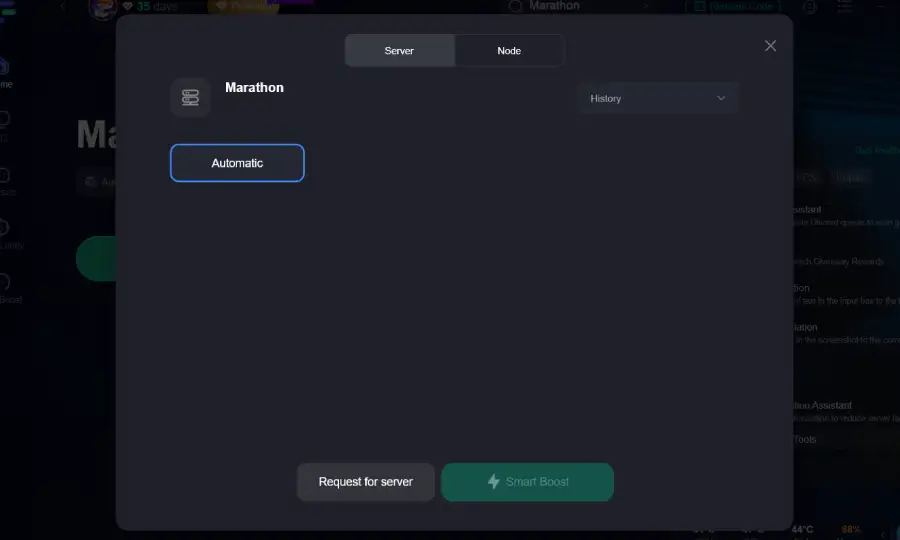
Step 4: Activate the boost and launch the game through LagoFast.
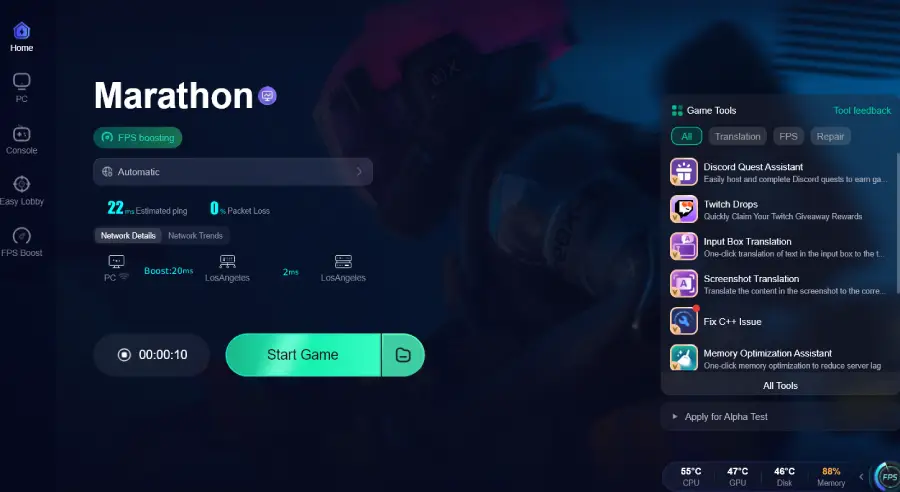
Part 7: Additional Fixes for Marathon Won’t Connect to Network
For persistent issues, these deeper network adjustments can be effective:
1. Change Your DNS Servers
Switch to a public DNS like Google DNS (8.8.8.8, 8.8.4.4) or Cloudflare (1.1.1.1). This can speed up domain resolution and bypass sluggish ISP DNS servers.
2. Update Your Router's Firmware
Log into your router's admin panel (often via 192.168.1.1 in a browser) and check for a firmware update. New updates often fix connectivity bugs.
3. Forward Relevant Ports
When Bungie publishes the required ports for Marathon, forward them in your router settings to create a clear path for game traffic. Common ports for online games include TCP 3074, 27015-27030, and UDP 3074, 3478, 4379-4380.
4. Power Cycle Your Network Hardware
Unplug your modem and router from power for 30 seconds, then plug them back in. This refreshes your connection to your ISP.
Part 8: FAQs
Q: I'm stuck on the "Connecting" screen. What should I do first?
A: First, check official channels for server status. If servers are up, proceed with the basic fixes: restart Steam/PC, verify game files, and check your firewall.
Q: Are login queues a normal part of the testing phase?
A: Yes. To manage server load and ensure stability during early tests, Bungie often implements login queues. Patience is required during these periods.
Q: Is a Bungie.net account mandatory to play?
A: For online multiplayer and progression, yes. Your Steam account must be linked to a valid Bungie.net account.
Q: Will these connection problems exist after launch?
A: While some issues are inherent to online gaming, widespread connection instability typically improves as servers are scaled up and optimized post-launch.
Q: Can my antivirus really block the game?
A: Absolutely. Security software is designed to monitor and block suspicious network activity, which can sometimes include game connections. Creating an exception is a standard fix.
Conclusion
Connection issues in Marathon, while frustrating, are rarely permanent. A methodical approach—starting with server checks, moving to basic PC and network fixes, and escalating to advanced optimization if needed—will resolve the vast majority of problems. By taking control of your network environment and utilizing available tools, you can build a reliable foundation for countless hours of smooth, uninterrupted gameplay in the world of Marathon.
Boost Your Game with LagoFast for Epic Speed
Play harder, faster. LagoFast game booster eliminates stutter and lags on PC, mobile, or Mac—win every match!
Quickly Reduce Game Lag and Ping!
Boost FPS for Smoother Gameplay!