
Quick Answer: How to Fix League of Legends Reconnect Loop?
If you are stuck in an endless loop where the game launcher returns you to a "Reconnect" button immediately after Champion Select, it is usually caused by network route instability, Windows Exploit Protection updates, or Riot Vanguard conflicts. The fastest, automated solution is using a dedicated gaming optimizer like LagoFast. LagoFast diagnoses your network path, establishes a direct, low-ping route to Riot's servers, and clears connection glitches with a single click. For players who want to troubleshoot their system manually, you can also resolve the bug by updating network drivers, adjusting Windows Exploit Protection settings, repairing game files via the Riot Client, or modifying compatibility settings.
Few things are more frustrating than completing a tense champion draft only to be met with a black screen and an unclickable Reconnect button. The League of Legends reconnect loop bug is a persistent issue that drops players back to the lobby instead of loading them into the match. This comprehensive guide outlines why this happens and provides step-by-step methods to fix it.

- ✅ Reduce Lag and High Ping.
- ✅ Boost FPS at the Same Time.
- ✅ Support 2000+ Online Games
- ✅ Change Server Without Latency.
- ✅ Multiplatform: PC, Console, Mobile.
Part 1: What is the League of Legends Reconnect Loop & Why It Happens?
Part 2: How to Manually Fix League of Legends Reconnect Loop Bug?
Part 3: One-Click Fix League of Legends Reconnect Loop Bug – LagoFast
Part 4: Bonus Tips: League of Legends Unable to Connect to Server SG / SEA Fix
Part 1: What is the League of Legends Reconnect Loop & Why It Happens?
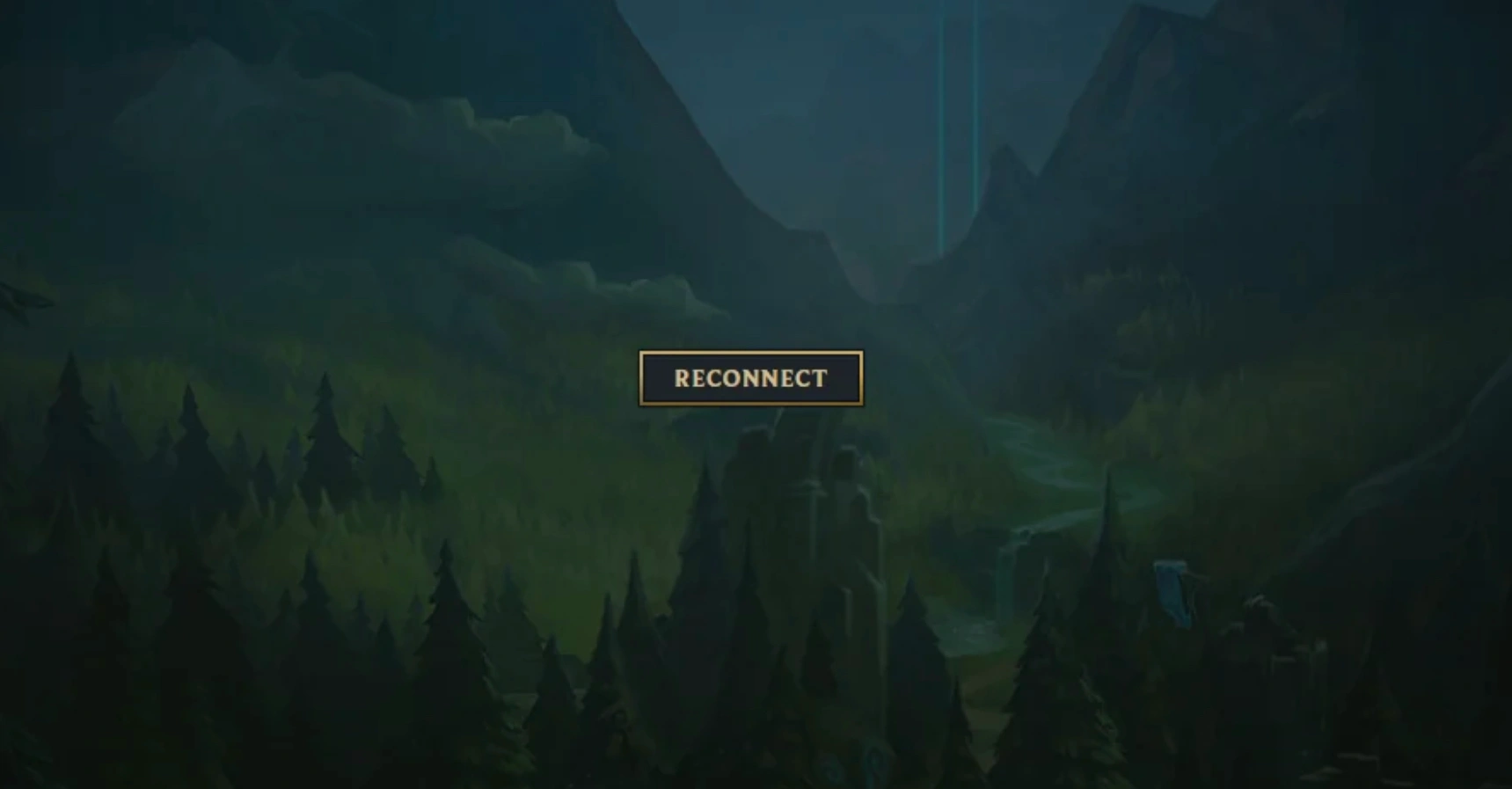
The reconnect loop generally triggers right as the champion select screen transitions into the actual game loading screen. The main client minimizes, but the independent match executable fails to initialize or establish a hand-shake with the live server. Instead of seeing loading cards and ping numbers, the player is thrown back onto a broken launcher menu.
Understanding your symptoms helps identify whether the issue stems from your local network, your operating system, or Riot's Vanguard anti-cheat engine.
|
Symptoms |
Main Causes |
|
• Riot Client works fine, but clicking "Reconnect" does nothing. • Game window closes instantly after loading screens fade. |
Windows Exploit Protection Conflicts: Silent Windows updates block the client's dynamic code generation, preventing the game from spawning its process. |
|
• Endless loading icon followed by connection timeout alerts. • Frequent match-loading crashes on specific ISPs. |
Network Routing & Congestion: Poor data packet paths between your ISP and the nearest Riot server data hub, resulting in extreme packet loss. |
|
• Game fails to launch entirely while Valorant works fine. • Task Manager shows zero active League processes. |
Riot Vanguard Misidentifications: Anti-cheat security blocking background workspace software (like Citrix) or third-party overlays as false positives. |
|
• Random connectivity crashes occurring right after patch updates. |
Corrupted Game or Configuration Files: Incomplete data installation or broken manifest files inside the local Riot Games folder. |
Part 2: How to Manually Fix the League of Legends Reconnect Loop Bug?
If you prefer to dig into your PC settings to solve the problem, try these four community-tested manual solutions.
Solution 1: Configure Windows Exploit Protection Settings
Recent security updates in Windows Defender can cause your system to block League's launcher when it attempts to generate dynamic code. Overriding this specific restriction often resolves sudden, unexplained reconnect loops.
Step 1. Press the Windows Key on your keyboard, type Exploit Protection, and press Enter to open the system security menu.
Step 2. Select the Program settings tab at the top of the interface.
Step 3. Click the Add program to customize button and choose Add by exact file path.
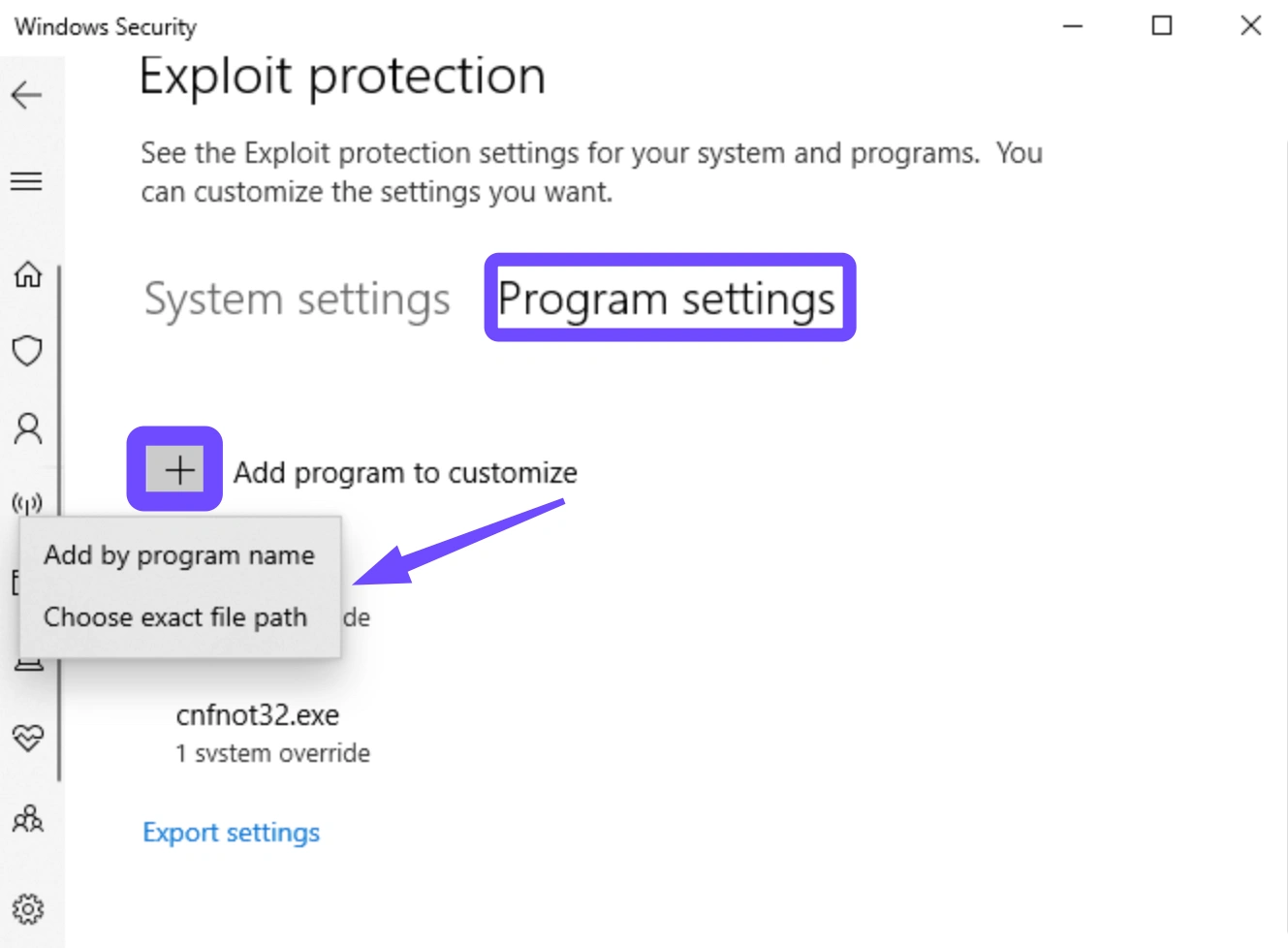
Step 4. Navigate to your League directory (usually C:\Riot Games\League of Legends\Game\) and select League of Legends.exe.
Step 5. Scroll down to Arbitrary Code Guard (ACG) or Block Dynamic Code, check the Override system settings box, toggle the switch to Off, and click Apply. (Repeat this process for LeagueClient.exe inside the main folder to ensure total coverage).
Solution 2: Flush DNS and Switch to Public DNS Servers
Corrupted network caches or unstable Domain Name System (DNS) configurations can throw off your connection to Riot’s match instances. Clearing the cache and switching to a stable public server helps establish clean pathways.
Step 1. Press the Windows Key + R simultaneously, type cmd in the dialog box, and press Shift + Ctrl + Enter to run Command Prompt as an administrator.
Step 2. Type ipconfig /flushdns into the console window and press Enter to wipe your local DNS resolver cache.
Step 3. Press Windows Key + R again, type ncpa.cpl, and click OK to open your Network Connections panel.
Step 4. Right-click your active network adapter (Wi-Fi or Ethernet) and select Properties, then double-click Internet Protocol Version 4 (TCP/IPv4).
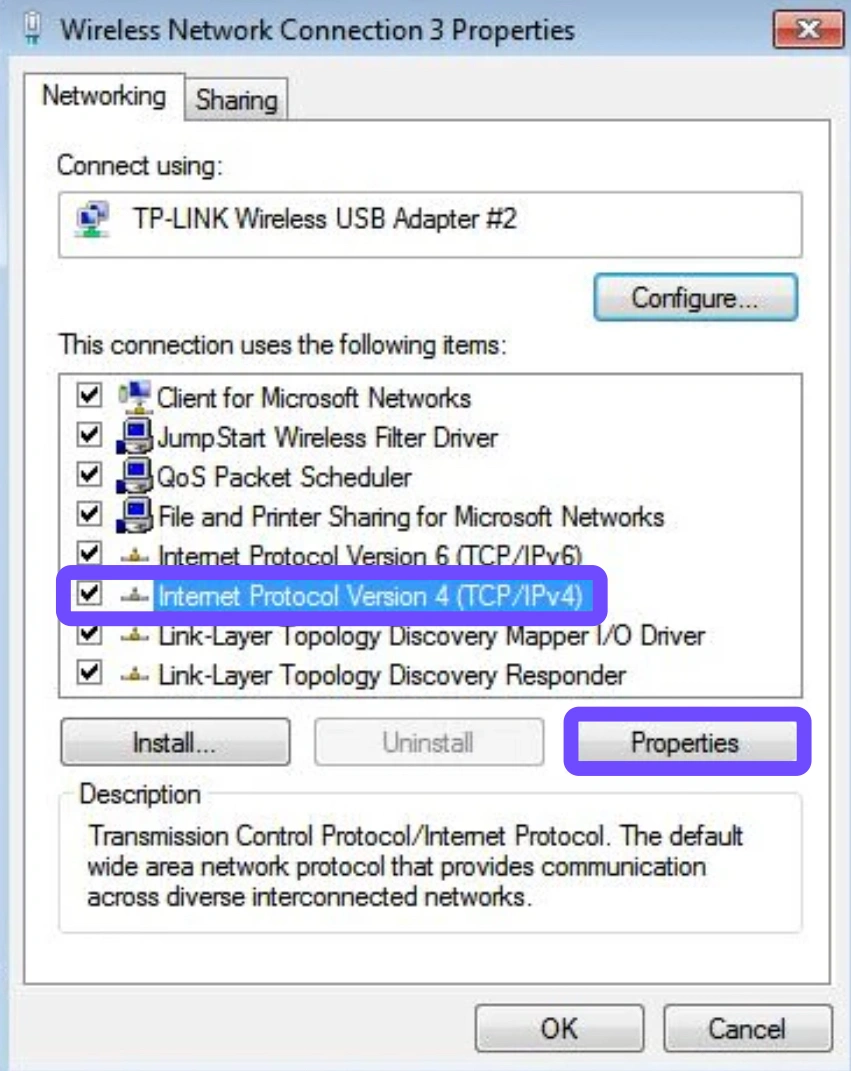
Step 5. Select Use the following DNS server addresses, enter 8.8.8.8 as the Preferred DNS and 8.8.4.4 as the Alternate DNS (Google Public DNS), then click OK to save.
Solution 3: Run Full Client Repair and Clean Vanguard
Corrupted files within the game directory or an improperly initialized Vanguard service can cause the anti-cheat system to continuously kick you back to the client.
Step 1. Open the Riot Client launcher, click on your Profile Icon in the top right corner, and open Settings.
Step 2. Select League of Legends from the left sidebar navigation menu.
Step 3. Locate the Repair button under the game info section and click Initiate Full Repair, then wait for the launcher to verify your files.
Step 4. While it repairs, look at your system tray (bottom right corner of Windows), right-click the Riot Vanguard icon, and click Exit Vanguard.
Step 5. Open your Windows Apps & Features menu, find Riot Vanguard, click Uninstall, and restart your PC to allow the Riot Client to automatically reinstall a clean version of the anti-cheat engine upon your next boot.
Solution 4: Adjust Compatibility Mode and Disable Fullscreen Optimizations
Display scaling conflicts and full-screen optimization issues can prevent the game application from properly opening over the desktop environment.
Step 1. Open File Explorer and head to your game directory path: C:\Riot Games\League of Legends\Game\.
Step 2. Locate League of Legends.exe, right-click it, and select Properties.
Step 3. Navigate to the Compatibility tab at the top of the properties box.
Step 4. Check the boxes next to Disable fullscreen optimizations and Run this program as an administrator.
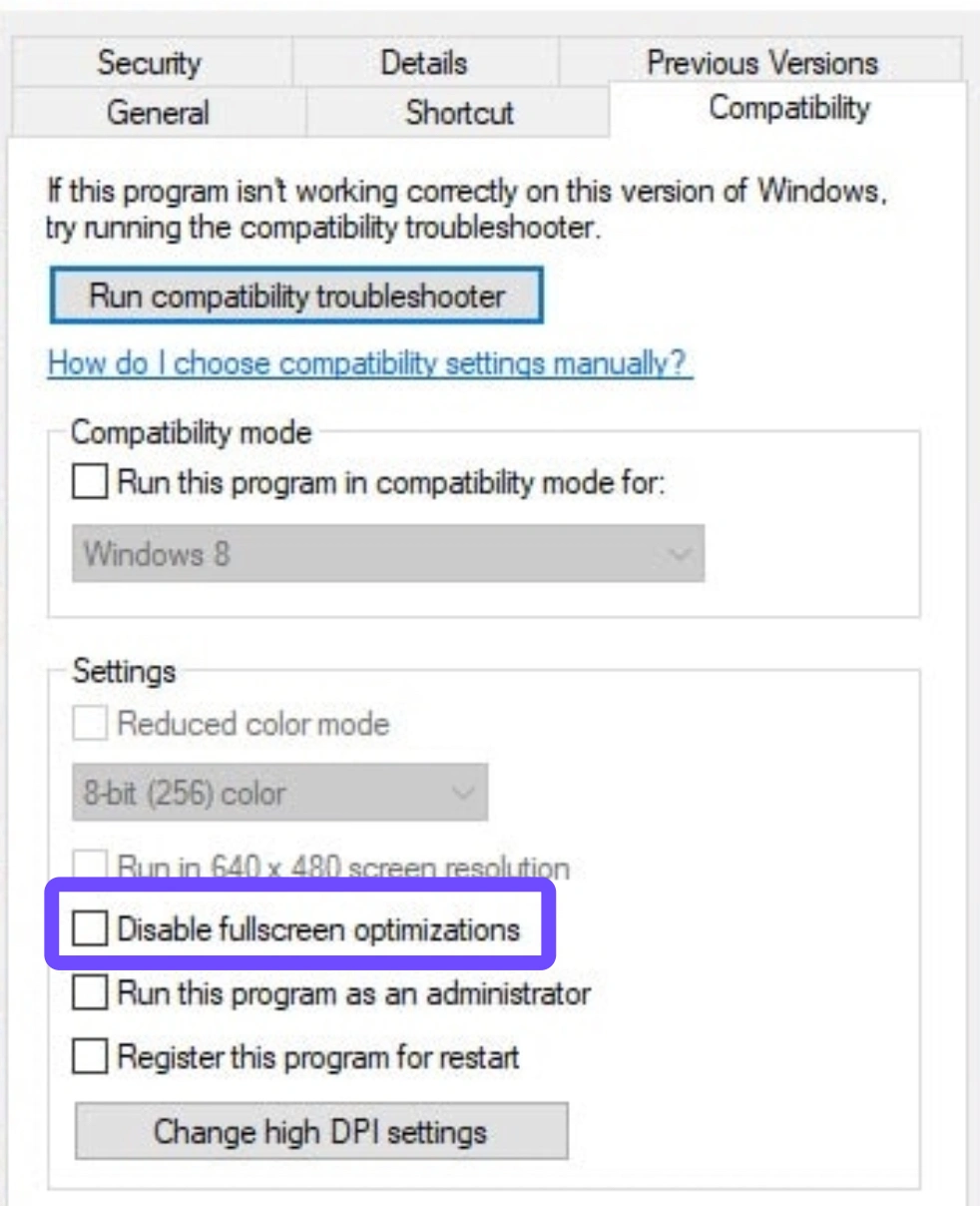
Step 5. Click Change high DPI settings, check the box under High DPI scaling override, set the drop-down menu to Application, click OK, and hit Apply on the main menu.
Part 3: One-Click Fix League of Legends Reconnect Loop Bug – LagoFast
Manually adjusting registry options, firewalls, and network properties can be time-consuming, especially if you are actively trying to get back into a live match before being penalized for being away from your keyboard.
LagoFast offers an elegant, automated approach to troubleshooting these errors. As an all-in-one gaming optimization solution, LagoFast features built-in diagnostics specifically tuned to handle connection anomalies like the League reconnects bug.
Key Features of LagoFast:
- One-Click Fix Deployment: Automatically analyzes your client's communication channels to resolve startup errors and launch loops without forcing you to modify system files manually.
- Smart Routing Paths & High-Ping Reducer: Leverages an expansive network of dedicated global nodes to bypass congested ISP networks, dramatically reducing game ping and stopping packet-loss loops.
- Dynamic FPS Boost: Tweak and clean background process allocations automatically to ensure stable frame rates and minimize hardware-related loading screens.
- Multi-Server Stability: Simplifies regional routing setups, which is ideal for players changing regions or connecting across international server environments.
Tutorial to use LagoFast to Fix League of Legends Reconnect Loop Bug on PC:
Step 1: Click the Free Trial button to download and install LagoFast Free Trial.
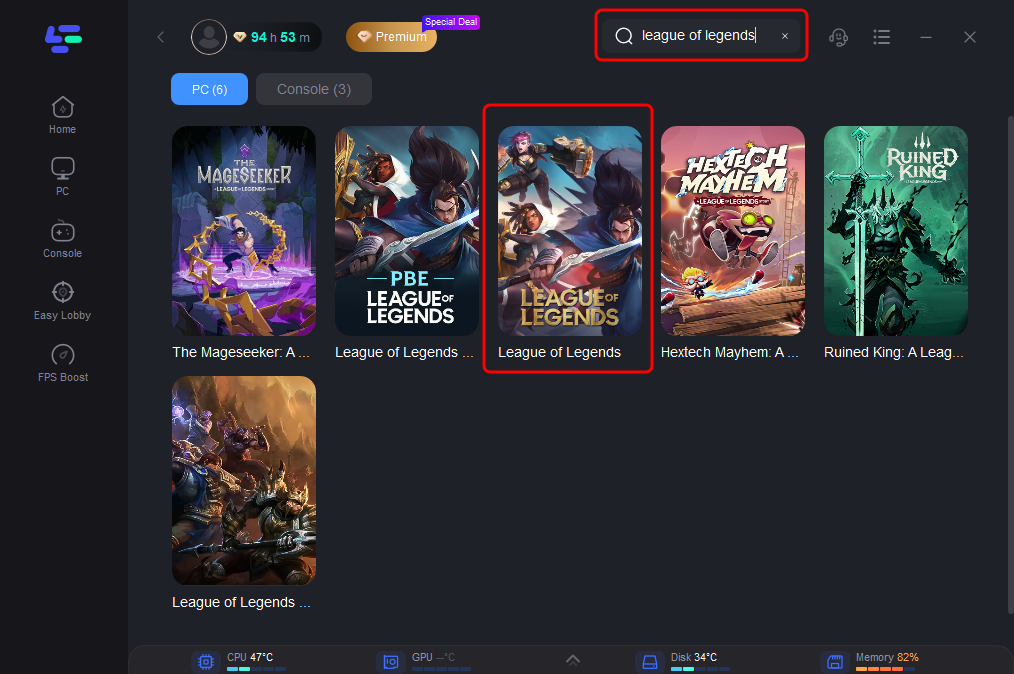
Step 2: Search for League of Legends: Open the app and type "League of Legends" in the search bar.
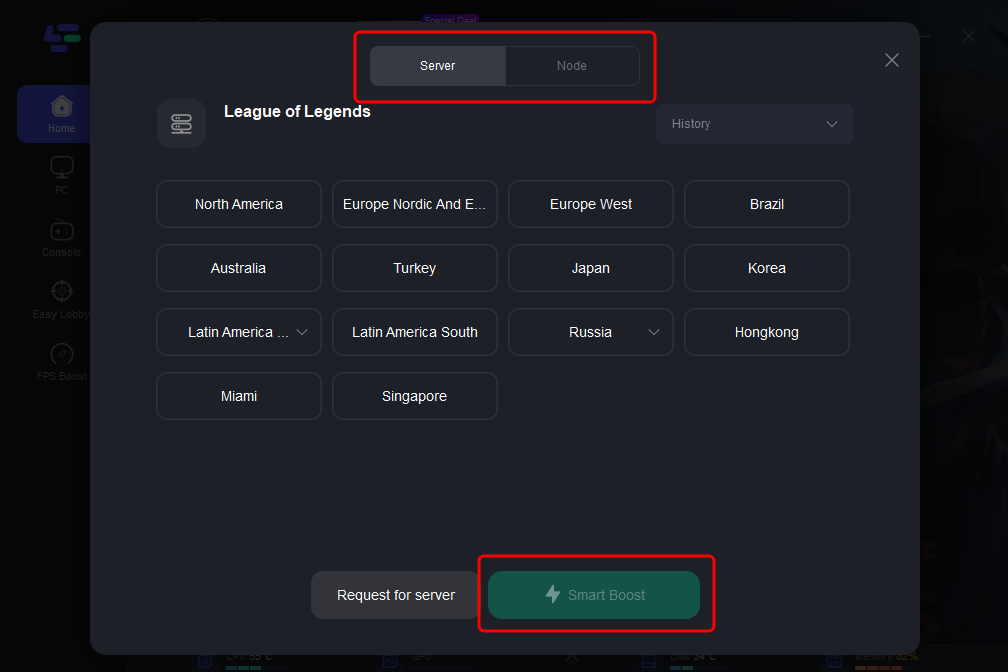
Step 3: Select Your Region: Choose the server you play on (e.g., EU West or EU Nordic & East).
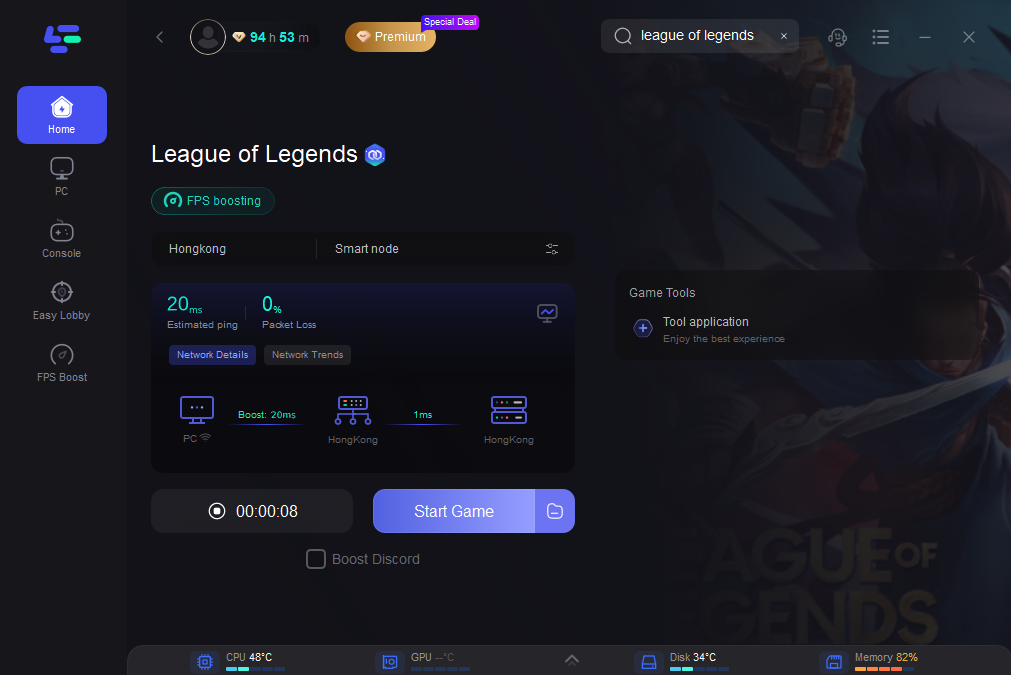
Step 4: Choose the Optimal Node: LagoFast will display a list of nodes. For Middle Eastern players, the "Smart" selection will automatically find the best route to Europe, bypassing congested regional hops.
Part 4: Bonus Tips: League of Legends Unable to Connect to Server SG / SEA Fix
Following the transition of Southeast Asian (SEA) servers back to Riot Games management, many regional players across Singapore (SG), Malaysia, and neighboring countries have noted unique server connection loops. This is usually tied to geographical ISP configuration shifts.
If you are dealing with regional server errors in the SEA territory, use these quick optimization steps:
- Disable Third-Party Work Software: Riot Vanguard frequently flags the background application security protocols used by remote workspace tools (such as Citrix). Fully close these programs using Task Manager before attempting to log in.
- Verify Riot Account Shard Placement: Ensure your Riot Account region matches your physical location. Cross-region mismatches can trigger unexpected security lockouts during the champion select transition phase.
- Avoid Using Multi-Layer Proxies: Standard commercial proxy systems often assign shifting IP addresses that confuse Riot’s regional authentication nodes. Deactivating standard browser proxies keeps your connection line direct.
Part 5: FAQs
Why does the reconnect loop happen only after Champion Select?
The lobby client and the actual game engine are two separate software applications. Champion select runs inside a lightweight web-style frame. When the countdown ends, that frame passes your session data to the main 3D game client. If your firewall blocks the new application or your network misses the server handshake during this transition, the game closes and leaves you stuck on the reconnect screen.
Why does Valorant work fine if League of Legends is stuck reconnecting?
Even though both titles use the Riot Client and the Vanguard security platform, they utilize completely independent network engine structures and match-handling scripts. A localized routing block or an Exploit Protection restriction can easily impact one game while leaving the other untouched.
Can a standard firewall block the League game client from loading?
Absolutely. Windows Defender or third-party security software can mistake the game executable for a foreign thread during patch rollouts. Adding the path C:\Riot Games\ to your anti-virus exclusion list prevents these false positives.
How does an Ethernet connection help fix launcher loops?
Wi-Fi signals are prone to localized radio interference and minor data drops. While a split-second packet drop might not interrupt a video stream, it can completely ruin the sensitive loading handshake protocol that League uses when building a match instance.
Should I completely reinstall League of Legends to fix this issue?
Reinstalling should be a last resort. Most reconnect loop bugs are anchored to network configurations, security privileges, or anti-cheat issues rather than corrupted core textures or audio files. Trying the manual solutions or using an optimizer like LagoFast saves significant download time.
Does LagoFast work on both Windows 10 and Windows 11?
Yes. LagoFast is fully optimized to interface with both Windows 10 and Windows 11 system architectures, adjusting individual gaming route behaviors and process management parameters smoothly across both operating systems.
Conclusion
Getting stuck in an endless loop right when your match is starting is a frustrating experience, but it is a thoroughly solvable problem. By addressing Windows security policy blocks, ensuring Vanguard has a clean installation, or letting LagoFast automatically streamline your routing paths with a single click, you can eliminate this bug entirely. Give your system a quick tune-up and get back onto the Rift!
Boost Your Game with LagoFast for Epic Speed
Play harder, faster. LagoFast game booster eliminates stutter and lags on PC, mobile, or Mac—win every match!
Quickly Reduce Game Lag and Ping!
Boost FPS for Smoother Gameplay!