
Are you playing Fortnite on your PS5 but notice your controller feels sluggish? Missed builds, delayed shots, and slow reactions can turn even the most intense matches into a frustrating experience. The good news is that most PS5 controller input lag issues are easy to fix. In this guide, we’ll explore the common causes of lag and provide step-by-step solutions to make your controls smooth, responsive, and ready for action.

- ✅ Reduce Lag and High Ping
- ✅ Boost FPS in Real Time
- ✅ Get the Easiest Server in Fortnite
- ✅ End All Connection Login Issues.
- ✅ Support 2000+ Video Games.
- ✅ Multiplatform: PC, Mobile, Console
Part 1: Why Is My Fortnite Lagging on PS5 Controller Input Lag
Part 2: Best Solution to Fix Fortnite PS5 Controller Input Lag Issues
Part 3: Additional Fixes for PS5 Controller Input Lag
Part 1: Why Is My Fortnite Lagging on PS5 Controller Input Lag
Before trying fixes, it helps to know what’s actually causing your controller to feel sluggish. Surprisingly, it’s not always your internet connection. PS5 controller lag can happen for several reasons:
- Wireless interference: Walls, other devices, or being too far from the console can weaken your controller signal, making inputs feel delayed.
- Performance dips: Sudden drops in responsiveness can make your controls feel slow or unresponsive.
- Outdated controller firmware: If your DualSense isn’t updated, response times can suffer.
- TV or monitor settings: Motion blur, low refresh rates, or Game Mode being off can add perceived input lag, affecting console gameplay.
Understanding these causes helps you target the real problem instead of just guessing, so you can fix your PS5 controller lag efficiently.
Part 2: Best Solution to Fix Fortnite PS5 Controller Input Lag Issues
If you’ve tried wired connections, updated firmware, and optimized your TV settings but still feel input lag, LagoFast can help. It stabilizes your network connection and ensures your PS5 controller inputs are registered smoothly and consistently during online matches.
How LagoFast Helps Your PS5 Controller:
- Reduces network-induced input delay, making your DualSense controller more responsive.
- Optimizes server routing for Fortnite to prevent spikes that can cause lag in controller actions.
- Supports smooth real-time communication for better coordination with teammates.
How to Use LagoFast Box to Fix PS5 Controller Lag
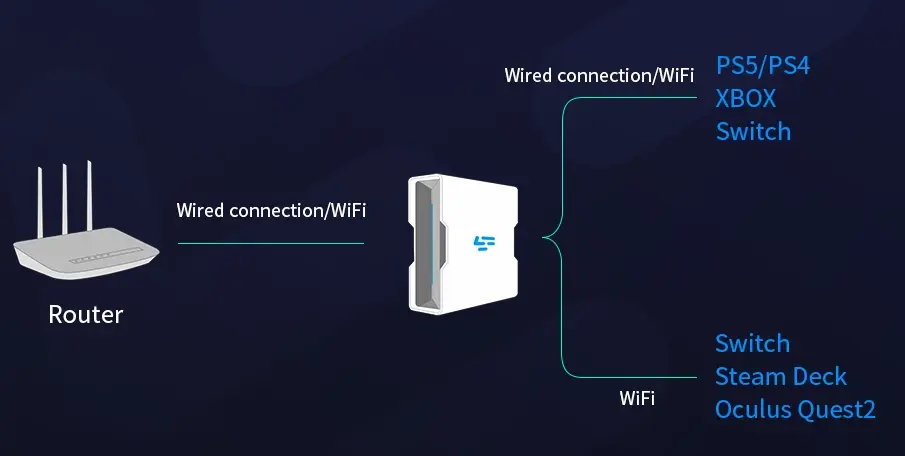
The LagoFast Box is a hardware solution that connects directly to your router and console, optimizing network routing for your PS5. Here’s how to set it up:
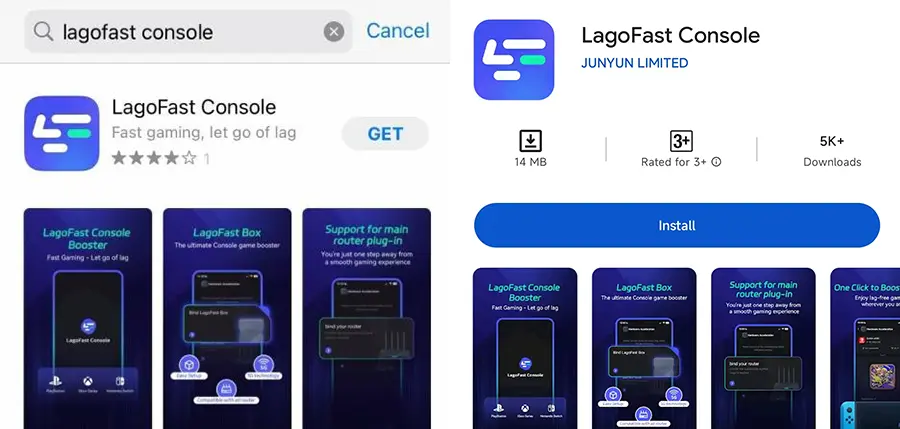
Step 1: Download the LagoFast Console App on your phone to control the LagoFast Box.
Step 2: Establish a connection between your LagoFast Box, router, and console, choosing between a wired or wireless connection.
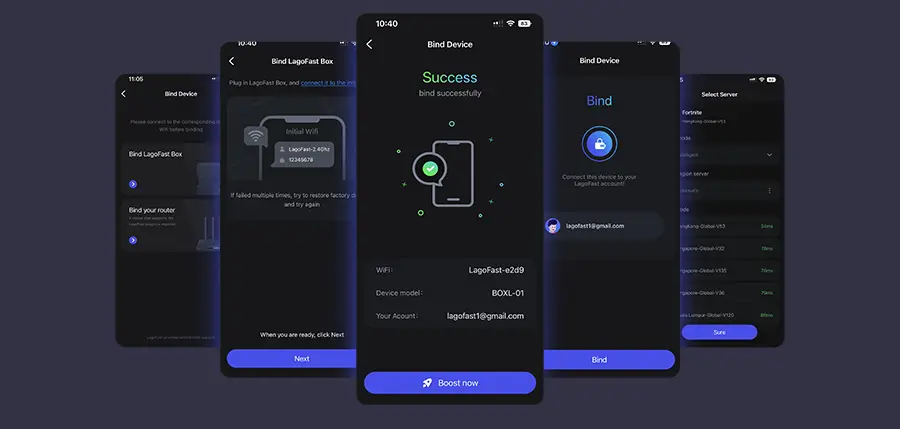
Step 3: Launch the LagoFast Console App and boost Fortnite. Once you have completed the binding process with the LagoFast Box, proceed to boost this game within the LagoFast Console App.
How to Use LagoFast to Fix Fortnite PS5 Controller Lag Issues on PC
Step 1: Download and install the LagoFast Free Trial.
Step 2: Open LagoFast, and use the search bar to find Fortnite.
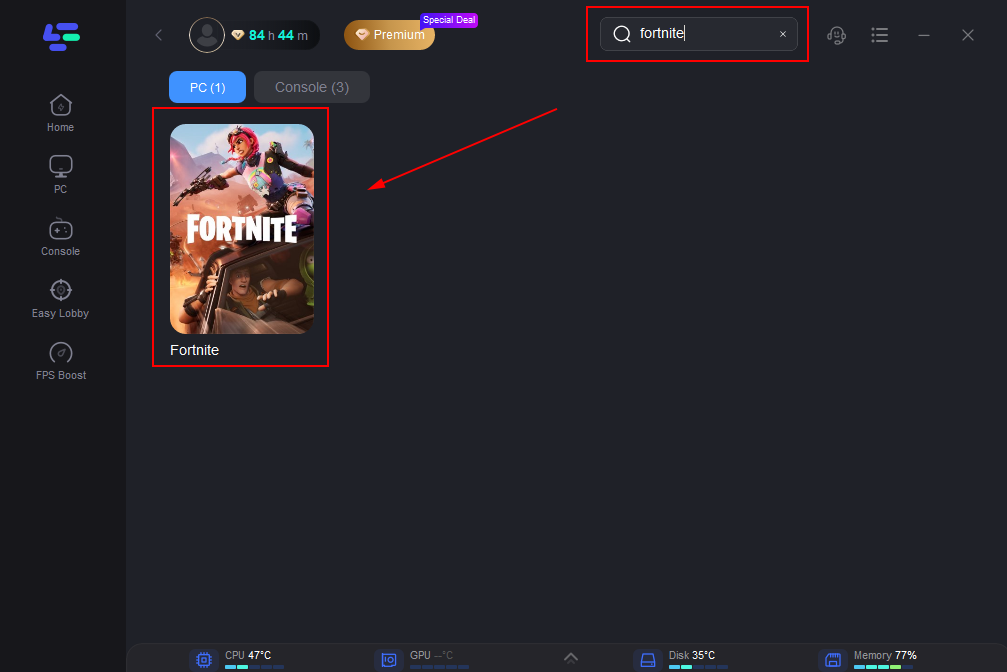
Step 3: Select Your Server—Choose the closest server and the most optimal node for stable, low-latency performance.
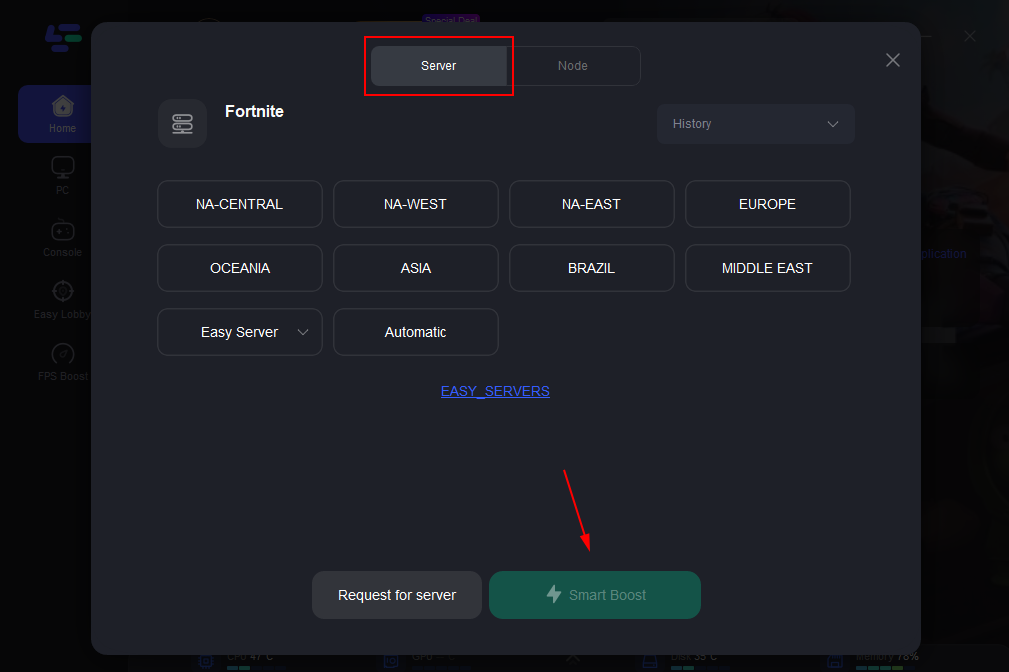
Step 4: Activate Smart Boost—Press ‘Smart Boost’ to optimize your connection and monitor real-time stats like ping and packet loss.
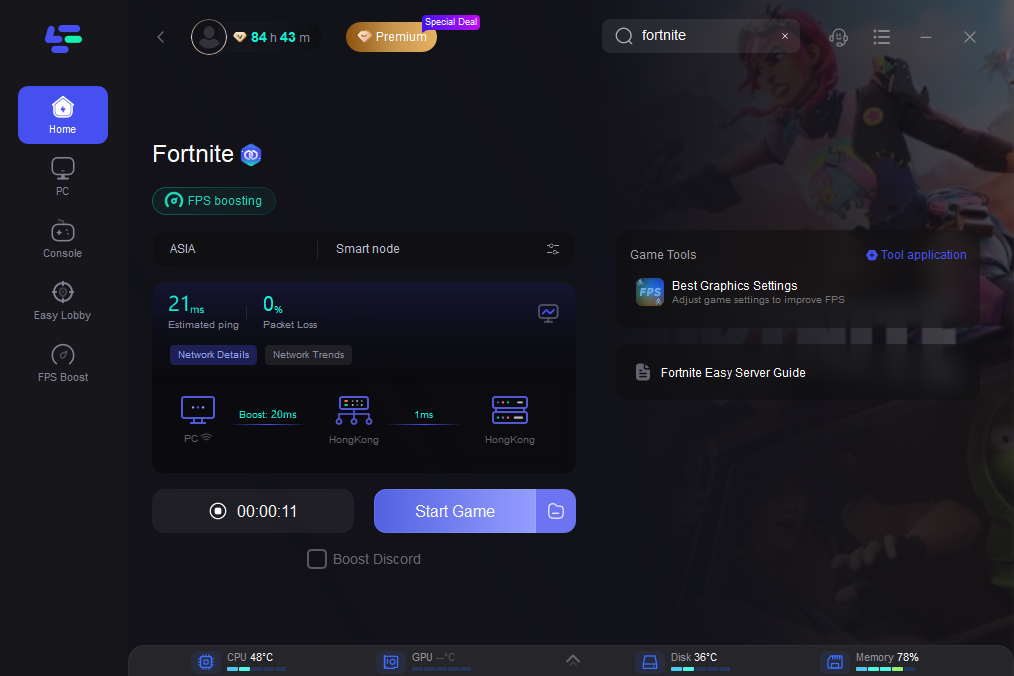
Whether you’re on PC or console, LagoFast provides a reliable connection to reduce input lag and ensure smooth, responsive gameplay.
Part 3: Additional Fixes for PS5 Controller Input Lag
Even after trying wired connections, updates, and network optimization, these tweaks can help your PS5 controller feel more responsive:
Reset and Re-pair Your Controller
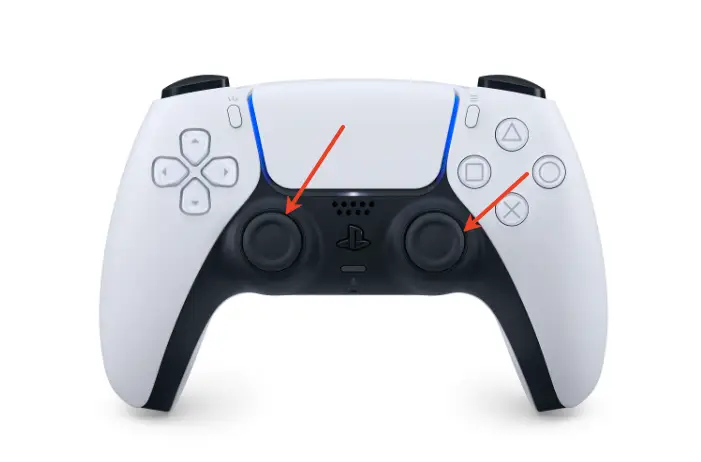
Hold the PS + Share buttons to reset, then reconnect. This clears minor glitches.
Check Cables and Ports
If using a wired connection, ensure a good-quality cable is plugged directly into the console.
Optimize Display Settings
Keep Game Mode on and reduce motion blur to lower input delay.
Close Background Apps on Your PS5
Freeing up system resources helps Fortnite run smoother and reduces input lag.
Bonus Tip: How To Get 0 DELAY On Console Keyboard & Mouse in Fortnite
For players using a keyboard and mouse on PS5, the best way to minimize input delay is to always use wired connections and avoid USB hubs. Ensuring your peripherals are directly connected to the console and using network optimization tools like LagoFast can help you achieve near-zero input lag for the most responsive gameplay.
Conclusion
Experiencing controller lag in Fortnite on your PS5 doesn’t have to ruin your gameplay. By addressing the main causes—such as wireless interference, outdated firmware, and suboptimal display or network settings—you can apply targeted fixes that make a real difference, resulting in smoother, more responsive controls and a better overall gaming experience.

Boost Your Game with LagoFast for Epic Speed
Play harder, faster. LagoFast game booster eliminates stutter and lags on PC, mobile, or Mac—win every match!
Quickly Reduce Game Lag and Ping!
Boost FPS for Smoother Gameplay!