
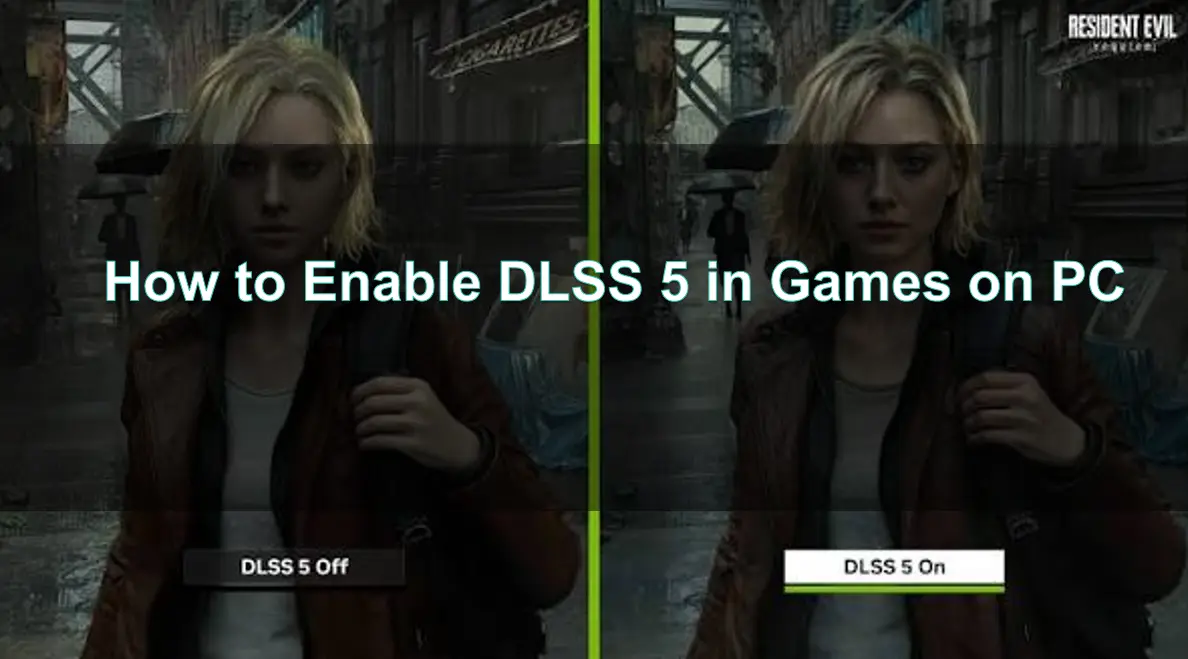
Quick Answer
To enable DLSS 5, first confirm that the game and GPU are compatible, update your NVIDIA driver, launch the correct rendering API, and back up the game files. The simplest supported workflow is LagoFast’s One-Click DLSS 5 tool: it detects the game, checks compatibility, downloads the required files, configures the installation, enables neural rendering, and provides one-click restore.

- ✅ Reduce Lag and High Ping.
- ✅ Boost FPS at the Same Time.
- ✅ Support 8000+ Popular Online Games.
- ✅ Stable Server Connection
Part 1: What You Need Before Enabling DLSS 5
Part 2: General DLSS 5 and DirectX 12 Setup
Part 3: How to Enable DLSS 5 in Games With One-Click Setup
Part 4: DLSS 5 Risks and Things to Know Before Enabling It
Part 5: How to Disable DLSS 5 and Restore Your Game
Part 6: DLSS 5 Supported Games and DLSS 4.5 vs DLSS 5
Part 1: What You Need Before Enabling DLSS 5
Before searching for a DLSS 5 download, separate official developer integration from an experimental configuration. NVIDIA’s official DLSS 5 rollout targets GeForce RTX 50 Series hardware and games with the required integration. Older RTX cards may run experimental configurations, but that is not the same as native support.
NVIDIA RTX GPU requirements
|
GPU |
Practical DLSS 5 status |
|
RTX 50 Series |
Official target platform when the game integration is available |
|
RTX 40 Series |
Experimental configuration; results depend on the game and workload |
|
RTX 30 Series |
Experimental and potentially performance-limited |
|
RTX 20 Series |
Experimental; test carefully and expect weaker results |
|
AMD and Intel |
Not supported by LagoFast’s DLSS 5 tool |
DLSS 5 neural rendering uses frame and motion information to improve lighting, hair, skin, fabric, materials, and shadows. It is more than replacing a Super Resolution DLL and adds GPU work.
Driver and game requirements
Use a current stable NVIDIA driver and a legally installed PC game with a compatible build, graphics API, and file structure. Multiplayer games with anti-cheat require extra caution.
Back up configuration files before testing. Do not download random DLL packs from file-hosting sites. A clean baseline makes troubleshooting easier.
Part 2: General DLSS 5 and DirectX 12 Setup
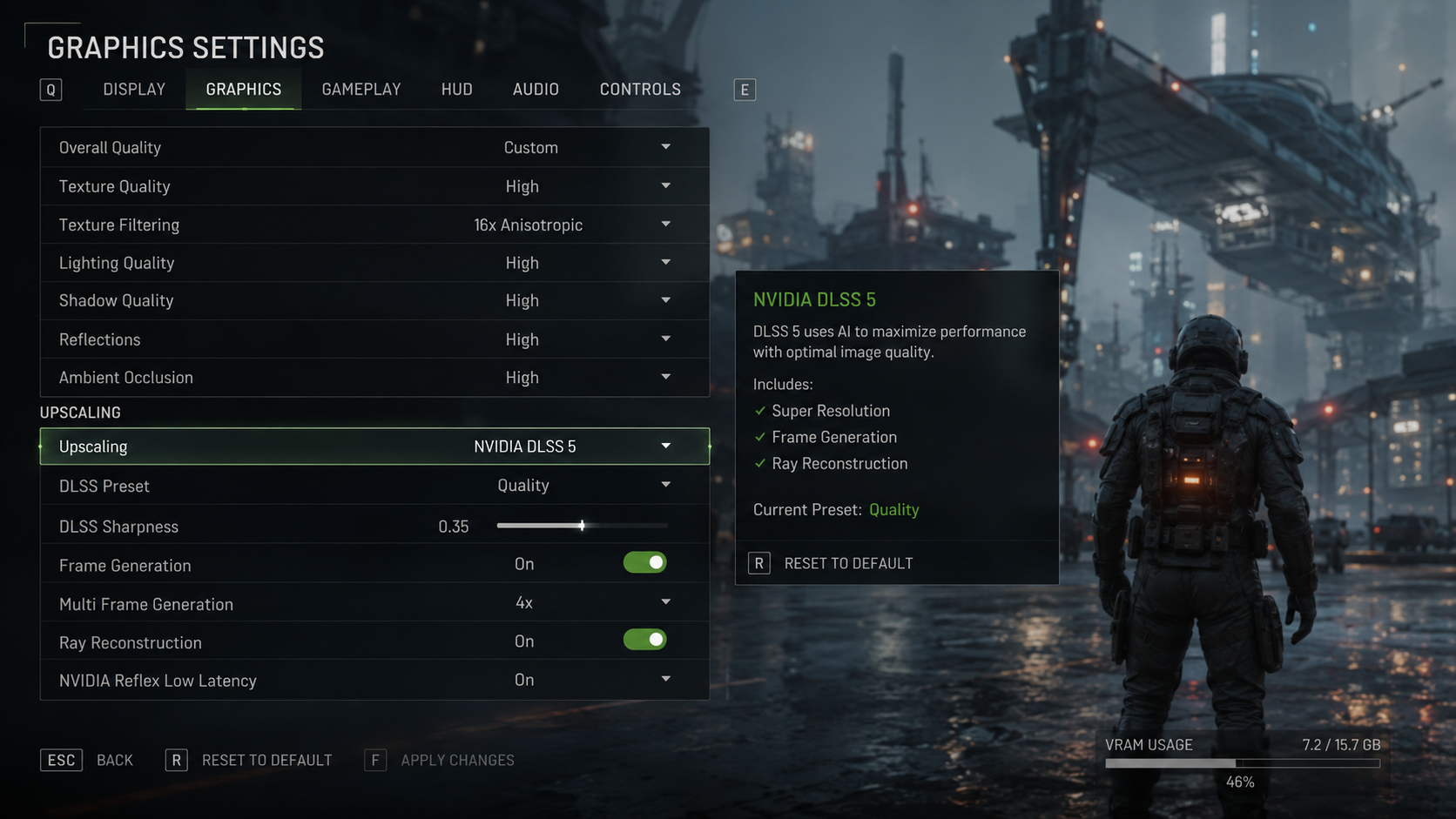
The normal setup should come first. Confirm that the game launches correctly, standard DLSS appears when supported, and the API is compatible with the upscaling path.
Recommended preparation checklist
- Update the NVIDIA driver and restart Windows.
- Launch the game once without modifications.
- Select DirectX 12 when the game or launcher provides an API choice.
- Open the graphics menu and confirm that NVIDIA DLSS is visible.
- Record baseline FPS, frame time, temperature, and input response.
- Close overlays and downloads during the first comparison.
DirectX 12 is not a universal DLSS 5 switch, but some games expose newer NVIDIA features through DX12. If DLSS is missing, check the API, version, driver, and GPU.
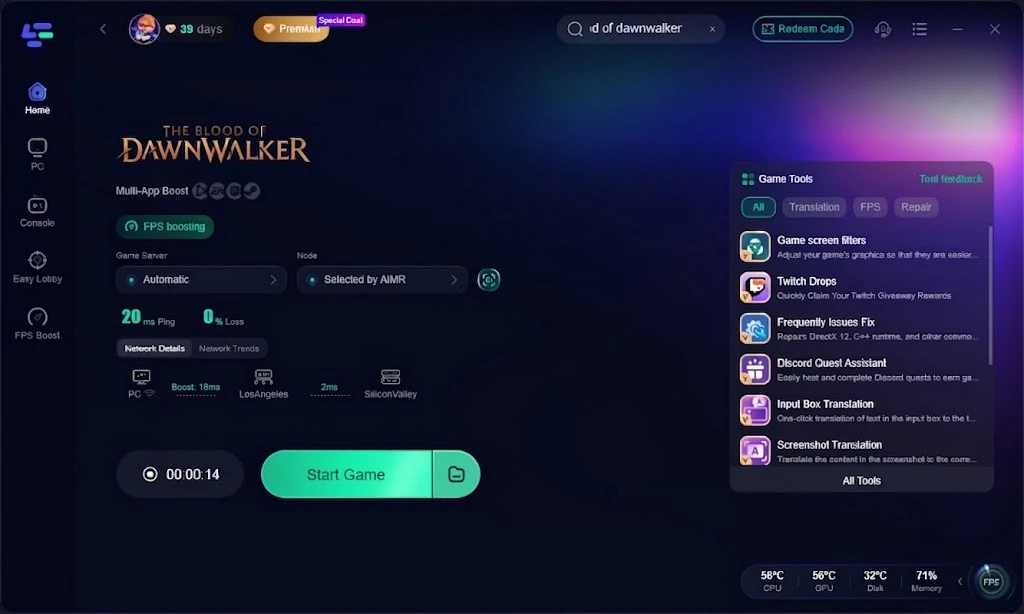
The Blood of Dawnwalker is a useful one-click workflow example, not proof of native support in every game.
Part 3: How to Enable DLSS 5 in Games With One-Click Setup
Manual tutorials may involve game folders, DLL replacement, loaders, ReShade, or other components. LagoFast’s One-Click DLSS 5 tool combines detection, compatibility checking, download, configuration, enabling, and restoration.
What the One-Click DLSS 5 tool does
- Downloads required files: The tool retrieves the files needed for the selected configuration.
- Checks compatibility: It verifies whether the detected game can use the available DLSS 5 setup.
- Configures the game automatically: You do not need to manually edit the game directory or replace DLLs.
- Enables neural rendering: After confirmation, the configured game starts with the DLSS 5 neural-rendering mode.
- Restores original files: If the result is unstable, one click returns the game to its previous configuration.
The tool detects installed Steam games or accepts a manually selected directory. It displays warnings about anti-cheat, stuttering, frame drops, and hardware load before setup.
Step-by-step tutorial for enabling DLSS 5 with LagoFast
Step 1. Click the Free Trial button to download and install LagoFast Free Trial.And launch LagoFast Game Booster, then open the DLSS 5 configuration feature.
Step 2. Select an installed Steam game. Choose a detected title or manually add its game directory. For the example, select The Blood of Dawnwalker if it is installed and listed.
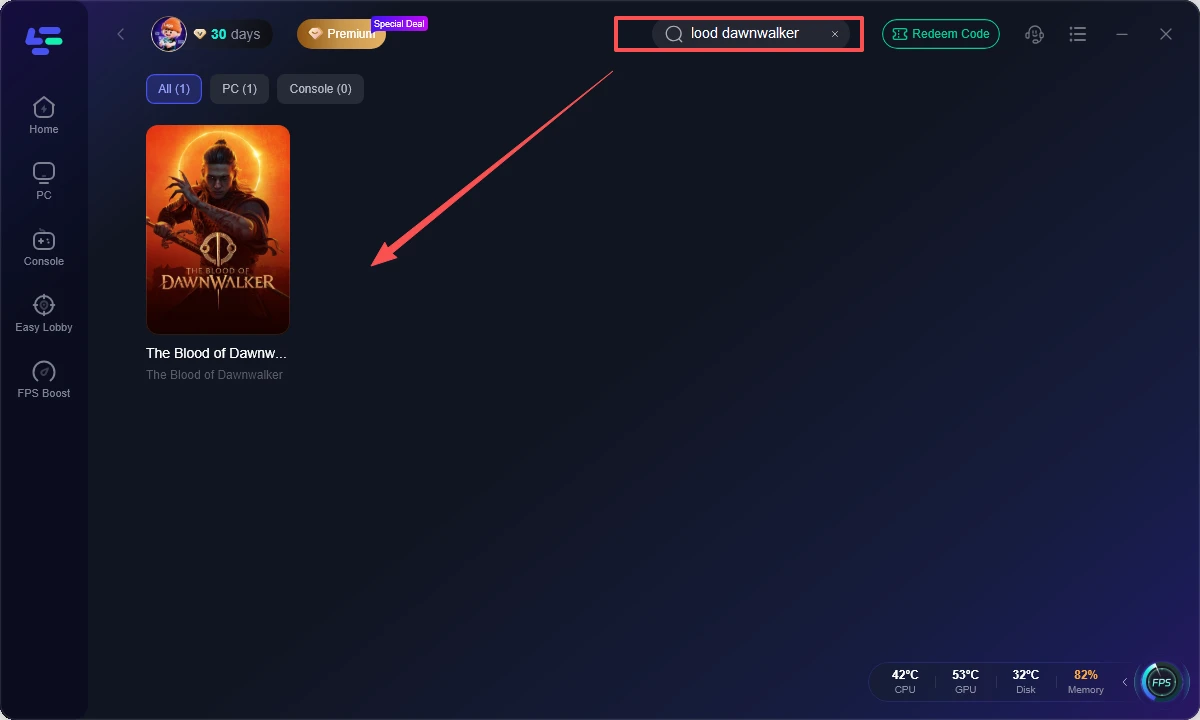
Step 3. Let the tool check DLSS 5 compatibility. Wait for the game, GPU, and file check to finish. Read the anti-cheat and performance notices before continuing.
Step 4. Enable DLSS 5. Confirm the operation. LagoFast downloads the required files and configures the game without manual DLL replacement.
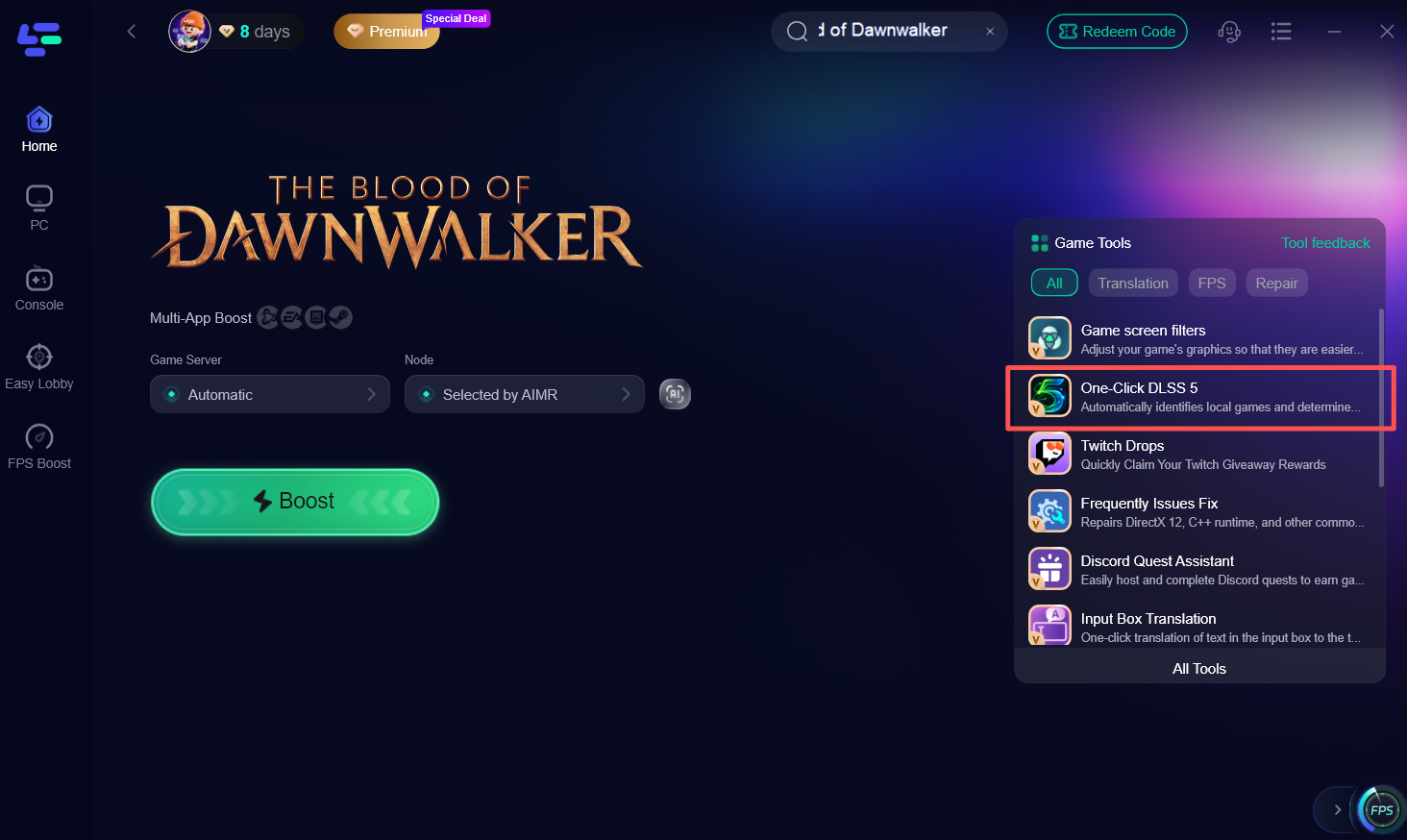
Step 5. Launch the game and compare results. Check image quality, FPS, frame time, GPU temperature, and input response. Use the restore option if the game crashes, stutters, or performs worse.
Part 4: DLSS 5 Risks and Things to Know Before Enabling It
A one-click process reduces file-management mistakes but does not remove technical limitations. Treat DLSS 5 as a controlled test.
Anti-cheat compatibility
Do not enable external graphics configurations in competitive games unless the developer and anti-cheat policy allow them. When in doubt, use DLSS 5 only in offline or single-player games.
FPS and stuttering
DLSS 5 can add rendering work. If the GPU is saturated, the result may be lower FPS, uneven frame times, or stutter. Compare a fixed scene at the same resolution and settings.
GPU load and temperature
Monitor GPU usage, temperature, power draw, and fan behavior. If temperatures rise or the game becomes unstable, disable the feature. Test Frame Generation only after the base frame rate is stable.
Part 5: How to Disable DLSS 5 and Restore Your Game
Do not delete random files from the game directory because another component may depend on them.
- Close the game and launcher.
- Open LagoFast and return to the selected game profile.
- Choose the DLSS 5 tool and select Restore or Disable.
- Wait for the original configuration to be reinstated.
- Launch the game natively and verify the graphics menu, FPS, and stability.
If the game does not start, use Steam’s file verification after restoring the configuration. If the issue continues, remove overlays and test without external tools.
Part 6: DLSS 5 Supported Games and DLSS 4.5 vs DLSS 5
NVIDIA has announced DLSS 5 support for selected titles including Where Winds Meet, Starfield, Hogwarts Legacy, Resident Evil Requiem, Assassin’s Creed Shadows, and NARAKA: BLADEPOINT. Final behavior depends on the game build, integration, GPU, and driver.
A DLSS 5 mod or configuration tool can expose an experimental path in games that do not yet offer a native menu option. It should not be described as official support.
|
Feature |
DLSS 4.5 |
DLSS 5 |
|
Main purpose |
AI upscaling and frame-generation improvements |
Neural rendering for richer lighting and material appearance |
|
Typical output |
Higher performance and cleaner reconstruction |
More detailed light, skin, hair, fabric, foliage, and shadows |
|
Native hardware focus |
Depends on the individual DLSS feature |
Official rollout focuses on RTX 50 Series |
|
Main limitation |
Can show ghosting or softness in difficult motion |
Adds GPU work and may reduce base FPS |
|
Setup expectation |
Usually exposed by the game’s graphics menu |
Native support or an optional experimental configuration |
The answer to how to use DLSS 5 is game-specific. Start with native implementation when available, and use an experimental configuration after checking compatibility and risks.
Part 7: DLSS 5 FAQ
How do I enable DLSS 5?
Confirm the game and GPU, update the driver, select the correct graphics API, and use a compatible native implementation or LagoFast’s One-Click DLSS 5 tool.
How do I get DLSS 5 on an RTX 40 GPU?
RTX 40 support is experimental rather than the official NVIDIA target. Use a compatible game and configuration, then compare performance carefully. RTX 40+ is the recommended starting point for older-card testing.
Is DLSS 5 available on RTX 20 and RTX 30 GPUs?
Experimental configurations may work, but performance and stability can vary significantly. AMD and Intel GPUs are not supported by the LagoFast DLSS 5 tool.
Do I need to install DLSS 5 manually?
No. A one-click tool can handle detection, compatibility checking, file download, configuration, enabling, and restoration. Manual installation is still possible, but it requires more file-management work and carries greater rollback risk.
Can DLSS 5 increase FPS?
Not necessarily. DLSS 5 primarily improves visual rendering and adds GPU work. Use FPS Boost or Frame Generation only after confirming that the base frame rate and frame times are stable.
Is DLSS 5 safe for online games?
There is no universal guarantee. Anti-cheat may restrict external files. Use native features in competitive games and reserve experiments for permitted offline or single-player use.
What should I do if DLSS 5 causes stutter?
Restore the original files, verify the installation, and compare temperature, utilization, and frame time instead of only the FPS counter.
Key takeaway
To enable DLSS 5 on PC, establish a clean baseline, check the GPU and game build, and distinguish official RTX 50 support from experimental RTX 20–40 configurations. LagoFast Game Booster detects the game, checks compatibility, configures required files, enables neural rendering, and restores the original setup. Test image quality, frame time, temperature, and input response before keeping it enabled.
Boost Your Game with LagoFast for Epic Speed
Play harder, faster. LagoFast game booster eliminates stutter and lags on PC, mobile, or Mac—win every match!
Quickly Reduce Game Lag and Ping!
Boost FPS for Smoother Gameplay!