
Quick Answer
If you encounter the "Failed to retrieve data" error in Hololive Dreams on PC, the most common solutions involve addressing network connectivity issues. Begin by restarting your router and PC, temporarily disabling any VPN or proxy services, and verifying your game files on Steam. For persistent problems, consider flushing your DNS, changing to public DNS servers, or using a game optimization tool like LagoFast Game Booster to stabilize your connection and bypass potential network bottlenecks.

- ✅ Reduce Lag and High Ping.
✅ Boost FPS at the Same Time.
✅ Support 8000+ Popular Online Games.
✅ Change Server without Latency.
✅ Boost Game Loading Speed.
Part 1: Understanding the "Failed to Retrieve Data" Error in Hololive Dreams
Part 2: Initial Troubleshooting Steps for PC Players
Part 3: Advanced Network Solutions
Part 4: How to Enhance Your Game Experience with LagoFast Game Booster
Part 5: Addressing Platform-Specific Issues (Steam Deck/Linux)
Part 6: Hololive Dreams PC Connectivity FAQ
Understanding the "Failed to Retrieve Data" Error in Hololive Dreams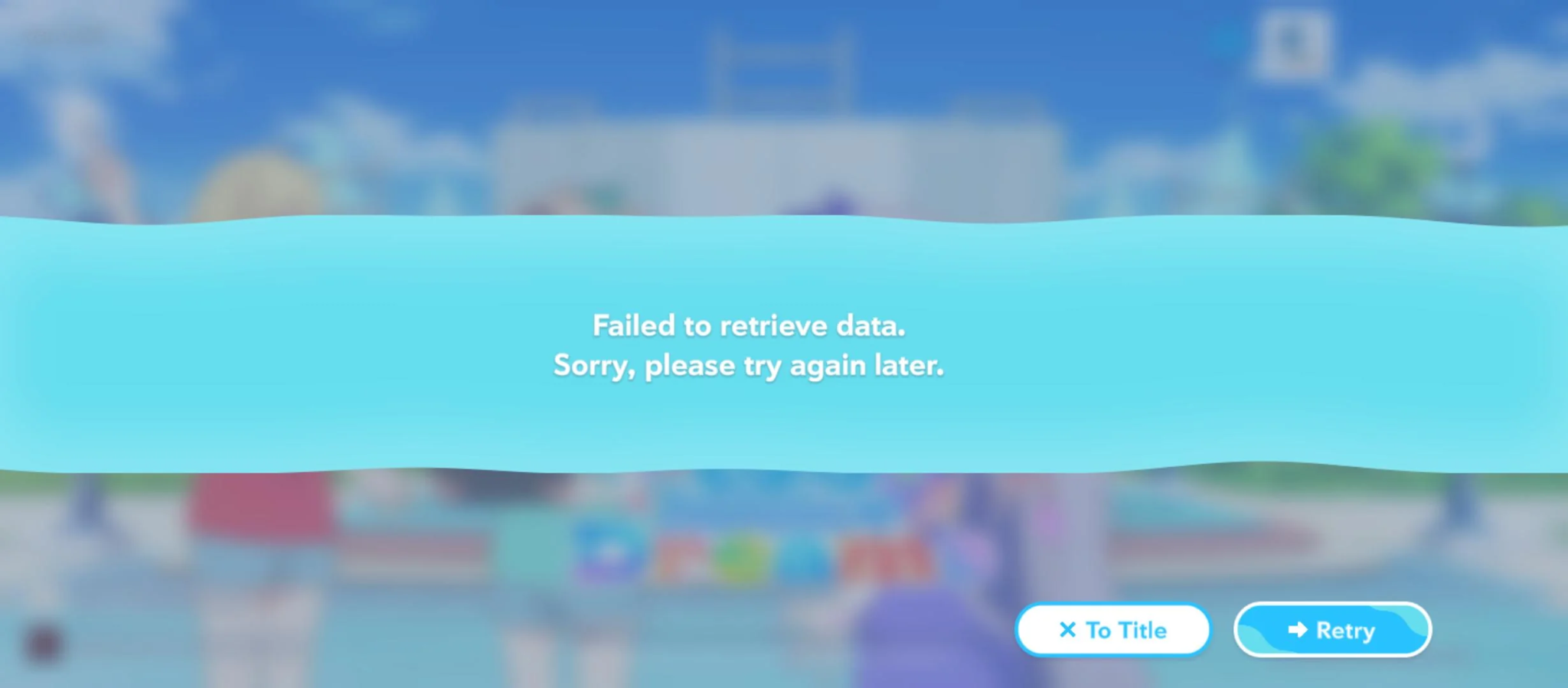
Encountering a "Failed to retrieve data" error when launching or playing Hololive Dreams can be a frustrating experience, abruptly halting your gameplay. This message indicates that the game client is unable to establish or maintain a stable connection with the game servers to download necessary information, such as player data, game assets, or real-time updates. While the error message itself is generic, its root causes are almost always related to network connectivity, either on your end, your Internet Service Provider's (ISP) side, or occasionally, the game server itself.
What Does This Error Mean?
At its core, the "Failed to retrieve data" error signifies a communication breakdown. Your game client sends a request to the Hololive Dreams servers, but the expected data either doesn't arrive, arrives corrupted, or the connection times out. This can prevent the game from loading past the title screen, accessing online features, or even starting entirely. It's a critical issue that points directly to an unstable or blocked data pathway between your PC and the game's online infrastructure.
Common Causes: Network, VPNs, and ISPs
The primary culprits behind this error are often related to your network setup. Virtual Private Networks (VPNs) and proxy services are frequent offenders; while they offer privacy and access to geo-restricted content, they can also interfere with game connections by routing traffic through distant or overloaded servers, increasing latency, or causing packet loss. Your Internet Service Provider (ISP) can also play a role, sometimes throttling game-related traffic or having suboptimal routing paths to game servers. Furthermore, local network issues such as an unstable Wi-Fi signal, outdated router firmware, or incorrect DNS settings can contribute to the problem. Less commonly, but still possible, are temporary server-side issues with Hololive Dreams itself, though local troubleshooting usually resolves the problem for most players.
Initial Troubleshooting Steps for PC Players
Before delving into more complex solutions, it's always prudent to start with basic troubleshooting. These steps often resolve the "Failed to retrieve data" error quickly and efficiently for many PC gamers.
Verify Game Files Integrity on Steam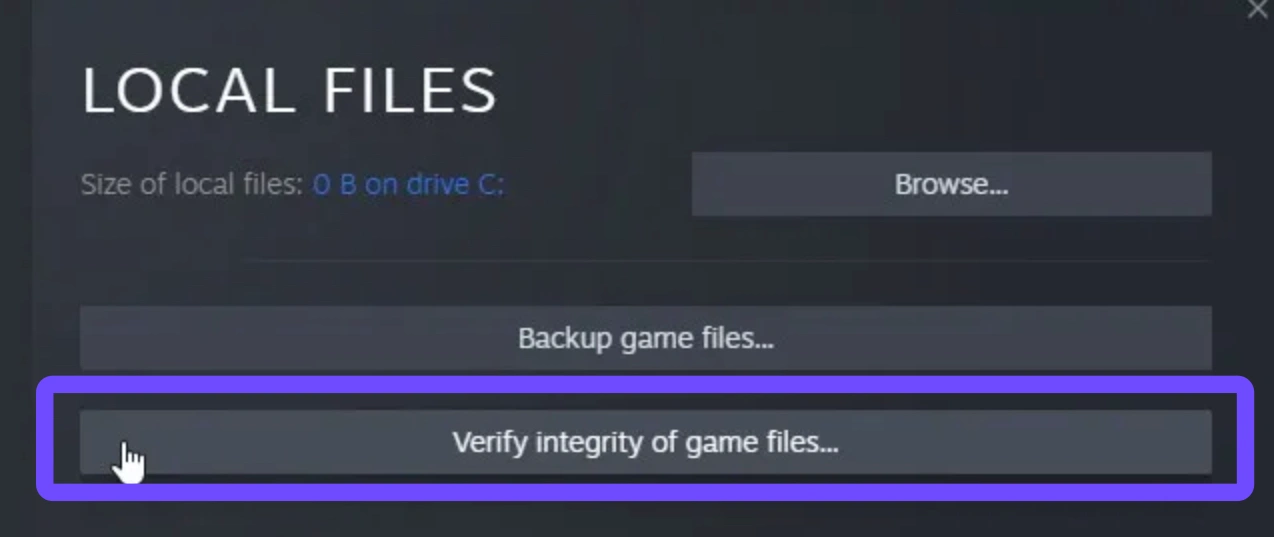
Corrupted or missing game files can lead to various errors, including data retrieval failures. Steam provides a built-in function to check and repair these files:
- Open your Steam client.
- Navigate to your Library.
- Right-click on "Hololive Dreams" and select "Properties."
- Go to the "Installed Files" tab.
- Click on "Verify integrity of game files..." Steam will then scan your game files and download any necessary replacements. Once complete, try launching the game again.
Restart Your Router and PC
A simple restart can often clear temporary network glitches and refresh your system's connection. Power cycle your router by unplugging it from the power source, waiting for about 30 seconds, and then plugging it back in. Allow it a few minutes to fully boot up and re-establish your internet connection. Simultaneously, perform a full restart of your PC. This ensures that all network adapters and system processes are refreshed, potentially resolving any underlying conflicts.
Temporarily Disable VPN or Proxy
If you are using a VPN or proxy service, it is a prime suspect for the "Failed to retrieve data" error. Temporarily disable your VPN/proxy entirely and attempt to launch Hololive Dreams. If the game connects successfully, this indicates that your VPN was interfering with the connection. You can then try adding Hololive Dreams to your VPN's bypass list or configuring specific rules to allow its traffic to pass directly.
Check Firewall and Antivirus Settings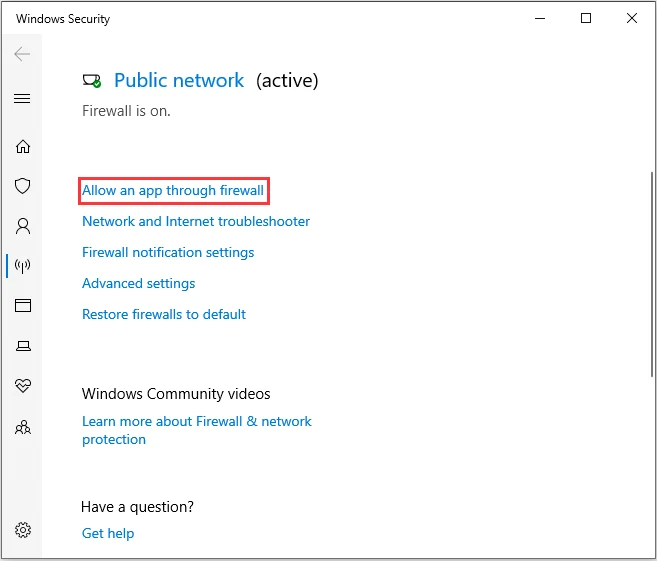
Your PC's firewall or antivirus software might be inadvertently blocking Hololive Dreams from accessing the internet. Check your Windows Defender Firewall settings or your third-party antivirus suite to ensure that Hololive Dreams is allowed through. You might need to add an exception for the game's executable file or temporarily disable your firewall/antivirus to test if it's the cause. Remember to re-enable them after testing for security purposes.
Advanced Network Solutions
When basic troubleshooting doesn't resolve the "Failed to retrieve data" error, it's time to investigate more advanced network configurations. These steps can help diagnose and fix deeper connectivity issues.
Flush DNS and Reset Network Configuration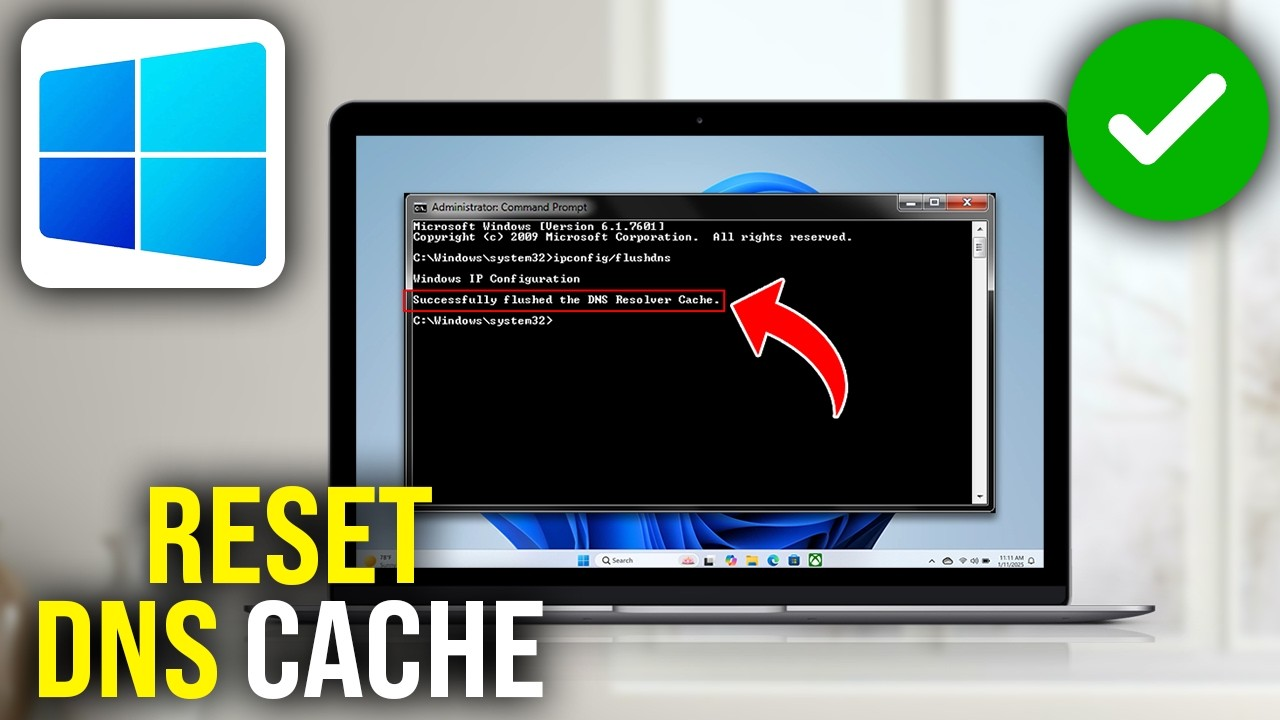
Your computer stores a cache of DNS (Domain Name System) resolutions, which can sometimes become outdated or corrupted, leading to connection problems. Flushing your DNS cache forces your system to retrieve fresh DNS information. Additionally, resetting your network configuration can resolve deeper network stack issues:
1. Open Command Prompt as an administrator (search for "cmd," right-click, and select "Run as administrator").
2. Execute the following commands one by one, pressing Enter after each:
•ipconfig /flushdns
•ipconfig /registerdns
•ipconfig /release
•ipconfig /renew
•netsh winsock reset
3. Restart your PC after executing all commands.
Change DNS Servers (e.g., Google DNS, Cloudflare DNS)
Your ISP's default DNS servers might be slow or have poor routing to game servers. Switching to public DNS servers like Google DNS (8.8.8.8 and 8.8.4.4) or Cloudflare DNS (1.1.1.1 and 1.0.0.1) can often improve resolution speeds and connectivity:
- Go to "Network & Internet settings" in Windows.
- Click on "Change adapter options."
- Right-click on your active network adapter (Ethernet or Wi-Fi) and select "Properties."
- Select "Internet Protocol Version 4 (TCP/IPv4)" and click "Properties."
- Select "Use the following DNS server addresses" and enter your preferred public DNS servers.
- Click "OK" on both windows and restart your PC.
Consider Mobile Hotspot for Initial Launch
Some players have reported success by using a mobile hotspot for the initial launch of Hololive Dreams. This workaround suggests that certain ISPs or home network configurations might have specific blocks or routing issues that prevent the game from retrieving data. If the game launches successfully on a mobile hotspot, you might be able to switch back to your home Wi-Fi after the initial data retrieval, though this is not a guaranteed long-term solution.
Contact Your Internet Service Provider (ISP)
If all else fails, the problem might lie with your ISP. Contact their technical support and explain the "Failed to retrieve data" error you're experiencing with Hololive Dreams. Provide them with details about the troubleshooting steps you've already taken. They might be able to check for known issues in your area, adjust your network profile, or investigate routing problems that affect your connection to the game's servers.
How to Enhance Your Game Experience with LagoFast Game Booster
For PC gamers seeking a reliable and efficient solution to network-related issues, including the "Failed to retrieve data" error, LagoFast Game Booster offers a specialized approach. This tool is designed to optimize your network path to game servers, reduce ping, minimize packet loss, and stabilize your connection, providing a smoother and more responsive gaming experience.
LagoFast(LagoFast Game Booster - Get No Lag and Lower Ping) works by intelligently selecting the most efficient route for your game data, bypassing congested network nodes and unreliable ISP routing. This direct optimization can significantly improve the speed and stability of data retrieval, directly addressing the core problem behind the "Failed to retrieve data" error. Furthermore, LagoFast often includes features to optimize system resources, ensuring your PC is fully dedicated to running the game.
Here’s how to use LagoFast Game Booster to resolve connectivity issues and improve your Hololive Dreams experience:
Click the Free Trial button to download and install LagoFast Free Trial.
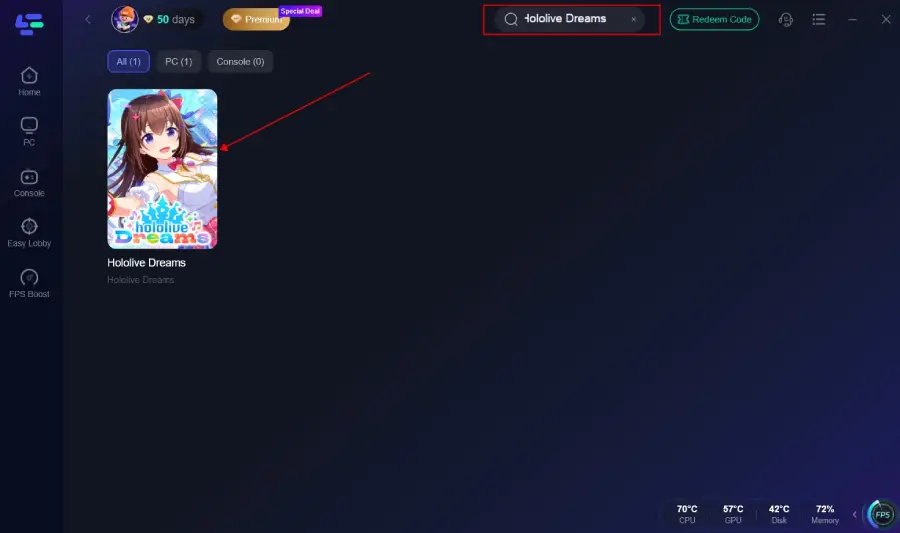
Launch LagoFast and Search for Hololive Dreams: Open the LagoFast application. In the intuitive search bar, type "Hololive Dreams" and select the game from the displayed results. This ensures LagoFast configures its optimizations specifically for the game.
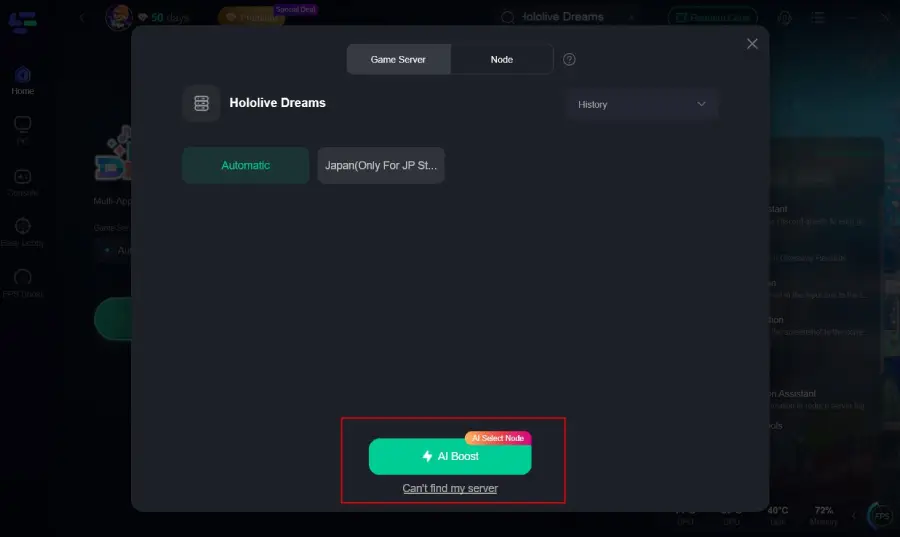
Select Optimal Server and Node: LagoFast's intelligent system will automatically analyze your network and recommend the most optimal server and network node for your location and the game's servers. Choose the recommended option to ensure the best possible connection quality.
Start Boosting: With the game selected and optimal settings chosen, click the "Start Boosting" button. LagoFast will then activate its network optimization protocols, creating a stable and fast connection pathway for Hololive Dreams.
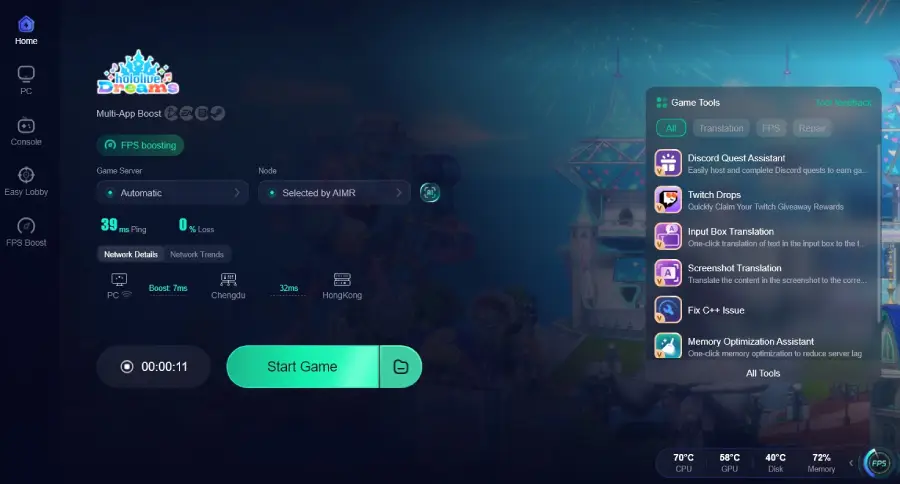
Launch Hololive Dreams: Once LagoFast indicates that boosting is active, launch Hololive Dreams through your preferred platform (e.g., Steam). You should now experience improved data retrieval, reduced latency, and a more stable connection, allowing you to enjoy the game without the "Failed to retrieve data" interruption.
Addressing Platform-Specific Issues (Steam Deck/Linux)
While Hololive Dreams is primarily a PC title, many players attempt to run it on portable Linux-based systems like the Steam Deck. This can introduce additional layers of complexity when troubleshooting connectivity errors.
Proton Compatibility and Experimental Versions
On Steam Deck and other Linux distributions, games often run through a compatibility layer called Proton. The "Failed to retrieve data" error might stem from specific Proton versions having issues with the game's network calls or anti-cheat mechanisms. Experimenting with different Proton versions (including Proton Experimental) in the game's compatibility settings on Steam can sometimes resolve these issues. Always ensure your Proton version is up to date.
Anti-Cheat Considerations
Some games, especially those with online components, utilize anti-cheat software that can be incompatible with Proton or Linux environments. This incompatibility can manifest as data retrieval errors, as the anti-cheat system might prevent the game from communicating properly with its servers. While there's often no direct fix for anti-cheat incompatibility other than official support, checking community forums for workarounds or specific Proton settings that address anti-cheat issues can be helpful.
Hololive Dreams PC Connectivity FAQ
Why does my game say "Failed to retrieve data"?
This error typically means your game client cannot establish a stable connection with the game servers to download necessary information. It's usually a network-related issue on your end or your ISP's.
Can a slow internet connection cause this error?
Yes, a slow or unstable internet connection can certainly contribute to the "Failed to retrieve data" error. If data packets are lost or take too long to reach the server, the game might time out and display this message.
Should I reinstall the game to fix this error?
Reinstalling the game can sometimes resolve issues related to corrupted game files. However, if the problem is network-related, a reinstall alone might not fix it. It's often a good last resort after trying network troubleshooting.
Does my location affect this error?
Potentially, yes. Your geographical location can influence the routing path your internet traffic takes to reach the game servers. Suboptimal routing by your ISP can lead to higher ping and packet loss, contributing to data retrieval failures.
What is DNS and how does it relate to this error?
DNS (Domain Name System) translates human-readable website names (like google.com) into IP addresses that computers use. If your DNS server is slow or provides incorrect information, your game might struggle to locate and connect to the game servers, leading to data retrieval errors.
Key Takeaway
Overcoming the "Failed to retrieve data" error in Hololive Dreams on PC requires a systematic approach to network troubleshooting. From basic restarts and VPN checks to advanced DNS configurations, a stable connection is paramount for an uninterrupted gaming experience. For a consistent and optimized connection, especially when facing persistent network challenges, integrating a specialized tool like LagoFast Game Booster can provide a significant advantage, ensuring smooth data retrieval and a more enjoyable Hololive Dreams journey. Prioritize a robust network setup, and you'll spend more time playing and less time troubleshooting.
Boost Your Game with LagoFast for Epic Speed
Play harder, faster. LagoFast game booster eliminates stutter and lags on PC, mobile, or Mac—win every match!
Quickly Reduce Game Lag and Ping!
Boost FPS for Smoother Gameplay!