
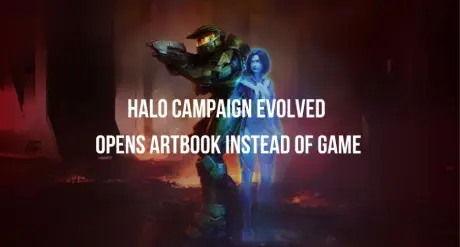
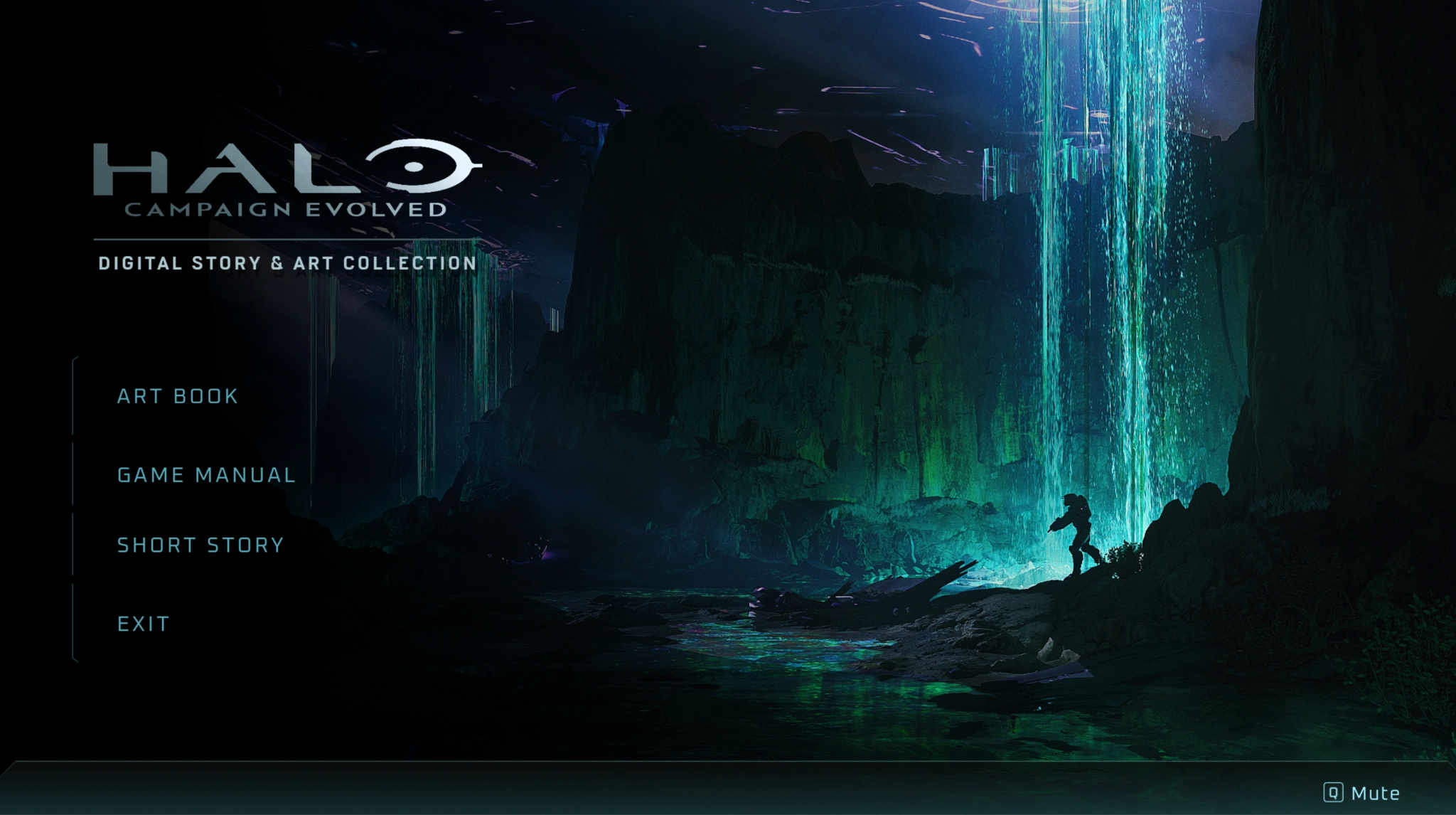
Imagine purchasing the Premium Upgrade or pre-ordering early access for Halo: Campaign Evolved, settling into your gaming chair, hitting Play, and being greeted... not by Master Chief in action, but by a static digital artbook.
You are far from alone. Right after launch, the Halo community flooded platforms like Reddit and Steam discussions with frustrating reports. As one Reddit user on r/halo summarized:
"Game Pass Premium edition upgrade Campaign Evolved not launching... Any ideas how to launch on Xbox or PC if you got the upgrade? Every time I hit play, it just sends me to the Digital Story & Art Collection."
Thousands of players on Steam and Xbox Game Pass are currently locked out by a frustrating DLC licensing glitch. Here is how to fix it right now and actually get into the game.

- ✅ Reduce Lag and High Ping.
✅ Boost FPS at the Same Time.
✅ Support 3000+ Popular Online Games.
✅ Change Server without Latency.
✅ Boost Game Loading Speed.
Part 1: The Instant Solution: Use the LagoFast 1-Click Artbook Launch Fix
Part 2: Why Does Halo Campaign Evolved Open the Artbook?
Part 3: Manual Backup Methods: How to Fix the DLC Bug Yourself
Part 4: Troubleshooting Checklist: Still Won't Launch After Removing DLC?
Part 5: Diagnosing Your Launch Error: The Ultimate Breakdown Table
Part 6: Bonus Tip: How LagoFast Fixes Halo Campaign Evolved Stuttering and High Ping
Part 7: Halo Campaign Evolved FAQs
Part 1: The Instant Solution: Use the LagoFast 1-Click Artbook Launch Fix
When a major launch breaks, waiting hours for an official developer patch isn't an option. The fastest way to bypass the launcher error without digging through your system files or redownloading a massive 80GB game is using LagoFast’s built-in repair tool.
LagoFast has deployed a specialized Artbook Launch Fix engineered specifically for the Halo Campaign Evolved release. It identifies the conflicting DLC entitlement on your system and safely disables the trigger, causing the game engine to default to the Digital Story & Art Collection.
How to Apply the 1-Click Fix:
Step 1. Download and open LagoFast on your PC.
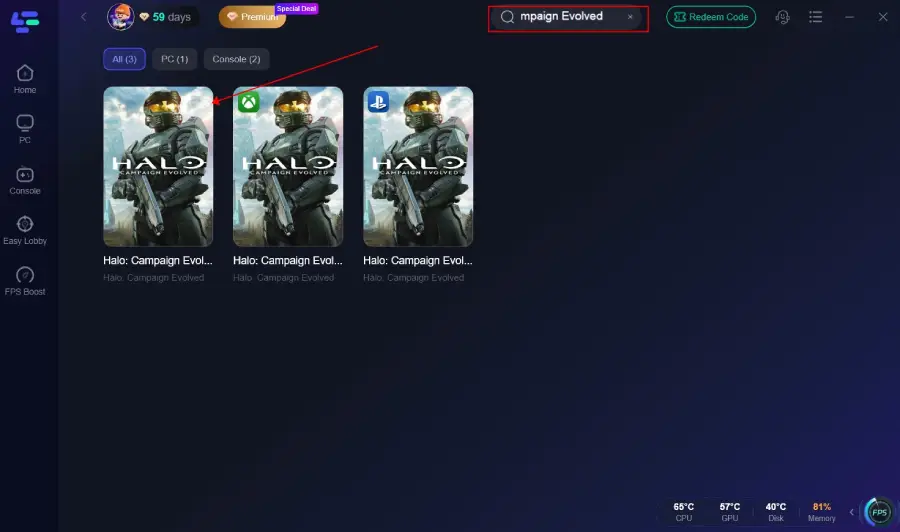
Step 2. In the top search bar, type Halo Campaign Evolved and select the game from the library.
Step 3. Before hitting Boost, look for the Game Tools section on the panel.
Step 4. Click on the Artbook Launch Fix tool – Halo CE DLC Fix.
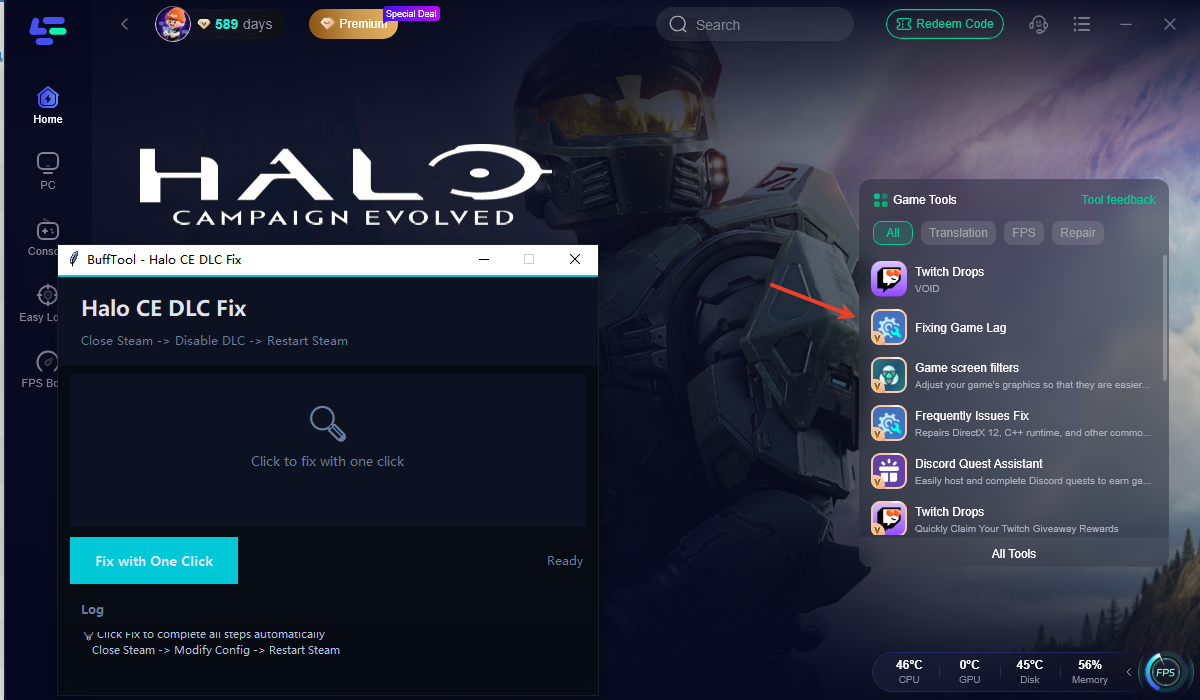
Step 5. Let the software scan your local installation. Hit Apply Fix.
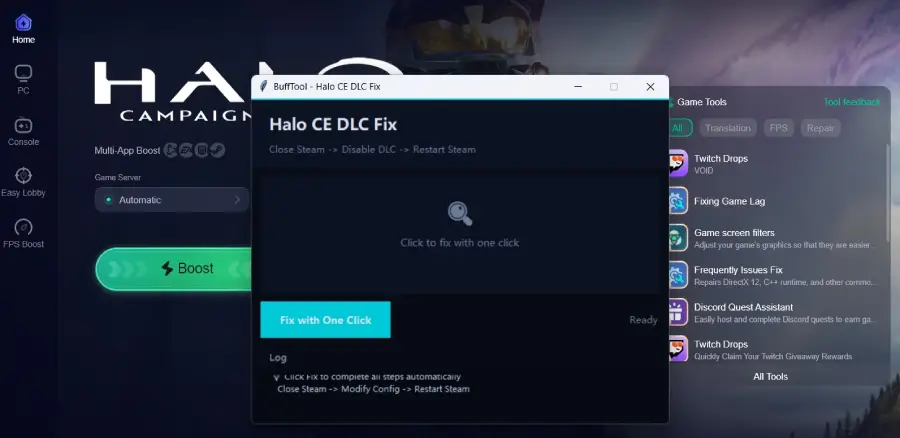
Once confirmed, launch the game directly through LagoFast or your standard Steam/Xbox launcher. The main executable will now boot properly.
Part 2: Why Does Halo Campaign Evolved Open the Artbook?
To understand why this issue happens, it helps to look at how modern storefronts handle Premium Editions and Early Access bundles.
When you purchase the Halo Campaign Evolved Premium Edition or Premium Upgrade, your license grants access to three distinct assets:
- The base game executable (Halo: Campaign Evolved).
- Early Access license entitlements.
- The Digital Story & Art Collection (a standalone digital bonus app containing concept art, manuals, and short stories).
Because of a file indexing oversight in the initial launch packages on both Steam and the Xbox App/Windows Store, the launcher erroneously sets the default boot target to the bonus app rather than the core game executable.
Part 3: Manual Backup Methods: How to Fix the DLC Bug Yourself
If you prefer to troubleshoot manually before using automated tools, community members on Reddit discovered a reliable workaround while waiting for official support communication. The secret is forcing your storefront to ignore the bonus art content entirely.
Method A: The Steam Library Fix
As confirmed by Reddit users, simply uninstalling the artbook from your DLC list forces Steam to boot the actual game.
Step 1. Open your Steam Client and navigate to your Library.
Step 2. Right-click on Halo Campaign Evolved and select Properties from the drop-down menu.
Step 3. On the left sidebar, click on the DLC tab.
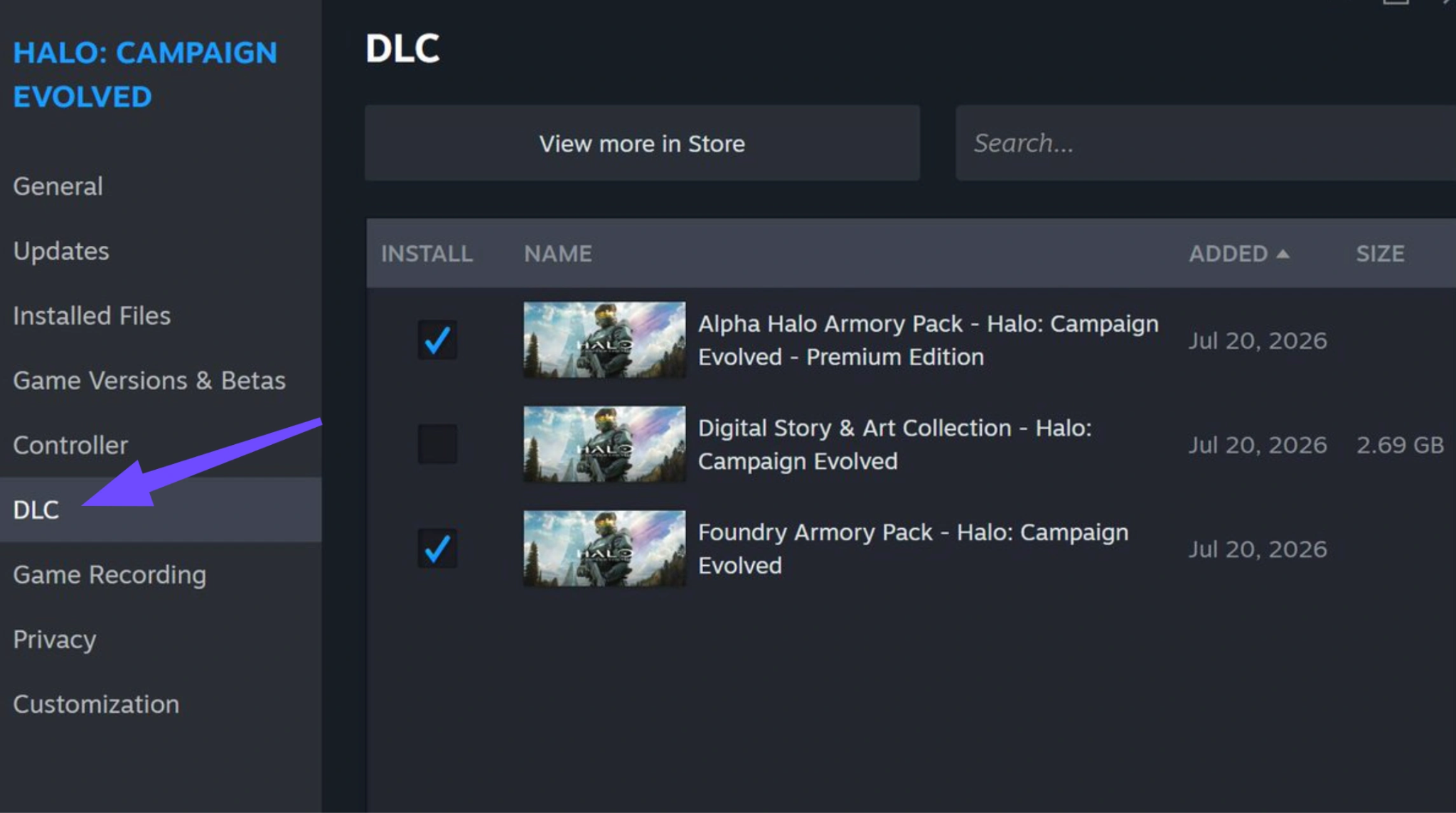
Step 4. Look through the list of installed content for Digital Story & Art Collection.
Step 5. Uncheck the box next to this item to disable and uninstall it.
Step 6. Close the properties window. Steam will perform a quick 1-second update to reconfigure your launch path.
Step 7. Click Play. The game will now launch Master Chief's campaign instead of the art gallery.
Method B: The Xbox App / Windows Store Fix (PC)
The Xbox App handles DLC packaging differently, making it slightly trickier to isolate individual add-ons. If unchecking the add-on in the Xbox App "Manage" tab doesn't work, you need to clear the Windows Store local cache.
Step 1. Close the Xbox App completely (check your system tray to ensure it isn't running in the background).
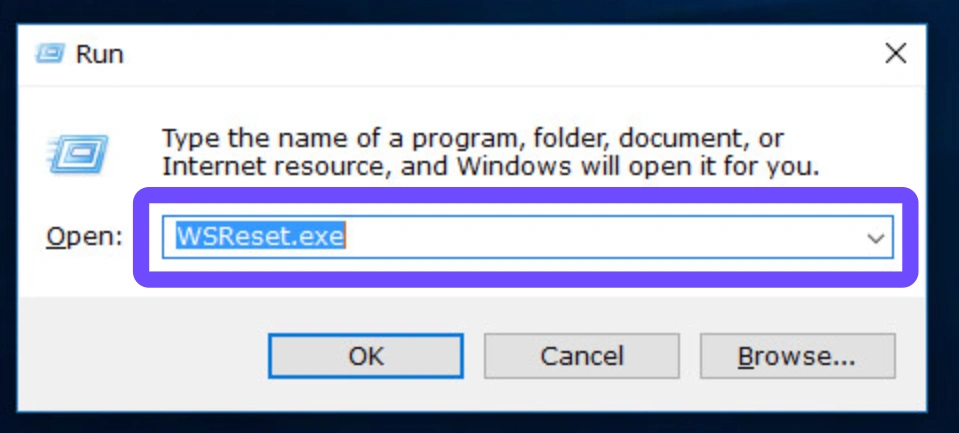
Step 2. Press the Windows Key + R on your keyboard to open the Run dialog box.
Step 3. Type wsreset and press Enter.
Step 4. A blank black command prompt window will appear. Let it run for 10 to 30 seconds without closing it.
Step 5. Once the cache is cleared, the Microsoft Store will automatically open.
Step 6. Re-open your Xbox App, find your game installation, click the three dots (...), select Manage, and verify that only the main campaign file is selected for launch.
Method C: Xbox Series X|S Console Fix
If you are sitting on your couch and find that Halo Campaign Evolved launches digital artbook apps on your console, you need to clear your persistent cache after removing the add-on.
Step 1: Highlight the game tile on your Xbox dashboard and press the Menu button (the three lines) on your controller.
Step 2: Select Manage game and add-ons.
Step 3: Click on the game icon to open the installation list.
Step 4: Uncheck the Digital Story & Art Collection and save changes to uninstall it.
Step 5: Perform a Hard Reset: Hold the power button on the front of your Xbox console for 10 full seconds until it shuts down completely. Unplug the power cord for 30 seconds, plug it back in, and boot up. Your game will now launch correctly.
Part 4: Troubleshooting Checklist: Still Won't Launch After Removing DLC?
Sometimes, simply unchecking the artbook isn't enough because the initial failed launch corrupted your local shader cache or licensing tokens. If your game still refuses to boot after removing the DLC, run through this diagnostic checklist:
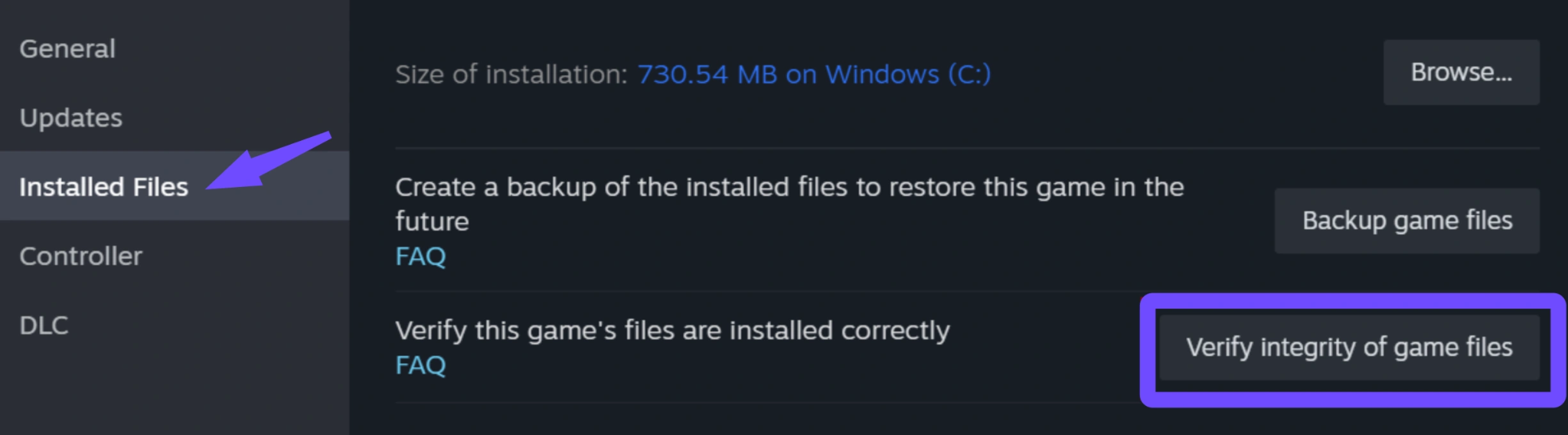
- Verify Integrity of Game Files (Steam): Right-click the game in Steam, select Properties, select Installed Files, and click Verify integrity of game files. This replaces any corrupted executable files caused by the artbook conflict.
- Resume Stalled Unpacking (Windows Store): Check your Windows Store download queue. User GorgonioSC noted that after removing the artbook, the main campaign sometimes gets stuck on an "error" or "unpacking" state. Click the three dots next to the download bar and select Resume Installation.
- Force a Hard Console Restart (Xbox Series X|S): If you are on console and getting the "Too Early" message despite owning the Premium Upgrade, your cache is holding onto the standard release date timer. Hold the physical power button on your console for 10 full seconds until it turns off completely. Unplug the power cord for 30 seconds, plug it back in, and boot up.
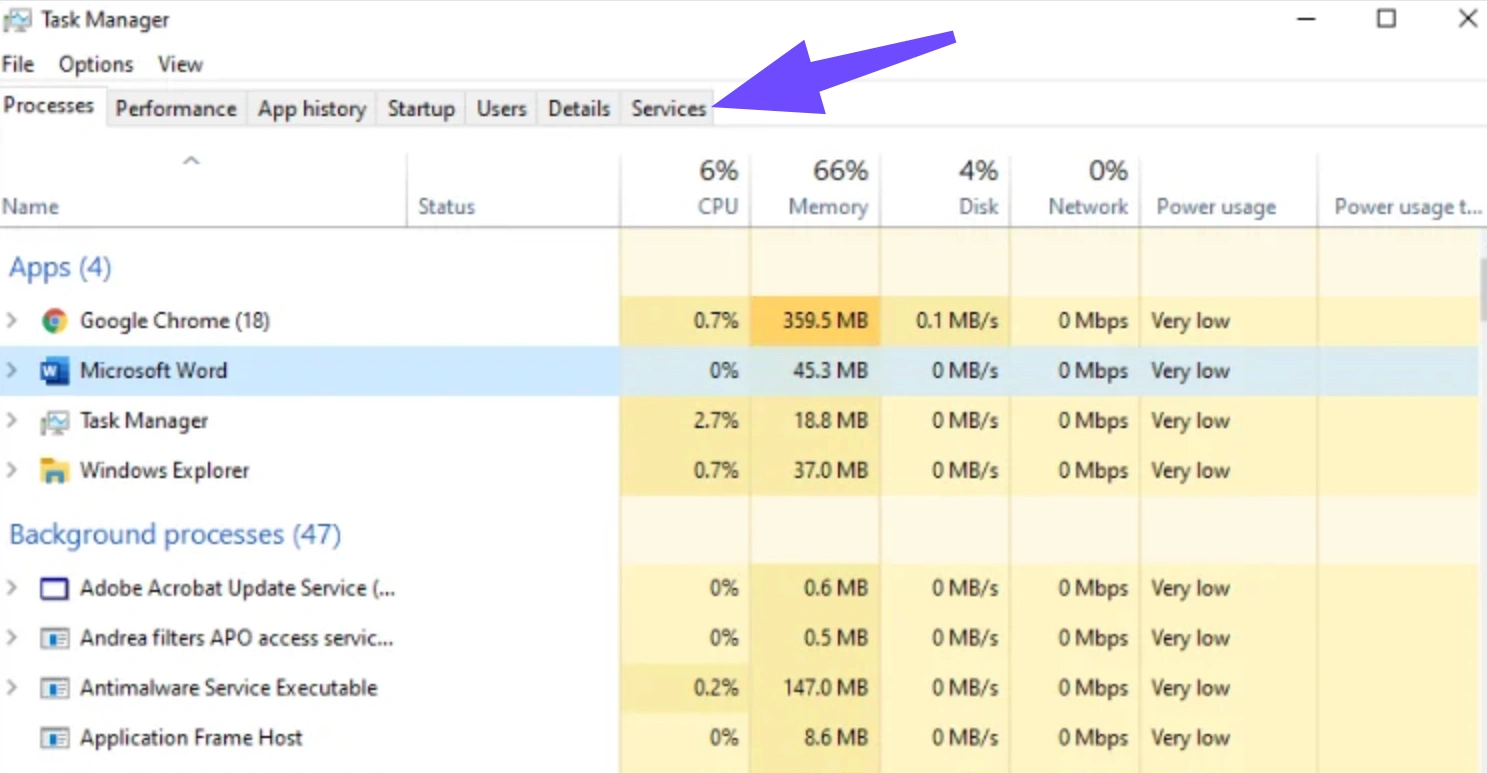
- Restart Windows Gaming Services: Open your Windows Task Manager (Ctrl + Shift + Esc), go to the Services tab, find GamingServices, right-click it, and hit Restart. This forces the PC Game Pass app to re-verify your $20 upgrade license with Microsoft's servers.
Part 5: Diagnosing Your Launch Error: The Ultimate Breakdown Table
Not every launch failure in Halo Campaign Evolved is caused by the artbook bug. To help you identify what is actually going wrong with your system, use the diagnostic table below to match your specific symptom to the correct fix.
|
Core Issue |
Primary Symptom |
Root Cause |
Best Working Solution |
|
Opens Artbook Instead of Game |
Steam or Xbox boots directly into the static Digital Story & Art Collection window. |
Storefront launcher maps the launch executable to the bundled art DLC. |
Use LagoFast Artbook Launch Fix OR uncheck the DLC in Steam Properties. |
|
Premium Upgrade Not Working |
Store page says you own the upgrade, but clicking Play does nothing or crashes. |
Storefront fails to link the $20 upgrade license to a base Game Pass subscription. |
Uninstall both base game and upgrade, then reinstall only the base campaign. |
|
Early Access Not Working |
You receive a pop-up stating "You're too early" when trying to launch during the 5-day early window. |
Local system clock or storefront cache is synced to the standard global release date. |
Run wsreset on PC or perform a 10-second hard power-cycle on Xbox consoles. |
|
Xbox App Not Launching |
Clicking Play in the PC Xbox App greys out for a second, then turns green again with no error. |
Windows Gaming Services background process is unresponsive or outdated. |
Restart GamingServices in Task Manager or update the Xbox App via Windows Store. |
|
General Not Launching |
Game window opens to a black screen, freezes, and crashes to desktop without an error code. |
GPU driver conflicts, missing DirectX shaders, or general software instability. |
Use LagoFast Game Crash Fix Tool, update GPU drivers, or verify file integrity. |
Part 6: Bonus Tip: How LagoFast Fixes Halo Campaign Evolved Stuttering and High Ping
Once you finally overcome the launch bugs and get your boots on the ground, a new challenge awaits: online performance. Halo's fast-paced, high-TTK (time-to-kill) gunfights demand pixel-perfect accuracy and responsive servers. Nothing ruins a flawless legendary run or a competitive multiplayer match faster than sudden packet loss, rubberbanding, or severe frame rate stutters.
Because Halo Campaign Evolved relies heavily on dynamic cross-platform matchmaking and high-tick-rate servers, routing your connection through standard ISP nodes often leads to suboptimal routing, resulting in high ping and latency spikes.
This is where LagoFast pulls double duty. It isn't just a launch tool; it is an all-in-one game booster engineered to optimize your entire gameplay experience:
- Real-Time Multipath Routing: LagoFast automatically scans global server clusters and routes your connection through the fastest, least congested proprietary transit nodes. This can lower your in-game ping by up to 30-50ms.
- Packet Loss Prevention: By utilizing dual-data transmission protocols, LagoFast ensures that if one packet drops over your local Wi-Fi or ISP network, a backup packet arrives instantly, completely eliminating stuttering and rubberbanding during firefights.
- One-Click FPS Boost: With a single toggle, LagoFast optimizes your Windows registry, parks idle CPU cores, and clears RAM junk, ensuring your system pushes maximum frame rates during intense explosions and large-scale vehicular combat.
If you want your gameplay to be as smooth as your launch, keep LagoFast running in the background whenever you boot up Halo.
Tutorial: Use LagoFast to Fix Halo Campaign Evolved Stuttering and High Ping:
Step 1: Click the Free Trial button to download and install LagoFast.
Step 2: Open LagoFast, then click the PC button on the left, search for Halo Campaign Evolved in the search bar, and click it after it appears.
Step 3: Click the FPS Unlocker Tool on the right to boost FPS.
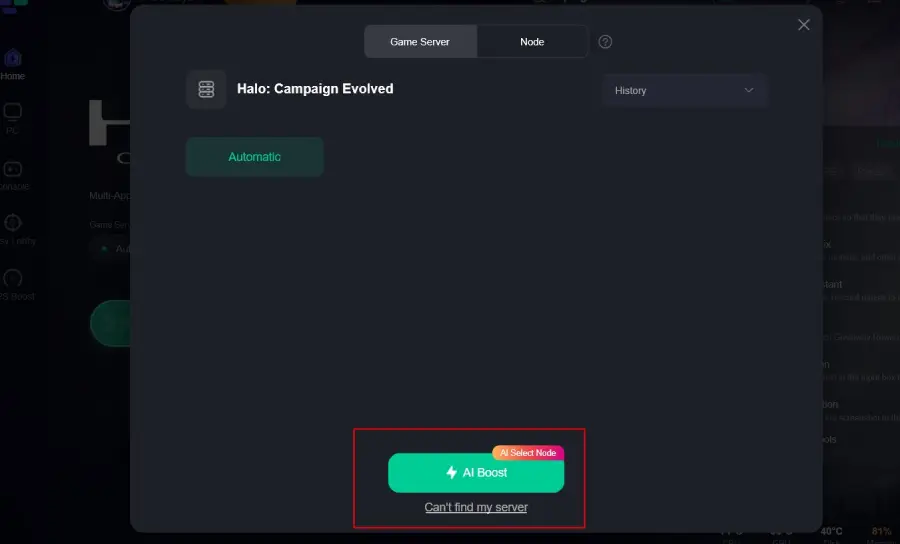
Step 4: Click on “Server” to change to a better server that ensures a better gaming experience, then click on “Smart Boost” to fix Halo Campaign Evolved lag and stuttering.
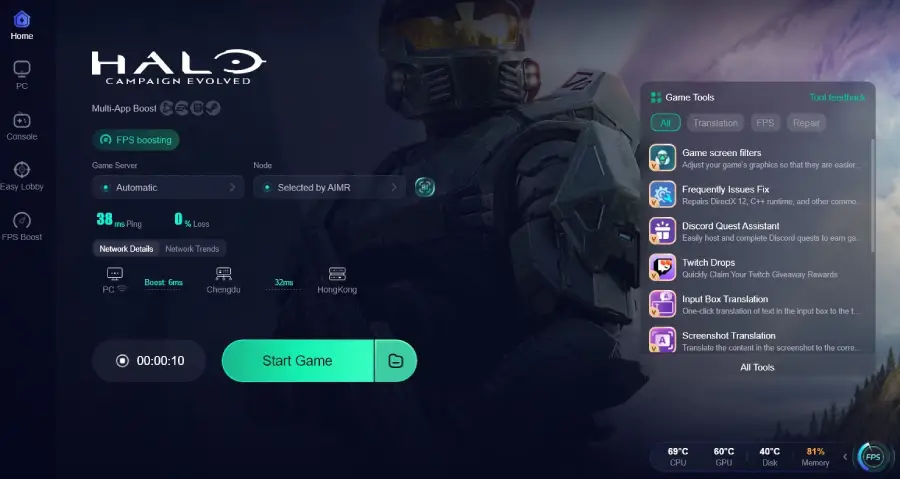
Step 5: Check the specific game ping, packet loss, and multiple path connections on the right side. Finally, click “Start Game” to play the game.
Part 7: Halo Campaign Evolved FAQs
Why does Halo Campaign Evolved only open the artbook?
This occurs because of an AppID indexing configuration error on Steam and the Xbox App. When the Premium Edition package is installed, the digital storefront mistakenly labels the Digital Story & Art Collection executable as the primary file to launch, ignoring the actual game engine executable.
Will disabling the Digital Story & Art Collection delete my campaign save files?
No. Disabling or uninstalling the artbook DLC only removes the digital concept art, soundtracks, and manuals from your hard drive. Your campaign progress, multiplayer stats, controller settings, and save files are stored in a completely different system directory and cloud directory, remaining 100% safe.
How do I fix "You're too early" after buying the Game Pass Premium Upgrade?
If you bought the $20 upgrade to play early but are locked out, your local storefront cache is out of sync. On PC, press Win + R, type wsreset.exe, and let the store refresh. On Xbox Series X|S, hold the power button for 10 seconds to clear the system cache, then reboot.
Does the LagoFast Artbook Launch Fix work on both Steam and Xbox PC Game Pass?
Yes. The LagoFast 1-click tool is designed to recognize installation paths across multiple storefronts, including Steam, the EA App, Epic Games, and the Microsoft/Xbox PC App. It modifies the launch routing seamlessly regardless of where you purchased the game.
How can I read the digital artbook later if I disable it to play the game?
Once you are done playing the game and want to check out the art collection, simply return to your Steam properties or Xbox Add-ons menu and re-check the box next to Digital Story & Art Collection. It will quickly re-download (usually around 2-3 GB), allowing you to open the booklet.
Why does Halo Campaign Evolved crash to a black screen after fixing the DLC bug?
If you successfully bypassed the artbook bug but now experience a black screen crash upon startup, it is typically caused by outdated graphics drivers or software overlays. Update your AMD/NVIDIA drivers to the latest Game Ready release, and disable Discord, Steam, and NVIDIA overlays before launching.
Conclusion
Don't let a sloppy DLC launch bug ruin your return to one of gaming's greatest campaigns. Whether you use the instant LagoFast Artbook Launch Fix for a 1-click solution or manually uncheck the conflicting artbook in your Steam DLC settings, bypassing the error takes less than two minutes. Apply the fix, fire up your optimized connection, and jump into the action.
Boost Your Game with LagoFast for Epic Speed
Play harder, faster. LagoFast game booster eliminates stutter and lags on PC, mobile, or Mac—win every match!
Quickly Reduce Game Lag and Ping!
Boost FPS for Smoother Gameplay!