

Few things kill the excitement of tackling a legendary Halo campaign with your squad faster than watching your screen freeze or getting kicked back to the main menu mid-fight. Halo Campaign Evolved brings classic sci-fi combat into the modern era, but its multiplayer netcode, peer-to-peer host synchronization, and cross-platform handshakes aren't always seamless.
If you're dealing with Halo Campaign Evolved co-op not working, random lobby drops, or infinite loading screens, you aren't alone. This guide breaks down why these network failures happen and provides direct, step-by-step solutions to get your fireteam back in action.

- ✅ Reduce Lag and High Ping.
✅ Boost FPS at the Same Time.
✅ Support 3000+ Popular Online Games.
✅ Change Server without Latency.
✅ Boost Game Loading Speed.
Part 1: Halo Campaign Evolved Co-op Not Working Overview: Issues, Causes & Quick Fixes
Part 2: Fix Halo Campaign Evolved Can't Join Friends
Part 3: Fix Halo Campaign Evolved Connection Interrupted
Part 4: Fix Halo Campaign Evolved Crossplay Not Working
Part 5: Fix Halo Campaign Evolved Co-op Disconnecting
Part 6: Fix Halo Campaign Evolved Fireteam Connection Failed
Part 7: Fix Halo Campaign Evolved Stuck in Co-op Loading Screen
Part 8: Fix Kicked to Main Menu After Starting Campaign Mission
Part 9: Fix NAT Type, Xbox Networking, or Region Settings Anomalies
Part 10: Fix Screen Freezes After 3+ Players Exit
Part 11: Stabilize Your Network Connection for a Smooth Halo Co-op Experience
Part 12: Halo Campaign Evolved FAQs
Part 1: Halo Campaign Evolved Co-op Not Working Overview: Issues, Causes & Quick Fixes
Co-op connection issues usually stem from a mix of local network instability, mismatched system load speeds, misconfigured Xbox network settings, or ISP routing bottlenecks. Below is a quick diagnostic cheat sheet covering the most frequent errors reported by players:
|
Issue |
Primary Root Cause |
Quick Fix |
|
Can't Join Friends |
Strict NAT type, party privacy locks, or Xbox Live account desync |
Set party to Open; sync Windows/Console time settings |
|
Connection Interrupted |
Sudden packet loss, unstable Wi-Fi, or ISP routing drops |
Switch to wired Ethernet; flush DNS cache |
|
Crossplay Not Working |
Load speed mismatch between PC (SSD) and older consoles/HDDs |
Cap frame rates; move game files to a fast NVMe SSD |
|
Co-op Disconnecting Mid-Game |
Unstable host migration or high jitter during cutscene transitions |
Forward gaming ports; optimize network routing via LagoFast |
|
Fireteam Connection Failed |
Network handshake timeout or broken local firewall permissions |
Re-invite through in-game menu; allow app through firewall |
|
Stuck on Loading Screen |
Corrupted local cache, asset streaming stalls, or shader desync |
Clear temporary cache; verify game file integrity |
|
Kicked to Menu After Starting |
Content/language pack mismatch or host authority drop |
Align installed DLCs; match in-game audio/language settings |
|
NAT / Region / Xbox Network Bug |
Blocked Teredo IPsec interface or mismatched regional server nodes |
Repair Teredo adapter state; set static IP address |
|
Screen Freezes After Players Exit |
Memory leak / engine freeze triggered by simultaneous host renegotiation |
Stagger party exits; pause game before members quit |
Part 2: Fix Halo Campaign Evolved Can't Join Friends
Getting a "Failed to Join" error when inviting squadmates is usually tied to account privacy settings, out-of-sync system clocks, or local party permissions blocking handshakes between platforms.
Steps to Fix:
Step 1. Verify Party Privacy Settings: Open the in-game Social menu, check your fireteam privacy, and switch it from "Invite Only" or "Closed" to "Open" or "Friends Only."
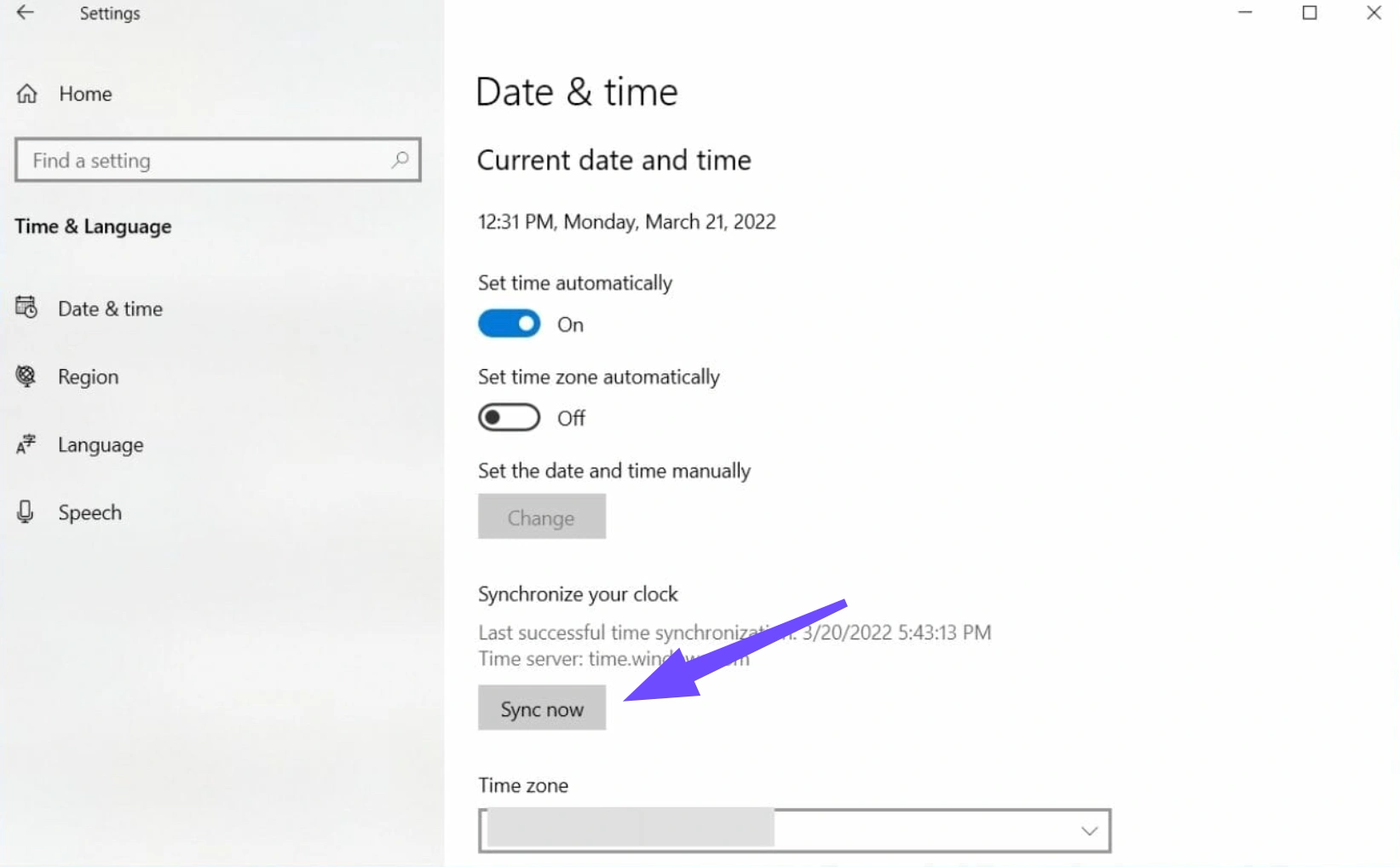
Step 2. Synchronize System Clock: On PC, go to Settings, select Time & Language, select Date & Time, and click Sync Now. On console, perform a full restart while connected to Xbox Network to ensure time synchronization.
Step 3. Reset In-Game Social Session: Have all party members return to the main menu, disband the current lobby, and create a brand-new party from scratch.
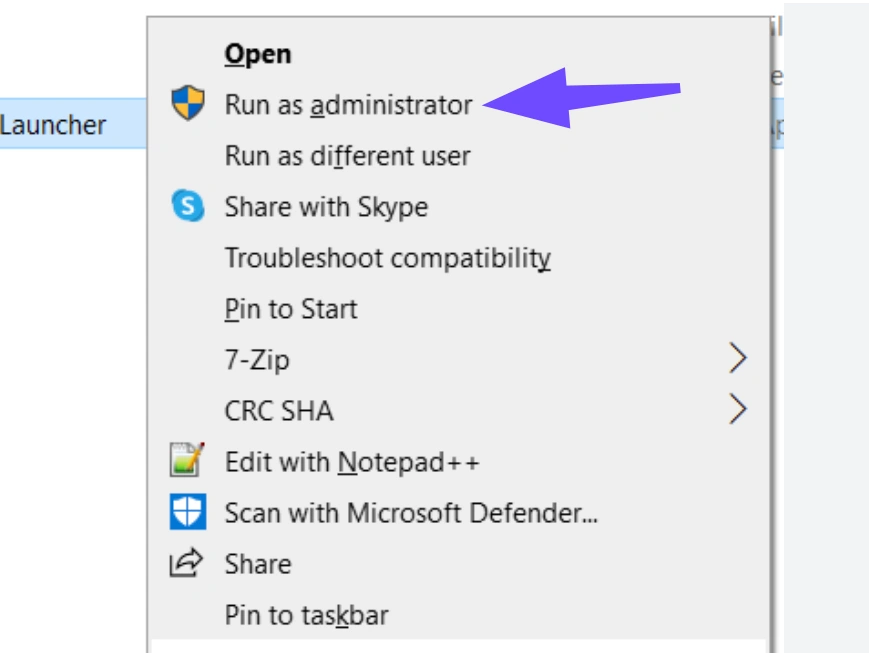
Step 4. Restart Xbox App & Steam Services: Close Halo completely. End processes for Steam or Xbox App via Task Manager (Ctrl + Shift + Esc), then relaunch the launcher as Administrator.
Step 5. Re-Add Xbox Friends: If crossplay joining fails repeatedly, remove your friend on the Xbox App or Companion app and send a fresh friend request before attempting to join again.
Part 3: Fix Halo Campaign Evolved Connection Interrupted
The dreaded "Connection Interrupted" pop-up occurs when your connection experiences severe packet loss or latency spikes. When the host and client stop exchanging data packets for even two seconds, the game cuts the link to prevent severe desync.
Steps to Fix:
Step 1. Switch to a Direct Ethernet Connection: Unplug Wi-Fi dongles or disconnect from wireless networks. Plug a physical Cat6 Ethernet cable directly from your router to your PC or console.
Step 2. Flush Your DNS Cache (PC): Open Command Prompt as Administrator (cmd), type ipconfig /flushdns, and hit Enter. Follow it with netsh winsock reset and restart your PC.
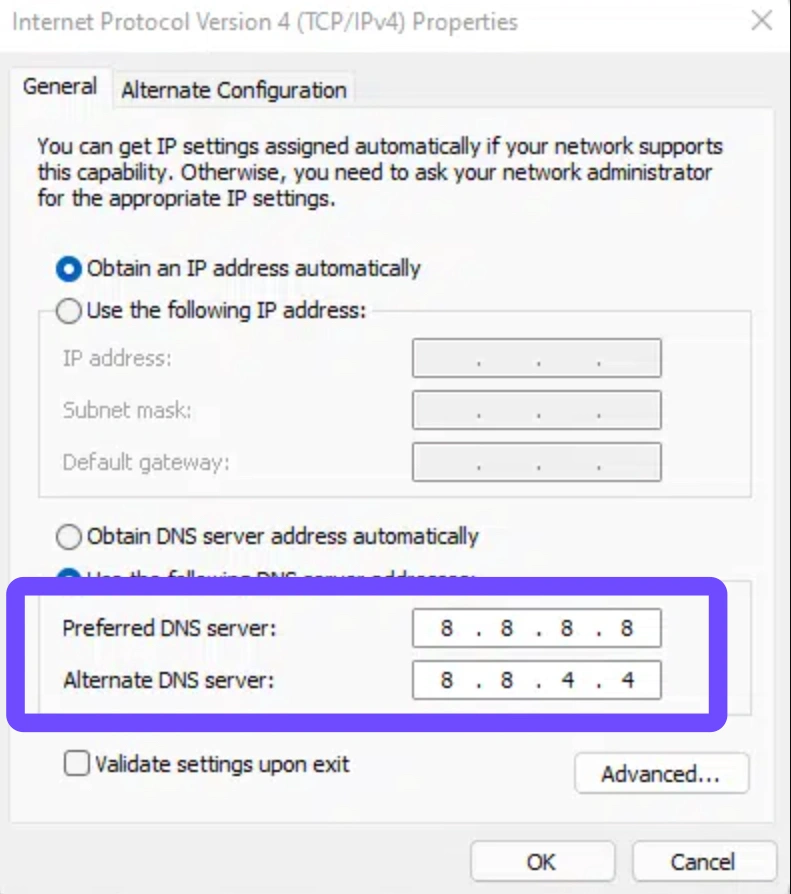
Step 3. Change to Public DNS Servers: Access your network adapter settings and assign Google Public DNS (Primary: 8.8.8.8, Secondary: 8.8.4.4) or Cloudflare (1.1.1.1).
Step 4. Power Cycle Your Router: Unplug your modem and router power cords for 30 seconds. Plug them back in to clear stale routing tables and clear internal buffer bloat.
Step 5. Pause Background Downloads: Ensure Steam, Xbox App, BitTorrent, cloud backups, or video streams aren't running in the background on any device connected to your network.
Part 4: Fix Halo Campaign Evolved Crossplay Not Working
When playing across PC, Xbox Series X/S, or older platforms, crossplay often drops during level transitions. The most common cause is a asset loading speed mismatch: if a high-end PC loads the map assets in 4 seconds while a friend on an older drive takes 30 seconds, the engine assumes a dropped connection and terminates the session.
Steps to Fix:
Step 1. Move Game to High-Speed Storage: Ensure Halo Campaign Evolved is installed on a fast NVMe or SATA SSD rather than a traditional mechanical Hard Disk Drive (HDD).
Step 2. Lower Graphics Settings & Streaming Quality: On PC, turn down Texture Filtering and Environment Detail slightly to speed up background asset compilation during loading screens.
Step 3. Match Frame Rate Caps: Lock your maximum FPS (e.g., to 60 FPS or 120 FPS) in the display settings so the engine isn't attempting to sync wildly different frame rates across hardware.
Step 4. Toggle Crossplay Settings: Turn off Crossplay in the gameplay settings menu, apply changes, restart the game, and then turn Crossplay back on to force a clean platform bridge.
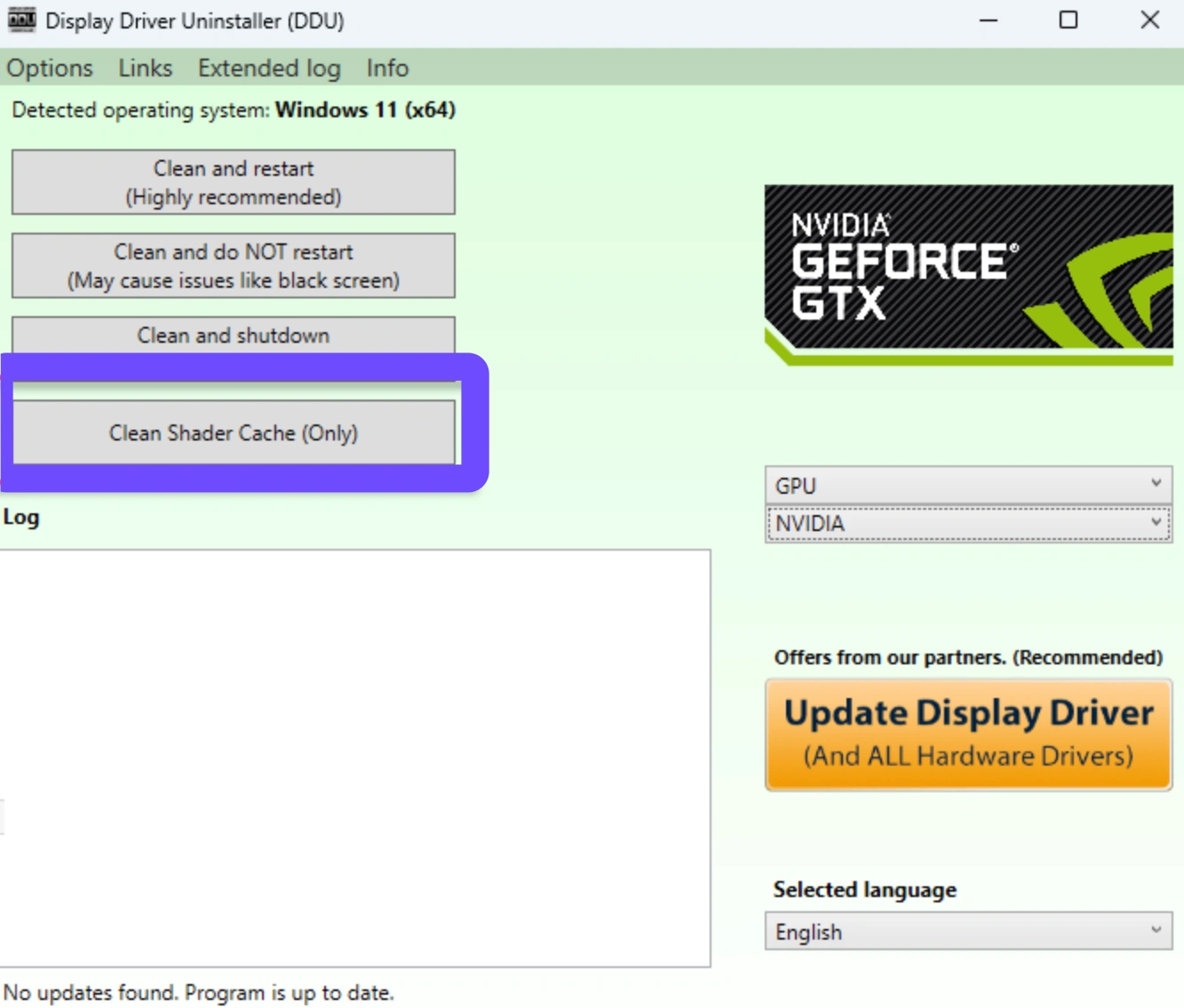
Step 5. Clear Shader Cache: On PC, open graphics software (NVIDIA Control Panel or AMD Software) and clear your global shader cache folder before starting a crossplay campaign.
Part 5: Fix Halo Campaign Evolved Co-op Disconnecting
Mid-mission disconnects are the most frustrating co-op bugs because losing your link halfway through a long level can wipe out campaign checkpoint progress or force a complete level restart.
Steps to Fix:
Step 1. Configure UPnP on Your Router: Log into your router's gateway interface (usually 192.168.1.1) and enable UPnP (Universal Plug and Play) to allow automated port assignment.
Step 2. Enable Manual Port Forwarding: Forward key Halo and Xbox Network ports on your router:
-
UDP: 88, 500, 3074, 3544, 4500
-
TCP: 80, 3074
Step 3. Disable Third-Party Antivirus Firewalls: Temporarily disable aggressive firewalls (like Bitdefender or Norton) that might flag peer-to-peer data transfers as suspicious traffic.
Step 4. Disable IPv6 (If Unstable): If your ISP has poor IPv6 implementation, go to your Network Adapter settings in Windows and uncheck Internet Protocol Version 6 (TCP/IPv6).
Step 5. Use a Network Optimization Tool: Route your game traffic through dedicated routes using LagoFast to bypass unstable ISP nodes that cause sudden mid-campaign disconnects.
Part 6: Fix Halo Campaign Evolved Fireteam Connection Failed
This error occurs during the initial handshaking phase when entering a lobby. If party tokens expire or local network security blocks incoming handshake requests, the fireteam creation fails instantly.
Steps to Fix:
Step 1. Use In-Game Invites Only: Avoid joining through Steam overlays or Xbox Game Bar. Send invites exclusively using the internal Halo main menu social interface.
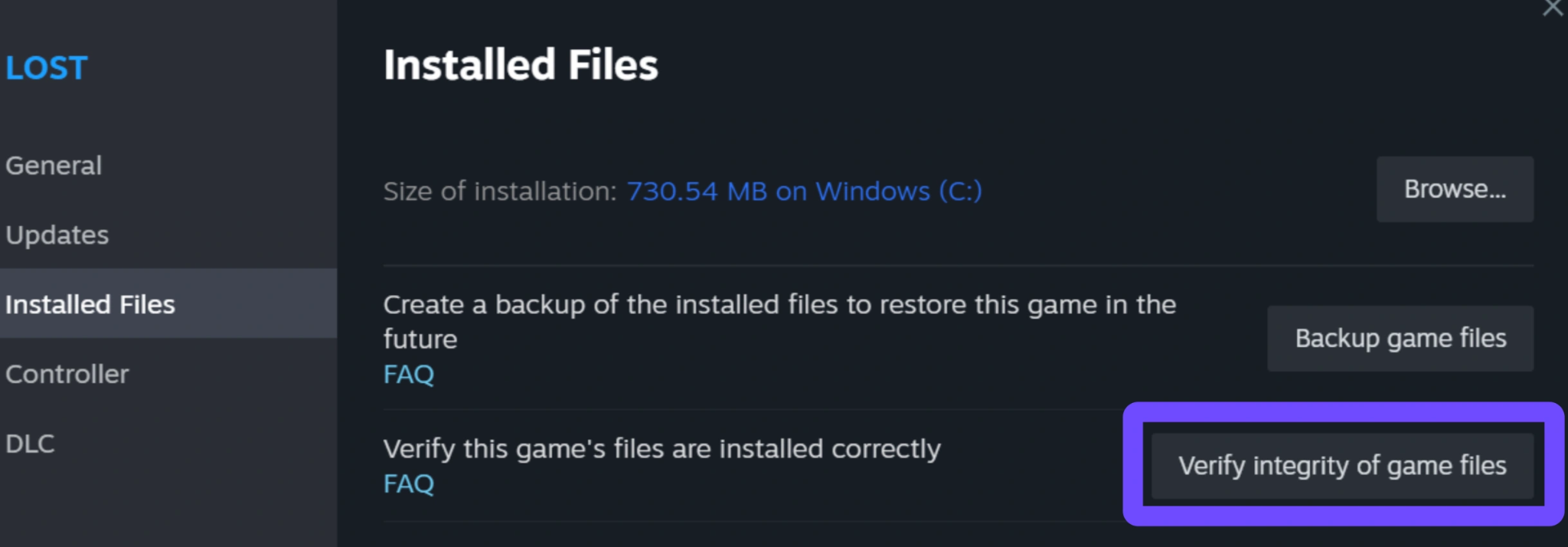
Step 2. Verify Game Files: On Steam, right-click Halo Campaign Evolved, select Properties, select Installed Files, select Verify integrity of game files. On Xbox App, choose Manage, select Files, and select Verify and Repair.
Step 3. Clear Xbox Live Credential Cache: Press Win + R, type services.msc, locate Xbox Live Auth Manager, right-click and hit Restart.
Step 4. Reset Windows Network Adapter: Go to Settings, select Network & Internet, select Advanced network settings, and select Network reset and restart your computer.
Step 5. Re-login to Your Xbox Profile: Sign out of your Xbox profile inside the Halo main menu, close the game, re-open it, and sign back in to refresh token authorization.
Part 7: Fix Halo Campaign Evolved Stuck in Co-op Loading Screen
If your lobby screen hangs indefinitely at 99% or gets trapped on the loading map backdrop, the game has failed to sync campaign state data between host and client.
Steps to Fix:
Step 1. Force Windowed Mode During Load: Press Alt + Enter when the loading screen starts to force the renderer into windowed mode, which can prevent render-thread freezes.
Step 2. Delete Temporary Save Cache: Clear local save caches (your progress remains safely stored in the cloud). On Xbox, go to Manage game and add-ons, select Saved data and delete local saves.
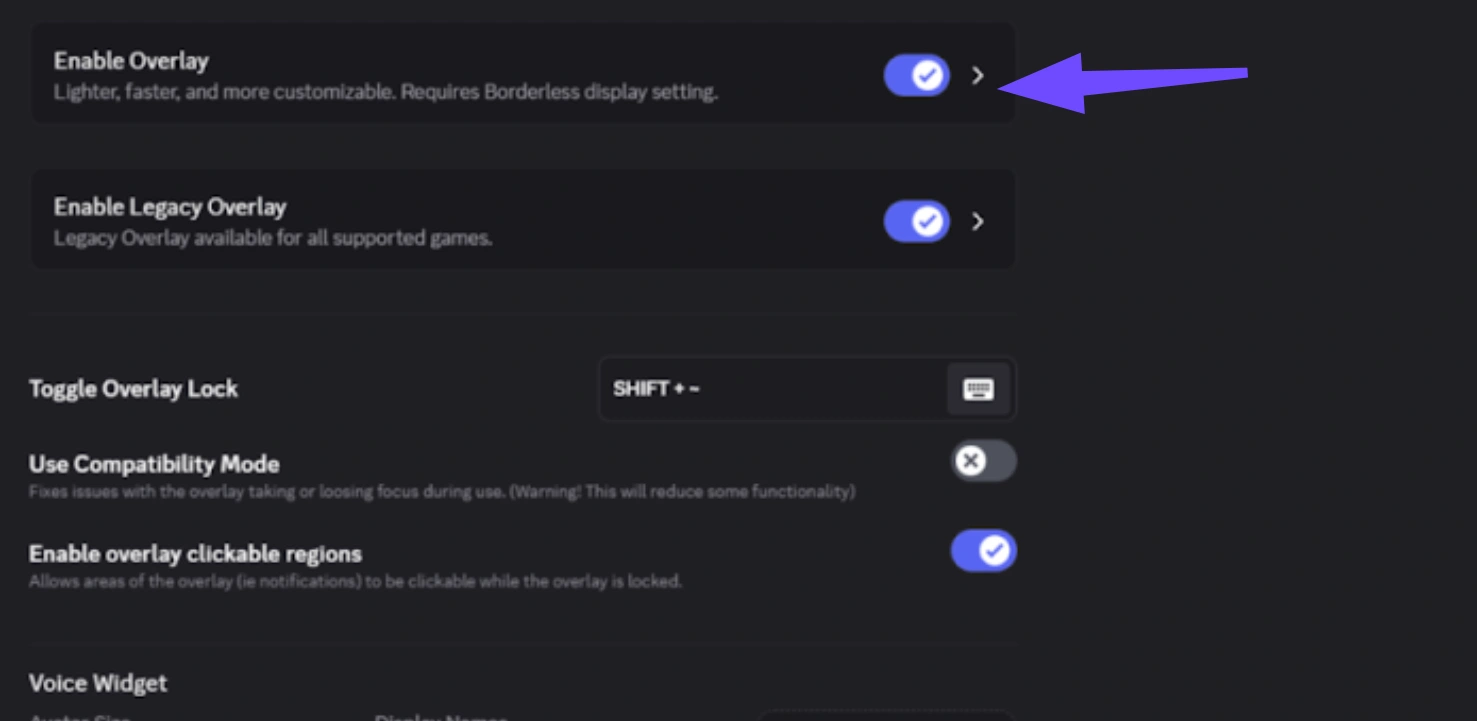
Step 3. Disable All In-Game Overlays: Turn off Discord Overlay, GeForce Experience In-Game Overlay, and MSI Afterburner / RTSS stat trackers before launching co-op.
Step 4. Reinstall Campaign Asset Packages: Ensure all campaign high-resolution texture packs or DLC modular files are completely installed across all party members' systems.
Step 5. Swap Room Leaders: Have a different player host the fireteam. The player with the fastest storage drive and lowest ping should always act as lobby host.
Part 8: Fix Kicked to Main Menu After Starting Campaign Mission
A common issue in campaign co-op occurs when players successfully join the lobby, select a mission, and hit start, only to be kicked straight back to the main menu as soon as the cutscene begins.
Steps to Fix:
Step 1. Match Installed Campaign Add-ons: Verify that every player in the lobby has installed identical content packs (e.g., optional campaign language packs, remastered graphics packs).
Step 2. Standardize Language Settings: Ensure all party members have selected the same primary text and voice language in the audio settings menu.
Step 3. Skip Intros Automatically: Set cinematic cutscenes to "Skip" or have the host press the skip button immediately upon level entry to avoid audio-sync dropouts.
Step 4. Run Game as Administrator: Right-click the game executable (.exe) file, navigate to Properties, select Compatibility, and check Run this program as an administrator.
Step 5. Check Host Migration Permissions: Ensure the lobby host has an Open NAT type so client connections don't drop when switching from the lobby server to the local campaign host state.
Part 9: Fix NAT Type, Xbox Networking, or Region Settings Anomalies
Strict or Unavailable NAT types, alongside Teredo adapter glitches on Windows, prevent multiplayer packets from negotiating peer connections properly.
Steps to Fix:
Step 1. Check and Repair Teredo State (PC): Open Command Prompt as Administrator and enter:
- netsh interface teredo set state type=default
- netsh interface teredo show state
Step 2. Enable DMZ for Your Gaming Device (Advanced): Assign a static IP address to your gaming PC or console, and temporarily add that IP to your router’s DMZ (Demilitarized Zone) section.
Step 3. Turn On Network Discovery: In Windows Control Panel, navigate to Network and Sharing Center, select Change advanced sharing settings, and turn on Network Discovery.
Step 4. Match Matchmaking Regions: Ensure all squad members manually select the same matchmaking server region in the Halo network settings menu (e.g., US-East, Europe West).
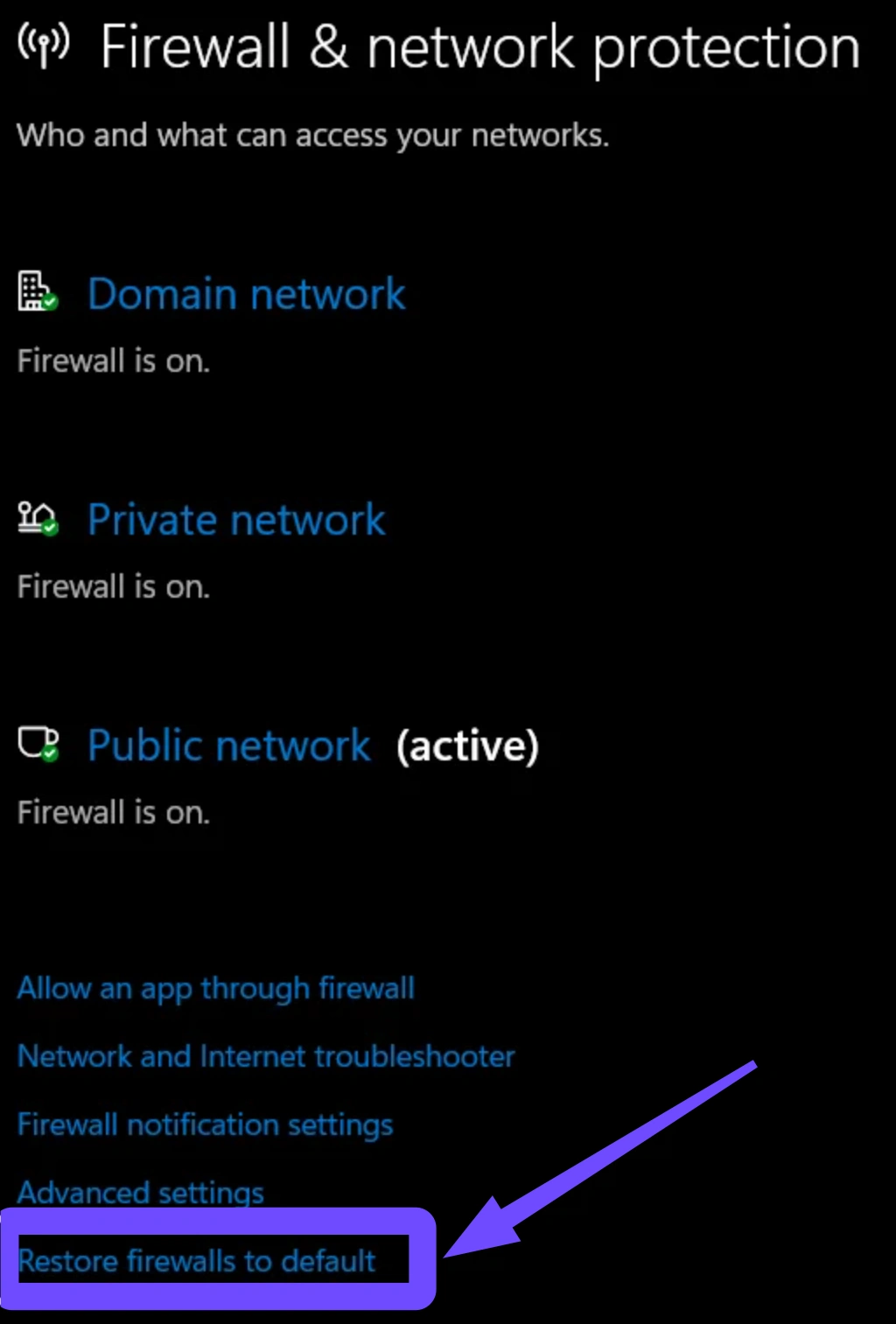
Step 5. Reset Windows Firewall Rules: Open Windows Security, select Firewall & network protection, select Restore firewalls to default, then allow Halo through both Public and Private networks upon prompt.
Part 10: Fix Screen Freezes After 3+ Players Exit
In 4-player co-op, if three or more players quit or disconnect at the exact same time, the host engine often panics during thread recalculation, causing the screen to freeze solid for the remaining player.
Steps to Fix:
Step 1. Stagger Party Departures: Instruct party members to leave the game one at a time, allowing 5–10 seconds between exits so the engine can process host state updates cleanly.
Step 2. Pause Before Exiting: Have the lobby host pause the game menu before any player selects "Quit to Desktop" or "Leave Fireteam."
Step 3. Lower VRAM Limits: Reduce the game's maximum graphics memory allocation limit in video settings to prevent background memory allocation crashes during sudden player departures.
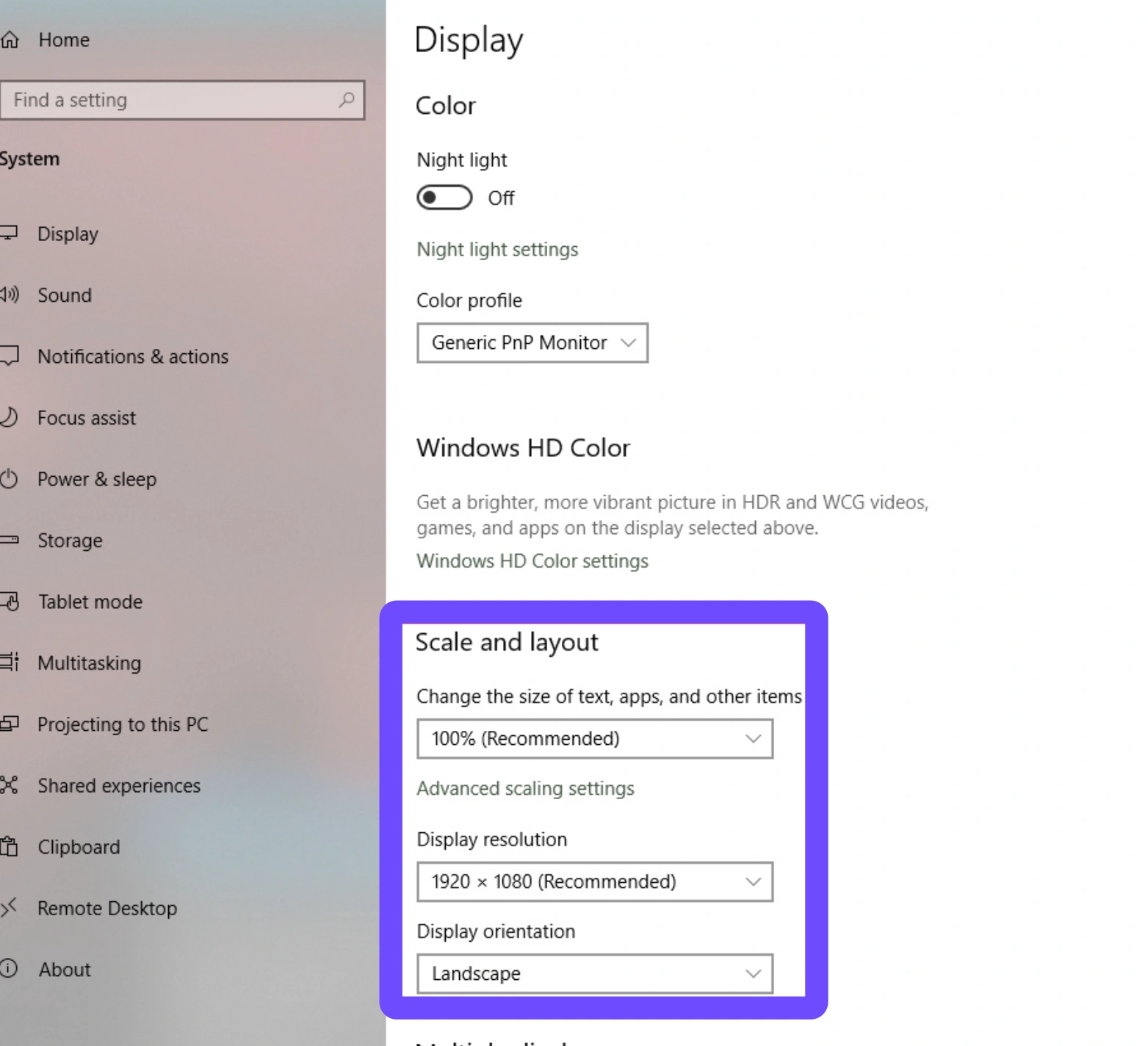
Step 4. Toggle Windowed Fullscreen: Use Borderless Windowed mode instead of Exclusive Fullscreen so the game process doesn't lock up display adapters during sudden network shifts.
Step 5. Recover via Task Manager without Closing: If frozen, press Alt + Tab out and back into the game process, which can force the render buffer to re-render the active scene.
Part 11: Stabilize Your Network Connection for a Smooth Halo Co-op Experience
While manual troubleshooting solves local config errors, it cannot fix bad ISP routing or internet congestion between you and your fireteam. This is where LagoFast comes in.
LagoFast is a specialized gaming booster designed specifically to solve packet loss, high ping, and co-op desync issues in online games like Halo.
Key Features of LagoFast:
- Multipath Smart Routing: LagoFast dynamically redirects your game data across multi-route pathways, avoiding broken ISP nodes that cause the Halo Campaign Evolved connection interrupted error.
- Fixes Crossplay Desync: By reducing packet jitter and keeping latency rock-solid, LagoFast balances loading transitions across different platforms.
- One-Click FPS & Network Boost: Optimizes background system tasks and network hardware configurations with a single click.
- Cross-Region Optimization: Enables smooth connections to international fireteams without severe latency penalties.
Tutorial: Use LagoFast to Stabilize Your Network Connection:
Step 1. Download and install LagoFast on your PC.
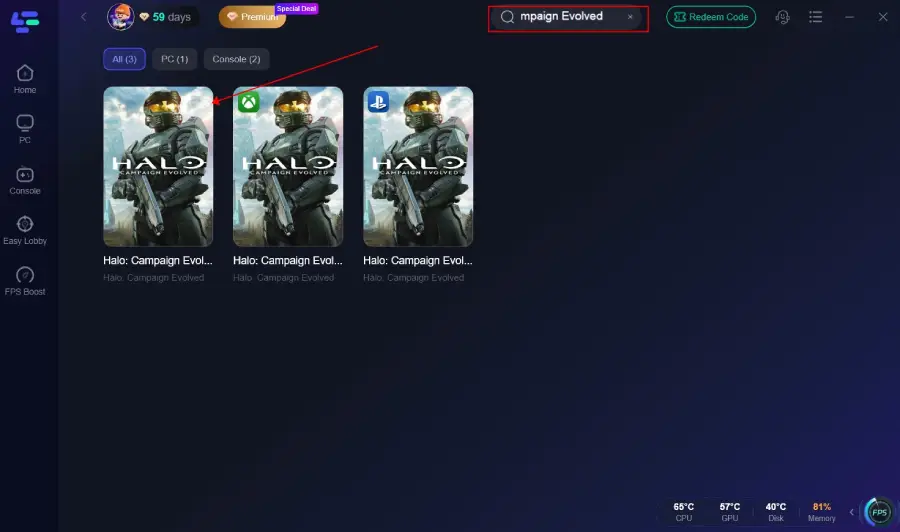
Step 2. Launch LagoFast and type Halo Campaign Evolved into the search bar.
Step 3. Select the game node and choose the region closest to your actual location (or the server region you play on).
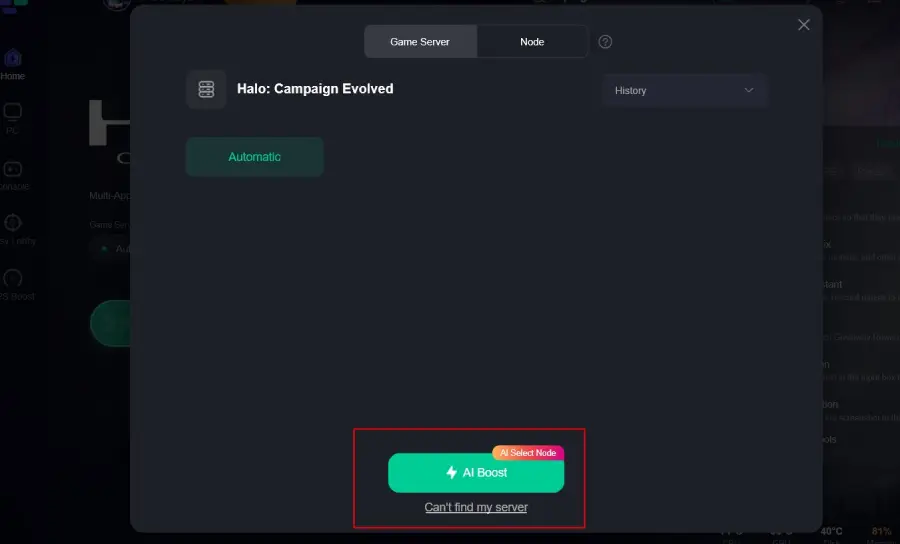
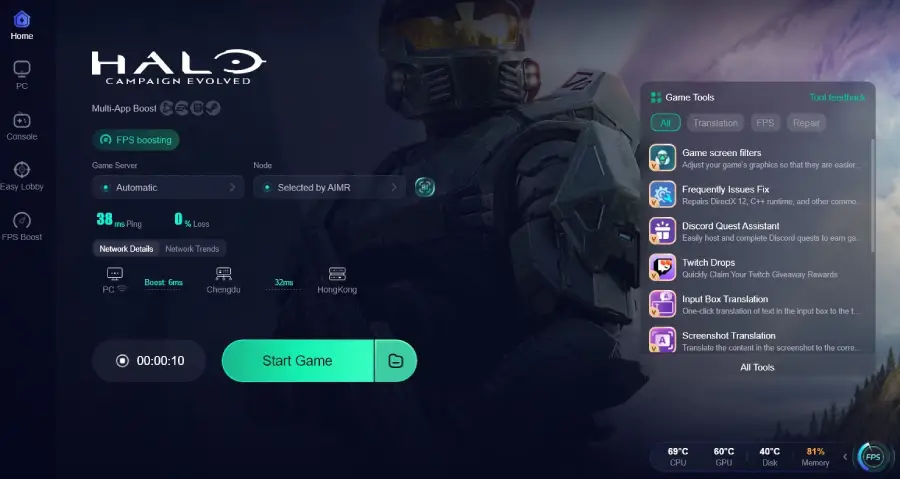
Step 4. Click the "Boost" button. LagoFast will instantly optimize your routing, stabilize your packet transfer rate, and lower your ping. Launch the game directly from the boosted screen and enjoy the smooth gaming experience.
Part 12: Halo Campaign Evolved FAQs
Why does Halo Campaign Evolved co-op disconnect so frequently?
Co-op campaign modes use tight host-client state synchronizations to manage AI pathfinding, physics, and campaign triggers simultaneously. Any tiny network drop or frame rate mismatch causes the engine to disconnect the session to prevent total desync.
How do I fix "Halo Campaign Evolved Fireteam Connection Failed"?
Check that your NAT type is set to Open or Moderate, ensure Windows Time settings are auto-synced, verify your game installation files, and use in-game invites rather than platform overlays.
Can I play Halo Campaign Evolved co-op crossplay between PC and Xbox?
Yes, crossplay is supported. However, to prevent loading screen hangs or disconnects, ensure both players have the game installed on fast SSD drives and have matched their network region settings.
Do I need a subscription to play online co-op?
Yes, online network co-op play generally requires an active subscription depending on your platform (such as Xbox Game Pass or PlayStation Plus), though local split-screen rules may vary.
Can I play crossplay co-op between PC and consoles?
Absolutely. Halo Campaign Evolved supports full cross-platform cooperative play across PC, Xbox Series X/S, and PlayStation 5.
How do I fix persistent lag spikes during heavy combat sequences?
Lowering your graphics settings, updating network drivers, and running a specialized game booster like LagoFast will dramatically stabilize your packet delivery during intense firefights.
Conclusion
Co-op connection bugs don't have to ruin your campaign. By adjusting your local network configuration, verifying installed game files, fixing Teredo adapter settings, and balancing frame rates across crossplay devices, you can eliminate most party dropouts. For the smoothest possible experience free of packet loss and high ping, run LagoFast before launching your next mission to keep your connection locked and stable from start to finish.

Boost Your Game with LagoFast for Epic Speed
Play harder, faster. LagoFast game booster eliminates stutter and lags on PC, mobile, or Mac—win every match!
Quickly Reduce Game Lag and Ping!
Boost FPS for Smoother Gameplay!