
Halloween: The Game fully supports crossplay between PC, PlayStation 5, and Xbox Series X|S, but party matchmaking bugs currently disrupt cross-platform lobbies. Many players encounter lobby kicks, party separation, or infinite loading screens when queuing with friends on other platforms. While solo matchmaking usually functions normally, crossplay lobbies require specific workaround fixes or network routing tools like LagoFast to stabilize your matchmaking connection. Understanding which platforms connect helps narrow down whether your matchmaking issues stem from account setup or network glitches. The following breakdown covers current platform compatibility details.

- ✅ Reduce Lag and High Ping.
- ✅ Boost FPS at the Same Time.
- ✅ Support 8000+ Popular Online Games.
- ✅ Stable Server Connection
Part 1: Does Halloween: The Game Support Crossplay?
Part 2: Why Is Halloween: The Game Crossplay Not Working?
Part 3: How to Add Crossplay Friends
Part 4: How to Fix Halloween: The Game Crossplay Not Working
Part 5: Improve Crossplay Matchmaking Connection with LagoFast
Part 1: Does Halloween: The Game Support Crossplay?
Halloween: The Game supports crossplay across all major launch platforms. Players on PC, PlayStation 5, and Xbox Series X|S can join the same multiplayer matches using the in-game friend code system.
|
Platform Feature |
Support Status |
Platform Details |
|
PC (Steam / Epic Games) |
Supported |
Full crossplay with console platforms |
|
PlayStation 5 |
Supported |
Full crossplay with PC and Xbox |
|
Xbox Series X |
S |
Supported |
|
Cross-Progression |
Not Supported |
Progress and cosmetics remain tied to one platform |
While crossplay matchmaking functions across all three platforms, cross-progression is not available. Your character levels, perk unlocks, and purchased cosmetics stay locked to the specific platform where you earned them.
Crossplay errors frequently appear during party invites or queueing transitions rather than inside active matches. Identifying the specific error behavior helps you choose the correct fix.
Part 2: Why Is Halloween: The Game Crossplay Not Working?
The primary causes of crossplay failures stem from server synchronization errors, strict network NAT types, and bugged party lobbies. These issues present themselves in four distinct ways during multiplayer sessions.
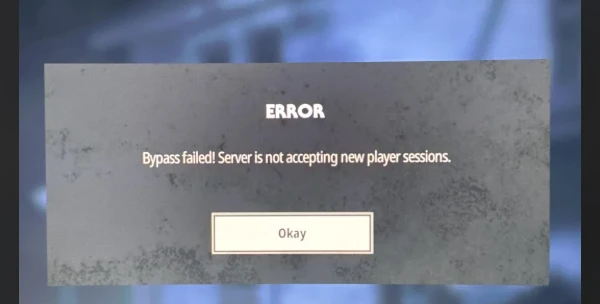
- Bypass Failed Error: Occurs when cross-network security verification fails between PC and console authentication servers during party formation.
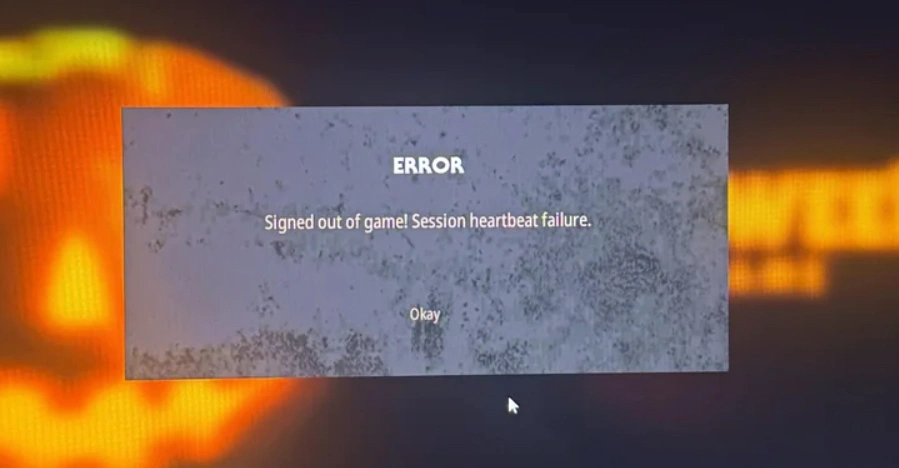
- Kicked from Party: High latency variance or sudden packet spikes cause the host server to drop cross-platform guests before loading into Haddonfield.
- Party Separated in Matchmaking: The party leader gets pulled into a live match while crossplay teammates remain stranded in the main menu or get sent to solo lobbies.
- Solo Queue Works Fine: Solo matchmaking connects directly to local servers, proving that the problem lies within multi-platform party state syncing rather than total server downtime.
These errors usually trigger when players attempt to queue while in an unverified party state or when strict router settings block cross-platform data packets.
Connecting with friends across console and PC requires using the internal player identification system rather than system-level friends lists. Follow these steps to pair your accounts properly.
Part 3: How to Add Crossplay Friends
Adding cross-platform players relies on the unique Friend Code generated within the game client. System friends lists on Steam, PlayStation Network, or Xbox Live will not display players on other consoles.
Step 1. Open Halloween: The Game and click the Friends icon located in the top-left corner of the main menu.
Step 2. Navigate to the second tab in the Friends menu to view your unique Friend Code.
Step 3. Share your Friend Code with your crossplay partner, or enter their code into the search box.
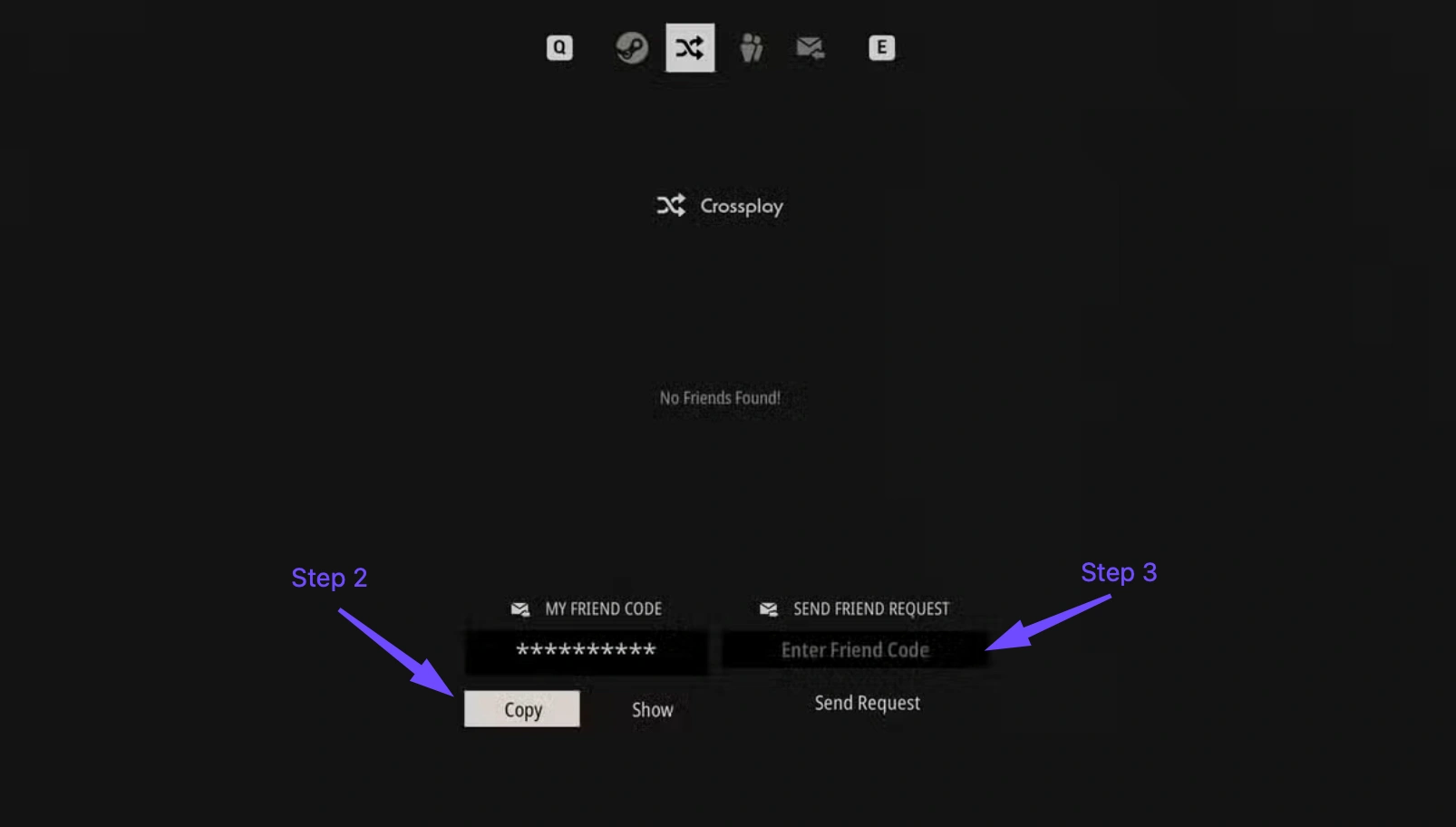
Step 4. Send the friend request and have your partner accept it from their incoming requests list.
Step 5. Confirm that their name appears on your in-game crossplay friends list before creating a group lobby.
- Both players must have crossplay enabled in their console or game privacy settings.
- Friend codes are case-sensitive and must be entered exactly as displayed on screen.
- If a friend code request fails to send, have the player on the opposite platform host and send the code instead.
When crossplay party invites crash or disconnect, running through tested workaround methods restores lobby stability. Use these six fixes to get your squad back into Haddonfield together.
Part 4: How to Fix Halloween: The Game Crossplay Not Working
Network desync and party bugging require systematic troubleshooting steps to restore stable cross-platform matchmaking.
The following method addresses crossplay party synchronization issues by building a squad inside an active game lobby before queueing.
Fix 1: Lobby First, Invite to Game
Party leaders often experience match dropping when queuing directly from the main menu screen.
Step 1. Have the party leader create a pre-match lobby first rather than inviting from the title menu.
Step 2. Send cross-platform game invites to your squad members once the lobby room is active.
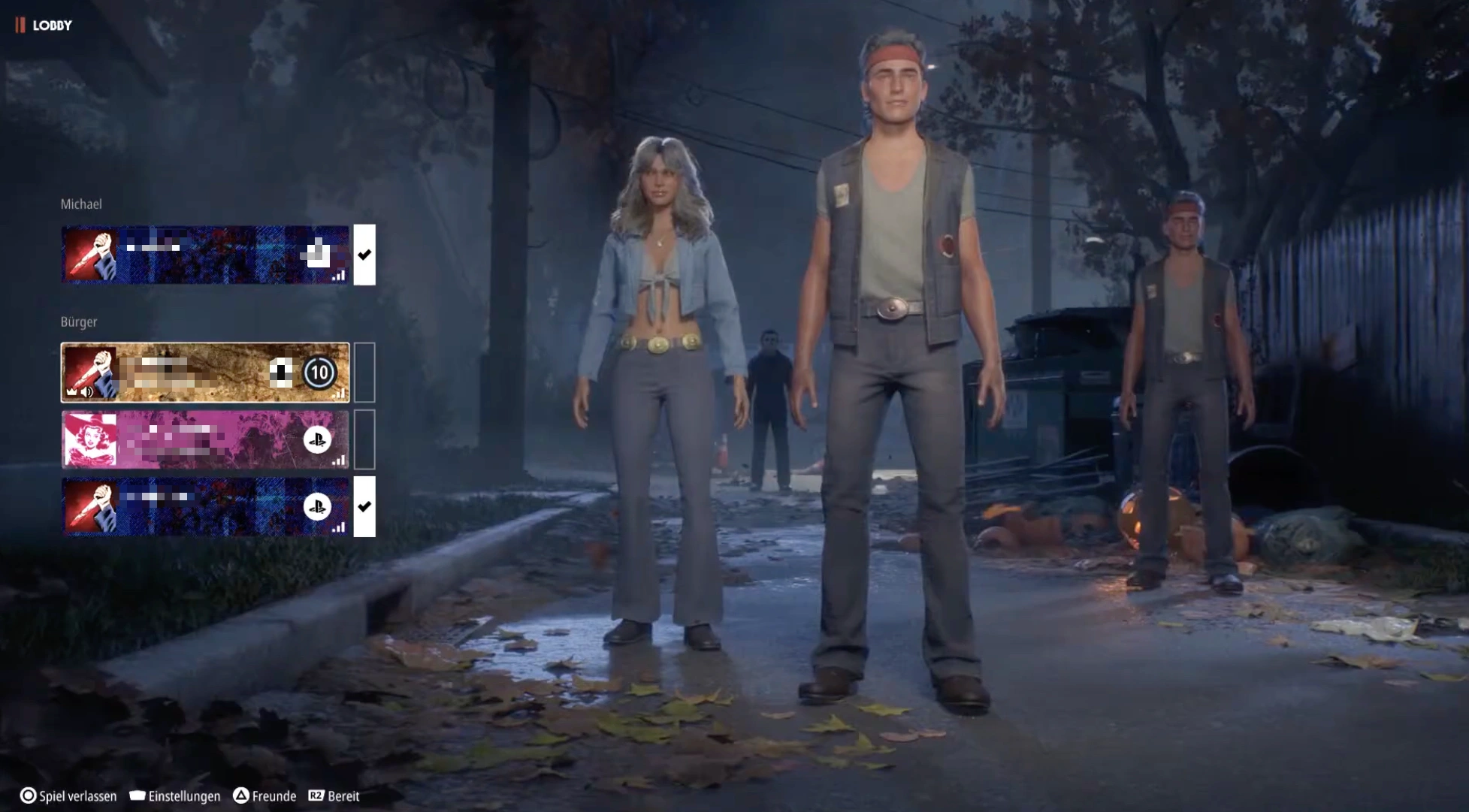
Step 3. Confirm all player ready indicators are green before initiating public matchmaking.
If your friends do not receive the lobby notification, refreshing the invite token forces the server to regenerate your session connection.
Fix 2: Retry Game Invite
Pending invite requests often get stuck in network queues due to cross-platform server delays.
Step 1. Cancel any pending game invites in your active Friends list.
Step 2. Have all party members return to the main title screen to clear cached session tokens.
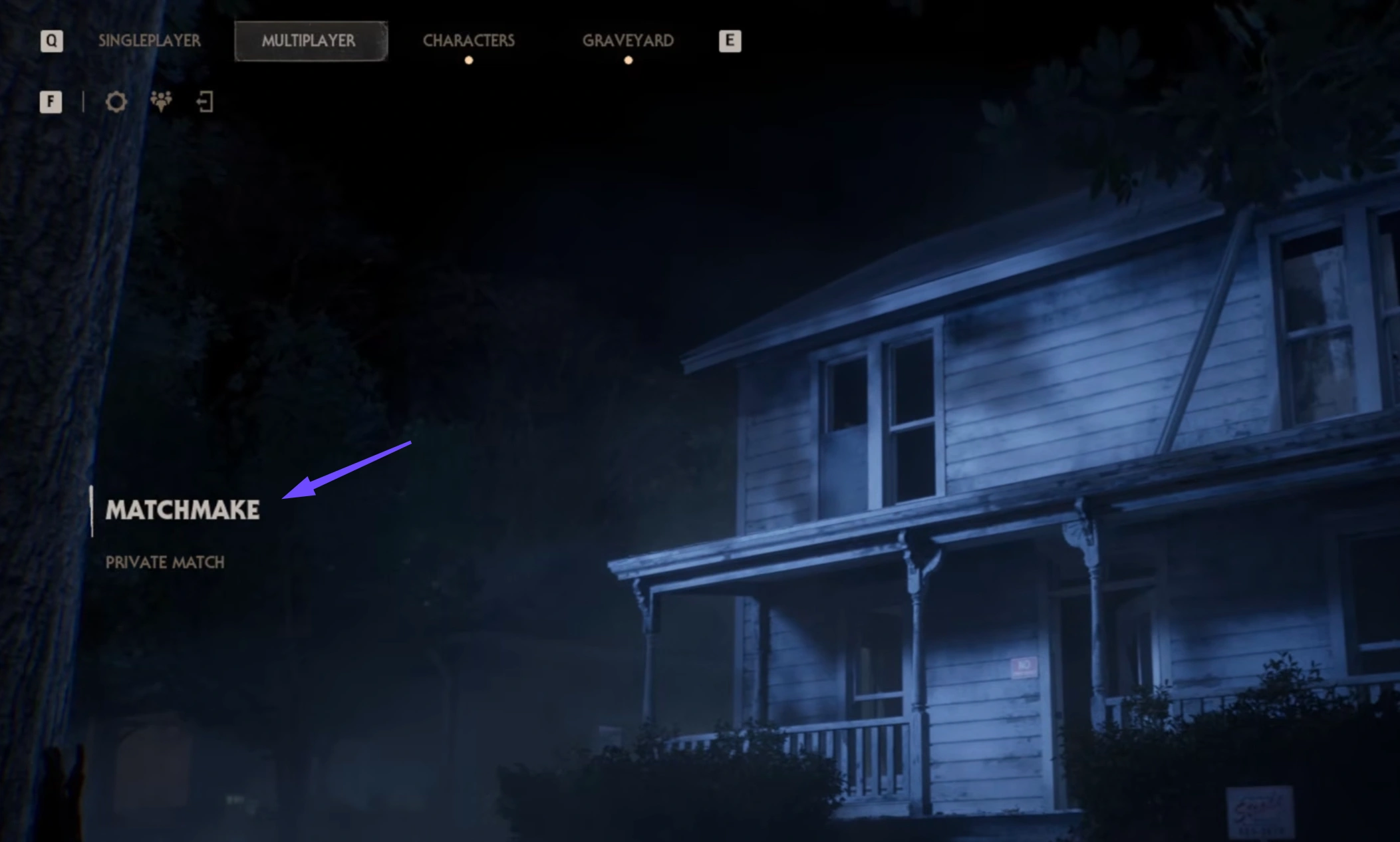
Step 3. Resend the game invite directly through the second tab of the in-game Friends menu.
When public matchmaking consistently fails to place your cross-platform party into a match, testing a custom match verifies server access.
Fix 3: Private Match
Private lobbies bypass public matchmaking server strictness and isolate whether the issue is queue-based or network-based.
Step 1. Select Private Match from the main multiplayer menu.
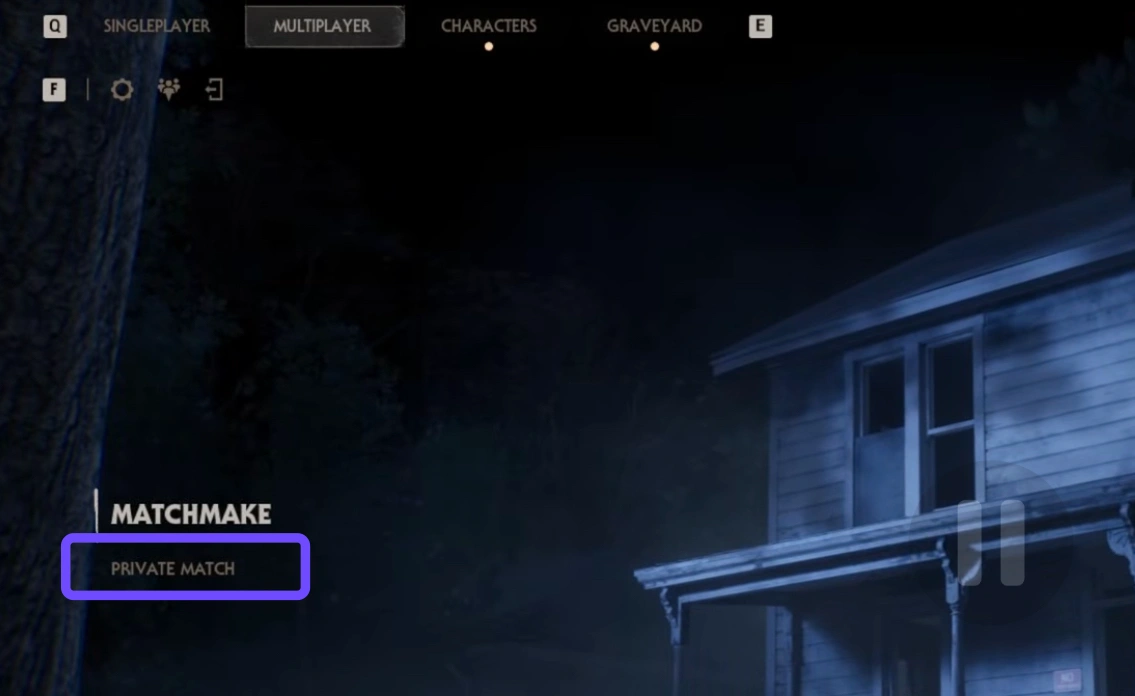
Step 2. Send crossplay invitations to your friends while inside the custom match setup.
Step 3. Start the match with your party to confirm cross-platform gameplay stability.
If custom lobbies also refuse connection requests, clearing corrupted temporary cache files will repair broken friend link data.
Fix 4: Restart and Re-add Friend
Corrupted cache files in cross-platform friend lists frequently prevent party joining actions.
Step 1. Open the in-game Friends menu and remove your cross-platform friend.
Step 2. Close Halloween: The Game completely and restart your PC or console.
Step 3. Re-launch the game, generate a fresh Friend Code, and send a new friend request.
If friend connections remain unresponsive, restrictive system settings on your console or PC may be actively blocking crossplay traffic.
Fix 5: Crossplay and Privacy Settings
Console privacy options or disabled crossplay toggles will block cross-platform network packets.
Step 1. Navigate to the in-game Settings menu and verify that Crossplay is toggled to Enabled.
Step 2. Check your PlayStation Network or Xbox Live account privacy settings to ensure Communication and Multiplayer across non-Xbox or non-PlayStation services is set to Allow.
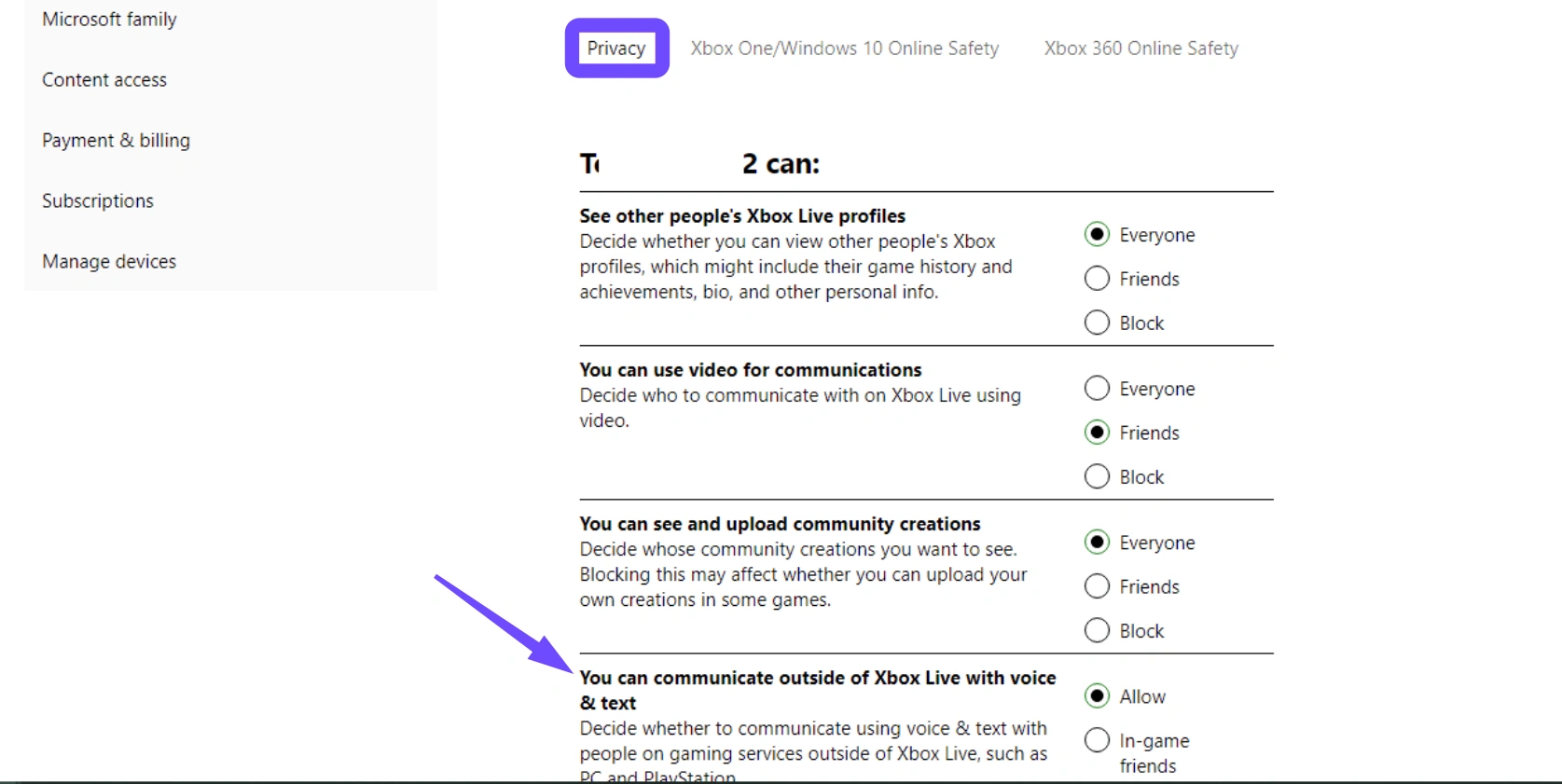
Step 3. Save your changes and restart the game client.
To isolate whether the issue lies with your individual connection or your group setup, run a quick solo queue test.
Fix 6: Test Solo Matchmaking
Running a solo match helps determine whether matchmaking issues are tied to your personal network or party sync bugs.
Step 1. Leave all active player parties and return to the main menu.
Step 2. Select public matchmaking as a solo survivor or killer.
Step 3. If solo queue connects quickly, the issue is confirmed to be a cross-platform party synchronization bug rather than a total server outage.
For players who continue to experience party dropouts and network desync after trying these fixes, optimizing your routing path provides a permanent connection solution.
Part 5: Improve Crossplay Matchmaking Connection with LagoFast
LagoFast is an easy-to-use game booster designed to optimize network routes and eliminate crossplay connection failures. It utilizes smart multi-path routing to reduce ping, stop packet loss, and prevent lobby disconnections during cross-platform matchmaking. In addition to connection stabilization, LagoFast offers FPS optimization tools and seamless server node switching to guarantee smooth asymmetrical horror gameplay.
H3: How to Use LagoFast for Halloween: The Game Crossplay
Step 1. Download and install LagoFast on your PC.
Step 2. Search for Halloween: The Game and select it.
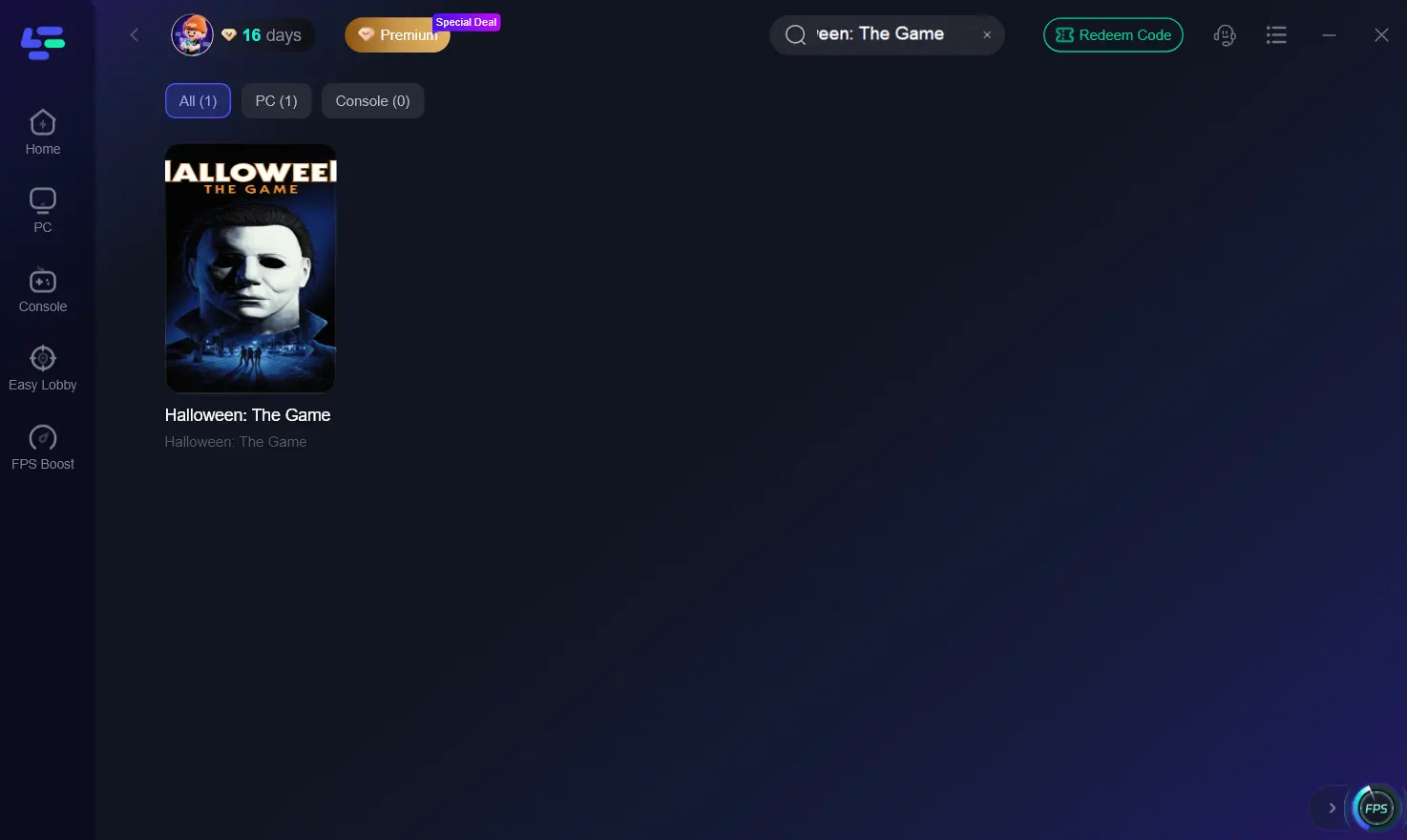
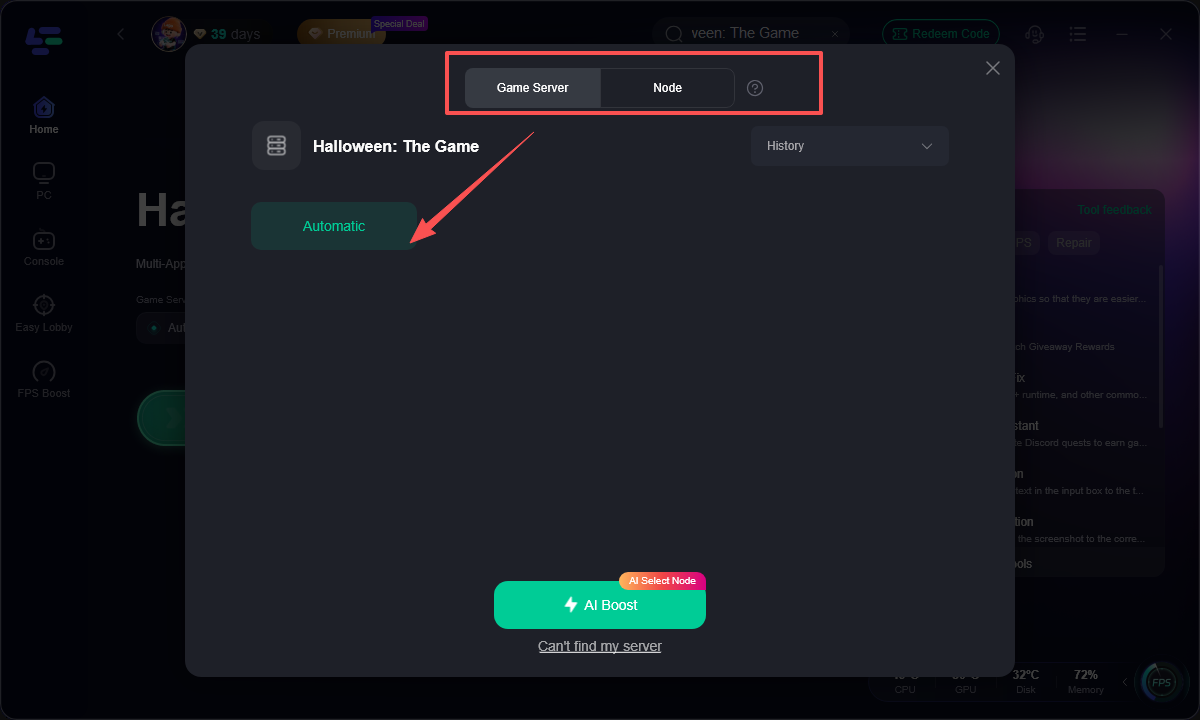
Step 3. Select your game server or let LagoFast choose an optimized node based on your connection.
Step 4. Click Boost to optimize the network route before entering crossplay matchmaking.
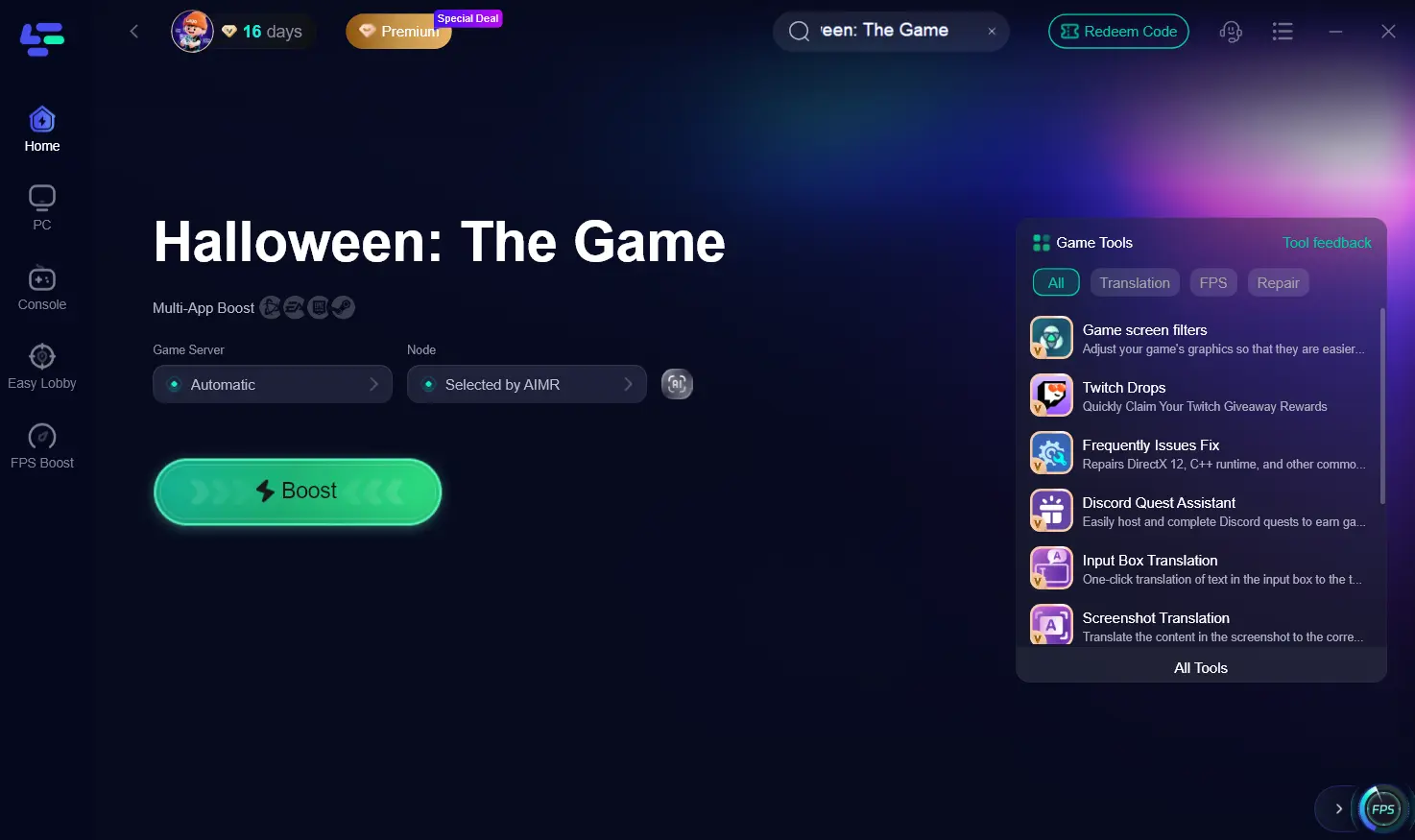
Step 5. Launch the game through LagoFast, invite your cross-platform friends, and monitor ping and packet loss while matchmaking and playing.
Here are concise answers to common questions regarding Halloween: The Game crossplay functionality and network stability.
Part 6: FAQs About Halloween: The Game Crossplay Not Working
Does Halloween: The Game support crossplay between PC, PS5, and Xbox?
Yes, full crossplay is supported across PC, PlayStation 5, and Xbox Series X|S using the in-game Friend Code system.
Why do I get kicked from the party when crossplay matchmaking starts?
High ping variance, strict NAT types, or cross-platform session bugs drop guests when transitioning from lobby to server queues.
Is there cross-progression in Halloween: The Game?
No, cross-progression is not supported. Character levels, cosmetics, and perk unlocks remain locked to the platform where you earned them.
What causes the Bypass Failed error during crossplay?
This error occurs when cross-network security verification fails between PC and console authentication servers during party formation.
Can I turn off crossplay if matchmaking remains unstable?
Yes, you can disable crossplay in the in-game Gameplay settings to match exclusively with players on your same system platform.
Why does solo queue work when crossplay party queuing fails?
A: Solo queue connects directly to local servers, whereas crossplay party queue requires syncing state data across different console networks.
Conclusion
Halloween: The Game provides a thrilling asymmetrical horror experience, but crossplay bugs like lobby kicks and party separation can hold back your squad. By configuring privacy settings, using friend code workarounds, and optimizing network routes with LagoFast, you can resolve connection errors effortlessly.
Boost Your Game with LagoFast for Epic Speed
Play harder, faster. LagoFast game booster eliminates stutter and lags on PC, mobile, or Mac—win every match!
Quickly Reduce Game Lag and Ping!
Boost FPS for Smoother Gameplay!