
“Every time I launch GTA 5 I get a different error — 0xc0000142, 7002.1, sometimes nothing at all. I don’t even know what I’m supposed to fix anymore.”
If GTA 5 won’t start, throws errors like 0xc0000142, 0xc000007b, 7002.1, 0xc000009a, or just crashes without any message, you’re dealing with one of the most common PC issues in the game. The problem is not one thing — it’s a mix of system errors, launcher issues, and connection problems.
This guide covers all the common GTA 5 startup errors on Steam, Epic Games Store, and Rockstar Games Launcher, and how to fix them step by step.

- ✅ Lower ping and fewer disconnects.
- ✅ More FPS and better PC performance.
- ✅ Support for 8000+ games.
- ✅ Stable connections and region switching.
GTA 5 launch errors: what usually causes them
If GTA 5 will not open, throws an application error, or gets stuck at launcher startup, the trigger is usually one of these:
Corrupted or missing game files
Rockstar Games Launcher or Social Club not working properly
Steam not running for Steam copies
Outdated or incompatible GPU drivers
Missing or broken Visual C++ Redistributables or DirectX components
Windows permission issues
Mods or third-party tools conflicting with the current game build
Overlays, antivirus, or background apps interfering with startup
A recent game or Windows update causing a conflict
What the common GTA 5 launch errors usually mean
GTA 5 RP Launch Error
This error usually comes from the modded client (like FiveM or specific RP servers) failing to start properly. In most cases, it’s caused by outdated clients, broken mod files, server version mismatch, or unstable network routing when connecting to the RP server.
Fixes:
Update or reinstall the RP client (FiveM / launcher)
Clear client cache (FiveM → Application Data → cache)
Remove or reinstall mods completely
Make sure your GTA 5 base game is clean and verified
Check if the server is online and supports your client version
Disable antivirus or firewall temporarily
Restart Rockstar Launcher and log in again
Use a stable connection or optimize routing if the server fails to connect
Error 0xc0000142
This usually means the application was unable to start correctly. In GTA 5, it commonly points to corrupted or missing game files, damaged Windows system files, outdated GPU drivers, or other startup dependencies failing to load.
Fixes:
Verify GTA 5 files
Run the launcher or game as administrator
Update GPU drivers
Repair Windows system files with SFC and DISM
Make sure the game and launcher are fully updated
Error 0xc000007b
This error usually points to a Windows/runtime architecture issue, often tied to damaged or mismatched runtime files. In practice, GTA 5 players most often fix it by verifying files, repairing Visual C++ components, updating Windows, and checking for system file corruption.
Fixes:
Verify game files
Repair or reinstall Visual C++ Redistributables
Install or repair DirectX runtime
Run SFC scan
Run launcher or game as administrator
Reinstall as a last resort
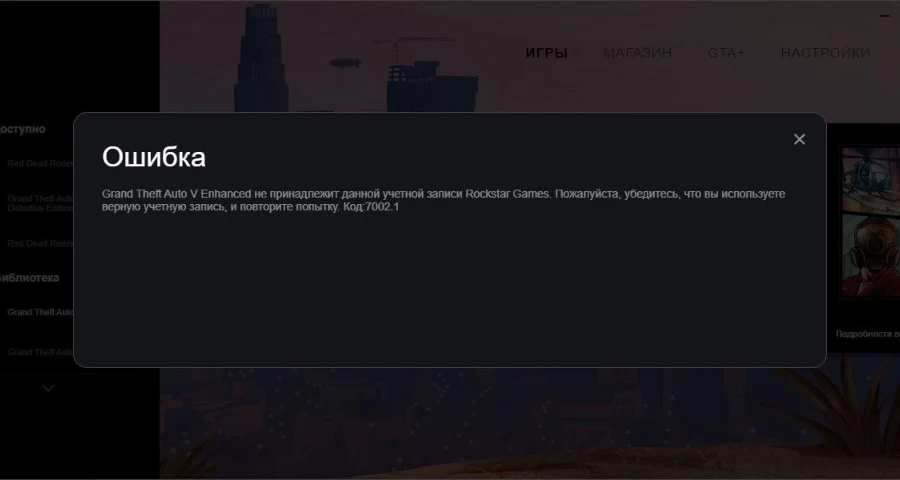
Error 7002.1
This is usually tied to the Rockstar Games Launcher side of the startup chain. It can show up after updates, with corrupted files, third-party conflicts, or launcher connection and handshake issues.
Fixes:
Restart the launcher and game
Verify or scan and repair files in Rockstar Launcher
Run Rockstar Launcher as administrator
Check Rockstar service status if the error looks connection-related
Remove mods and disable overlays
Reinstall Rockstar Games Launcher if it keeps returning
Error 0xc000009a
This error usually indicates that your system doesn’t have enough available memory to start GTA 5 properly. It’s often caused by low RAM or VRAM, a disabled or misconfigured page file, or too many background processes consuming resources.
Fixes:
Close unnecessary background apps
Enable or increase Virtual Memory (page file)
Lower in-game or system resource usage
Update GPU drivers
Restart your PC to free memory
Reinstall the game as a last resort
ERR_NO_LAUNCHER
This usually means GTA 5 was started with the wrong executable. You generally cannot launch the game directly from GTAV.exe.
Fixes:
Start the game from Steam, Epic, or Rockstar Launcher
If launching manually, use PlayGTAV.exe or GTAVLauncher.exe instead of GTAV.exe
Launcher failed to initialize
This usually points to an outdated, damaged, or stuck Rockstar Games Launcher install.
Fixes:
End Rockstar Launcher tasks in Task Manager
Relaunch the proper store launcher first
Update or reinstall Rockstar Games Launcher
Reinstall Social Club if launcher errors keep repeating
Check Rockstar service status if the launcher appears unable to connect
ERR_GFX_D3D_INIT or graphics initialization error
This is usually a DirectX or GPU initialization problem. It can be triggered by outdated graphics drivers, corrupted DirectX components, or GTA 5 choosing the wrong GPU on systems with integrated and dedicated graphics.
Fixes:
Update GPU drivers
Repair or reinstall DirectX runtime
Force GTA 5 to use the high-performance GPU
Verify files
Run SFC if Windows graphics files may be damaged
GTA 5 Crashes Without Errors on Launch
This issue usually means the game is failing before it can even show an error message. In most cases, it’s caused by GPU driver problems, mod conflicts, missing dependencies, or background apps interfering with the game at startup.
Fixes:
Update or reinstall GPU drivers (clean install recommended)
Verify game files (Steam / Epic / Rockstar Launcher)
Remove all mods and test with a clean game
Disable overlays (Discord, Steam, MSI Afterburner, etc.)
Install or repair Visual C++ Redistributables and DirectX
Run the game as administrator
Add GTA 5 to antivirus exceptions or temporarily disable it
Close unnecessary background applications
Reinstall the game as a last resort
Universal first fixes before you target a code
Do these first, no matter which launcher you use:
Close everything fully. Open Task Manager and end GTA V, Steam, Epic Games Launcher, Rockstar Games Launcher, and any stuck Rockstar processes.
Reopen the right launcher. Start from the launcher tied to your copy of the game.
Reboot your PC. This clears hung launcher processes and simple startup conflicts.
Make sure GTA 5 is updated. If needed, launch while connected so the latest game update can apply.
Try again before changing anything else. A surprising number of launcher-side errors are just stuck background processes.
Fixes by platform
Steam fixes
If you own GTA 5 on Steam, start here:
Verify game files
Open Steam
Go to Library
Right-click GTA 5
Select Properties
Open Installed Files
Click Verify integrity of game files
This is one of the first fixes to try because corrupted game files are a common reason GTA 5 fails to start.
Confirm Steam is actually running
If you get a Steam initialization message, make sure Steam is open in the tray and launch GTA 5 from Steam, not from a direct EXE.
Run Steam as administrator
Close Steam completely, then relaunch it with admin rights and try starting GTA 5 again.
Epic Games Store fixes
For Epic installs, the main checks are simpler:
Fully close Epic Games Launcher and Rockstar Launcher in Task Manager
Reopen Epic first, then launch GTA 5 again
Make sure Epic and GTA 5 are updated
Run Epic and Rockstar Launcher as administrator if permissions look like the problem
If you use mods, disable them before testing again
If the error changes from a generic startup failure to a Rockstar-specific code, continue with the Rockstar fixes below.
Rockstar Games Launcher fixes
If the error mentions Rockstar Launcher, Social Club, or code 7002.1:
Restart the launcher cleanly
Close GTA 5
Open Task Manager
End all Rockstar Games Launcher processes
Relaunch the launcher
Try GTA 5 again
Verify or scan and repair files
In Rockstar Games Launcher, open your library, select GTA 5, and use the verify or repair option.
Update or reinstall Rockstar Games Launcher
If the launcher fails to initialize, install the latest version from the official Rockstar Games Launcher page.
Reinstall only the launcher first
If your Steam or Epic copy seems intact but Rockstar Launcher is broken, reinstalling only the launcher is often faster than reinstalling the whole game.
Reinstall Social Club if launcher errors keep repeating
This is worth trying if you keep seeing “launcher has stopped working” or similar initialization failures.
Check service status only for connection-type launcher errors
If the launcher cannot connect, initialize online services, or throws a handshake-type problem, check the Rockstar Games Service Status. If your error is clearly local, like 0xc0000142 or 0xc000007b, service status is not the first thing to check.
Optimize Your GTA 5 Experience with LagoFast
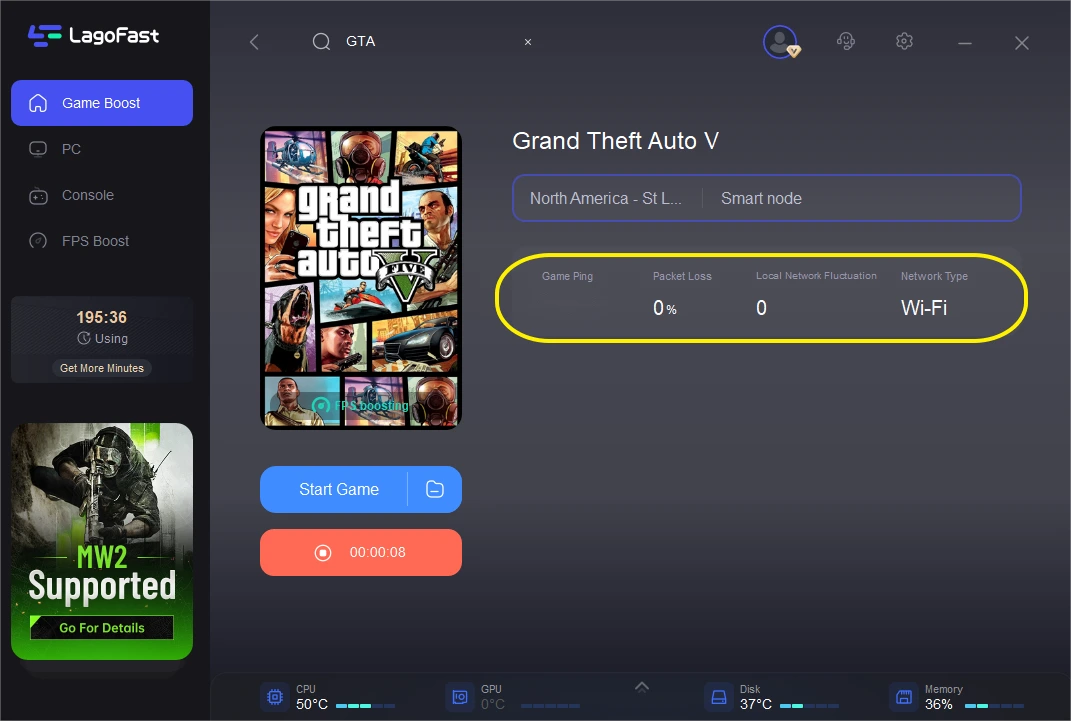
As you troubleshoot common GTA 5 launch errors, you may also encounter network-related issues that can affect your gameplay. This is where a game booster like LagoFast can be beneficial. It helps to optimize your internet connection, potentially resolving lag and connectivity problems that may arise during your gaming sessions. Learn more about LagoFast.
How to Use LagoFast for GTA 5
To enhance your gaming experience, start by downloading a free trial of LagoFast.
LagoFast can help optimize your connection, reducing lag and improving your overall gameplay experience in GTA 5.
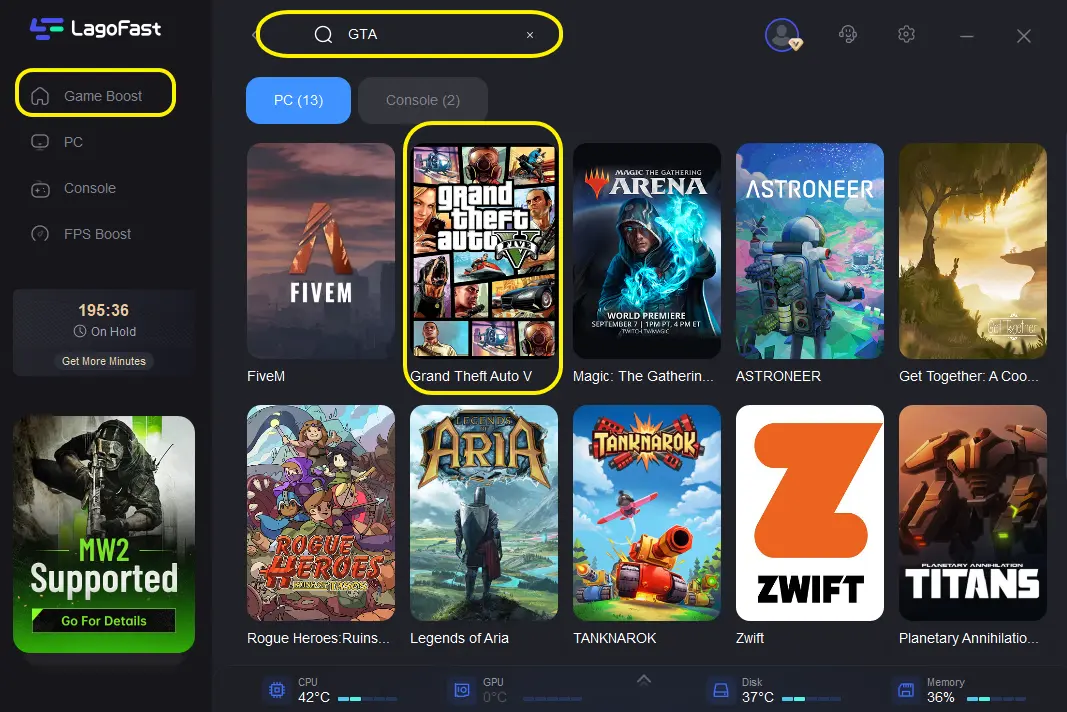
With LagoFast, you can easily select your game and let the software automatically adjust settings for optimal performance.
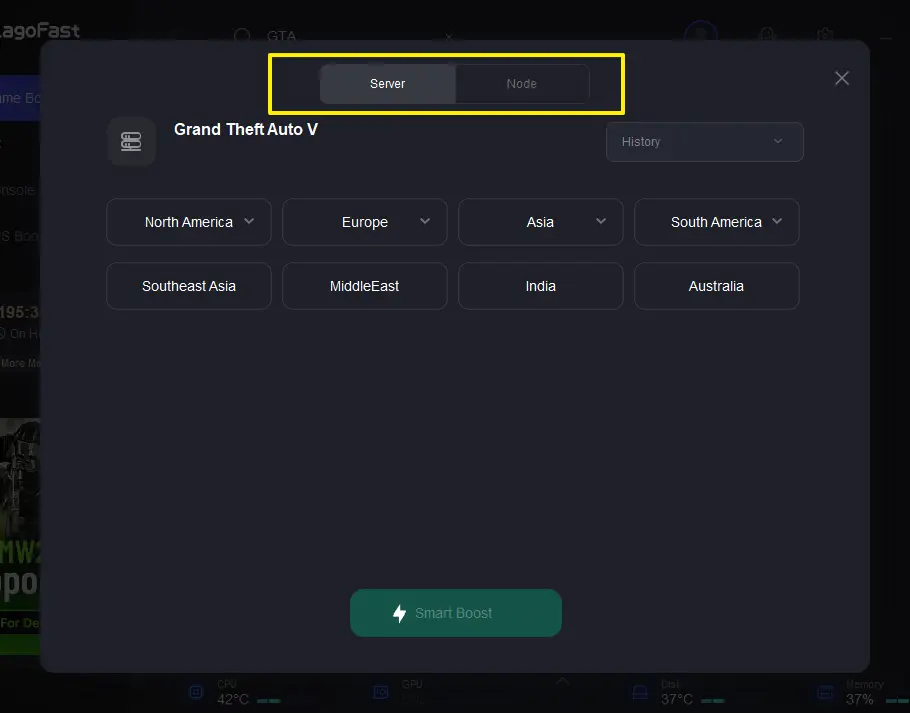
Once set up, LagoFast runs in the background, ensuring a smooth gaming session without interruptions.
System and permission fixes that solve a lot of GTA 5 startup problems
Run the launcher and game as administrator
Permission issues can stop GTA 5 before it even opens. Try this on the launcher you use and on GTA 5 itself.
Right-click Steam, Epic, or Rockstar Launcher
Choose Run as administrator
If needed, do the same for GTA 5 launch files
Disable compatibility mode if it was turned on
If GTA 5 or the launcher was set to an older Windows compatibility mode, turn that off and test again.
Update GPU drivers
Outdated graphics drivers are one of the most common reasons GTA 5 fails to launch or throws graphics initialization errors. Update your NVIDIA, AMD, or Intel driver, then reboot.
Update Windows
Windows updates can fix game launch, runtime, and connection issues. If GTA 5 stopped opening after a Windows change, update fully first before moving to deeper repairs.
Repair or install Visual C++ Redistributables and DirectX
If you see 0xc000007b, 0xc0000142, or a graphics initialization error, repair the Microsoft Visual C++ Redistributables and DirectX runtime. Missing or damaged runtime components are a common reason GTA 5 fails during startup.
Conflict fixes: mods, overlays, antivirus, and wrong launch files
Remove mods temporarily
Mods are a common reason GTA 5 stops launching after an update. This is especially true for LSPDFR, ScriptHook, RP clients, and similar add-ons.
If you mod the game:
Remove or disable mods temporarily
Delete leftover mod files if needed
Test the base game first
Reinstall compatible versions later
Disable overlays and background apps
Overlays and other background software can interfere with GTA 5 startup.
Temporarily test without:
Discord overlay
GPU overlay tools
Recording software
Other third-party startup apps
Be careful with antivirus
Antivirus interference is possible. A safer first move is adding GTA 5 to exclusions rather than broadly disabling protection.
Use the right executable
If you are trying to bypass the launcher, do not use GTAV.exe directly for ERR_NO_LAUNCHER cases. Use PlayGTAV.exe or GTAVLauncher.exe, or just launch through Steam, Epic, or Rockstar Launcher.
Targeted fixes for stubborn launch errors
If the basic steps did not help, move to the deeper fixes.
Run SFC and DISM
These Windows tools can repair damaged system files that break GTA 5 startup.
Open Command Prompt as administrator and run:
sfc /scannow
If problems continue after that, run DISM from an elevated prompt as well.
This is especially worth trying for:
0xc0000142
0xc000007b
launcher startup failures after a Windows update
Force GTA 5 to use the high-performance GPU
If you get ERR_GFX_D3D_INIT, set GTA 5 to use your dedicated GPU in NVIDIA Control Panel, AMD software, or Windows graphics settings. This matters most on laptops and dual-GPU systems.
Reinstall the launcher before reinstalling the whole game
If Rockstar Launcher is the part failing, reinstalling just the launcher or Social Club is faster and lower risk than deleting your full GTA 5 install.
Clean reinstall GTA 5 only after earlier steps fail
Use a full reinstall as the last major step if:
Verify files finds issues repeatedly
Launcher reinstalls did not help
Mods were removed and the problem still remains
You still fail to launch after runtime repairs and system file scans
When to contact Rockstar Support
Contact Rockstar Support if GTA 5 still will not launch after:
verifying files
reinstalling or updating the launcher
updating GPU drivers and Windows
repairing Visual C++ and DirectX
removing mods and overlays
testing a clean reinstall
When you submit a ticket, include:
The exact error text and code
Which launcher you use: Steam, Epic, or Rockstar
Where you bought the game
Whether mods were installed recently
Whether the issue started after a game or Windows update
A screenshot of the error
Any launcher logs or crash details if available
The steps you already tried
That saves time and reduces back-and-forth.
Boost Your Game with LagoFast for Epic Speed
Play harder, faster. LagoFast game booster eliminates stutter and lags on PC, mobile, or Mac—win every match!
Quickly Reduce Game Lag and Ping!
Boost FPS for Smoother Gameplay!