• Products
  • Games
  • Features
  • Pricing
  • Download
  • Blog
  • Affiliates

Grounded 2 Connection Issues? Fix Multiplayer & Host Errors

Last Update: 08/13/2026
Summer Ye

Quickly Reduce Game Lag and Ping!

Boost FPS for Smoother Gameplay!

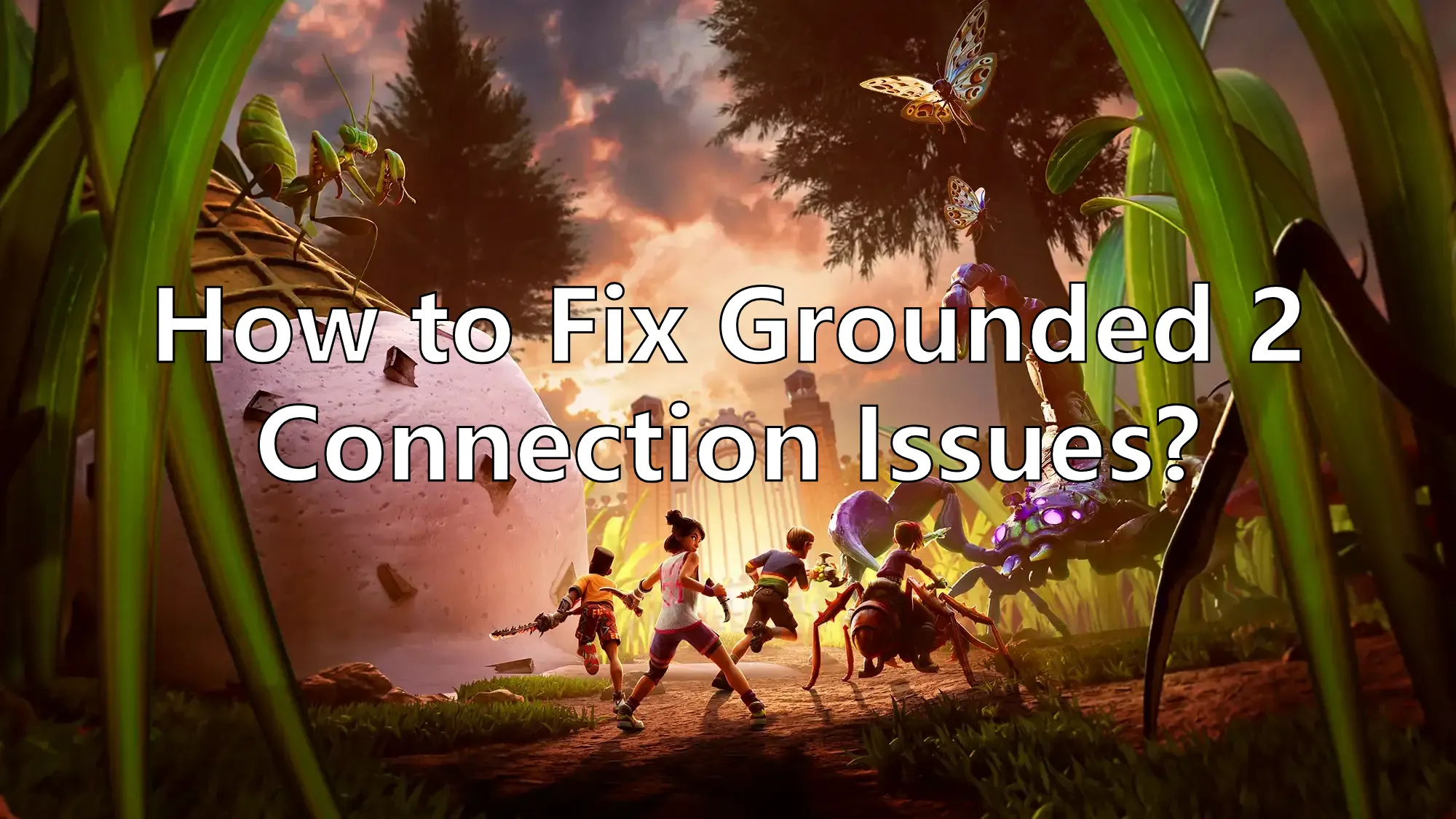
Grounded 2 connection issues can prevent you from joining friends, hosting a multiplayer game, or staying connected during co-op. Players may encounter “Lost Connection to Host,” multiplayer not working, Hosted or Shared World connection failures, Xbox Network account errors, or repeated disconnects.

These problems can stem from the host connection, crossplay, Xbox Network authentication, NAT restrictions, unstable network routes, or temporary game issues. Below, we'll cover the most common Grounded 2 multiplayer connection problems and how to fix them

Russian Version: Как исправить проблемы с подключением в Lord Nine

Brazilian Portuguese Version: Como corrigir problemas de conexão Grounded 2?


Part 1: Common Grounded 2 Connection Issues

Part 2: How To Fix Grounded 2 Connection Issues

Part 3: How LagoFast Enhances Your Grounded 2 Experience

Part 1: Common Grounded 2 Connection Issues

Grounded 2 multiplayer problems don't always appear as a simple “connection failed” message. Depending on whether you're hosting or joining a world, you may experience:

  • Lost Connection to Host: You successfully join a game but are suddenly disconnected with the “You have lost connection to the host” error.
  • Grounded 2 Multiplayer Not Working: You can't host a multiplayer session or join another player's game.
  • Can't Join Friends: A friend's session doesn't appear, gets stuck while joining, or fails to connect.
  • Hosted World Connection Failed: Other players can't join the host or repeatedly disconnect while the host remains online.
  • Shared World Not Working: Players have trouble accessing or joining a Shared World.
  • Crossplay Not Working: PC, Xbox, and PS5 players can't see or join friends on another platform.
  • Xbox Network Account Error: Grounded 2 says you must log in to an Xbox Network account before playing online.
  • High Ping or Rubberbanding: The multiplayer session works, but players experience delayed movement, lag spikes, or unstable synchronization.

If the host remains in the game while other players repeatedly disconnect, the problem may be related to the host-client connection rather than the save itself.

Part 2: How To Fix Grounded 2 Connection Issues

Try the following fixes if Grounded 2 multiplayer isn't working, you can't join friends, or you keep losing connection to the host.

Fix 1. Check Grounded 2 Service Status and Updates

Before changing your network settings, check whether Grounded 2 is experiencing a known multiplayer problem or has recently received an update or hotfix.

If many players suddenly can't host, join, or stay connected at the same time, the issue may be on the game or platform side. Check official Grounded 2 announcements and Xbox Network status before continuing with local troubleshooting.

Fix 2. Restart the Hosted or Shared World Session

If one player suddenly gets disconnected while everyone else remains online, recreate the multiplayer session.

  1. Have all players leave the current session.
  2. Let the host return to the main menu and restart the game.
  3. Host the world again and invite your friends.
  4. If disconnects continue, try letting another player host the session.

Changing the active host can sometimes help determine whether the problem is tied to one player's connection.

Fix 3. Check Your Xbox Network Account

Grounded 2 online multiplayer relies on Xbox Network services. Account authentication problems can therefore prevent players from hosting or joining multiplayer games.

If you see a message saying that you must log in to an Xbox Network account:

  1. Confirm that you're signed in to the correct Microsoft/Xbox account.
  2. Sign out and sign back in.
  3. Restart Grounded 2.
  4. On PC, make sure Xbox-related services and apps are up to date.
  5. Reconnect your account and try multiplayer again.

This is especially important when Grounded 2 multiplayer works for your friends but your account can't host or join any session.

Fix 4. Check Crossplay When Playing Across Platforms

With Grounded 2 available across PC, Xbox, and PS5, crossplay settings can affect whether friends can find and join each other.

Check that crossplay is enabled where required and that your Microsoft/Xbox account connection is working correctly. Then restart the game on both devices before sending another multiplayer invitation.

If same-platform multiplayer works but PC-to-console or Xbox-to-PS5 multiplayer does not, focus on crossplay and account settings before changing your entire network configuration.

Fix 5. Reduce Lost Connection to Host with LagoFast

Grounded 2 multiplayer depends on a stable connection between the active host and other players. Even with fast internet, packet loss, unstable ISP routing, or long-distance connections can result in Lost Connection to Host, high ping, rubberbanding, or repeated disconnects.

LagoFast optimizes the network route used while playing Grounded 2 to help maintain a more stable multiplayer connection.

Key features include:

  • Smart Route Optimization: Automatically selects a better network route based on current connection conditions.
  • Multipath Connection: Uses multiple connection paths to improve stability when a single route becomes unreliable.
  • Global Dedicated Routes: Helps optimize connections when playing with friends in different regions.
  • Real-Time Ping & Packet Loss Monitor: Lets you check latency and packet loss while playing.

How to Use LagoFast for a Smoother Grounded 2 Experience

Step 1: Click the button below to download LagoFast for free and install it on your PC.

 Free Trial

Step 2: Launch the LagoFast client after installation, then type "Grounded 2" into its search bar and click the result.

Step 3: Click "Select Server" to choose the closest or lowest-latency server node, then click "Smart Boost" to activate real-time optimization.

Step 4: Once optimization starts, you'll see reduced packet loss and ping in-game. Click "Start Game" to return to Grounded 2 and enjoy lag-free gameplay!

Hot Related: 7 Solutions for Fixing Grounded 2 Low FPS

If repeated disconnects are caused by unstable routing between you and the active host, improving connection stability may help reduce multiplayer interruptions.

Fix 6. Restart Your Router and Use Ethernet

Wi-Fi interference and temporary router problems can cause packet loss even when your internet speed appears normal.

Restart your router, wait for the connection to fully recover, and reconnect your PC or console. If possible, use an Ethernet connection instead of Wi-Fi, especially if you're hosting the Grounded 2 multiplayer session.

Fix 7. Check NAT and Firewall Settings

Strict NAT or firewall rules can interfere with multiplayer connections.

On PC, make sure Grounded 2 and relevant Xbox services are allowed through Windows Firewall rather than disabling your firewall completely. Console players should also check whether their NAT status is restricting online multiplayer.

After changing the settings, restart both the game and your network connection.

Fix 8. Change Your DNS

DNS problems aren't the most common cause of Grounded 2 multiplayer disconnects, but changing DNS may help if your current ISP DNS is having resolution problems.

You can test a public DNS service such as:

Google DNS

  • Preferred: 8.8.8.8
  • Alternate: 8.8.4.4

Restart your network connection after applying the change and try joining the multiplayer session again.

Fix 9. Update Grounded 2 and Verify Game Files

If Grounded 2 connection issues appeared immediately after an update, make sure everyone in the multiplayer session is running the latest game version.

PC players should also verify the game files through their storefront or launcher. Missing or corrupted files can sometimes cause unexpected multiplayer or startup problems.

Part 3: FAQs About Grounded 2 Multiplayer Connection Issues

Why does Grounded 2 say “Lost Connection to Host”?

The error means your game lost its connection to the active multiplayer host. Host instability, packet loss, network routing, NAT restrictions, or temporary multiplayer problems can all contribute to disconnects.

Why can't I join my friend in Grounded 2?

Check that both players are online, running the same game version, and properly connected to their Xbox Network accounts. For cross-platform sessions, also check your crossplay settings before trying another invitation.

Why is my Grounded 2 Shared World not working?

Shared Worlds can still experience issues with joining or multiplayer connections. Restart the session, check Xbox Network authentication and crossplay, and try having another approved player enter the world first.

Conclusion

Grounded 2 connection issues can range from multiplayer not working and failed friend invites to Lost Connection to Host, Shared World problems, and crossplay failures. If you can join successfully but continue experiencing high ping, packet loss, or repeated disconnects, optimizing the network route with LagoFast can help provide a more stable Grounded 2 multiplayer experience.

Boost Your Game with LagoFast for Epic Speed

Play harder, faster. LagoFast game booster eliminates stutter and lags on PC, mobile, or Mac—win every match!

Quickly Reduce Game Lag and Ping!

Boost FPS for Smoother Gameplay!