
Quick Answer: How to Fix Gothic 1 Remake Low FPS & Performance Drops?
When you encounter severe lag, low frame rates, or massive micro-stutters while exploring the Valley of Mines, your best and most efficient fix is LagoFast.
Unlike manual system registry changes or stripping your graphic options down to nothing, LagoFast functions as a dedicated real-time game booster. It optimizes your PC's hardware resource allocation and fine-tunes your network routing with a single click. By prioritizing system threads for the game's Unreal Engine 5 architecture, it effortlessly stabilizes frame rates and eliminates performance drops without degrading visual clarity.
The long-awaited release of the Gothic 1 Remake brings the gritty, immersive colony back to life with breathtaking fidelity. However, running a modern, hand-crafted world built on demanding current-generation rendering engines means many players face heavy hardware strain. If your journey is being ruined by choppy gameplay, this complete optimization guide will help you fix performance drops and achieve stable, competitive frame rates.

- ✅ Reduce Lag and High Ping.
✅ Boost FPS at the Same Time.
✅ Support 8000+ Popular Online Games.
✅ Change Server without Latency.
✅ Boost Game Loading Speed.
Part 1: Gothic 1 Remake Low FPS Overview
Part 2: How to Fix Gothic 1 Remake Low FPS?—Full Manual Solutions
Part 3: Gothic 1 Remake Best Settings for Low FPS
Part 4: Gothic 1 Remake Performance Drops vs. Low FPS
Part 5: Ultimate Solution: Fix All FPS Issues—LagoFast
Part 1: Gothic 1 Remake Low FPS Overview
Before diving deep into the individual system fixes, it is helpful to look at how these performance issues manifest, what causes them under the hood, and how to address them quickly.
|
Performance Symptom |
Probable System Cause |
Recommended Fast Fix |
|
Permanent low frame rates (under 40 FPS) throughout the game. |
Hardware bottleneck (often exceeding VRAM limits or old GPU drivers). |
Lower native rendering resolution or use AI upscaling profiles. |
|
Random, sudden performance drops when entering new camps. |
Asset streaming lag, heavy CPU thread bottlenecks, or high background activity. |
Enable LagoFast Game Booster to force CPU priority on game threads. |
|
Micro-stuttering during sword fights and magic casting. |
Shader compilation stutters or sub-optimal Windows power plans. |
Force Maximum Performance in your graphics panel and clear DX caches. |
|
Intense hardware heating coupled with progressive slowdowns. |
Thermal throttling or unconstrained framerates overloading hardware components. |
Lock max background frame rates and enable stable cooling profiles. |
Part 2: How to Fix Gothic 1 Remake Low FPS?—Full Manual Solutions
If you prefer to dig directly into your operating system to extract every bit of juice from your system hardware, follow these comprehensive structural workarounds.
Solution 1: Configure High-Performance Windows Graphics Options
Windows handles resource distributions dynamically, which sometimes causes heavy modern video games to launch in a low-power background energy state.
Step 1: Press the Windows Key, type Graphics settings into the search bar, and hit Enter.
Step 2: Under the Custom options for apps section, verify if the game's main executable file (Gothic1Remake.exe) is visible. If it is missing, click Browse.
Step 3: Navigate to your installation directory (usually found under Steam\steamapps\common\Gothic 1 Remake) and select the primary game application file.
Step 4: Click on the newly added game icon inside your settings list and select Options.
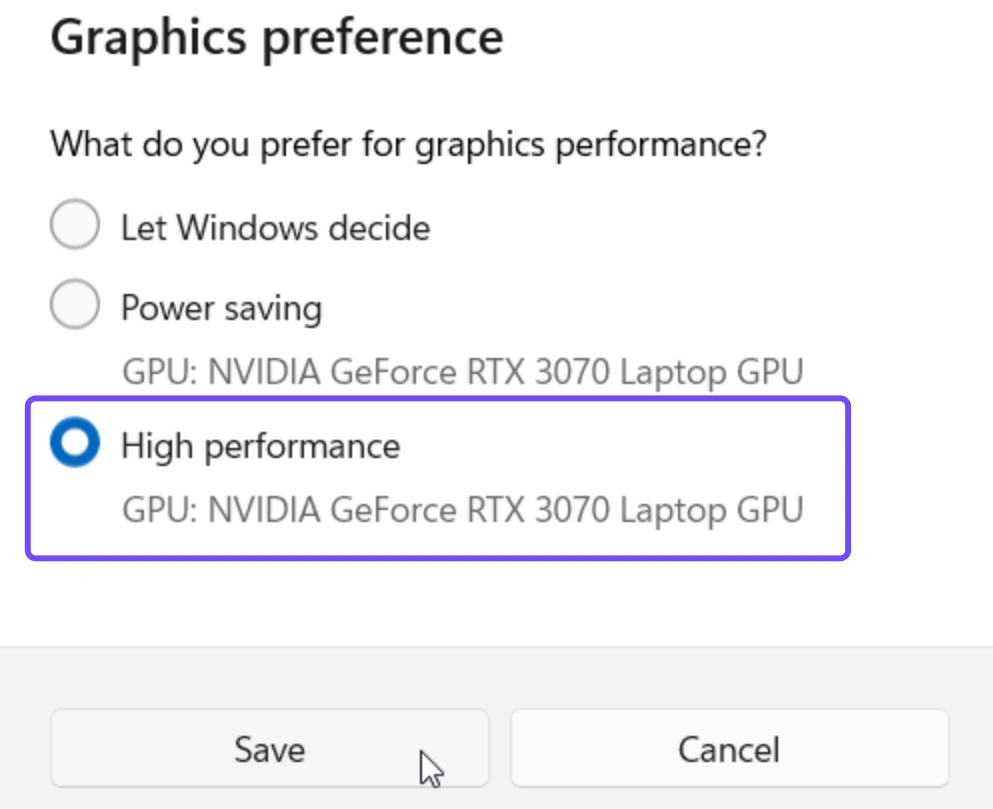
Step 5: Change the configuration bubble from Let Windows decide to High performance, then click Save.
Solution 2: Clean Shader Caches and Force Maximum Power Delivery
Unreal Engine 5 games rely heavily on building persistent cache sheets. If these structures become corrupted, your system experiences massive execution delays.
Step 1: Right-click an empty area on your desktop screen and select the NVIDIA Control Panel (or your corresponding AMD Radeon Software interface).
Step 2: Expand the 3D Settings menu tree on the left panel and click directly on Manage 3D settings.
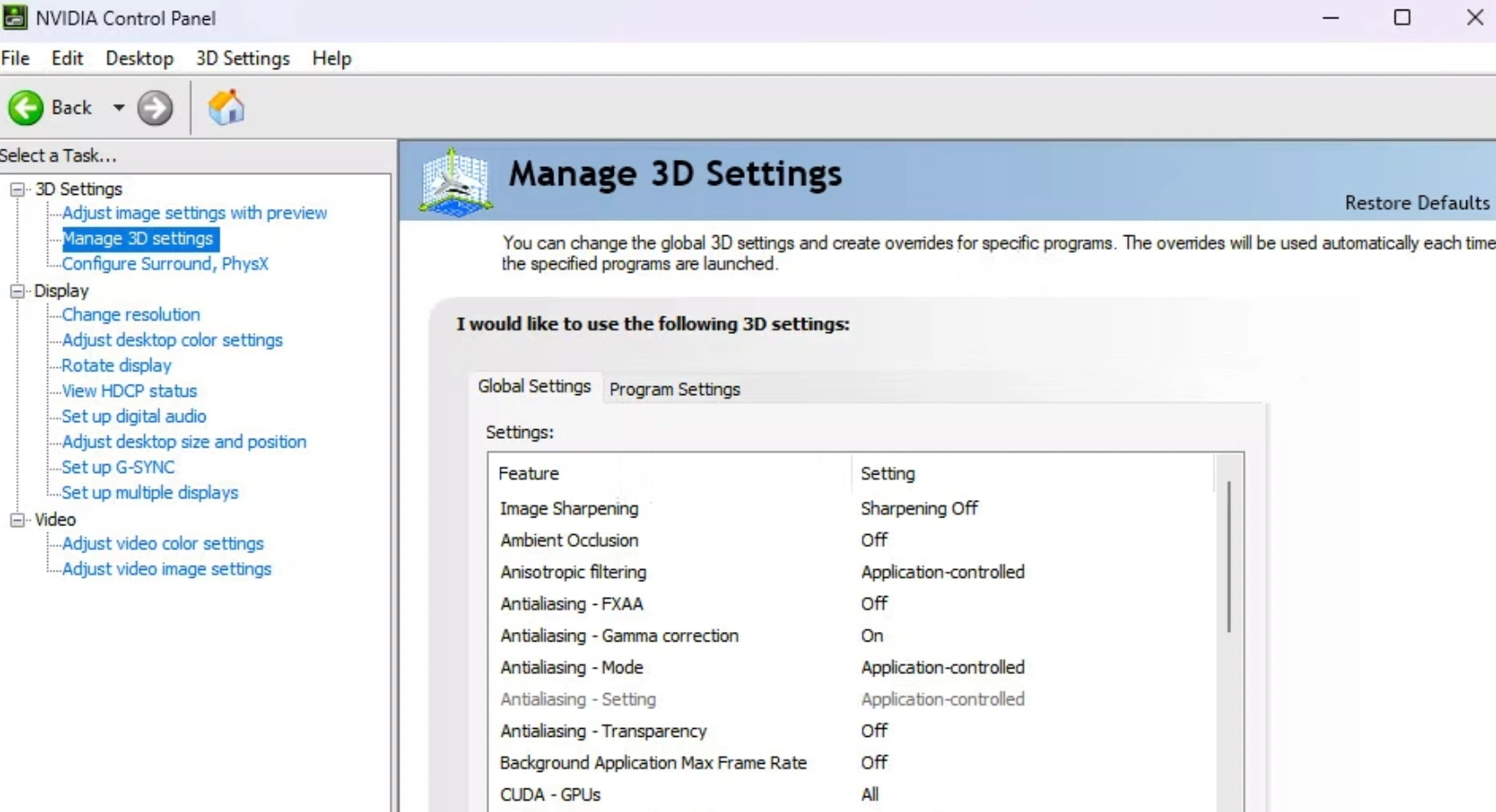
Step 3: Scroll through the global feature list until you locate Power management mode. Change this parameter to Prefer maximum performance.
Step 4: Move down further to find Shader Cache Size, and alter its value from default to 10GB or Unlimited to prevent ongoing in-game compilation hitches.
Step 5: Apply the changes, close the window, press Win + R, type %localappdata%, and clear out the temporary files located inside the stored DXCache sub-folders.
Solution 3: Disable Disruptive Desktop Overlays and Hardware Hooks
Background overlays run continuous screen-capture threads that interfere directly with standard graphics pipeline rendering loops.
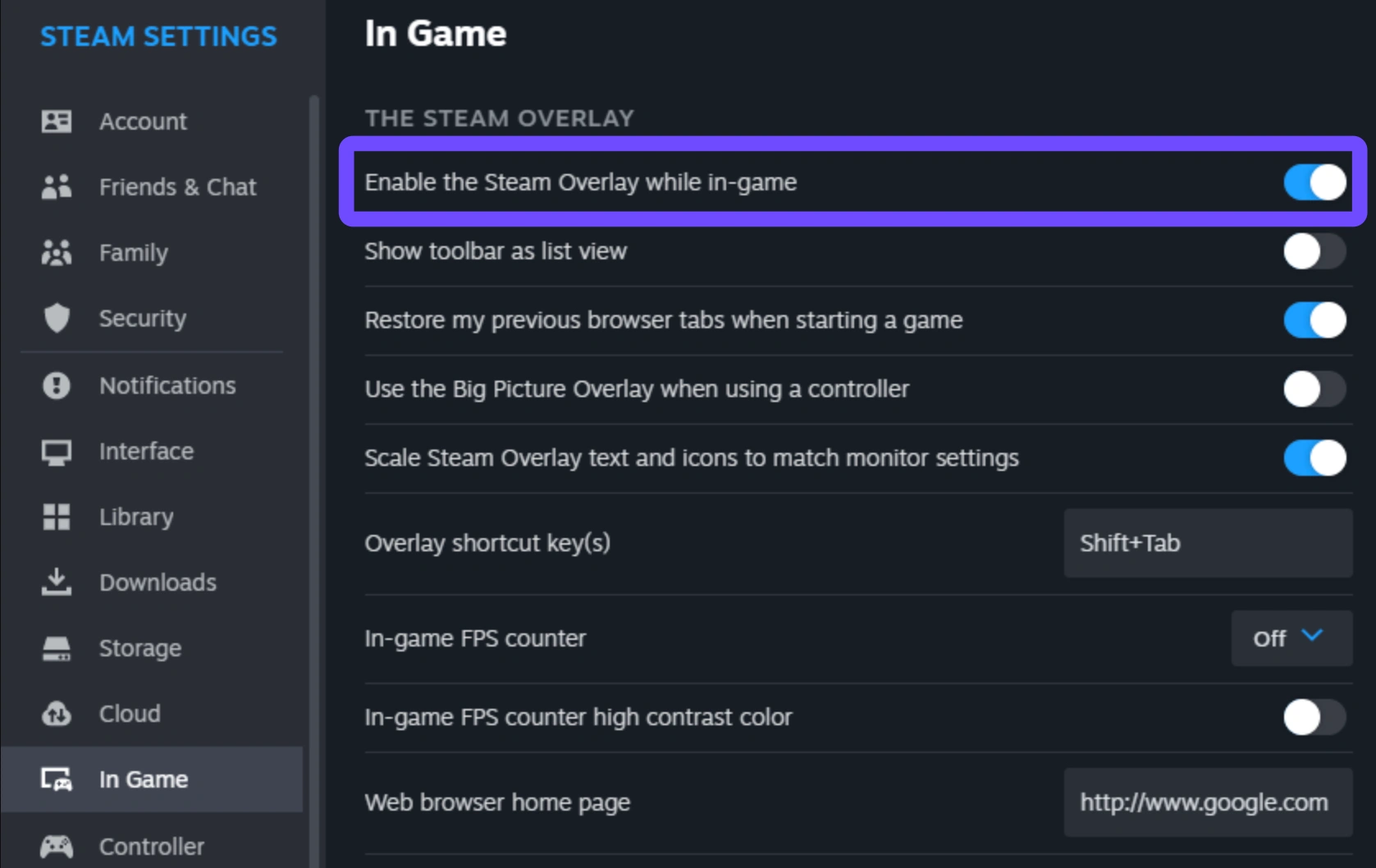
Step 1: Launch your Steam client application, enter your settings panel, navigate to the In-Game category, and switch off the toggle switch for Enable the Steam Overlay while in-game.
Step 2: Open Discord, click on the small gear icon at the bottom left to enter user settings, scroll down to Activity Overlay, and disable it completely.
Step 3: Open GeForce Experience (or the updated NVIDIA App Workspace), head into settings, and toggle the In-Game Overlay switch to Off.
Step 4: Open the Windows system taskbar, access your Task Manager, click on the Startup Apps tab, and disable peripheral managers (such as lighting sync utilities or unneeded cloud drives).
Step 5: Completely reboot your computer to ensure no lingering system hooks remain running in your memory pool.
Solution 4: Force DirectX 12 Execution and Clean Boot Parameters
Adjusting the way your operating system handles application threads during initialization can fix profound graphics issues.
Step 1: Open your Steam Library, navigate to your games list, right-click on Gothic 1 Remake, and choose Properties.
Step 2: Stay within the default General tab and locate the text input area marked Launch Options at the bottom.
Step 3: Enter the following system string into the command window exactly: -dx12 -high -fullscreen.
Step 4: Close the property configurations panel to save the changes automatically.
Step 5: Right-click the game executable, select properties, navigate to compatibility, check Disable fullscreen optimizations, and save.
Part 3: Gothic 1 Remake Best Settings for Low FPS
Tweaking individual in-game options provides the best direct balance between preserving visual clarity and reducing resource overhead. Use these optimized profiles to recover lost frames:
|
In-Game Setting |
Aggressive Performance Value |
Visual & Hardware Rationale |
|
Display Mode |
Fullscreen |
Gives the game engine exclusive control over your display adapter's output resources. |
|
Resolution |
Native Monitor Resolution |
Lowering this provides major frame boosts, but keeping it native prevents pixel blur. |
|
Upscaling Method |
DLSS / FSR / XeSS |
Essential for rendering at a lower baseline and upscaling cleanly using AI hardware. |
|
Upscaling Quality |
Balanced or Performance |
Drops rendering resolution workload by 30% to 50% without severely degrading edge lines. |
|
Shadow Quality |
Medium or Low |
Shadows use heavy geometry and mapping calculations that slow down your graphics card. |
|
Global Illumination |
Medium |
Lowers the processing load of dynamic light sources across dense foliage zones. |
|
View Distance |
Medium |
Limits how many high-polygon models the game processes simultaneously at a distance. |
|
Texture Quality |
Matches Available VRAM |
Set to High if you have over 12GB VRAM; drop to Medium if your hardware has less than 8GB. |
|
Motion Blur |
Off |
Removing this filter reduces motion processing overhead and clarifies moving views. |
Part 4: Gothic 1 Remake Performance Drops vs. Low FPS
It is common to confuse different performance issues, but understanding the difference between low frame rates and sudden performance drops helps you fix them more effectively.
|
Core Metric Comparison |
Sustained Low FPS Issues |
Sudden Performance Drops & Stutters |
|
Primary Visual Behavior |
Game feels constantly heavy, slow, and sluggish, hovering at low frames all the time. |
The game runs smoothly at 60+ frames, but hitches or freezes momentarily during action. |
|
Main System Cause |
Your graphic card or processor is below requirements or handling too high a resolution. |
Engine bottlenecks, background assets loading incorrectly, or memory allocation conflicts. |
|
Impact of Game Settings |
Changing graphic presets to low values provides an immediate, noticeable boost. |
Lowering presets rarely fixes this, as background processes still cause system hitches. |
|
Impact on Gameplay |
Hard to play smoothly, but consistent frame timing makes inputs predictable. |
Sudden freezes cause missing inputs, making combat very frustrating. |
Part 5: Ultimate Solution: Fix All FPS Issues—LagoFast
Manually adjusting configurations takes time and rarely solves underlying network or systemic background spikes. To bypass these complex manual methods entirely, you need an automated Gothic 1 Remake FPS Booster.
LagoFast is a highly optimized game booster designed to eradicate performance barriers. It goes significantly deeper than basic game settings or generic manual fixes, completely stabilizing both low FPS issues and unexpected FPS drops simultaneously. By cleaning deep system processes with a single click, it ensures your system focuses entirely on running the game.
Key Features of LagoFast:
- One-Click FPS Boost: Instantly overclocks system priorities, clears RAM, and stops demanding background tasks from interfering with your gameplay.
- High Ping Reducer: Intelligently routes your connection through global gaming paths to ensure stable data sync.
- Real-Time Hardware Diagnostic: Monitors and manages system temperatures, CPU performance allocation, and GPU output continuously.
- Stutter Elimination: Addresses the root causes of frame pacing anomalies to deliver a fluid visual experience.
Tutorial to Use LagoFast to Fix Gothic 1 Remake Low FPS and Frame Drops:
Step 1: Click the Free Trial button to download and install LagoFast.
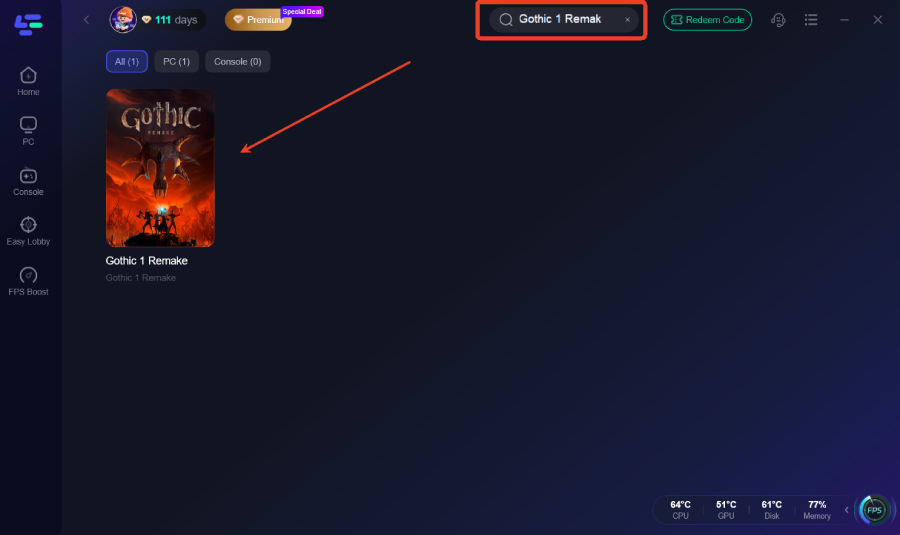
Step 2: Open LagoFast, then click the PC button on the left, search for Gothic 1 Remake in the search bar, and click it after it appears.
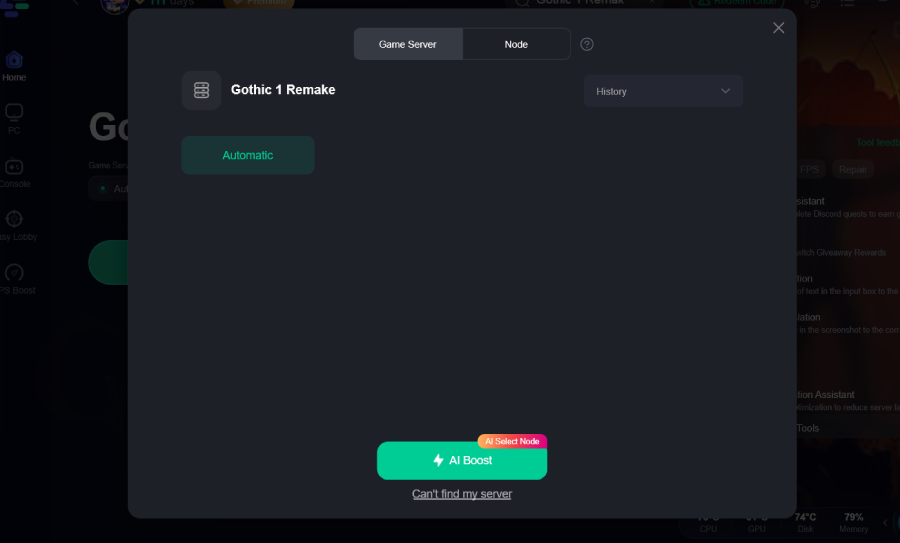
Step 3: Click on “Server” to change to a better server that ensures a better gaming experience, then click on “Smart Boost” to fix Gothic 1 Remake lag and stuttering.
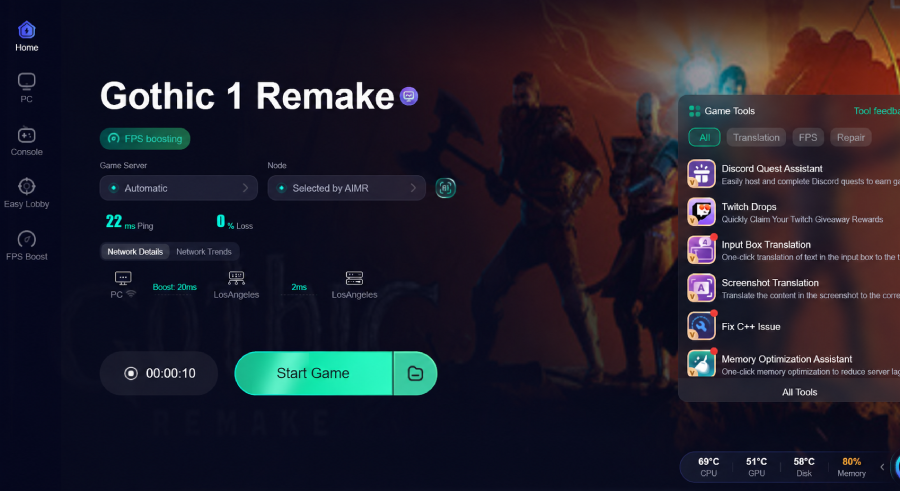
Step 4: Check the specific game ping, packet loss, and multiple path connections on the right side. Finally, click “Start Game” to play the game.
Part 6: FAQs
Why is my frame rate so bad in the Old Camp?
The Old Camp contains a dense concentration of NPC AI routines, complex lighting, and interactive items. This combination puts a massive strain on your CPU. Lowering your View Distance and using a booster to prioritize processing power will help mitigate these localized drops.
Does turning off V-Sync help fix Gothic 1 Remake low FPS?
Yes, turning off in-game V-Sync can reduce input lag and lift frame rate caps. However, if you experience screen tearing as a result, try turning off in-game V-Sync and instead enabling G-Sync/FreeSync via your graphics control panel.
Will changing the launch options improve performance?
Adding arguments like -dx12 or -high in your Steam launch settings can force the game to run on modern API infrastructures and grant it high system priority. While results vary by system, it is a risk-free configuration to test.
How much VRAM does the remake require?
For comfortable play at 1080p on medium settings, at least 6GB of VRAM is recommended. Exceeding your graphics card's available VRAM forces data into slower system RAM, causing immediate and severe frame rate drops.
Is an SSD required to fix continuous stuttering?
While not strictly required to launch the game, installing the remake on an NVMe SSD is highly recommended. Traditional HDDs cannot stream high-fidelity open-world assets fast enough, resulting in prominent asset-loading stutters as you move between zones.
Can background apps cause micro-stuttering?
Absolutely. Browsers, communication platforms, and background recording software consume substantial CPU cycles and RAM. Closing these programs before launching the game, or letting a tool automatically suspend them, frees up critical assets for rendering.
Conclusion
Fixing low frame rates and performance drops in the Gothic 1 Remake is a matter of properly balance your hardware's workload. By cleaning out temporary system files, adjusting your graphics settings, and using a dedicated tool like LagoFast, you can eliminate frustrating stutters. This lets you experience the unforgiving prison colony with smooth, responsive gameplay.

Boost Your Game with LagoFast for Epic Speed
Play harder, faster. LagoFast game booster eliminates stutter and lags on PC, mobile, or Mac—win every match!
Quickly Reduce Game Lag and Ping!
Boost FPS for Smoother Gameplay!