

Ashes of Creation is a sandbox MMORPG developed by Intrepid Studios, now entering public Early Access on December 11, 2025, while remaining in Alpha testing stage. (Because many systems are still under development, players should expect bugs, incomplete features, performance issues, or instability.) As with many early-access online games, some players may encounter crashes or other technical problems that disrupt their experience.

Part 1: Why Did Ashes of Creation Encounter Crashing Issue
Part 2: How to Fix Ashes of Creation Crashing Issue?
Part 3: How to Enhance Your Gaming Experience with LagoFast
Part 4: FAQs
Part 1: Why Did Ashes of Creation Encounter Crashing Issue
Understanding why crashes occur in Ashes of Creation is the first step toward finding a solution. Several factors can contribute to these issues:
- Hardware Limitations
Ashes of Creation is designed to be visually impressive and resource-intensive. Players with older hardware may struggle to run the game smoothly, leading to crashes. Insufficient RAM, outdated graphics cards, or underpowered CPUs can cause performance issues. AoC's Alpha builds are not fully optimized yet, so even strong PCs may experience instability. - Software Conflicts
Conflicts with other software, such as background applications, can lead to instability. Programs that utilize significant system resources may interfere with the game, resulting in crashes. - Corrupted Game Files
If game files become corrupted or missing, the game may crash when trying to access those files. This can occur due to incomplete installations or updates. - Driver Issues
Outdated or incompatible drivers, especially graphics drivers, can lead to performance problems. Keeping drivers up to date is crucial for optimal gaming performance. - Network Issues
Poor internet connectivity or server instability can cause disconnections and crashes during gameplay. High latency or packet loss can also impact game performance, leading to crashes. - Game Bugs
As with many online games, Ashes of Creation may have bugs or glitches that can lead to crashing. Developers often release patches and updates to address these issues, but players may encounter them between updates.
Part 2: How to Fix Ashes of Creation Crashing Issue?
If you're experiencing crashing issues in Ashes of Creation, here are several steps you can take to troubleshoot and resolve the problem:
- Check System Requirements
Ensure that your system meets the minimum requirements to run Ashes of Creation. If your hardware falls short, consider upgrading components such as RAM or your graphics card to meet the recommended specifications. - Verify Game Files
If you suspect corrupted files, use the game launcher to verify the integrity of your game files. This process will identify and repair any missing or corrupted files, ensuring that the game runs smoothly. - Update Drivers
Regularly check for updates for your graphics card and other hardware drivers. Visit the manufacturer's website or use software tools to ensure you have the latest versions installed. Updated drivers can significantly improve game performance and stability. - Close Background Applications
Before launching Ashes of Creation, close any unnecessary background applications that may be consuming system resources. Programs such as web browsers, streaming services, or other games can take up valuable RAM and processing power. - Adjust Graphics Settings
If your hardware struggles with high graphics settings, consider lowering them. Reducing texture quality, shadow resolution, and other graphical options can alleviate strain on your system and help prevent crashes. - Check Network Connection
Ensure your internet connection is stable and fast. Use a wired connection instead of Wi-Fi if possible, as this can improve stability. Additionally, check for any network issues with your ISP that could impact your gameplay. - Reinstall the Game
If crashes persist, a clean installation of Ashes of Creation may be necessary. Uninstall the game, delete any remaining files, and then reinstall it. This process can help eliminate any issues related to corrupted files or improper installations. - Stay Updated
Keep an eye on official announcements from the developers regarding patches or updates that address known issues. Joining community forums can also provide insights into common problems and fixes shared by other players.
Part 3: How to Enhance Your Gaming Experience with LagoFast
To further enhance your gaming experience and reduce the chances of crashes in Ashes of Creation, consider using LagoFast Game Booster. Here’s how it can help:
LagoFast is a game booster designed to optimize network performance.
- Optimize Your Connection
LagoFast optimizes your internet connection, reducing lag and improving stability. This ensures that you have a smooth gaming experience, minimizing disconnections that can lead to crashes. - Lower Ping and Latency
With LagoFast, you can reduce ping and latency by connecting to the nearest game servers. This can enhance your overall gaming experience and reduce the risk of server-related crashes. - Prevent Packet Loss
Packet loss can cause significant issues during gameplay, including crashes. LagoFast helps stabilize your connection, ensuring that data packets are transmitted effectively and reducing the chances of losing connection to the game. - Bypass Geo-Restrictions
If you're facing server issues due to geographical restrictions, LagoFast allows you to connect to different server regions, providing access to more stable connections and potentially reducing crashes.
How to use LagoFast Game Booster on PC
Step 1: Start by clicking the Free Trial button to download and install the LagoFast Free Trial.
Step 2: Once installed, open LagoFast and click the PC icon on the left side of the screen. Use the search bar to find Ashes of Creation and select it from the results.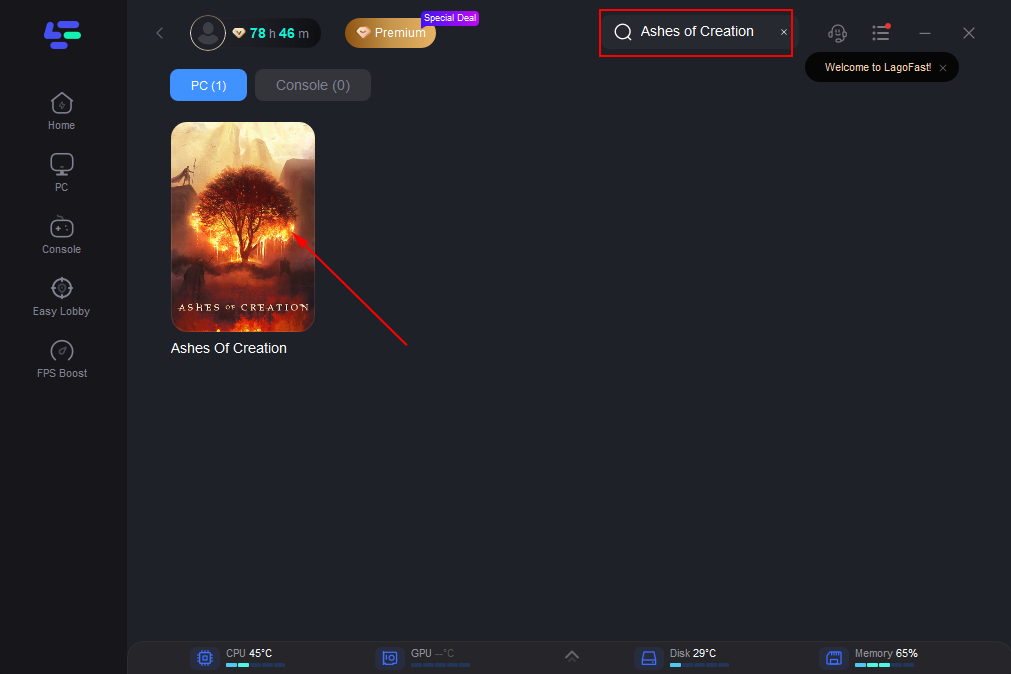
Step 3: Choose a server that is nearest to your location or provides the lowest latency for the best performance.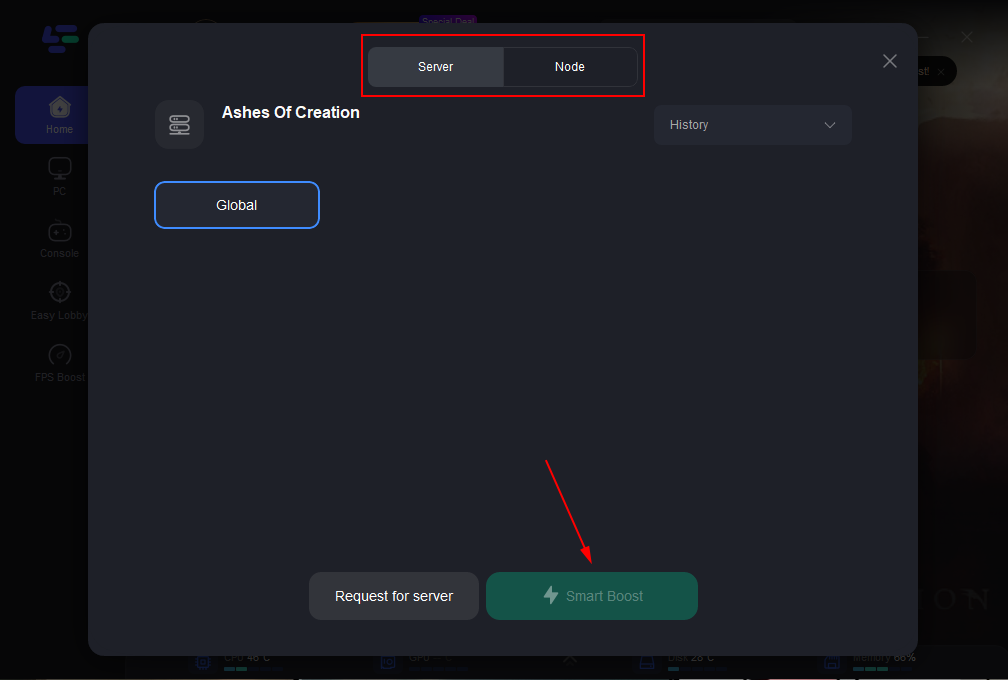
Step 4: After LagoFast completes the network optimization, return to the game and enjoy an improved gaming experience.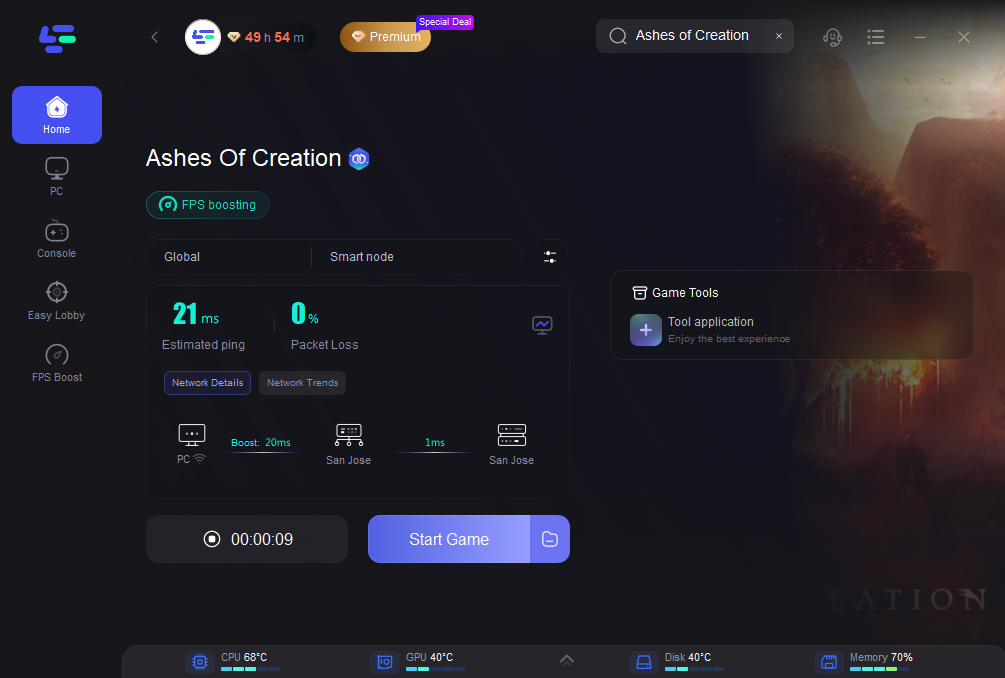
Part 4: FAQs
1. Why does Ashes of Creation keep crashing?
Crashes can occur due to hardware limitations, software conflicts, corrupted game files, outdated drivers, network issues, or game bugs. Identifying the root cause can help you find the right solution.
2. How can I check if my hardware meets the requirements?
You can compare your system specifications with the minimum and recommended requirements listed on the official Ashes of Creation website. There are also tools available that can analyze your system's capabilities.
3. What should I do if verifying game files doesn’t work?
If verifying game files doesn’t resolve the issue, consider updating your drivers, closing background applications, adjusting graphics settings, or reinstalling the game.
4. How does LagoFast improve my gaming experience?
LagoFast optimizes your internet connection, reduces ping, prevents packet loss, and helps bypass geo-restrictions, leading to a smoother gaming experience with fewer crashes.
5. Is it necessary to keep my drivers updated?
Yes, keeping your drivers updated is crucial for optimal gaming performance. Updates often include fixes for bugs and compatibility issues, which can help prevent crashes.
Conclusion
In conclusion, experiencing crashes in Ashes of Creation can be frustrating, but by following the troubleshooting steps outlined in this guide, you can identify and resolve the underlying issues. Utilizing tools like LagoFast can further enhance your gaming experience, ensuring smoother gameplay and minimizing disruptions. With these strategies, you'll be better equipped to enjoy everything Ashes of Creation has to offer.

Boost Your Game with LagoFast for Epic Speed
Play harder, faster. LagoFast game booster eliminates stutter and lags on PC, mobile, or Mac—win every match!
Quickly Reduce Game Lag and Ping!
Boost FPS for Smoother Gameplay!