
Quick Answer
Check EA server status, then confirm your EA Account in a browser. On PC, restart the EA app and Steam or Epic, clear its cache, verify game files, and test Ethernet. If services are online but authentication times out, LagoFast Game Booster can test a cleaner route.
An invalid password usually fails immediately; an “authenticating” loop points to a stale session, blocked connection, platform link, or overloaded service. Follow the steps in order.

- ✅ Reduce Lag and High Ping.
- ✅ Boost FPS at the Same Time.
- ✅ Support 8000+ Popular Online Games.
- ✅ Stable Server Connection
Part 1: FC 27 Login Issues vs EA Servers Down
Part 2: Why Can’t I Log Into FC 27?
Part 3: How to Fix FC 27 Login & Connection Issues with LagoFast Game Booster
Part 4: Other Ways to Fix FC 27 Login Issues
Part 5: FAQs About FC 27 Login Errors
Part 1: FC 27 Login Issues vs EA Servers Down
Before changing network settings or reinstalling the game, verify whether the issue stems from EA's infrastructure or your local setup. You can check if FC 27 servers are down using real-time tracking tools. A server-side outage often mimics a local connection failure, but no amount of local troubleshooting will fix a down server.
Use a three-signal check
|
Signal |
Meaning |
|
EA status page reports an incident |
Wait for service recovery; local changes will not repair EA infrastructure |
|
EA status is normal, but outage reports spike |
The incident may be regional, newly developing, or not yet reflected officially |
|
Status is normal and only your PC fails |
Focus on account sessions, cache, files, platform linking, and routing |
Mode-specific trouble is another clue: the main menu may load while Ultimate Team, Clubs, or profile synchronization fails. Try another online area once, then check official updates.
An error after a password change or account-link adjustment points to the account. If many regional players report the same message, wait for the incident to clear.
Part 2: Why Can’t I Log Into FC 27?
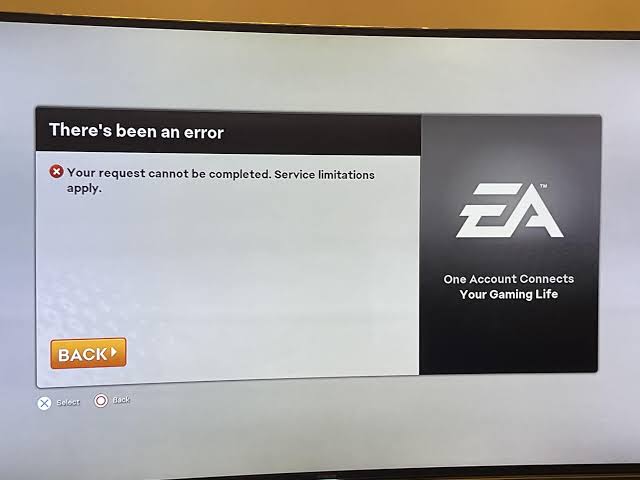
Identify the failure point before changing Windows settings. Login trouble is not always a gameplay problem.
|
What you see |
Most likely area |
First check |
|
Password or verification is rejected |
EA Account |
Sign in through the EA website and check security prompts |
|
“Authenticating” loops after pressing Play |
EA app session or network handshake |
Fully close the EA app and platform client, then relaunch |
|
Game opens but Ultimate Team or Clubs will not load |
EA online service or mode service |
Check EA server status and official service updates |
|
Only FC 27 fails while other games work |
Game files, launcher link, or EA cache |
Repair files and clear the EA app cache |
|
Several players report the same error |
EA or platform outage |
Compare official status with independent outage reports |
Common causes include expired credentials, unfinished email verification, a needed two-factor code, an account suspension, or an EA Account linked to the wrong Steam or Epic profile. A second account can confuse the diagnosis because entitlements and progress remain attached to the original link.
On PC, overlays, VPNs, DNS filtering, unstable Wi-Fi, and an incorrect system clock can interrupt the security handshake. Aim for low packet loss and consistent latency, not maximum download speed.
Part 3: How to Fix FC 27 Login & Connection Issues with LagoFast Game Booster
Game boosters optimize network routes and reduce packet loss during the login handshake; they cannot bypass EA server maintenance, account bans, or credential errors. Use LagoFast to stabilize your connection once EA confirms its servers are operational.
Step-by-step tutorial for stabilizing FC 27 login connectivity
Step 1. Download and Install LagoFast. Click the Free Trial button to download and install LagoFast Free Trial.
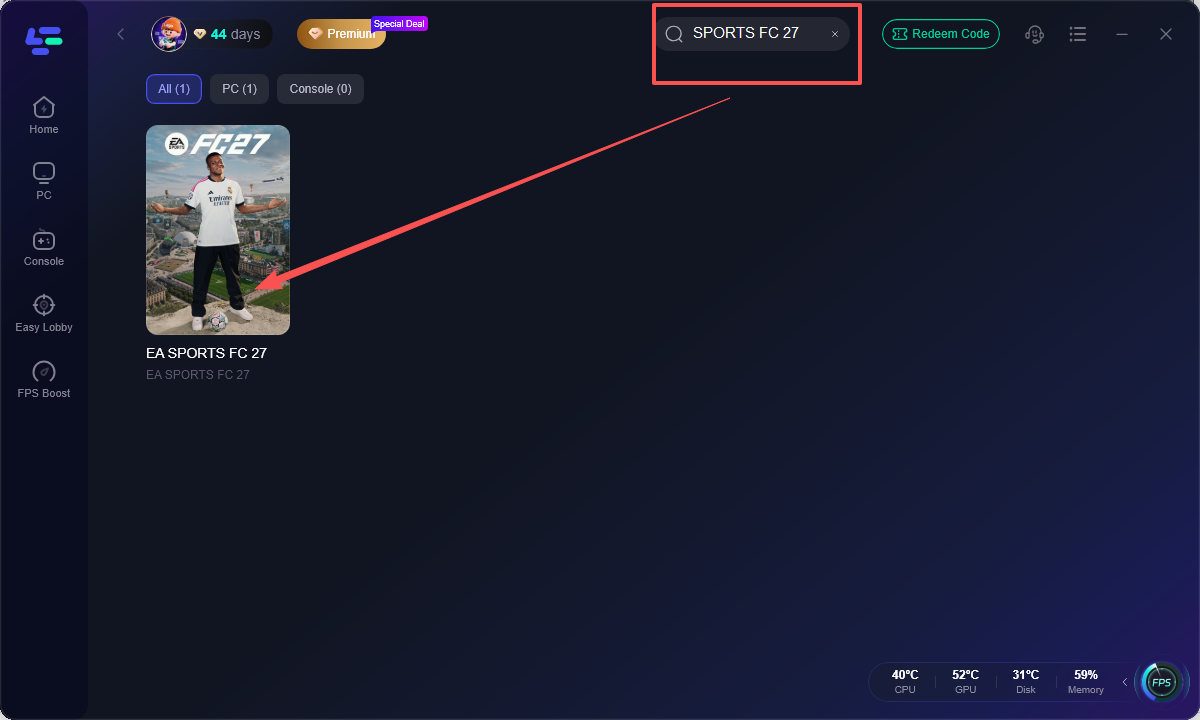
Step 2. Select EA SPORTS FC 27. Search for EA SPORTS FC 27 in the app and select its dedicated profile to ensure optimization targets the correct game process.
Step 3. Choose an Optimal Server Node. Select a node corresponding to your target EA data center. Prioritize routes with lower, lower-jitter ping over pure geographical proximity.
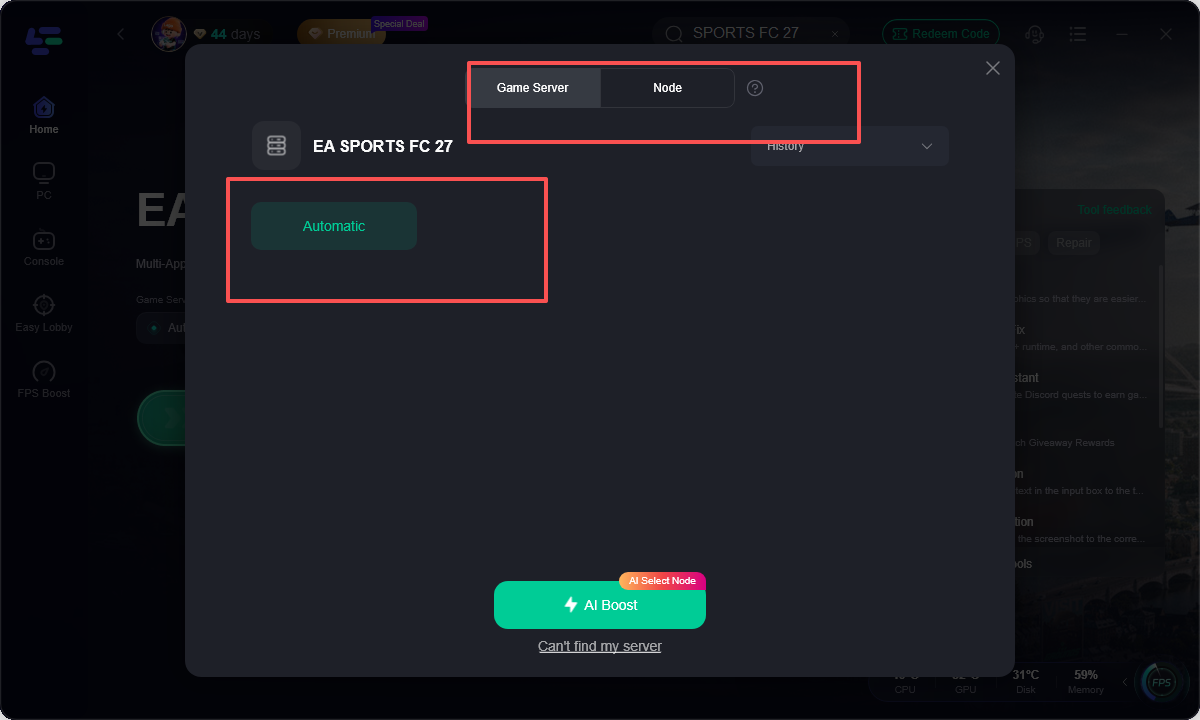
Step 4. Enable AI Boost & Free Up Bandwidth . Click Boost to optimize routing. Pause background downloads, cloud syncing, and streaming apps to prevent bandwidth competition during authentication.
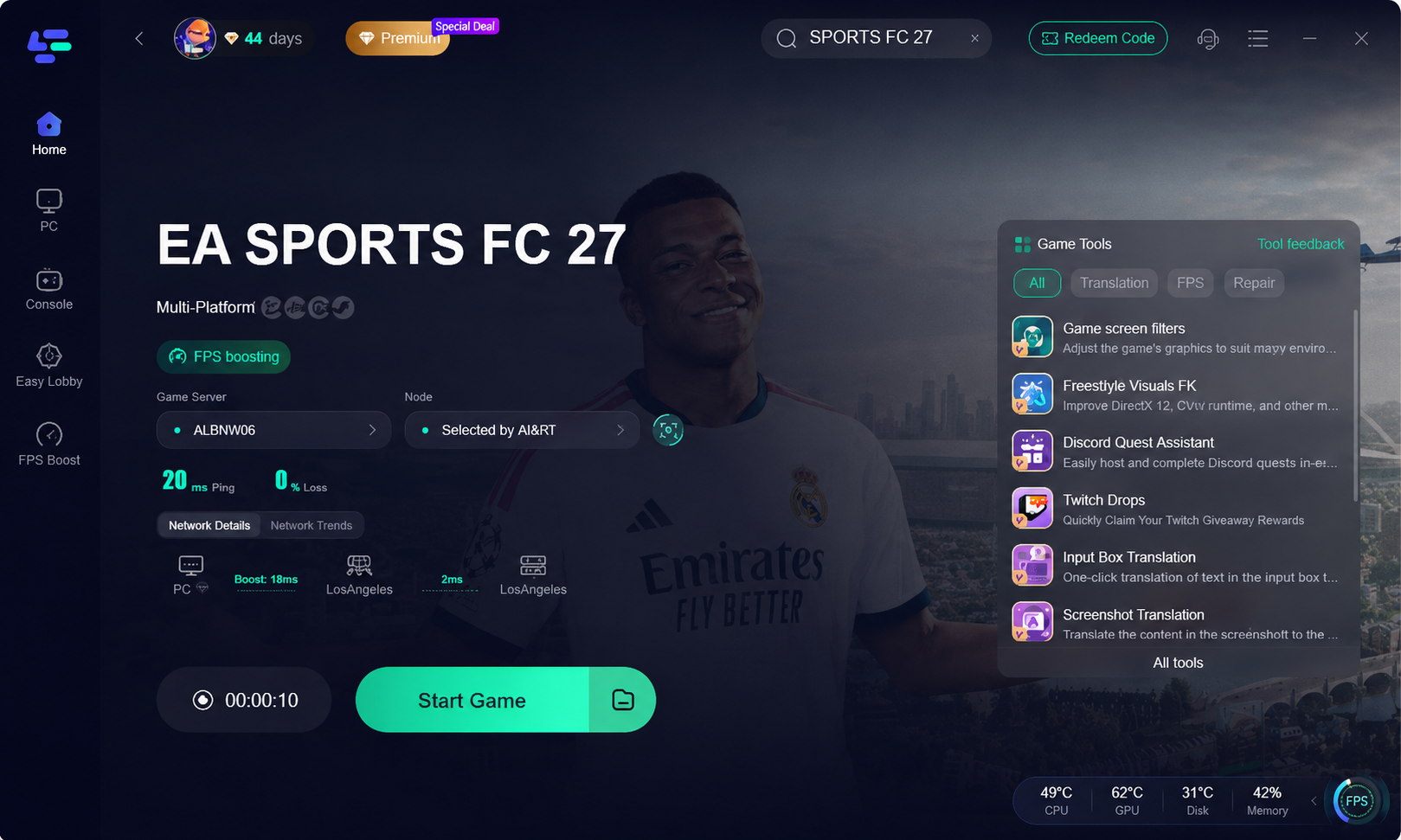
Step 5. Launch FC 27 and Test Connection. Launch the game through LagoFast (ensuring the EA App, Steam, or Epic Games Launcher runs if prompted). Verify access via the main menu, Ultimate Team, or Clubs.
Note: If login errors persist across multiple nodes, the issue is likely an account-level restriction or server outage rather than an ISP routing problem.
Part 4: Other Ways to Fix FC 27 Login Issues
If your FC 27 login issue is caused by network instability, routing problems, high latency, or connection errors, LagoFast Game Booster can help optimize your connection and improve the stability between your PC, EA servers, and the game platform.
However, not every login error is caused by the network. If the problem persists after using LagoFast, the following troubleshooting steps can help identify other possible causes.
Refresh the launcher session
Exit FC 27, Steam or Epic, and the EA app from the system tray. In Task Manager, end remaining EA, EABackgroundService, Steam, or Epic processes. Reopen the platform client, wait for syncing, and start the game. Disable “keep me signed in” temporarily if an old session keeps loading.
Clear the EA app cache
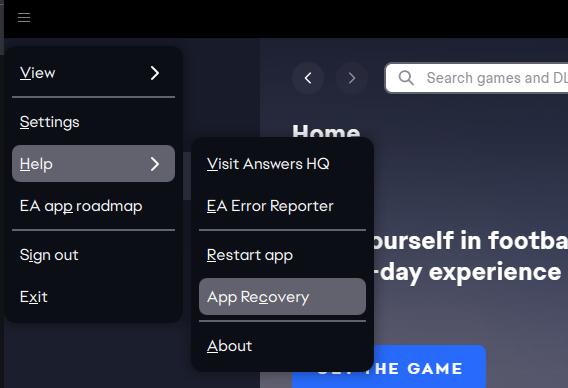
In the EA app, open the menu, go to Help, choose App Recovery, and select Clear Cache. The app will restart. This removes temporary launcher data; it does not delete FC 27 save files or Ultimate Team progress. Sign in again manually after the restart.
Repair the game installation
Use the repair or verify option in the platform client. On Steam, open Properties, select Installed Files, and run Verify integrity of game files. In the EA app, open FC 27’s management menu and select Repair when available.
Check account and platform linking
Sign in to the EA Account website in a private browser window. Confirm the email address, complete any security verification, and review connected accounts. If the website login fails, reset the password through EA’s recovery flow. Avoid unlinking Steam or Epic as a casual experiment; account-link changes can have eligibility and progression consequences.
Stabilize the Windows connection
Restart the router, test Ethernet, pause heavy traffic, and confirm automatic Windows date and time. If a mobile hotspot works but home internet does not, suspect routing, DNS, firewall filtering, or ISP congestion. Change DNS or firewall rules only through trusted Windows settings and record the original values.
Part 5: FAQs About FC 27 Login Errors
Why is FC 27 stuck logging in on PC?
The usual causes are an expired EA app session, a cache problem, a platform-client handoff failure, or a network route that cannot complete the authentication handshake. Fully close both launchers, clear the EA app cache, and test the account in a browser.
What should I do when FC 27 login failed after an update?
Restart the EA app and platform client, check for another game update, and repair the installation. Also verify that the EA app is online and that Windows has finished installing any pending restart-required updates.
Why can I log into EA online but not FC 27?
The account may be valid while the game entitlement, platform link, local cache, or FC 27 service is failing. Confirm that the game is launched from the account that owns it, then repair files and review linked accounts.
Is an EA login error always caused by my internet?
No. Outages, account restrictions, expired sessions, platform links, maintenance, and firewall rules can all create similar messages. Check servers and the account first.
Can I fix a login loop by creating a new EA Account?
No. Keep the account connected to your game entitlement and recover it through EA support instead.
Conclusion
The fastest fix is diagnosis, not a reinstall. Check status, confirm the account, refresh the launcher, clear cache, repair files, and test the network. If services are online, download LagoFast Game Booster to test a cleaner route.
Boost Your Game with LagoFast for Epic Speed
Play harder, faster. LagoFast game booster eliminates stutter and lags on PC, mobile, or Mac—win every match!
Quickly Reduce Game Lag and Ping!
Boost FPS for Smoother Gameplay!