
Quick Answer
Use the Competitive preset, Analog Sprint Off, Timed Finishing On, Air Balls and Loose Balls auto-switching, and Player Relative right-stick switching. Use a wider Co-Op camera, disable vibration for ranked play, and test changes in Kick-Off before Ultimate Team.

- ✅ Reduce Lag and High Ping.
- ✅ Boost FPS at the Same Time.
- ✅ Support 8000+ Popular Online Games.
- ✅ Stable Server Connection
Part 1: Best FC 27 Controller Settings for Competitive Play
Part 2: FC 27 Camera Settings for Better Awareness
Part 3: FC 27 Input and Passing Settings Explained
Part 4: PC, PlayStation and Xbox Controller Setup
Part 5: How to Reduce FC 27 Input Delay With LagoFast Game Booster
Part 6: Fix FC 27 Controller Not Working
Part 1: Best FC 27 Controller Settings for Competitive Play
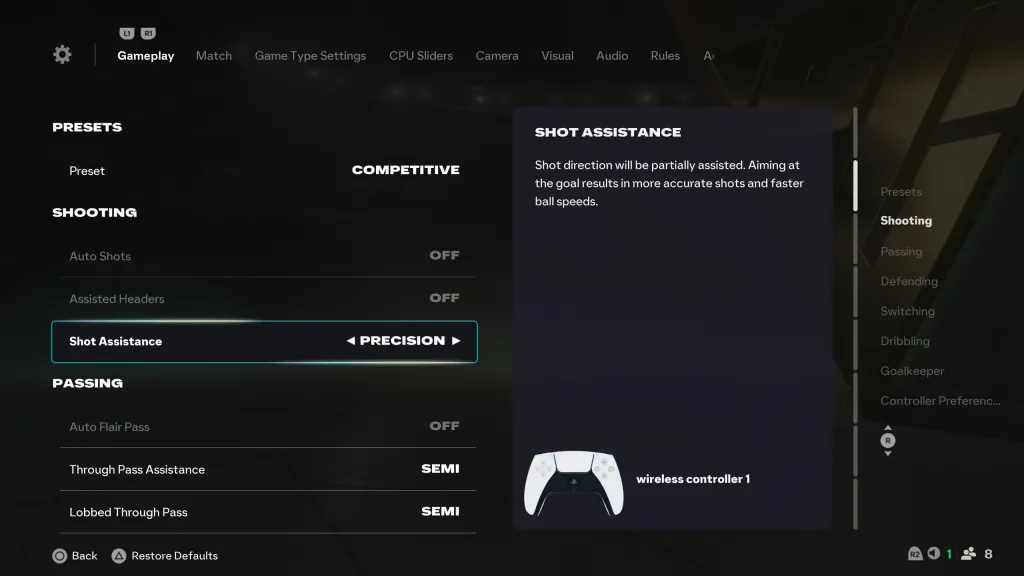
The best setup is not the one with the most manual options. It is the profile that gives you predictable first touches, repeatable passing power, and fast player switching under pressure. The settings below are a strong starting point for online matches, but advanced players should adjust one option at a time.
|
Setting |
Recommended starting value |
Why it matters |
|
Preset |
Competitive |
Applies the online-focused control profile |
|
Shot Assistance |
Assisted |
Consistent finishing while learning timing |
|
Timed Finishing |
On |
Adds a skill-based accuracy layer |
|
Through Pass Assistance |
Semi |
Preserves direction while reducing overcorrection |
|
Lob Pass Assistance |
Semi |
Gives more control over lofted delivery |
|
Cross Assistance |
Semi |
Helps target space rather than a fixed player |
|
Pass Receiver Lock |
Late |
Lets you adjust the target later in the animation |
|
Auto Switching |
Air Balls and Loose Balls |
Reduces unwanted defensive switches |
|
Auto Switching Move Assistance |
None or Low |
Keeps movement under your control |
|
Right Stick Switching |
Player Relative |
Makes manual switching easier to read |
|
Defending |
Tactical Defending |
Supports modern jockeying and positioning |
|
Analog Sprint |
Off |
Produces a more consistent sprint trigger |
|
Vibration |
Off for ranked play |
Removes a common source of distraction |
Assisted Shooting is forgiving for new players; Semi Passing and Timed Finishing offer more control but punish poor angles and late inputs.
Part 2: FC 27 Camera Settings for Better Awareness
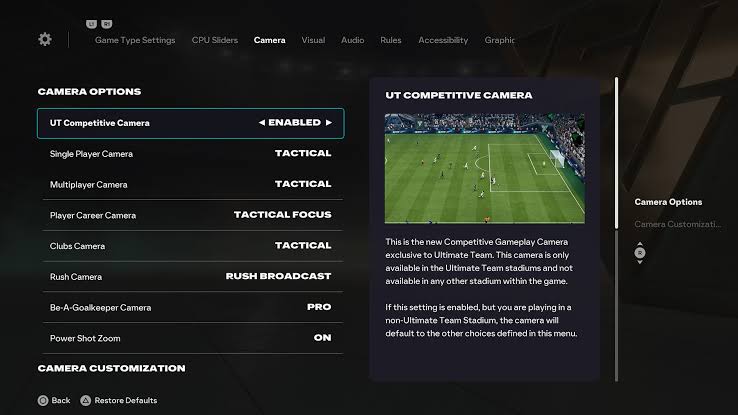
Recommended camera profiles
|
Play style |
Camera |
Suggested adjustment |
|
Competitive all-rounder |
Co-Op |
Height 17–20, Zoom 0–3 |
|
Close dribbling focus |
Tele Broadcast |
Height 10–12, Zoom 0–2 |
|
Traditional FIFA view |
Co-Op or Classic |
Keep zoom low and raise height |
|
Goalkeeper practice |
Pro |
Use only for position-specific drills |
Co-Op is a strong default because it shows more of the pitch horizontally. Lower zoom gives additional information about off-ball runners, but the trade-off is smaller player models. If you struggle with skill moves, raise the camera zoom slightly rather than changing your entire controller profile.
Turn off excessive motion blur and cinematic transitions. Keep radar enabled at a readable size; consistency matters more than copying a tournament player’s numbers.
Part 3: FC 27 Input and Passing Settings Explained
Input settings determine how much the game assists your decision and how much it preserves your directional intent. The right balance depends on your passing habits and whether you play short possession, direct counterattacks, or manual build-up.
Passing and shooting priorities
- Through Pass Assistance: Semi is a useful middle ground. Fully Assisted can send the ball toward an unintended runner when several targets overlap.
- Cross Assistance: Semi gives control over the delivery without requiring fully manual aim.
- Pass Receiver Lock: Late is helpful when you often change your mind after the passing animation begins.
- Timed Finishing: On is worth practicing in Skill Games before relying on it in a close match.
- Analog Sprint: Off removes variable trigger pressure from the sprint calculation.
- Right Stick Switching: Player Relative makes the next defender easier to identify from your current view.
Use the Input Overlay in the visual settings when diagnosing missed commands. It can show whether the controller registered the button, stick direction, or trigger press. This separates a bad decision from a missed input and prevents unnecessary changes to passing assistance.
Part 4: PC, PlayStation and Xbox Controller Setup
The same profile can feel different across platforms because drivers, display processing, frame pacing, and wireless connections change the timing chain.
PC setup
Use a wired controller for the first test. On Windows, close duplicate input software and check that Steam Input, EA App input handling, or a third-party mapper is not creating two controller layers. Disable V-Sync if it adds visible delay, then cap FPS at a stable level your system can maintain.
PlayStation controllers may need the correct Steam configuration or Windows driver. Test one controller at a time and disconnect unused gamepads and virtual devices.
PlayStation and Xbox setup
For PS5 and Xbox, enable display Game Mode and turn off motion smoothing. Disable vibration for ranked play if it distracts your timing; reduce adaptive trigger resistance when sprinting feels inconsistent.
Part 5: How to Reduce FC 27 Input Delay With LagoFast Game Booster
Controller settings cannot repair a bad route to the game server. If offline Kick-Off feels responsive but online matches feel delayed, test the network separately. LagoFast Game Booster can optimize routing while you compare a complete match.
Step-by-step tutorial for improving FC 27 online responsiveness
Step 1. Click the Free Trial button to download and install LagoFast Free Trial.
Step 2. Search for EA SPORTS FC 27. Choose the matching game entry so the booster applies the relevant profile.
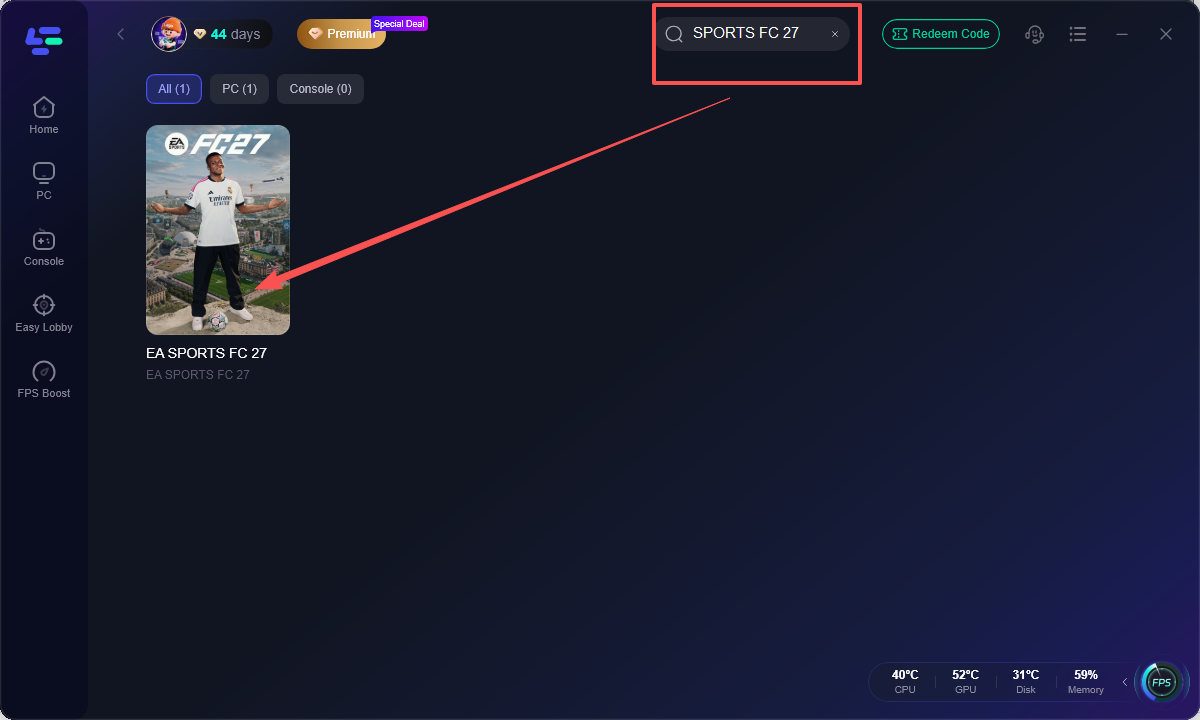
Step 3. Select a nearby server route. Begin with the closest recommended region, then compare another suggested node only if the first route remains unstable.
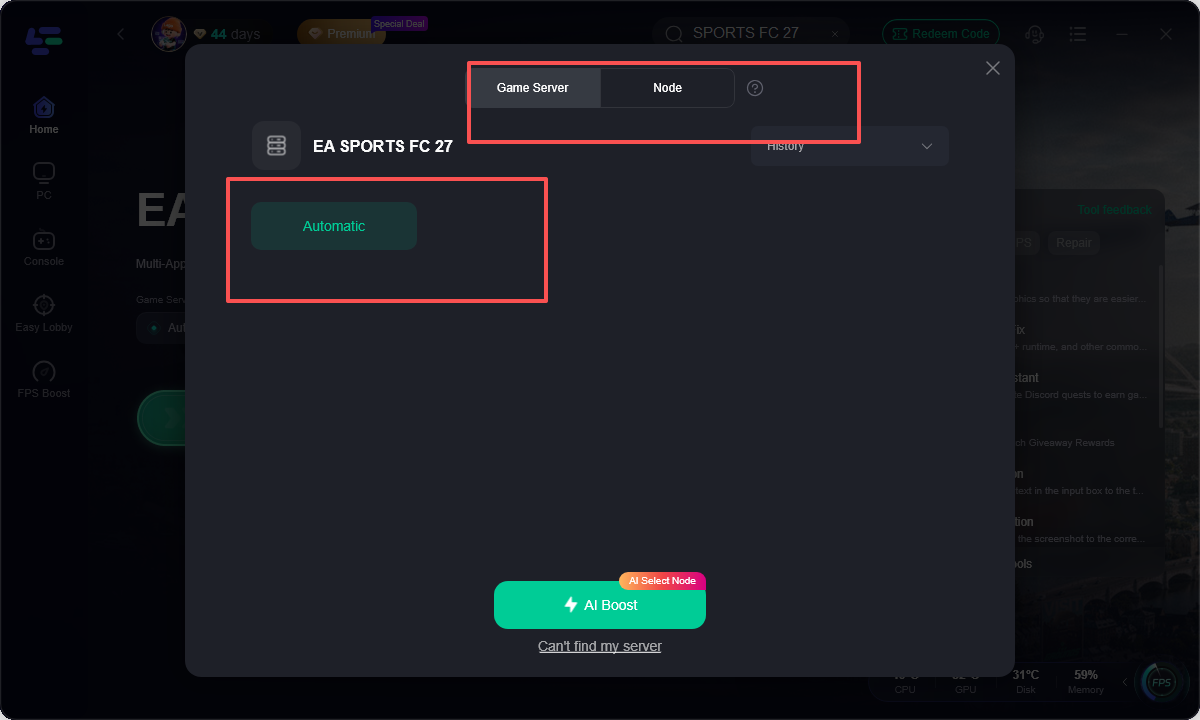
Step 4. Activate Smart Boost or network optimization. Pause downloads, cloud backups, and high-bandwidth streams during the test so the result reflects the route rather than household congestion.
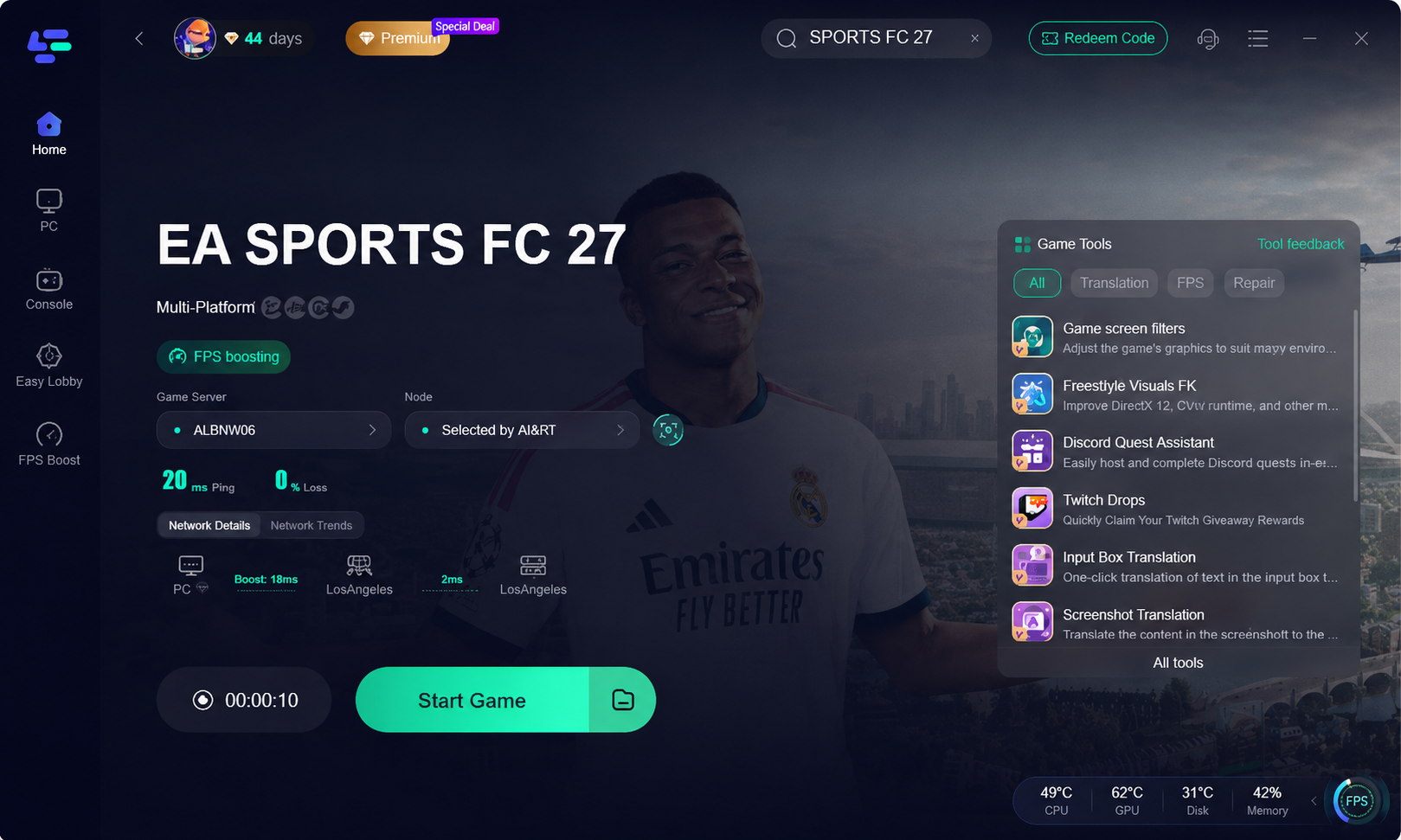
Step 5. Play one full online match and compare the result. Check responsiveness, ping consistency, packet loss, and connection icons. If offline and online delay are identical, return to controller, display, and frame-time checks instead.
LagoFast is most useful as a controlled network test and route optimizer. It cannot make a worn analog stick accurate or fix a television that adds processing delay.
Part 6: How to Fix FC 27 Controller Not Working
When the controller works in menus but stops responding during a match, the issue is often an input conflict rather than the controller itself. Use this order before deleting personal settings.
- Fully close FC 27 and unplug the controller.
- Restart the PC or console, then connect only one controller.
- Update the controller firmware and reconnect through USB for a test.
- On PC, test Steam Input enabled and disabled, but do not run multiple remappers at once.
- Disconnect virtual gamepads, racing wheels, and unused Bluetooth devices.
- Check the game’s control profile and confirm that the correct user is assigned.
- Verify game files if the issue began after an update.
If it fails in other games, inspect the cable, port, battery, Bluetooth pairing, or hardware. If it fails only in FC 27, reset the control profile after saving custom layouts.
Part 7: FAQs
What are the best FC 27 controller settings?
Use the Competitive preset, Analog Sprint Off, Tactical Defending, Player Relative switching, Air Balls and Loose Balls auto-switching, Semi Through Passes, and Late Pass Receiver Lock as a starting profile.
What are the best FC 27 camera settings?
Co-Op with a high camera and low zoom is a strong all-round option because it shows more passing lanes. Adjust gradually based on your screen size and play style.
Should Timed Finishing be on in FC 27?
Turn it on if you are prepared to practice the timing. Keep it off temporarily if late shots are causing more errors than benefits.
Why does my FC 27 controller work in menus but not in matches?
Input conflicts, duplicate controller layers, virtual devices, outdated firmware, or a corrupted control profile can cause this behavior. Test one controller over USB and remove extra remappers.
Is FC 27 better with vibration off?
Many competitive players prefer vibration off because it removes distractions. Casual players can keep it on if the feedback helps them judge tackles, shots, or stamina.
Does network lag change controller settings?
No. Network lag changes when an online action reaches the server, while controller settings change how the game interprets your input. Test offline and online separately.
Should PC players use V-Sync in FC 27?
V-Sync can reduce tearing but may add latency. Test it against a stable FPS cap and keep the option that produces better frame pacing and response on your display.
Key takeaway
The strongest FC 27 controller settings are the ones you can repeat under pressure: Competitive preset, stable camera, controlled assistance, Player Relative switching, and a clean single-controller setup. If online matches still feel delayed after fixing your inputs and display, use LagoFast Game Booster to test route quality and reduce network instability before changing your gameplay profile again.
Boost Your Game with LagoFast for Epic Speed
Play harder, faster. LagoFast game booster eliminates stutter and lags on PC, mobile, or Mac—win every match!
Quickly Reduce Game Lag and Ping!
Boost FPS for Smoother Gameplay!