
Lagging inputs and sudden frame drops can ruin a crucial Ultimate Team match in a single second. Winning competitive matches requires precise timing, which demands stable frame rates and crisp visuals. To help you get a competitive edge, this guide breaks down the optimal FC 27 graphics settings pc setup. With proper display adjustments and tools like LagoFast game booster, you can achieve stutter-free gameplay across all your matches.

- ✅ Reduce Lag and High Ping.
- ✅ Boost FPS at the Same Time.
- ✅ Support 8000+ Popular Online Games.
- ✅ Stable Server Connection
Part 1: Best FC 27 Graphics Settings on PC
Part 2: Best FC 27 Settings for Maximum FPS
Part 3: Best FC 27 Graphics Settings for Low-End PCs
Part 4: Boost FC 27 FPS With LagoFast
Part 5: FAQs on FC 27 Graphics Settings
Part 1: Best FC 27 Graphics Settings on PC
Finding the right balance between visual quality and buttery smooth motion requires dialing in your core configuration before tweaking individual details. Building a strong foundation prevents hardware conflicts and sets up your system for peak efficiency.
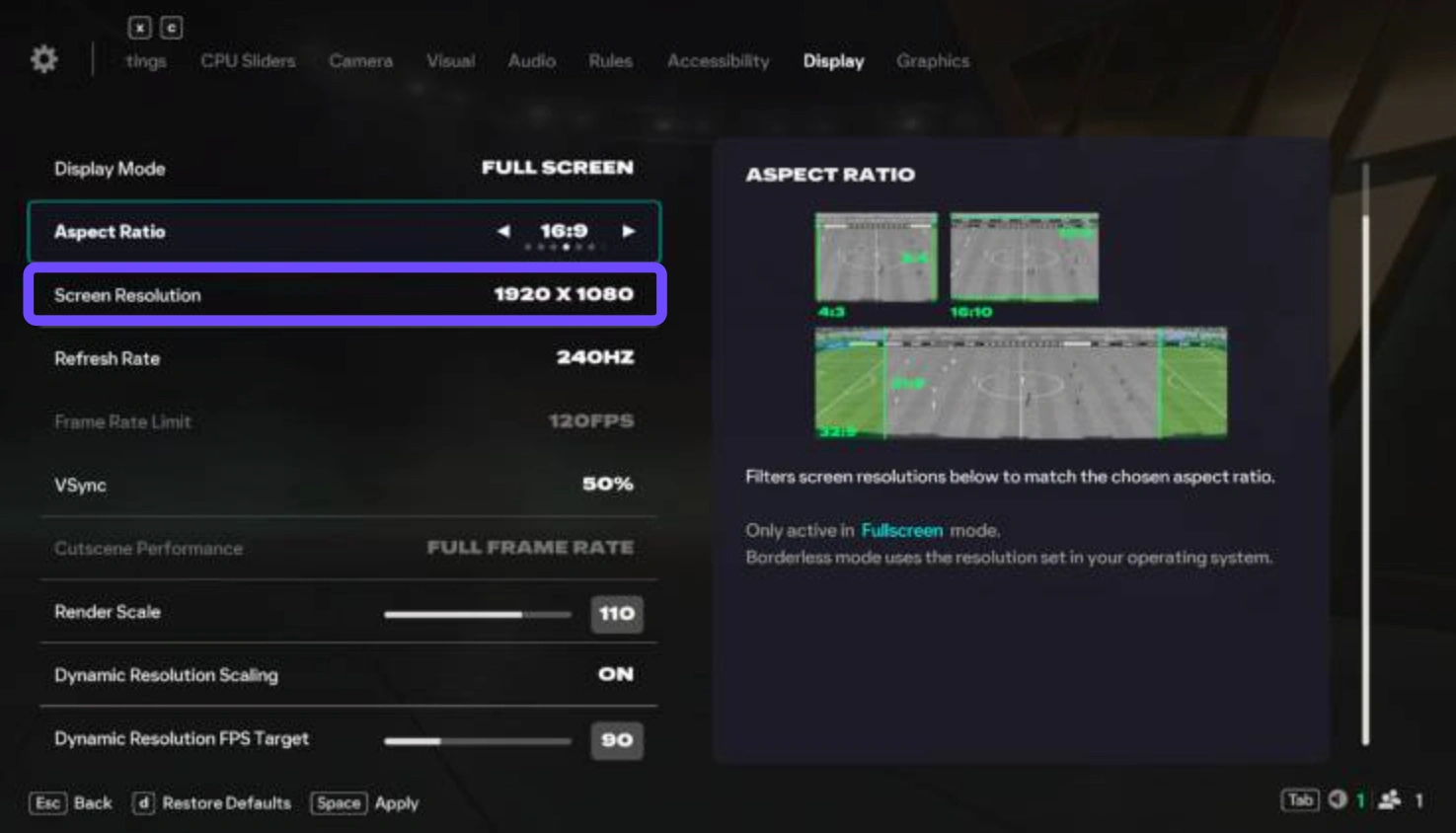
Before making deep graphical adjustments, start with the main video options. Let us look at the essential display values that form the baseline for stable performance.
|
Setting Option |
Recommended Value |
Reason for Selection |
|
Display Mode |
Fullscreen |
Gives the game exclusive control over system resources |
|
Resolution |
Native Monitor Resolution |
Ensures clear visuals without blurry scaling artifacts |
|
Refresh Rate |
Highest Available |
Matches your monitor capability for fluid animations |
|
Vertical Sync (V-Sync) |
Off |
Removes noticeable input delay on controller actions |
|
Dynamic Resolution Scale |
Off |
Keeps visual clarity constant during heavy action |
|
Cutscene Quality |
Half Frame Rate |
Prevents GPU overheating during non-gameplay scenes |
Setting your display mode to Fullscreen ensures your operating system dedicates maximum processing power to the game engine. Disabling V-Sync removes input delay, allowing your pass and shot commands to register without frustrating delays.
Beyond basic options, configuring how your operating system handles display scaling plays a major role in visual stability. Make sure your desktop resolution matches your in-game resolution to prevent screen flicker during alt-tabbing or match loading screens.
Part 2: Best FC 27 Settings for Maximum FPS
Once your core resolution and refresh rates are locked in, turning your focus to specific render quality options will squeeze out every available frame per second. High framerates mean smoother player tracking and faster reaction times during intense goalmouth scrambles.
Adjusting these advanced parameters ensures your hardware focuses strictly on competitive clarity rather than decorative eye candy. Below are the key adjustments categorized by their impact on performance.
Rendering Quality and In Game Performance
Fine tuning render options reduces workload on your Graphics Processing Unit, resulting in instantaneous visual feedback during fast counter attacks.
The best fc 27 settings pc configurations prioritize fluid movement over environmental details. Here are the key options to adjust in the graphics menu:
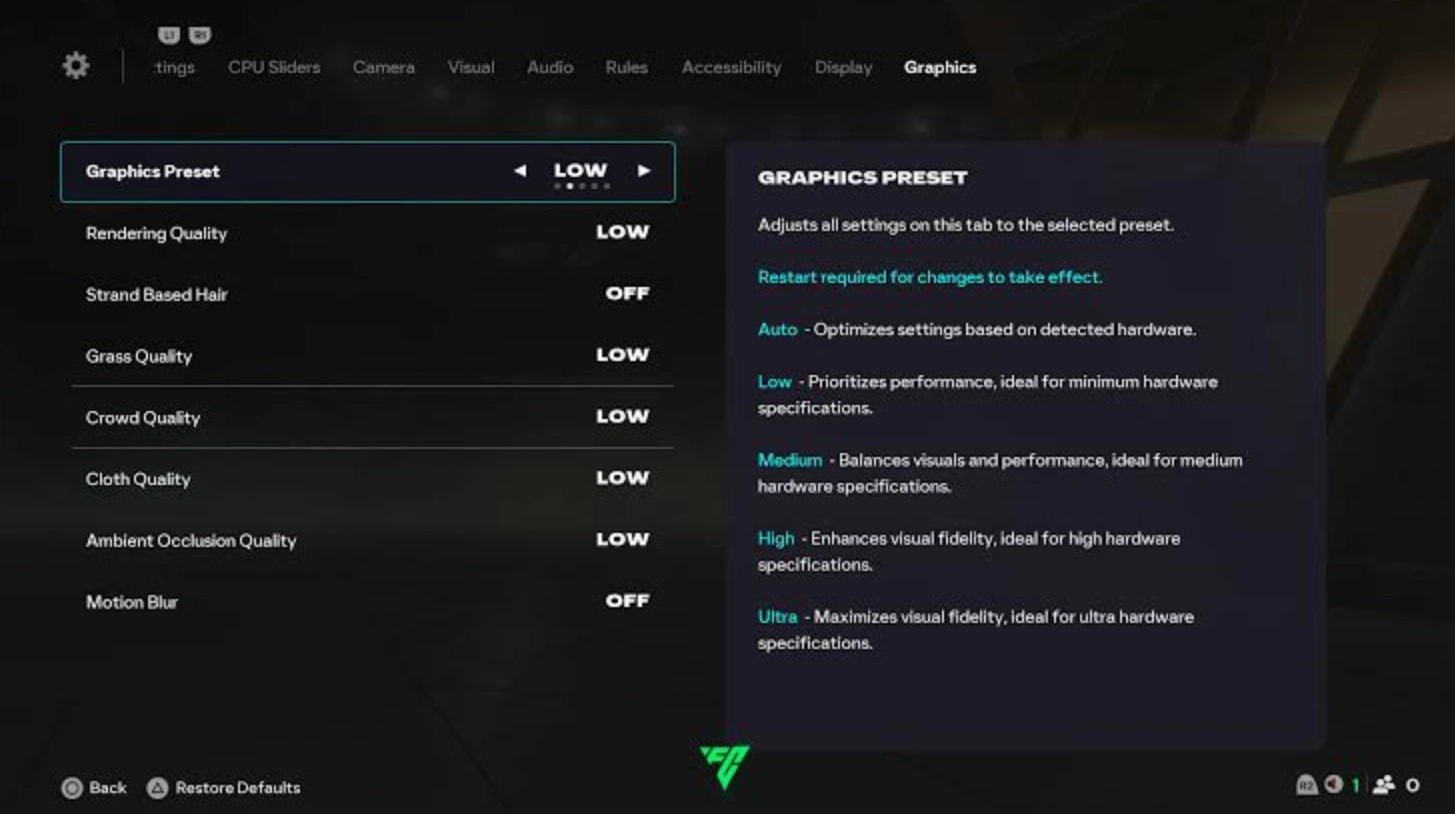
- Strand Based Hair: Off. Disabling this option frees up a massive amount of processing power during close ups and celebrations.
- Rendering Quality: Medium or Low. Dropping this down stabilizes your frame times significantly without making player models look overly pixelated.
- Grass Quality: Low. Keeps the pitch looking sharp while freeing up video memory.
- Crowd Quality: Low. Background spectators consume valuable CPU power that should be reserved for match physics.
- Cloth Physics: Off or Low. Reduces extra CPU calculations for jersey movements during sprint animations.
Selecting these fc 27 performance settings guarantees that your frame rate remains consistent even when multiple players cluster inside the penalty box.
Advanced Display and Refresh Rate Settings
Managing how your system handles frame pacing prevents screen tearing while protecting your overall response times.
To get the absolute best fc 27 settings for fps, pair your in game options with proper refresh rate management:
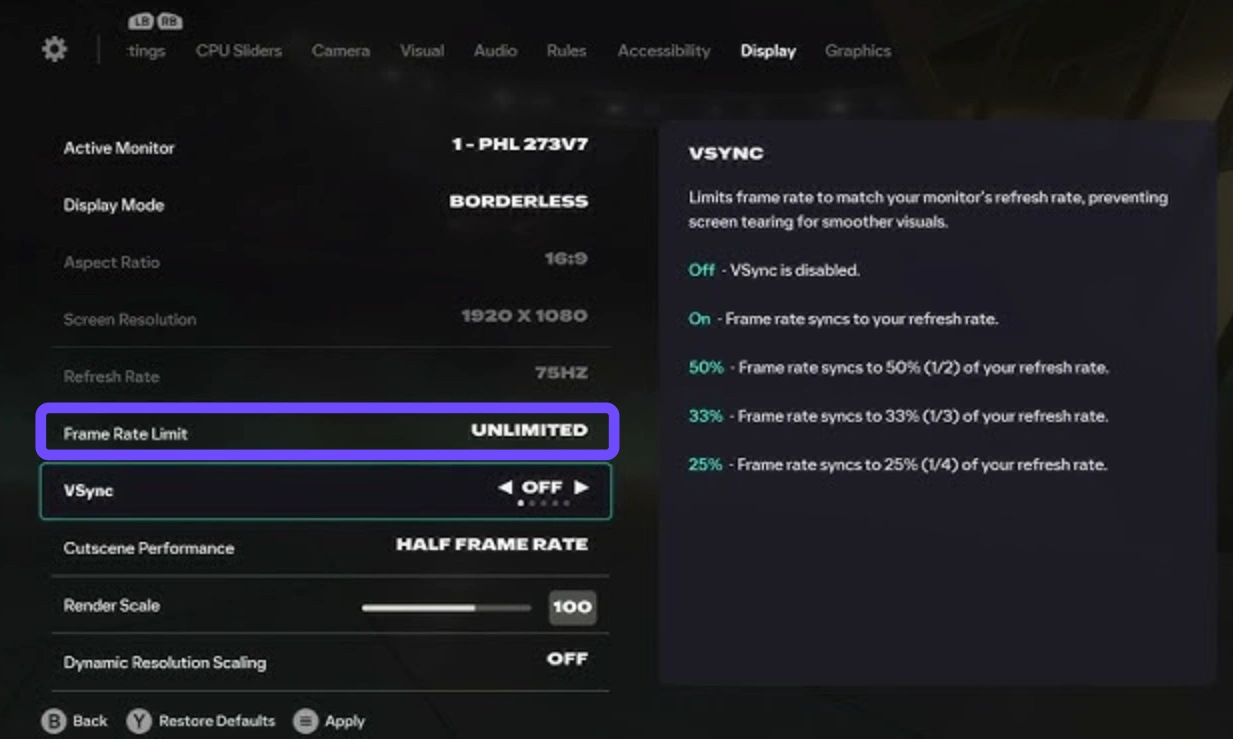
- FPS Limit: Match Monitor Refresh Rate or Unlimited. If your hardware is powerful, setting no limit delivers the lowest laten
- AMD FSR or NVIDIA DLSS: Quality or Balanced. Enable these spatial upscaling features if your graphics card supports them to gain free performance.
- Motion Blur: Off. Turning off blur makes fast passes and quick directional changes much clearer to track visually.
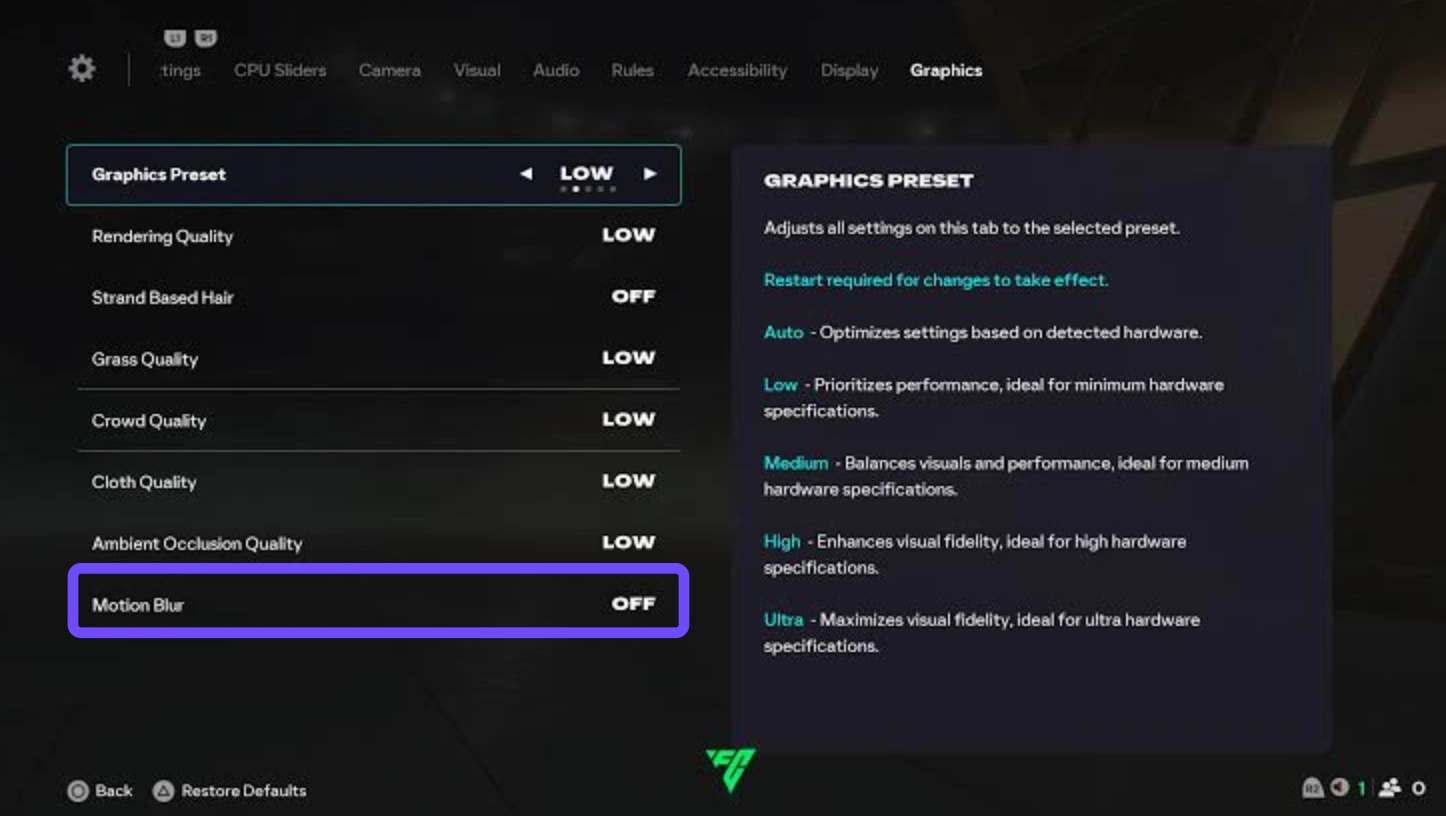
By turning off heavy physics simulations like strand hair and detailed cloth movement, your GPU maintains high framerates even during crowded match situations.
Part 3: Best FC 27 Graphics Settings for Low-End PCs
Running modern sports titles on budget hardware or older graphics cards is entirely possible if you prioritize core mechanics over extra visual polish. Lower specs simply require smarter resource management.
Applying these targeted fc 27 low end pc settings allows players on modest rigs to maintain steady 60 FPS gameplay without game-breaking hitches.
If your computer sits near the minimum system requirements, apply these low spec adjustments step by step:
Step 1: Lower your display resolution to 1920x1080, or drop to 1280x720 if your hardware struggles to reach 60 frames per second.
Step 2: Set overall Rendering Quality to Low and set Grass Quality to Low.
Step 3: Disable Strand Based Hair completely and turn off all Cloth Physics options.
Step 4: Set Crowd Quality to Low or Medium depending on your processor power.
Step 5: Turn Cutscene Quality to Half Frame Rate to keep your graphics card cool between halves.
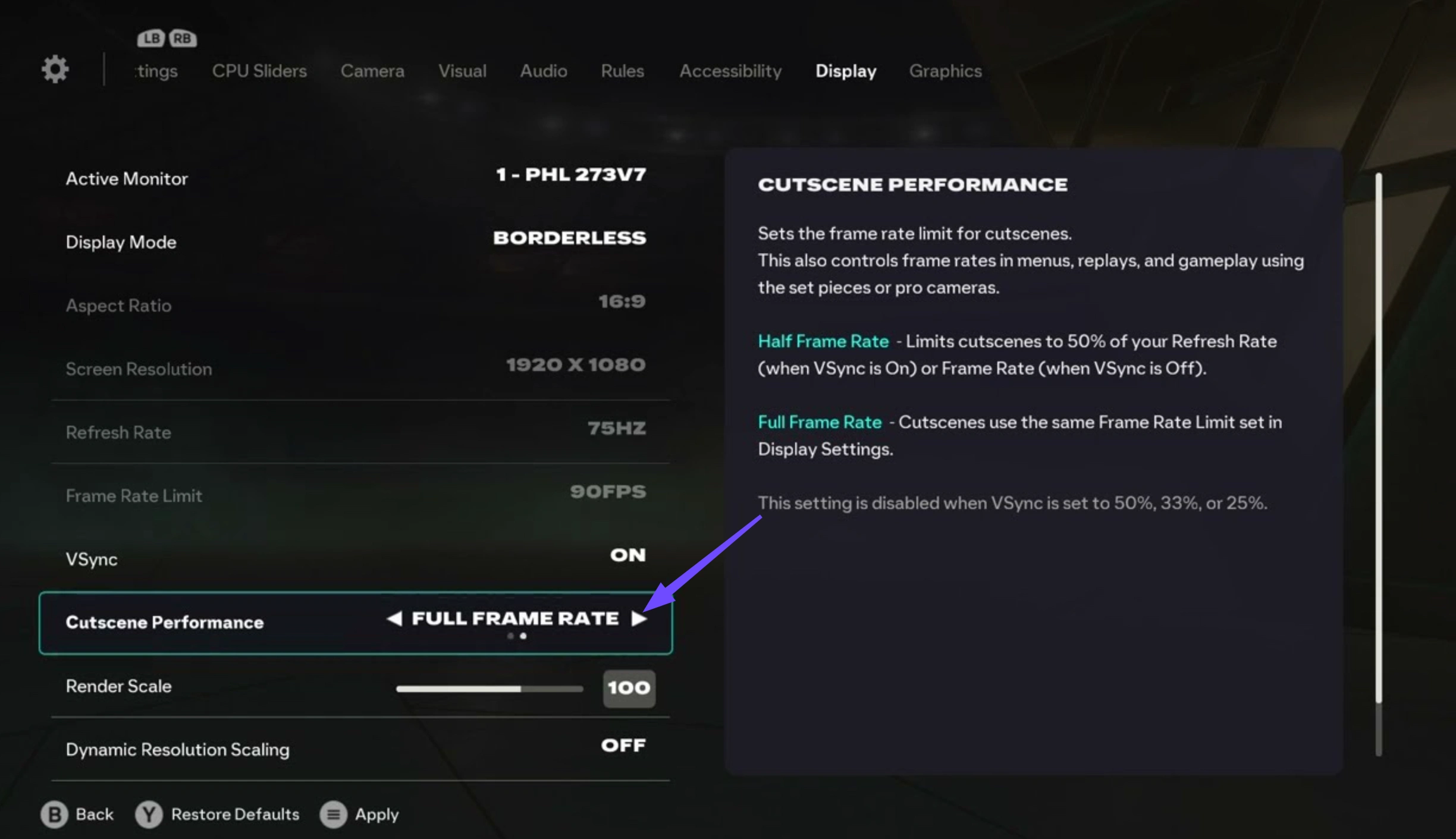
Step 6: Turn Dynamic Resolution Scale to On only if your hardware experiences massive frame dips during crowded plays.
Enabling Dynamic Resolution helps low spec setups maintain smooth player movement during visually intensive moments, automatically scaling down pixel count slightly to preserve input speed.
Additionally, close all background software like web browsers, recording applications, and discord overlays before launching the game. This frees up crucial system RAM and CPU threads needed for smooth match processing.
Part 4: Boost FC 27 FPS With LagoFast
While tweaking game settings yields substantial improvements, background software interference, driver bottlenecks, and network instability can still cause sudden frame drops and latency spikes. Integrating a dedicated optimization tool guarantees that hardware tweaks deliver maximum performance across all gaming platforms.
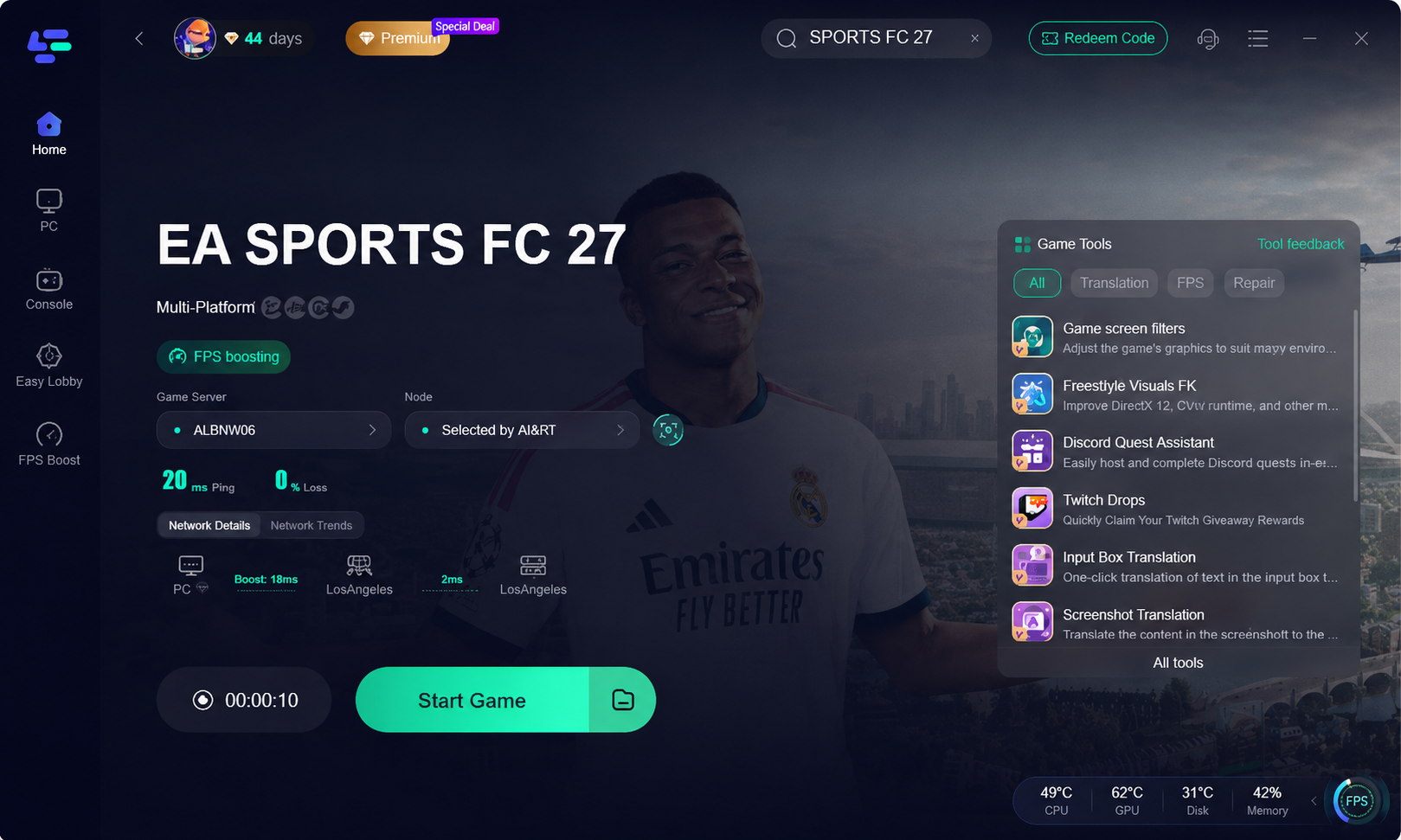
LagoFast is an all-in-one game booster engineered to eliminate latency and boost frame rates effortlessly. It offers a dedicated one-click FPS boost feature that optimizes background system resources, adjusts CPU priorities, and cleans up temporary files for maximum gaming efficiency. Beyond local PC performance, LagoFast game booster supports console boosting directly, providing fast routes, packet loss reduction, and lower ping for PlayStation and Xbox players without requiring complicated network setups. Whether you need to stabilize high frame rates or fix network stuttering in online matches, LagoFast provides a simple, effective solution.
How to Boost FC 27 FPS With LagoFast:
Step 1: Download and launch the LagoFast client on your PC.
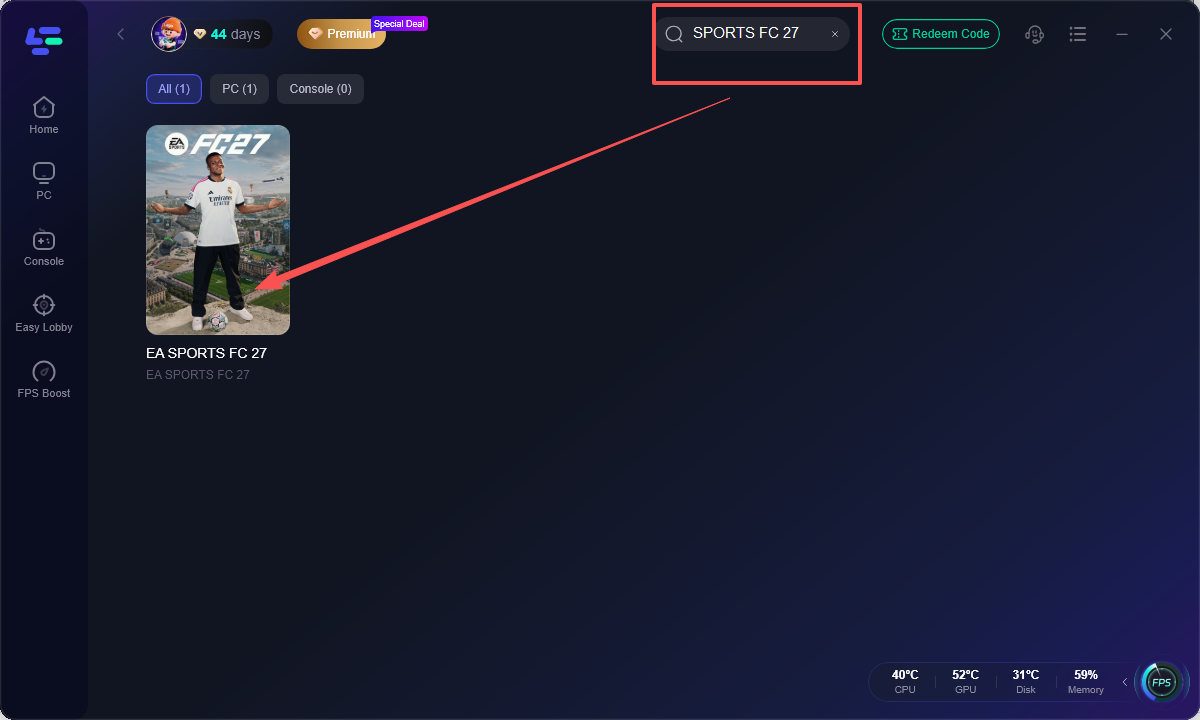
Step 2: Type "EA FC 27" into the search bar and select it.
Step 3: Pick your preferred game server region, allowing AI to route you through the optimal node with the lowest latency and zero packet loss.
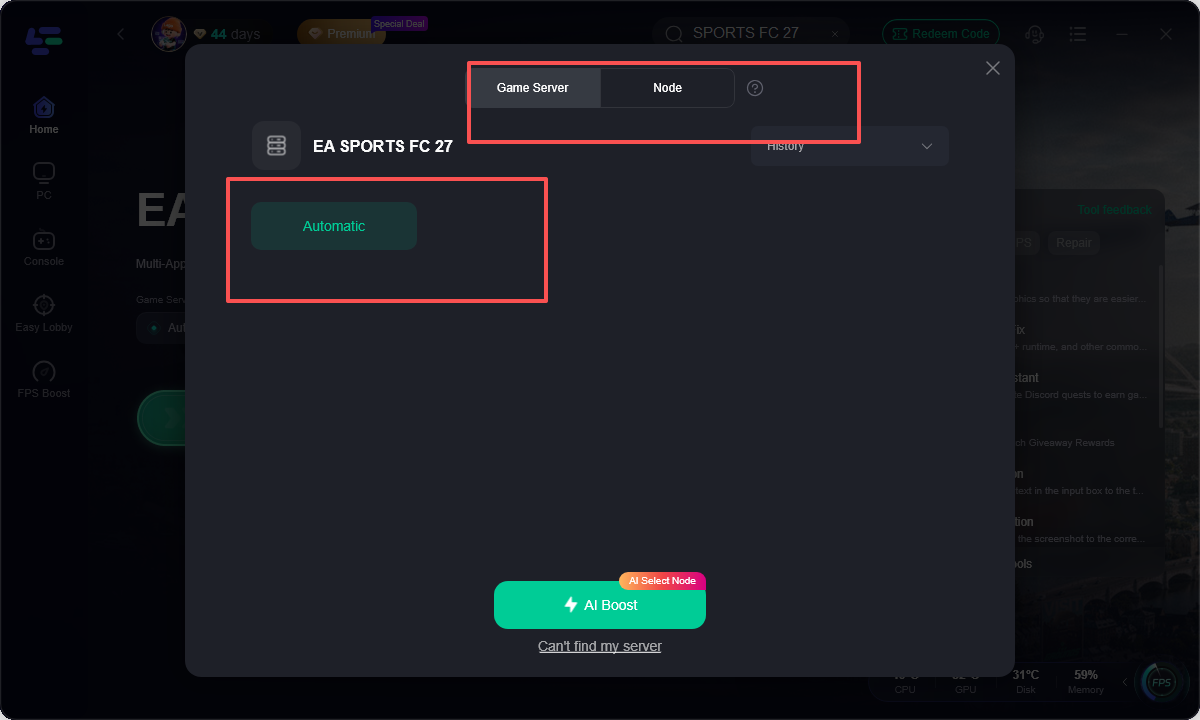
Step 4: Click Boost to automatically reduce network latency and activate FPS optimization, then start the game to enjoy smooth, responsive, and stutter-free controller gameplay.
Part 5: FAQs on FC 27 Graphics Settings
Below are direct answers to common questions players ask when optimizing their visual and performance setup for maximum competitive output.
Review these quick solutions to address specific configuration issues, hardware questions, and technical concerns.
What are the FC 27 best graphics settings for smooth gameplay?
The fc 27 best graphics settings for smooth gameplay include setting Display Mode to Fullscreen, turning V Sync Off, setting Rendering Quality to Low or Medium, and turning off Strand Based Hair. These choices keep your frame delivery steady and eliminate delay.
How do I fix stuttering in FC 27 on PC?
Fix stuttering by locking your frame rate to match your monitor refresh rate, disabling background software, turning off motion blur, and updating your graphics card drivers. Using LagoFast to optimize system resources also removes unexpected frame hitches.
Should I turn V-Sync on or off in FC 27?
You should turn V Sync off in the in game menu to minimize input delay. If you experience severe screen tearing, consider using hardware solutions like NVIDIA G Sync or AMD FreeSync instead of in game V Sync.
Can low end PCs run FC 27 at 60 FPS?
Yes, low end PCs can reach 60 FPS by reducing resolution to 720p or 1080p, turning graphics settings to Low, turning off cloth physics, and using Dynamic Resolution Scale to handle heavy graphical loads automatically.
How do I improve FC 27 performance on consoles?
To improve console performance, select Performance Mode in your console system settings, turn off Motion Blur in the game options, and use LagoFast game booster to stabilize your internet connection and lower overall ping.
Does Strand Based Hair affect FC 27 performance?
Yes, Strand Based Hair heavily impacts GPU performance. It often causes sudden frame rate drops during replays, set pieces, and corner kicks. Disabling this option provides an immediate performance boost.
Conclusion
Optimizing your setup with the FC 27 best graphics settings ensures crisp visuals, instant responsiveness, and buttery smooth match action. By turning off resource-heavy effects like Strand Based Hair and applying targeted performance tweaks, you eliminate input delay completely. Pair these hardware settings with LagoFast game booster on PC or console to guarantee stable ping, zero packet loss, and peak FPS in every single match.

Boost Your Game with LagoFast for Epic Speed
Play harder, faster. LagoFast game booster eliminates stutter and lags on PC, mobile, or Mac—win every match!
Quickly Reduce Game Lag and Ping!
Boost FPS for Smoother Gameplay!