
Nothing drains the hype out of a gaming night faster than getting your entire squad into a lobby, hitting search, and getting slapped with an endless connection error. Over on the r/EASportsFC subreddit, a user summed up the community's frustration perfectly: "matchmaking failed in clubs league match... earlier today it was all working fine, so was it yesterday, but since around the noon it seems to be broken for me and my friend, is it everyone? if not how can we possibly fix it?"
You are definitely not alone. Thousands of players are currently watching their EA Sports FC 26 Pro Clubs matchmaking broken by server glitches, desynchronized squad caches, and regional routing conflicts. Whether you are getting kicked back to the menus or sitting in infinite queues, here is how you can bypass these errors and get your club back on the grass.

- ✅ Reduce Lag and High Ping.
✅ Boost FPS at the Same Time.
✅ Support 3000+ Popular Online Games.
✅ Change Server without Latency.
✅ Boost Game Loading Speed.
Part 1: FC 26 Pro Clubs Matchmaking Failed: Symptoms & Why It Happens
Part 2: How to Fix FC 26 Pro Clubs Matchmaking Failed
Part 3: How to Fix FC 26 Clubs Can’t Find a Match
Part 4: How to Fix FC 26 Freezing During Online Matches
Part 5: How to Fix FC 26 Matches Fail Instantly After Being Found
Part 6: How to Fix FC 26 Pro Clubs League Matches Not Working on PS5
Part 7: Quick Solution LagoFast: Stabilize Your Network Connection to Fix Matchmaking Failed
Part 1: FC 26 Pro Clubs Matchmaking Failed: Symptoms & Why It Happens
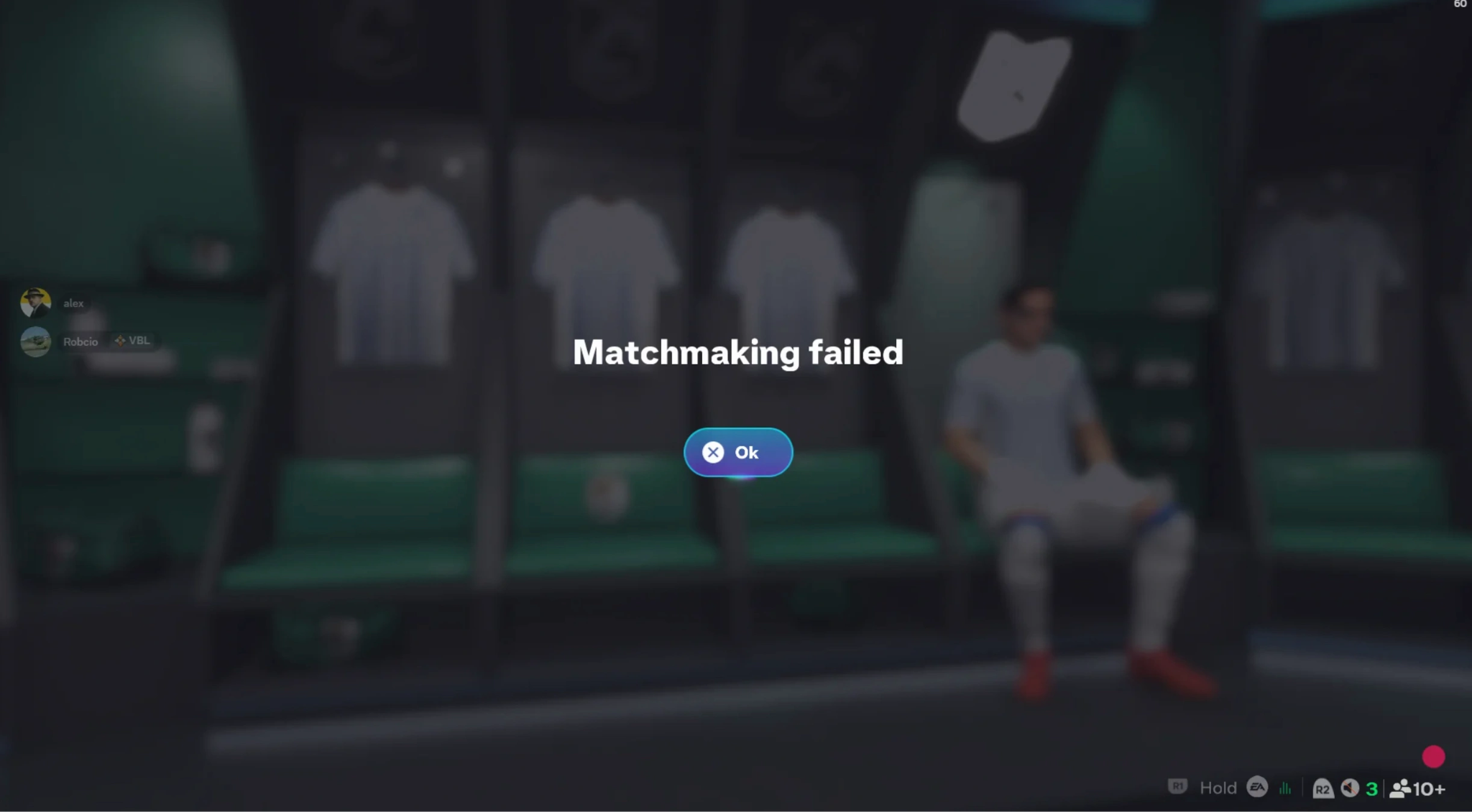
When FC 26 Pro Clubs matchmaking is not working, the errors rarely look identical for every player in the squad. Sometimes the search timer spins for ten minutes without finding an opponent; other times, the game finds a match only to dump you back to the lobby instantly.
While EA servers occasionally struggle during peak hours or right after major title updates, many of these connection failures stem from local hardware bottlenecks, outdated roster caches between squad mates, or strict router firewalls blocking peer-to-peer handshakes. Understanding your exact symptom is the first step toward applying the right fix.
|
Symptom / Error Message |
Root Cause |
Best Initial Fix |
|
"Matchmaking Failed" loop |
Outdated roster files or squad cache mismatch across party members |
Reset all squads and re-download roster updates in Ultimate Team |
|
Instant disconnect after finding match |
Strict NAT type or router firewall blocking EA handshake ports |
Enable UPnP on your home router or perform a power cycle |
|
Can play Friendlies, but no League matches |
Cross-region party members causing latency conflicts |
Match regional settings or use a specialized gaming booster |
|
Game freezing during matchmaking screen |
Corrupted local game files or heavy CPU background load |
Verify integrity of game files and close background apps |
|
PS5 "Unable to find league match" |
Console network cache error or DNS routing failure |
Rebuild PS5 database and clear alternate MAC address |
Part 2: How to Fix FC 26 Pro Clubs Matchmaking Failed
When your entire party gets hit with the generic matchmaking failed error in clubs league match FC 26, the issue is usually a desynchronized roster file. If even one player in your lobby has an old squad file from before a recent patch, EA's servers will automatically block the match. Here are two proven manual methods to get everyone on the same page.
Manual Solution A: The Squad Roster Reset Method
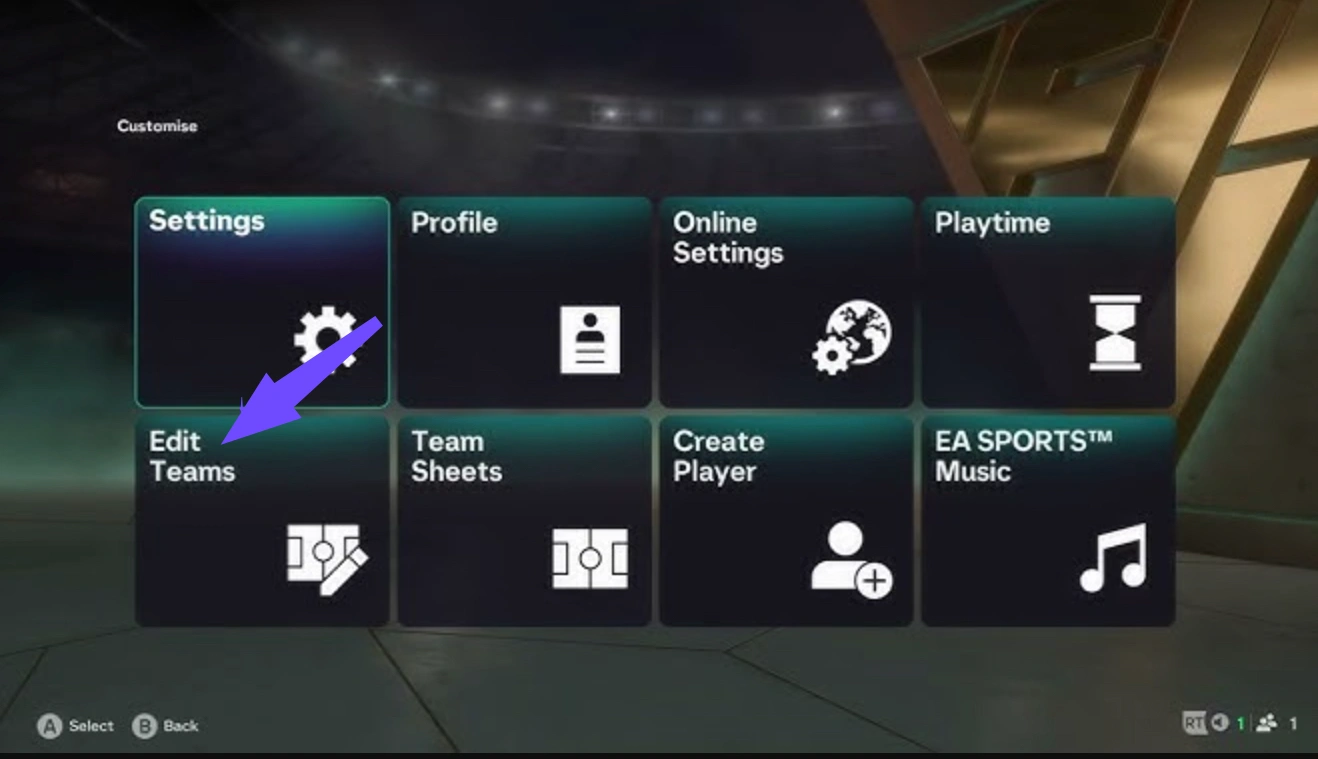
Step 1. From the main menu of FC 26, click the Settings gear icon in the top left corner.
Step 2. Navigate to Edit Teams and choose the Reset All Squads option located in the bottom right.
Step 3. Back out to the main menu and load into Ultimate Team briefly; this forces the game client to check for and download the latest background roster update.
Step 4. Close the FC 26 application completely and reboot your console or PC.
Step 5. Ensure every single member of your Pro Clubs party completes steps 1 through 4 before sending a new lobby invite.
Manual Solution B: Play Offline Then Enter Clubs Fix
Sometimes FC 26 fails to establish a proper connection with EA Servers when launching the game, causing Pro Clubs matchmaking errors even when your internet connection is working normally. Entering the game offline first can force Clubs mode to create a fresh EA Server connection.
Follow these steps:
Step 1. Launch FC 26 and wait for the game to attempt connecting to EA Servers.
Step 2. Cancel the connection attempt when prompted and choose the "Play Offline" option.
Step 3. Once you reach the main menu, select Clubs.
Step 4. Let Clubs reconnect to EA Servers separately and wait for the mode to load completely.
Step 5. Have every member of your Pro Clubs squad repeat this process before creating a new lobby and searching for a League match.
This method can refresh the connection between your game client and EA's servers, helping fix temporary matchmaking loops and connection failures.
Manual Solution C: Disable Approximate Location Matchmaking
Step 1. Open the Settings menu from the FC 26 main screen.
Step 2. Go into Online Settings and locate the Matchmaking Options tab.
Step 3. Find the Approximate Location Matchmaking toggle and turn it OFF.
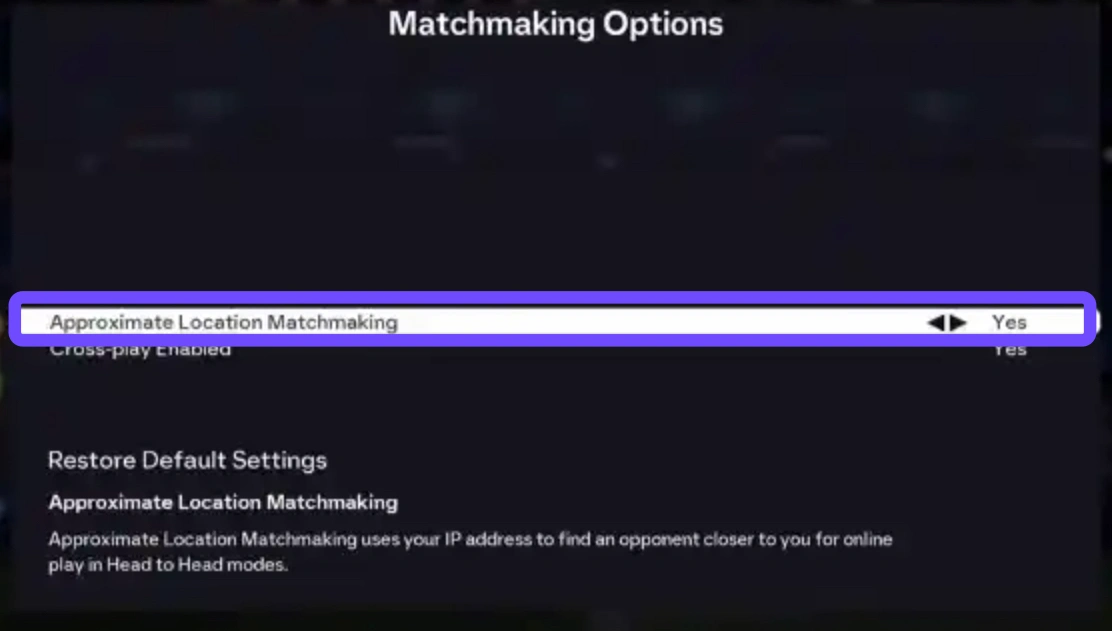
Step 4. Verify that your Crossplay setting is toggled ON to widen your potential pool of opponents across PC, PS5, and Xbox.
Step 5. Recreate your Pro Clubs lobby with a new party captain and initiate the league search again.
Part 3: How to Fix FC 26 Clubs Can’t Find a Match
It is an exhausting loop when FC 26 unable to find league match errors keep your squad stuck on the search screen indefinitely. This usually occurs when your club has players queuing together from different geographic regions or coastlines. Pro Clubs relies heavily on latency averages to pair teams; if your party's ping variance is too wide, the matchmaking engine simply times out.
Manual Solution A: The Bench-Join Region Trick
Step 1. Identify which players in your party reside in the same geographic region (for example, UK or NA East).
Step 2. Have only those local players join the initial Pro Clubs lobby while out-of-region friends wait on the main menu.
Step 3. Start searching for a League match using just the local core group.
Step 4. Once the match pops and you load into the kit selection or pre-game screen, tell your out-of-region teammates to join the session via their friends list.
Step 5. Your distant friends will automatically drop into open positions or the bench without tripping the initial regional matchmaking lock.
Manual Solution B: Switch to High-Speed Public DNS
Step 1. Open your system's network settings (PlayStation Network settings, Xbox General Network, or Windows Network Adapters).
Step 2. Select your active internet connection and choose Advanced Settings or Manual DNS configuration.
Step 3. Change your Primary DNS to 8.8.8.8 (Google DNS) or 1.1.1.1 (Cloudflare DNS).
Step 4. Change your Secondary DNS to 8.8.4.4 or 1.0.0.1.
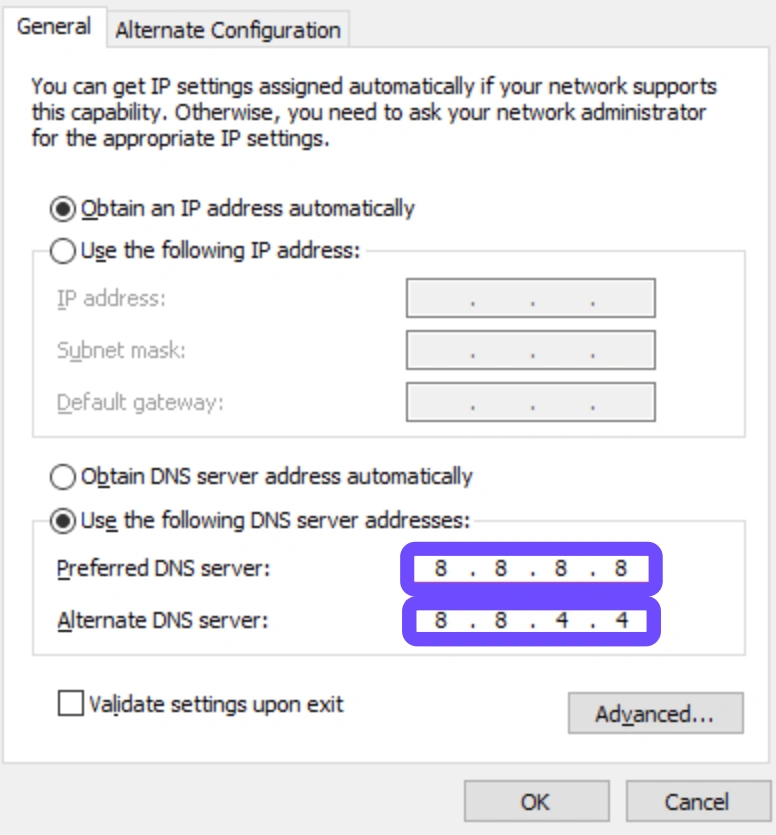
Step 5. Save the new configuration, restart your network adapter or gaming console, and queue for a match again.
Part 4: How to Fix FC 26 Freezing During Online Matches
Nothing ruins a competitive run faster than FC 26 freezing during online matches right as you are breaking down the wing on a counter-attack. When the game stutters or locks up mid-match, it is rarely a server issue; instead, it points to local hardware bottlenecks, memory leaks, or corrupted background files. Cleaning up your local game files and optimizing your display settings will restore buttery-smooth gameplay.
Manual Solution A: Verify Game Files and Clear Cache
Step 1. Fully close FC 26 and open your primary launcher (EA App, Steam, or Epic Games Store).
Step 2. If using the EA App, click the three dots next to FC 26 in your library and select Repair. On Steam, right-click the game, select Properties, and click Verify Integrity of Game Files.
Step 3. Allow the client a few minutes to scan your hard drive and replace any missing or corrupted background files.
Step 4. In the EA App settings menu, navigate to Recovery and click Clear Cache to wipe out outdated temporary data.
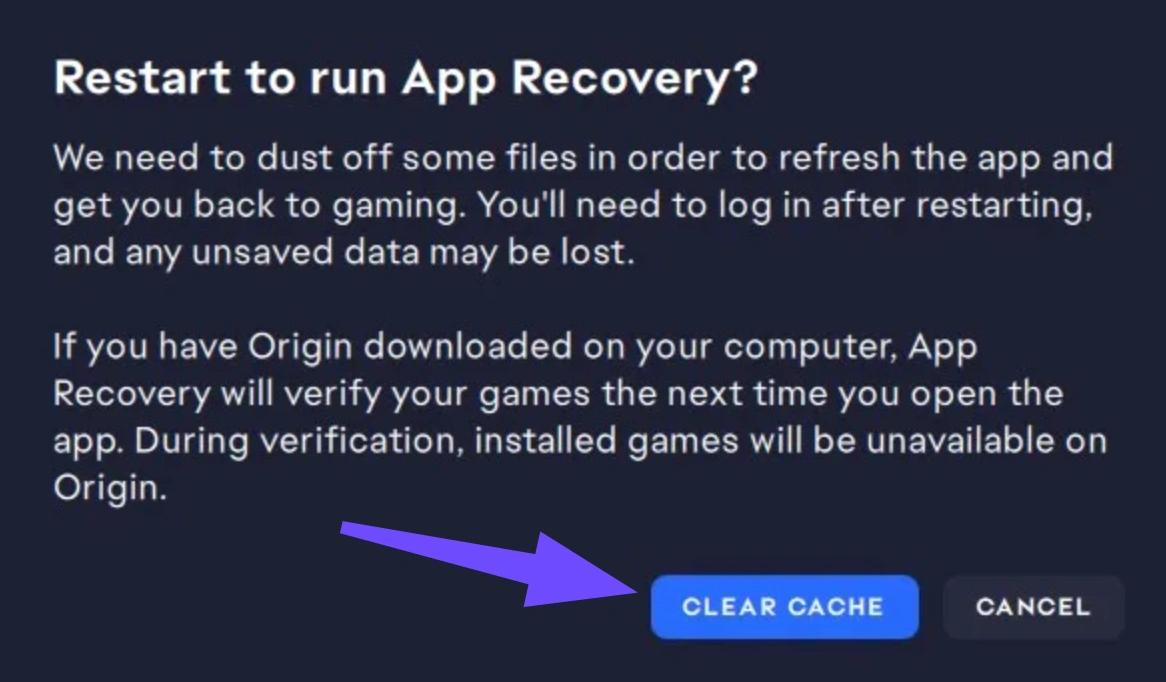
Step 5. Reboot your PC or console, launch the game cleanly, and test your connection in a quick drop-in match before queuing for League play.
Manual Solution B: Optimize PC and Console Display Settings
Step 1. Open the in-game Graphics or Display settings menu within FC 26.
Step 2. Cap your maximum frame rate to match your monitor's native refresh rate (or lock it to 60/120 FPS on console) to prevent CPU usage from spiking.
Step 3. Turn off V-Sync, Motion Blur, and Strand-Based Hair rendering, as these graphical features heavily tax system RAM during crowded penalty box scrums.
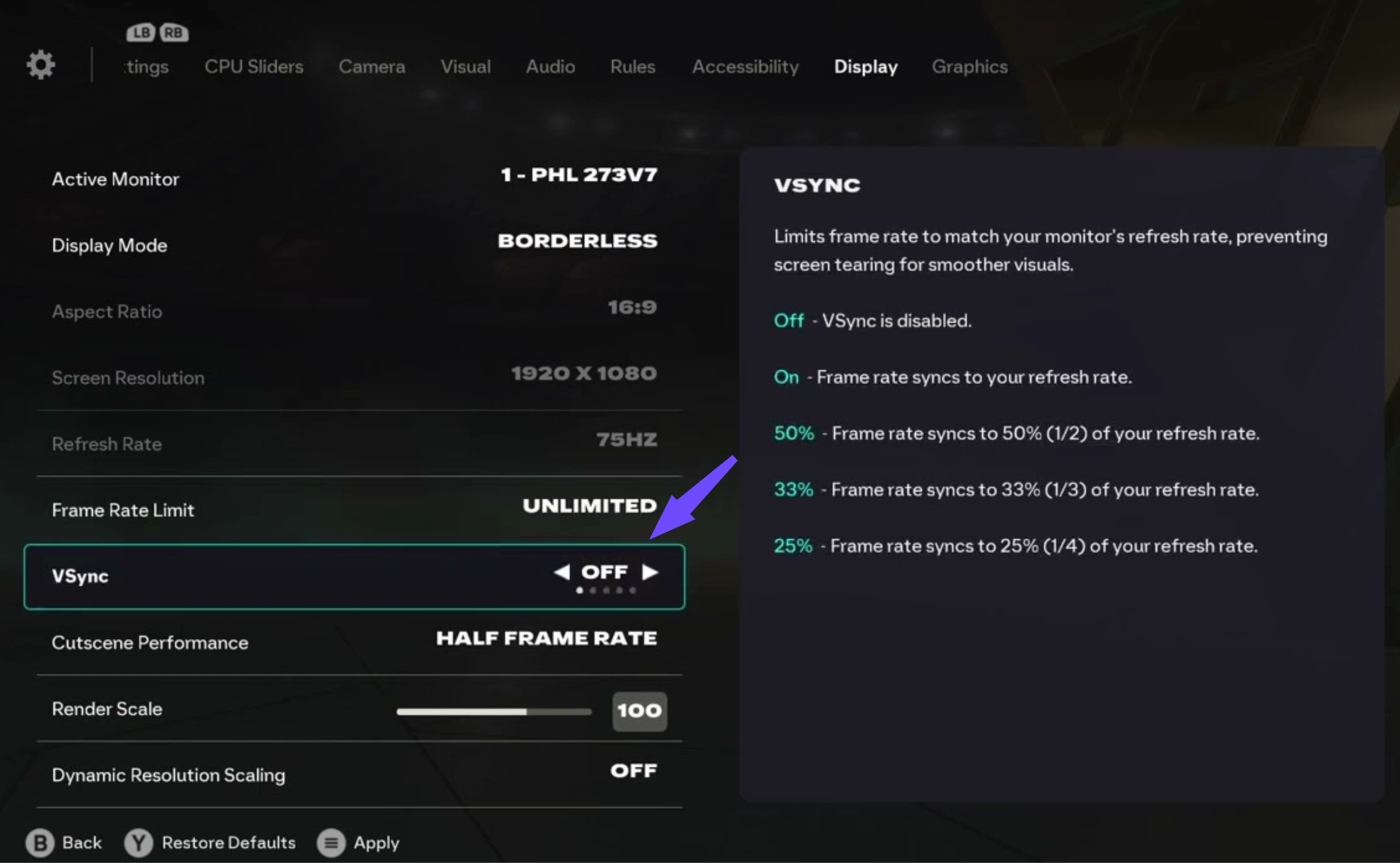
Step 4. Lower visual presets like shadow quality and crowd density from High to Medium.
Step 5. On PC, open Windows Power Options, set your plan to High Performance Mode, and close background resource-hogs like Chrome or Discord overlays.
Part 5: How to Fix FC 26 Matches Fail Instantly After Being Found
If you see the "Opponent Found" banner appear for a split second before FC 26 matches fail instantly after being found, you are dealing with a handshake communication failure. This happens when your home router's firewall or NAT type blocks the two-way packet exchange required between your system and the opponent's host machine. Opening up your network pathways will stop these frustrating lobby rejections.
Manual Solution A: Enable UPnP on Your Home Router
Step 1. Open a web browser on your PC or smartphone and type your router's default IP address (typically 192.168.0.1 or 192.168.1.1) into the URL bar.
Step 2. Log in using your router's admin credentials (usually located on the sticker beneath the hardware if you haven't changed them).
Step 3. Navigate to the Advanced Settings, WAN, or NAT Forwarding section of the interface.
Step 4. Locate the setting for UPnP (Universal Plug and Play) and switch the toggle to Enabled.
Step 5. Save your settings and reboot your router to allow EA servers to dynamically open the necessary matchmaking ports.
Manual Solution B: Perform a 60-Second Hardware Power Cycle
Step 1. Completely power down your PC or gaming console, and make sure it is fully off and not just in sleep or rest mode.
Step 2. Unplug your internet modem and router directly from the wall power outlet.
Step 3. Wait a full 60 seconds to allow internal capacitors to drain completely and force your ISP routing table to reset.
Step 4. Plug the modem and router back in and wait for all connection lights to turn solid green.
Step 5. Boot up your gaming device, ensure you are connected via a wired Ethernet cable if possible, and launch FC 26.
Part 6: How to Fix FC 26 Pro Clubs League Matches Not Working on PS5
Console gamers face their own specific set of network headaches, with many reporting FC 26 Pro Clubs League Matches Not Working on PS5 even when other game modes run fine. On PlayStation 5, these errors frequently trace back to corrupted system network caches or firmware conflicts following a recent software patch. Clearing out system-level cache data will get you past the loading screen.
Manual Solution A: Rebuild PS5 Database in Safe Mode
Step 1. Turn off your PS5 completely by holding down the power button until the console beeps twice and powers down.
Step 2. Press and hold the power button again for approximately 7 seconds until you hear a second beep to boot into Safe Mode.
Step 3. Connect your DualSense controller using a USB-C cable and press the PS button.
Step 4. Select option 5: Clear Cache and Rebuild Database, then click Rebuild Database.
Step 5. Allow the console 5 to 10 minutes to safely reorganize your system hard drive before launching FC 26.
Manual Solution B: Clear Alternate MAC Address and Network Cache
Step 1. From your PS5 home screen, navigate to the Settings menu.
Step 2. Go to Network, select Settings, and choose Set Up Internet Connection.
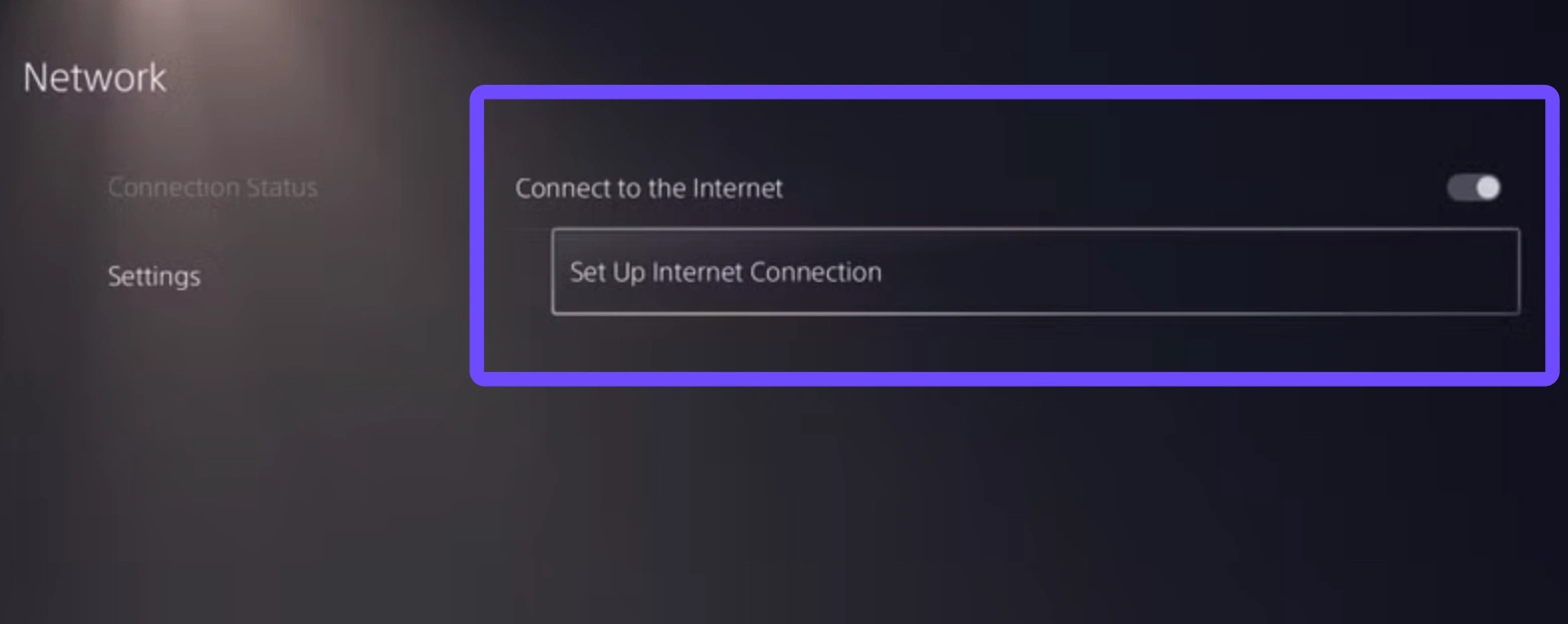
Step 3. Hover over your active internet connection, press the Options button on your controller, and select Advanced Settings.
Step 4. Temporarily change your IP Address Settings from Automatic to Manual, then switch it immediately back to Automatic to force a fresh IP lease from your router.
Step 5. Restart your PS5 console completely to flush out any lingering network conflicts before inviting your squad.
Part 7: Quick Solution LagoFast: Stabilize Your Network Connection to Fix Matchmaking Failed
Let's be honest: spending an hour troubleshooting router firewalls, tweaking DNS numbers, and forcing squad updates every time you want to play a few league games with your friends is exhausting. Because FC 26 Pro Clubs matchmaking relies so heavily on precise regional routing and low-latency stability, standard home internet connections constantly struggle to maintain clean communication with EA's matchmaking servers.
This is where LagoFast Game Booster steps in as the ultimate all-in-one fix. Instead of wasting time on tedious manual workarounds, LagoFast uses intelligent AI Matrix Routing (AIMR) technology to automatically analyze global traffic and connect your system to the fastest, least congested server nodes available.
If your Pro Clubs squad is spread out across different regions or coastlines, LagoFast eliminates the latency spikes and regional mismatches that cause FC 26 Pro Clubs not finding game errors. By stabilizing packet transmission and optimizing your connection path, it ensures your lobby handshakes succeed on the very first attempt.
Why LagoFast is the Best Game Booster for FC 26:
- Fix Matchmaking Instantly: Bypasses regional routing bugs and server congestion so your club can find League matches in seconds without dropping party members.
- Zero Ping Spikes & Packet Loss: Real-time multi-path connection monitoring keeps your ping rock-solid, stopping random freezes and disconnects mid-game.
- Built-in FPS Booster: Automatically optimizes your PC hardware resources, locking in higher frame rates and preventing graphical stuttering during intense gameplay.
Tutorial: Use LagoFast to Fix FC 26 Matchmaking in 4 Simple Steps:
Step 1. Get LagoFast on your PC.
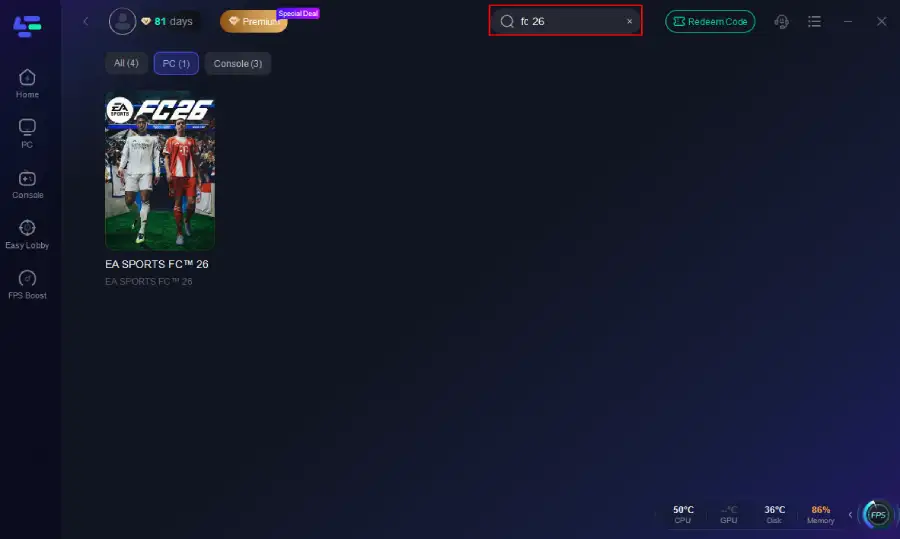
Step 2. Open the launcher and search for EA Sports FC 26 within the game library.
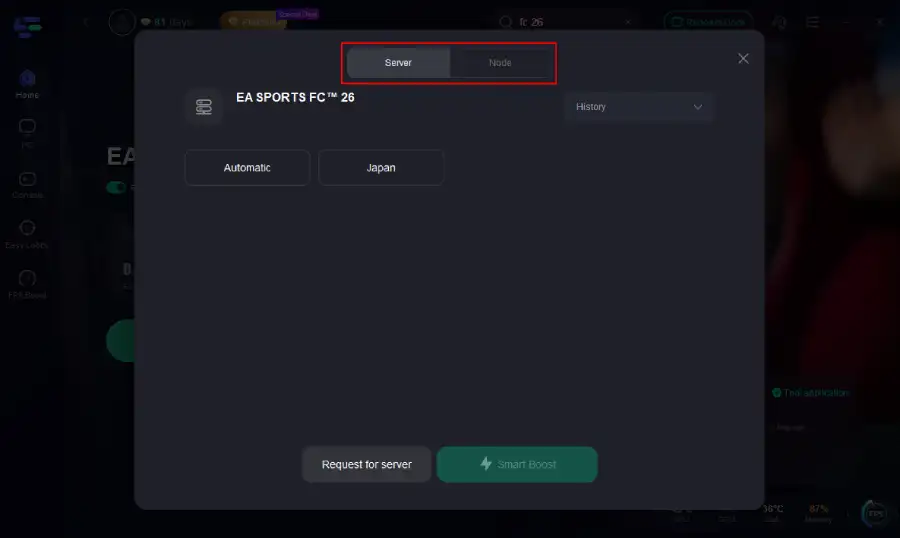
Step 3. Click Select Server and pick the optimal server node that aligns with your Pro Clubs squad region.
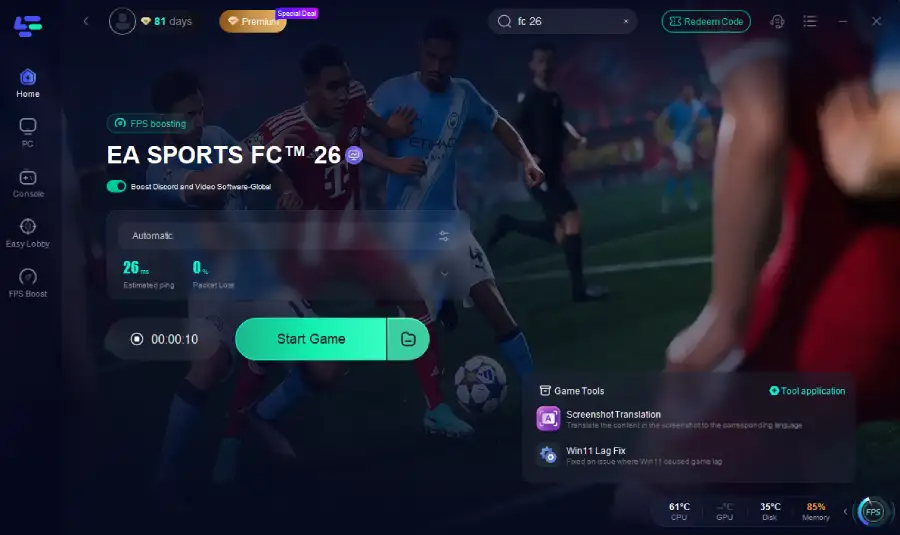
Step 4. Hit the Smart Boost button to stabilize your connection, lower your ping, and jump straight into your league matches without errors.
Part 8: FC 26 FAQs
Why does FC 26 keep saying "Matchmaking Failed" in Pro Clubs League matches?
This error is primarily caused by desynchronized roster updates among party members, regional server conflicts, or high packet loss between your connection and EA's matchmaking servers. When one player has an old squad file or a strict NAT type, the server rejects the entire lobby.
Is FC 26 Pro Clubs crossplay, and does turning it off help find matches?
Yes, FC 26 supports full crossplay across PC, PS5, and Xbox Series X|S. While keeping crossplay ON gives you the largest pool of opponents, toggling it OFF and back ON can sometimes reset bugged matchmaking loops if your lobby is stuck searching indefinitely.
How can I check if EA servers are down for FC 26?
You can verify real-time server status by checking official EA Sports direct communication channels on social media, visiting the official EA Help server status webpage, or checking community hubs like the r/EASportsFC subreddit. If servers are undergoing maintenance, matchmaking will fail across all modes.
Why can my squad play friendly matches but not League matches in Clubs?
League matchmaking has stricter latency and regional requirements than friendly lobbies. If your squad members are connecting from geographically distant regions (such as US East combined with EU West), EA's league matchmaking engine will often time out rather than put you in a high-ping server.
Will resetting my squads in settings delete my Ultimate Team or Pro Clubs progress?
No. Using the "Reset All Squads" feature in the main menu only clears locally cached offline roster files. Your Ultimate Team club, Pro Clubs pro attributes, skill points, and division progress are stored safely on EA's cloud servers and remain completely untouched.
What should I do if my Pro Clubs virtual pro is locked or missing after an update?
This temporary glitch usually happens when your game client fails to sync profile data with EA's cloud servers after a patch. Restarting your console or PC completely and launching into the main menu once before opening Pro Clubs will typically force a manual sync and restore your virtual pro.
Conclusion
Nothing ruins a competitive gaming night faster than staring at endless FC 26 matchmaking errors when your Pro Clubs squad is ready to play. While manual roster resets and DNS tweaks can get you past temporary glitches, stabilizing your network with LagoFast Game Booster is the most reliable way to guarantee instant lobbies, zero lag, and smooth league victories every time you log on. Get your squad together, fire up your booster, and dominate the league without interruption!

Boost Your Game with LagoFast for Epic Speed
Play harder, faster. LagoFast game booster eliminates stutter and lags on PC, mobile, or Mac—win every match!
Quickly Reduce Game Lag and Ping!
Boost FPS for Smoother Gameplay!