
EA Sports FC 26 is one of the most anticipated football simulation titles of 2025, bringing major upgrades in gameplay mechanics, AI, and visuals. With its global release set for September, players on PC, consoles, and mobile devices are eager to dive into the action. However, many gamers experience low FPS and stuttering issues during early access or after launch, which can ruin the immersive football experience. Whether you’re playing on a high-end PC, a next-gen console, or even mobile, frame drops can occur due to a variety of reasons. This guide will walk you through the common causes of FC 26 low FPS and provide step-by-step solutions for every platform, along with an all-in-one FPS booster recommendation for smoother gameplay.

- ✅ Reduce Lag and High Ping.
- ✅ Boost FPS at the Same Time.
- ✅ Fix Packet Loss on PC and Console.
- ✅ Change Server without Latency.
- ✅ End Stuck & Crashing Issues.
Part 1: All-in-One Solution to Boost FPS in FC 26
Part 2: Why FC 26 Low FPS & How to Fix
Part 1: All-in-One Solution to Boost FPS in FC 26
While manual fixes help, sometimes you need a dedicated FPS booster that optimizes across devices. LagoFast is one of the best all-in-one solutions for FC 26. Unlike traditional boosters, LagoFast works on PC, consoles, and mobile, making it highly versatile for gamers who switch platforms.
Key Features of LagoFast:
Cross-Device Support: Works on Windows, PlayStation, Xbox, and mobile platforms.
- Game Acceleration: Reduces latency and stabilizes FPS during online matches.
- Auto-Optimization: Adjusts system resources dynamically for smoother gameplay.
- Easy Setup: One-click acceleration, no complex configurations.
- Global Routing Network: Minimizes lag by choosing the fastest route to FC 26 servers.
If you’re tired of testing dozens of tweaks manually, LagoFast provides a simple yet powerful fix to boost FPS and reduce lag in FC 26 consistently.
Tutorial to use LagoFast to boost FPS in FC 26 on PC:
Step 1. Download LagoFast by clicking the "Free Trial" button.
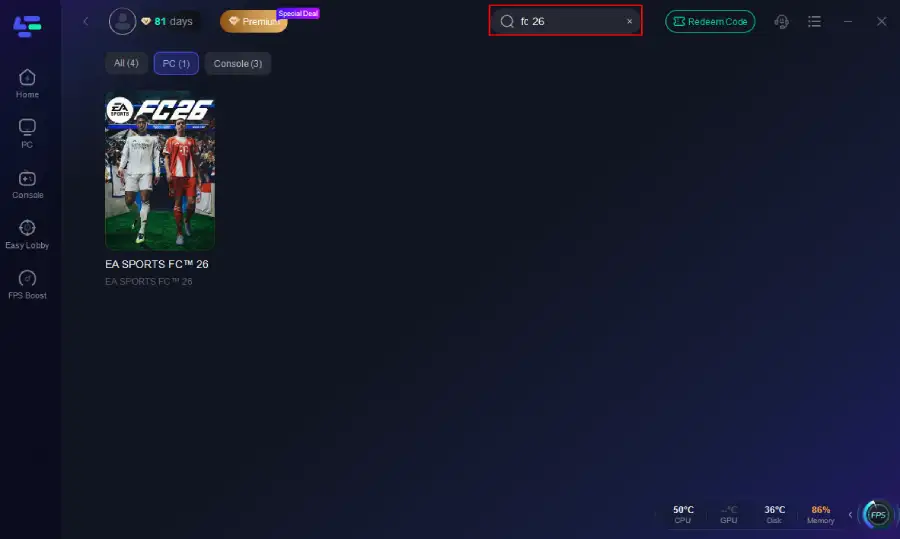
Step 2. Before you start your game, search for it within the LagoFast application to ensure it's supported.
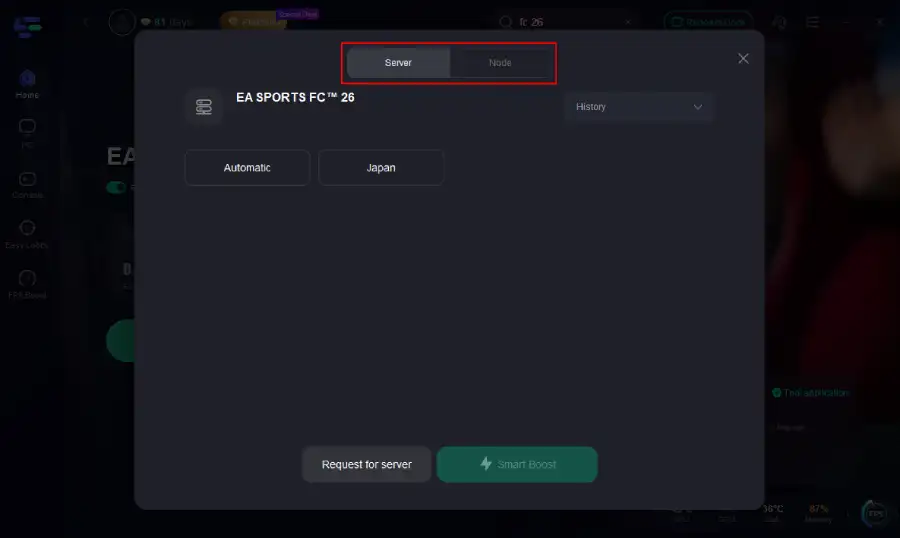
Step 3. Navigate to "Select Server" to choose the most stable server. Follow up by selecting the best Node available on the right to optimize your connection.
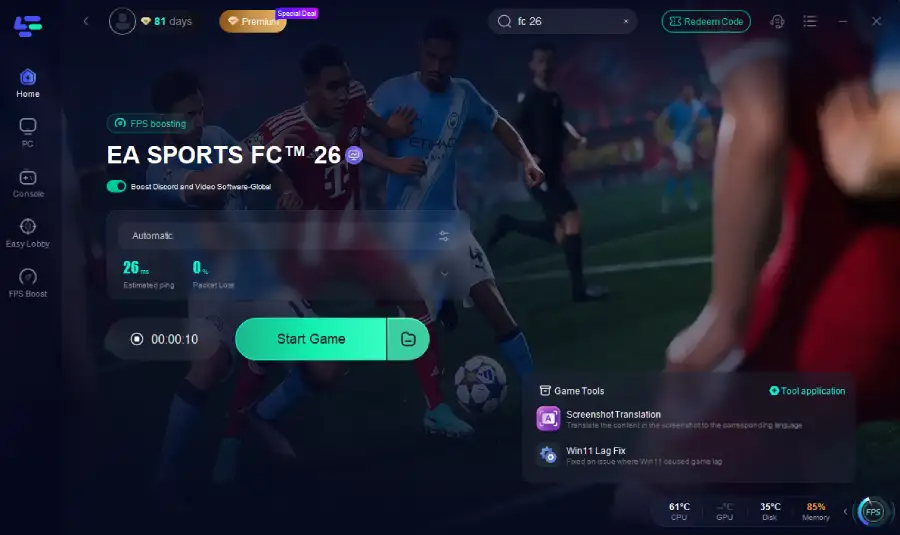
Step 4.Click the "Smart Boost" button to get real-time data on your game's ping, packet loss, and network type, which helps in monitoring and adjusting for optimal performance.
Tutorial on using LagoFast Box to boost FPS and enhance your console gaming experience:
LagoFast Box offers a simple, one-click method to optimize your game connection and reduce lag on PS5 or PS4:
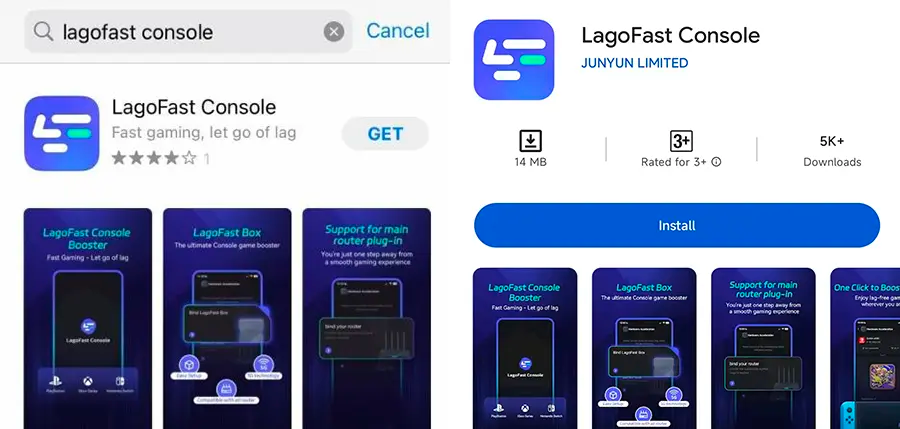
Step 1: Download the LagoFast Console App on your phone to control the LagoFast Box.
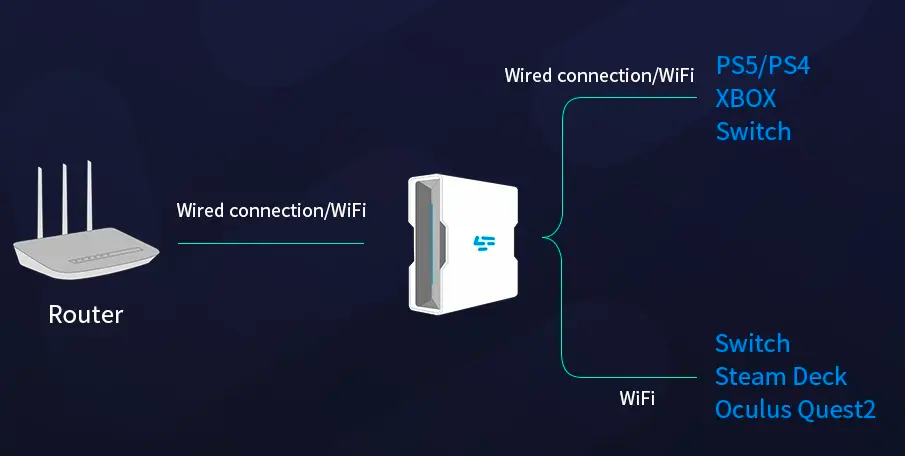
Step 2: Establish a connection between your LagoFast Box, router, and console, choosing between a wired or wireless connection.
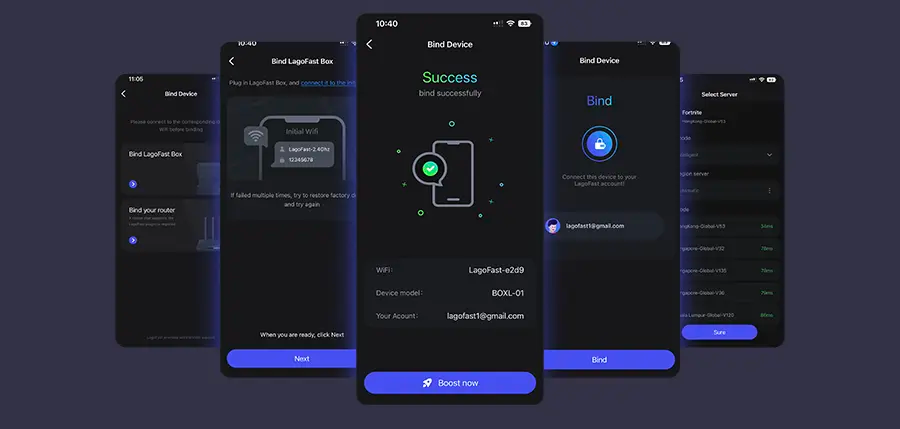
Step 3: Launch the LagoFast Console App and boost FC 26. Once you have completed the binding process with the LagoFast Box, proceed to boost this game within the LagoFast Console App.
Follow the tutorial to use the LagoFast Mobile to boost FPS on your mobile devices:
Step 1: Search “LagoFast Mobile booster” in the Google App Store or Apple App Store. Alternatively, click here to download the APK File.
Step 2: Click the “Download” button, then install and launch “LagoFast Mobile Booster”.
Step 3: Start FC 26, then switch to LagoFast Mobile and search for it.
Step 4. Select and click FC 26 in the interface.
Step 5: Enter the server selection interface, where you can change to a stable server, then click the “Boost” button to enhance the gaming experience
Step 6: Finally, go back to FC 26 and start playing it without any lag.
You May Like: Is FC 26 Crossplay?
Part 2: Why FC 26 Low FPS & How to Fix
Frame rate issues in FC 26 can arise for different reasons depending on your platform. Let’s break it down by PC, consoles, and mobile.
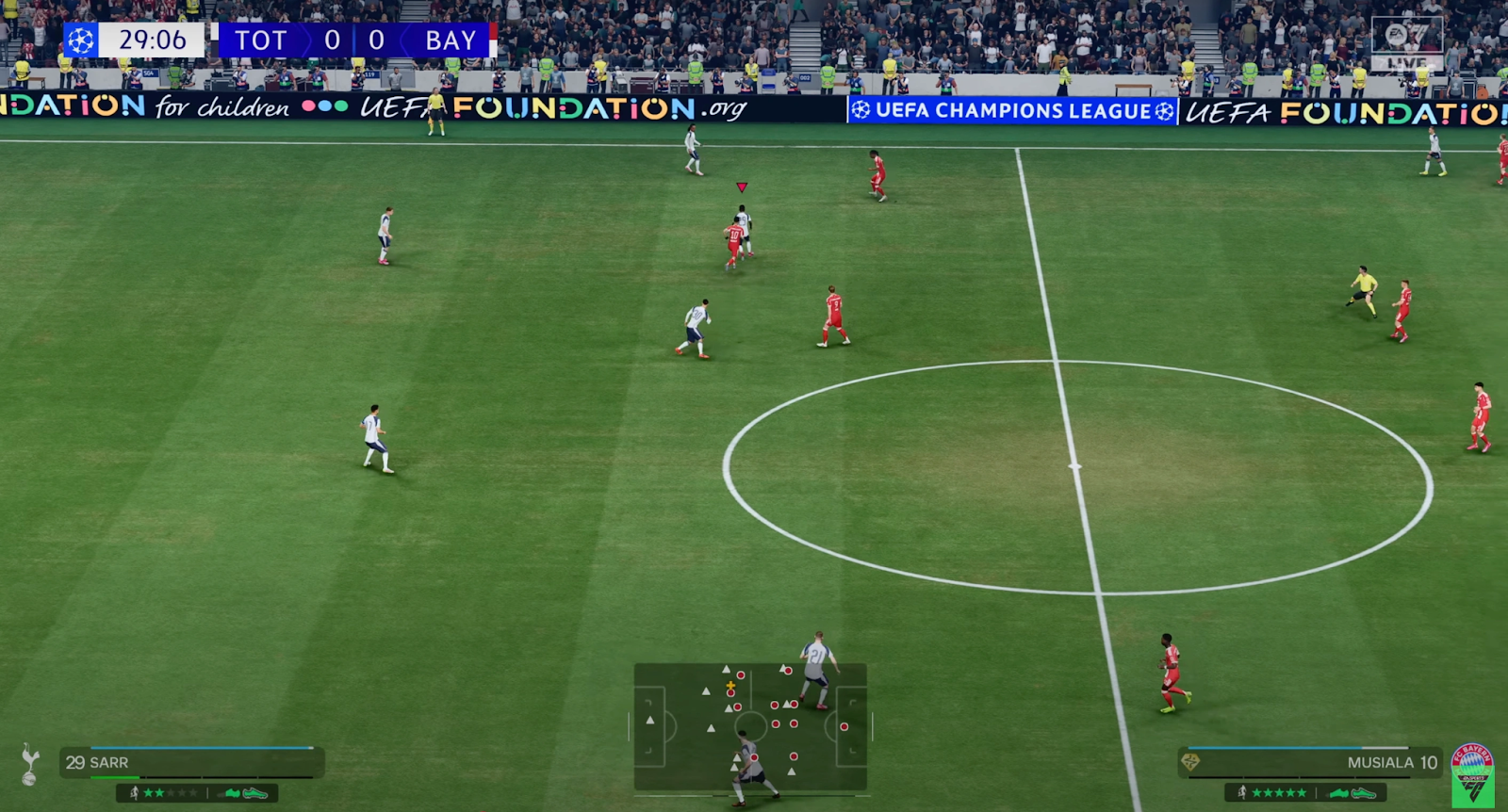
Why FC 26 Low FPS & How to Fix on PC
On PC, performance issues usually stem from hardware limitations, outdated drivers, poor system optimization, or in-game settings. Here are the four most common reasons and their solutions.
Reason 1: Outdated Graphics Drivers
Outdated GPU drivers can cause severe performance problems in new games like FC 26.
How to fix:
Step 1. Press Win + R, type dxdiag, and check your GPU model.
Step 2. Visit the official NVIDIA GeForce or AMD Radeon driver website.
Step 3. Download the latest driver that supports FC 26.
Step 4. During installation, choose Clean Install to remove old files.
Step 5. Restart your PC and test FC 26 again.
Reason 2: Wrong In-Game Graphics Settings
Running FC 26 at ultra settings on mid-tier hardware leads to low FPS.
How to fix:
Step 1. Launch FC 26 and go to Settings and select Graphics.
Step 2. Lower resolution scaling from 100% to around 80–90%.
Step 3. Turn off Ray Tracing and Motion Blur.
Step 4. Set Texture Quality to Medium or High (depending on VRAM).
Step 5. Enable Dynamic Resolution or Performance Mode.
Reason 3: Background Applications Consuming Resources
Heavy apps like browsers, Discord overlays, or recording software eat into CPU and RAM usage.
How to fix:
Step 1. Press Ctrl + Shift + Esc to open Task Manager.
Step 2. Go to Processes and sort by CPU or Memory usage.
Step 3. Right-click unnecessary apps (e.g., Chrome, Spotify) and select End Task.
Step 4. Disable overlays from apps like Steam, Discord, or GeForce Experience.
Step 5. Relaunch FC 26 with fewer background tasks.
Reason 4: Thermal Throttling
If your CPU or GPU overheats, the system reduces performance to cool down.
How to fix:
Step 1. Download monitoring software like MSI Afterburner.
Step 2. Check if CPU/GPU temps exceed 85°C during gameplay.
Step 3. Clean dust from fans and heatsinks.
Step 4. Improve airflow by repositioning your PC case.
Step 5. Consider applying fresh thermal paste if temps stay high.
Why FC 26 Low FPS & How to Fix on Consoles
While consoles like PS5, Xbox Series X/S, and even PS4/Xbox One are optimized, FPS drops can still occur.
Reason 1: Performance vs Quality Mode
Most modern consoles offer two modes: Quality (higher graphics) and Performance (higher FPS).
How to fix:
Step 1. Open Settings and select Graphics Mode in FC 26.
Step 2. Select Performance Mode for smoother gameplay.
Step 3. Restart the console to apply settings.
Step 4. Re-test FC 26 and check frame stability.
Step 5. Keep the console in a cool environment to avoid throttling.
Reason 2: Console Storage Fragmentation
Running FC 26 on a nearly full hard drive/SSD slows loading and affects FPS.
How to fix:
Step 1. Go to your console’s Storage Management.
Step 2. Delete unused games or apps.
Step 3. Move FC 26 to an SSD (if supported) for faster loading.
Step 4. Clear cache (PS5: boot into Safe Mode → Rebuild Database; Xbox: hold power for 10 sec).
Step 5. Relaunch the game.
Reason 3: Outdated System Software
An old firmware version may reduce optimization.
How to fix:
Step 1. Connect the console to the internet.
Step 2. On PS5: Go to Settings, select System and click System Software Update. On Xbox: Go to Settings, select System, and click Updates.
Step 3. Download and install the latest firmware.
Step 4. Restart and launch FC 26 again.
Why FC 26 Low FPS & How to Fix on Mobile
Mobile players on Android or iOS may also face frame drops due to overheating, background apps, or network instability.
Reason 1: Device Overheating
Mobile hardware struggles when overheated.
How to fix:
Step 1. Lower your screen brightness.
Step 2. Play in a cool environment, avoid direct sunlight.
Step 3. Remove your phone case for better cooling.
Step 4. Close other apps before launching FC 26.
Step 5. Use a mobile cooling fan if needed.
Reason 2: High Graphics Settings
Running FC 26 at high detail settings can overload mobile GPUs.
How to fix:
Step 1. Open FC 26, go to Settings, and select Graphics.
Step 2. Lower resolution from Ultra/High to Medium.
Step 3. Turn off Anti-aliasing and Shadows.
Step 4. Enable Battery Saver/Performance Mode (on Android). On iOS, enable Low Power Mode while gaming.
Reason 3: Background Apps and Notifications
Apps running in the background eat up CPU and RAM.
How to fix:
Step 1. Close all other apps from the App Switcher.
Step 2. Disable push notifications temporarily.
Step 3. Turn on Do Not Disturb mode.
Step 4. Clear cached data.
Step 5. Relaunch FC 26 for smoother performance.
Conclusion
FC 26 promises to be the biggest leap in EA Sports football simulation yet, but frame rate drops can ruin the experience across PC, consoles, and mobile. By updating drivers, optimizing settings, managing storage, and reducing overheating, you can solve most low FPS issues. For players seeking a hassle-free solution, LagoFast’s cross-device FPS booster ensures smoother gameplay on all platforms. With these optimizations, you’ll enjoy FC 26 the way it’s meant to be played—fast, fluid, and immersive.
Boost Your Game with LagoFast for Epic Speed
Play harder, faster. LagoFast game booster eliminates stutter and lags on PC, mobile, or Mac—win every match!
Quickly Reduce Game Lag and Ping!
Boost FPS for Smoother Gameplay!