
Quick Answer: How to Fix Echoes of Aincrad Not Launching?
If you are stuck dealing with Echoes of Aincrad crashing, failing to open, or freezing at startup, the absolute fastest and most reliable fix is to use a specialized game optimizer like LagoFast. While traditional manual troubleshooting requires checking corrupt system archives, wiping deep-rooted cache files, modifying system variables, and altering direct graphics settings, LagoFast automates the entire optimization process. With a single click, it instantly detects software mismatches, allocates maximum hardware assets to your game, fixes underlying connectivity or driver bottlenecks, and stabilizes the client. This bypasses the trial-and-error process entirely, giving you a 100% working fix to launch straight into the floating world of Aincrad without a single hitch.
Introduction
The long-awaited release of Bandai Namco's action JRPG, Echoes of Aincrad, has players thrilled to test their survival skills in the iconic floating castle. However, early system optimization struggles have left many adventurers trapped outside the login screen instead. PC players frequently report debilitating launch blocks, including desktop crashes, endless startup loops, and black screens. If your client refuse to initialize, you do not have to wait for an official patch. This comprehensive, step-by-step technical guide breaks down exactly why these initialization issues occur and provides proven manual and automated workflows to stabilize your game instantly.

- ✅ Reduce Lag and High Ping.
- ✅ Boost FPS at the Same Time.
- ✅ Support 2000+ Popular Online Games.
- ✅ Support Easy Lobby in all COD games without Lag
Part 1: Why Is Echoes of Aincrad Not Launching? – Symptoms & Causes
Part 2: How to Fix Echoes of Aincrad Not Launching?
Part 3: How to Fix Echoes of Aincrad Crash on Startup?
Part 4: How to Fix Echoes of Aincrad Not Opening?
Part 5: How to Fix Echoes of Aincrad Black Screen?
Part 6: How to Fix Echoes of Aincrad Stuck on Startup?
Part 7: How to Fix Echoes of Aincrad Intro Loop Bug?
Part 8: How to Fix Echoes of Aincrad Unreal Engine Crash?
Part 9: All-In-One Solution: Fix All Echoes of Aincrad Not Launching Errors – LagoFast
Part 10: LagoFast VS Manual Solutions
Part 1: Why Is Echoes of Aincrad Not Launching? – Symptoms & Causes
To successfully resolve startup failures, it helps to understand what is happening beneath the hood of your operating system. Below is a structured breakdown matching specific system behaviors with their common root technical causes:
|
System Symptom |
Potential Underlying Cause |
|
Game crashes to desktop immediately after clicking "Play" |
Missing or corrupted installation files; administrative permission blocks. |
|
Unreal Engine Fatal Error pop-up windows |
GPU driver out of date; unstable CPU power limits or Oodle decompression errors. |
|
The client launches into a permanent, non-responsive black screen |
Outdated DirectX/Graphics API compatibility; screen resolution or overlay system conflicts. |
|
The game hangs infinitely on the initial loading screen logo |
Corrupted local shader caches; storage drive read/write bottlenecks. |
|
Title repeats intro logos (Bandai Namco, T&C) without loading the main menu |
Buggy local profile configuration or corrupted game state save files in AppData. |
|
The game window closes suddenly with zero error messages |
Background security software (Antivirus/Windows SmartApp Control) false flags. |
Related Game News: Echoes of Aincrad Release Date, Editions, and Survival Guide
Part 2: How to Fix Echoes of Aincrad Not Launching?
When the game completely refuses to initialize from Steam or your desktop shortcut, the root cause typically stems from improper installation handshakes or restricted execution privileges. Use these fundamental solutions to resolve the basic blocks:
Run the Game with Administrative Privileges
Windows sometimes protects system file paths or shared libraries, preventing unauthorized applications from creating initialization files.
Step 1. Right-click on Steam and select Properties, select the Compatibility tab, select Check Run this program as an administrator, then click Apply.
Step 2. Navigate to the game installation directory: Steam\steamapps\common\Echoes of Aincrad.
Step 3. Right-click the primary executable application file (EchoesOfAincrad.exe), select Properties, head to the Compatibility tab, check Run this program as an administrator, and hit Save.
Validate the Integrity of Game Files
A minor network packet drop during a download can lead to corrupt local assets that instantly break the launcher.
Step 1. Open your Steam Library.
Step 2. Right-click on Echoes of Aincrad and select Properties.
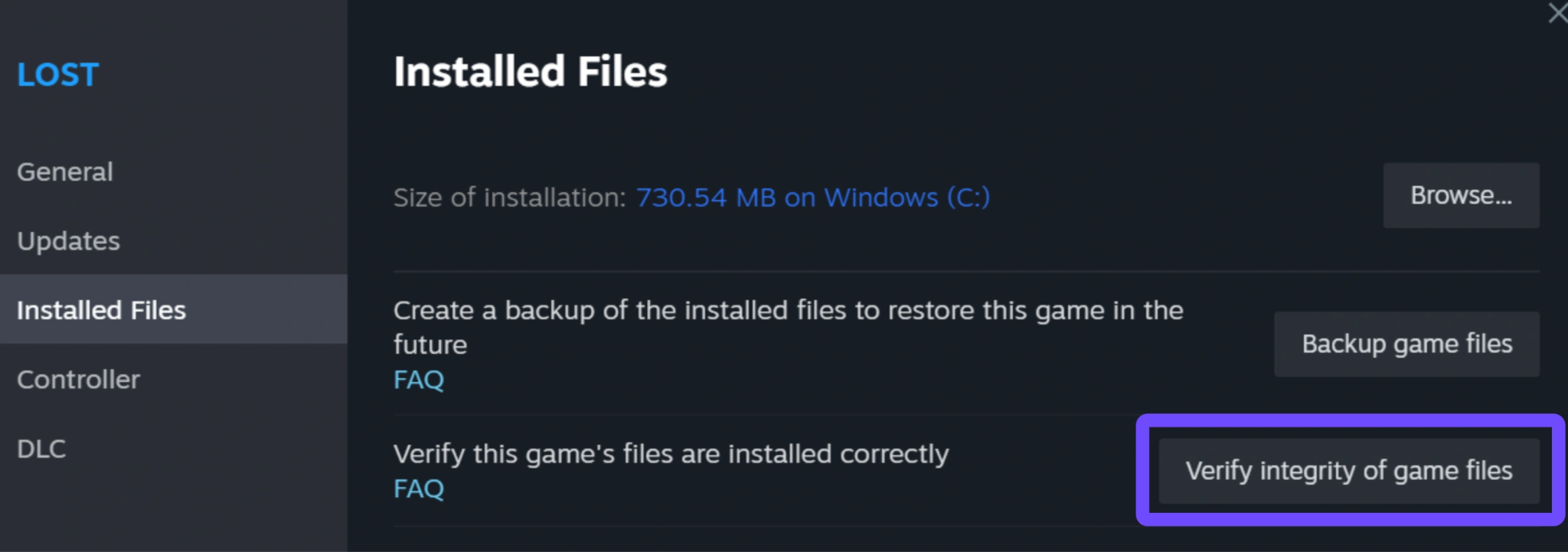
Step 3. Move to the Installed Files tab on the left menu.
Step 4. Click the Verify integrity of demo/game files option. Allow the validation loop to finish completely; Steam will automatically download any missing or altered system archives.
Related Article: Echoes of Aincrad Demo Guide: Common Problems, Player Questions, and What to Know Before Launch
Part 3: How to Fix Echoes of Aincrad Crash on Startup?
Crashing during the initial initialization screens point directly to hardware driver translation failures or third-party background software interference.
Perform a Clean Graphics Driver Installation
Old driver residues conflict with the heavy rendering engines utilized by modern JRPGs.
Step 1. Download the latest software suite from your manufacturer (NVIDIA GeForce Experience or AMD Software: Adrenalin Edition).
Step 2. Choose the Custom Installation pathway rather than Express.
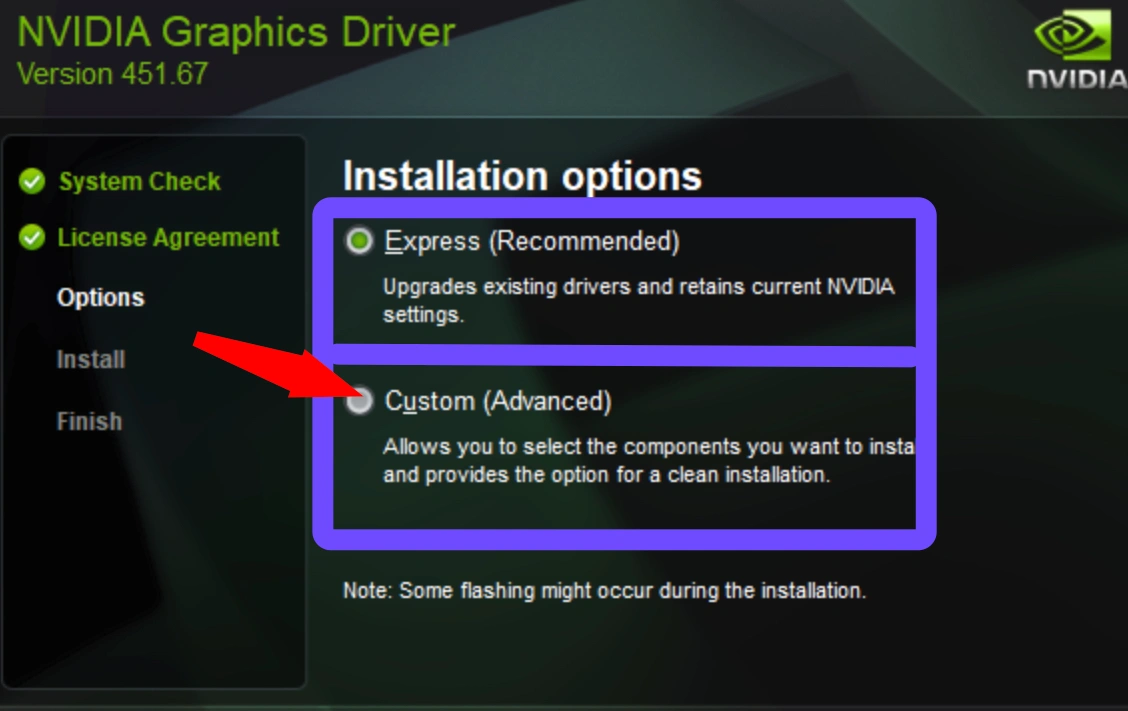
Step 3. Check the option marked Perform a clean installation. This completely purges old visual display parameters before setting up the modern update.
Step 4. Restart your system once complete.
Deactivate Conflicting Overlays
Visual application overlays run on top of the rendering pipeline, frequently triggering immediate system crashes on unoptimized launch configurations.
Step 1. Steam Overlay: Go to Steam, select Settings, select In-Game, Toggle off Enable the Steam Overlay while in-game.
Step 2. Discord Overlay: Open Discord User Settings, Game Overlay, and toggle off Enable in-game overlay.
Step 3. GeForce Experience: Open Settings, General, and turn off the In-Game Overlay toggle switch.
Part 4: How to Fix Echoes of Aincrad Not Opening?
If clicking the play button results in a brief "Launching" status that immediately switches back to "Play" without any window appearing, system security mechanisms are likely blocking the application.
Allow the Game Through Windows Defender Firewall
Step 1. Press the Windows Key, type Control Panel, and hit enter.
Step 2. Click on System and Security, select Windows Defender Firewall.
Step 3. Select Allow an app or feature through Windows Defender Firewall on the left menu.
Step 4. Click Change settings, then click Allow another app...
Step 5. Browse and point the path to your main game directory EchoesOfAincrad.exe, select both Private and Public checkboxes, and click Add.
Modify Smart App Control Settings (Windows 11)
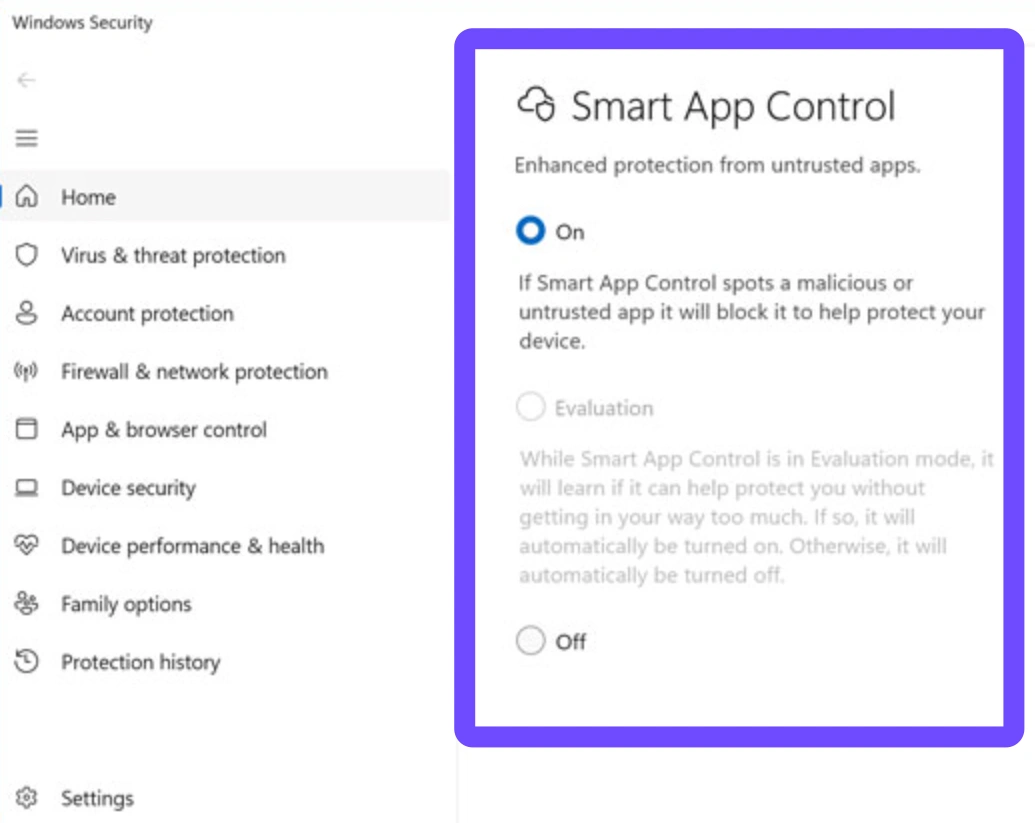
Windows 11 features strict algorithmic security layers that block newly released, unsigned applications or experimental game versions from deploying execution threads.
Step 1. Open the Start Menu and select Settings, select Privacy, select Security, and select Windows Security.
Step 2. Click on App & browser control.
Step 3. Select Smart App Control settings. If it is set to "Evaluation" or "On" and flagging your game improperly, consider switching it to Evaluation or troubleshooting your local file signatures to prevent deployment blocks.
Part 5: How to Fix Echoes of Aincrad Black Screen?
A persistent black screen indicates that the game client has successfully initialized its background engine loop, but is completely blocked from drawing the visual layout onto your monitor.
Force the Game into Windowed Mode via Launch Options
Display scaling mismatches or unsupported default refresh rates can break full-screen initialization modes.
Step 1. Go to your Steam Library and right-click Echoes of Aincrad and select Properties.
Step 2. In the General tab, scroll down to the bottom to find the Launch Options text box.
Step 3. Input the following command parameter precisely: -windowed -noborder
Step 4. Close the property page and run the game. This forces a clean borderless window profile that easily synchronizes with your desktop resolution.
Update the DirectX Runtime Environments
Step 1. Visit the official Microsoft download archive page.
Step 2. Download the DirectX End-User Runtime Web Installer.
Step 3. Run the installation package to replace missing or damaged .dll components within your operating system graphics subsystem, then reboot your computer.
Part 6: How to Fix Echoes of Aincrad Stuck on Startup?
Getting stuck on a loading screen or logo reveal usually implies a file access stall, where the game is waiting on corrupted temporary caches that it cannot properly read or overwrite.
Purge the Local Shader and Game Config Cache Files
Step 1. Press the Windows Key + R simultaneously to launch the Run prompt.
Step 2. Type localappdata exactly and press Enter.
Step 3. Locate the folder named Echoes of Aincrad (or your developer subfolder structural path).
Step 4. Open it, navigate to the Saved folder, and delete the Config folder along with any .upipelinecache or shader cache directories found inside. The engine will cleanly rebuild these data elements upon its next startup sequence.
Move Installation Files to an Internal SSD
High-fidelity modern game systems pull immense assets during initialization. Standard mechanical hard disks are often too slow, triggering asset load time-outs that freeze the loading screens.
Step 1. Open Steam, select Properties on the game title, and select Installed Files.
Step 2. Click Move install folder...
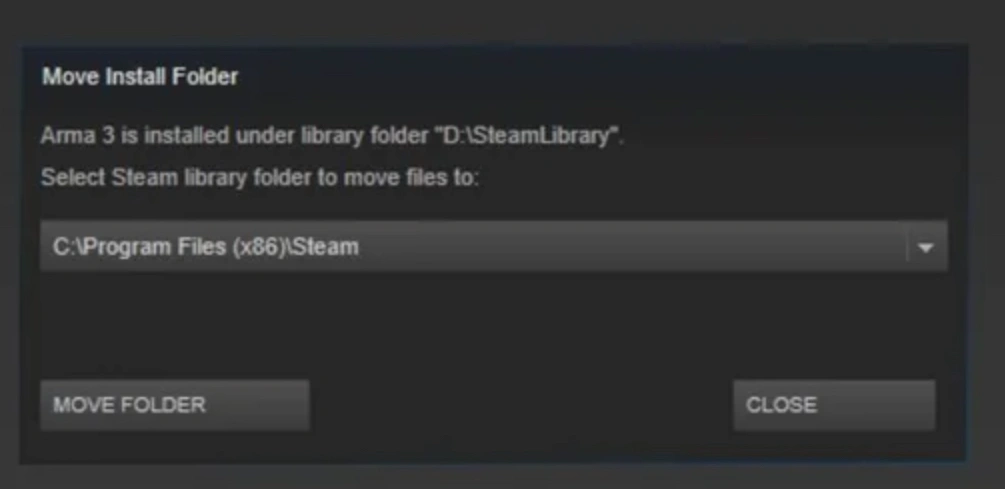
Step 3. Select a fast, internal solid-state drive (SSD) formatted in NTFS format and initiate the transition process.
Part 7: How to Fix Echoes of Aincrad Intro Loop Bug?
The infinite intro loop bug forces players to watch the initial legal warnings, publisher splash screens, and terms of service layout repeatedly, resetting back to the beginning before reaching the title screen. This occurs due to a save file progression state breakdown.
Clear Local Saved Progression States
Step 1. Bring up the Run prompt again by using the Windows Key + R shortcut.
Step 2. Input localAppData and execute the directory request.
Step 3. Open the Echoes of Aincrad directory path.
Step 4. Drill down into the Saved folder block. Delete the contents inside the SaveGames directory completely.
Note: This forces the game engine to treat the launch sequence as a true first-time run, resetting broken flag data. Once you pass the opening sequence and reach the primary Town of Beginnings hub checkpoint, saving manually will permanently overwrite the looping error.
Part 8: How to Fix Echoes of Aincrad Unreal Engine Crash?
Unreal Engine fatal errors are deeply tied to asset decompression failures or hardware processing instabilities. The game frequently suffers from Oodle decompression errors, heavily impacting Intel 13th/14th Generation desktop setups or unstable RAM configurations.
Stabilize Intel 13th and 14th Gen Processor Power Profiles
Aggressive default motherboard power-delivery targets cause these processors to experience calculation errors during heavy shader decompression tasks.
Step 1. Restart your PC and press the delete or F2 keys repeatedly to enter your system BIOS.
Step 2. Locate the core CPU power management profiles (often named AI Overclock Tuner, Advanced CPU Settings, or Power Limits).
Step 3. Change the power parameters from the motherboard manufacturer's unconstrained values to the official Intel Baseline Profile or standard Intel Fail-Safe Defaults. This enforces strict stock current/wattage power limits, removing execution failures instantly.
Disable XMP/EXPO Memory Profiles
Unstable memory frequencies can corrupt engine data strings mid-transit.
Step 1. Enter your motherboard BIOS screen during system startup.
Step 2. Locate your memory profile configuration page.
Step 3. Toggle XMP (for Intel systems) or EXPO (for AMD rigs) to Disabled, forcing your system RAM modules to run safely at standard base speeds. Test whether the game engine launches smoothly without decompression errors.
Part 9: All-In-One Solution: Fix All Echoes of Aincrad Not Launching Errors – LagoFast
Manually navigating BIOS configs, deleting hidden app folders, and overriding security policies can be an overwhelming chore. Instead of troubleshooting each individual error code step-by-step, you can rely on LagoFast to handle everything automatically.
LagoFast is a highly advanced, all-in-one gaming optimization tool built to fix startup blocks, stability drops, and gameplay performance bugs. By running an automated diagnostic sweep on your system, it instantly resolves performance bottlenecks and launch barriers, giving you a 100% reliable fix to enjoy smooth, uninterrupted gameplay in Echoes of Aincrad.
Key Features of LagoFast:
- One-Click Launch & Crash Repair: Instantly clears systemic environment conflicts and missing configurations to fix startup issues in a single click.
- Real-Time High Ping Reducer: Intelligently routes game data across optimized global servers, drastically cutting latency and preventing server drops.
- One-Click FPS Boost System: Optimizes background Windows resource allocation, unlocks CPU potential, and stops system lag instantly.
- Smart Network Diagnostics: Automatically checks connection status, fixes packet loss, and stabilizes online multiplayer servers.
Tutorial to Use LagoFast to Fix Echoes of Aincrad Not Launching:
Step 1: Click the Free Trial button to download and install LagoFast.
Step 2: Open LagoFast, then click the PC button on the left, search for Echoes of Aincrad in the search bar, and click it after it appears.
Step 3: Click on Server to change to a better server that ensures a better gaming experience, then click on Smart Boost to fix the Echoes of Aincrad Launching issues.
Step 5: Check the specific game ping, packet loss, and multiple path connections on the right side. Finally, click Start Game to play the game.
Part 10: LagoFast VS Manual Solutions
|
Optimization Feature |
LagoFast One-Click Solution |
Traditional Manual Troubleshooting |
|
Setup Time |
Under 1 minute with automated tools. |
30 to 60 minutes of tedious manual steps. |
|
Technical Difficulty |
Extremely simple; accessible for everyone. |
Advanced; requires editing system registries and BIOS settings. |
|
System Security |
100% safe; optimizes within verified parameters. |
High risk of deleting critical data or causing system instability. |
|
Performance Enhancement |
Fixes launch issues while boosting FPS and lowering ping. |
Only fixes individual errors without overall performance optimization. |
|
Success Rate |
Near-perfect resolution rate through automated adjustments. |
Low to moderate; requires trial-and-error across multiple fixes. |
Part 11: FAQs
Can an outdated operating system cause Echoes of Aincrad launch errors?
Yes, modern game engines rely on deep architecture frameworks built into modern Windows revisions. If your operating system lacks critical cumulative updates, it will fail to initialize graphics pipelines or anti-cheat integrations properly, causing instant crashes.
Why does my antivirus flag Echoes of Aincrad as a security threat?
Newly launched games or demo updates frequently cause false positives in heuristic antivirus scans because their code patterns aren't yet whitelisted in global databases. Adding the game folder as an exception easily resolves this block.
What should I do if my game launcher crashes without any error code?
This behavior usually points to memory errors or background apps shutting down the thread. Clear your temporary AppData cache, disable all active display overlays, and check Windows Event Viewer under Application Logs to pinpoint the exact module causing the failure.
Does a high network ping cause the game to freeze on startup?
Yes, the game connects to authentication servers during its loading screens. If your connection drops packets or suffers from extreme latency during this handshake, the loading sequence can time out and freeze completely.
How does overclocking affect Unreal Engine stability?
Unreal Engine pushes hardware components hard during shader loading phases. Even if an overclock seems stable in general desktop applications, the game's initialization process can easily trigger voltage drops, causing a crash to desktop.
Will deleting the AppData folder wipe out my online character progress?
No, your actual character builds, unlocked gear, and multiplayer stats are stored safely on the game's cloud servers. Deleting local save directories only resets local display options and uncorrupts broken introductory flags.
Conclusion
Dealing with launch bugs and sudden crashes in Echoes of Aincrad can be incredibly frustrating when you just want to dive into the game. While manual troubleshooting steps can help you track down and fix specific system errors, they take a lot of time and effort. For a fast, hassle-free fix, download LagoFast. It cleans up your system performance, skips the tedious trial-and-error process, and gets you back into the action instantly.

Boost Your Game with LagoFast for Epic Speed
Play harder, faster. LagoFast game booster eliminates stutter and lags on PC, mobile, or Mac—win every match!
Quickly Reduce Game Lag and Ping!
Boost FPS for Smoother Gameplay!