
Quick Answer: EA SPORTS FC 26 disconnecting after 5 minutes is mainly caused by unstable routing to EA servers; you can fix it by stabilizing your connection using Ethernet, reducing background traffic, or rerouting your network with a game booster.
Introduction
Since the April 6 update, many players have reported that EA SPORTS FC 26 disconnects shortly after entering online modes. While it may seem like a hardware or settings issue, the problem is usually tied to network instability or server-side disruptions. Understanding the real cause is key, as most fixes focus on stabilizing your connection path rather than changing in-game settings.

- ✅ Reduce Lag and High Ping.
- ✅ Boost FPS at the Same Time.
- ✅ Fix Packet Loss on PC and Console.
- ✅ Change Server without Latency.
- ✅ End Stuck & Crashing Issues.
Part 1: What’s Really Happening
Part 2: Quick Fix That Works Right Now
Part 3: Why EA SPORTS FC 26 Disconnects After 5 Minutes
Part 4: Quick Diagnostic Checklist
Part 5: Step-by-Step Fixes (Priority Order)
Part 6: How to Check Server Status
Part 7: When It’s a Different Problem
Part 8: When to Contact EA Support
Part 1: What’s Really Happening
Common Player Reports
Across multiple regions and ISPs, players are experiencing the same pattern:
- The game runs fine initially → then disconnects after a few minutes
- Happens across different providers and setups
- Game boosters or rerouting tools sometimes reduce disconnects
- Mobile hotspot works inconsistently
- Issue started after a recent update
What This Indicates
This strongly suggests:
- Unstable routing to EA servers
- Packet loss or timeout issues on backbone networks
- Possible ISP-level traffic filtering or congestion
- Improved stability when traffic is rerouted
In short, your connection isn’t broken—but the path your data takes to EA servers might be.
Part 2: Quick Fix That Works Right Now
Use a Game Route Optimizer (Best Immediate Solution)
If the issue isn’t caused by a server outage, then the problem is often how your data travels to EA servers—not your internet speed itself. In many cases, your ISP may route traffic through congested or unstable nodes, which leads to packet loss and repeated disconnects.
A more effective approach is to optimize the route your connection takes. Instead of relying on default ISP paths, a game route optimizer like LagoFast can redirect your traffic through more stable and lower-latency routes. By avoiding congested or unreliable network nodes, this method helps maintain a consistent connection to EA servers and significantly reduces random disconnections, especially in situations where standard network fixes don’t fully resolve the iss
This method is especially useful if:
- The issue happens at regular intervals (like every 5 minutes)
- You’ve already tried basic fixes (restart, Ethernet, etc.)
- Your connection seems fine in other games or applications
By stabilizing the network path itself, you’re addressing the root cause rather than just the symptoms.
How to fix constant server disconnects in FC26 with LagoFast:
Step 1. Download LagoFast by clicking the "Free Trial" button.
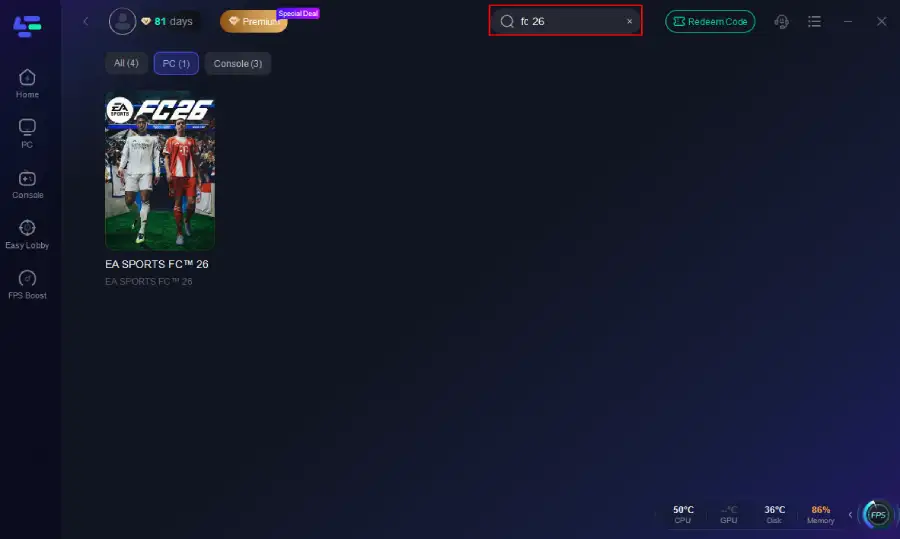
Step 2. Before you start your game, search for it within the LagoFast application to ensure it's supported.
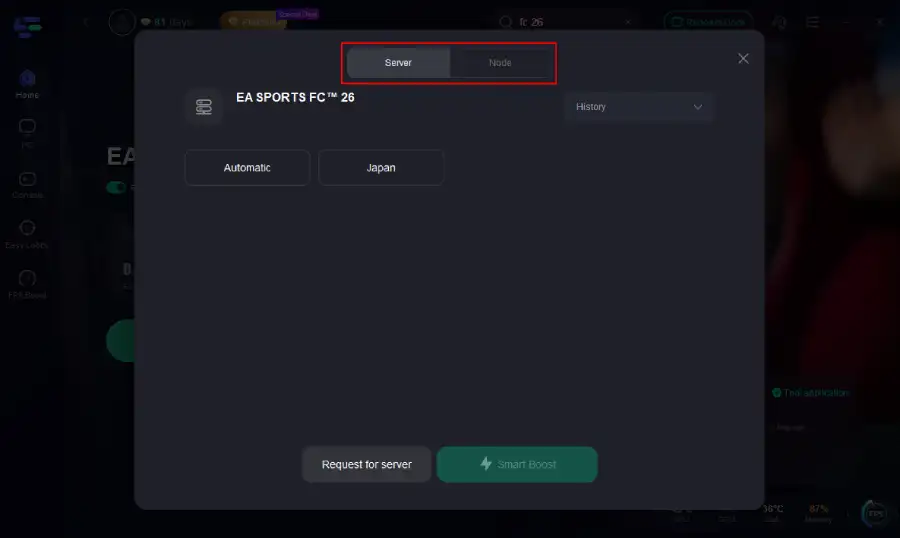
Step 3. Navigate to "Select Server" to choose the most stable server. Follow up by selecting the best Node available on the right to optimize your connection.
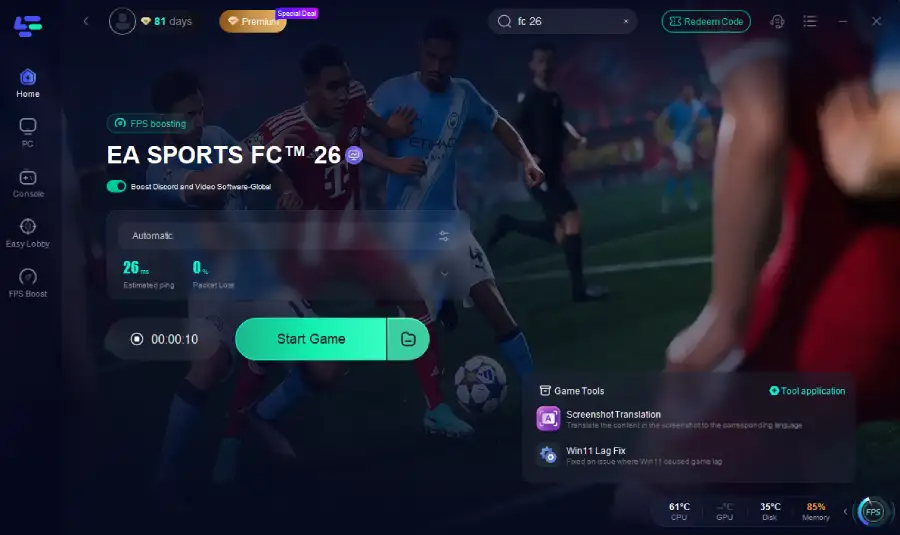
Step 4.Click the "Smart Boost" button to get real-time data on your game's ping, packet loss, and network type, which helps in monitoring and adjusting for optimal performance.
Basic Checks Before Advanced Fixes
Before going deeper, follow these steps in order:
- Check EA server status and announcements
- Restart the game and log back into your EA account
- Reboot your PC, PlayStation, or Xbox
- Restart your router and modem
- Switch from Wi-Fi to Ethernet
- Pause downloads, streaming, and cloud syncing
- Ensure your game and system are fully updated
- Test another game mode (Ultimate Team, Clubs, etc.)
Part 3: Why EA SPORTS FC 26 Disconnects After 5 Minutes
1) EA Server Outages or Maintenance
This is the first thing to rule out.
Players have reported cases where both Ultimate Team and Clubs stopped working simultaneously. For example:
“I couldn’t access UT or Clubs, and then saw on social media that servers were down.”
There was also confirmed maintenance on April 8 (06:00–10:00 UTC), during which players could be disconnected.
If many players are affected at the same time, the issue is likely on EA’s side.
2) Partial Server Instability (Mode-Specific Issues)
Sometimes the game doesn’t fully go down—you can still access menus but get disconnected during matches.
Typical signs:
- Ultimate Team disconnects but offline modes work
- Clubs fails for multiple players at once
- Matchmaking or match completion fails
If multiple modes break simultaneously, this usually indicates server-side instability.
3) Fresh Install or Anti-Cheat Related Issues
Some players report the issue started immediately after reinstalling the game.
Example feedback:
“After a clean install, I keep getting disconnected randomly—in menus and matches.”
There are also suspicions about EA Anti-Cheat conflicts, though not officially confirmed.
If your issue began after reinstalling:
- Try repairing game files
- Reinstall again if necessary
4) Network Instability or Local Conflicts
If there’s no global outage, the issue may be your connection quality.
Possible causes:
- Unstable Wi-Fi
- Background bandwidth usage
- Poor routing to EA servers
- Router/modem instability
- Network conflicts during online matches
This is why Ethernet and network cleanup are critical first steps.
Part 4: Quick Diagnostic Checklist
Use this checklist to quickly narrow down the root cause of the disconnect issue before trying more advanced fixes:
Is there scheduled maintenance or a known outage?
If yes, wait it out first—no local fixes will help during server downtime.
Are other players reporting the same issue right now?
Check official EA channels and technical forums. If many players are affected, the issue is likely server-side.
Does it happen in all online modes or just one?
Test Ultimate Team, Clubs, and general online features. This helps identify whether the issue is mode-specific or broader.
Did it start after a fresh install or recent update?
If yes, suspect game file issues first before changing network or router settings.
Does it happen on both Wi-Fi and Ethernet?
If only Wi-Fi is affected, focus on improving your local connection stability.
Can you test a different network?
Using a mobile hotspot or secondary connection can quickly confirm whether the issue is local or network-related.
Part 5: Step-by-Step Fixes (Priority Order)
If you’re still getting disconnected after a few minutes, work through these fixes in order. Start with the simplest solutions first before moving to deeper troubleshooting.
1) Restart EA SPORTS FC 26 and Re-login to Your EA Account
Completely close the game, relaunch it, and log back into your EA account.
If you’re on console, make sure you fully exit the game instead of leaving it suspended in the background.
This is the fastest way to resolve temporary session-related issues, especially after updates or connection interruptions.
2) Reboot Your Device and Restart Your Network
Turn off your PC or console, then restart your router and modem.
Wait a minute for the network to fully stabilize before reconnecting. This helps clear temporary IP conflicts and refresh routing paths that may be causing repeated disconnects.
3) Switch from Wi-Fi to Ethernet
If possible, use a wired connection.
Unstable or weak Wi-Fi is one of the most common causes of repeated disconnects during online matches, especially in fast-paced modes.
If switching to Ethernet solves the issue, you’ve likely identified the root cause.
4) Close Background Downloads and Bandwidth-Heavy Apps
Pause anything that might consume bandwidth or create instability, including:
- Game downloads
- Launcher updates
- Video streaming services
- Cloud backup or sync apps
- Browser tabs playing media
This step is especially important on PC, but consoles can also be affected by background activity.
5) Update EA SPORTS FC 26 and Your Platform
Make sure the game is fully updated. Recent patches often include fixes for gameplay stability, Ultimate Team, and Career Mode.
Also check for system updates on your PC, PlayStation, or Xbox. Running outdated software can sometimes lead to compatibility or connection issues.
6) Repair or Reinstall the Game (If Issue Started After Update)
If disconnects began right after a fresh install or update, verify or repair your game files if your platform supports it. If that doesn’t help, reinstall the game completely.
This is especially recommended if:
- The issue started immediately after reinstalling
- Disconnects happen both in menus and matches
- Network-related fixes haven’t worked
7) Test a Different Game Mode
Try switching between different online modes to isolate the issue.
For example:
- If Ultimate Team disconnects but other features work, the issue may be mode-specific
- If both Clubs and Ultimate Team fail, it points to a broader server problem
- If only offline modes work, the issue is clearly tied to online services
8) Test Another Network
If possible, connect your device to a different network for comparison.
A mobile hotspot is enough for testing. If the game stays connected on another network, the issue is most likely related to your primary home connection or ISP routing.
Part 6: How to Check Server Status
Before spending time troubleshooting your own setup, it’s important to confirm whether the issue is actually on EA’s side. Server outages and maintenance are common causes of sudden disconnects, especially after updates.
Start by checking the following sources:
EA forums (FC 26 technical issues section)
This is often where players first report widespread problems. If multiple users are posting about disconnects at the same time, it’s likely not just you.
Official EA server status and communication channels
Look for announcements about maintenance, outages, or ongoing investigations. These updates usually confirm whether online services are affected.
Real-time player reports in the same game mode
Check if others are experiencing issues in modes like Ultimate Team or Clubs. This helps determine whether the problem is global or mode-specific.
A useful example: FC 26 had scheduled maintenance on April 8 (06:00–10:00 UTC), and players were warned that they might experience disconnects or be unable to access online services during that time.
If your disconnects match a known maintenance window or coincide with widespread reports, it’s best to wait rather than troubleshoot locally, as the issue is outside your control.
Part 7: When It’s a Different Problem
If the game doesn’t launch at all, this is not the same issue.
For example:
- Denuvo errors → launch issue
- Crashes before menus → system/game problem
Do not confuse these with server disconnects.
Part 8: When to Contact EA Support
Contact EA if:
- No active outage
- All basic fixes failed
- Disconnects follow a clear pattern
- Reinstall didn’t help
Include This Information:
- Platform
- Game mode affected
- Exact disconnect timing
- Frequency (every 5 minutes or random)
- Menu vs match impact
- Network type (Wi-Fi or Ethernet)
- Whether it started after update/install
- Whether you tested another network
The more precise your report, the faster EA can identify the issue.
Part 9: FAQ
Why does EA SPORTS FC 26 disconnect exactly after 5 minutes?
Most likely causes include server instability, maintenance windows, routing issues, or post-install bugs. A strict timer pattern often points to network routing or server-side problems.
How do I know if it’s EA servers or my internet?
If many players report the same issue at the same time, it’s likely EA.
If it improves with Ethernet or another network, it’s likely your connection.
Can EA Anti-Cheat cause disconnects?
It’s suspected but not confirmed. However, issues after fresh installs suggest possible conflicts, so reinstalling is recommended.
What should I include when reporting to EA?
Include platform, mode, timing, frequency, network type, and whether the issue started after an update or reinstall.
Conclusion
If EA SPORTS FC 26 keeps disconnecting after 5 minutes, start by checking for server outages or maintenance.
If there’s no widespread issue, move through the basics: restart your game and device, reset your network, switch to Ethernet, and eliminate background traffic.
If the issue began after an update or reinstall, repairing or reinstalling the game should be your next step.
In persistent cases, the root cause is often unstable routing rather than your hardware, making route optimization tools one of the most effective long-term solutions.
Boost Your Game with LagoFast for Epic Speed
Play harder, faster. LagoFast game booster eliminates stutter and lags on PC, mobile, or Mac—win every match!
Quickly Reduce Game Lag and Ping!
Boost FPS for Smoother Gameplay!