
Jumping into the stunning, Unreal Engine 5-powered world of Orbis should feel magical. But nobody likes watching their epic tag-team combat turn into a sluggish PowerPoint presentation. If you are constantly dealing with DragonSword Awakening low FPS right out of the gate, you aren't the only one. Exploring vast environments and executing rapid-fire character switches puts a massive strain on your PC. Let's break down exactly how to get your game running buttery smooth so you can focus on the adventure instead of fighting your hardware.

- ✅Reduce Lag and High Ping.
✅ Boost FPS at the Same Time.
✅ Support 8000+ Popular Online Games.
✅ Change Server without Latency.
✅ Boost Game Loading Speed.
Part 1: Identifying Your Problem: FPS vs. Stuttering vs. Network Lag
Part 2: Game-Specific Tweaks: Taming the Engine
Part 3: General System & Hardware Fixes
Part 4: Quick Fix: Boost Your DragonSword Awakening FPS With LagoFast
Part 5: DragonSword Awakening FAQs
Part 1: Identifying Your Problem: FPS vs. Stuttering vs. Network Lag
Before diving into random settings menus and changing things you might regret, you need to know exactly what is going wrong. Gamers often mix up terms like "lag" and "stutter," but they have entirely different root causes. A true DragonSword Awakening performance fix starts with an accurate diagnosis. For example, if your character is rubberbanding during online co-op, changing your shadow quality won't help you.
Review the breakdown below to pinpoint exactly what is happening on your screen:
|
Issue Type |
What It Looks Like |
Common Culprits |
|
Low FPS |
The framerate feels consistently sluggish and heavy at all times. |
Playing at too high a resolution, demanding shadows, intense visual effects, ignoring upscalers, or an underpowered GPU. |
|
FPS Drops |
The game runs fine normally, but suddenly tanks during specific intense fights or entering new zones. |
Slow storage drives (HDD instead of SSD), maxed-out VRAM, sudden spikes in scene complexity, or thermal throttling. |
|
Stuttering |
Your average framerate is perfectly high, but the camera movement feels jerky with periodic micro-freezes. |
Wild frametime spikes, Unreal Engine shader compilation, asset loading bottlenecks, or greedy background apps. |
|
Texture Pop-in |
Environmental objects, foliage, or high-res textures load in late, appearing abruptly as you run closer. |
Running the game on an older mechanical HDD, slow SSD speeds, maxed VRAM, or pushing the draw distance too far. |
|
Network Lag |
Characters teleport around the map, button presses feel delayed, and damage registers a full second late. |
This is strict network latency and packet loss, completely unrelated to your PC's graphics hardware. |
Part 2: Game-Specific Tweaks: Taming the Engine
Because this is a massive Unreal Engine 5 title, the game demands a lot of horsepower just to render basic environments. You want to prioritize adjusting the in-game settings before messing with your Windows configuration. Certain graphical luxuries eat up a massive portion of your GPU processing power while barely improving the visual experience. By strategically pulling back on specific engine features, you can drastically reduce DragonSword Awakening performance issues without making the anime-style world look like a retro demake.
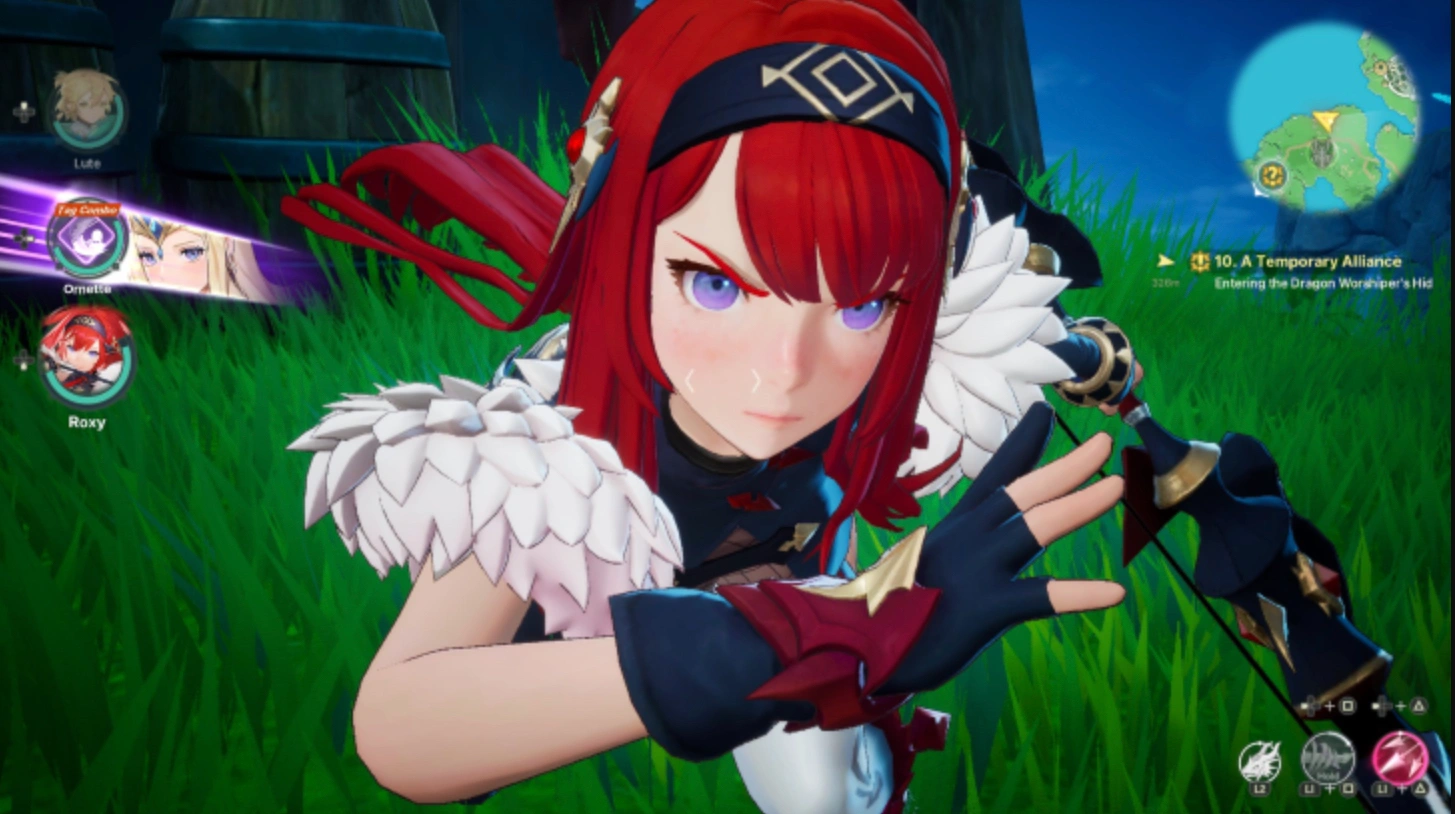
Lower Shadows, Effects, Draw Distance, and Reflections
Unreal Engine is notoriously greedy when it comes to rendering dynamic shadows and reflections. Pushing these to "Epic" or "Ultra" is almost always the main reason behind a consistently laggy experience. Dialing these specific features back slightly is the easiest way to claw back dozens of frames without losing the game’s vibrant aesthetic.
Step 1. Launch the game and navigate directly to the main Options menu, then click over to the Graphics tab.
Step 2. Locate the "Shadow Quality" slider and drop it down to Medium; high-resolution shadows devour GPU resources fast.
Step 3. Find the "Screen Space Reflections" or overall "Reflections" setting and lower it.
Step 4. Scroll down to "Draw Distance" (or View Distance) and reduce it to High or Medium to relieve your CPU when exploring large open fields.
Step 5. Finally, tone down "Visual Effects" so that flashy combat skills don't completely tank your frames during intense tag-team combos, then apply all changes.
Engage DLSS, FSR, or TSR
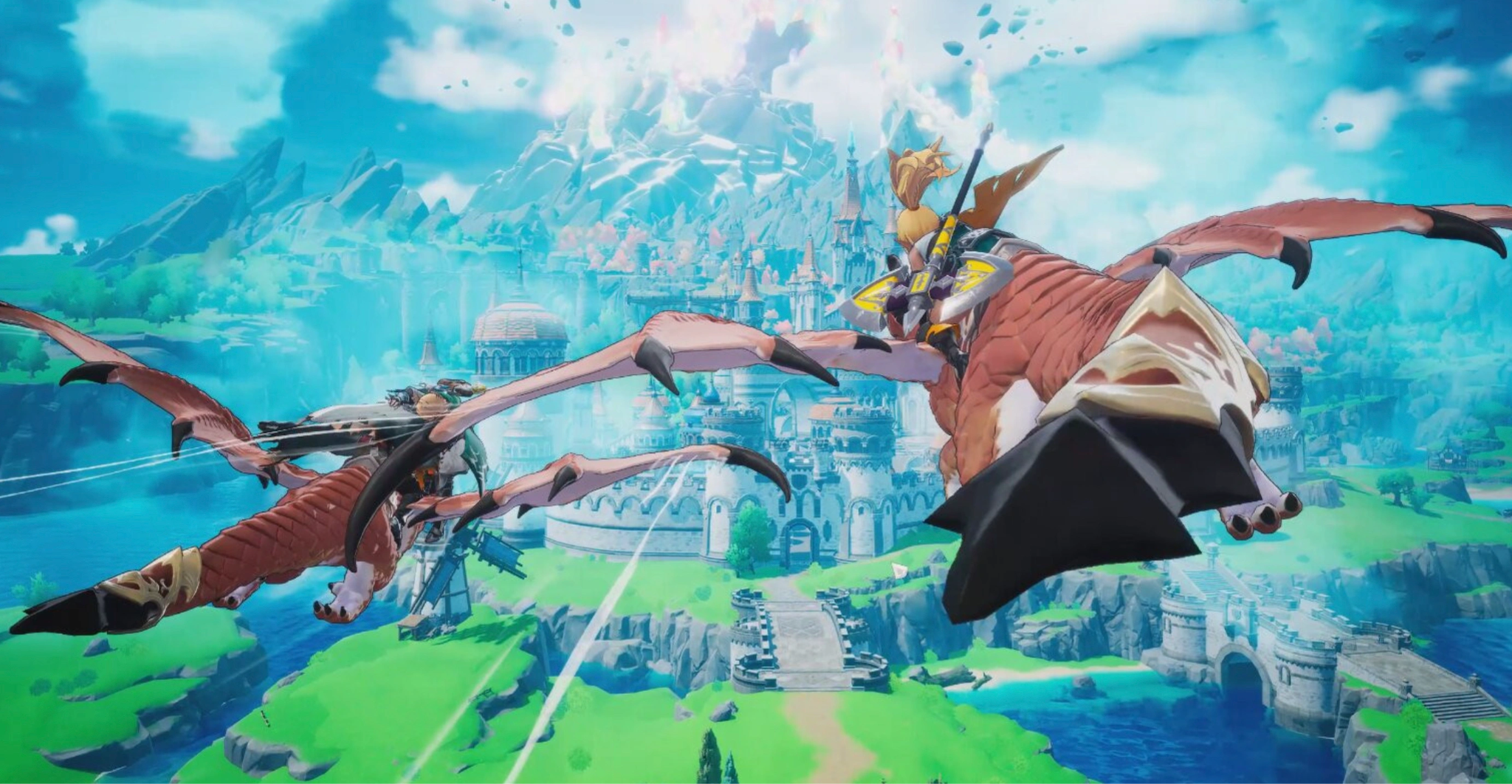
If you are dealing with DragonSword Awakening low FPS across the board, native resolution rendering might be too much for your rig. Modern games rely heavily on AI upscaling technologies to maintain smooth performance, rendering the game internally at a lower resolution and cleverly sizing it back up.
Step 1. Open your Graphics settings menu and look for the "Upscaling" or "Anti-Aliasing" section.
Step 2. If you own an NVIDIA RTX card, select DLSS. If you use AMD or older NVIDIA cards, pick FSR. Alternatively, choose Unreal Engine's native TSR.
Step 3. Set the upscaling mode to "Quality" or "Balanced"—avoid "Performance" mode unless you are still struggling, as it can make things look blurry.
Step 4. Ensure you turn off traditional anti-aliasing (like TAA or SMAA) since the upscaler handles image smoothing automatically.
Step 5. Save the configuration and move around a busy town area to see the immediate boost to your baseline framerate.
Cap Your Framerate
It sounds counterintuitive, but letting your framerate run wild is a prime cause of DragonSword Awakening stuttering. When your GPU pushes 120 FPS looking at a wall but drops to 50 FPS when you turn around to face a busy city, that massive fluctuation causes awful frametime spikes. A consistent 60 FPS feels much smoother than a framerate wildly bouncing between 45 and 90.
Step 1. Navigate to the Display or Video settings inside the game menu.
Step 2. Look for the "Max Framerate" or "FPS Limit" toggle.
Step 3. Determine a realistic average for your PC (usually 60 FPS is the sweet spot for ARPGs) and set the cap there.
Step 4. If you have a G-Sync or FreeSync monitor, ensure you cap the framerate about 3 frames below your monitor's maximum refresh rate to keep VRR active.
Step 5. Disable V-Sync in the game menu if you are using an external framerate capper through your GPU control panel to prevent input latency.
RAM and Textures Check
When your graphics card runs out of Video RAM (VRAM), it forcefully offloads data to your system memory, which is much slower. This bottleneck is a massive trigger for sudden DragonSword Awakening frame drops when entering new areas or spinning the camera quickly.
Step 1. Check your specific graphics card specifications to see exactly how much VRAM you have (e.g., 6GB, 8GB, 12GB).
Step 2. Go into the in-game Graphics menu and find the "Texture Quality" setting.
Step 3. If you have 6GB or less of VRAM, drop textures to Medium. For 8GB, High is usually safe. Only use Ultra if you have 12GB or more.
Step 4. While checking memory, verify that you have physically installed the game onto a Solid State Drive (SSD), as HDDs are too slow to load Unreal Engine 5 assets properly.
Step 5. Restart the game client completely so the new, lower-resolution textures load cleanly into your VRAM buffer.
Part 3: General System & Hardware Fixes
Sometimes the game engine isn't the problem at all—your PC is just gasping for air. If you've optimized all the in-game settings and you are still finding DragonSword Awakening laggy, it is time to look outside the game client. Outdated software, power restrictions, and bloated background processes can quietly strangle your hardware's potential. These system-level tweaks ensure your computer is directing all of its available resources toward running the game.
Update or Clean Install GPU Drivers
Running day-one game releases on six-month-old graphics drivers is a recipe for disaster. Both NVIDIA and AMD frequently push out driver updates specifically targeted to fix crashes and optimize performance for newly released heavy hitters.
Step 1. Open either NVIDIA GeForce Experience, NVIDIA App, or AMD Adrenalin on your desktop.
Step 2. Navigate to the Drivers tab and click "Check for Updates" to pull the latest version.
Step 3. Download the driver, but instead of clicking Express Install, select "Custom Installation."
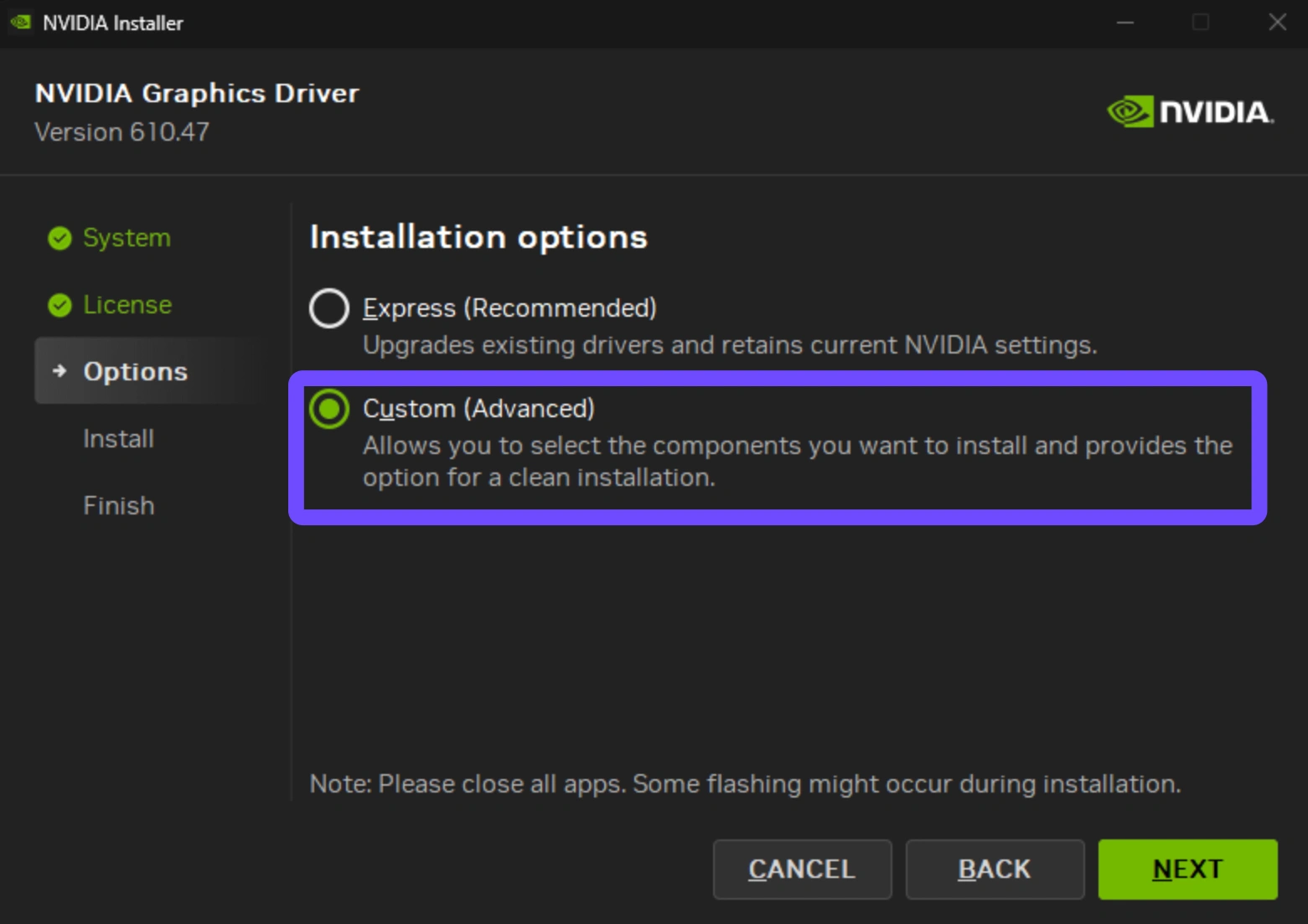
Step 4. Check the box labeled "Perform a clean installation" to wipe away old, corrupted driver profiles that might be causing conflicts.
Step 5. Once the installation completes, fully restart your computer before launching the game again.
Disable Overlays and High-Usage Background Programs
Modern gaming clients love to plaster invisible overlays across your screen, secretly eating up CPU cycles and causing bizarre stuttering issues. Combine that with a web browser hoarding memory in the background, and your game has no room to breathe.
Step 1. Open Discord, click the User Settings gear, go to the Game Overlay tab, and toggle "Enable in-game overlay" completely off.
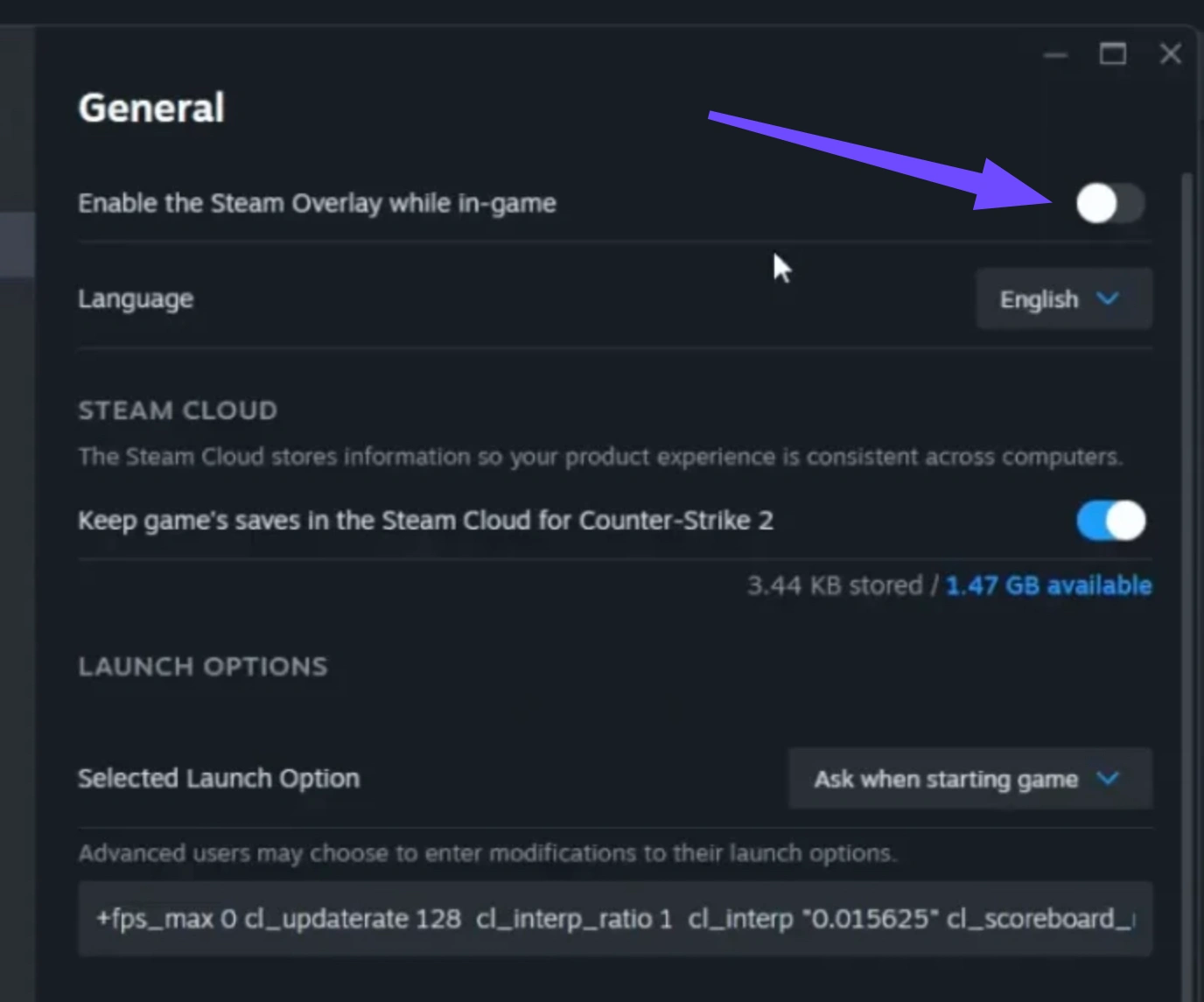
Step 2. Open Steam Settings, navigate to the In-Game tab, and uncheck "Enable the Steam Overlay while in-game."
Step 3. Press Ctrl + Shift + Esc to open your Windows Task Manager before booting the game.
Step 4. Look at the Memory and CPU columns, right-clicking and closing any unnecessary apps like Chrome, Spotify, or unused game launchers.
Step 5. Disable the Xbox Game Bar in your Windows Settings by searching for "Game Bar" and toggling it off if you don't actively use it.
Check Temperatures, Power Plan, and Dedicated GPU
If your game runs flawlessly for the first 15 minutes and then suddenly becomes a stuttering mess, your PC is likely overheating and intentionally slowing itself down (thermal throttling). Additionally, laptops sometimes accidentally try to run games using the weak integrated graphics instead of the dedicated gaming chip.
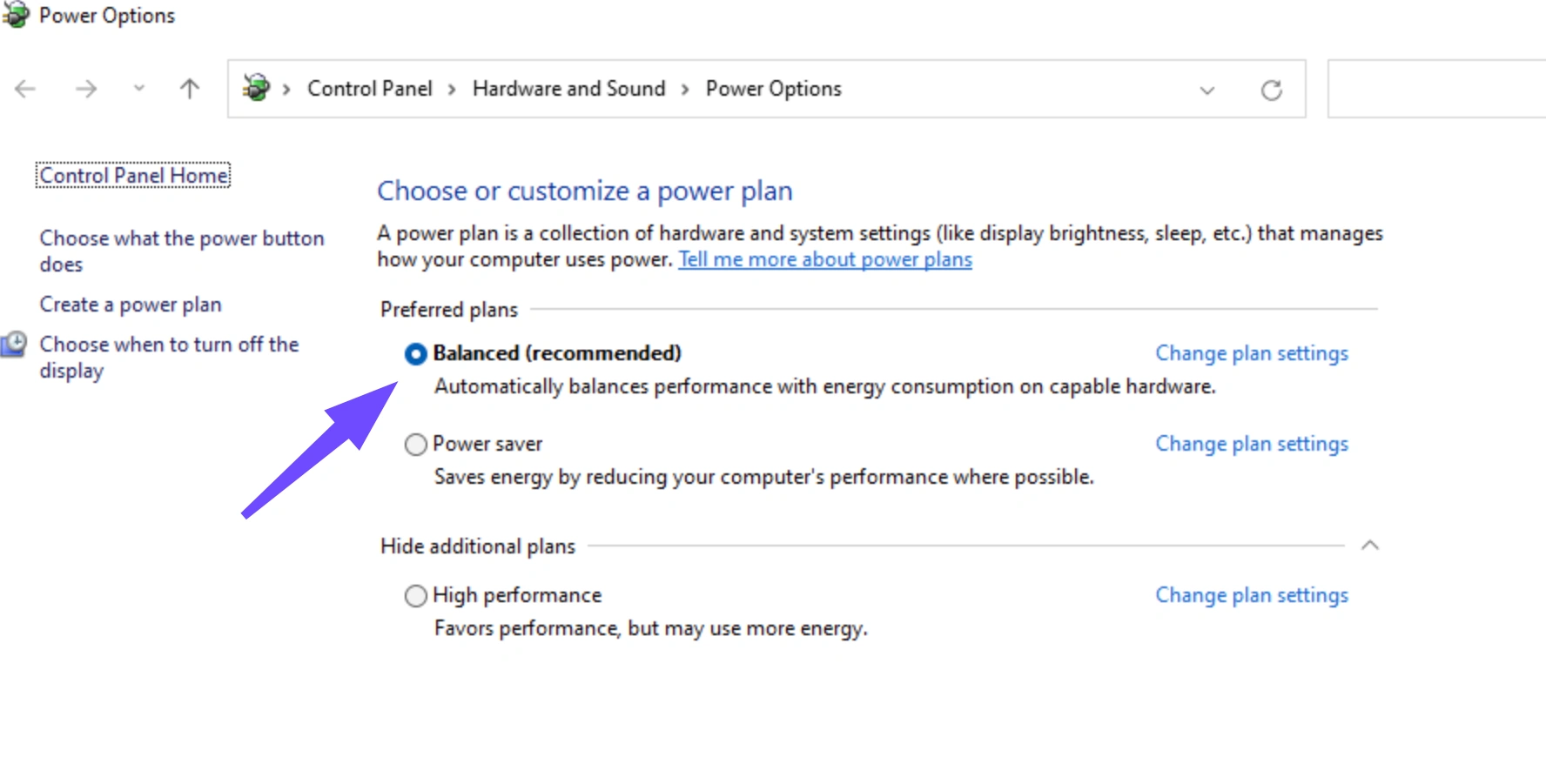
Step 1. Type "Choose a power plan" into the Windows search bar and hit Enter.
Step 2. Switch your power plan from "Power Saver" or "Balanced" to "High Performance" to uncap your CPU.
Step 3. Download a free hardware monitor (like HWMonitor or MSI Afterburner) to check your temperatures while gaming; anything consistently over 85°C–90°C indicates a serious cooling problem.
Step 4. If playing on a laptop, go to Windows Settings > Display > Graphics, find the game's executable file, click Options, and force it to use "High Performance" (your dedicated NVIDIA/AMD GPU).
Step 5. Ensure your laptop is plugged directly into the wall charger, as battery mode heavily restricts gaming performance.
Part 4: Quick Fix: Boost Your DragonSword Awakening FPS With LagoFast
If you've spent an hour tweaking settings and you are still experiencing major DragonSword Awakening FPS drops during online co-op sessions, your problem might actually be your network routing. High ping and packet loss can easily masquerade as visual stuttering. This is where LagoFast Game Booster steps in. Designed specifically for gamers, LagoFast utilizes smart, multi-path AI technology to dynamically route your connection away from crowded servers, slashing high ping and eliminating those frustrating moments where your character teleports mid-combo.
Beyond just stabilizing your network, LagoFast also includes a dedicated one-tap FPS Boost feature. With a single click, the software automatically optimizes your PC's background processes, adjusts power settings, and clears memory bottlenecks, acting as the ultimate DragonSword Awakening performance fix without requiring you to manually dig through Windows menus. You get the dual benefit of a silky-smooth network connection and optimized hardware performance, ensuring your journey through Orbis remains flawless.
Tutorial to Use LagoFast to Boost Your DragonSword Awakening FPS:
Step 1: Click the Free Trial button to download and install LagoFast.
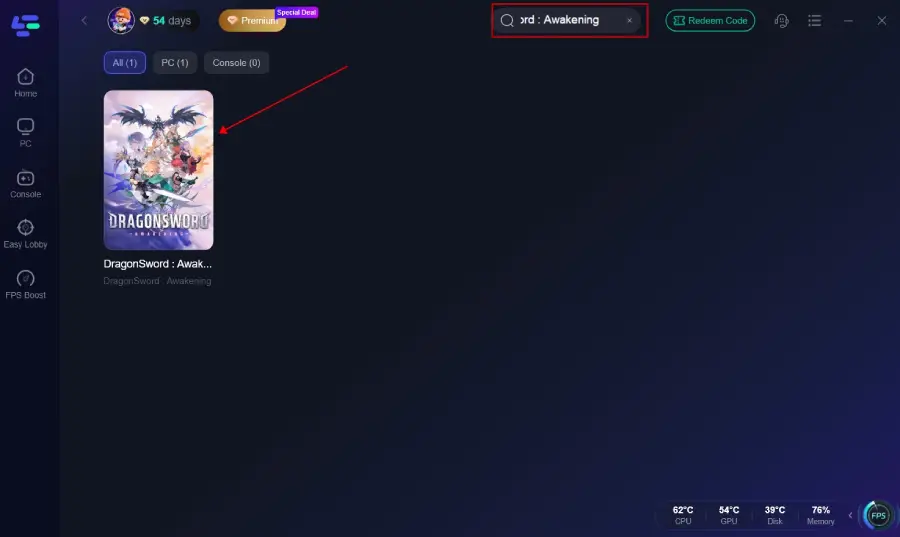
Step 2: Open LagoFast, then click the PC button on the left, search for DragonSword Awakening in the search bar, and click it after it appears.
Step 3: Click the FPS Unlocker Tool on the right to boost FPS.
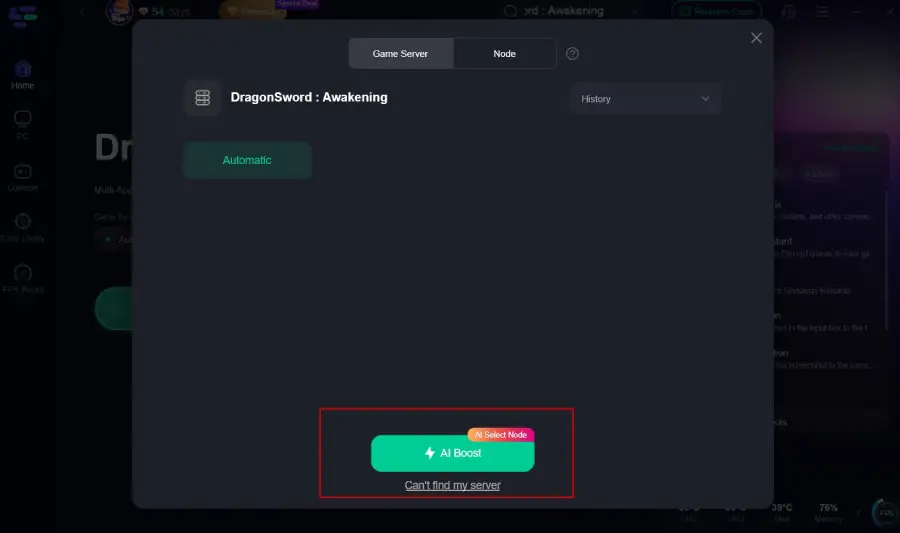
Step 4: Click on “Server” to change to a better server that ensures a better gaming experience, then click on “Smart Boost” to fix DragonSword Awakening lag and stuttering.
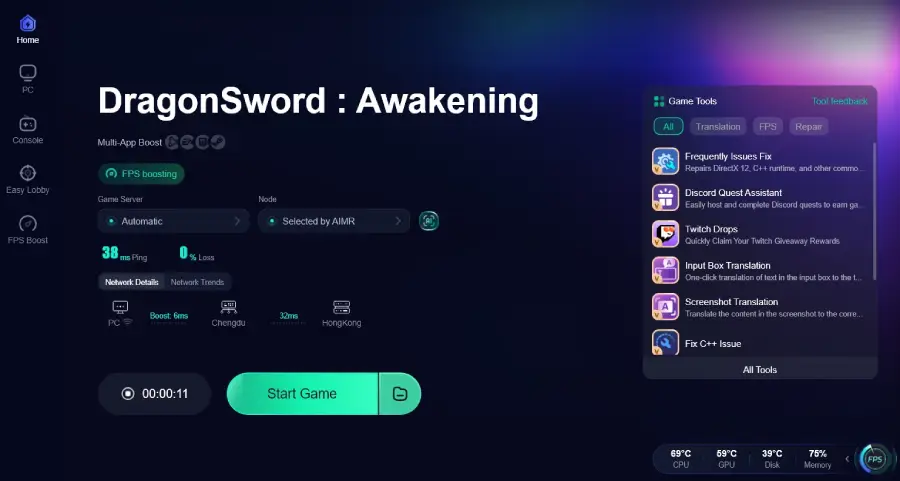
Step 5: Check the specific game ping, packet loss, and multiple path connections on the right side. Finally, click “Start Game” to play the game.
Part 5: DragonSword Awakening FAQs
Does the game require an SSD to play?
Yes. The developers have explicitly stated on the official system requirements that a Solid State Drive (SSD) is strictly required. Installing this game on an older mechanical HDD will result in severe texture pop-in, agonizing load times, and constant stuttering as the game struggles to load assets fast enough.
Why is my game freezing every time a new animation plays?
This is typically caused by shader compilation. When a new visual effect occurs on screen for the very first time, your processor has to work overtime to translate that effect. Keep your GPU drivers fully updated, as newer drivers often help optimize this process, and be aware that the stuttering naturally smooths out as you play more of the game.
What are the minimum PC requirements to run it smoothly?
To achieve baseline performance, you need at least a Windows 10 OS, an Intel i5-9400F processor, 8 GB of RAM, and an NVIDIA GeForce GTX 1660 graphics card. If your rig falls below these specs, you will likely struggle with persistent DragonSword Awakening low FPS regardless of what settings you change.
How do I tell if my issue is my PC or server lag?
If the camera turns smoothly but your character's attacks take a second to register, or if enemies freeze in place and then suddenly teleport across the room, you are experiencing network lag. If the camera itself is jerky and the whole screen freezes, that is a hardware performance issue.
Will lowering my resolution actually help?
Yes, lowering your resolution is one of the most effective ways to boost frames. However, instead of manually dropping your monitor's resolution and making the game look muddy, use the in-game upscalers like DLSS or FSR. They provide the performance benefit of a lower resolution while keeping the visual quality surprisingly sharp.
Is it normal for the game to lag heavily in large towns?
Yes, open-world ARPGs are heavily CPU-bound in crowded areas due to the high number of NPCs, player characters, and complex architecture. To improve your frames in cities, lower your "Draw Distance" setting and ensure you don't have heavy background apps running on your PC.
Conclusion
Dialing in the perfect settings takes a little patience, but the payoff is worth it. By identifying whether you are fighting a hardware bottleneck or a network issue, utilizing modern upscaling tech, and applying a reliable DragonSword Awakening performance fix like LagoFast, you can finally reclaim your framerate. Lock in your settings, grab your sword, and enjoy exploring Orbis exactly the way it was meant to be experienced.
Boost Your Game with LagoFast for Epic Speed
Play harder, faster. LagoFast game booster eliminates stutter and lags on PC, mobile, or Mac—win every match!
Quickly Reduce Game Lag and Ping!
Boost FPS for Smoother Gameplay!