
Quick Answer
Destiny 2 Error Code CENTIPEDE is a general networking error that occurs when the game cannot maintain a stable connection to Bungie servers. It is commonly caused by unstable Wi-Fi, restrictive NAT settings, or temporary network interruptions. In most cases, switching to a wired connection and improving your network settings can help resolve the issue.
Seeing Error Code CENTIPEDE in Destiny 2? This error usually indicates a connection issue between your device and Bungie servers. While server outages can occasionally contribute, most cases are caused by local network instability. This guide explains the most common causes and the best fixes for PC, PS5, and Xbox.

- ✅ Reduce Lag and High Ping.
- ✅ Boost FPS at the Same Time.
✅ Support 8000+ Popular Online Games.
✅ Change Server without Latency.
✅ Boost Game Loading Speed.
Part 1: What Is Error Code CENTIPEDE in Destiny 2?
Part 2: Why Does Destiny 2 Error Code CENTIPEDE Happen?
Part 3: How to Fix Destiny 2 Error Code CENTIPEDE PC
Part 4: How to Fix Destiny 2 Error Code CENTIPEDE PS5
Part 5: How to Fix Destiny 2 Error Code CENTIPEDE Xbox
Part 6: Is Error Code CENTIPEDE a Bungie Server Problem?
Part 7: Is CENTIPEDE Related to Destiny 2 Shutting Down?
Part 1: What Is Error Code CENTIPEDE in Destiny 2?
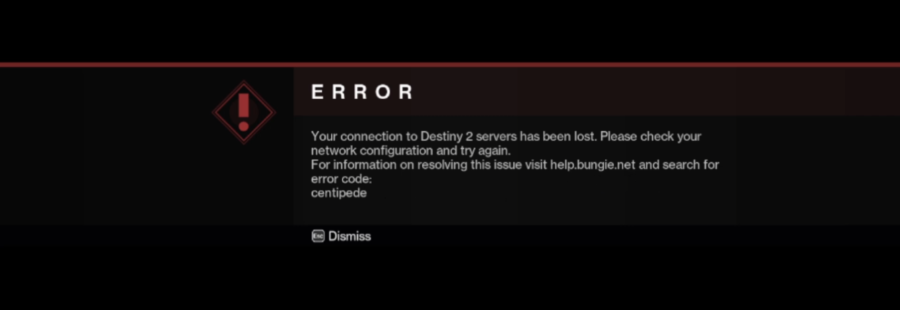
Error Code CENTIPEDE is a general network connection error in Destiny 2. It occurs when the game loses or cannot maintain a stable connection to Bungie servers.
Unlike some Destiny 2 error codes that point to specific issues, CENTIPEDE is a broad networking error triggered by unstable Wi-Fi, restrictive NAT settings, or temporary network interruptions. Players usually encounter it while logging in, matchmaking, or loading into activities.
Part 2: Why Does Destiny 2 Error Code CENTIPEDE Happen?
Since CENTIPEDE is a general networking error, it can be triggered by several different connection issues. The most common causes include:
- Unstable Wi-Fi connection – Packet loss, signal interference, or temporary connection drops can interrupt communication with Bungie servers.
- Strict NAT settings – Bungie recommends using an Open NAT type whenever possible, as restrictive NAT configurations can cause connectivity problems.
- Router or firewall restrictions – Network settings that block Destiny 2 traffic may prevent the game from connecting properly.
- ISP routing issues – Poor routing between your internet provider and Bungie servers can result in high latency or connection instability.
- Server congestion or maintenance – During major updates, seasonal launches, or maintenance periods, players may experience increased connection errors.
Part 3: How to Fix Destiny 2 Error Code CENTIPEDE PC
Since CENTIPEDE is a connection-related error, the fixes below focus on improving communication between your PC and Bungie servers.
Restart Your Network
Before changing any settings, restart your network equipment.
- Close Destiny 2.
- Turn off your modem and router.
- Wait 30–60 seconds.
- Turn them back on and allow the connection to fully restore.
- Launch Destiny 2 again.
Switch to a Wired Connection
Bungie recommends using a wired connection whenever possible. If you're currently playing over Wi-Fi, connect your PC directly to the router with an Ethernet cable and check whether the error persists.
Check Your NAT Type
A Strict or Restricted NAT can cause connection issues in Destiny 2.
To improve NAT compatibility:
- Enable UPnP on your router.
- Restart the router after making changes.
- Use port forwarding if UPnP is unavailable.
- Make sure your NAT status is Open whenever possible.
Allow Destiny 2 Through Firewall
Windows Firewall or third-party security software can sometimes block Destiny 2 network traffic. Make sure both Destiny 2 and Steam are allowed through your firewall settings before launching the game.
Use LagoFast to Improve Connection Stability
Persistent CENTIPEDE errors may be related to high ping, packet loss, or unstable routing between your network and Bungie servers. In some cases, using network optimization tools such as LagoFast may help improve routing stability and reduce latency issues. It can optimize routing paths and may improve connection consistency in certain network environments.
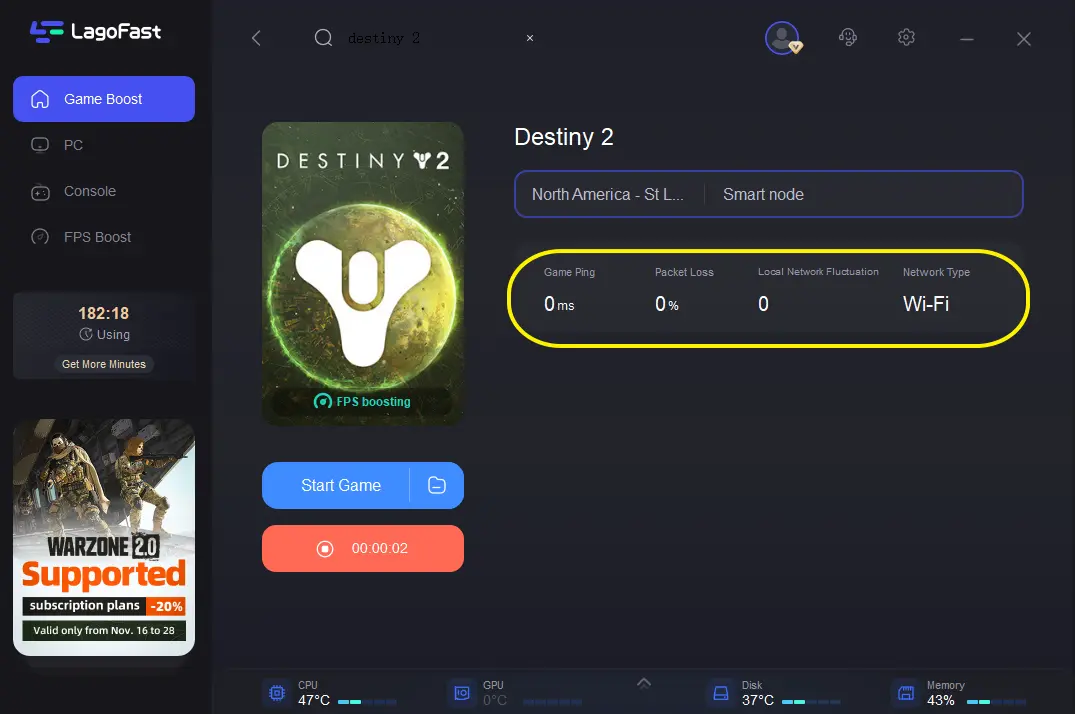
How to Use LagoFast for Destiny 2:
Step 1: Click the Free Trial button to download and install LagoFast.
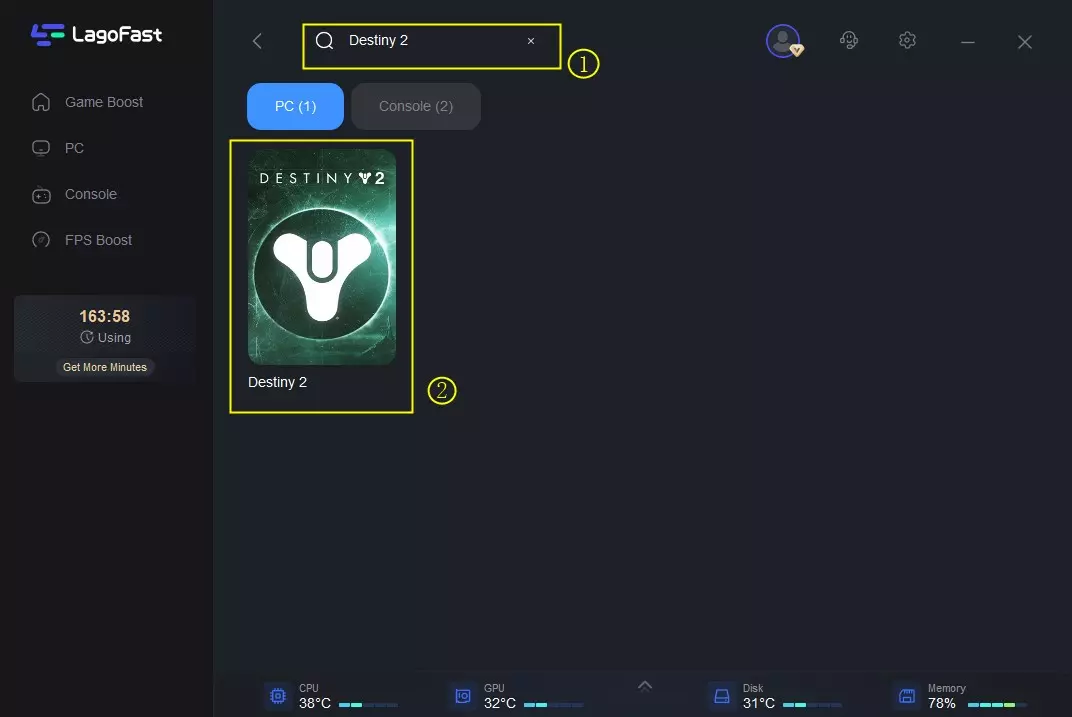
Step 2: After installation, search "Destiny 2" in the search bar and select the game.
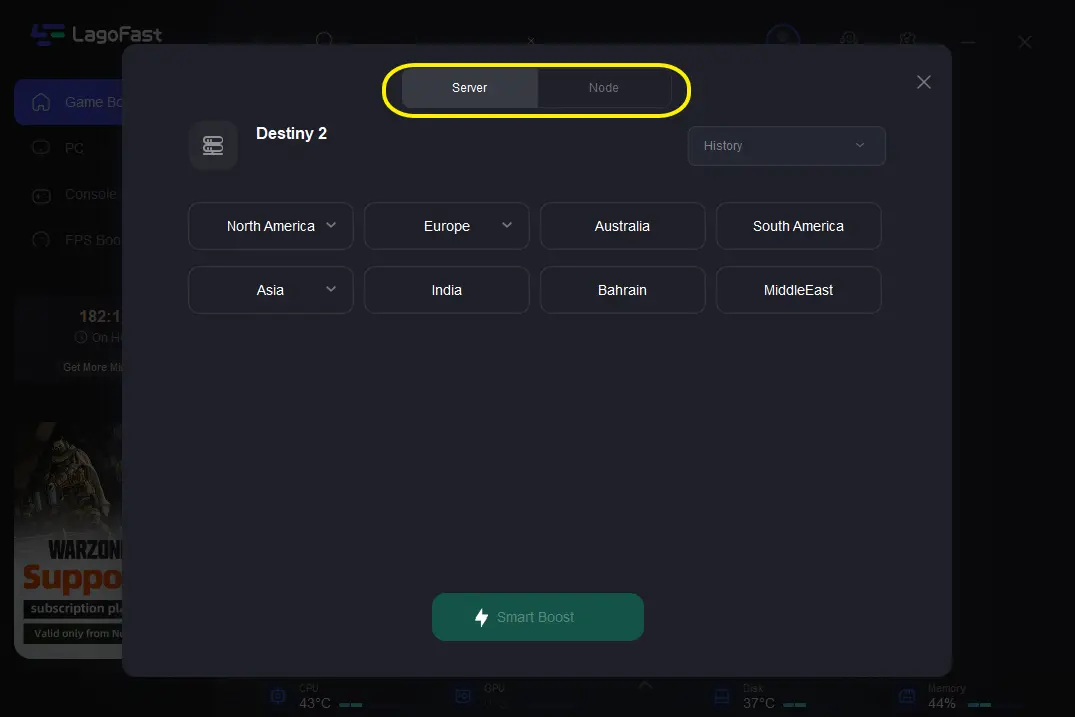
Step 3: Choose your preferred server node and click "Smart Boost" to start optimizing.
Step 4: Launch your game and enjoy smooth, optimized gameplay with lower ping and no stutter.
Part 4: How to Fix Destiny 2 Error Code CENTIPEDE PS5
If you're getting Error Code CENTIPEDE on PS5, the issue is usually related to your network connection. Try the following fixes in order.
Restart Your PS5 and Router
Temporary connection issues can sometimes trigger CENTIPEDE. Restart your PS5, modem, and router, then launch Destiny 2 again.
Switch to a Wired Connection
Bungie recommends using a wired connection whenever possible. If you're playing over Wi-Fi, try connecting your PS5 directly to your router with an Ethernet cable to reduce connection interruptions.
Change Your DNS Settings
If the error persists, switching to a public DNS service may help improve connection stability.
Go to Settings > Network > Settings > Set Up Internet Connection, select your current network, and set DNS Settings to Manual.
You can use one of the following public DNS services:
Google DNS
- Primary: 8.8.8.8
- Secondary: 8.8.4.4
Cloudflare DNS
- Primary: 1.1.1.1
- Secondary: 1.0.0.1
Check Your NAT Type
Go to Settings > Network > Connection Status and check your NAT Type.
- Type 1: Open
- Type 2: Recommended
- Type 3: Restrictive
If your NAT Type is 3, consider enabling UPnP or port forwarding on your router, as restrictive NAT settings can cause connection issues in Destiny 2.
Part 5: How to Fix Destiny 2 Error Code CENTIPEDE Xbox
If you're getting Error Code CENTIPEDE on Xbox, the issue is usually caused by network instability or connection restrictions. Try the following fixes in order.
Restart Your Xbox and Router
Temporary network issues can sometimes trigger CENTIPEDE.
- Turn off your Xbox completely.
- Unplug your modem and router.
- Wait 1–2 minutes.
- Turn everything back on and reconnect to the internet.
- Launch Destiny 2 and check if the error persists.
Switch to a Wired Connection
Wi-Fi interference and packet loss are common causes of connection errors in Destiny 2. If possible, connect your Xbox directly to your router using an Ethernet cable for a more stable connection.
Check Your NAT Type
A restrictive NAT type can prevent Destiny 2 from communicating properly with Bungie servers.
- Press the Xbox button and open Settings.
- Navigate to General > Network Settings.
- Check your NAT Type under Current Network Status.
For the best experience:
- Open NAT: Recommended
- Moderate NAT: May cause connectivity issues
- Strict NAT: Can interfere with matchmaking and server connections
If your NAT Type is Strict, consider enabling UPnP or configuring port forwarding on your router.
Clear the Alternate MAC Address
Refreshing your network settings may help resolve connection issues.
- Open Settings > General > Network Settings.
- Select Advanced Settings.
- Choose Alternate MAC Address.
- Select Clear and restart your Xbox.
Part 6: Is Error Code CENTIPEDE a Bungie Server Problem?
Not necessarily. CENTIPEDE is usually caused by local network issues such as unstable internet, NAT restrictions, or routing problems.
While server maintenance, major updates, or unexpected outages can occasionally contribute to the error, they are not the most common cause. Before assuming it's a Bungie server issue, it's worth checking your own network connection first. If other players are reporting similar connection issues at the same time, check Bungie's official server status and support channels for any ongoing service disruptions.
Part 7: Is CENTIPEDE Related to Destiny 2 Shutting Down?
No. Error Code CENTIPEDE is simply a general networking issue, not a sign that Destiny 2 is shutting down or ending support.
The error occurs when the game is unable to maintain a stable connection to Bungie servers. If you're seeing CENTIPEDE repeatedly, it's usually related to network connectivity rather than the status of the game itself.
Part 8: FAQ
Why do I keep getting CENTIPEDE when logging in?
The most common causes are unstable Wi-Fi, restrictive NAT settings, ISP routing issues, or other network interruptions that affect your connection to Bungie servers.
Can Wi-Fi cause Error Code CENTIPEDE?
Yes. Unstable Wi-Fi is one of the most common causes of CENTIPEDE. Bungie recommends using a wired connection whenever possible.
Does Error Code CENTIPEDE mean Bungie servers are down?
No. Error Code CENTIPEDE is simply a general networking issue, not a sign that Bungie servers are down. It usually indicates a connection problem between your device and Bungie servers.
Is CENTIPEDE different on PS5, Xbox, and PC?
No. The error has the same underlying cause across all platforms: a connection issue between your device and Bungie servers.
Can a Strict NAT Type Cause Error Code CENTIPEDE?
Yes. Restrictive NAT settings can contribute to CENTIPEDE by limiting communication with Bungie servers. Using an Open NAT type may help reduce connectivity issues.
Final Thoughts
Destiny 2 Error Code CENTIPEDE is a common network error caused by unstable connections between your device and Bungie servers. Most cases can be resolved by improving network stability, NAT configuration, and connection routing.

Boost Your Game with LagoFast for Epic Speed
Play harder, faster. LagoFast game booster eliminates stutter and lags on PC, mobile, or Mac—win every match!
Quickly Reduce Game Lag and Ping!
Boost FPS for Smoother Gameplay!