
Quick Answer
If Darktide crashes before reaching the main menu or never opens, start with these fixes in order:
- Disable all mods and launch the game clean.
- Verify game files through Steam.
- Update or roll back GPU drivers.
- Clear shader cache.
- Disable overlays and monitoring tools.
- Optimize network stability if crashes happen while connecting.
- Reinstall only if all other methods fail.
If you're seeing a Darktide black screen, Darktide deadlock detected error, or Darktide crashes instantly after pressing Play, mod conflicts and cache corruption are among the most common causes.

- ✅Less ping and crashes.
- ✅ Higher FPS and better performance.
- ✅ Support for 2000+ games.
- ✅ Stable connection and region switching.
Part 1. Why Darktide Not Launching or Crashing on Startup After an Update
Part 2. How to Fix Darktide Crash on Launch and Startup Issues
Part 3. Darktide Still Crashes Without Mods? Advanced Fixes for Persistent Startup Issues
Part 1. Why Darktide Not Launching or Crashing on Startup After an Update
When Darktide suddenly stops working after previously running normally, the problem is often connected to something that changed outside the game itself. Updates introduce new assets, engine adjustments, and compatibility requirements that can affect existing settings.
Understanding the cause first helps avoid unnecessary reinstalls.
Mods Are Outdated After a New Patch
One of the biggest reasons players experience Darktide crashing after update is outdated mods.
Darktide supports a modding community, but updates often change internal game systems. A mod that worked yesterday may trigger startup failures after a patch.
Symptoms often include:
- Game closes immediately
- Infinite loading
- Crash before intro video
- Startup freeze
- Darktide crashes instantly
To check whether mods are involved:
- Close the game.
- Locate your Darktide mod folder.
- Temporarily move all mod files elsewhere.
- Launch vanilla Darktide.
Many players discover that the game launches normally once modifications are removed.
If you're troubleshooting startup instability, make Darktide disable mods your first test before changing anything else.
GPU Driver or Shader Cache Problems
Darktide places heavy demand on modern graphics APIs and shader compilation.
After updates, old shader data may become incompatible and lead to:
- Black screen after startup
- Long loading
- GPU timeout
- Random crashes
Driver updates can also introduce instability.
Signs of GPU-related launch problems include:
- Game launches but closes after logo
- Entire screen freezes
- Error appears during shader loading
- Performance suddenly becomes worse
Clearing cached graphics data often solves these issues faster than reinstalling.
Corrupted Game Files
Even small file corruption can stop Darktide from opening.
Interrupted downloads, incomplete updates, or storage errors may damage launch-critical files.
Common indicators:
- Missing DLL messages
- Repeated startup crash
- Endless loading
- Game verification finds missing content
This is especially common after major content releases.
Background Overlay Conflicts
Overlay software injects additional processes into games.
Programs that may interfere include:
- Steam Overlay
- Discord Overlay
- NVIDIA overlay
- Recording software
- Hardware monitoring utilities
- RGB control applications
These conflicts can produce a Darktide crash report immediately after launch.
If the game becomes stable after closing background software, overlays are likely responsible.
Before moving into solutions, it helps to apply fixes from lowest effort to highest effort.
Related Article: How to Fix Darktide Skitarii Update Problems, Missing DLC, Cosmetics & Update Errors
Part 2. How to Fix Darktide Crash on Launch and Startup Issues
Now that we've covered possible causes, start working through these fixes in sequence.
Use LagoFast for More Stable Connection
Not every Darktide startup crash is caused by local hardware or game files. Some players report crashes during login, loading into the hub, or server synchronization, which may be related to unstable routing or connection drops.
Tools like LagoFast are sometimes used to improve connection stability and reduce packet fluctuation during online sessions.
How to Use LagoFast for Darktide:
Click the Free Trial button to download and install LagoFast Free Trial.
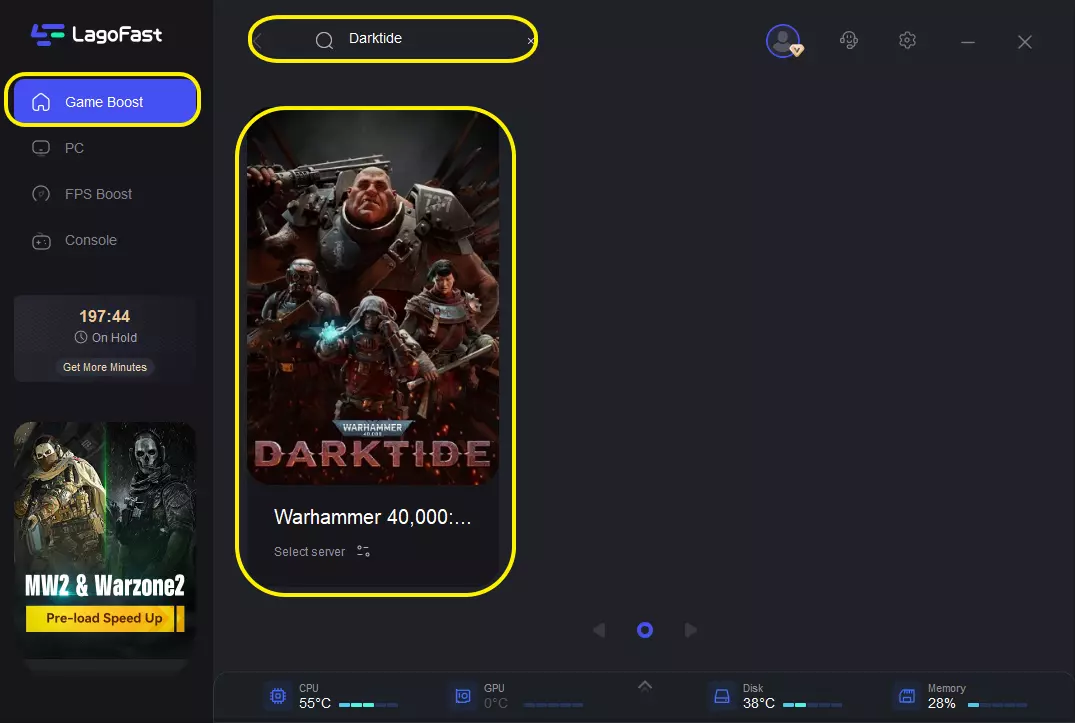
Search for Darktide: Open the app and type "Warhammer 40,000: Darktide" in the search bar.
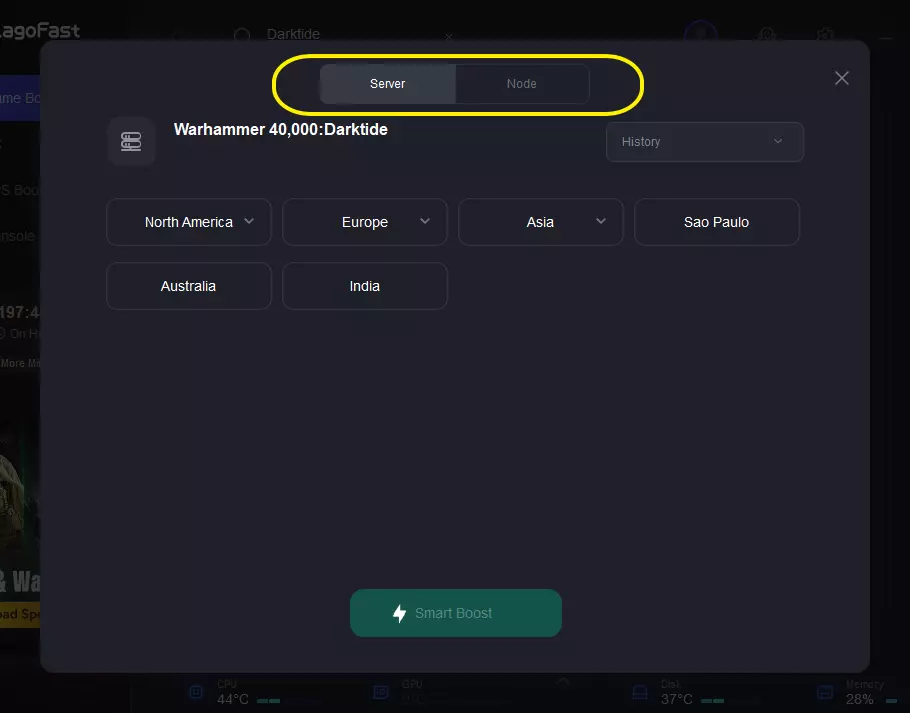
Select Your Server: Choose the server region closest to you. LagoFast will display the real-time ping for each available node.
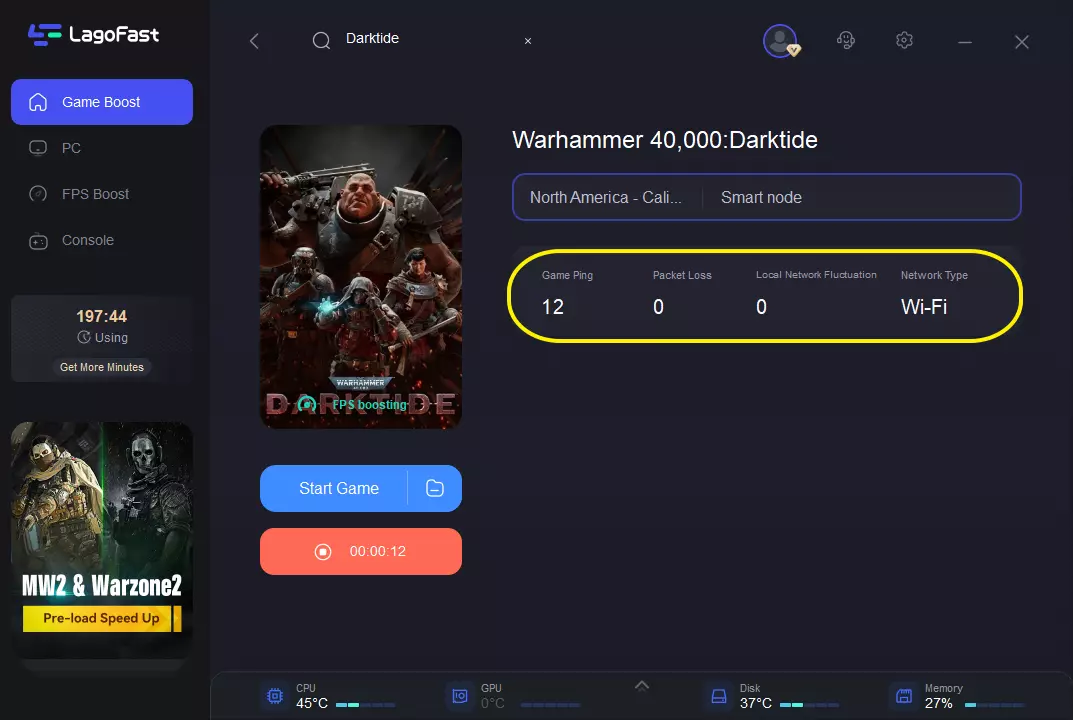
Smart Boost: Click the "Boost" button. LagoFast will optimize your network connection and apply FPS-boosting configurations to ensure your game runs as smoothly as possible.
This method works better when Darktide crashes during loading screens or server entry, rather than when the game crashes instantly after pressing Play.
Disable Mods First
This should always be your first real troubleshooting step.
Steps:
- Exit Darktide.
- Remove or rename mod folders.
- Disable mod loaders.
- Restart Steam.
- Launch again.
If startup becomes normal:
- Update mods individually
- Re-enable one at a time
- Identify the broken component
Many cases labeled as Warhammer 40K Darktide Not Launching or Crashing on Startup Fix end up being resolved here.
Verify Game Files
Steam verification repairs damaged installations.
Steps:
- Open Steam.
- Right-click Darktide.
- Select Properties.
- Open Installed Files.
- Click Verify Integrity of Game Files.
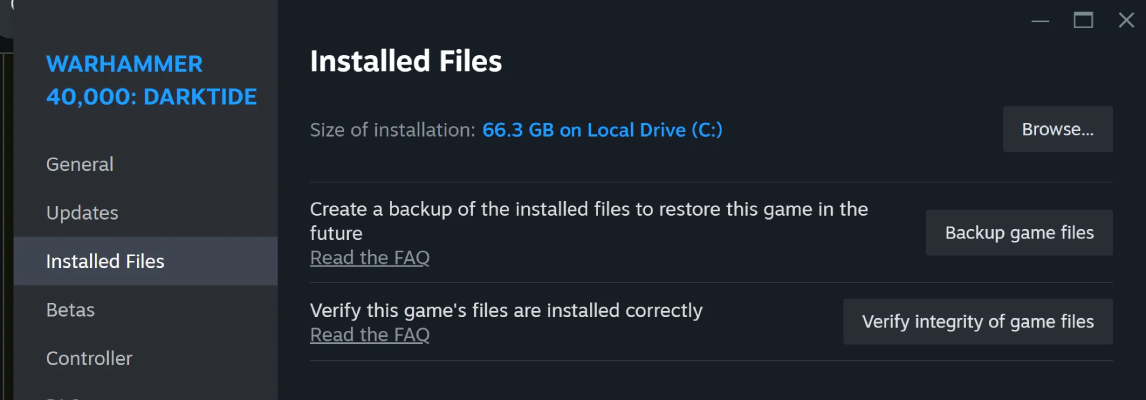
Steam will compare local files and redownload damaged content.
After verification:
- Reboot PC
- Launch Darktide again
This step is especially effective if Darktide crash report messages appear.
Update or Roll Back GPU Drivers
Driver updates help in many cases, but sometimes newer drivers create instability.
Recommended process:
- Install latest stable GPU driver.
- If issue started immediately after updating, roll back.
For NVIDIA:
- Perform clean installation.
For AMD:
- Use factory reset installation option.
Avoid stacking multiple driver installs without cleanup.
Clear Shader Cache
Old shader data can break startup behavior.
Windows method:
- Open Disk Cleanup.
- Select system drive.
- Check DirectX Shader Cache.
- Confirm deletion.
GPU software may also provide shader cleanup.
After clearing:
- Restart PC
- Launch Darktide
- Wait for recompilation
The first startup may take longer than normal.
Disable Overlays
Overlay conflicts remain one of the most overlooked causes.
Disable:
- Steam Overlay
- Discord Overlay
- GeForce Experience Overlay
- MSI Afterburner monitoring
- Screen recorders
Then test launch again.
If the game becomes stable, re-enable tools gradually.
Reinstall Only as a Last Step
Reinstallation consumes time and often does not solve the real cause.
Only reinstall if:
- Verification repeatedly fails
- Installation folder is corrupted
- Startup still fails after every previous step
Recommended reinstall process:
- Backup settings.
- Uninstall Darktide.
- Delete leftover folders.
- Restart PC.
- Install fresh.
Most users should not start here.
Related Article: Darktide Matchmaking Not Working? Fix Teammate Unavailable, Lobby & Invite Issues
Part 3. Darktide Still Crashes Without Mods? Advanced Fixes for Persistent Startup Issues
If you've removed mods and the game still fails, narrow the issue further.
Try these checks:
Run Darktide as Administrator
Some permission issues block file generation during launch.
Disable Hardware Acceleration
Discord and browsers may interfere with rendering.
Close Background Utilities
RGB software and monitoring tools occasionally trigger instability.
Check Event Viewer
Windows logs sometimes identify GPU or memory errors.
Lower Startup Load
Disable launch parameters and reset graphics settings.
Test Clean Boot Mode
Launch Windows with minimal background processes.
If Darktide black screen appears without an error message, focus first on GPU drivers and shader cleanup.
If you receive Darktide deadlock detected warnings, process conflicts and outdated mods become stronger suspects.
Persistent startup crashes can also indicate RAM instability or storage problems outside the game itself.
Related Article: Best Skitarii Build in Warhammer 40K Darktide: Full Guide
Part 4. FAQs
Why does Darktide crash immediately after pressing Play?
Usually because of outdated mods, damaged files, driver conflicts, or overlays. Start by disabling mods and verifying files.
How do I fix Darktide black screen?
Clear shader cache, update GPU drivers, disable overlays, and allow the game to rebuild graphics data.
What does Darktide deadlock detected mean?
This error generally points to threads or processes getting stuck during loading. Mods, overlays, or corrupted cache commonly contribute.
Why is Darktide crashing after an update?
Updates can invalidate mods, replace shaders, or introduce compatibility changes that require driver updates and cache rebuilding.
Should I reinstall Darktide immediately?
No. Reinstallation should be one of the final steps after testing mods, files, drivers, and overlays.
Conclusion
Startup problems in Darktide can look random, but most cases come back to a few repeat causes: outdated mods, corrupted files, shader cache issues, overlay conflicts, or GPU driver changes after updates.
If you’re dealing with Darktide not launching, a Darktide crash on launch, black screen issues, or crashes immediately after patching, work through fixes in order instead of changing everything at once.
Start simple: disable mods, verify files, clear shader cache, and test without overlays. In many cases, that’s enough to get back into Tertium without reinstalling the game.
Boost Your Game with LagoFast for Epic Speed
Play harder, faster. LagoFast game booster eliminates stutter and lags on PC, mobile, or Mac—win every match!
Quickly Reduce Game Lag and Ping!
Boost FPS for Smoother Gameplay!