
The wait is finally over, and Pearl Abyss has finally opened the gates to the breathtaking world of Pywel. Crimson Desert is a visual marvel, but as with any massive open-world RPG launch in 2026, the technical demands can be as brutal as a mercenary boss fight. Between the 135GB install size and the high-end hardware requirements, many players are finding themselves stuck at the login screen rather than exploring the vast plains of Kweid. If you are dealing with a game that won't launch, stuttering frame rates, or those cryptic "Tapir" errors, you aren't alone. In this guide, we’ll break down exactly why these issues happen and show you how to get back into the action.

- ✅ Reduce Lag and High Ping.
- ✅ Boost FPS at the Same Time.
✅ Support 2000+ Popular Online Games.
✅ Popular Mods Supported.
✅ Boost Game Loading Speed.
Part 1: Crimson Desert Common Errors Overview
Part 2: How to Fix Crimson Desert Common Errors? - Top Solution
Part 3: More Solutions to Fix Crismon Desert Common Errors
Part 1: Crimson Desert Common Errors Overview
Before diving into the fixes, it’s important to understand what you’re up against. Here are the most frequent issues currently plaguing players:
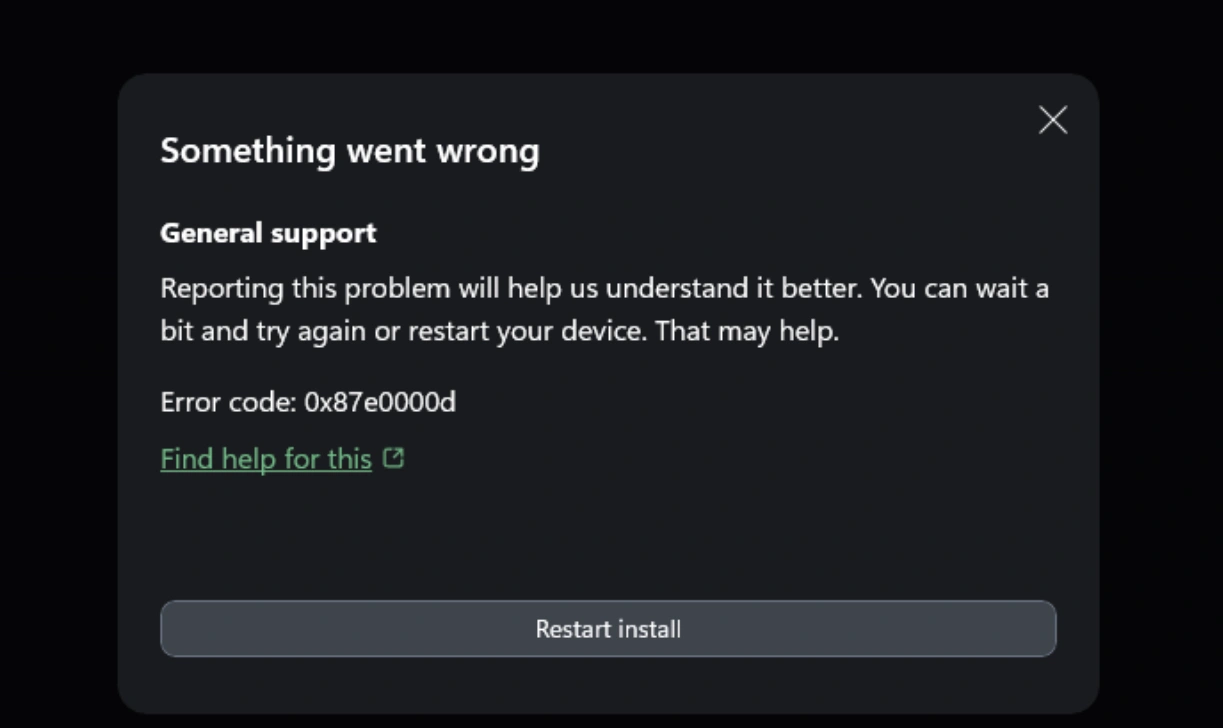
- Crimson Desert won’t launch: This usually happens right after clicking "Play." The game process might appear in your Task Manager briefly before disappearing, often caused by missing administrative permissions or outdated system components.
- Stuck on Loading Screen: If you’re staring at a frozen progress bar, it’s likely a handshake issue between your PC and the server, or a slow HDD failing to load the massive 135GB of game assets.
- Black Screen on Startup: A classic symptom of a GPU driver conflict. The game tries to initialize a resolution your monitor or driver isn't ready for, leaving you in the dark.
- Game Crashes: Sudden "Crash to Desktop" events are typically tied to memory leaks or software conflicts, where another background app forces the game to shut down.
- Low FPS & Stuttering: Pywel is dense. If your frame rate is chugging, your hardware is likely struggling with shader compilation or thermal throttling.
- Server Connection Issues: These manifest as lag spikes or being booted back to the menu. High ping and packet loss are the main culprits here, often due to poor ISP routing.
- DX12 Error: Crimson Desert requires DirectX 12. If your system isn't fully updated or your GPU is older, you’ll see an error message stating "DX12 Not Supported."
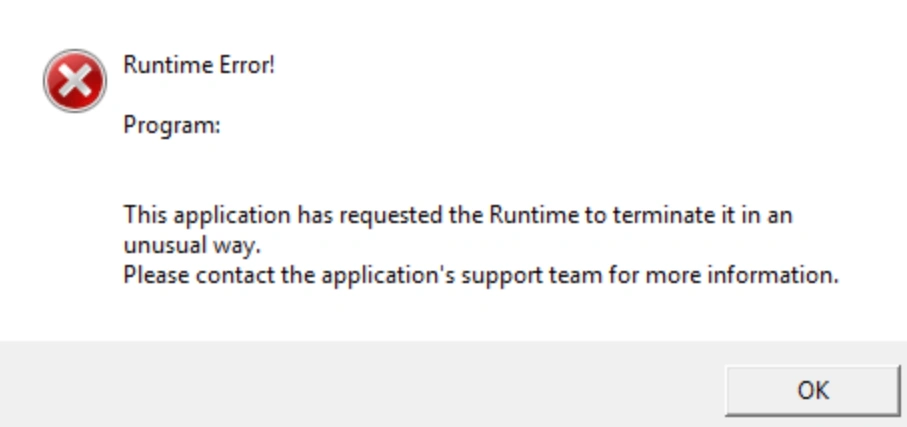
- C++ Runtime Error: These are system-level library issues. If your Microsoft Visual C++ Redistributables are corrupted, the game engine simply won't run.
- Fatal Error / Tapir Error: A "Fatal Error" is a generic catch-all for a system crash, while the "Tapir" error is a specific connection-based code often indicating the servers are at capacity or your local network is timing out.
Part 2: How to Fix Crimson Desert Common Errors? - Top Solution
Pro Solution: LagoFast Game Booster
While manual troubleshooting can eventually lead to a solution, it is often a time-consuming process of trial and error. For players who want to skip the headache and get straight to the game, LagoFast Game Booster is the definitive professional choice.
If you’d rather skip complicated troubleshooting and get straight into the game, LagoFast Game Booster offers a more streamlined solution. Instead of only focusing on network performance, it also includes several built-in utilities designed to resolve common system-level issues that often prevent Crimson Desert from running properly.
LagoFast comes with a set of practical repair tools that target the root causes behind launch failures, lag, and instability:
- C++ Repair Tool – Fixes missing or damaged Visual C++ components required for the game to launch.
- Windows 11 Optimization Tool – Resolves compatibility issues and performance instability on Windows 11 systems.
- DirectX 12 Setup Tool – Installs or repairs essential DirectX components needed for modern graphics rendering.
- Fix Lag Issue Tool – Scans your system for performance bottlenecks and applies optimizations to reduce stuttering, lag spikes, and unstable FPS.
In addition, more features are planned for future updates, including FPS optimization tools and crash repair utilities aimed at improving overall stability and performance.
With these tools, LagoFast helps address both system-level errors and in-game performance problems, making it easier to launch and enjoy Crimson Desert without interruptions.
Tutorial to Use LagoFast to Fix Crimson Desert Common Errors:
Step 1: Click the Free Trial button to download and install LagoFast.
Step 2: After installation, search "Crimson Desert" in the search bar and select the game.
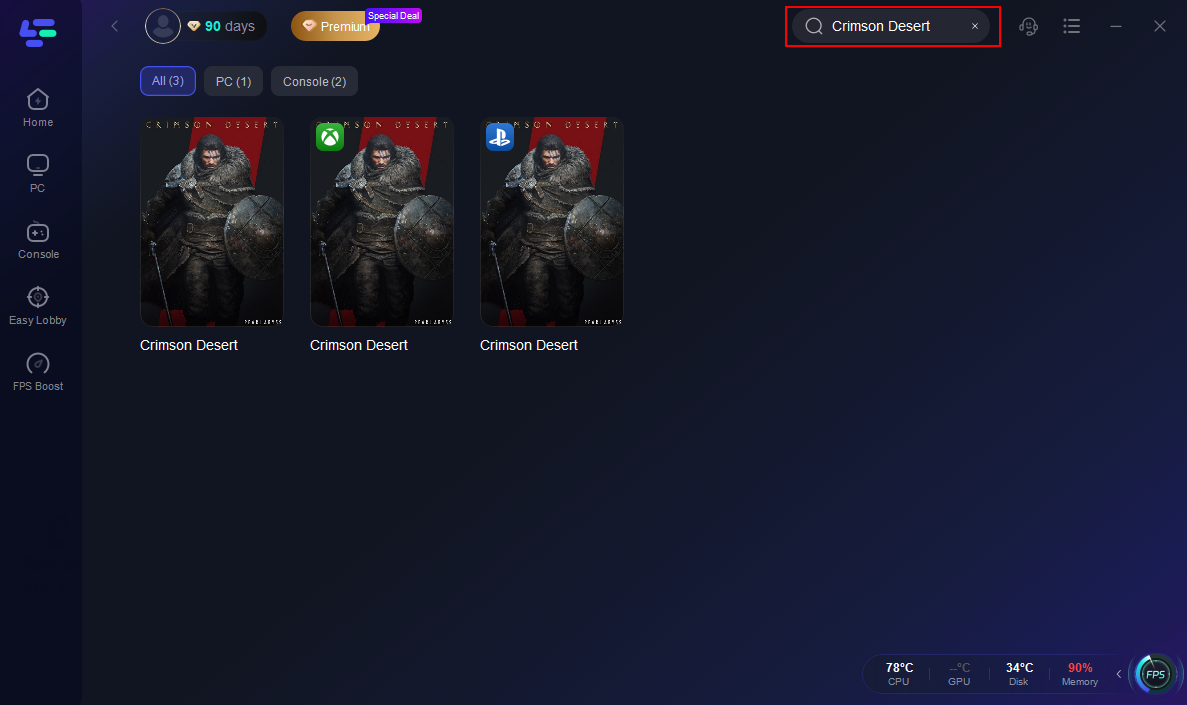
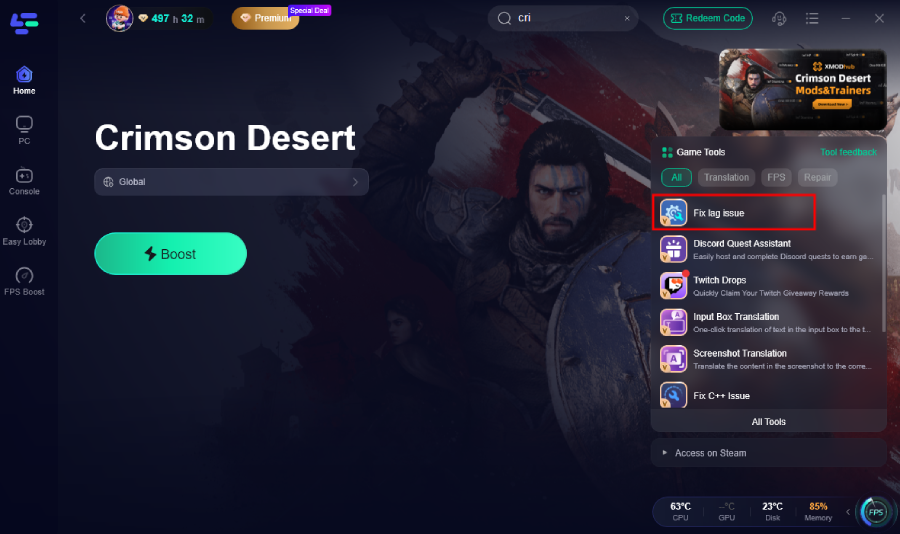
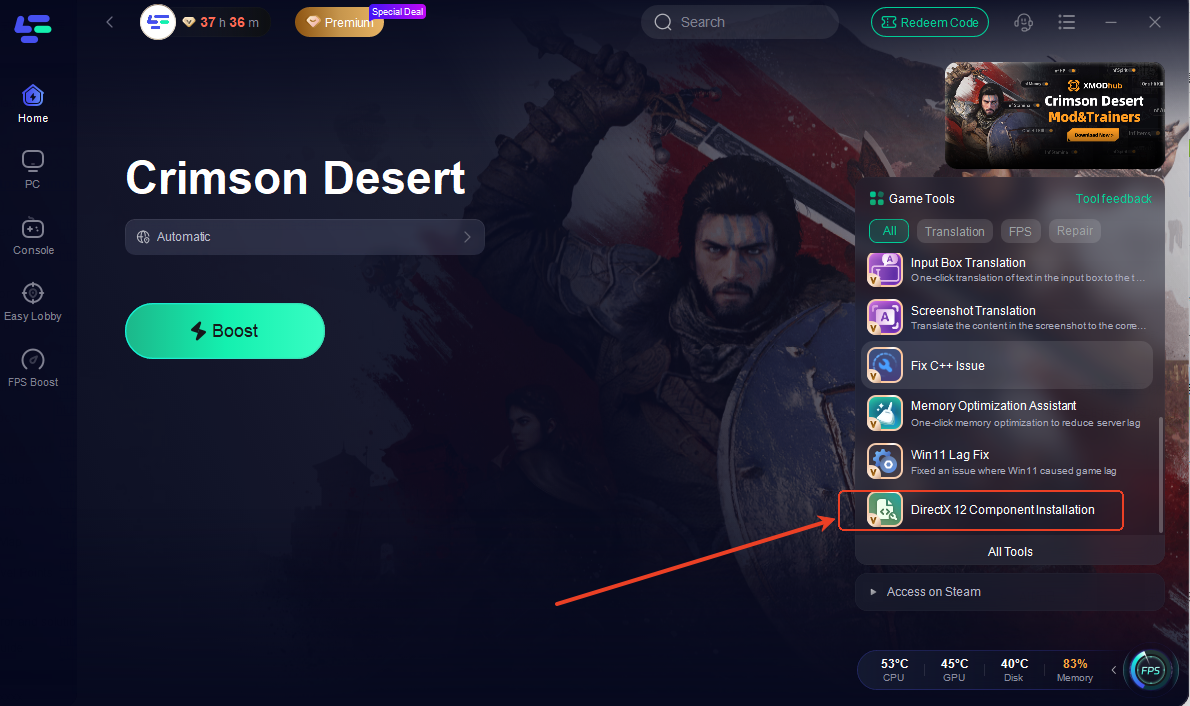
Step 4: Go back to LagoFast. Choose your preferred server node and click "Smart Boost" to start optimizing.

Step 5: Launch your game and enjoy smooth, optimized gameplay with lower ping and no stutter.
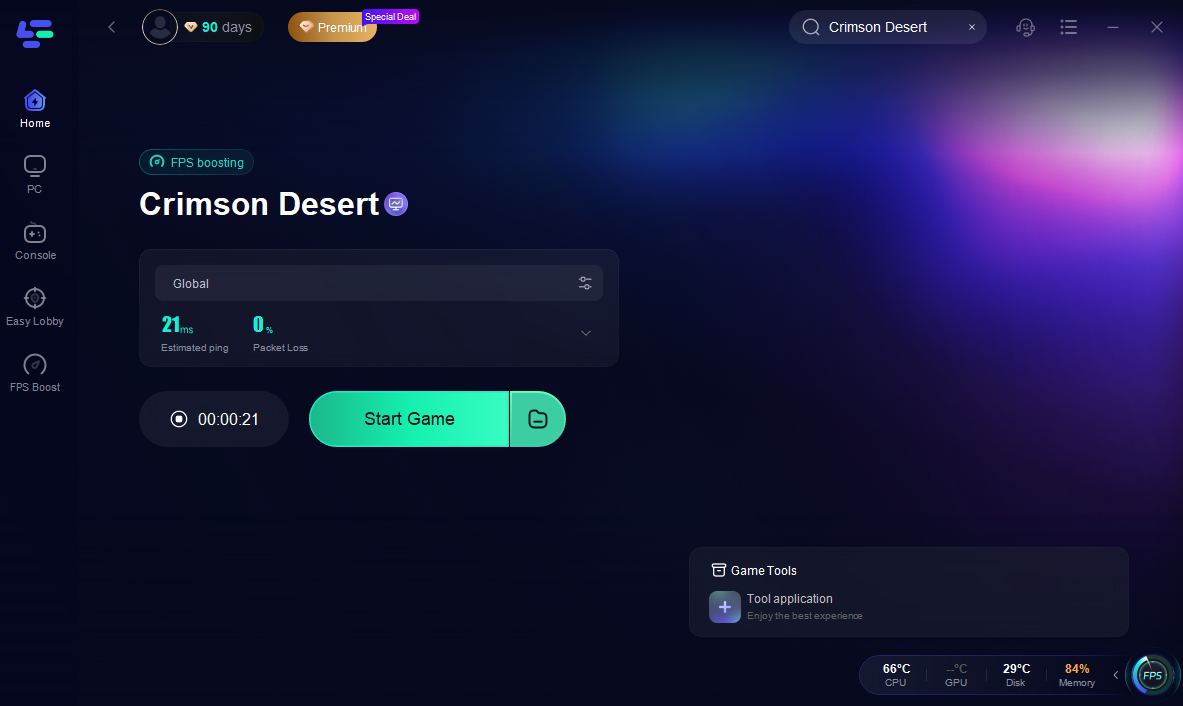
Additional Features of LagoFast
Beyond fixing common Crimson Desert errors, LagoFast Game Booster also functions as an all-in-one game booster, offering a variety of features to enhance overall gameplay:
FPS Boost & Lag Reduction
LagoFast optimizes both system and network performance to deliver smoother gameplay, helping reduce frame drops, latency, and in-game stuttering.
PRO Translation Tool
The built-in translation feature allows players to understand in-game text and dialogue in real time. It currently supports multiple languages, including Vietnamese, Thai, Ukrainian, and Arabic, making it easier to enjoy the full story without language barriers.
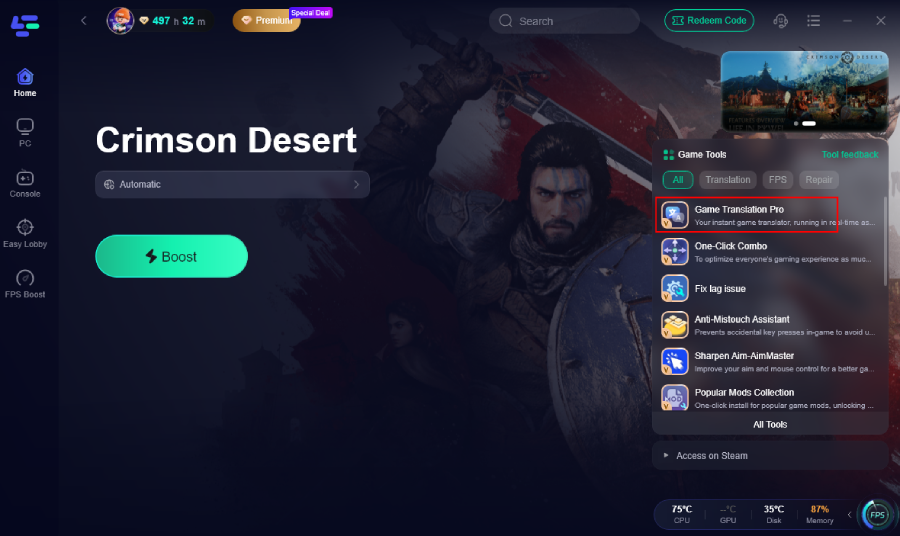
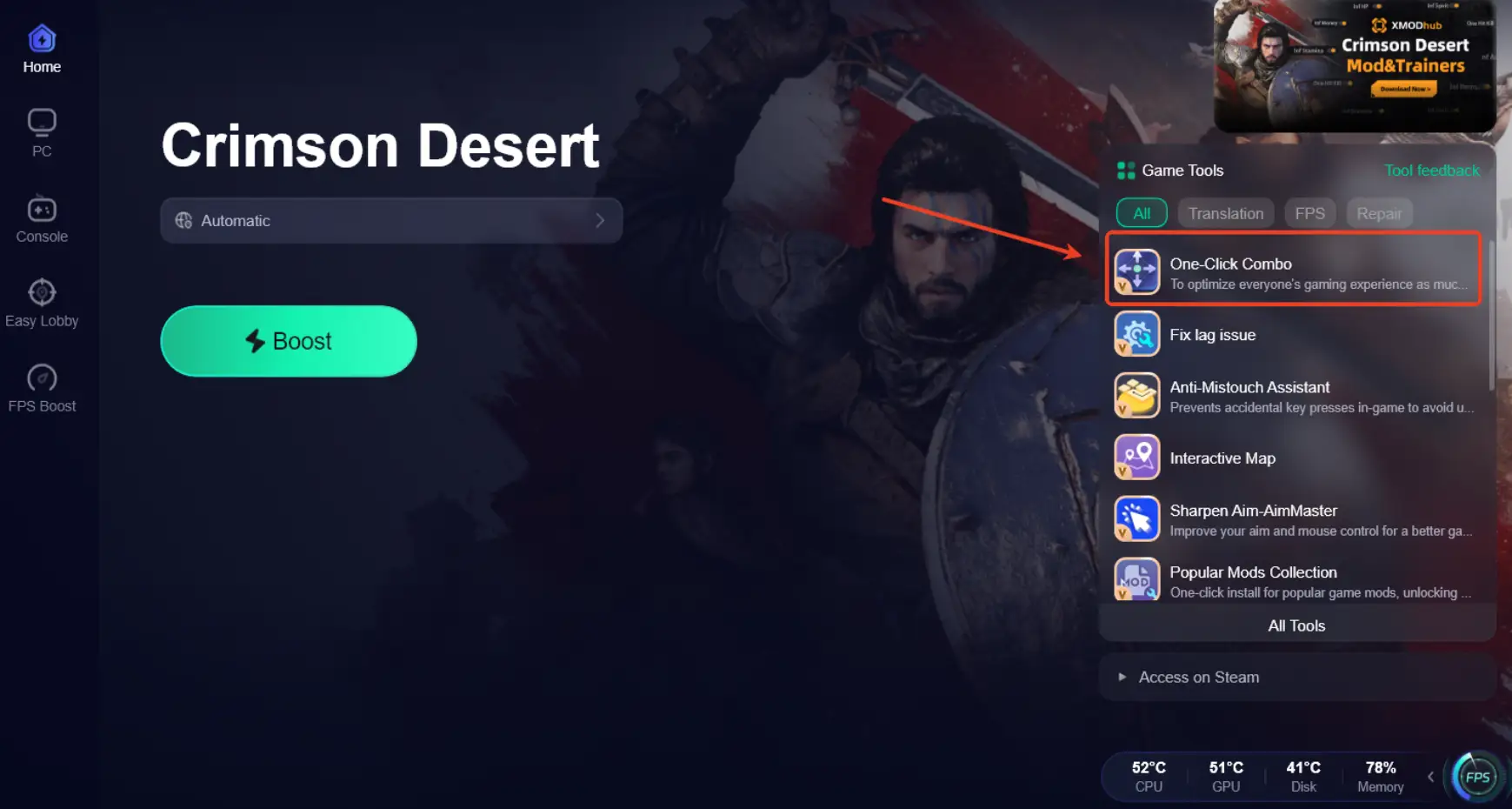
One-Click Combo Tool
This feature simplifies combat by enabling automated skill combos. With a single click, players can execute optimized skill chains, improving combat efficiency and responsiveness.
All Fast Travel Points (Coming Soon)
An upcoming feature that will allow players to quickly unlock and access fast travel points across the map, reducing travel time and improving exploration efficiency.
Part 3: More Solutions to Fix Crismon Desert Common Errors
How to Fix Crimson Desert Stuck on Loading
Step 1. Verify Game Files: Right-click the game in your library, go to Properties, select Local Files, and select "Verify integrity."
Step 2. Move to SSD: Ensure the game is installed on a Solid State Drive to speed up asset loading.
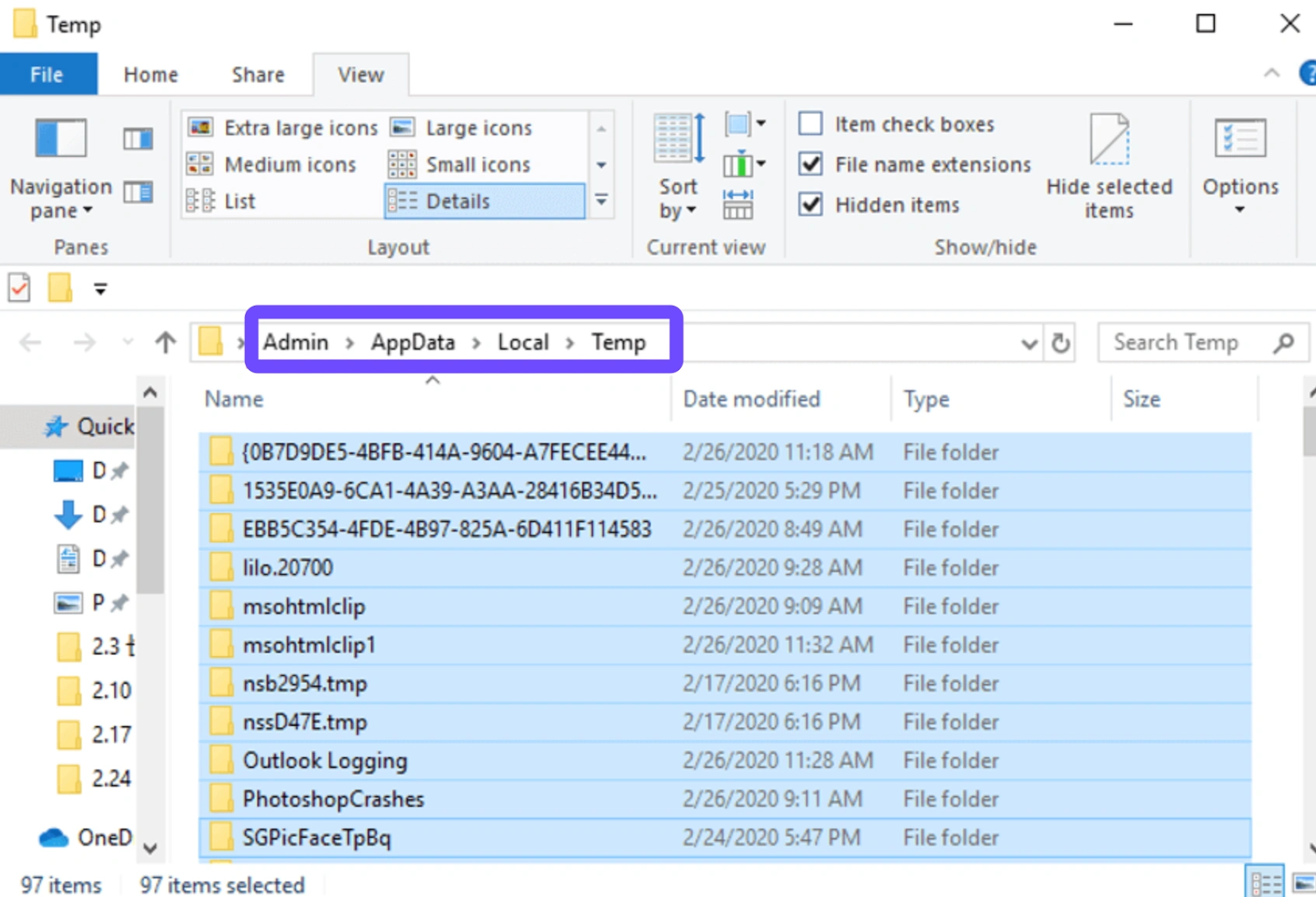
Step 3. Clear Cache: Delete the game’s temporary cache folder located in your AppData directory.
Step 4. Update Drivers: Ensure your NVIDIA or AMD drivers are the latest version to handle shader compilation.
How to Fix Crimson Desert Black Screen
Step 1. Alt + Enter: Press this to toggle between Windowed and Fullscreen mode to reset the display.
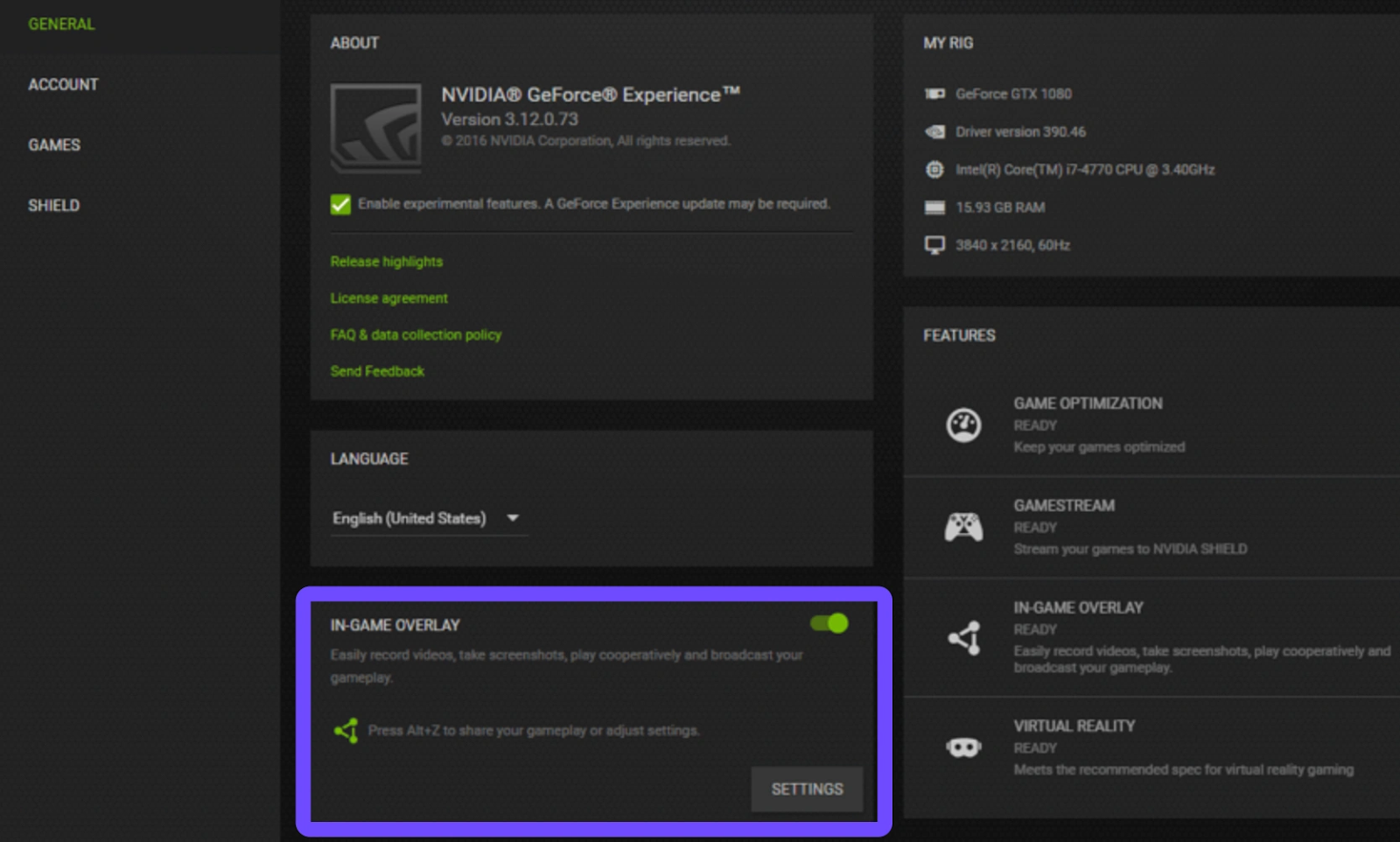
Step 2. Disable Overlays: Turn off Steam, Discord, or GeForce Experience overlays.
Step 3. Check Refresh Rate: Match your monitor’s refresh rate in the Windows Display settings to the game’s target FPS.
Step 4. Clean Boot: Restart Windows with only essential services to find software conflicts.
How to Fix Crimson Desert Crash
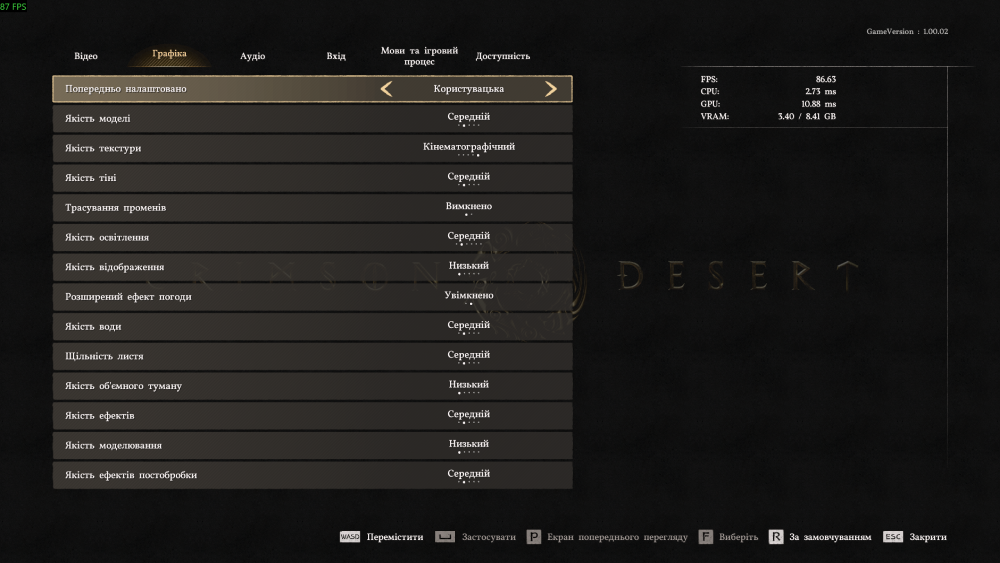
Step 1. Lower Shadow Quality: Reduce taxing settings like volumetric clouds and shadows.
Step 2. Increase Page File Size: Manually allocate more Virtual Memory in Windows settings.
Step 3. Disable Overclocking: Reset your GPU and CPU to factory clock speeds.
Step 4. Check Temps: Use a monitoring tool to ensure your hardware isn’t thermal throttling.
How to Fix Crimson Desert Low FPS
Enable DLSS/FSR: Use AI upscaling to significantly boost frames without losing much quality.
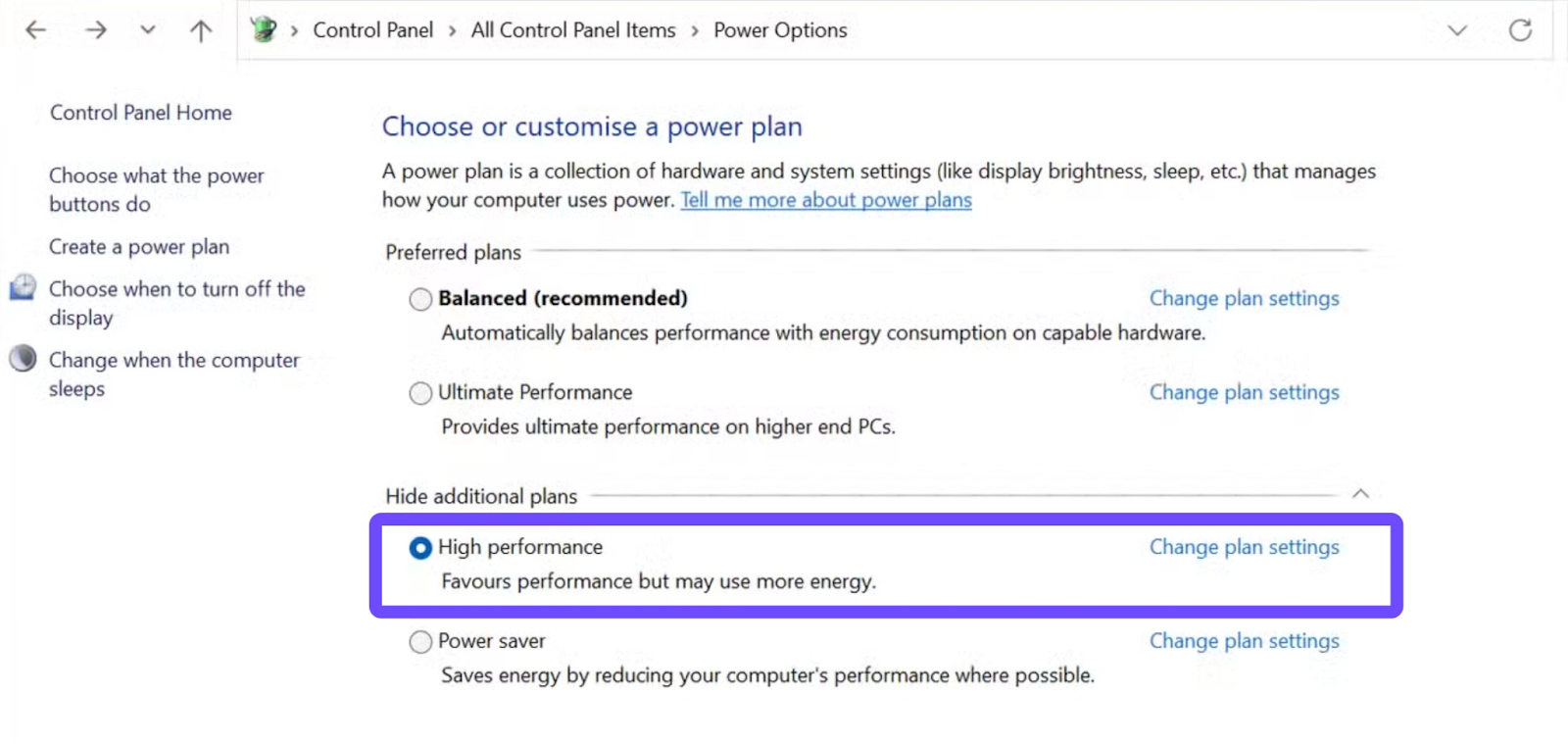
Step 1. Power Plan: Set your Windows Power Plan to "High Performance."
Step 2. Disable Fullscreen Optimizations: Right-click the game .exe, go to Compatibility, and check this box.
Step 3. Update Windows: Ensure you are on version 22H2 or higher for better DX12 scheduling.
How to Fix Crimson Server Connection Issue
Step 1. Reboot Router: Cycle your modem and router to clear out old DNS data.
Step 2. Use Ethernet: Switch from Wi-Fi to a wired connection to eliminate signal interference.
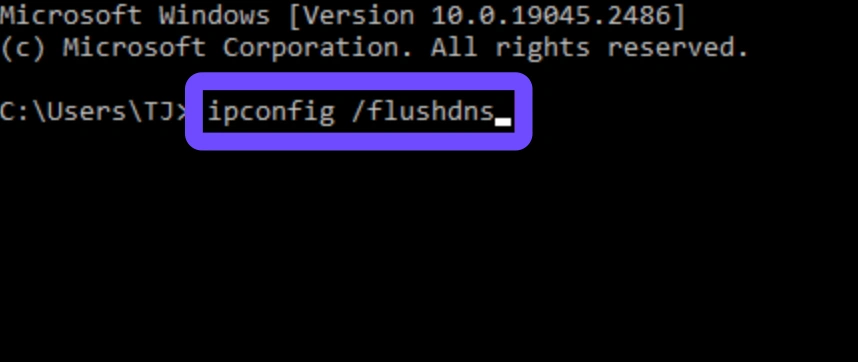
Step 3. Flush DNS: Open Command Prompt and type ipconfig /flushdns.
Step 4. Whitelist Firewall: Add Crimson Desert to your "Allowed Apps" list in Windows Defender.
How to Fix Crimson Server DX12 Error
Step 1. DirectX Update: Download the latest DirectX End-User Runtimes from Microsoft.
Step 2. Reinstall Drivers: Perform a clean installation of your GPU drivers using DDU (Display Driver Uninstaller).
Step 3. Shader Cache: Clear the DirectX Shader Cache via the Windows Disk Cleanup tool.
Step 4. Disable Ray Tracing: If your card is older, turn off Ray Tracing to reduce DX12 API calls.
How to Fix Crimson Desert C++ Runtime Error
Step 1. Uninstall Old Versions: Remove existing Visual C++ Redistributables from the Control Panel.
Step 2. Fresh Install: Download and install the 2015, 2017, 2019, and 2022 All-in-One packages.
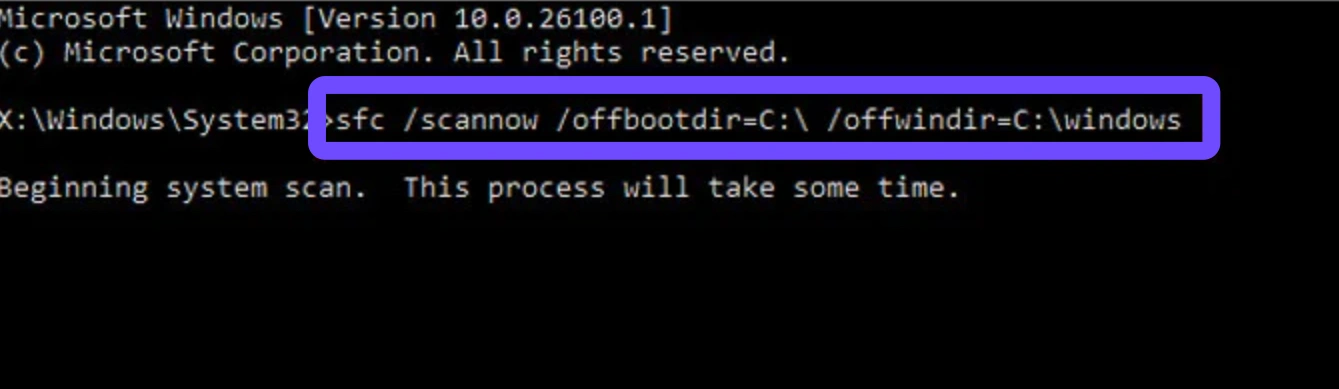
Step 3. SFC Scan: Run sfc /scannow in Command Prompt to fix corrupted system files.
Step 4. Restart PC: Always reboot after installing system libraries.
How to Fix Crimson Desert Fatal Error
Step 1. Check Event Viewer: Use the Windows tool to find the specific .dll file causing the crash.
Step 2. Reinstall Game: A clean install can fix "Fatal Errors" caused by corrupted core assets.
Step 3. Update BIOS: Ensure your motherboard firmware supports your current hardware configuration.
Step 4. Check RAM: Run "Windows Memory Diagnostic" to ensure your RAM sticks aren't failing.
How to Fix Crimson Desert Tapir Error
Step 1. Check Server Status: Verify if the game servers are undergoing maintenance.
Step 2. Change DNS: Try using Google DNS (8.8.8.8) or Cloudflare (1.1.1.1).
Step 3. Port Forwarding: Open the specific TCP/UDP ports required by Crimson Desert.
Conclusion
Crimson Desert offers an expansive and immersive experience, but technical issues can sometimes get in the way. Whether it’s crashes, low FPS, or connection problems, most errors have straightforward solutions if you know where to look. From updating drivers to optimizing your system, small adjustments can make a big impact. That said, if you’re tired of repetitive fixes and want a smoother experience right away, using a tool like LagoFast can save time and effort. Ultimately, the goal is simple: fewer interruptions, better performance, and more time enjoying the world of Crimson Desert the way it was meant to be played.
Boost Your Game with LagoFast for Epic Speed
Play harder, faster. LagoFast game booster eliminates stutter and lags on PC, mobile, or Mac—win every match!
Quickly Reduce Game Lag and Ping!
Boost FPS for Smoother Gameplay!