

The long-awaited release of Crimson Desert has finally arrived, bringing the brutal and beautiful continent of Pywel to our screens. However, for many mercenaries eager to step into the boots of Kliff, the journey has been cut short by a frustrating barrier: the loading screen. Whether you are facing a Crimson Desert stuck on loading error at 100% or simply cannot enter the game start menu, these technical hiccups are the ultimate immersion killers. In this guide, we will break down exactly why these errors happen and how to resolve them.

- ✅ Reduce Lag and High Ping.
✅ Boost FPS at the Same Time.
✅ Support 2000+ Popular Online Games.
✅ Change Server without Latency.
✅ Boost Game Loading Speed.
Part 1: Why is Crimson Desert stuck on loading?
Part 2: How to Fix Crimson Desert Stuck on Loading?
Part 1: Why is Crimson Desert stuck on loading?
The BlackSpace Engine powering Crimson Desert is a technical marvel, but its high-fidelity assets and complex world-streaming mechanics can easily overwhelm a system. If your Crimson Desert can’t load the game, it is rarely due to just one issue; rather, it is usually a conflict between the game’s demanding data-streaming needs and your PC's current configuration. Because the game requires a mandatory SSD and has a massive 135 GB footprint, even a minor data bottleneck can result in the game becoming unresponsive during the initial boot sequence.

Common Causes of Loading and Connection Errors:
- Anti-Cheat Conflicts: Sometimes, the game's security software clashes with Windows virtualization settings or third-party antivirus programs.
- Outdated Graphics Drivers: GPU incompatibility with the new BlackSpace Engine.
- HDD vs. SSD Issues: Attempting to run the game on a traditional Hard Drive instead of the required SSD.
- Corrupted Game Cache: Damaged local files preventing the game from "handshaking" with the server.
- Network Congestion: High ping or packet loss disrupting the authentication process.
- Firewall Interference: Security software is blocking the game's executable from accessing the internet.
Part 2: How to Fix Crimson Desert Stuck on Loading?
Method 1: Fix Crimson Desert Loading Issues with LagoFast
If you want the most efficient way to bypass these frustrations, the best solution is to use a dedicated game optimization tool. We recommend LagoFast as the best game booster for this task. It is specifically designed to handle the complex system demands of high-end titles like Crimson Desert. Stabilizing your connection and resolving hidden system conflicts, it helps prevent endless loading screens and ensures you can enter the game smoothly without repeated errors.
Key Features of LagoFast for Crimson Desert:
- Stability Optimization: Helps reduce common performance interruptions such as crashes or loading freezes by optimizing system performance during gameplay.
- FPS & Loading Boost: Optimizes your PC's CPU and GPU usage to ensure that the massive 135 GB of assets load quickly and smoothly.
- Real-Time Ping Monitoring: Keeps track of your connection quality so you can avoid sudden disconnections or lag spikes.
- Easy Interface: No complex manual configurations; simply select Crimson Desert and click "Boost."
Tutorial to Use LagoFast to Fix Crimson Desert Loading Issues:
Step 1: Click the Free Trial button to download and install LagoFast.
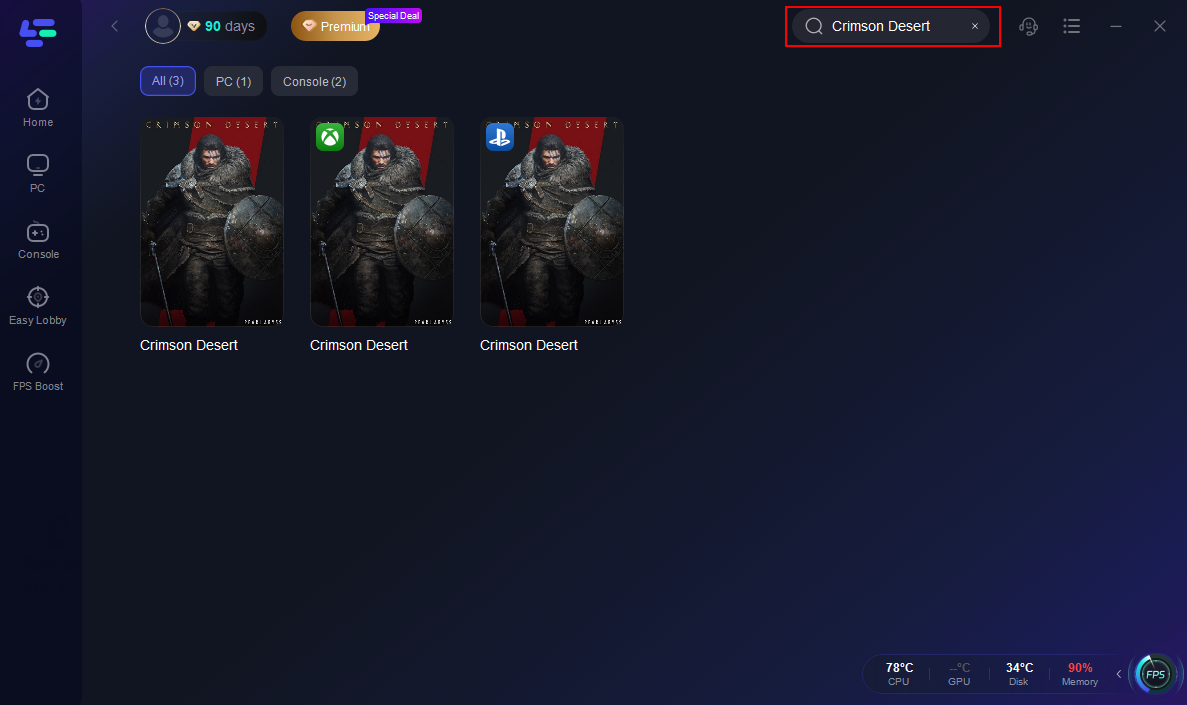
Step 2: Open LagoFast, then click the PC button on the left and search for Crimson Desert in the search bar and click it after it appears.
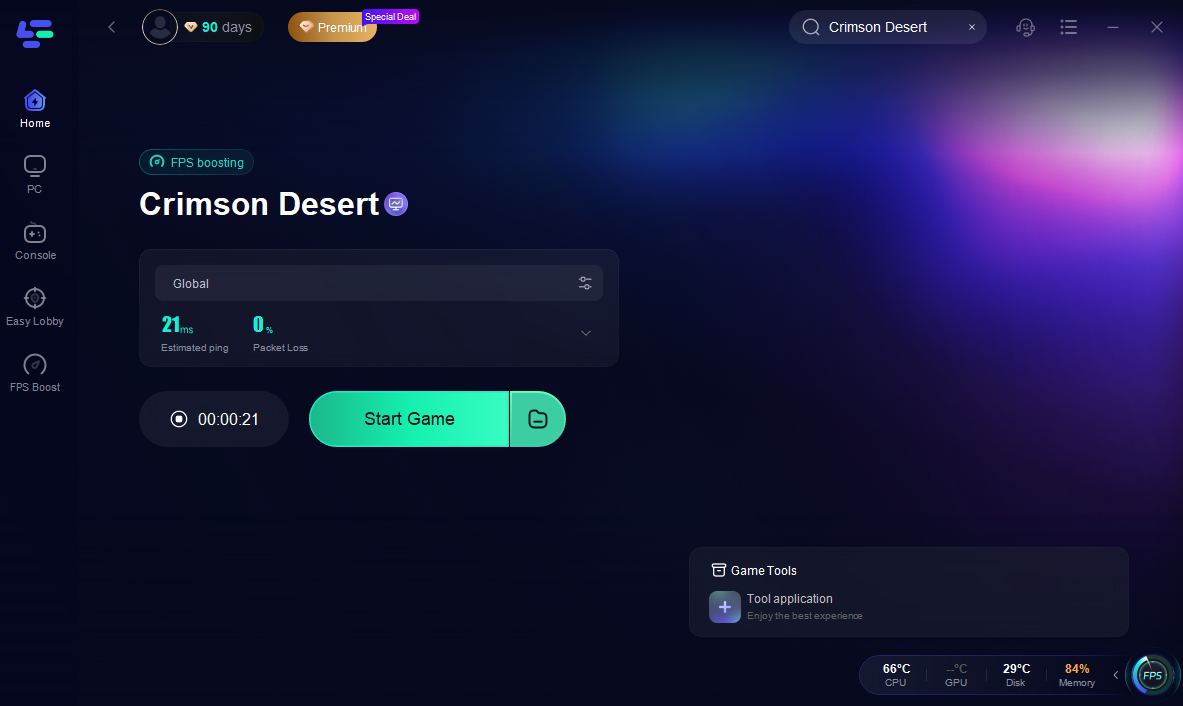
Step 3: Click on “Server” to change to a better server that ensures a better gaming experience, then click on “Smart Boost” to fix “Crimson Desert Loading Issues."

Step 4: Check the specific game ping, packet loss, and multiple path connections on the right side. Finally, click the “Start Game” to play the game.
If you prefer to take the long way around, you can try these manual troubleshooting steps. Note that while these can be helpful, they are often time-consuming and do not offer the comprehensive, automated protection that LagoFast provides.
Method 2: Adjust Windows Virtualization Settings
The anti-cheat software used by Pearl Abyss can sometimes conflict with Windows Hyper-V settings.
Step 1. Press Windows + R, type optionalfeatures.exe, and hit Enter.
Step 2. Scroll down to find Hyper-V and Windows Hypervisor Platform.
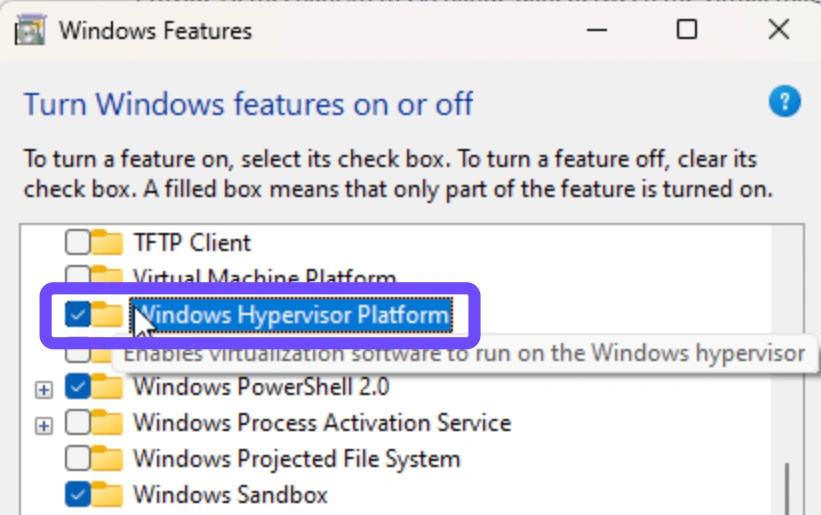
Step 3. Uncheck both boxes if they are enabled.
Step 4. Click OK and restart your computer.
Step 5. Try to enter the game again.
Method 3: Update GPU Drivers to the Latest Version
New engines require the latest "Game Ready" drivers to process shaders correctly during the loading screen.
Step 1: Open NVIDIA GeForce Experience or AMD Software.
Step 2: Click on the "Drivers" tab.
Step 3: Check for updates specifically released for March 2026 titles.
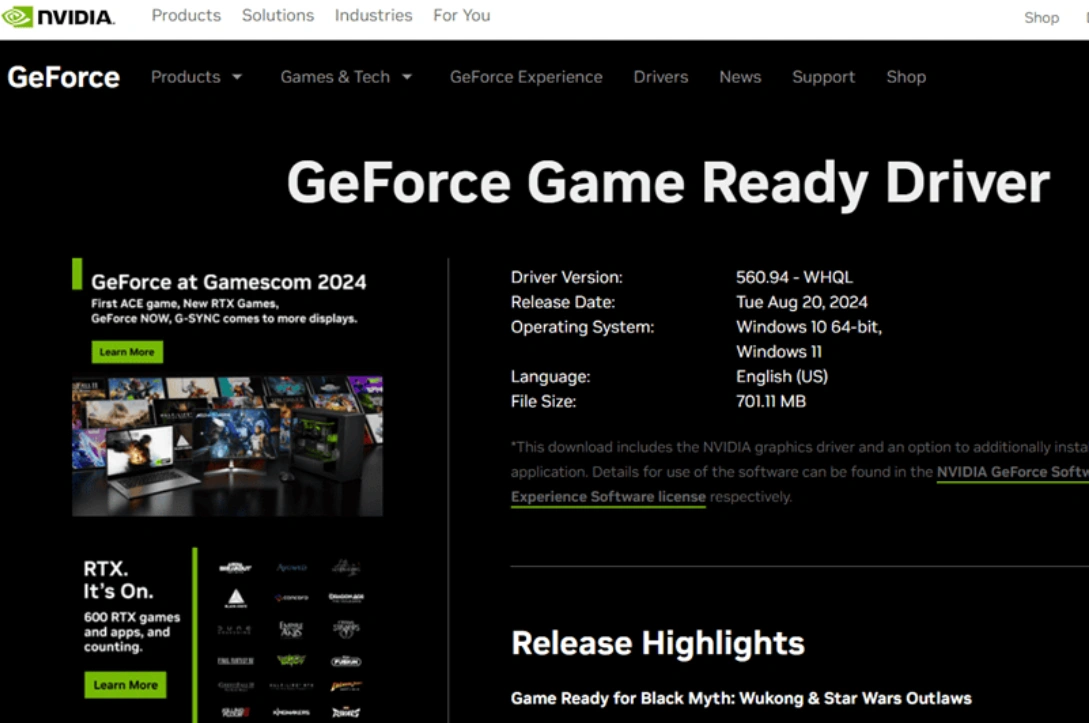
Step 4: Choose "Express Installation."
Step 5: Restart your computer once the installation is complete.
Method 4: Configure Windows Firewall Exceptions
Your security software might be the reason you cannot connect to the game.
Step 1: Open the Windows Start menu and type "Firewall."
Step 2: Select "Allow an app through Windows Firewall."
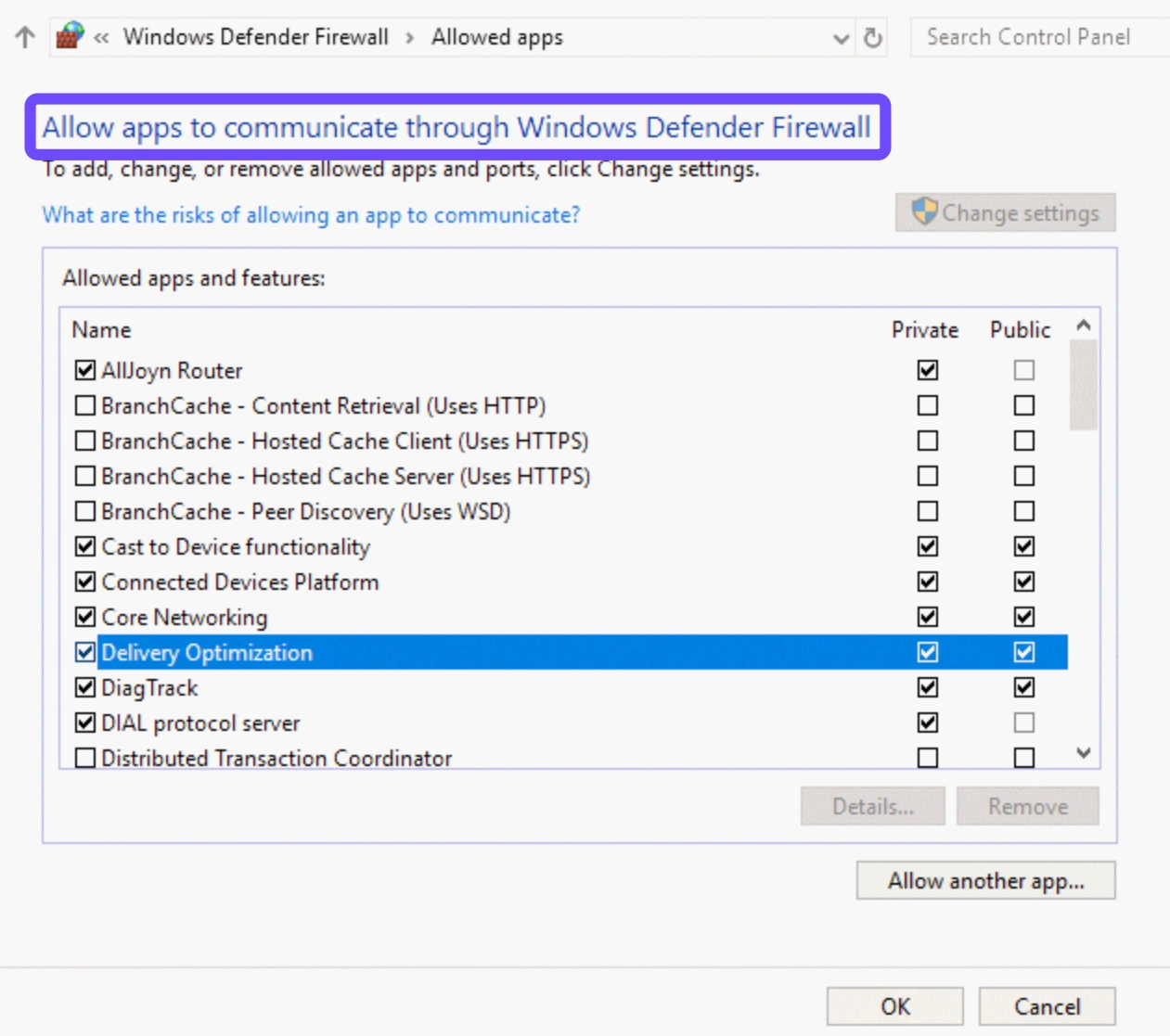
Step 3: Click "Change Settings" and find CrimsonDesert.exe in the list.
Step 4: Ensure both "Private" and "Public" boxes are checked.
Step 5: Click OK and try to log in again.
Method 5: Flush Your DNS and Reset Network
Network "gunk" can prevent your PC from communicating with the Crimson Desert login servers.
Step 1: Type "cmd" in the Windows search bar and run as Administrator.
Step 2: Type ipconfig /flushdns and press Enter.
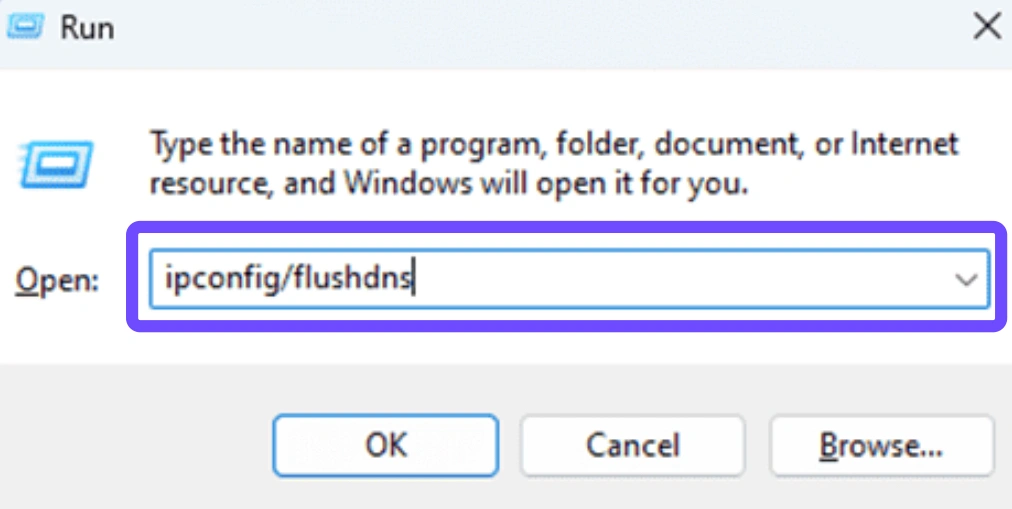
Step 3: Type netsh winsock reset and press Enter.
Step 4: Restart your router and modem.
Step 5: Re-establish your internet connection and launch the game.
Method 6: Verify Game Files
Corrupted files are one of the most common reasons Crimson Desert can’t load the game properly.
Step 1: Open your Steam.
Step 2: Go to the Library and right-click Crimson Desert.
Step 3: Select Properties.
Step 4: Click “Verify Integrity of Game Files.”
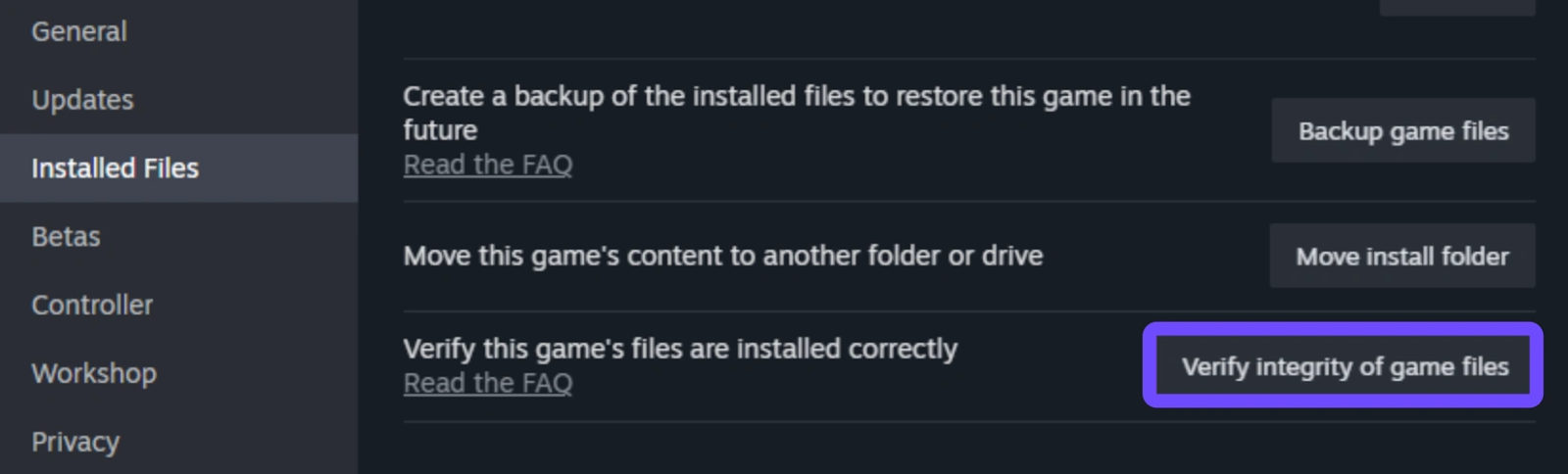
Step 5: Wait for the scan to complete and restart the game.
Conclusion
Facing a Crimson Desert stuck on loading screen is a frustrating way to start your adventure in Pywel, but it doesn't have to be a permanent problem. While manual fixes like verifying files or flushing your DNS can provide temporary relief, they lack the precision and speed of a dedicated tool. For the smoothest experience with no crashes, no loading hangs, and the lowest possible ping, using LagoFast is the most effective choice. Don't let technical errors keep you from the battlefield. Optimize your setup today and enter the world of Crimson Desert with confidence.

Boost Your Game with LagoFast for Epic Speed
Play harder, faster. LagoFast game booster eliminates stutter and lags on PC, mobile, or Mac—win every match!
Quickly Reduce Game Lag and Ping!
Boost FPS for Smoother Gameplay!