
Chrono Odyssey, the ambitious Unreal Engine 5 MMORPG from Chrono Studio and Kakao Games, is drawing a lot of attention ahead of its release. With its closed beta rolling out across North America, Europe, and Asia, players are finally getting hands-on time in Setera. However, an unexpected problem has been disrupting the experience for many: the black screen issue.
Whether you're encountering a Chrono Odyssey black screen on startup, during cutscenes, or when loading into the world, the result is the same. You're left staring at a frozen void instead of the beautiful environments the trailers promised. These black screen problems have been widespread during the playtest and can prevent you from even logging in.

- ✅ Reduce Lag and High Ping.
- ✅ Boost FPS at the Same Time.
- ✅ Explore Chrono Odyssey Classes.
- ✅ End Connection & Crashing Issues.
- ✅ Fix Chrono Odyssey Black Screen.
Part 1: Why Is Chrono Odyssey Showing a Black Screen
Part 2: How to Fix Chrono Odyssey Black Screen - Top 7 Fixes
Part 1: Why Is Chrono Odyssey Showing a Black Screen
Black screen issues can be frustratingly vague. There’s often no error message, no freeze, and no crash, just an idle screen with no visuals. Here are some of the main reasons this issue might be happening in Chrono Odyssey:
- GPU Driver Conflicts: Outdated or corrupted graphics drivers are one of the most common culprits.
- DirectX 12 Compatibility: Chrono Odyssey requires DX12, but not all systems are optimized for it, especially if running on older hardware.
- Overlay Interference: Tools like Discord, NVIDIA GeForce Experience, or Steam Overlay can cause rendering issues in fullscreen mode.
- Incorrect Resolution Settings: The game might default to a resolution unsupported by your monitor or GPU.
- Faulty Game Files: A corrupt installation or missing files can prevent assets from loading properly.
- Background Applications: Some background processes or antivirus software can interfere with rendering processes or block game access to system resources.
- Insufficient Hardware Resources: Low VRAM or RAM can cause the game to fail to render scenes, especially in Unreal Engine 5 environments.
Part 2: How to Fix Chrono Odyssey Black Screen - Top 7 Fixes
Best Fix for Chrono Odyssey Black Screen - LagoFast
If you're tired of trial-and-error methods and want a guaranteed solution, LagoFast provides a highly effective one-click tool that directly targets the Chrono Odyssey black screen issue.
LagoFast isn't just a game booster. It’s designed specifically to enhance MMO stability through optimized routing, background resource allocation, and quick-fix utilities. Its "Fix Black Screen Issue" tool uses intelligent process analysis to adjust system compatibility, network flow, and GPU focus in real-time.
Key Features of LagoFast:
- One-Click Black Screen Fix for Chrono Odyssey and other Unreal Engine 5 games
- Ping Stabilization across NA, EU, and ASIA servers
- FPS Boosting Engine that reallocates CPU & GPU resources dynamically
- Game-Specific Profiles that auto-adjust network routes and system priority
- Low System Impact and minimal memory usage
- User-Friendly Dashboard for quick adjustments and diagnostics
- Using LagoFast, you can resolve startup rendering issues, stuck black loading screens, and even in-game stutters - all with a few clicks.
Tutorial to use LagoFast to Fix Chrono Odyssey Black Screen on PC:
Step 1: Click the Free Trial button to download and install LagoFast.
Step 2: Open LagoFast, then click the PC button on the left and search Chrono Odyssey in the search bar, click it after it appears.
Step 3: Click on “Fix Black Screen Issue” on the right side to fix it, then click on “Smart Boost” to ensure a smooth gaming experience.
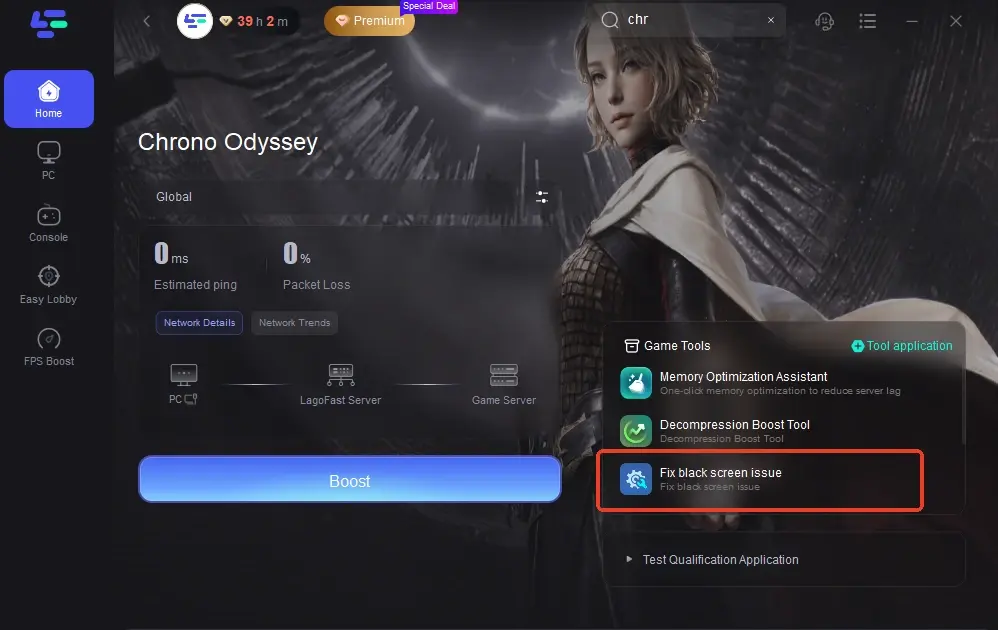
Step 4: Check the specific game ping, packet loss, and multiple path connection on the right side. Finally, click the “Start Game” to play the game.
Update Your Graphics Drivers
One of the most common causes of a black screen is outdated GPU drivers.
Step-by-Step:
Step 1: Identify your GPU (NVIDIA, AMD, or Intel).
Step 2: Visit the official website for your GPU manufacturer.
Step 3: Download the latest driver version for your system.
Step 4: Use "clean installation" if available to remove old driver conflicts.
Step 5: Restart your PC after installation.
Step 6: Launch Chrono Odyssey again and check if visuals render correctly
Run Chrono Odyssey as Administrator + Disable Fullscreen Optimizations
Windows permissions and optimization settings can interfere with UE5 games.
Step-by-Step:
Step 1: Navigate to your Chrono Odyssey install folder.
Step 2: Right-click ChronoOdyssey.exe and select Properties.
Step 3: Go to the Compatibility tab.
Step 4: Check "Run this program as an administrator."
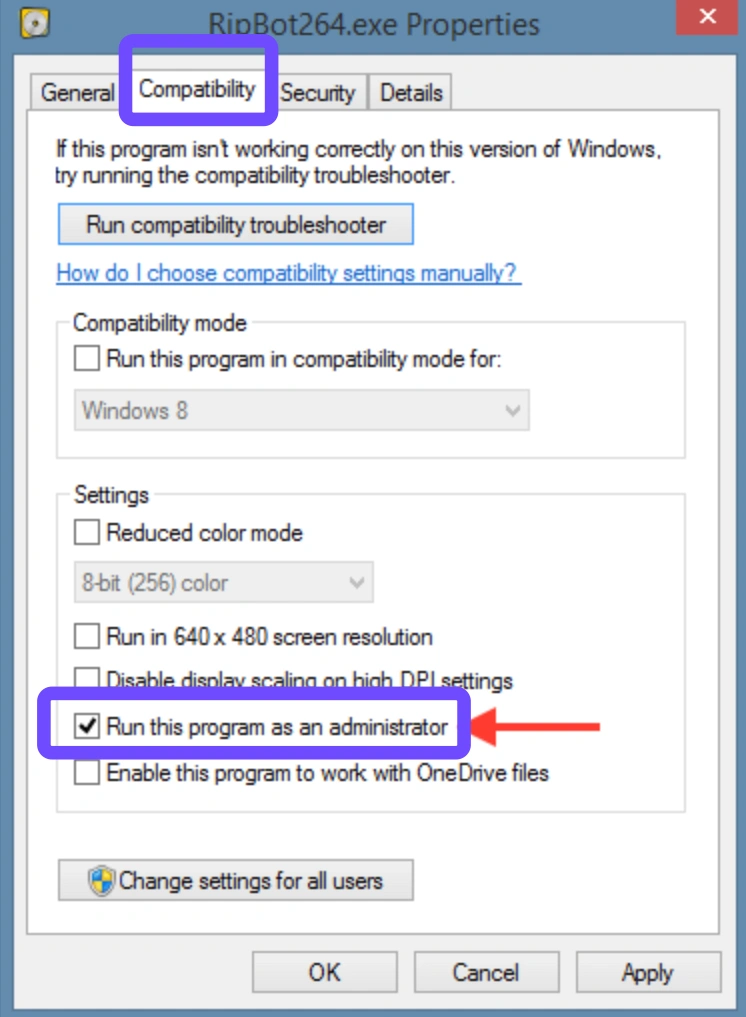
Step 5: Also, check "Disable fullscreen optimizations."
Step 6: Click Apply and OK, then relaunch the game.
Force Borderless Windowed Mode
Fullscreen mode can sometimes cause display conflicts, especially on multiple monitors or laptops.
Step-by-Step:
Step 1: Locate GameUserSettings.ini in:
C:\Users\[YourName]\AppData\Local\ChronoOdyssey\Saved\Config\WindowsNoEditor\
Step 2: Open the file using Notepad.
Step 3: Find these lines and change them:
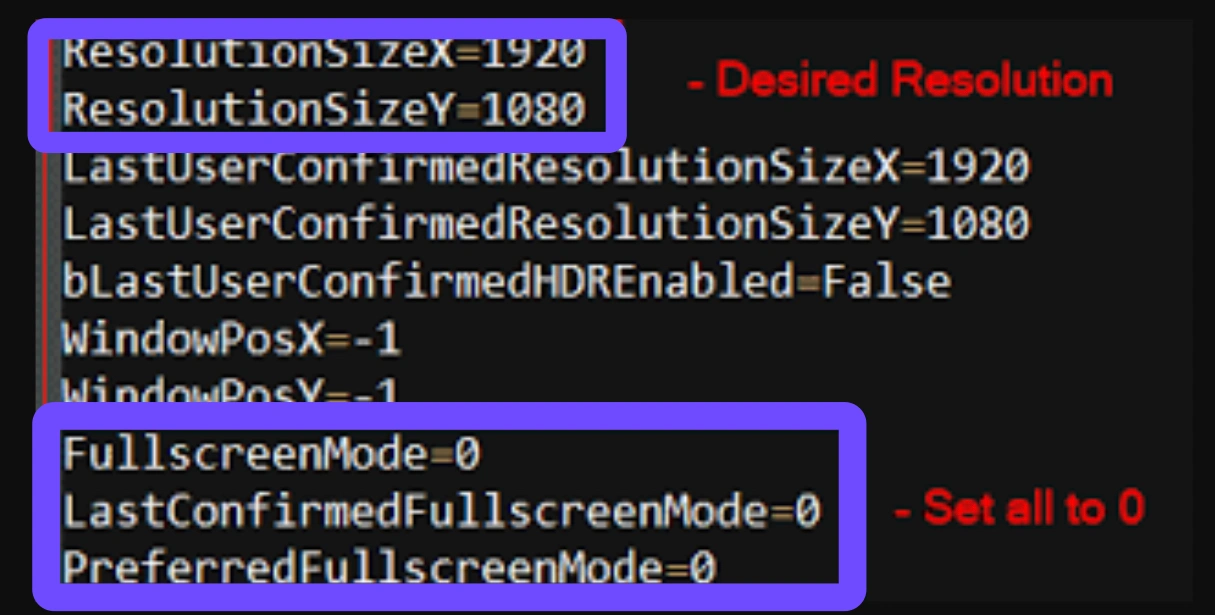
FullscreenMode=0
LastConfirmedFullscreenMode=0
Step 4: Save the file and close it.
Step 5: Right-click the file → Properties → Read-only to prevent auto-reset.
Step 6: Restart the game.
Disable In-Game Overlays (Discord, Steam, GeForce)
Overlays can clash with game rendering and cause black screens or flickers.
Step-by-Step:
Step 1: Open Discord → Go to Settings → Game Overlay → Turn it off.
Step 2: Open Steam → Go to Settings → In-Game → Uncheck "Enable the Steam Overlay."
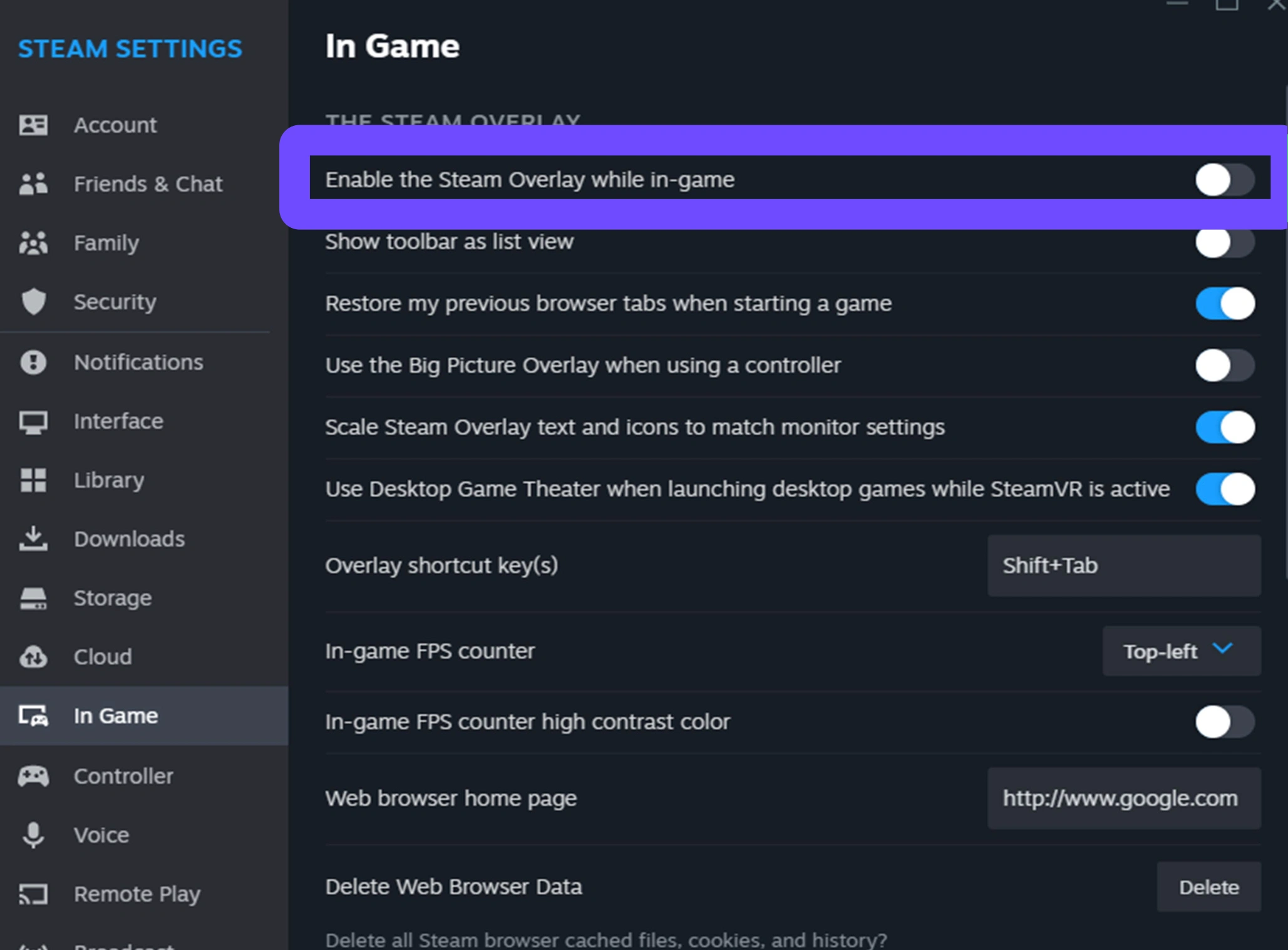
Step 3: If using GeForce Experience, go to Settings → General → Disable overlay.
Step 4: Restart your PC to ensure no services are running in the background.
Step 5: Launch Chrono Odyssey directly from its executable.
Step 6: See if black screen issues disappear.
Verify Game Integrity via Steam
Corrupt or missing game files can lead to black screens on loading or startup.
Step-by-Step:
Step 1: Open Steam Library.
Step 2: Right-click on Chrono Odyssey.
Step 3: Select Properties → Installed Files.
Step 4: Click "Verify integrity of game files."
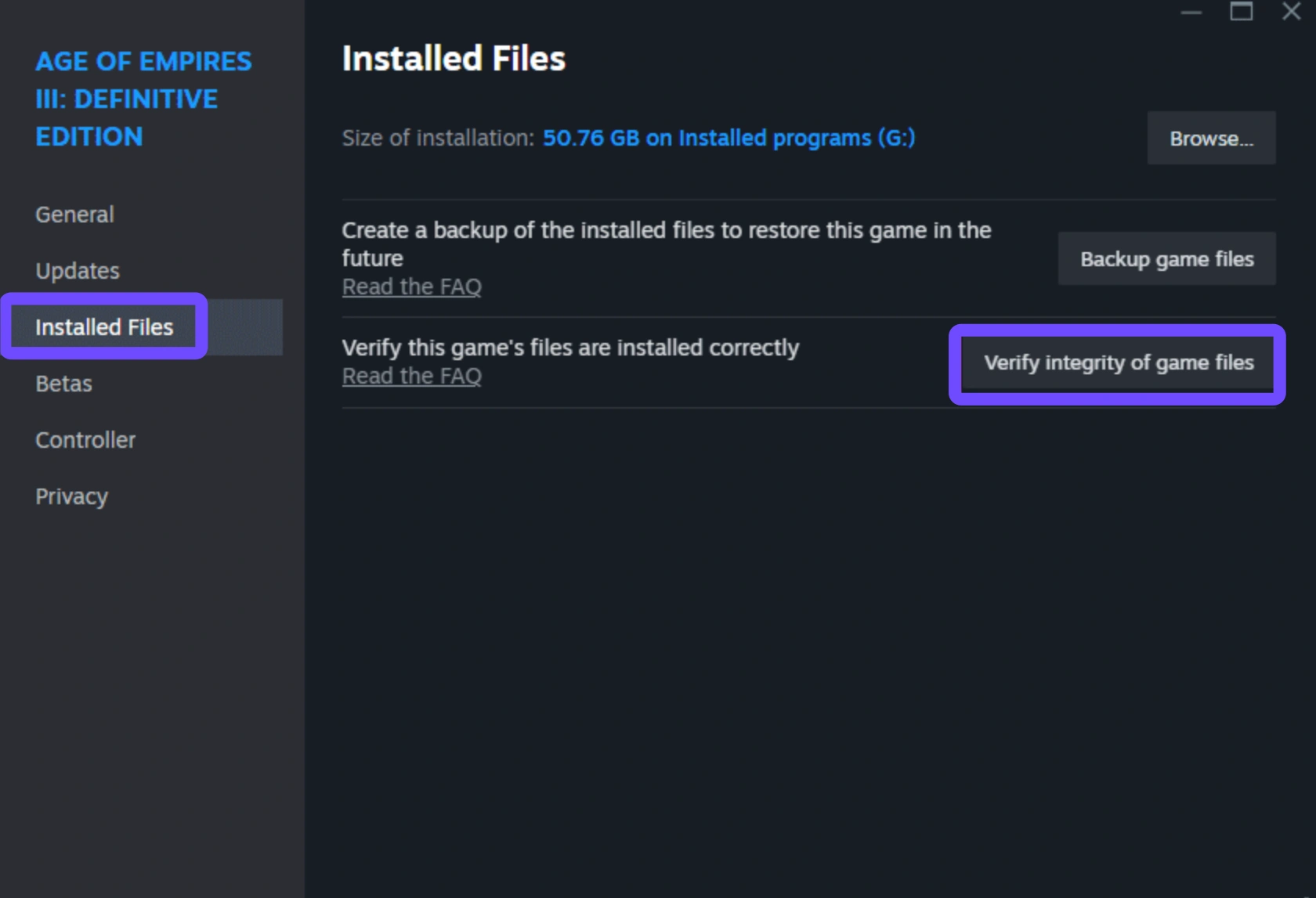
Step 5: Wait until Steam finishes the validation process.
Step 6: Launch the game again to check if the issue is fixed.
Switch to DirectX 11 (Optional for Older GPUs)
Chrono Odyssey runs on DirectX 12 by default, but some GPUs or driver setups may not fully support it.
Step-by-Step:
Step 1: Go to your Steam Library.
Step 2: Right-click on Chrono Odyssey → Properties.
Step 3: In the Launch Options field, type:
-dx11
Step 4: Close the window.
Step 5: Launch the game.
Step 6: See if switching to DX11 resolves the black screen.
Note: Using DX11 might reduce graphical fidelity but may increase stability on certain machines.
Part 3: Chrono Odyssey FAQs
Why does Chrono Odyssey show a black screen on startup, but the music plays?
This usually indicates that the game has launched but is unable to initialize your GPU. Common causes include driver issues, fullscreen optimizations, or overlay conflicts.
Will the final release fix black screen issues?
While beta builds often contain stability problems, Kakao Games has acknowledged the issue on community boards. Expect future updates or patches addressing the problem more directly.
Can hardware limitations cause black screens?
Yes. Systems below the minimum GPU spec (GTX 1060 or equivalent) may struggle to render Unreal Engine 5 environments, resulting in blank or black displays.
Is the black screen issue tied to certain regions or servers?
Not specifically, but players far from NA, EU, or ASIA servers may experience longer load times or syncing issues that resemble black screens.
How can I ensure optimal performance and prevent future black screen issues?
Use a tool like LagoFast, keep your system drivers updated, and make sure no background apps are interfering with the game engine.
Conclusion
The Chrono Odyssey black screen issue can derail your entire playtest experience, but it doesn’t have to be a game-breaker. Whether you're stuck on startup or encountering rendering failures in-game, there are multiple effective ways to resolve it. For the most hassle-free experience, LagoFast remains the top-tier solution, with dedicated features tailored to eliminate black screen, lag, and latency in real-time. Meanwhile, manual solutions are also reliable, especially when combined. With the full release scheduled for Q4 2025, now’s the time to optimize your setup and dive back into Setera, uninterrupted.

Boost Your Game with LagoFast for Epic Speed
Play harder, faster. LagoFast game booster eliminates stutter and lags on PC, mobile, or Mac—win every match!
Quickly Reduce Game Lag and Ping!
Boost FPS for Smoother Gameplay!