
Downloading a massive game like Call of Duty: Black Ops 7 can test anyone’s patience, especially when the download bar barely moves. With a file size well over 100GB, even small hiccups in speed can turn what should be a few hours into a day-long wait. Many players report slow progress, whether they’re using Battle.net, PlayStation, or Xbox, raising the same frustrating question: why does it take so long? The good news is that this isn’t always your ISP’s fault, and there are multiple ways to speed things up. In this guide, we’ll explore the causes of sluggish download speeds, walk you through platform-specific fixes, and show you the fastest all-in-one solution for getting back into the action quickly.

- ✅ Reduce Lag and High Ping.
- ✅ Boost FPS at the Same Time.
- ✅ Ensure Stable Server Connection.
- ✅ Change Server without Latency.
- ✅ Fix Crashing and Stuck Errors.
- ✅ 0% Packet Loss Rate
- ✅ Boost Game Downloading Speed.
Part 1: Why Call of Duty: Black Ops 7 Slow Download Speed Happens
Part 2: How to Fix Call of Duty: Black Ops 7 Slow Download Speed on PC & Consoles
Part 1: Why Call of Duty: Black Ops 7 Slow Download Speed Happens

There are several reasons why your copy of Black Ops 7 may crawl during installation:
- Server Congestion: On launch days or after major updates, millions of players attempt to download the game simultaneously. Even the best servers slow down when overloaded.
- ISP Throttling: Internet providers sometimes detect large game downloads and intentionally limit speeds to prevent bandwidth spikes.
- Background Processes: Other apps, system updates, or streaming services running on your device can consume bandwidth.
- Router & Network Issues: Poor Wi-Fi signal strength, outdated routers, or too many devices on one network can drag down performance.
- Platform-Specific Limitations: Battle.net, PlayStation, and Xbox each have quirks that can cause slow downloads, such as automatic data verification or background installations.
Understanding the source of the slowdown is the first step to fixing it. Let’s break down solutions for every platform.
Part 2: How to Fix Call of Duty: Black Ops 7 Slow Download Speed on PC
All-in-One Solution: LagoFast – The Quickest Way to Fix Download Speed Issues
Instead of juggling multiple settings, you can rely on LagoFast, a game booster built specifically to fix slow downloads and connection issues. LagoFast optimizes your network routing with its exclusive smart data transmission protocol, ensuring faster downloads on Black Ops 7 across PC, Xbox, and PlayStation.
Key Features of LagoFast:
- Accelerates downloads and updates for all major platforms.
- Reduces ping and eliminates packet loss in online matches.
- Optimizes bandwidth usage, so background apps do not slow your download.
- Supports one-click setup—no need for advanced technical steps.
- Covers multiple regions, automatically routing to the fastest server.
If you’re looking for the fastest and most hassle-free way to boost your Black Ops 7 download speed, LagoFast is the all-in-one solution.
Tutorial to use LagoFast to quickly download Black Ops 7 and have a smooth gaming experience on PC:
Step 1: Click the Free Trial button to download and install LagoFast.
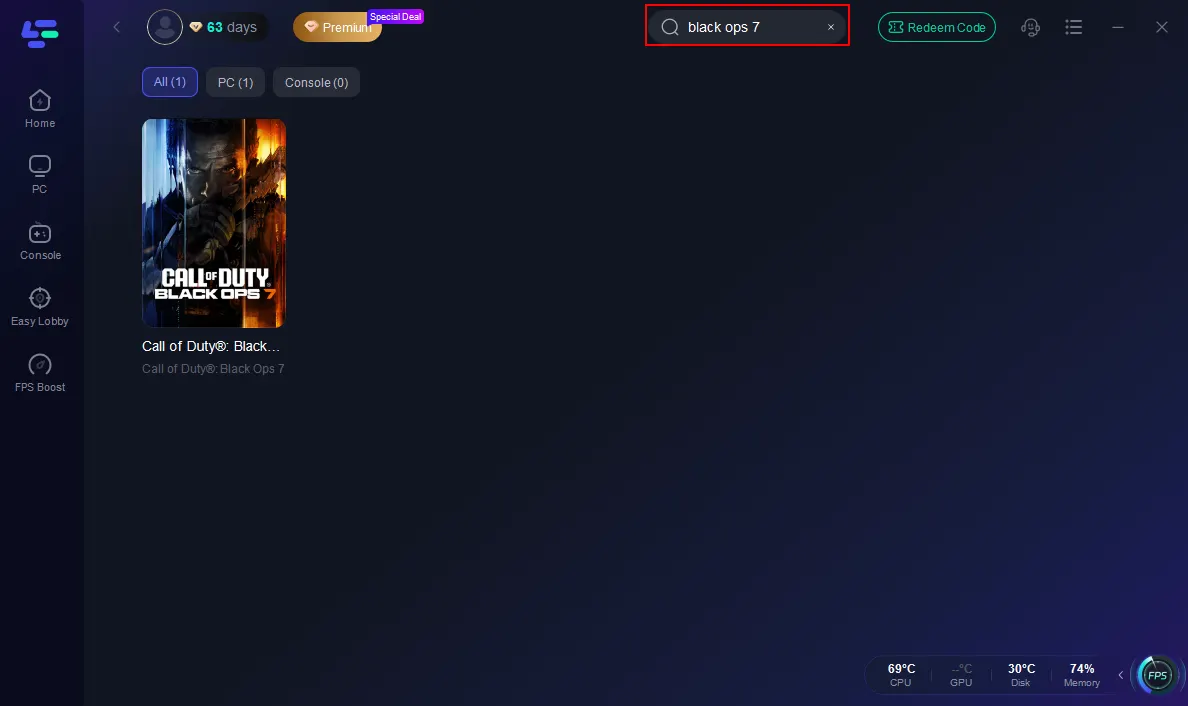
Step 2: Open LagoFast, then click the PC button on the left and search Black Ops 7 in the search bar, and click it after it appears.
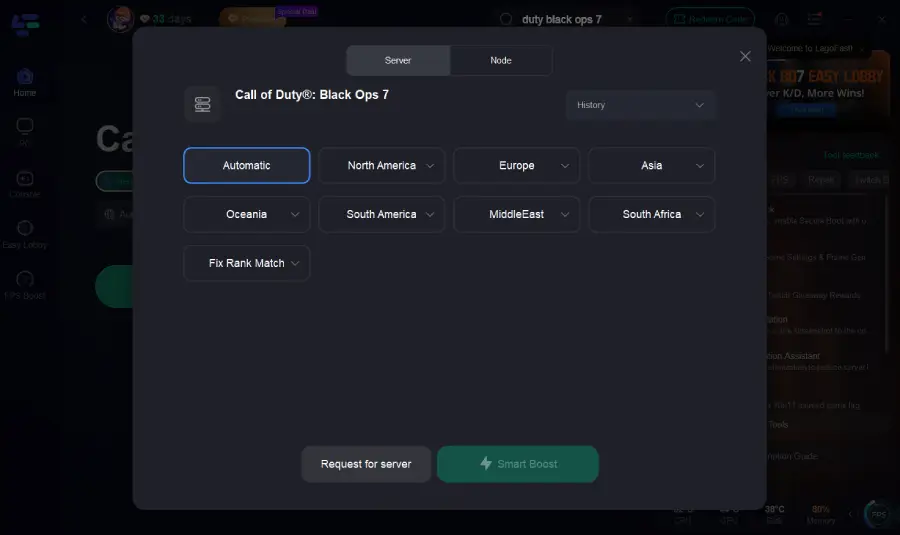
Step 3: Click on “Server” to change to a better server that ensures the Black Ops 7 gaming experience, then click on “Smart Boost”.
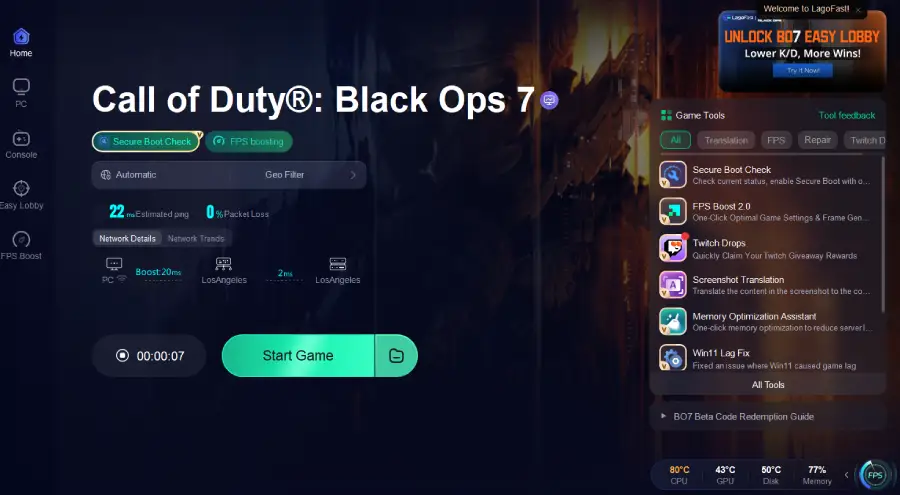
Step 4: Launch the game and enjoy an enhanced gaming experience with reduced lag and improved stability.
Tutorial on using LagoFast Box to enhance your console gaming experience:
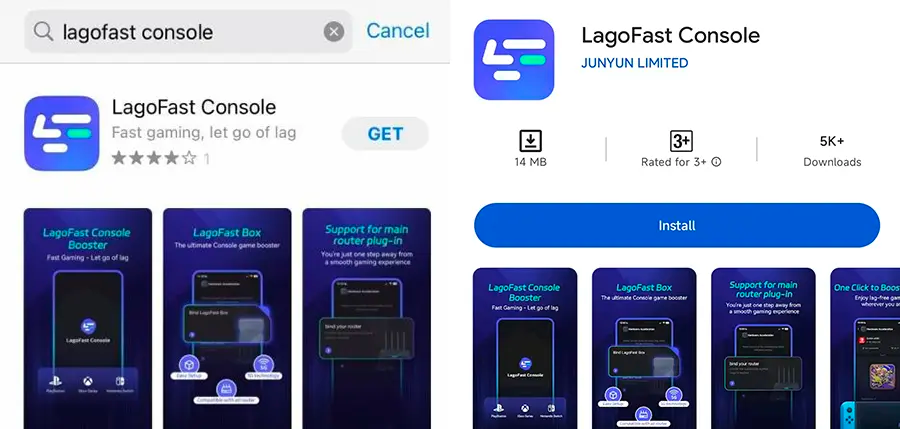
Step 1: Download the LagoFast Console App on your phone to control the LagoFast Box.
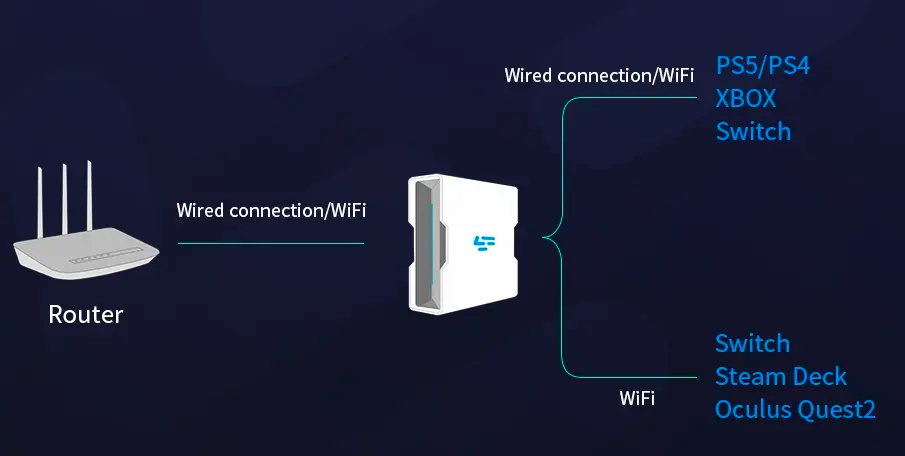
Step 2: Establish a connection between your LagoFast Box, router, and console, choosing between a wired or wireless connection.
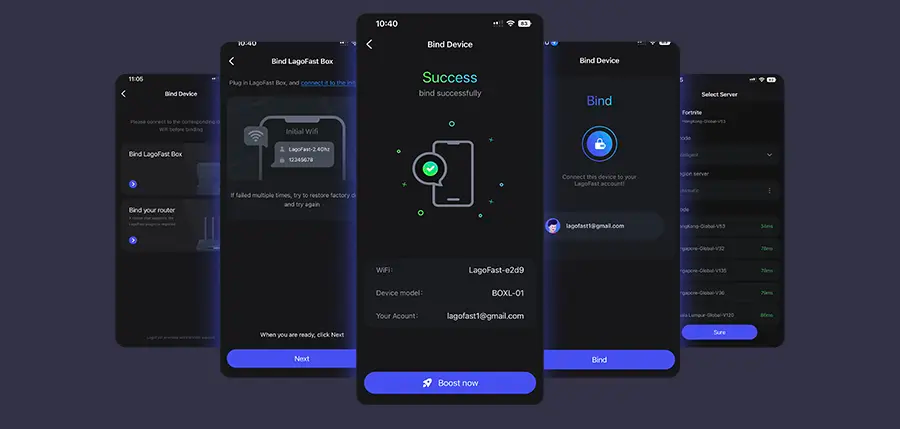
Step 3: Launch the LagoFast Console App and boost Black Ops 7. Once you have completed the binding process with the LagoFast Box, proceed to boost this game within the LagoFast Console App.
Related Article: Black Ops 7 Zombies – Full Overview, Maps, and Everything You Should Know
How to Fix Call of Duty: Black Ops 7 Slow Download Speed on PC
If you’re using Battle.net or Steam on PC, here are four detailed fixes you can try:
Solution 1: Adjust Battle.net Download Settings
Step 1. Open the Battle.net launcher and log into your account.
Step 2. Click the Blizzard logo at the top-left and go to Settings.
Step 3. Navigate to Downloads and look for “Limit download bandwidth.”
Step 4. Uncheck the option or set it to a much higher limit.
Step 5. Restart the client to apply the new settings and resume your download.
Solution 2: Optimize Your Network Connection
Step 1. Connect your PC directly via Ethernet instead of Wi-Fi.
Step 2. Restart your modem and router to clear cached issues.
Step 3. Disconnect unnecessary devices (phones, TVs, tablets) from your network.
Step 4. Enable QoS in your router settings, prioritizing your PC.
Step 5. Run a speed test to confirm your connection is stable.
Solution 3: Flush DNS & Reset Network Configurations
Step 1. Press Windows + R, type cmd, and hit Enter.
Step 2. In the Command Prompt, type ipconfig /flushdns and press Enter.
Step 3. Next, type netsh int ip reset and hit Enter.
Step 4. Restart your computer to refresh your network stack.
Step 5. Relaunch Battle.net and test your download speed again.
Solution 4: Disable Background Apps & Updates
Step 1. Press Ctrl + Shift + Esc to open Task Manager.
Step 2. End unnecessary apps using bandwidth (browsers, streaming apps, cloud sync).
Step 3. Pause Windows updates temporarily.
Step 4. Turn off background downloads in Steam, Epic Games, or other launchers.
Step 5. Resume your Black Ops 7 download for maximum bandwidth allocation.
You May Like: Is Call of Duty: Black Ops 7 on Xbox and PS4?
How to Fix Call of Duty: Black Ops 7 Slow Download Speed on Consoles
Xbox Solution 1: Close Background Apps & Pause Updates
Step 1. Press the Xbox button and highlight the game.
Step 2. Press Menu and select Quit to close apps running in the background.
Step 3. Go to Settings, select System, and click Updates.
Step 4. Pause any system or game updates not related to Black Ops 7.
Step 5. Resume the download and check if the speed improves.
Xbox Solution 2: Switch to a Wired Connection & Change DNS
Step 1. Plug your Xbox into the router using an Ethernet cable.
Step 2. Go to Settings, select Network and click Advanced settings.
Step 3. Select DNS settings and switch to Manual.
Step 4. Enter 8.8.8.8 for Primary DNS and 8.8.4.4 for Secondary DNS (Google DNS).
Step 5. Restart your Xbox and continue the download.
PlayStation Solution 1: Change DNS for Faster Speeds
Step 1. Go to Settings, select Network and click Set Up Internet Connection.
Step 2. Choose Custom and select your Wi-Fi or LAN.
Step 3. For DNS, select Manual.
Step 4. Enter 1.1.1.1 as Primary DNS and 1.0.0.1 as Secondary DNS (Cloudflare DNS).
Step 5. Save settings and restart your PS4/PS5 to boost download speeds.
PlayStation Solution 2: Pause & Resume the Download
Step 1. Navigate to your downloads list from the PS dashboard.
Step 2. Highlight Black Ops 7 and press Options.
Step 3. Select Pause and wait 10–15 seconds.
Step 4. Select Resume to restart the download at a potentially higher speed.
Step 5. Keep your console idle to let the download complete faster.
Conclusion
Slow downloads can ruin the excitement of playing Call of Duty: Black Ops 7, especially when you’re eager to jump into multiplayer or Zombies mode. The causes range from overloaded servers to ISP throttling, but with the right adjustments, you can drastically improve speeds on PC, Xbox, or PlayStation. For players who want a quick, reliable, and all-in-one fix without spending hours tweaking settings, LagoFast stands out as the most effective option. Optimizing your connection instantly across platforms ensures you spend less time waiting and more time playing. Don’t let slow speeds hold you back—take action and get into the fight faster.

Boost Your Game with LagoFast for Epic Speed
Play harder, faster. LagoFast game booster eliminates stutter and lags on PC, mobile, or Mac—win every match!
Quickly Reduce Game Lag and Ping!
Boost FPS for Smoother Gameplay!