
Call of Duty: Black Ops 7 has quickly become one of the most talked-about entries in the franchise, thanks to its futuristic setting, intense campaign, and massive multiplayer offerings. But as stunning as the game looks, many players are struggling with technical issues—particularly low FPS, sudden frame drops, and stuttering that disrupt the flow of combat. Whether you’re playing on a high-end gaming PC, an older console, or the latest Xbox Series X/PS5, performance issues can make the difference between victory and frustration. This article explains the causes of Black Ops 7 low FPS, why it happens across platforms, and the most effective ways to boost FPS in Black Ops 7.
Ukrainian version: Гайд З Підвищення FPS У Call of Duty Black Ops 7: Виправляємо Низький FPS, Просідання Та Підфризи

- ✅ Reduce Lag and High Ping.
- ✅ Boost FPS at the Same Time.
- ✅ Ensure Stable Server Connection.
- ✅ Change Server without Latency.
- ✅ Fix Crashing and Stuck Errors.
- ✅ 0% Packet Loss Rate
- ✅ Boost Game Downloading Speed.
Part 1: Why Black Ops 7 Low FPS Happens
Part 2: How to Fix Call of Duty Black Ops 7 Low FPS on PC & Consoles
Part 3: How to Fix Call of Duty: Black Ops 7 Low FPS on PC
Part 4: How to Fix Call of Duty: Black Ops 7 Low FPS on Consoles
Part 1: Why Black Ops 7 Low FPS Happens
Why Call of Duty Black Ops 7 Low FPS on PC
Even on powerful hardware, PC gamers often experience stuttering and FPS issues in demanding games like Black Ops 7. The main reasons include:

- Outdated drivers – Graphics drivers not updated to the latest version may limit performance.
- Background processes – Apps like browsers, streaming software, or overlays consume RAM and CPU.
- Improper settings – Running ultra graphics settings without optimization can overwhelm hardware.
- Thermal throttling – Overheating GPUs/CPUs reduce clock speeds to avoid damage.
- Shader compilation stutter – Many modern engines cause micro-stutters as shaders load in-game.
These problems often compound, leading to Black Ops 7 FPS drops even when system specs exceed requirements.
Why Call of Duty Black Ops 7 Low FPS on Consoles
On Xbox and PlayStation, the situation is a little different. Since console hardware is fixed, low FPS usually comes from software or system issues:
- Cache build-up – Long play sessions without restarting the console create sluggish performance.
- Storage speed – Playing from a nearly full HDD or external drive may bottleneck loading.
- Background downloads/updates – System updates or game patches downloading silently can hurt frame pacing.
- Performance mode not enabled – Many games default to resolution mode; players need to switch to performance mode manually.
- Network instability – In online modes, stutter may come from poor connections rather than raw FPS.
These factors can make even new-gen consoles show Black Ops 7 stuttering and FPS dips during heated moments.
Hot Related: How to Fix Call of Duty: Black Ops 7 Slow Download Speed
Part 2: How to Fix Call of Duty Black Ops 7 Low FPS on PC & Consoles
All-in-one solution to Fix Call of Duty Black Ops 7 Low FPS – All Platforms
The fastest way to fix Black Ops 7 FPS problems on any device is to use LagoFast, a dedicated FPS booster and lag reducer. Unlike manual tweaks, LagoFast works across PC, Xbox, and PlayStation, automatically optimizing your network connection, reducing stuttering, and unlocking smoother frame rates.
Key Features of LagoFast:
- Smart routing to reduce ping and avoid packet loss.
- Dedicated FPS boost mode for smoother gameplay.
- Works on PC, Xbox, and PlayStation with one setup.
- Easy one-click optimization—no complex settings required.
- Built-in performance monitoring to track improvements.
For players who don’t want to spend hours troubleshooting, LagoFast is the all-in-one Black Ops 7 FPS booster that gets you back to dominating matches in minutes.
Tutorial to use LagoFast to boost FPS in Black Ops 7 on PC:
Step 1: Click the Free Trial button to download and install LagoFast.
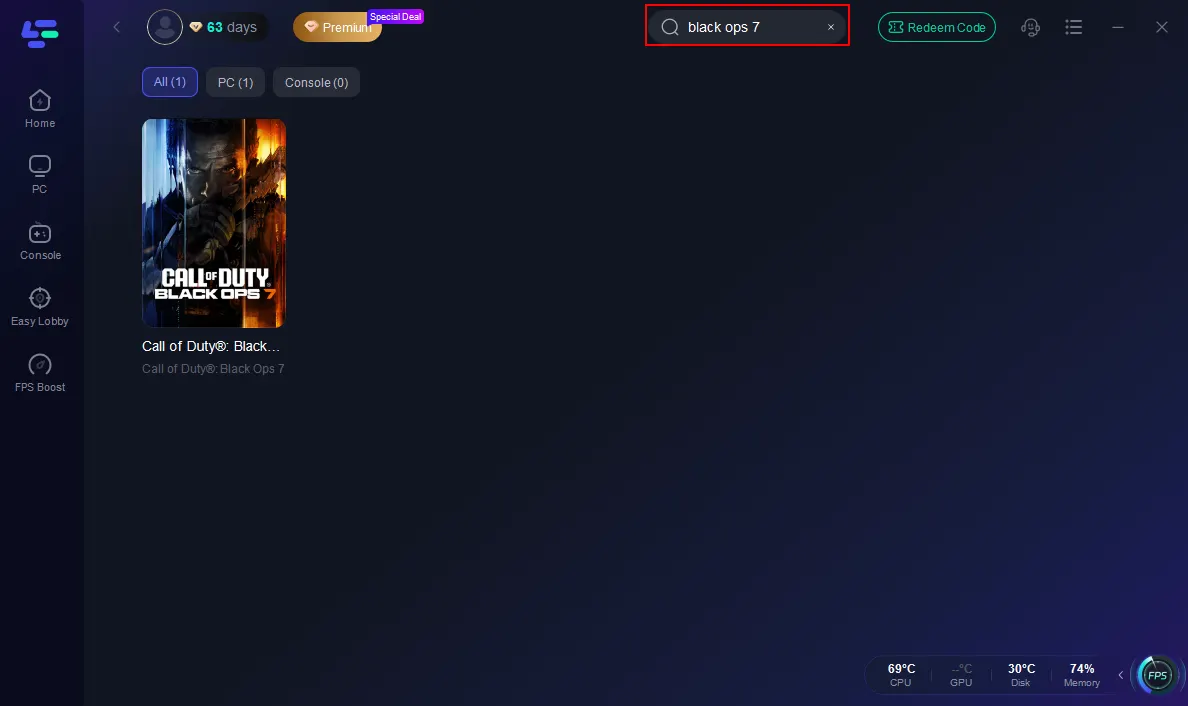
Step 2: Open LagoFast, then click the PC button on the left and search Black Ops 7 in the search bar, and click it after it appears.
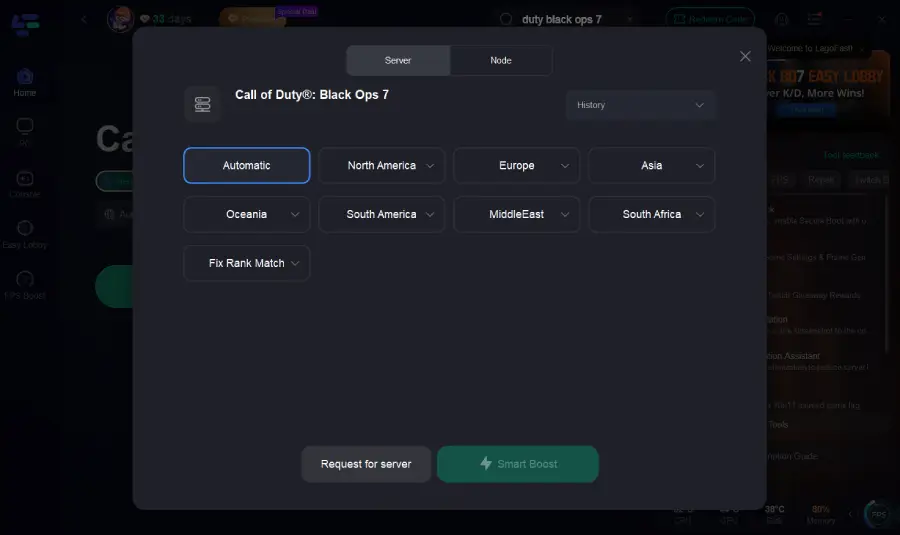
Step 3: Click on “Server” to change to a better server that ensures the Black Ops 7 gaming experience, then click on “Smart Boost”.
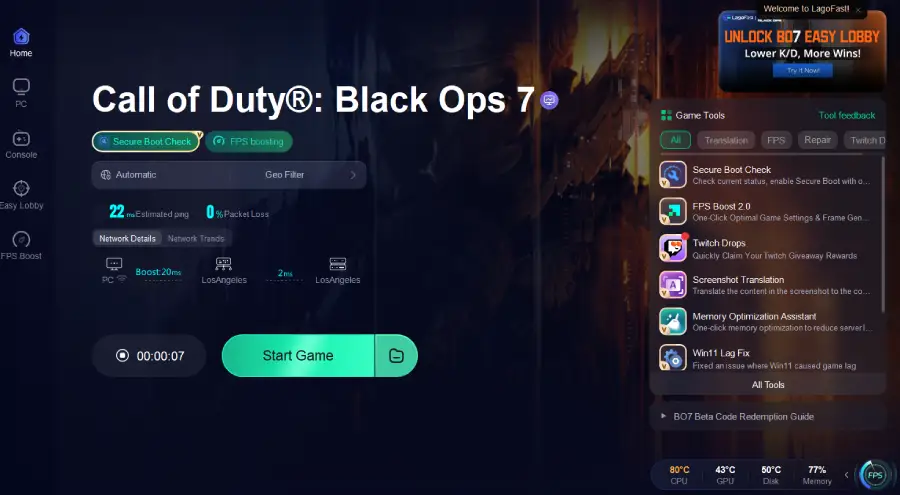
Step 4: Launch game and enjoy an enhanced gaming experience with reduced lag and improved stability.
Tutorial on using LagoFast Box to enhance your console gaming experience:
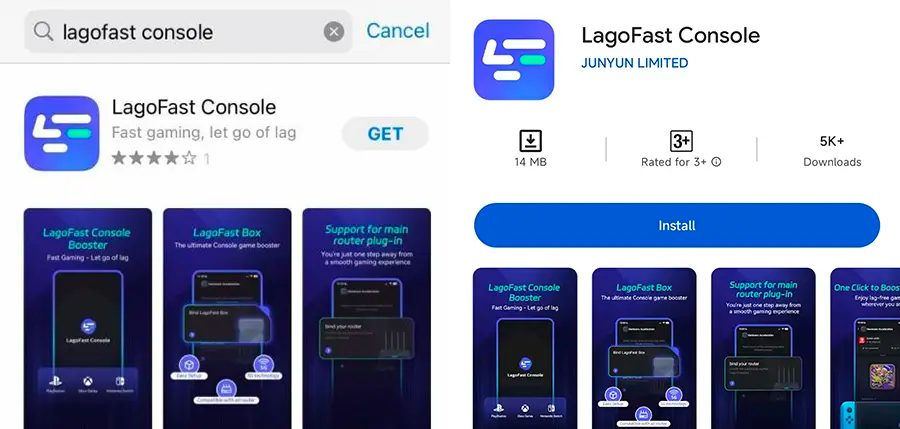
Step 1: Download the LagoFast Console App on your phone to control the LagoFast Box.
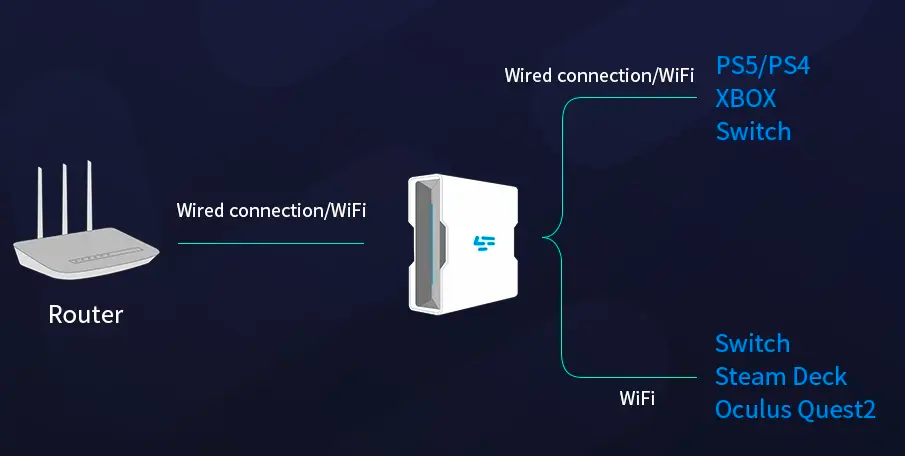
Step 2: Establish a connection between your LagoFast Box, router, and console, choosing between a wired or wireless connection.
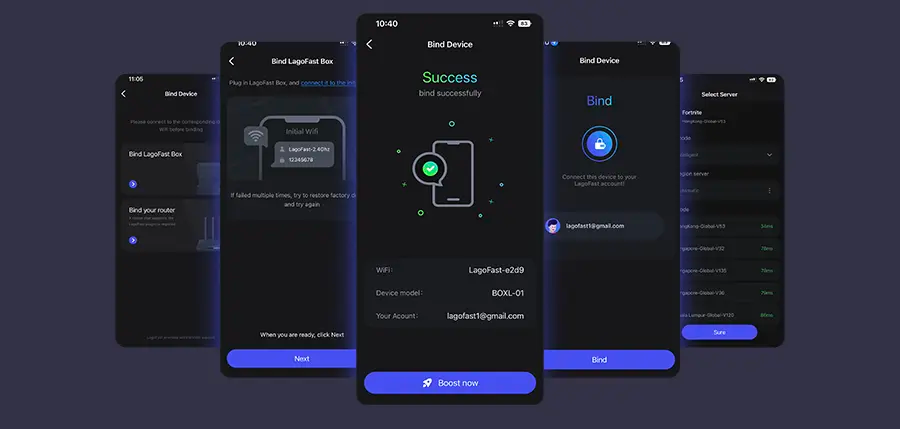
Step 3: Launch the LagoFast Console App and boost Black Ops 7. Once you have completed the binding process with the LagoFast Box, proceed to boost this game within the LagoFast Console App.
Related Article: Black Ops 7 Zombies – Full Overview, Maps, and Everything You Should Know
Part 3: How to Fix Call of Duty: Black Ops 7 Low FPS on PC
Solution 1: Update Drivers and Optimize Windows
Step 1. Open GeForce Experience (NVIDIA) or Adrenalin (AMD).
Step 2. Download and install the latest GPU drivers.
Step 3. Check for Windows updates and restart your system.
Step 4. Disable unnecessary startup apps via Task Manager.
Step 5. Reboot and relaunch Black Ops 7.
Solution 2: Adjust In-Game Graphics Settings
Step 1. Open Black Ops 7’s graphics menu.
Step 2. Set texture quality to High instead of Ultra.
Step 3. Turn off motion blur, film grain, and depth of field.
Step 4. Enable DLSS (NVIDIA) or FSR (AMD) for performance scaling.
Step 5. Lock FPS to 60/120 depending on monitor refresh rate.
Solution 3: Use Advanced System Optimization
Step 1. Right-click Black Ops 7’s .exe file and open properties.
Step 2. Enable “Disable fullscreen optimizations.”
Step 3. Set High Performance mode in Windows power settings.
Step 4. Allocate virtual memory manually to prevent RAM bottlenecks.
Step 5. Relaunch the game and test FPS stability.
Solution 4: Check Hardware Cooling & Overclocking
Step 1. Install MSI Afterburner or HWMonitor.
Step 2. Monitor GPU/CPU temps while gaming.
Step 3. Clean dust filters and ensure fans are running properly.
Step 4. Undervolt or slightly overclock GPU for stability.
Step 5. Apply changes and benchmark Black Ops 7 performance.
Part 4: How to Fix Call of Duty: Black Ops 7 Low FPS on Consoles
Xbox Solution 1: Clear Cache & Restart
Step 1. Turn off your Xbox completely (not Rest Mode).
Step 2. Unplug power cable for 30 seconds.
Step 3. Plug it back in and restart.
Step 4. Hold LT + RT + Y at startup to refresh the dashboard cache.
Step 5. Launch Black Ops 7 and test performance.
Xbox Solution 2: Enable Performance Mode
Step 1. Go to Settings → General → TV & Display Options.
Step 2. Select Refresh Rate and set to 120Hz (if supported).
Step 3. Open Game Settings → Black Ops 7.
Step 4. Choose “Performance Mode” instead of Resolution Mode.
Step 5. Restart the game and check smoother FPS.
PlayStation Solution 1: Rebuild Database
Step 1. Turn off the PlayStation fully.
Step 2. Hold the power button until two beeps to enter Safe Mode.
Step 3. Connect controller via USB.
Step 4. Select “Rebuild Database.”
Step 5. Restart and launch Black Ops 7.
PlayStation Solution 2: Optimize Storage & Performance Mode
Step 1. Delete unused games and apps to free up SSD space.
Step 2. Move Black Ops 7 to internal SSD if installed externally.
Step 3. Go to Settings → Saved Data and Game/App Settings.
Step 4. Choose “Game Presets” → Set Performance Mode by Default.
Step 5. Restart the console and play with smoother FPS.
Conclusion
Performance problems in Call of Duty: Black Ops 7 are frustrating, but they’re far from unsolvable. On PC, issues often come from outdated drivers, poor system optimization, or overheating hardware, while consoles typically struggle with cache build-up, storage speed, or not being set to performance mode. Manual fixes can certainly help, but for players looking for the quickest and most effective solution, LagoFast’s all-in-one FPS booster is the best option across PC, Xbox, and PlayStation. By following the steps in this guide, you can eliminate stuttering, prevent sudden FPS drops, and enjoy Black Ops 7 exactly how it’s meant to be played—smooth, fast, and competitive.
Boost Your Game with LagoFast for Epic Speed
Play harder, faster. LagoFast game booster eliminates stutter and lags on PC, mobile, or Mac—win every match!
Quickly Reduce Game Lag and Ping!
Boost FPS for Smoother Gameplay!