
Many players are running into the dreaded DirectX error in Call of Duty: Black Ops 7, which prevents the game from launching or causes crashes mid-session. This issue often appears as a pop-up stating that DirectX encountered an unrecoverable error. If you’ve faced this problem, don’t worry—there are multiple solutions to get you back into the game quickly.

- ✅ Reduce Lag and Boost FPS
✅ Ensure Stable Server Connection.
✅ Change Server without Latency.
✅ Fix Crashing and Stuck Errors.
✅ 0% Packet Loss Rate
✅ Boost Game Downloading Speed.
Part 1. Common Situations When DirectX Errors Happen
Part 2. What Causes the DirectX Error in Black Ops 7?
Part 3. Quick Fixes for Black Ops 7 DirectX Error
Part 4. Minimum System Requirements to Avoid Errors
Part 5. Fix Black Ops 7 DirectX Errors with LagoFast
Part 1. Common Situations When DirectX Errors Happen
Players have reported DirectX crashes in Black Ops 7 under a few specific circumstances:
- At Game Launch—the error appears before the menu even loads.
- During multiplayer matches—often triggered by sudden FPS drops or unstable connections.
- In Zombies Mode—heavy particle effects and high memory usage can cause rendering failures.
- After Game Updates—patches sometimes conflict with older GPU drivers, leading to new DirectX issues.
Recognizing when the error occurs makes it easier to apply the right fix.
Part 2. What Causes the DirectX Error in Black Ops 7?
The DirectX error in Black Ops 7 usually happens due to one or more of the following reasons:
- Outdated GPU drivers not fully compatible with the game.
- Corrupted DirectX files on your system.
- Incompatible graphics settings, such as forcing DirectX 12 on older hardware.
- Insufficient system resources like low VRAM or RAM.
- Conflicts with background applications that interfere with rendering.
Understanding the cause is the first step toward applying the right fix.
Part 3. Quick Fixes for Black Ops 7 DirectX Error
1. Update Your Graphics Drivers
Make sure your NVIDIA or AMD GPU drivers are updated to the latest version. Outdated drivers are the number one cause of DirectX-related crashes.
2. Reinstall or Update DirectX
Visit Microsoft’s official site to download and reinstall the DirectX End-User Runtime Web Installer, which replaces any corrupted or missing DirectX files.
3. Adjust In-Game Graphics Settings
Lowering certain settings can help:
- Switch from DirectX 12 to DirectX 11 if your hardware struggles.
- Reduce texture quality and disable ray tracing.
- Run the game in Windowed or Borderless mode for stability.
4. Verify Game Files
On Steam or Battle.net, use the Verify Integrity of Game Files or Scan and Repair function to fix any corrupted Black Ops 7 files.
5. Disable Background Overlays
Turn off overlays from apps like Discord, GeForce Experience, or Xbox Game Bar, as these can conflict with DirectX and cause errors.
6. Improve Network Stability with LagoFast
In some cases, unstable internet connections can trigger or worsen DirectX crashes in online modes. A game booster like LagoFast helps by
- Routing your traffic through optimized servers.
- Reducing ping spikes and packet loss.
- Ensuring smoother, more stable connections during gameplay.
Simply install LagoFast, search for Black Ops 7, choose the best server and node, and activate Smart Boost to minimize performance-related errors.
Preventing Future DirectX Errors
To avoid repeated crashes, make sure you:
- Regularly update GPU drivers and Windows updates.
- Keep Black Ops 7 patched with the latest updates from Activision.
- Use stable, boosted internet connections for multiplayer.
- Avoid forcing your hardware beyond its recommended graphics settings.
Part 4. Minimum System Requirements to Avoid Errors
Sometimes DirectX problems arise because the hardware simply doesn’t meet the game’s needs. To run Black Ops 7 smoothly, make sure your PC meets at least the following:
- OS: Windows 10 64-bit (latest update)
- Processor: Intel Core i5 / AMD Ryzen 5 or higher
- Memory: 8GB RAM (16GB recommended for multiplayer)
- Graphics: NVIDIA GTX 970 / AMD RX 480 or better
- DirectX: Version 12
- Storage: 100GB free space
If your system falls below these specs, crashes and black screens become much more likely.
Part 5. Fix Black Ops 7 DirectX Errors with LagoFast
When DirectX errors interrupt your Call of Duty: Black Ops 7 sessions, it’s not always just about drivers or graphics settings—unstable connections can also cause the game to crash or freeze. That’s where LagoFast Game Booster comes in, helping stabilize your network and smooth out performance issues.
How to Use LagoFast
Step 1: Download and install LagoFast on your device.
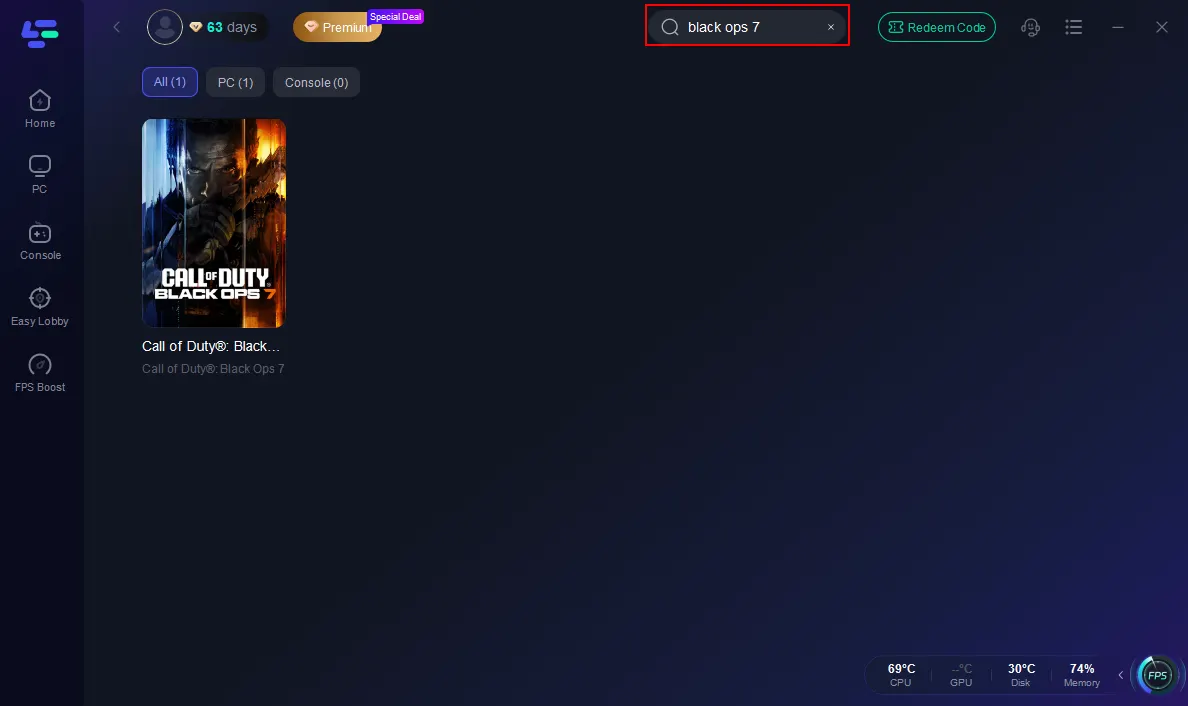
Step 2: Search for Black Ops 7 in the app before launching the game.
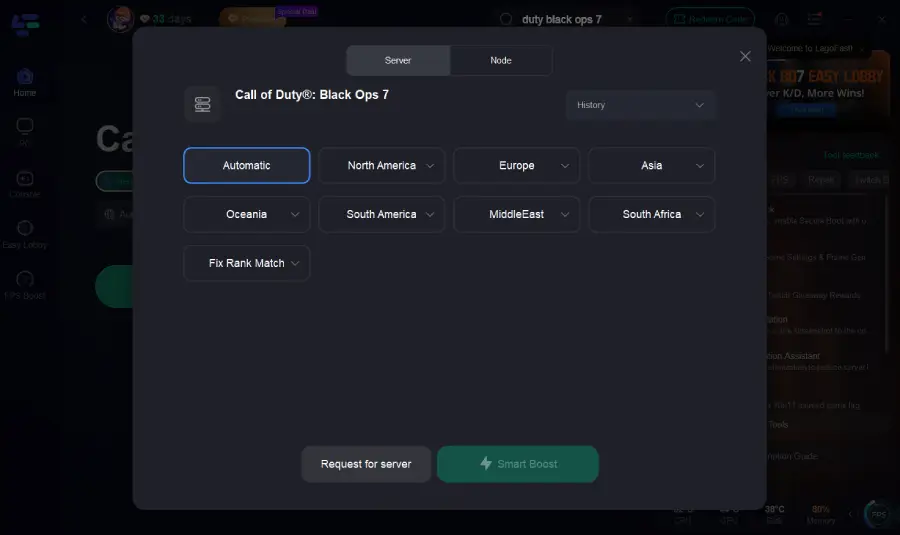
Step 3: Pick the best server and node for a more stable route.
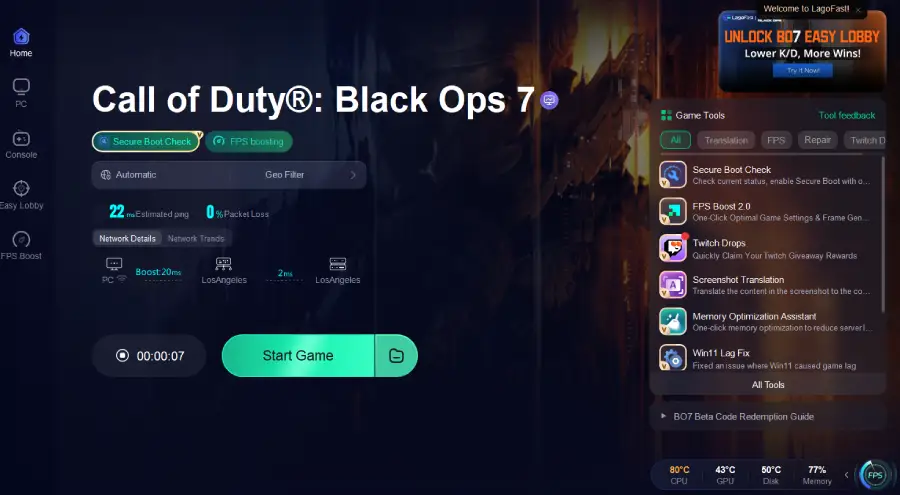
Step 4: Turn on Smart Boost to track ping, packet loss, and network type in real time.
Benefits of LagoFast
- Stabilizes the network to reduce crash triggers.
- Cuts down ping spikes and packet loss.
- Boosts loading speed and responsiveness.
- Simple setup for PC and console players.
By following these quick steps, LagoFast not only helps eliminate the network-related causes of DirectX errors in Black Ops 7, but also improves the overall stability of your gaming environment. Instead of dealing with random crashes, stutters, or failed launches, you’ll enjoy smoother startup sequences and more consistent in-game performance. LagoFast’s optimized routing ensures your data takes the fastest, most reliable path, reducing the chance of packet loss or lag spikes that can trigger DirectX crashes.
Conclusion
Running into a DirectX error in Call of Duty: Black Ops 7 can be frustrating, but the fixes are straightforward. Updating drivers, reinstalling DirectX, lowering graphics settings, and optimizing your connection with tools like LagoFast can quickly resolve the problem. By staying on top of updates and system performance, you’ll minimize crashes and enjoy smoother gameplay across campaign, multiplayer, and Zombies modes.

Boost Your Game with LagoFast for Epic Speed
Play harder, faster. LagoFast game booster eliminates stutter and lags on PC, mobile, or Mac—win every match!
Quickly Reduce Game Lag and Ping!
Boost FPS for Smoother Gameplay!