
Running into a black screen in Call of Duty: Black Ops 7 is one of the most frustrating issues players face. Whether it happens at launch, during the campaign, or while loading into multiplayer, the black screen bug can stop you from enjoying the game altogether. The good news is that there are several proven fixes to resolve this issue and get you back into the action.

- ✅ Reduce Lag and High Ping.
- ✅ Boost FPS at the Same Time.
- ✅ Ensure Stable Server Connection.
- ✅ Change Server without Latency.
- ✅ Fix Crashing and Stuck Errors.
- ✅ 0% Packet Loss Rate
- ✅ Boost Game Downloading Speed.
Part 1: Why Does Black Ops 7 Show a Black Screen?
Part 2: Quick Fixes for the Black Screen Issue
Part 3: Additional Solutions for PC and Console
Part 4: Preventing Future Black Screen Issues
Part 5: Common Scenarios Where Black Ops 7 Shows a Black Screen
Part 6: How to Prevent Black Screen Errors in Black Ops 7
Part 7: Solve Black Ops 7 Black Screen with LagoFast
Part 1: Why Does Black Ops 7 Show a Black Screen?
The Black Ops 7 black screen problem can be triggered by different causes:
- Outdated graphics drivers that can’t handle the latest game updates.
- Corrupted or missing game files preventing proper loading.
- Overlay conflicts from apps like Discord, Nvidia GeForce Experience, or Steam.
- Unstable internet connections that interrupt online authentication or loading.
- System performance issues such as insufficient RAM or background apps consuming resources.
Understanding the cause helps narrow down the right fix.
You May Like: How to Fix Call of Duty: Black Ops 7 Slow Download Speed - 100% Work
Part 2: Quick Fixes for the Black Screen Issue
1. Update Your Graphics Drivers
Outdated GPU drivers are one of the top reasons for black screen crashes. Check for updates via:
- NVIDIA GeForce Experience (for NVIDIA cards).
- AMD Adrenalin Software (for AMD cards).
2. Verify and Repair Game Files
Corrupted files can stop the game from loading correctly. Use the Verify Integrity option on Steam or the Scan and Repair tool on Battle.net to fix damaged files.
3. Disable Overlays
Close overlays from apps like Discord, Xbox Game Bar, or GeForce Experience. These overlays often conflict with Black Ops 7, leading to crashes or black screens.
4. Run the Game as Administrator
Right-click on the Black Ops 7 launcher and select Run as Administrator. This bypasses permission issues that sometimes cause loading errors.
5. Optimize Your Network with LagoFast
Sometimes, the black screen in Black Ops 7 occurs due to poor internet routing or unstable servers. Using LagoFast Game Booster can help:
- Routes your connection through optimized servers.
- Reduces ping and packet loss.
- Stabilizes network performance during startup and gameplay.
Simply install LagoFast, search for Black Ops 7, select the most stable server and node, then enable Smart Boost to enjoy smoother gameplay.
Hot Related: Is Black Ops 7 Cross Platform?
Part 3: Additional Solutions for PC and Console
- Clear cache on PC, PS5, PS4, or Xbox by restarting and power cycling.
- Lower in-game graphics settings to reduce strain on your system.
- Reinstall the game if all else fails to ensure a clean installation.
Part 4: Preventing Future Black Screen Issues
To minimize the chance of running into this bug again:
- Keep your system drivers updated.
- Ensure you always install the latest Call of Duty patches.
- Use a stable, boosted internet connection for online modes.
- Regularly restart your PC or console to clear background processes.
Part 5: Common Scenarios Where Black Ops 7 Shows a Black Screen
The black screen issue in Black Ops 7 can appear in different situations depending on the platform and game mode:
- At Launch: The game opens but remains black before the main menu appears.
- During Loading Screens: Occurs while entering multiplayer matches or Zombies mode.
- After Updates or Patches: Sometimes new updates can cause temporary incompatibilities with drivers or system files.
- On PC or Consoles: Both platforms can experience black screen errors, though PC users are more likely to encounter driver or overlay-related causes.
Identifying when the black screen happens helps you apply the right fix more efficiently.
Part 6: How to Prevent Black Screen Errors in Black Ops 7
Preventing future black screen problems ensures uninterrupted gaming sessions. Here are some tips:
- Keep your graphics drivers updated to the latest version.
- Install all game updates and patches as soon as they are released.
- Use a game booster like LagoFast to maintain a stable connection and reduce network-related crashes.
- Limit background applications that may interfere with the game.
- Regularly restart your system to clear temporary files and memory caches.
By following these preventive measures, you can enjoy a smoother Black Ops 7 experience and minimize downtime caused by black screen errors.
Part 7: Solve Black Ops 7 Black Screen with LagoFast
If you’re experiencing a black screen in Call of Duty: Black Ops 7, unstable connections or high ping may be part of the problem. LagoFast Game Booster helps optimize your network, stabilize your connection, and reduce issues that can cause the game to freeze or fail to load.
Benefits of Using LagoFast
- Reduces lag and freezes during game startup.
- Ensures stable server connections for faster loading.
- Optimizes network routing to prevent black screen issues.
- Supports both PC and console players with easy setup.
How to Use LagoFast on PC
Step 1: Click the Free Trial button to download and install LagoFast.
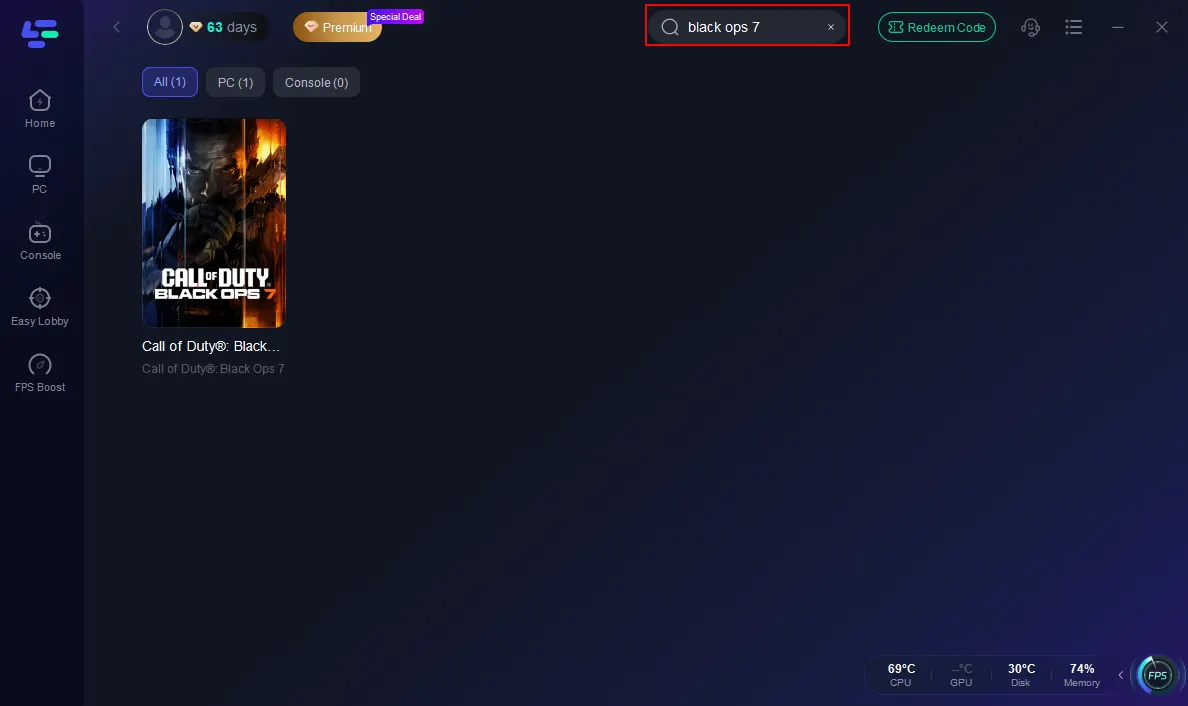
Step 2: Open LagoFast, then click the PC button on the left and search Black Ops 7 in the search bar, and click it after it appears.
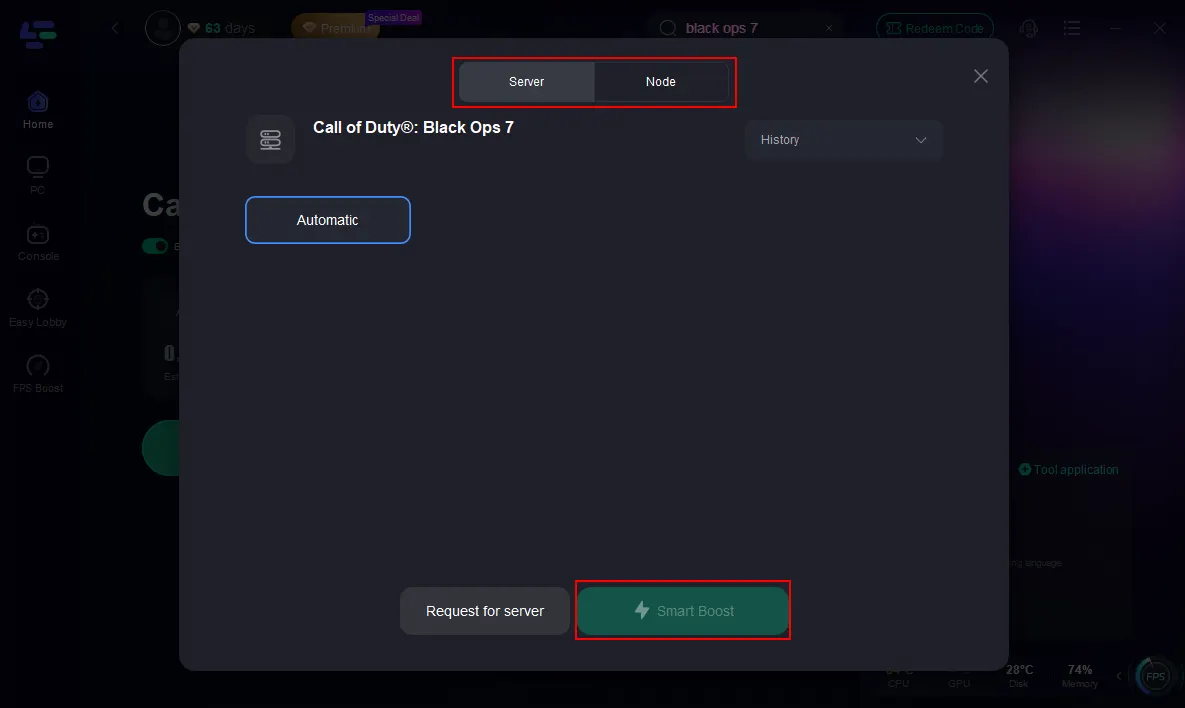
Step 3: Click on “Server” to change to a better server that ensures the Black Ops 7 gaming experience, then click on “Smart Boost”.
Step 4: Launch the game and enjoy an enhanced gaming experience with reduced lag and improved stability.
Console Gaming with LagoFast Box
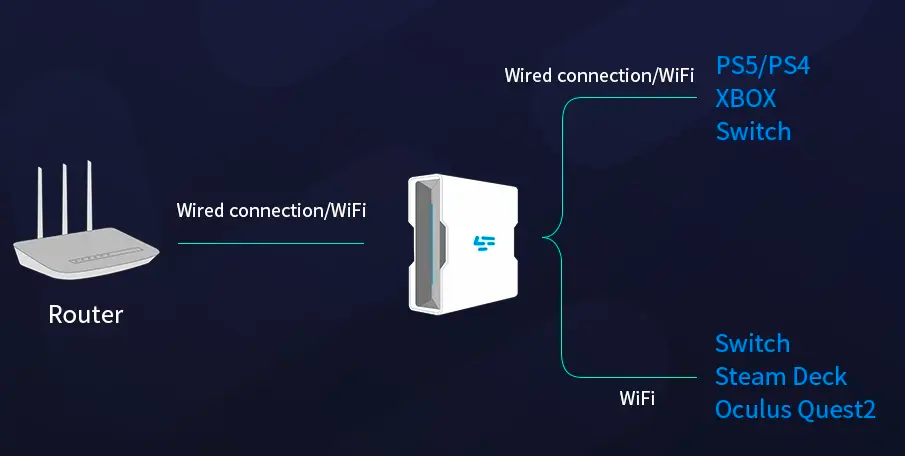
For PS5, PS4, and Xbox users, LagoFast also provides the LagoFast Box. This hardware device connects directly to your console and router, optimizing your game traffic automatically. It ensures console players get the same stability benefits as PC users without needing to install extra software. Setup is simple: plug in the Box, link it via the LagoFast app, and enjoy smoother, more reliable online sessions.
Step 1: Download the LagoFast Console App on your phone to control the LagoFast Box.
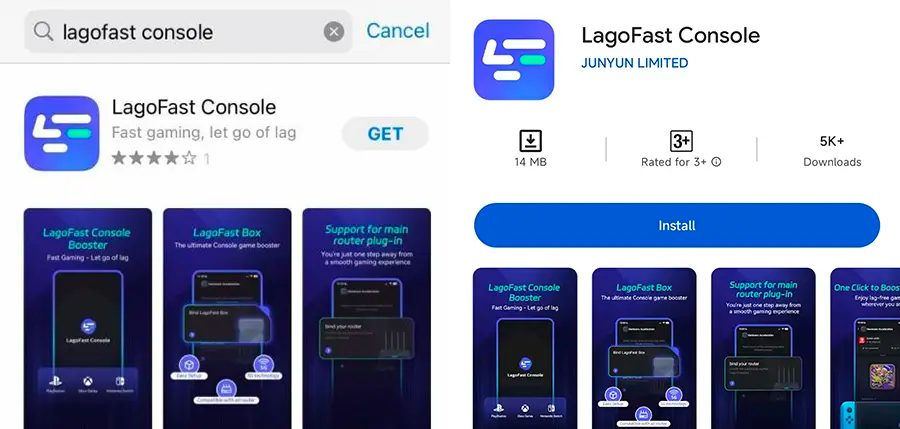
Step 2: Establish a connection between your LagoFast Box, router, and console, choosing between a wired or wireless connection.
Step 3: Launch the LagoFast Console App and boost Black Ops 7. Once you have completed the binding process with the LagoFast Box, proceed to boost this game within the LagoFast Console App.
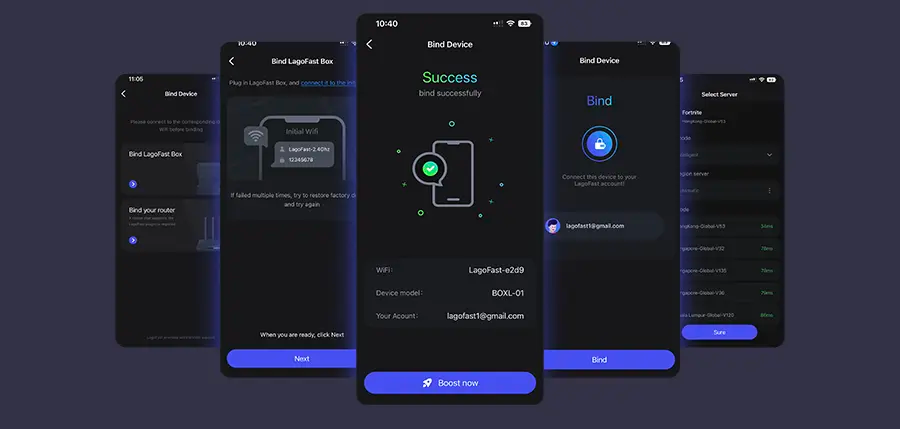
By following these simple steps, LagoFast not only helps you bypass connection-related black screen problems but also optimizes your overall gaming experience. It intelligently routes your data through the most stable and fastest servers, reducing latency, packet loss, and network interruptions that often cause the game to freeze or fail to load. With real-time monitoring via the Smart Boost feature, you can see your ping and network performance at a glance, ensuring that any potential issues are addressed before they affect gameplay.
Conclusion
If you’re stuck with a black screen in Call of Duty: Black Ops 7, don’t panic. By updating drivers, repairing files, disabling overlays, and improving your internet connection with tools like LagoFast, you can resolve the issue quickly. Stay on top of updates and system maintenance, and you’ll enjoy smoother, uninterrupted gameplay across campaign, multiplayer, and Zombies modes.
Boost Your Game with LagoFast for Epic Speed
Play harder, faster. LagoFast game booster eliminates stutter and lags on PC, mobile, or Mac—win every match!
Quickly Reduce Game Lag and Ping!
Boost FPS for Smoother Gameplay!