
Burglin' Gnomes has quickly become a standout indie title, blending chaotic co-op mechanics with the hilarious premise of tiny gnomes raiding human houses. While the game's charm is undeniable, many players have encountered frustrating performance issues, ranging from micro-stutters during high-intensity heists to significant network latency in online lobbies. Nothing ruins a stealthy mission for the High-Gnome faster than a sudden lag spike just as you’re about to secure your haul. If you are struggling with choppy gameplay, this guide provides the definitive solutions to stabilize your connection and boost your frame rate.

- ✅ Reduce Lag and High Ping.
- ✅ Boost FPS at the Same Time.
- ✅ Support 8000+ Popular Online Games.
- ✅ Support Easy Lobby in all Cod Games without Lag
Part 1: Quick Answer: 3 Fast Ways to Fix Burglin' Gnomes Lag
Part 2: Why Does Burglin' Gnomes Lag Happen?
Part 3: How to Fix Burglin' Gnomes Lag—Top Quick Solutions
Part 1: Quick Answer: 3 Fast Ways to Fix Burglin' Gnomes Lag
If you want to get back into the action immediately, here are the three most effective ways to eliminate lag:
- Use LagoFast Game Booster: The most efficient way to eliminate network congestion and optimize your PC for peak gaming performance automatically.
- Verify Game Files and Update Drivers: Ensure your GPU drivers are current and that Steam has correctly installed all necessary game assets to prevent a`sset-loading stutters.
- Change Power Management Settings: Windows will limit the hardware performance to save energy, that’s why the lag occurs, therefore, changing the power management settings can quickly fix some lag issues.
Part 2: Why Does Burglin' Gnomes Lag Happen?
Understanding the root cause of the problem is the first step toward a permanent fix. Because Burglin' Gnomes is an online co-op game with physics-based interactions (like grabbing and throwing household items), it is highly sensitive to both network stability and hardware performance.
- Network Congestion: If your data packets have to travel through crowded public routes, you will experience "high ping," causing your gnome to lag behind other players.
- Server Distance: Connecting to a lobby hosted in a different region often results in noticeable delay.
- CPU/GPU Bottlenecks: The game’s random house generation and physics calculations can be taxing. If your background processes are eating up resources, your FPS will drop, making the game feel "heavy."
- Unoptimized Game Cache: Over time, temporary files and shader caches can become corrupted, leading to micro-stutters during gameplay.
Part 3: How to Fix Burglin' Gnomes Lag—Top Quick Solutions
Although there are many methods players can select, LagoFast is the most efficient and fastest way to fix this issue. If you don't want to spend most of time on manual fixing process. Don’t hesitate to use LagoFast.
The Ultimate One-Click Solution: LagoFast
When it comes to competitive co-op, manual troubleshooting can be time-consuming and often fails to address deep-rooted network routing issues. This is where LagoFast stands out as the best game booster for Burglin' Gnomes. It uses a global network of dedicated nodes to find the fastest, most stable path to the game server. LagoFast can quickly fix Burglin' Gnomes lag by reducing ping spikes and eliminating packet loss in real-time. Beyond the network, it features a specialized FPS boost tool that optimizes your system resources with a single click.
Key Features of LagoFast:
- One-Click Crash Fix: Automatically repairs common connection errors and prevents game crashes during transitions.
- Real-Time FPS Boost: Clears background processes and optimizes CPU/GPU allocation to ensure a stable frame rate.
- Global Server Nodes: Access to over 3000+ servers to ensure a low-latency connection regardless of your location.
- Multi-Path Connection: Simultaneously uses multiple data paths to avoid congestion and prevent sudden disconnections.
While LagoFast is faster and more effective than manual methods because it automates the complex optimization process, you can also try these manual steps to help stabilize your environment.
Tutorial to Use LagoFast to Fix Burglin' Gnomes Lag:
Step 1: Click the Free Trial button to download and install LagoFast.
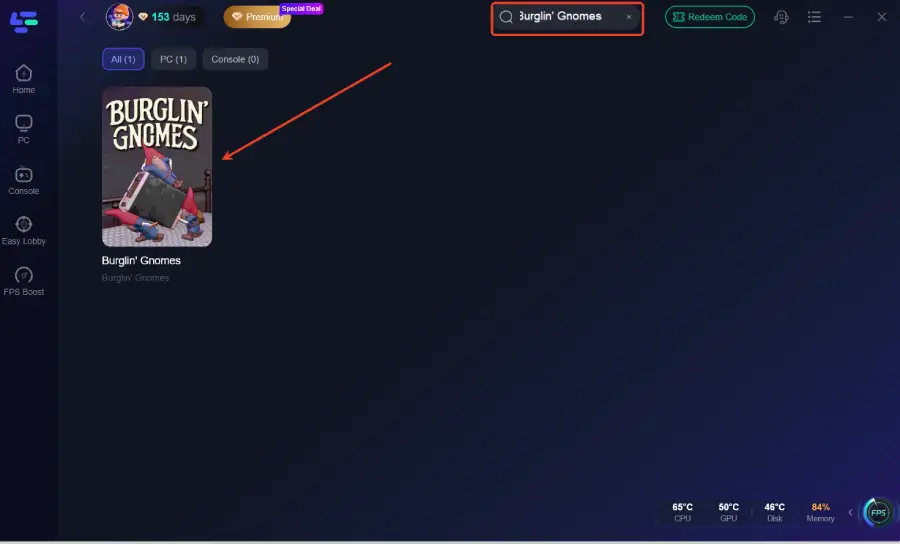
Step 2: Open LagoFast, then click the PC button on the left and search for Burglin' Gnomes in the search bar, and click it after it appears.
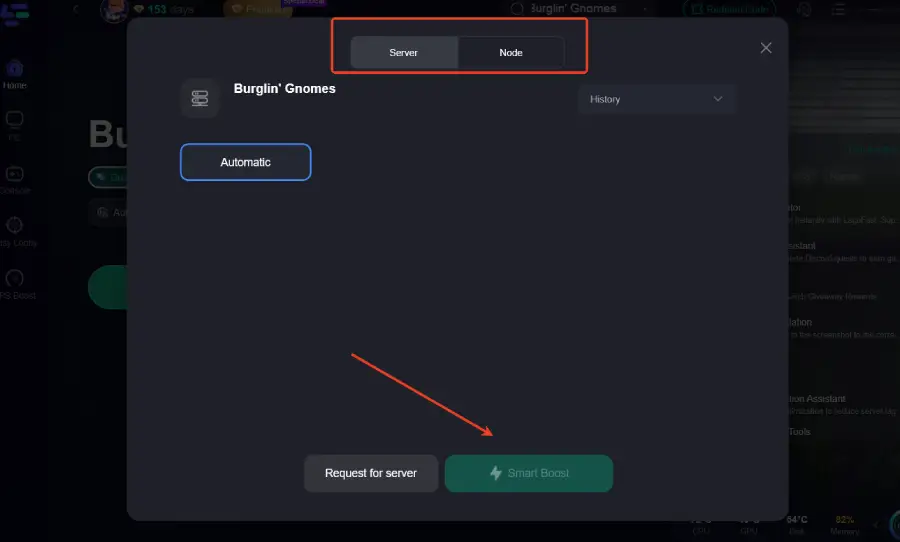
Step 3: Click on “Server” to change to a better server that ensures a better gaming experience, then click on “Smart Boost” to fix the lag issue.
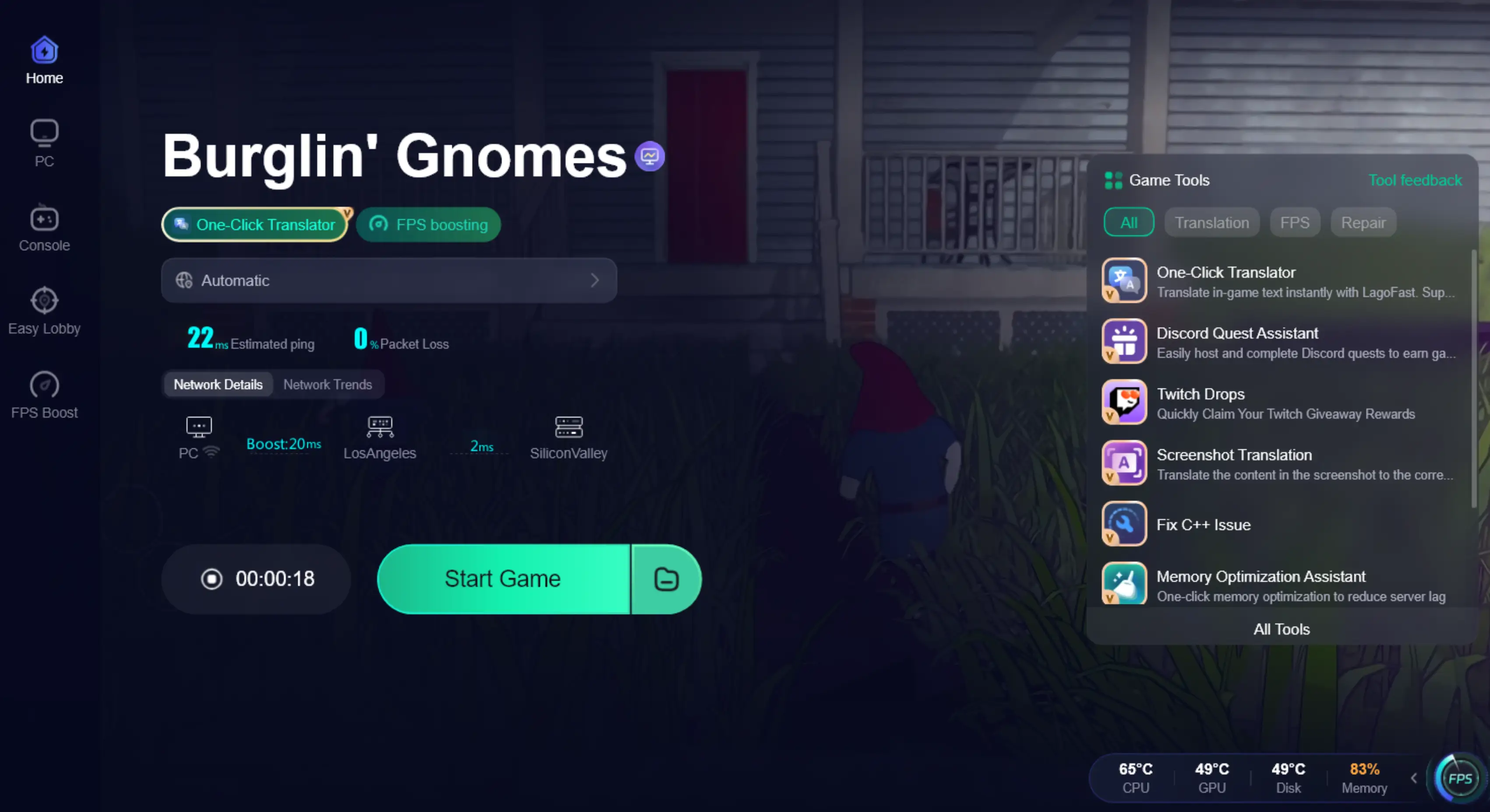
Step 4: Check the specific game ping, packet loss, and multiple path connections on the right side. Finally, click the “Start Game” to play the game.
Solution A: Change Power Management Settings
Windows often limits your hardware performance to save energy, which can cause significant stuttering in physics-heavy games.
Step 1. Press the Windows Key and type "Control Panel."
Step 2. Navigate to Hardware and Sound and select Power Options.
Step 3. Look for the High Performance or Ultimate Performance plan.
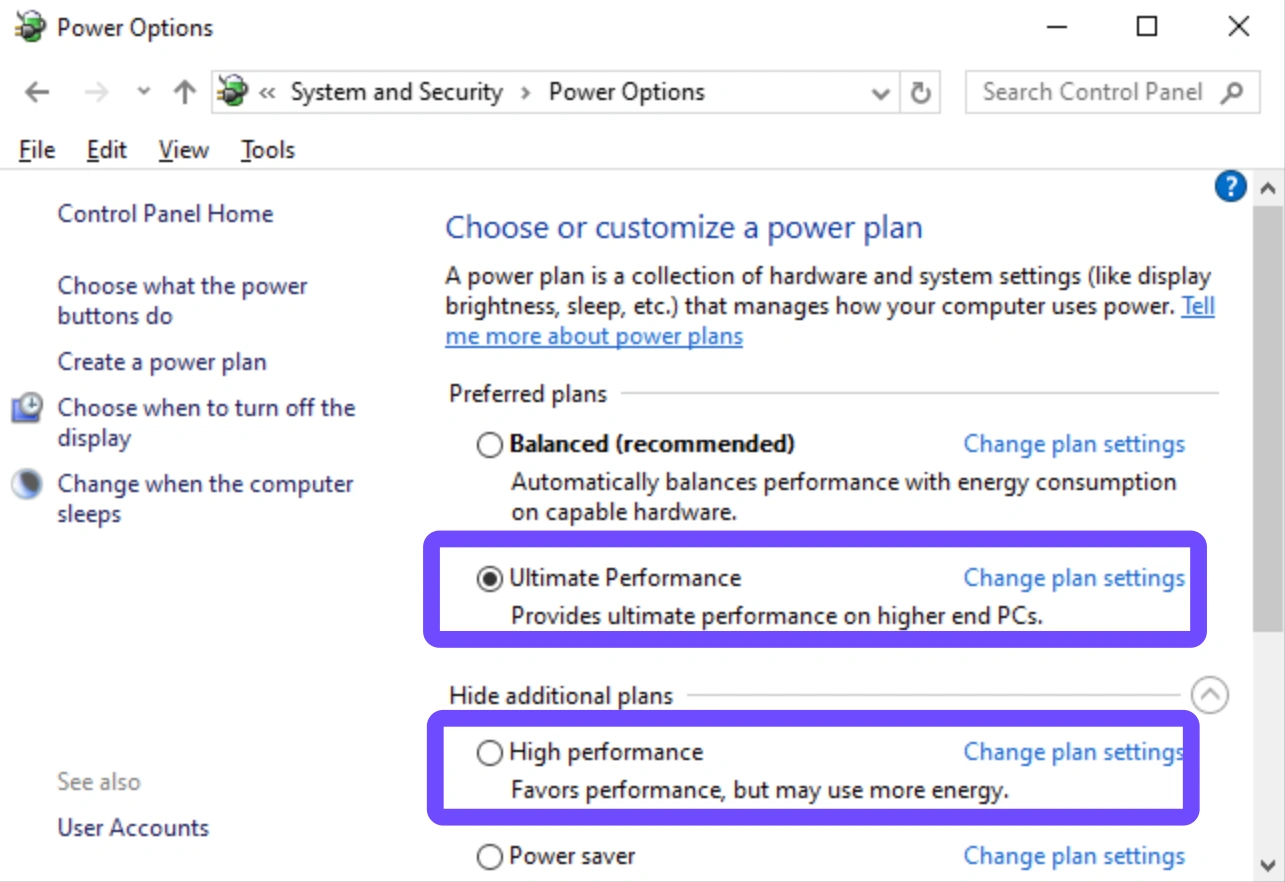
Step 4. Select this plan to ensure your CPU and GPU aren't being throttled.
Step 5. Restart your computer to apply the changes.
Solution B: Update Graphics Drivers
Outdated drivers are a primary cause of visual glitches and low FPS in newer titles like Burglin' Gnomes.
Step 1. Right-click the Start button and select Device Manager.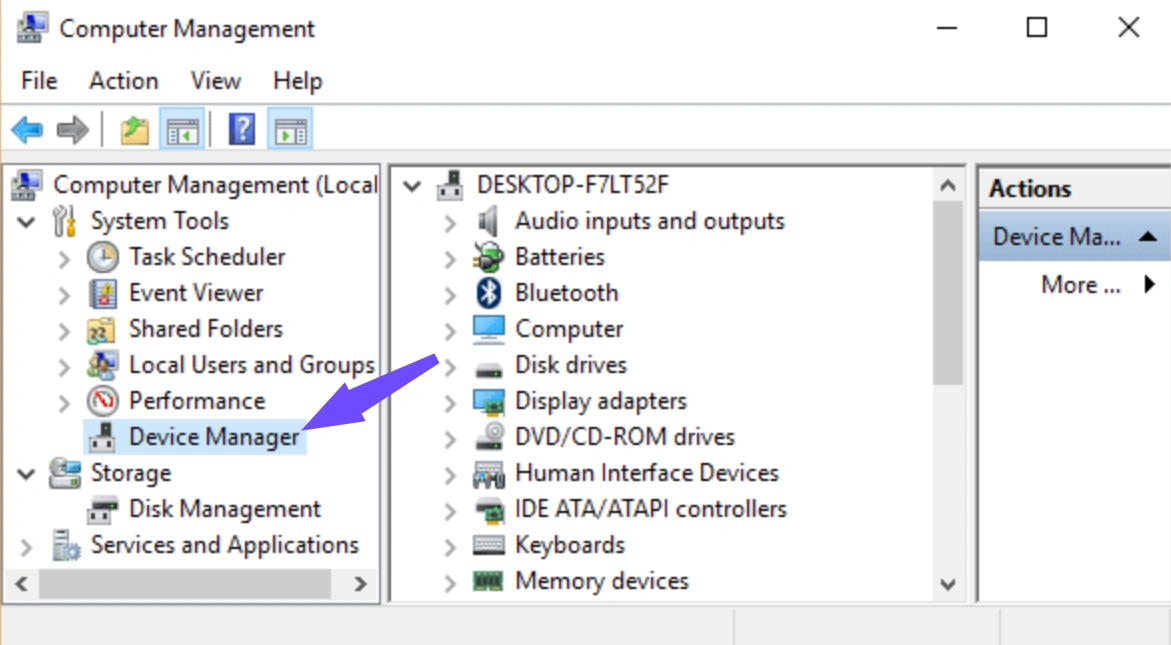
Step 2. Expand the Display adapters section.
Step 3. Right-click your graphics card (NVIDIA, AMD, or Intel) and select Update driver.
Choose Search automatically for drivers or download the latest version directly from the manufacturer’s website.
Step 4. Once installed, restart the game to see if the stuttering persists.
Solution C: Flush DNS and Reset IP
Network "junk" can accumulate in your system's cache, leading to "failed to connect" errors or high latency in online lobbies.
Step 1. Type "cmd" in the Windows search bar and Run as Administrator.
Step 2. Type ipconfig /flushdns and press Enter.
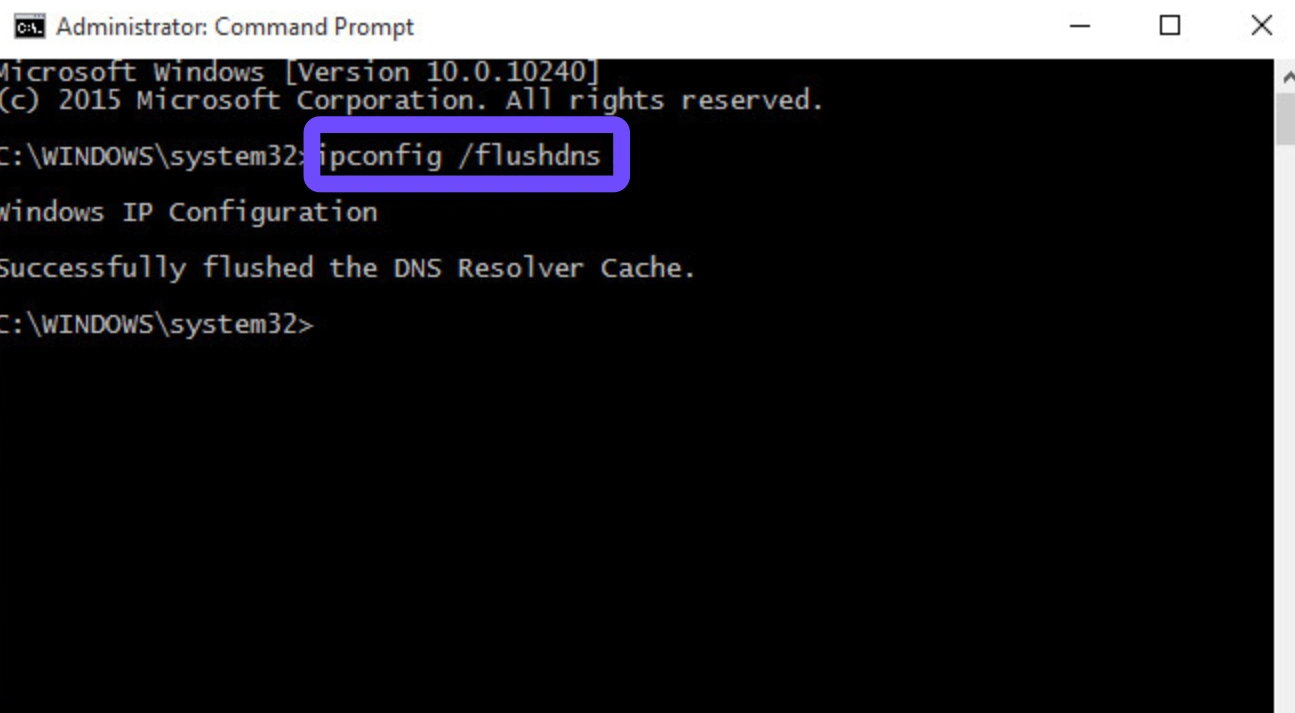
Step 3. Type ipconfig /release and press Enter.
Step 4. Type ipconfig /renew and press Enter.
Step 5. Finally, type netsh winsock reset and restart your PC to refresh your network stack.
Solution D: Verify Steam Game Files
Corrupted game data can cause specific lag spikes when certain assets (like new house layouts) are loaded.
Step 1. Open your Steam Library.
Step 2. Right-click on Burglin' Gnomes and select Properties.
Step 3. Go to the Installed Files tab.
Step 4. Click on Verify integrity of game files.
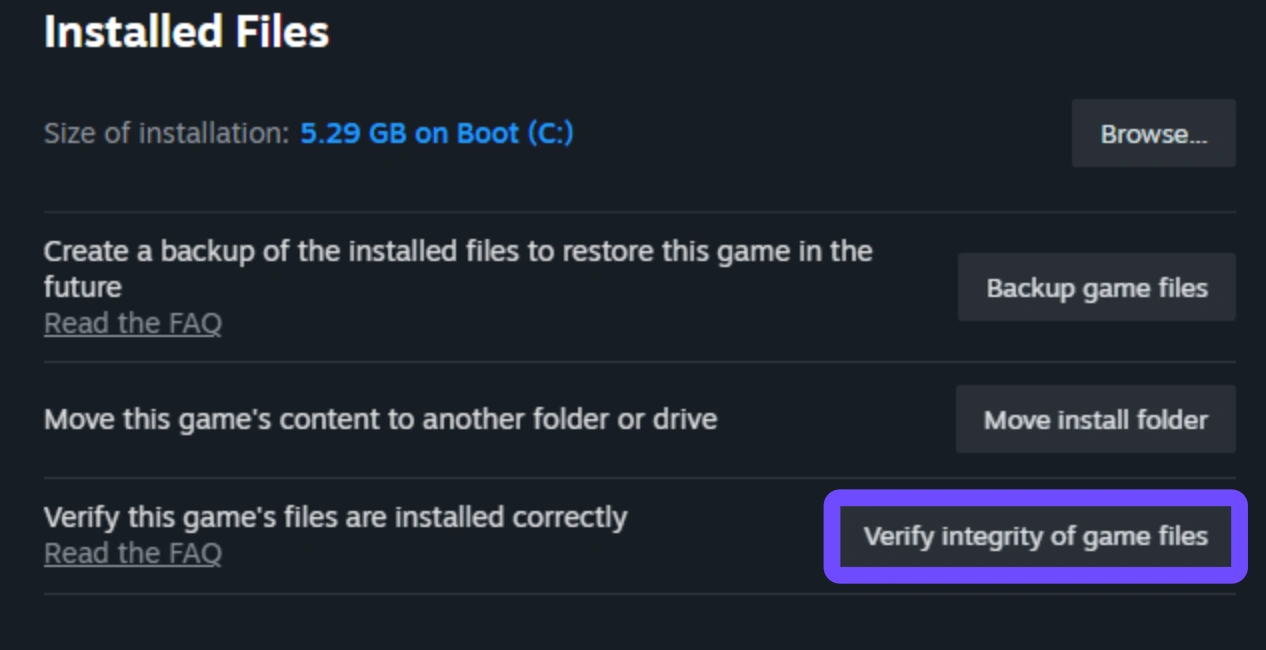
Step 5. Wait for Steam to scan and redownload any missing or broken data.
Solution E: Disable Full-Screen Optimizations
Some Windows features intended to help actually interfere with how the game engine interacts with your monitor.
Step 1. Go to the folder where Burglin' Gnomes is installed (usually in Steamapps/common).
Step 2. Right-click the game's .exe file and select Properties.
Step 3. Navigate to the Compatibility tab.
Step 4. Check the box that says Disable full-screen optimizations.
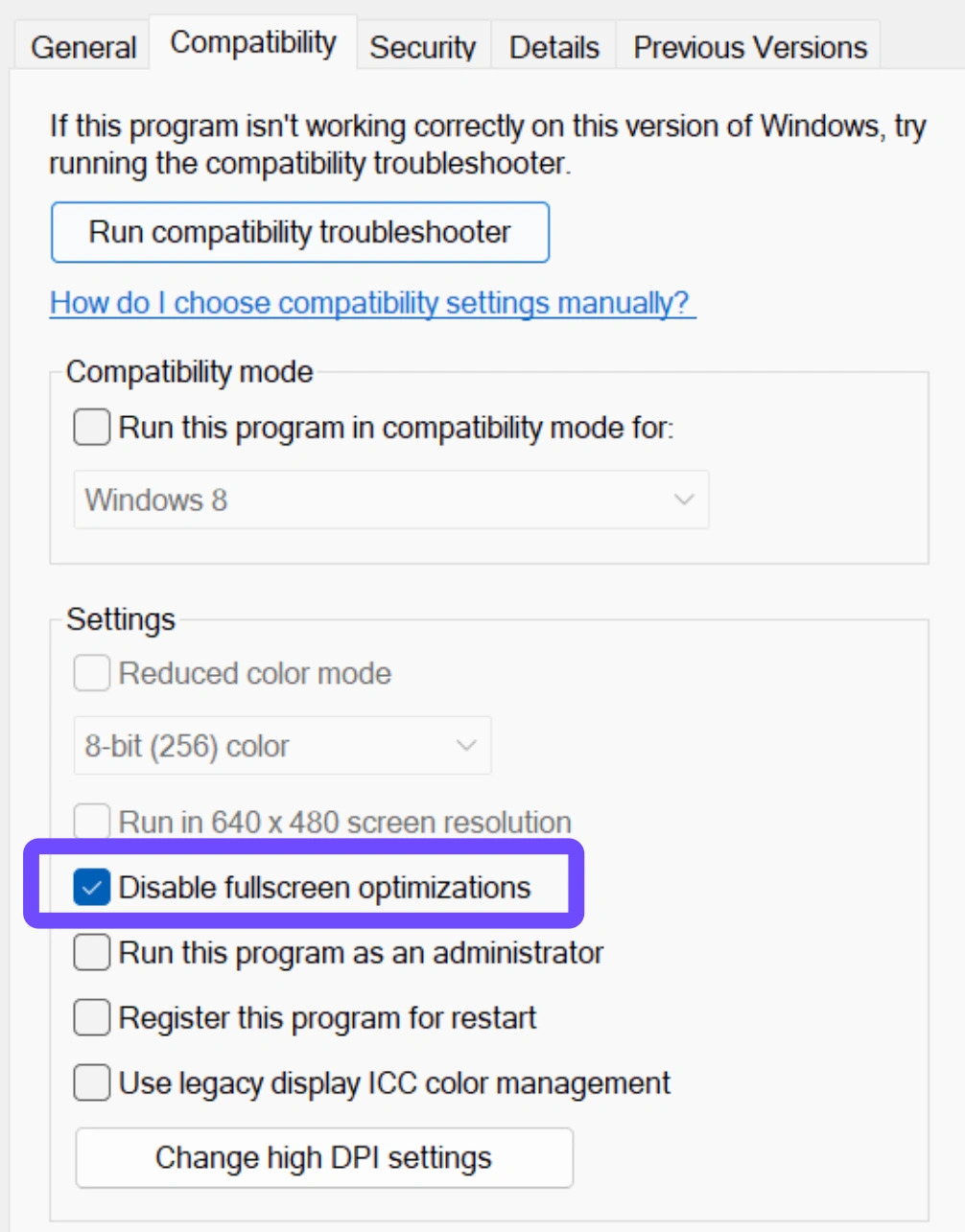
Step 5. Click Apply and launch the game directly from the executable.
Conclusion
Dealing with Burglin' Gnomes lag is a frustration no player should have to face, especially when the High-Gnome’s quota is on the line. While manual fixes like updating drivers or verify game files can provide some relief, they often require constant maintenance and don't solve the core issue of poor network routing. For a permanent, hassle-free experience, using a dedicated tool like LagoFast is the most efficient way to ensure your connection remains rock-solid and your FPS stays high. Don't let technical issues stop your heist and optimize your setup today!
Boost Your Game with LagoFast for Epic Speed
Play harder, faster. LagoFast game booster eliminates stutter and lags on PC, mobile, or Mac—win every match!
Quickly Reduce Game Lag and Ping!
Boost FPS for Smoother Gameplay!