
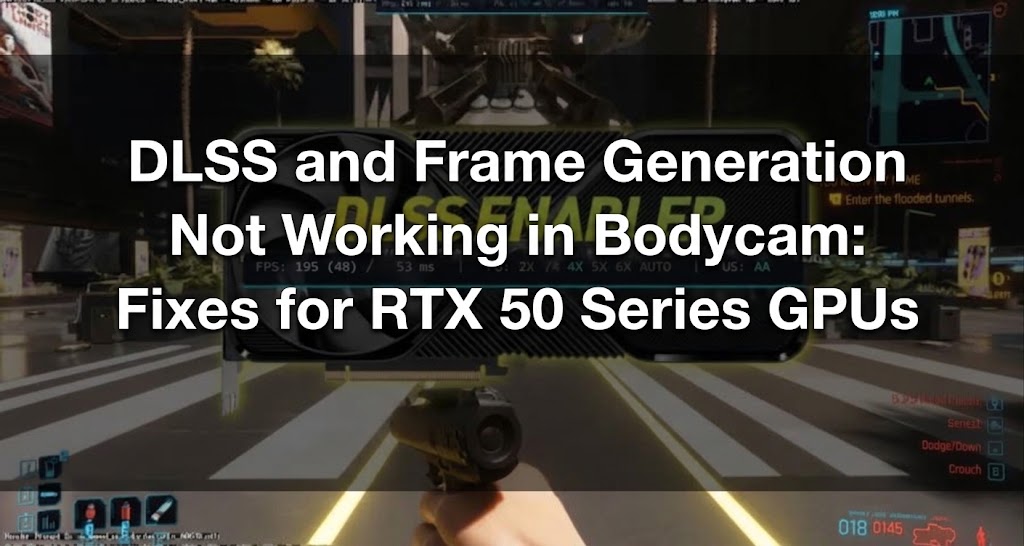
Players using RTX 50 series graphics cards, including the RTX 5080, are currently reporting another issue in Bodycam:
The game launches normally, but DLSS and Frame Generation do not work correctly.
One RTX 5080 owner reported that:
- DLSS could not be enabled;
- Frame Generation could not be enabled;
- Restarting the game did not initially appear to fully resolve the problem;
- NVIDIA App reported that Bodycam did not support DLSS and Frame Generation;
- The same graphics card worked normally in other games.
Another RTX 5080 owner also reported that Bodycam looked noticeably worse than expected, even though the graphics settings appeared to be normal.
So, if you are experiencing Bodycam DLSS not working on your RTX 5080, do not immediately assume that your graphics card does not support DLSS or Frame Generation.

- ✅ Reduce Lag and High Ping.
- ✅ Boost FPS at the Same Time.
- ✅ Support 8000+ Popular Online Games.
- ✅ Stable connections and region switching
Solution 1. Deploy DLSS 5 for Bodycam with LagoFast
If Bodycam is not correctly using the required DLSS files, LagoFast provides a one-click DLSS 5 deployment tool for the game.
This eliminates the need to manually download DLSS files and replace DLL files yourself.
How to Deploy DLSS 5 in Bodycam
1. Download and open LagoFast.
2. Search for Bodycam.
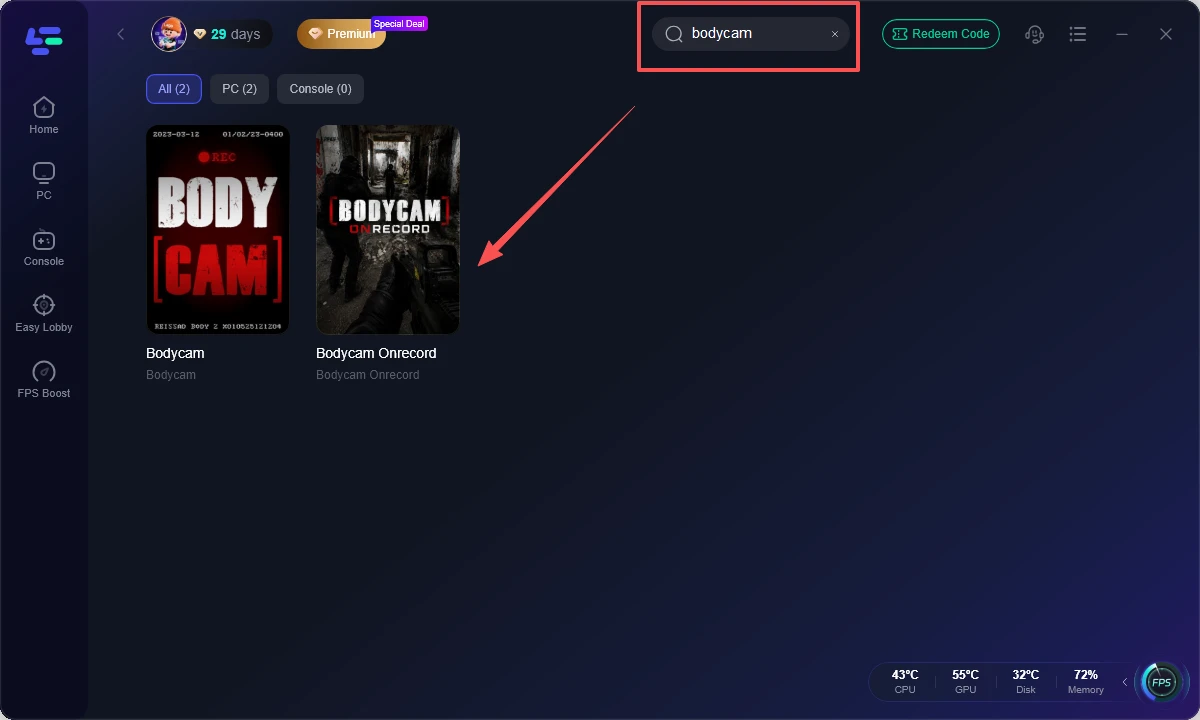
3. Open the Bodycam game page.
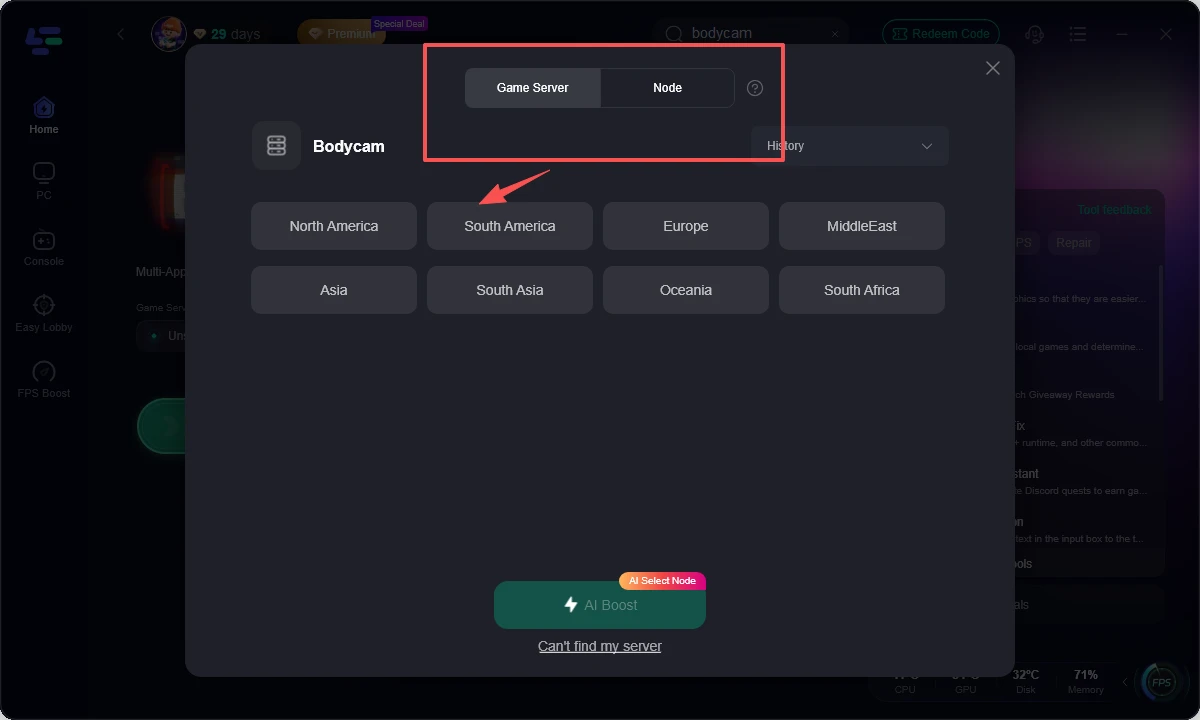
3. Go to Game Tools.
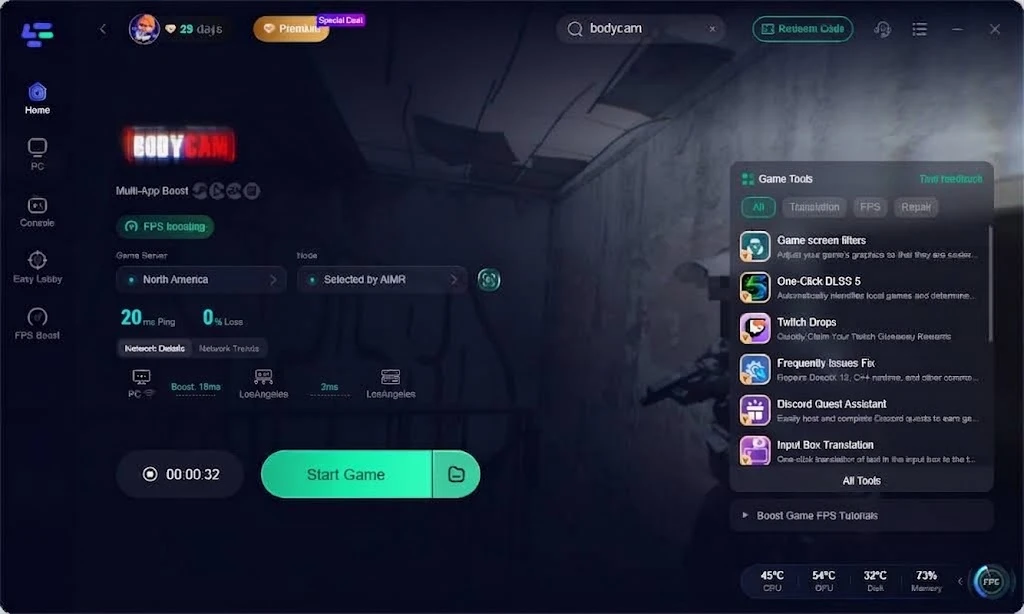
4. Find the DLSS 5 tool.
5. Click to deploy DLSS 5.
6. Wait for the process to finish.
7. Launch Bodycam.
8. Open the graphics or image settings.
9. Enable DLSS and check the game again.
This can be particularly useful if:
- DLSS refuses to turn on;
- NVIDIA App reports that Bodycam does not support DLSS;
- you have an RTX 50 series graphics card but the option does not work correctly;
- Bodycam is blurry with DLSS or looks visually worse than expected even with normal graphics settings.
Solution 2. Restart Bodycam After Enabling Frame Generation
One player found a very simple workaround for the Bodycam frame generation not working issue:
Restart the game.
According to the player, Frame Generation started working after completely restarting Bodycam.
Try the following steps:
- Open Bodycam.
- Enable Frame Generation.
- Apply the setting.
- Completely close Bodycam.
- Launch the game again.
- Check whether Frame Generation is now active.
Do not judge the feature immediately after enabling it.
Bodycam may require a full restart before the Frame Generation setting actually takes effect.
This is especially worth trying if you are experiencing Bodycam RTX 50 series frame generation issues.
Solution 3. If NVIDIA App Says DLSS Is Not Supported
The RTX 5080 supports DLSS and Frame Generation, so seeing an unsupported feature message in NVIDIA App does not automatically mean that your graphics card is the problem.
If you see the following combination:
RTX 5080 → Bodycam launches → NVIDIA App says DLSS/Frame Generation are not supported
try the following:
Deploy DLSS 5 through LagoFast → restart Bodycam → enable DLSS again → enable Frame Generation → restart the game again
This is a more targeted approach than reinstalling your graphics driver simply because NVIDIA App is showing an incorrect status for Bodycam.
If you encounter Bodycam DLSS unsupported or Bodycam NVIDIA App DLSS not supported, the message should not immediately be interpreted as proof that your RTX 5080 is incompatible.
Solution 4. Bodycam Looks Bad Even with Normal Graphics Settings
Another RTX 5080 owner in the same discussion reported that the game looked poor despite apparently normal graphics settings.
If your image quality also looks incorrect, first make sure that DLSS is actually active.
Try the following:
- Deploy DLSS 5 through LagoFast.
- Launch Bodycam.
- Enable DLSS.
- Select a DLSS quality mode.
- Apply the setting.
- Restart Bodycam.
- Compare the image quality again.
Do not immediately start changing every graphics setting one by one.
If DLSS itself is not activating correctly, changing unrelated settings such as textures or shadows will not solve the underlying problem.
If you are experiencing Bodycam blurry with DLSS, verifying whether DLSS is actually enabled should be one of your first troubleshooting steps.
DLSS Works, but Frame Generation Still Does Not
Treat DLSS and Frame Generation as separate features.
If DLSS is working but Frame Generation is still not working, try this sequence:
- Turn off Frame Generation.
- Apply the setting.
- Restart Bodycam.
- Turn Frame Generation on again.
- Apply the setting.
- Restart the game once more.
Based on the current player report, a full game restart may be required for Frame Generation to actually become active.
How to Enable DLSS in Bodycam
If you are wondering how to enable DLSS in Bodycam, first make sure the game is correctly recognizing the required DLSS files.
A recommended troubleshooting sequence is:
- Deploy DLSS 5 through LagoFast.
- Launch Bodycam.
- Open the graphics or image settings.
- Turn on DLSS.
- Select the desired DLSS quality mode.
- Apply the changes.
- Restart Bodycam.
- Check whether DLSS is now working correctly.
If DLSS still cannot be enabled, check whether NVIDIA App is incorrectly reporting that Bodycam does not support DLSS.
How to Enable Frame Generation in Bodycam
If you want to know how to enable frame generation Bodycam, try enabling the feature and then completely restarting the game.
The basic process is:
- Launch Bodycam.
- Open the graphics settings.
- Enable Frame Generation.
- Apply the setting.
- Completely exit Bodycam.
- Relaunch the game.
- Check whether Frame Generation is now active.
If it still does not work, turn the feature off, apply the change, restart the game, then enable it again and restart Bodycam once more.
What Should RTX 5080 Owners Try First?
If Bodycam launches but DLSS or Frame Generation does not work, try this sequence first:
Deploy DLSS 5 through LagoFast → launch Bodycam → enable DLSS → enable Frame Generation → completely restart the game
If Frame Generation starts working after the restart, this matches the workaround already reported by another player.
And if NVIDIA App still says that Bodycam does not support DLSS even though you are using an RTX 5080, do not treat this message as proof that your hardware is unsupported.
Current player reports point more toward an issue with how these features are implemented or recognized in Bodycam rather than a lack of DLSS or Frame Generation support on RTX 50 series hardware.
How LagoFast Can Help
If you are experiencing DLSS and Frame Generation problems in Bodycam, it may also be worth checking your network connection.
Network problems can affect overall game performance, and tools that optimize your connection may help provide a more stable gaming experience.
Learn More About LagoFast
Steps to Use LagoFast
Try LagoFast for free to improve your gaming performance.
LagoFast helps optimize your network connection, which can be useful for reducing connection-related issues while playing Bodycam.
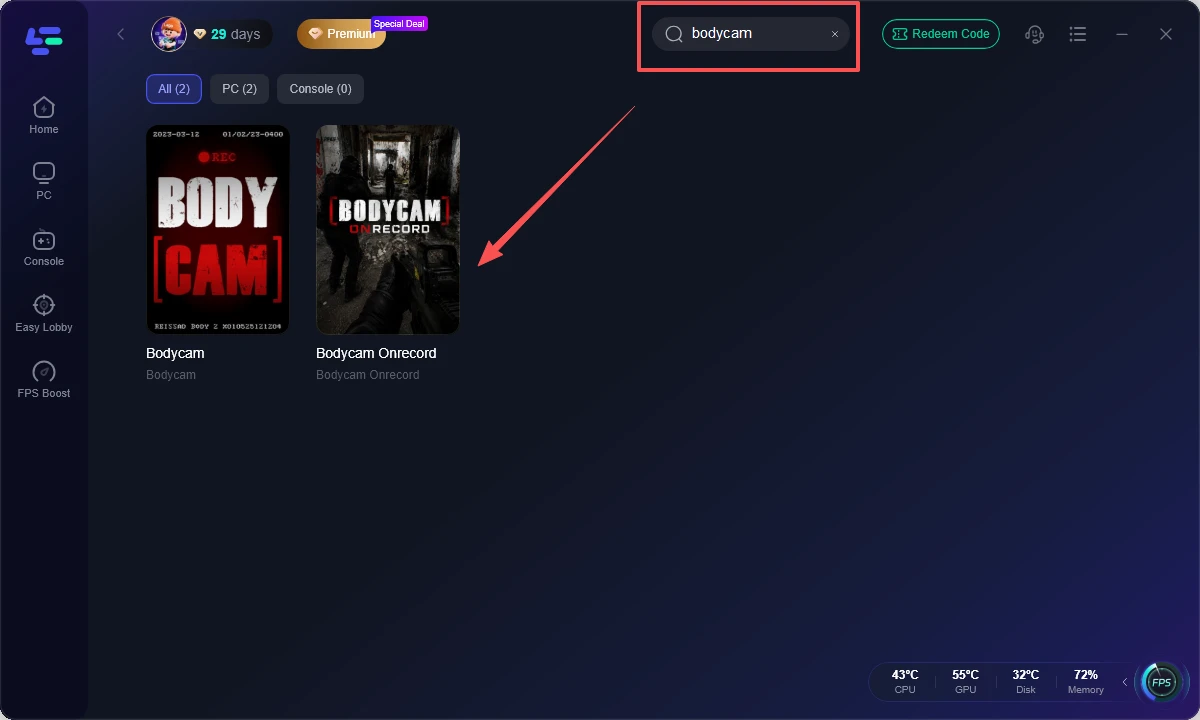
With LagoFast, you can adjust network settings to minimize latency and improve connection stability during gameplay.
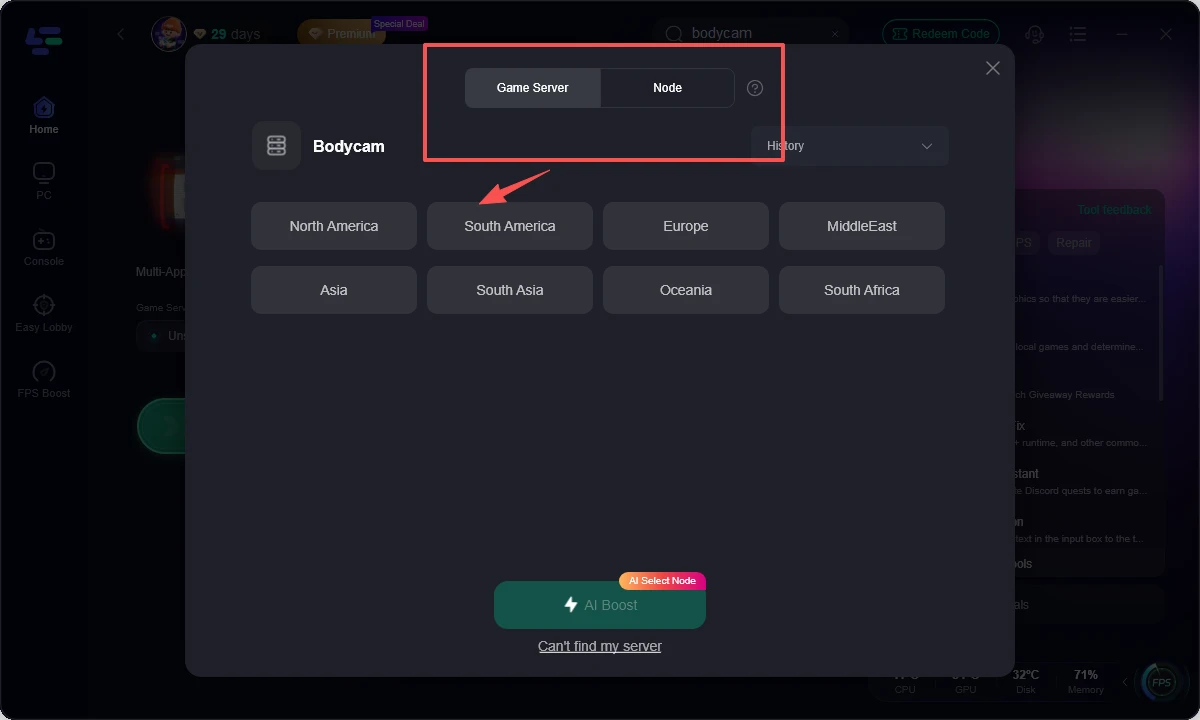
After installing LagoFast, you can easily select the appropriate game server and enjoy a smoother gaming experience with fewer connection problems.
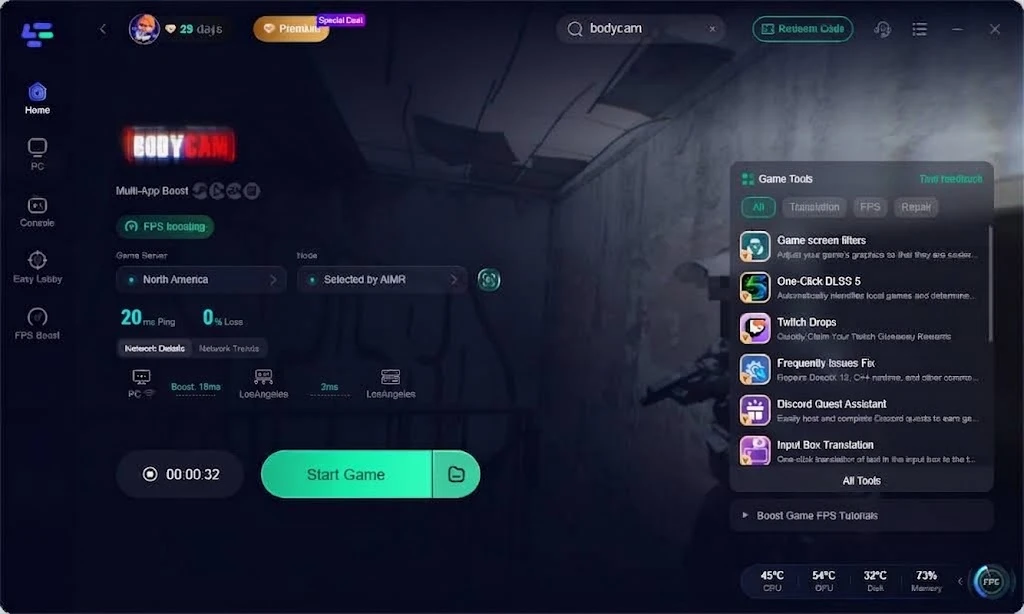

Boost Your Game with LagoFast for Epic Speed
Play harder, faster. LagoFast game booster eliminates stutter and lags on PC, mobile, or Mac—win every match!
Quickly Reduce Game Lag and Ping!
Boost FPS for Smoother Gameplay!